
As a store owner, you want your customers to get the most out of wishlists so they keep coming back and complete more purchases. This article walks through how customers create wishlists, save and manage products, add items to the cart in bulk, share their lists, and save their cart, all from the front end of your store.
Prerequisites
- WooCommerce installed and configured.
- SaveTo Wishlist Lite installed and active.
- Administrator access to your WordPress dashboard.
What Customers Can Do With Wishlists
Customers using the front-end wishlist can:
- Create their first wishlist
- Add products while browsing your store
- Create multiple wishlists for different purposes
- Add all wishlist items, or just selected ones, to the cart in bulk
- Share wishlists publicly (for gifts or recommendations)
- Check the current price and stock status of saved products
- Switch between list and grid view on the wishlist items page
- Save all cart items to a wishlist with one click
Customer Workflow (Front-End)
1. Creating a Wishlist
Option A: From the Account Dashboard
- Customers log in to their account.
- They navigate to My Account → Wishlist.
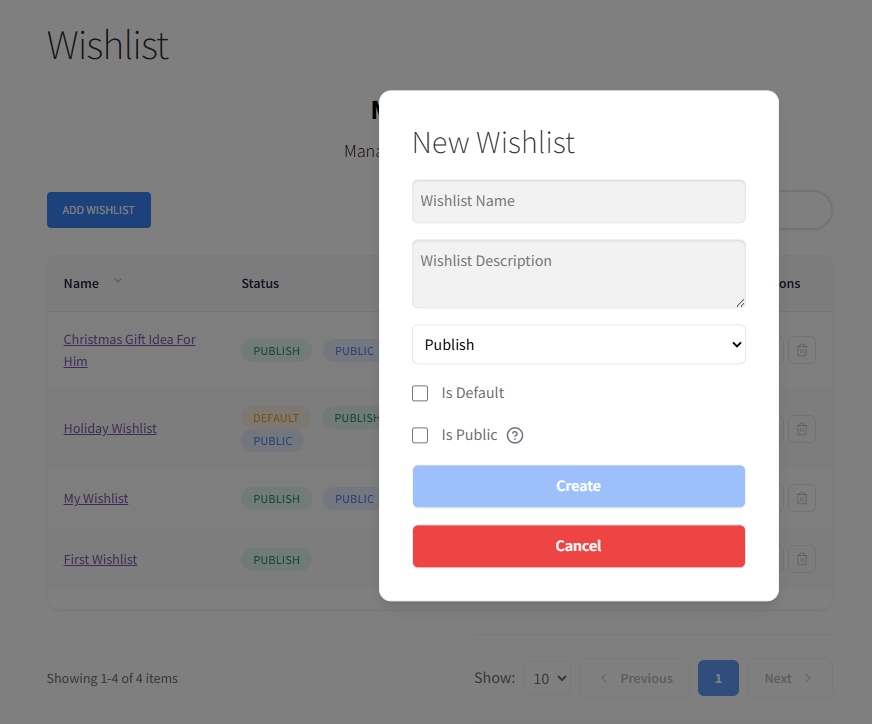
- They click Add Wishlist.
- They enter a name (e.g., “Birthday Gifts” or “Tech Wishlist”).
- They add an optional description for context.
- They enable Is Public to make it accessible for everyone, or leave it disabled to keep it private.
- They click Create.
Option B: From the first product added
- Customers browse your store.
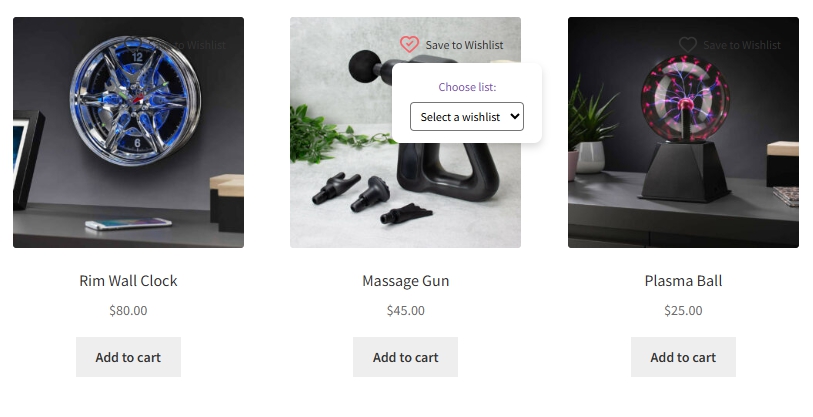
- They click Save to Wishlist on any product.
If they’re logged in, a default wishlist is created automatically. If they’re not logged in, items are stored temporarily, so they can log in later to save them permanently.
2. Adding Products
To add a product, customers click Save to Wishlist either from the product page, shop page, or cart page. They can repeat this to build their list over time. If they have multiple wishlists, a popup lets them choose which wishlist to add to.
3. Managing Wishlists
View and edit
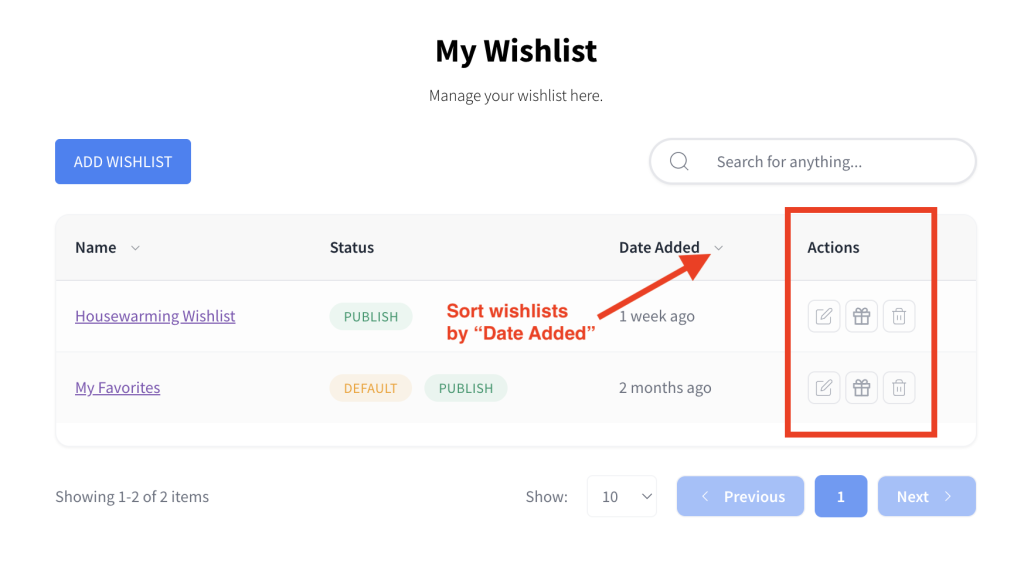
Customers access all of their wishlists via My Account → Wishlist. They can edit the wishlist name, description, visibility, or default status.
Sorting by date added
The Date Added column header on the Wishlist page is clickable. Customers can click it to sort wishlists by when they were added. The newest is shown first by default, toggling to oldest first on a second click.
Switching the layout view
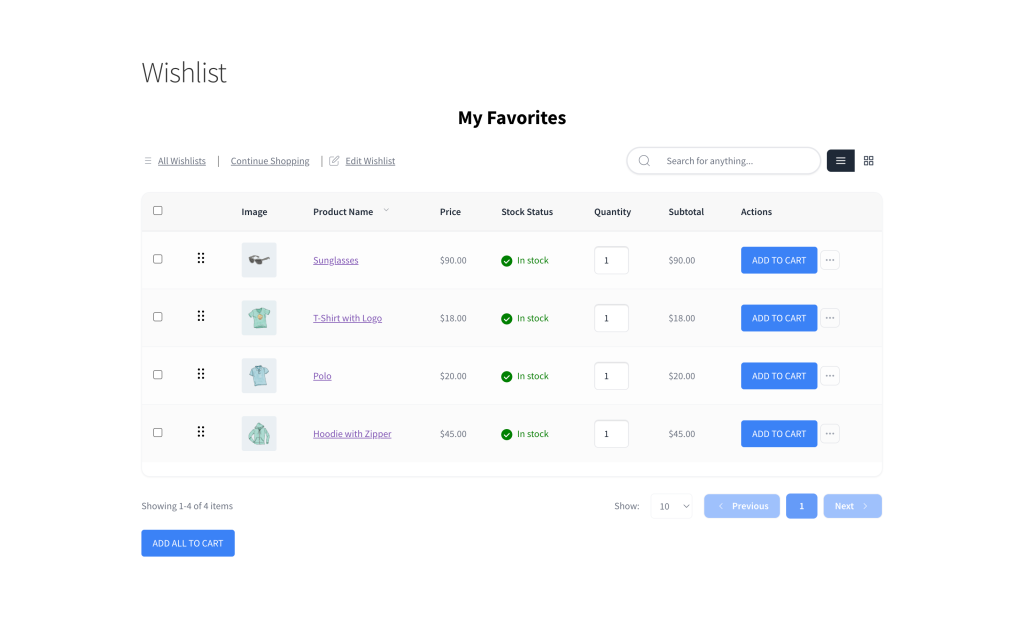
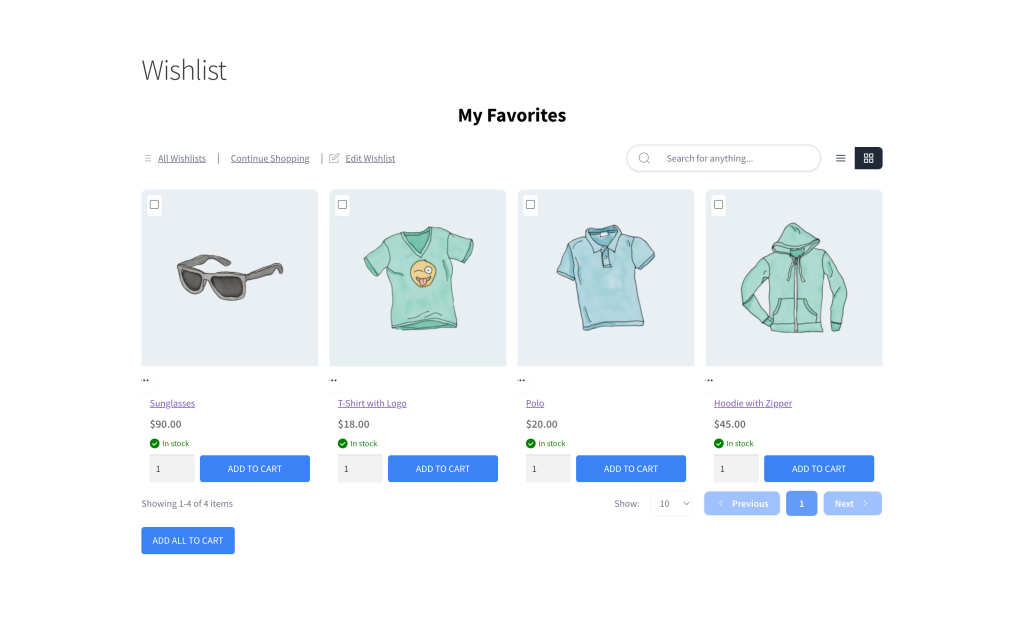
On the wishlist items page, customers can toggle between list (table) and grid (tile) view using the icons next to the search bar.
Grid view shows each product as a card with the image, name, price, stock status, quantity selector, and add-to-cart button, up to four across on desktop and one column on mobile.
The chosen view is saved per device and remembered the next time they visit.
Adding items to the cart
From the wishlist items page, customers have three ways to add products to their cart:
- Per item: Click the Add to Cart button on any row to add that product individually.
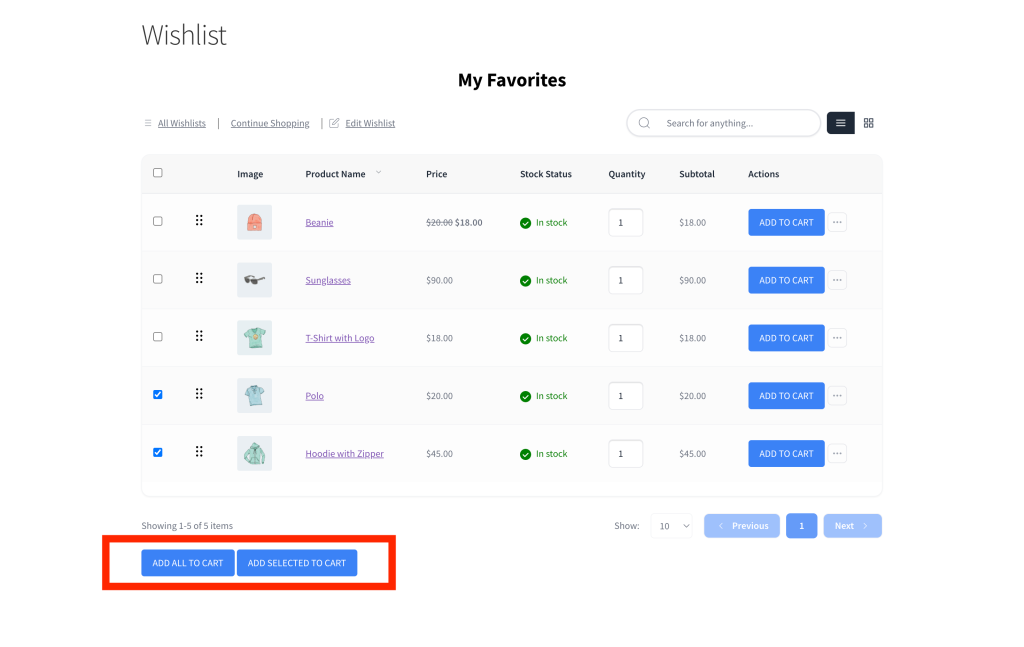
- Add All to Cart: A button in the table footer adds every item in the wishlist to the cart at once. It appears once the wishlist is published and has items in it.
- Add Selected to Cart: Tick one or more item checkboxes and an Add Selected to Cart button appears in the table footer. Click it to add only those items to the cart.
Both the Add All to Cart and Add Selected to Cart buttons appear on the logged-in wishlist page and the guest wishlist table. Their colors follow the wishlist page button styles.
Moving items between wishlists
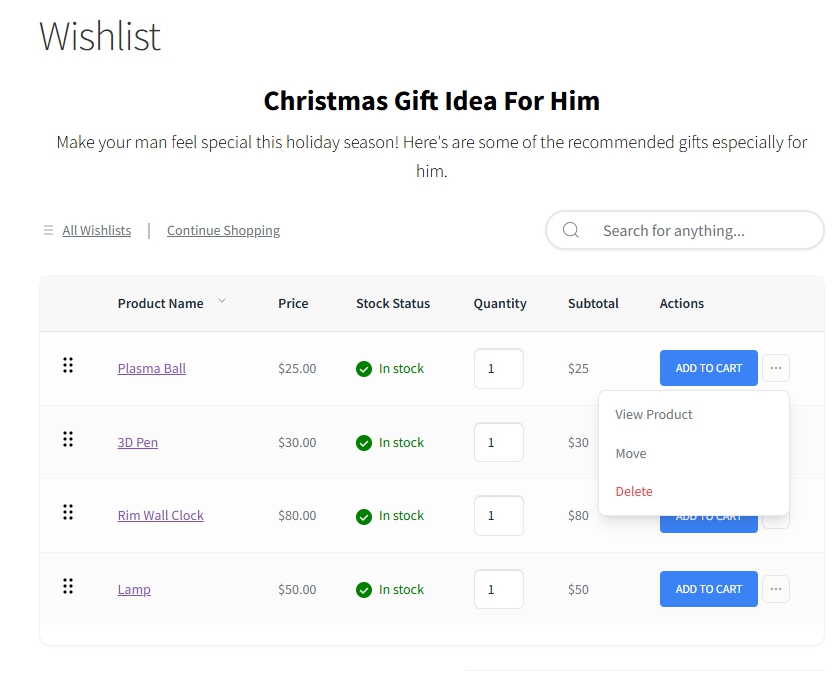
- Click the item’s triple dots button at the right corner on the list view or under the product image on the grid view.
- Choose Move, and a Move to Wishlist popup opens.
- Select the target wishlist and click Move to.
- The item is removed from the current list and added to the chosen one.
Delete items or wishlists
- Click the item’s triple dots button at the right corner on the list view or under the product image on the grid view.
- Choose Delete to remove individual items or delete entire wishlists.
- Public links are removed immediately.
4. Sharing Wishlists
Public wishlists generate a unique shareable URL.
Customers can copy the unique link with the copy icon button and paste it anywhere including social media, email, or chat. Public wishlists also show one-click share buttons for Facebook, X, Pinterest, email, and WhatsApp.
They can disable Is Public to make the wishlist private anytime.

5. Saving Your Cart to a Wishlist
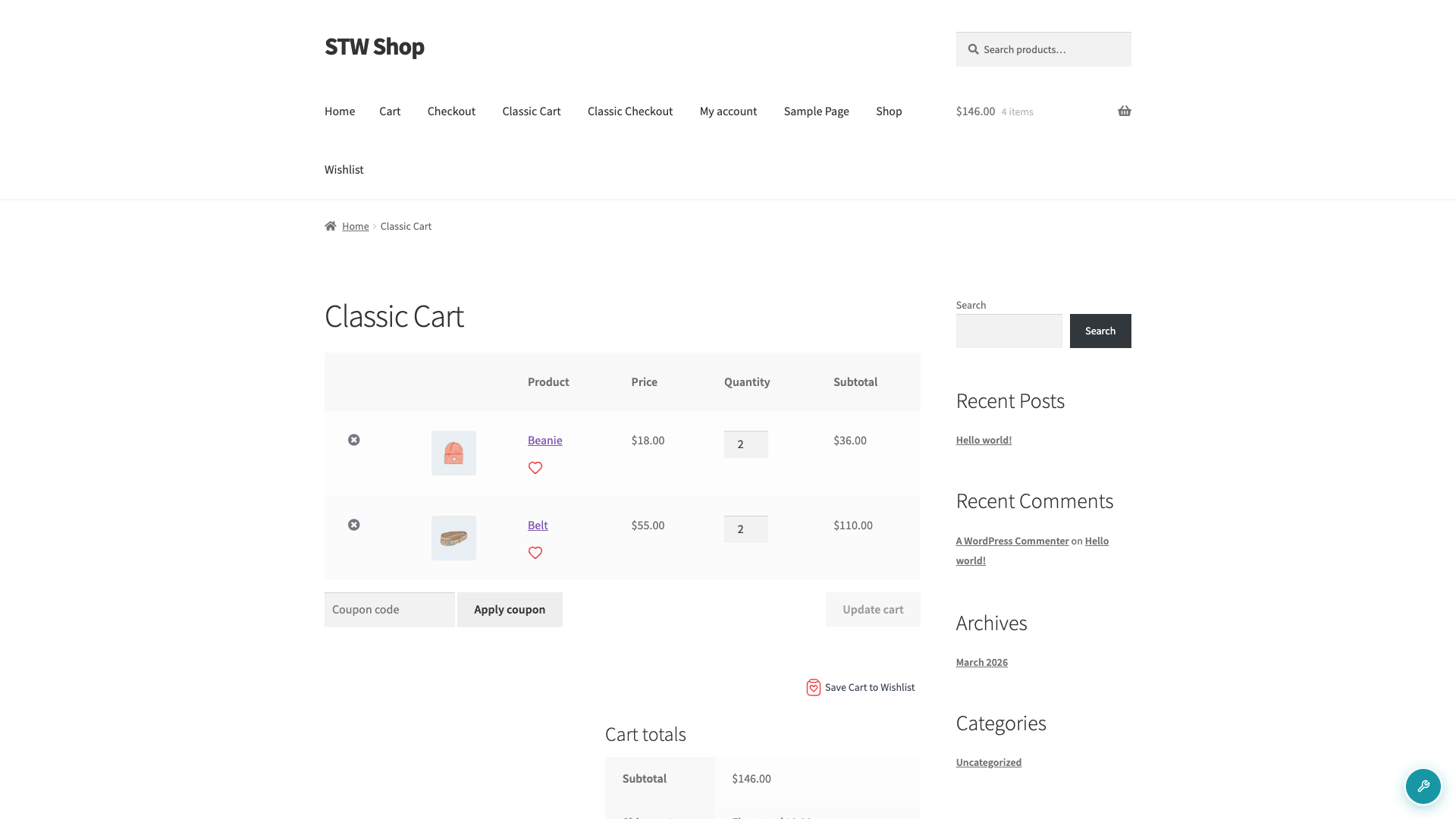
Customers can save everything in their cart to a wishlist in one click. A Save Cart to Wishlist button appears on the cart page. Clicking it adds all cart items to the customer’s default wishlist. The cart itself is not emptied. The customer must be logged in for this to work.
Troubleshooting
The Save to Wishlist button doesn’t appear on product pages.
Check that SaveTo Wishlist is active under Plugins in your WordPress Admin. If the button is enabled but still not showing, confirm the button position settings under SaveTo Wishlist → Settings → Button Placement & Styles. Some themes override product page templates. If that’s the case, you may need to contact your theme developer to adjust the hook position of these buttons.
Guest items disappear after the customer logs in.
Guest items are stored temporarily in the browser. They are automatically merged into the customer’s account on login if the browser session is still active. If items are gone, the session may have expired or the browser’s local storage was cleared. Customers can re-add any missing products after logging in.
Frequently Asked Questions
Do customers need an account to use wishlists?
No. Guest customers can add products to a wishlist and the items are stored temporarily in their browser. If they log in or create an account, the items are merged into their account automatically.
Can customers have more than one wishlist?
Yes. Logged-in customers can create as many wishlists as they like and give each one a different name and description, for example “Birthday Gifts”, “Home Office”, or “Back to School”. Each wishlist can be public or private independently.
Need Help?
- Premium users: submit a support ticket and our team will help you out.
- Free users: post in the WordPress.org support forum.

