
Want to let customers save the products they love and come back to buy them later? SaveTo Wishlist for WooCommerce adds a wishlist to your store in minutes. This guide walks you through installing the plugin, what you get out of the box, and where to go next.
What is SaveTo Wishlist?
SaveTo Wishlist adds a modern wishlist system to your WooCommerce store.
Customers can save products for later, organize them into multiple lists, share wishlists with friends and family, and quickly move saved items to the cart when they’re ready to buy.
Adding a wishlist feature helps:
- Increase conversions and repeat purchases
- Reduce cart abandonment
- Drive engagement and social sharing
- Make it easier for customers to plan purchases or gift ideas
Feature Overview
SaveTo Wishlist comes packed with everything you need to offer a smooth, flexible wishlist experience right out of the box.
Core features
- Add to Wishlist Button – Instantly add products to a wishlist from product or shop pages.
- Multiple Wishlists – Customers can create and name separate wishlists for different occasions.
- Guest Wishlists – Allow non-logged-in visitors to save items temporarily and merge them when they register or log in.
- Shareable Wishlists – Each wishlist has a unique public link that customers can share with others.
- Add All to Cart – Customers can move individual or all wishlist items directly to the cart.
- Variable Product Support – Correct product variations are saved (e.g., size, color).
- Wishlist Management in My Account – Customers can view, edit, and delete wishlists from their WooCommerce account area.
Customization & admin features
- Custom Button Styles & Text – Adjust button design, placement, and text to match your store’s branding.
- Behavior Controls – Decide what happens when items are added or purchased (stay, redirect, or remove).
- Admin Management – View, edit, or create wishlists from the backend.
- Shortcodes & Blocks – Display wishlists anywhere using shortcodes or Gutenberg blocks.
- Developer Hooks & REST API – For extending or integrating with other systems (Pro version).
Installing the Plugin
You can get started in just a few clicks:
- Go to Plugins → Add New in your WordPress admin.
- Search for SaveTo Wishlist Lite for WooCommerce.
- Click Install Now, then Activate.
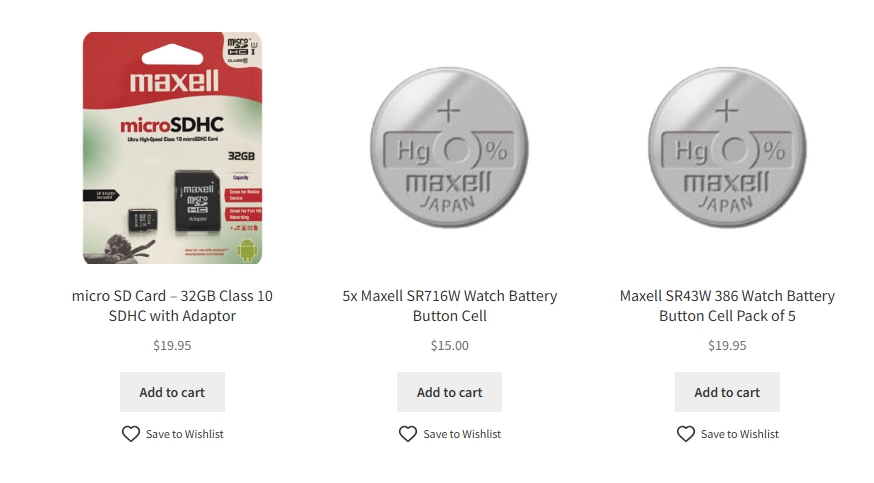
Once activated, a new Wishlist menu item appears in your admin sidebar. Visit your shop page or any product page and the Save to Wishlist button should already be there.
Installing Lite from SaveTo Wishlist Pro
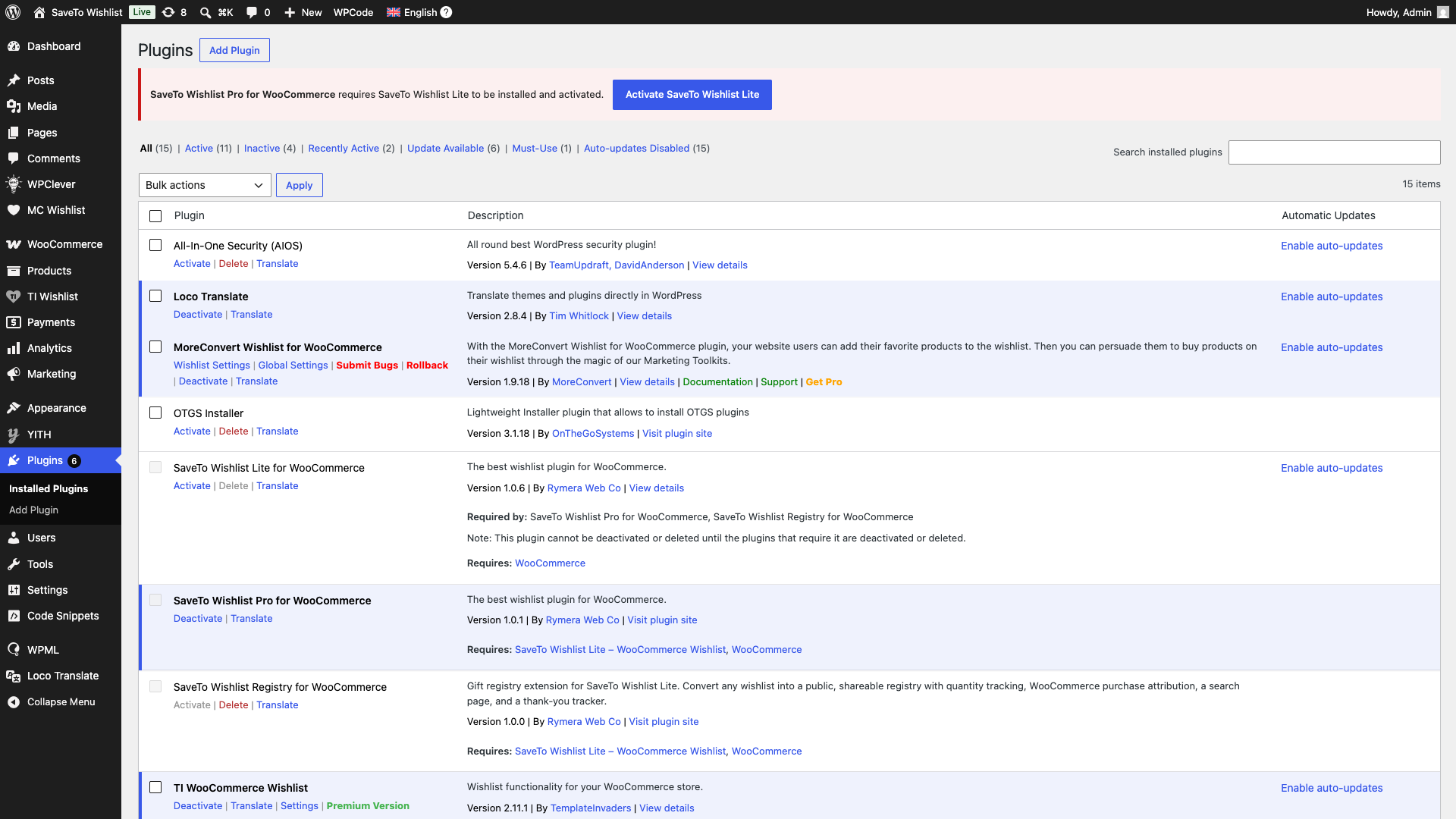
If you use SaveTo Wishlist Pro, the Lite plugin still needs to be installed and active, since Pro builds on it. You don’t need to install Lite by hand, though. When Pro is active without Lite, your dashboard shows this notice: “SaveTo Wishlist Pro for WooCommerce requires SaveTo Wishlist Lite to be installed and activated.”
Click the button in the notice to fix it in one click:
- Install SaveTo Wishlist Lite appears when Lite isn’t installed yet. One click downloads and installs it from the WordPress.org plugin directory.
- Activate SaveTo Wishlist Lite appears when Lite is installed but switched off. One click turns it on.
The notice only shows to administrators who can manage plugins. If you see a Manage Plugins button instead, your account can activate plugins but not install new ones, so the button takes you to the Plugins screen.
Next Steps
Now that you’ve set up your wishlist, you can:
- Promote it in your store’s header or sidebar
- Encourage sharing for birthdays and holidays
- Combine it with Advanced Coupons for targeted wishlist promotions
- Monitor which products are most saved to plan your marketing campaigns
Help & Support
We have a dedicated support team for SaveTo Wishlist for WooCommerce who knows our products, WooCommerce, and the industry very well. You’re welcome to make use of their expertise at any time, worldwide.
If you would like to know more about this plugin or find any issues with it, please go to the support ticket request form and send us a message.
Using the free plugin? You can also visit our community forum on WordPress.org.

