
Wishlists help your customers save products, plan purchases, and share gift ideas. As a store owner, guiding them on how to use your wishlist feature improves engagement, boosts sales, and encourages repeat visits.
Customers using the front-end wishlist can:
- Create their first wishlist
- Add products while browsing your store
- Create multiple wishlists for different purposes
- Move items to the cart for checkout
- Share wishlists publicly (for gifts or recommendations)
- Track products for price changes or availability
Customer Workflow (Front-End)
1. Creating a Wishlist
Option A: From the Account Dashboard
- Customers log in to their account.
- Navigate to My Account → Wishlists.
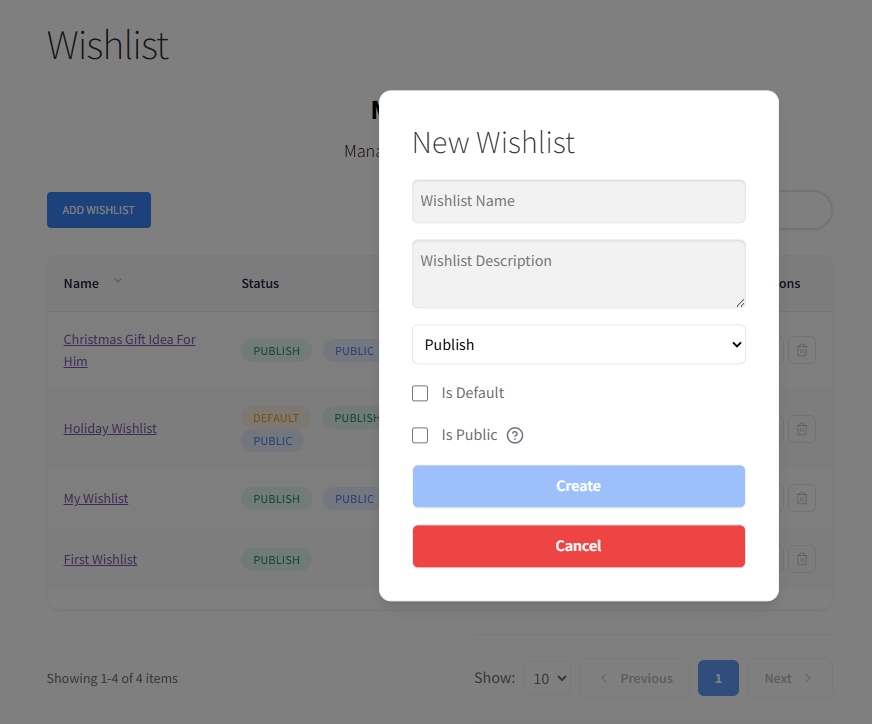
- Click “Add New Wishlist”.
- Enter a name (e.g., “Birthday Gifts” or “Tech Wishlist”).
- Add an optional description for context.
- Set Public or Private visibility.
- Click Create.
Option B: From Adding First Product
- Customer browses your store.
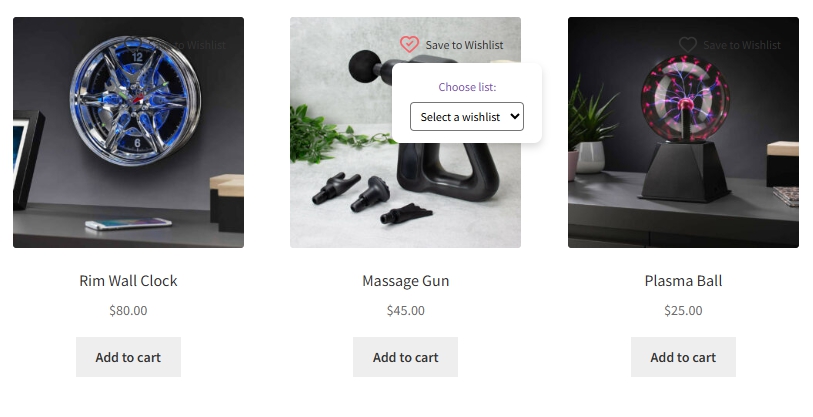
- Click “Add to Wishlist” on any product.
- If logged in, the default wishlist is created automatically.
- If not logged in, items are stored temporarily; they can log in later to save permanently.
2. Adding Products
- Single Product: Click Add to Wishlist on the product page.
- Multiple Products: Customers can repeat the process to build their wishlist over time.
- For multiple wishlists, a popup allows them to select which wishlist to add to.
3. Managing Wishlists
View & Edit:
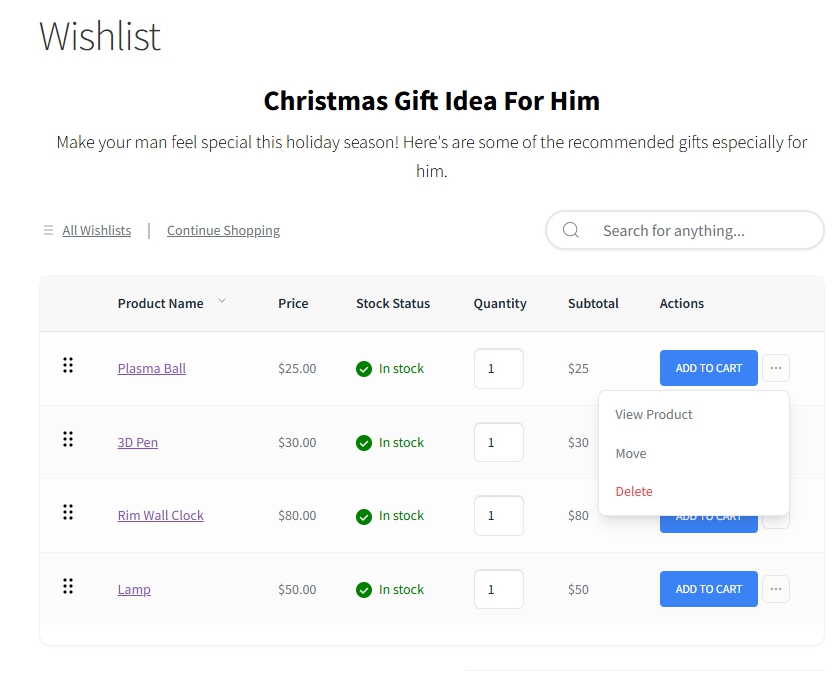
- Customers access wishlists via My Account → Wishlists.
- Edit name, description, visibility, or default status.
Move Items:
- Move items between wishlists using the “Move to…” option.
Delete Items or Wishlists:
- Remove individual items or delete entire wishlists. Public links are removed immediately.
4. Sharing Wishlists
- Public wishlists generate a unique shareable URL.
- Customers can share via social media, email, or direct link.
- They can toggle visibility back to private anytime.

Conclusion
Wishlists are a simple yet powerful tool to increase engagement and sales. By guiding your customers through the front-end workflow, you make shopping easier, encourage repeat visits, and boost your store’s conversion.
Help & Support
We have a dedicated support team for SaveTo Wishlist for WooCommerce who knows our products, WooCommerce, and the industry very well. You’re welcome to make use of their expertise at any time, worldwide.
If you would like to know more about this plugin or find any issues with it, please go to the support ticket request form and send us a message.
If you are a free plugin user, please send us a support request on the forum, we actively monitor the WordPress.org support forums for the free plugin and help our users there as best as we can.
