
 Reviewed by
 In ecommerce, an online wishlist maker is a simple tool that helps you turn window shoppers into customers. Essentially, it lets people save products they like so they can find them again later when they’re ready to purchase.
The free WooCommerce plugin SaveTo Wishlist, a.k.a. SaveTo Wishlist Lite, is a practical, real-world example of this tool. When shoppers can add products to multiple lists, it helps them organize their interests, share the items they like with friends and family, and more—which we’ve seen work well across many WooCommerce stores.
Furthermore, a wishlist plugin helps store owners by boosting sales, reducing cart abandonment, and providing other benefits.
In this guide, we’ll explore SaveTo Wishlist’s core features and how store owners can use them to benefit themselves and shoppers alike.
So let’s jump right in!
Table Of Contents
What Is A Wishlist In Ecommerce?
In online stores, a wishlist is a feature that lets shoppers save products they like by adding them to a list. This way, shoppers can keep track of their favorite products, encouraging them to return and buy them when they’re ready.
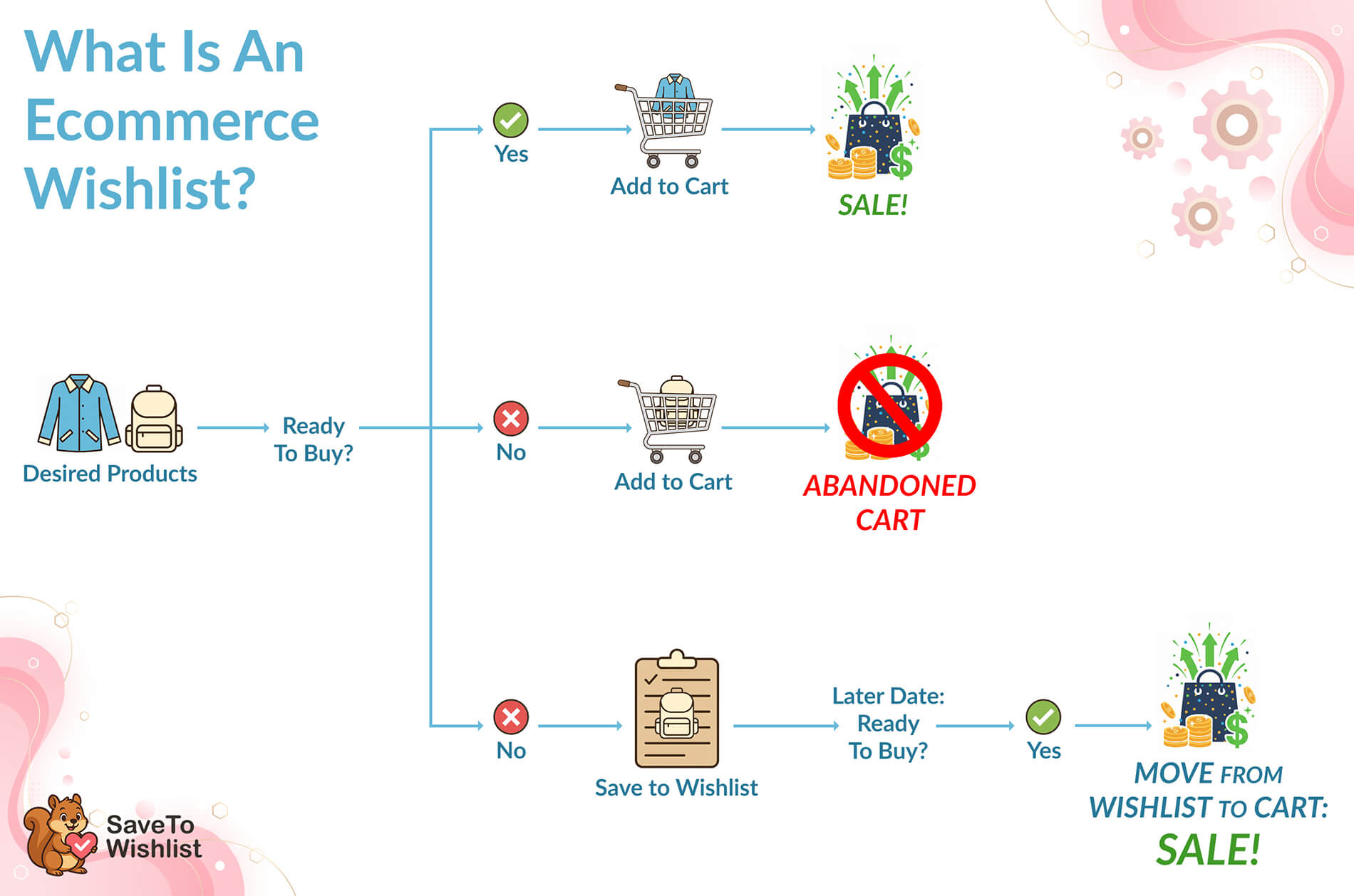
Remember, not everyone makes a purchase on their first visit. In fact, the Baymard Institute discovered that more than 70% of shoppers add items to their carts but never finish the purchase.
With wishlists, you can prevent lost sale opportunities by boosting the chances of a sale whenever a shopper comes back to your store.
The most effective wishlist tools do more than just store items. They also include features that simplify the shopping process and maximize your sales.
Would you like to know more about wishlists? Then check out the following guide:
What Is A Wishlist And Why Is It Crucial In Ecommerce? (Easy WooCommerce Guide)

Curious about how customers create and manage wishlists? Then read our full guide here:
How Customers Create An Online Wishlist (Easy Guide For Store Owners)
What is SaveTo Wishlist?
SaveTo Wishlist is a free online wishlist maker that we built to help WooCommerce store owners easily add a wishlist feature to their stores. It comes with many essential features that other tools hide behind a paywall.
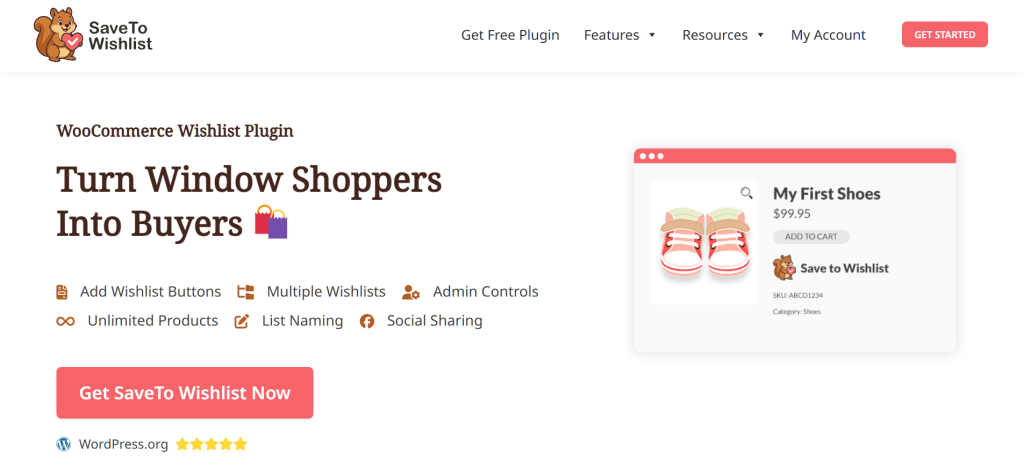
In this article, we’ll look at these features and show you how to set them up. Additionally, we’ll explain how they can help you get more sales.
Online Wishlist Maker: Key Features And How To Use Them
Now, it’s time to explore SaveTo Wishlist’s free features, starting with…
1. My Wishlist Page
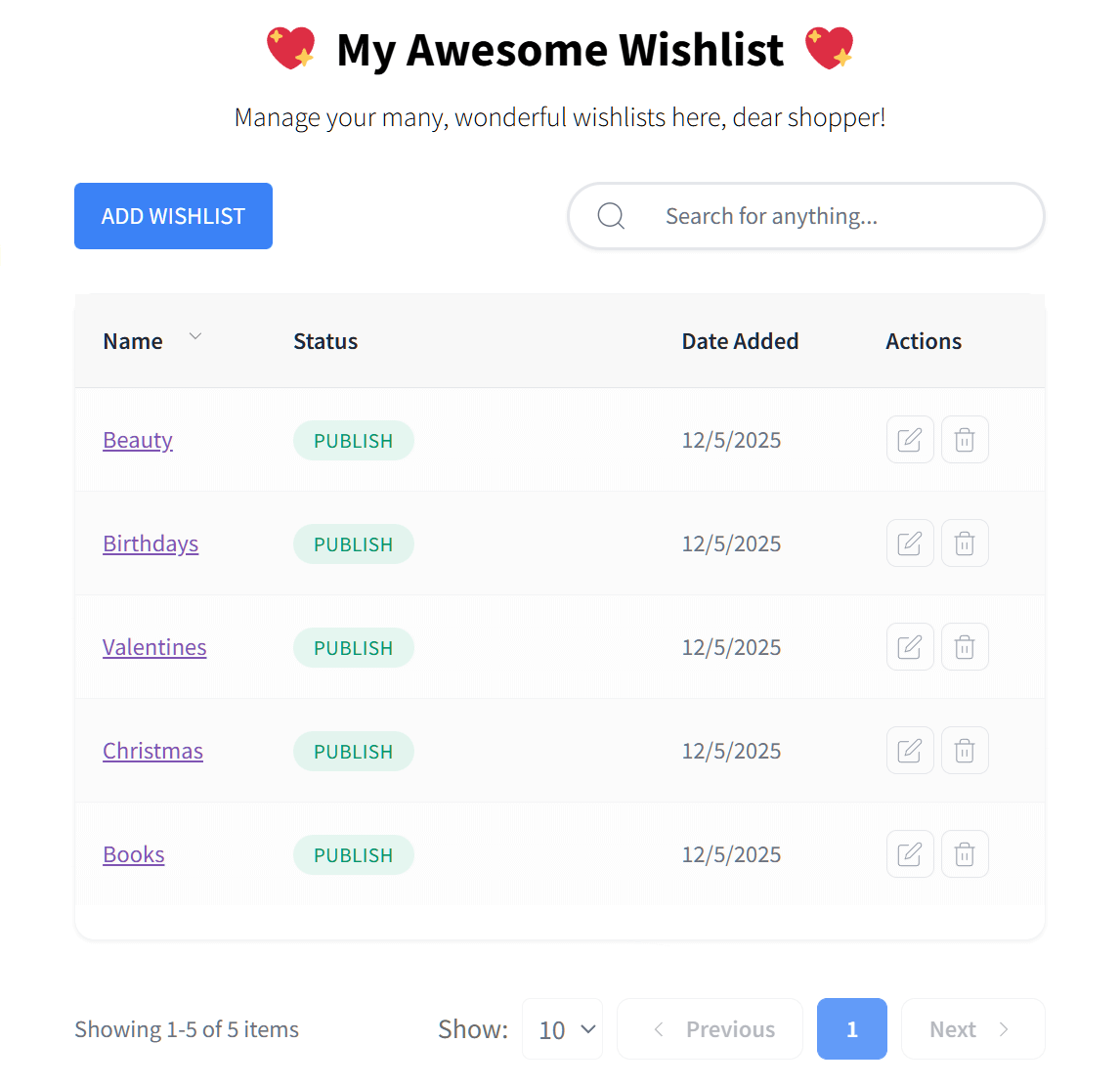
The My Wishlist Page is the central hub where your customers manage all the items they’ve saved. Instead of searching through your entire store again, shoppers can find everything they like in one organized place.
How it works
Once you install the plugin, a dedicated Wishlist tab is added to the customer’s account page. From here, shoppers have full control over their saved items.
For instance, shoppers can create new wishlists, edit existing ones, or delete those they no longer need. They can even rename them (like “Gifts for Friends” or “Style Wishlist”) to stay organized—a feature most other plugins make you pay for.
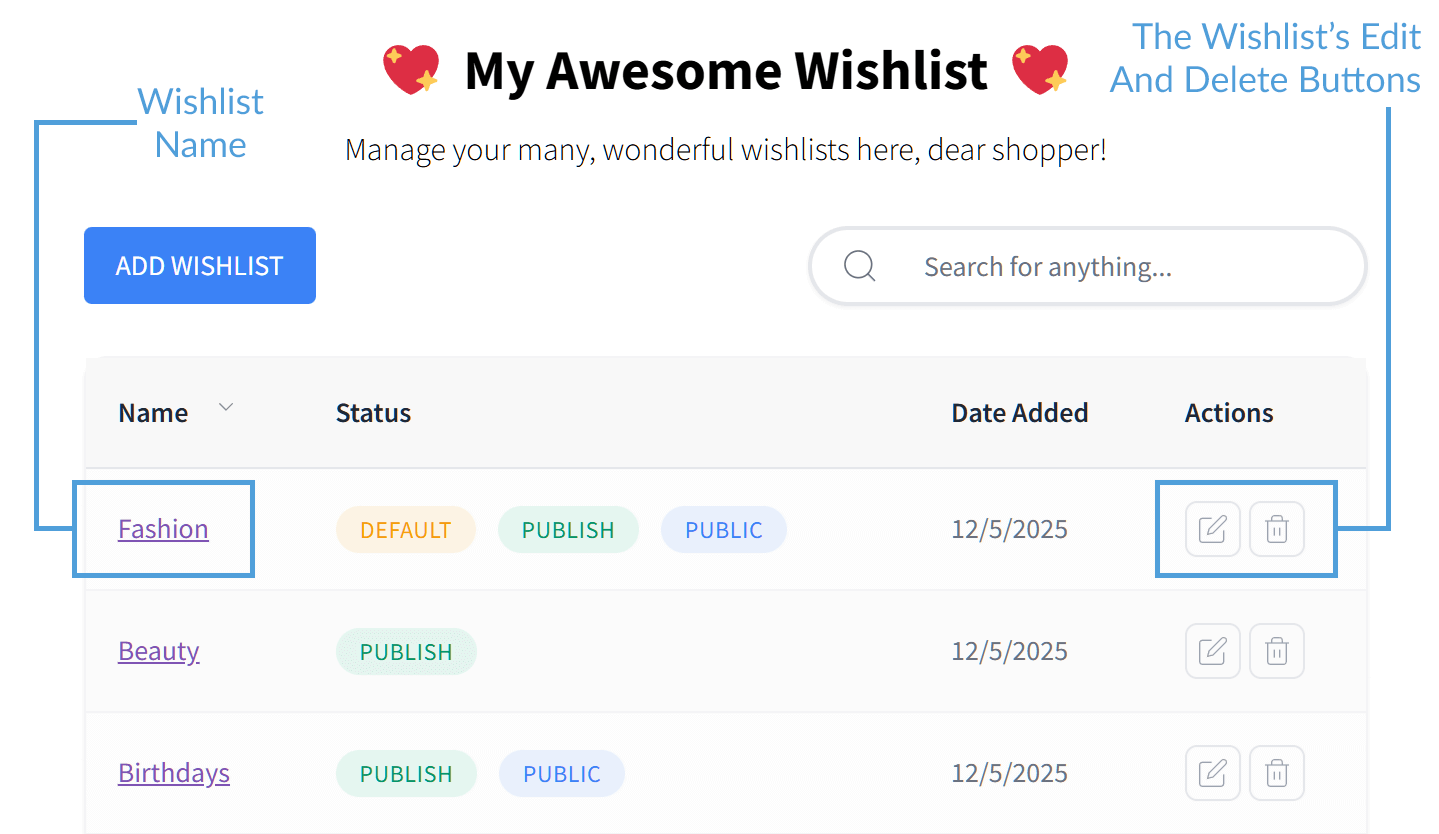
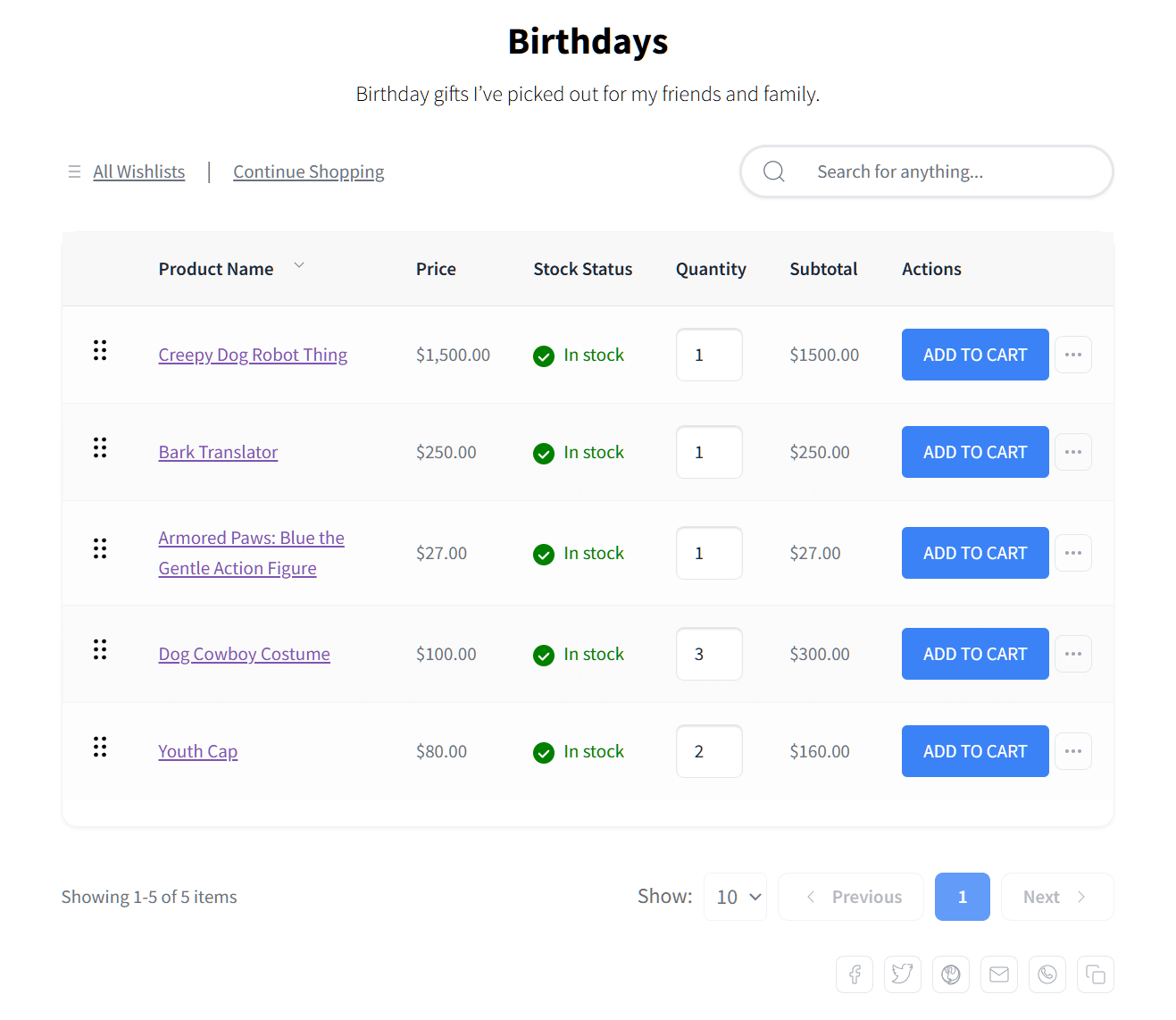
Of course, the My Wishlist page is also where customers can access their individual wishlists. For example, if Ella wants to view all the birthday products she’s saved, all she has to do is click her “Birthdays” wishlist.
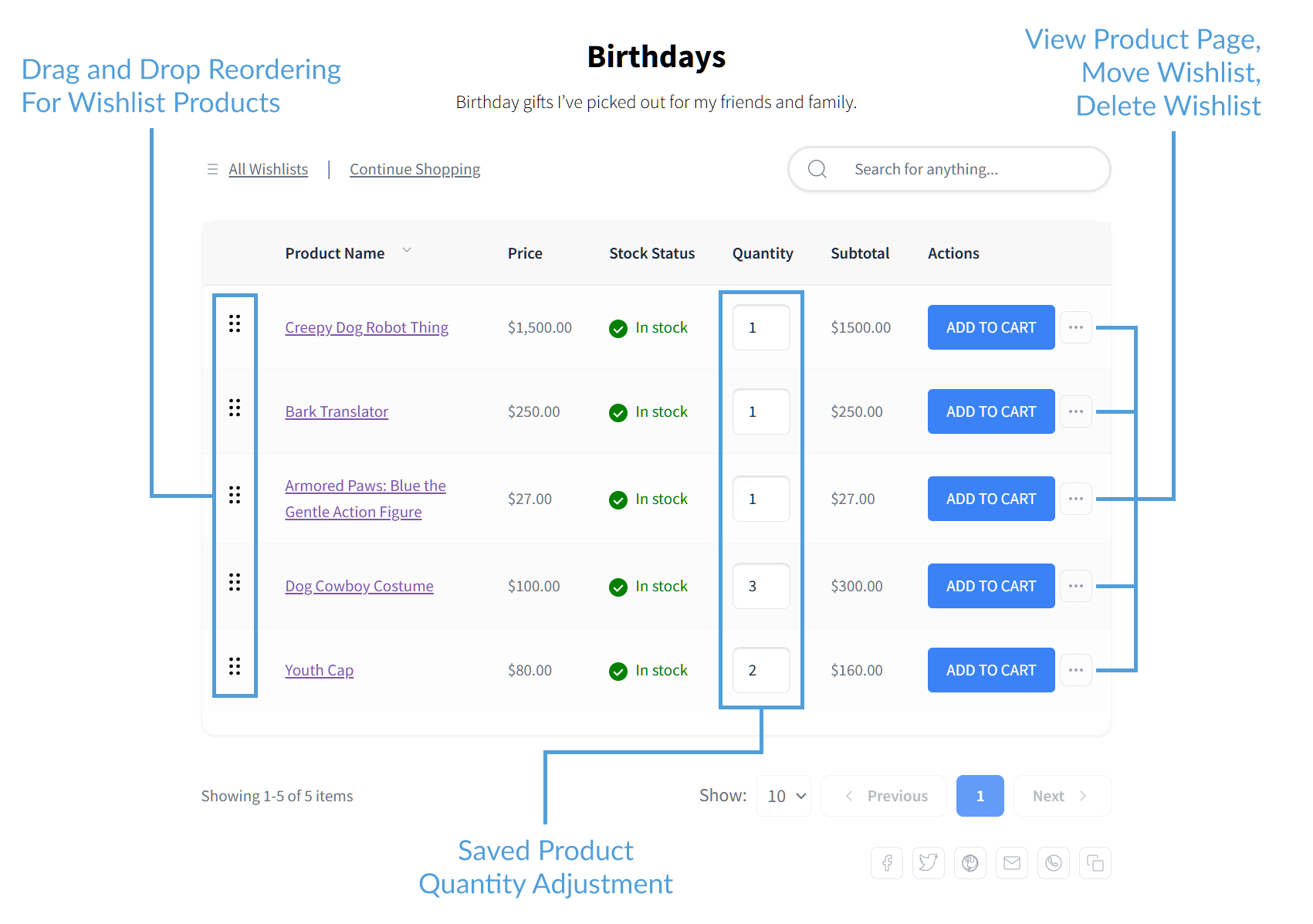
Customers can manage the items inside their wishlists, too. For instance, they can delete products, add them to their cart, change the quantity of saved items, or move them to a different list. They can even use drag-and-drop to rearrange their favorite products.
These are all features that most other plugins don’t offer for free.
Lastly, shoppers can use the share buttons at the bottom of the page to share their wishlists with others.
Why it’s helpful for your store
The My Wishlist Page allows customers to enjoy the following benefits:
- Easy access: It motivates customers to keep logging in and engaging with your site because their favorite items are always just one click away.
- Mobile-friendly: The page is designed to look and perform perfectly on phones, tablets, and computers. Therefore, it lets customers shop whenever they want.
- Simple management: Customers can easily create new lists, rename them, or share them with friends and family using a public link. Giving shoppers total control over their lists makes their experience more enjoyable and helps them stay connected to your store.
Industry research shows that 88% of online shoppers won’t return to a site after a single bad experience.
Thus, when you give customers a fast and convenient way to manage their favorites, you make it much easier for them to eventually hit the “buy” button. This boosts the likelihood of your store making additional sales.
Furthermore, by encouraging customers to return, a dedicated wishlist page helps prevent cart abandonment.
How to set it up
Setting up a My Wishlist Page for your store is easy.
First, go to your WordPress dashboard. Then, click SaveTo Wishlist > Settings > Wishlist Page. Basically, this takes you to a page where you can configure the Wishlist Page settings.
As shown in the image below, you can name your My Wishlist Page. You can also create a description for it.
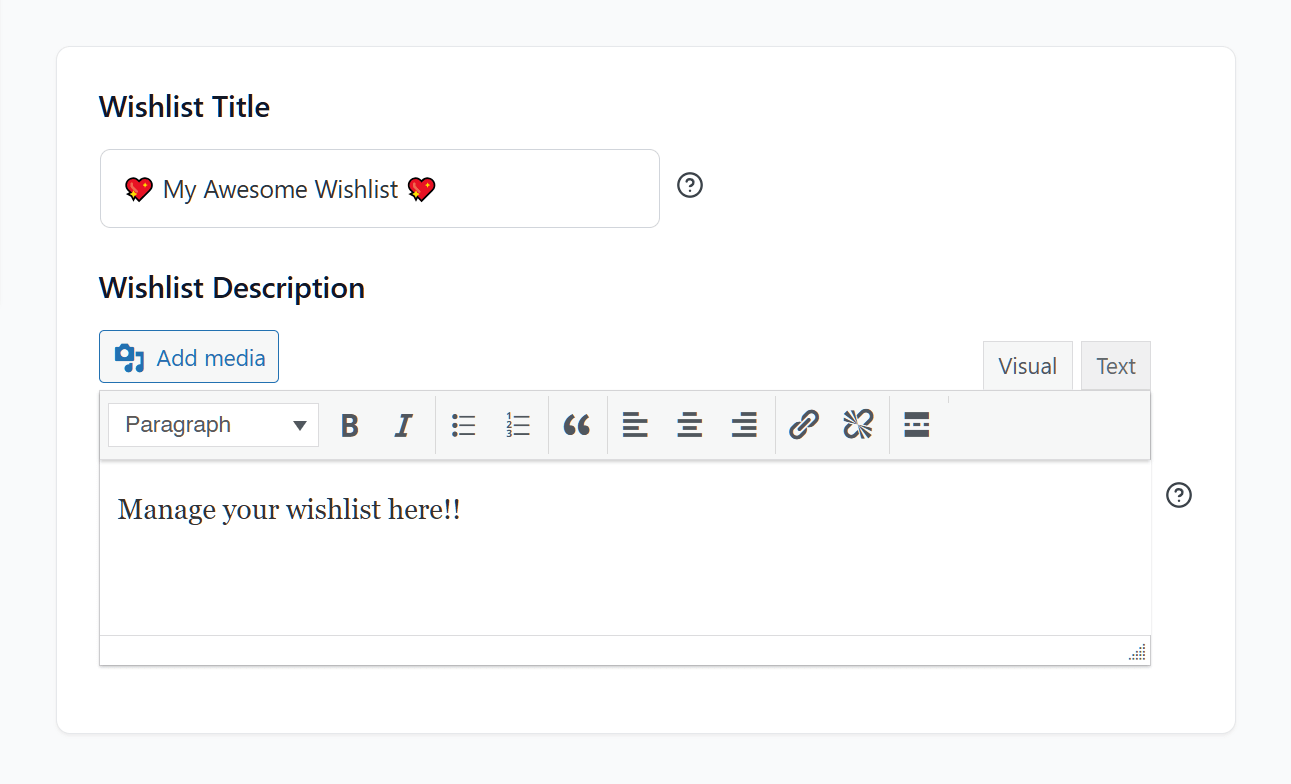
Of course, you can turn the wishlist feature on and off.
Don’t forget to click the Save Changes button before moving on to the next step!
2. Multiple Wishlists
Most wishlist plugins only allow customers to have one list unless they pay for a premium version. However, SaveTo Wishlist changes that by letting your shoppers create as many lists as they want for free.
With Multiple Wishlists, shoppers can stay organized, making it more likely they’ll return to your store to finish their shopping.
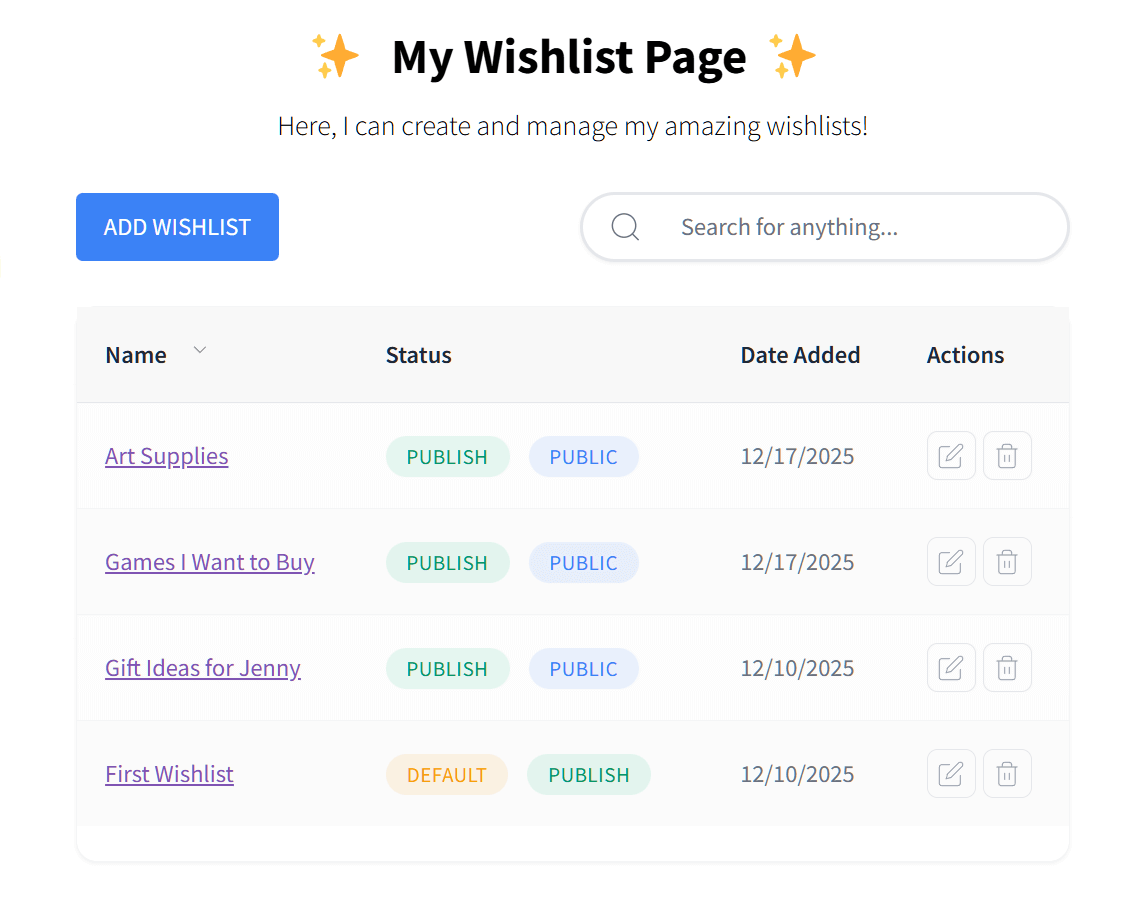
How it works
When a customer finds a product they want to save, they can click its “Save to Wishlist” button to add it to their default list.
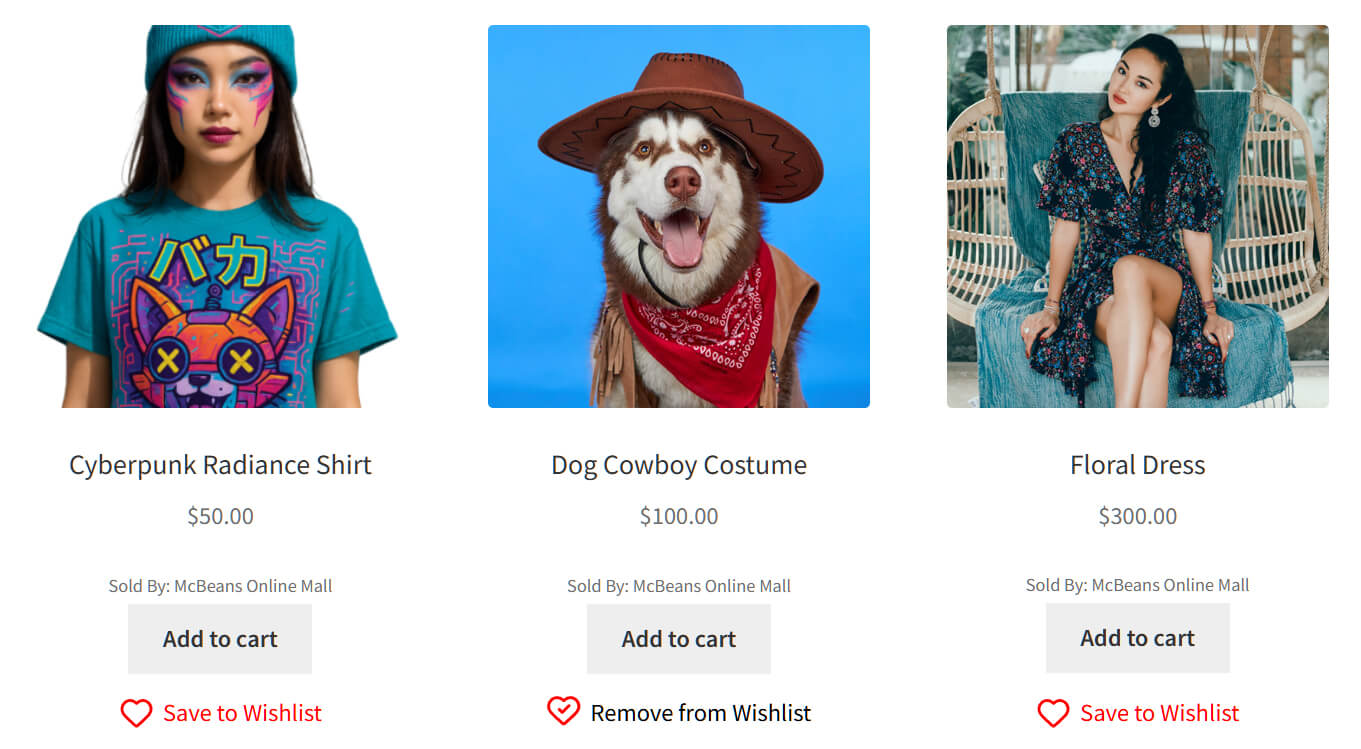
Alternatively, they can hover the mouse cursor over the button to open a dropdown menu. This allows them to choose a specific list from their collection.

This allows customers to group products by category, like saving art tools in an “Art Supplies” list and video games in a “Games I Want to Buy” list.
When shoppers keep items in separate categories, they can stay organized and focused. This prevents the confusion and frustration that often stop someone from buying.
Why it’s helpful for your store
An online wishlist maker that allows shoppers to create and manage multiple wishlists can be good for business.
- Better organization: Customers can sort products by event or theme, making it much easier for them to manage their favorite items.
- Specific goal planning: Shoppers can keep their “Birthday Ideas” separate from their “Home Office Upgrades.” This keeps them coming back to your store for every different occasion in their lives.
- Easier sharing: People are more likely to share a small, specific list (like “Wedding Registry”) than a big, general one. This brings more people to your site through word-of-mouth.
When you grant your customers the freedom to create multiple wishlists, you aren’t just helping them stay organized. You’re also making your store the go-to place for all their future shopping needs.
Remember, customers who find it easy to plan, save, and share their favorite items are much more likely to return and complete their purchase.
How to set up Multiple Wishlists
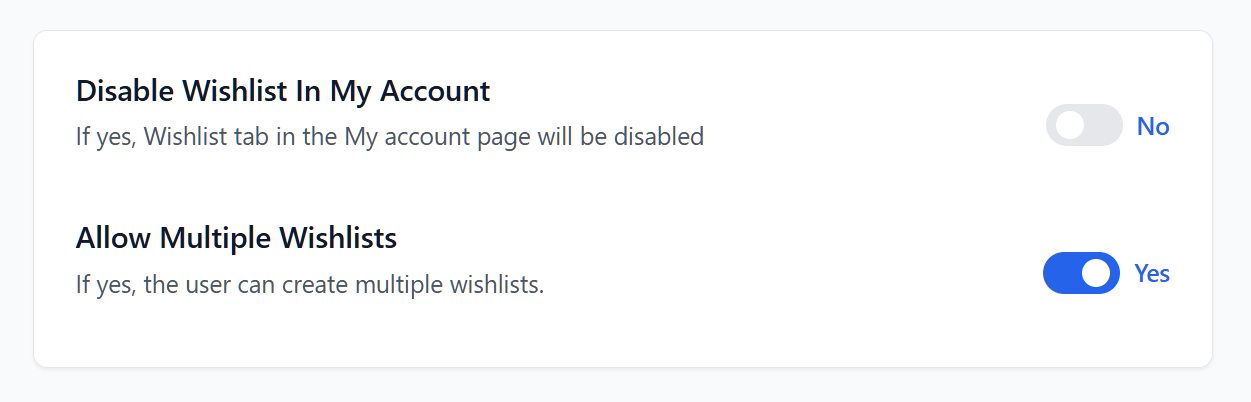
Head to your WordPress dashboard and click SaveTo Wishlist > Settings > Wishlist Page.
Scroll down to Allow Multiple Wishlists option. Activate or deactivate it by toggling its button on or off.
3. Wishlist Customization
Your wishlist shouldn’t look like a generic add-on; it should feel like a natural part of your store. Thankfully, SaveTo Wishlist’s Wishlist Customization gives you the tools to change the look and placement of your wishlist buttons so they match your brand perfectly.
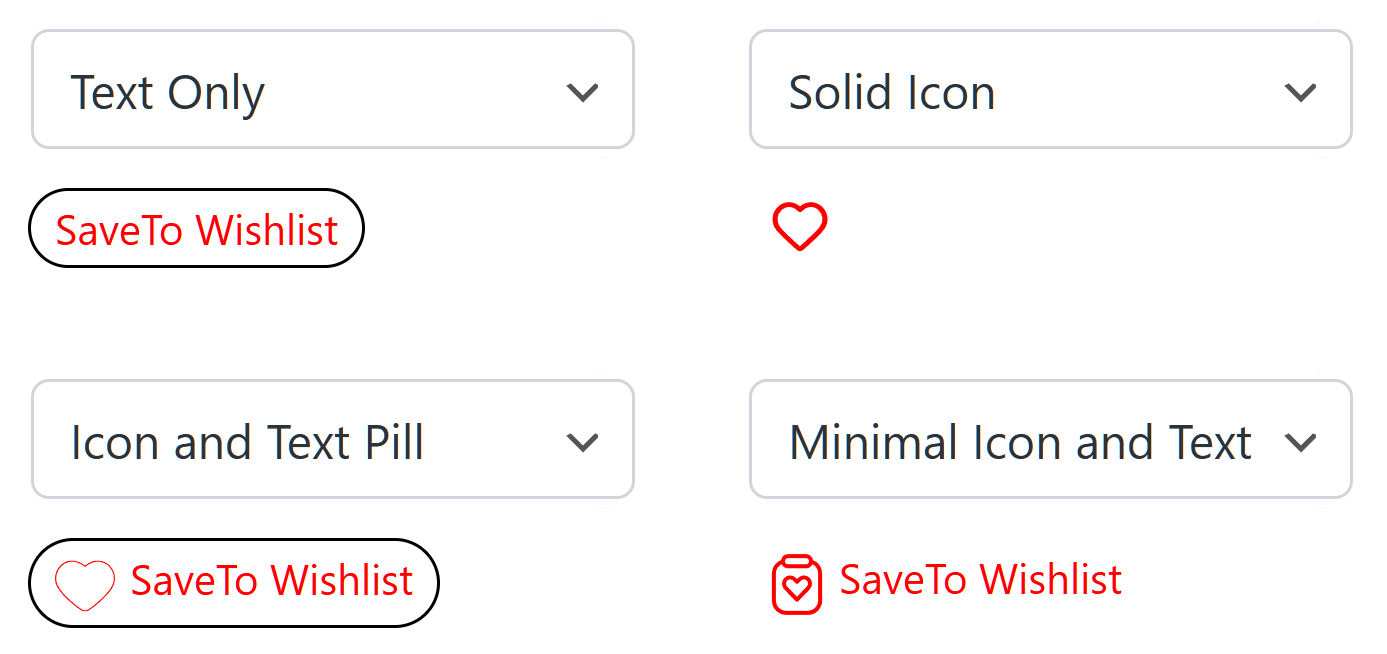
For example, you can change the appearance of your wishlist buttons, as shown below:
How it works
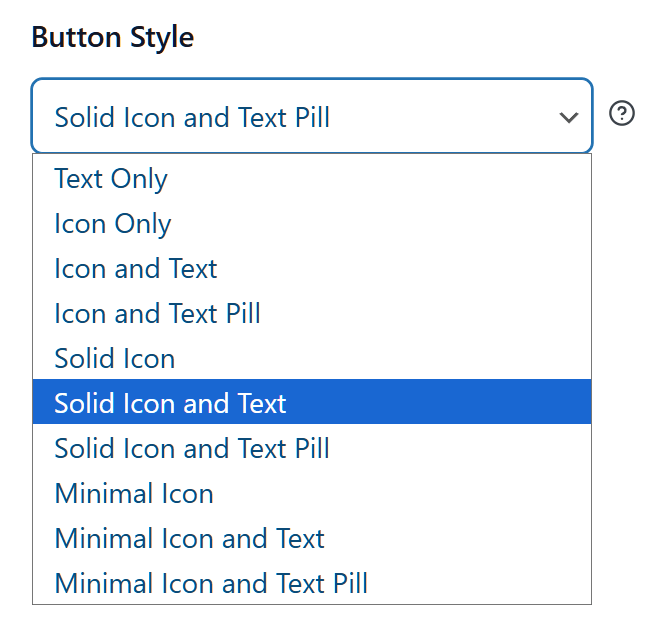
The plugin allows you to change almost everything about the “Save to Wishlist” button. For example, you can choose from various button styles to make sure it fits your theme.
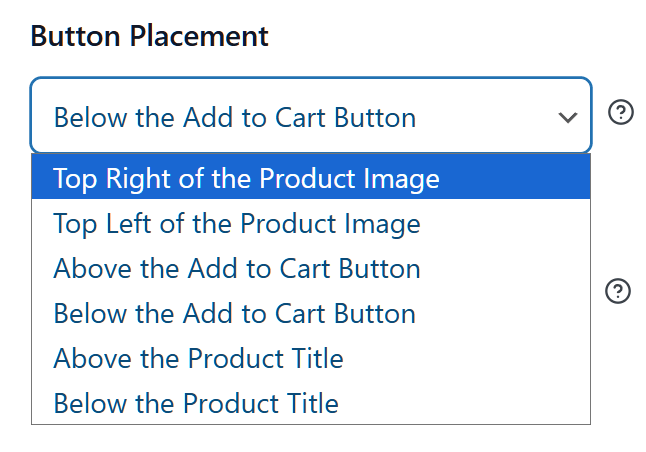
Moreover, you can decide exactly where the button appears on your product pages, like right under the “Add to Cart” button or near the product title.

Why it’s helpful for your store
Changing how your online wishlist app displays wishlist buttons can do wonders for your store.
- Consistent branding: When you match the button colors and fonts to your site, you create a professional look that builds trust with your customers.
- Better visibility: You can place the button in the spot where your customers are most likely to see it. Basically, this makes it easier for them to save products.
- Personal touch: You can even change the text on the button. For instance, instead of “Save to Wishlist,” you could use something that fits your store’s personality, like “Add to My Collection.”
Customizing your wishlist isn’t just about making things look pretty. It’s about removing “friction”—the small things that might annoy or confuse a shopper. When the wishlist feels like a natural part of your store, it becomes a tool that helps you turn casual browsers into loyal customers.
How to set up Wishlist Customization
To start personalizing your buttons, navigate to SaveTo Wishlist > Settings > Button Placement & Styles in your WordPress dashboard. Then, implement the following steps:
i. Change the text
You can change the words that appear on your wishlist buttons. For instance, you can have them say “Add to My Favorites List” instead of “Save to Wishlist.”
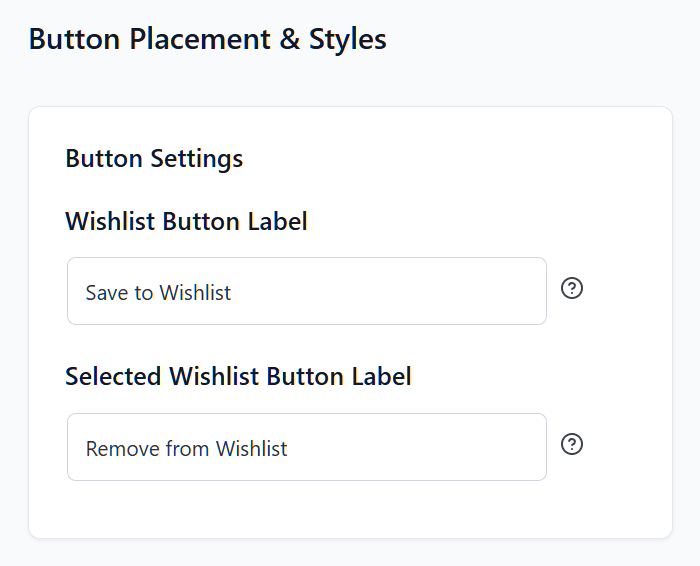
It’s even possible to adjust the font size and style (normal vs italic).
ii. Pick the button position
You can also use a dropdown to choose the location of the wishlist buttons on your shop page, product pages, and cart page
iii. Choose the button style
Moreover, you can customize the color and shape of the buttons on your shop page, product pages, and cart page.

Once again, click the Save Changes button at the bottom of the page.
4. Admin Controls
As a store owner, you shouldn’t just set up a wishlist and hope for the best.
Fortunately, SaveTo Wishlist’s Admin Controls allow you to peek behind the scenes and manage how wishlists work from the backend of your website. In other words, this online wishlist app grants you the power to help your customers and keep everything running smoothly.
How it works
To access the Admin Controls, return to your WordPress dashboard. Then, click SaveTo Wishlist > All Wishlists.
This takes you to the Wishlists Lists page, where you can find all the wishlists your customers have made.
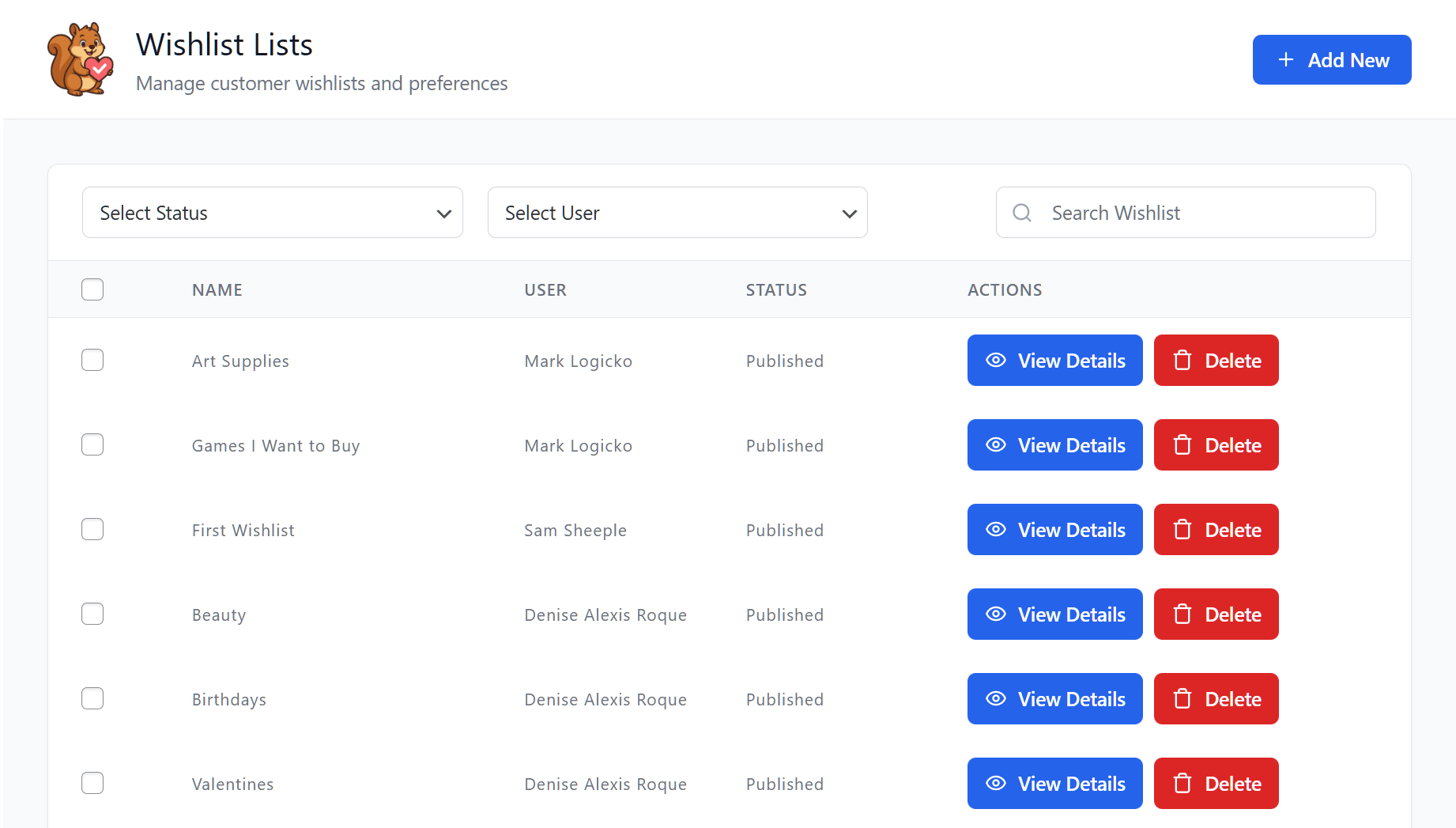
From here, you can create, view, delete, or search for wishlists.
For store owners, creating or editing a wishlist follows the same process as it does for customers. For instance, you can give the wishlist a name and description or change its visibility settings.
In addition, each item on the list can be viewed, edited, or removed by the store owner.
If a customer has a question about a saved item or needs help organizing their lists, Admin Controls lets you step in to assist. Furthermore, you can generate shareable links for any wishlist, making it easy to help customers show off their favorite products to friends or on social media.
Why it’s helpful for your store
When an online wishlist maker offers you access to Admin Controls, you gain the power to manage your store’s data and support your shoppers like a pro.
- Smarter insights: Looking at what customers are saving provides you with a better idea of which products are popular, helping you decide what to put on sale or restock.
- Better customer support: If a shopper is having trouble managing their saved items, you can quickly jump in and fix the issue from the admin area.
- Controlled sharing: You can create links for wishlists, giving you more control over how and when people access those lists.
Having strong admin tools means you’re always in the driver’s seat. Instead of just providing a feature, you’re actively managing the shopping experience to make it as easy as possible for your customers.
How to set up Admin Controls
Once you install and activate SaveTo Wishlist, the online wishlist maker automatically sets up your Admin Controls. Thus, you immediately gain full authority to manage, edit, and oversee every wishlist created on your site directly from your WordPress dashboard.
5. Guest User Wishlists
Most shoppers want to browse a store before they decide to sign up for an account. Guest User Wishlists let visitors save products they like without having to log in or register first. This removes any extra steps for the customer and makes them more likely to start engaging with your store right away.
How it works
When a guest visits your site, they can click the “Save to Wishlist” button just like a registered user. The items are saved locally in their web browser.
If the customer eventually decides to create an account or log in, their guest wishlist automatically “merges” with their new account. This means they won’t lose any of the products they spent time finding.
Why it’s helpful for your store
Offering guest wishlists is one of the best ways to turn casual visitors into future customers. After all, it makes the shopping experience easy from the get-go.
- Lower barriers: Guests can start saving items instantly without the “friction” of a sign-up form.
- Automatic syncing: When a guest logs in later, their items follow them to their account, making the transition from “browser” to “customer” completely seamless.
- Dedicated guest page: Even without an account, guests get a special page where they can view and manage their saved items during their visit.
According to Forbes, 43% of shoppers prefer using guest checkout. Surprisingly, 72% of these people choose the guest option even when they already have an account with the store.
Thus, by letting guests use wishlists, you capture interest from the very first visit. It’s a great way to keep people interested in your products until they’re ready to make a purchase.
How to set up Guest User Wishlists
To control how guests use wishlists on your site, go to your WordPress dashboard. Then, head to SaveTo Wishlist > Settings > Guest Options.
Enable guest access by turning off the Disable Guest Wishlist toggle. This ensures that everyone visiting your site can use the feature.
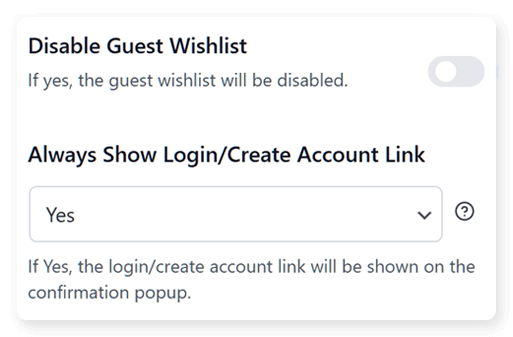
You can also encourage registration by setting the Always Show Login/Create Account Link option to “Yes.” This will show a small link in the wishlist pop-up that invites guests to sign up so they can save their list permanently.
Conclusion
Choosing the right online wishlist maker is about more than just adding a button to your site. It’s also about creating a better shopping experience.
When you use SaveTo Wishlist Lite, you give your customers the freedom to organize their favorite products and share them with the world. From guest wishlists to full admin control, these free features help you reduce cart abandonment and build a loyal customer base.
To recap, this article explored SaveTo Wishlist’s core features:
So, are you ready to see more “buy” clicks and fewer window shoppers? Then consider using an online wishlist maker—download SaveTo Wishlist for free!
Online Wishlist Maker FAQs
What is an online wishlist maker in ecommerce?
An online wishlist maker is a simple tool that helps shoppers save products they like, so they can find them again later when they’re ready to purchase. Thus, it helps turn window shoppers into potential buyers.
How does the SaveTo Wishlist plugin benefit my ecommerce store?
SaveTo Wishlist is a free online wishlist maker for WooCommerce. Basically, it adds wishlist features to your online store, allowing customers to organize, share, and manage their favorite products. Consequently, it helps boost sales and reduce cart abandonment.
What are the key features of the free SaveTo Wishlist tool?
The key features include the My Wishlist Page, multiple wishlists creation, customization options for button look and placement, admin controls for store owners, and support for guest user wishlists.
How can I set up the My Wishlist Page for my store?
To set up the My Wishlist Page, go to your WordPress dashboard, click SaveTo Wishlist > Settings > Wishlist Page. Then, name your page, add a description if needed, and determine the list’s visibility. Finally, save the changes.
Can customers create multiple wishlists?
Yes, the SaveTo Wishlist plugin allows shoppers to create as many wishlists as they want for free. As a result, they can stay organized and plan their shopping for various occasions or categories more efficiently.