
 Reviewed by
 It happens all the time: a shopper adds items to their wishlist, gets distracted, and leaves your site before buying. To help you fix this, we’ve added Wishlist Automation to our latest SaveTo Wishlist Pro update so you can automatically bring those customers back and rescue those lost sales.
Instead of just hoping people remember to return, your store will now do the follow-up work for you. You can easily set things up in the background to automatically send friendly reminder emails. You can even let customers know when an item on their list drops in price!
The goal of this update? To save you time while bringing in more sales. It works quietly behind the scenes, too, turning saved items into actual orders while you focus on running the rest of your business.
Want to see how it works? Then let’s get right into it!
Table Of Contents
Introducing Wishlist Automation
To make following up with shoppers a breeze, we created Wishlist Automation for SaveTo Wishlist Pro. Instead of manually tracking who wants what, this toolkit handles the nudging and notifying for you by connecting customer behavior to instant results.
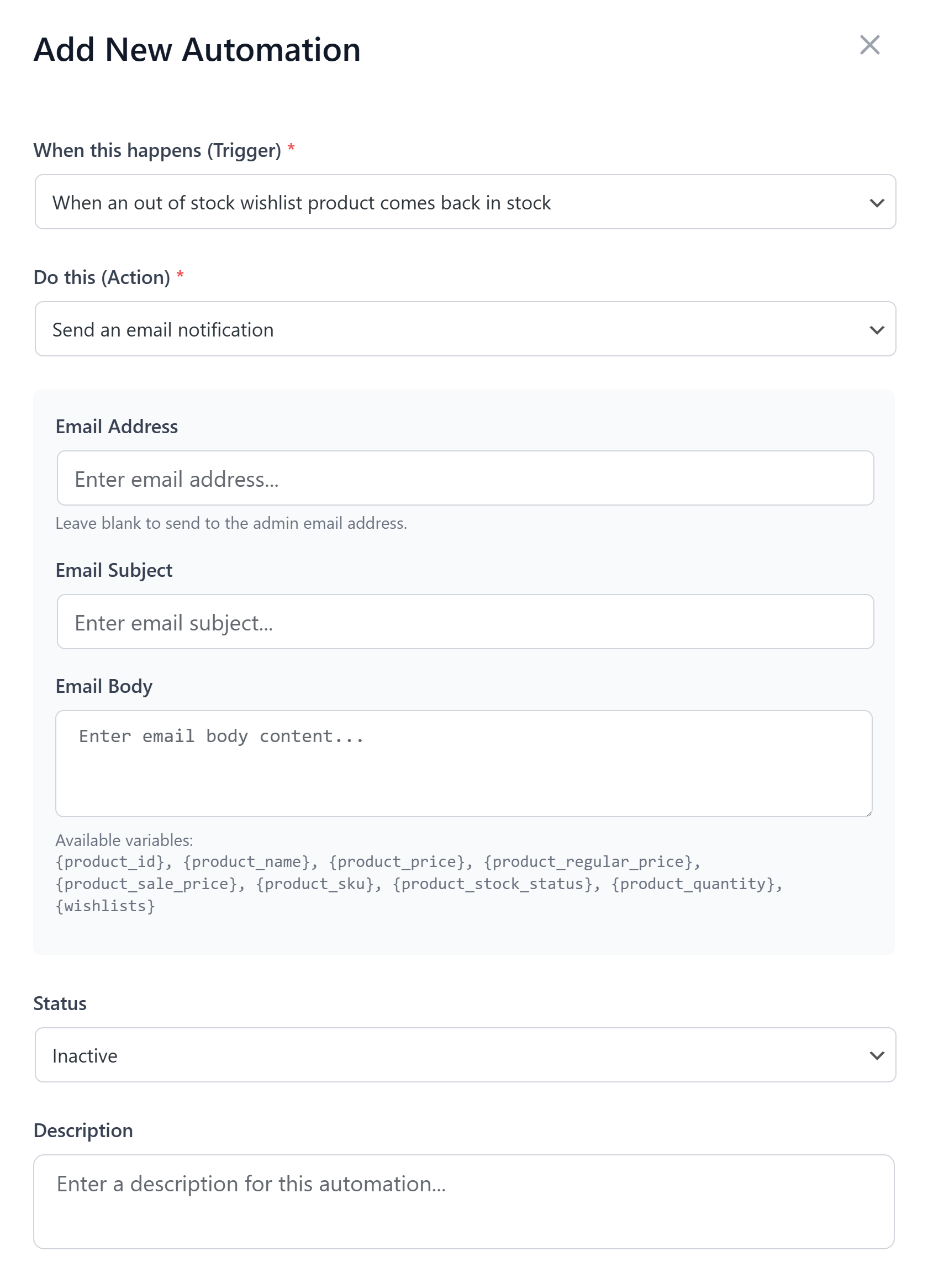
The system is built on a simple three-step logic:
- Smart Triggers: The plugin detects when a customer takes action (like adding an item or creating a list).
- Automatic Responses: You decide how your store should react (sending an email, updating a profile, or pinging a webhook) to the trigger.
- Custom Settings: You can fine-tune the exact details of your action to match your brand’s voice.
Everything here was built specifically to solve the actual, day-to-day challenges store owners face when trying to recover abandoned lists and lost revenue.
Finding the new settings is easy. Just log into your WordPress admin area and navigate to SaveTo Wishlist > Automations.
Now, let’s break down exactly how each step works:
Step 1: Smart triggers that watch your store
To make automation work, the system needs to know when to step in. We designed these triggers to monitor the most common shopping habits in your store.
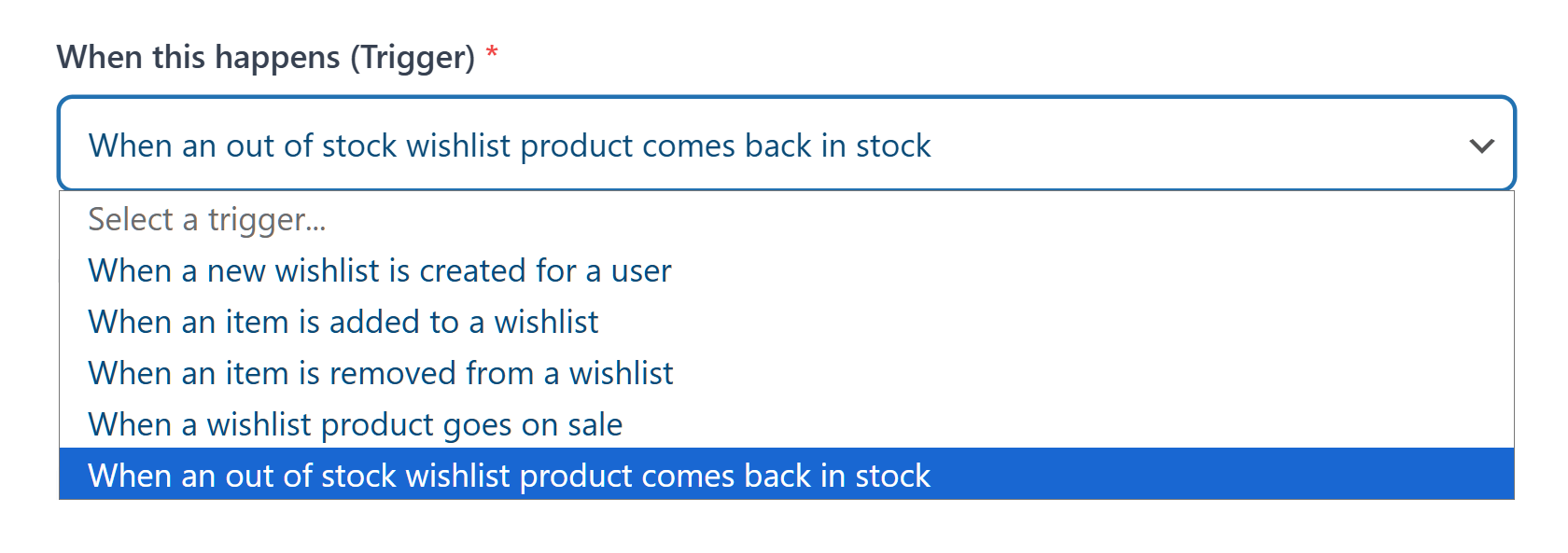
To start the process, you can choose from five specific events:
1. When a new wishlist is created
When a shopper creates a wishlist, it tells you they’re actively planning future purchases. It marks the exact moment a casual visitor becomes a highly interested buyer.
2. When an item is added to a wishlist
This event signals a strong desire for a specific product. In our experience, this is one of the clearest signs that a customer is getting closer to checking out.
3. When an item is removed from a wishlist
This action shows a clear shift in the buyer’s preferences. It tells your system that the shopper is no longer considering that particular item.
4. When a wishlisted product goes on sale
Price drops are powerful motivators for hesitant shoppers. This trigger fires exactly when a saved item suddenly becomes a much better deal.
5. When an out-of-stock wishlisted product comes back in stock
Shoppers often save sold-out items, hoping they’ll return. This event captures that perfect window of opportunity when inventory is finally replenished.
These events tell the software that a shopper is actively showing interest. Once a trigger fires, the system is ready for the next step. Which brings us to…
Step 2: Automatic actions that follow up for you
After a shopper triggers an event, the system takes over automatically. You can choose exactly how the plugin responds to help you close the sale.
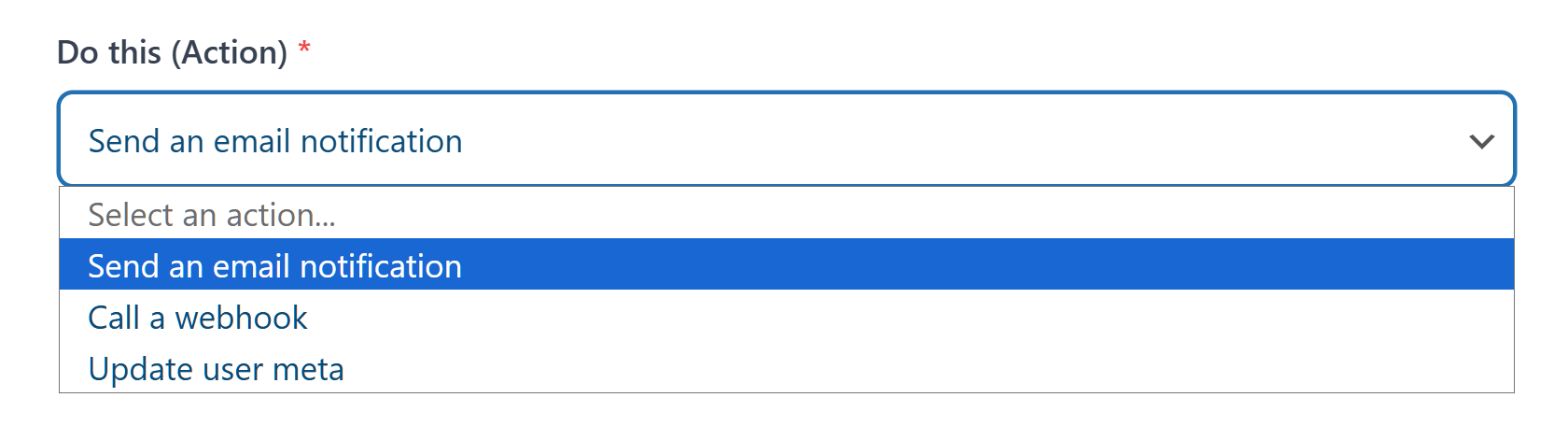
We built three different ways for your store to react.
1. Send an email notification
This action delivers a personalized message straight to a customer’s inbox. It’s a great way to send them alerts whenever something related to their wishlisted items occurs.
This is best for triggers that require a quick, direct message to the customer. Thus, it works perfectly for price drops and restock alerts. When a saved item is suddenly cheaper or back in stock, an email is the fastest way to get the shopper back to your site to buy.
2. Call a webhook
This option sends data from your store to another app or service. You can use this to connect your wishlist activity to your favorite marketing tools.
We recommend this action for triggers that involve moving data to your other marketing apps, such as when you want to send info to a tool like Klaviyo to start a long-term welcome sequence. Therefore, it’s a great choice when a new wishlist is created or a customer adds an item to their wishlist.
3. Update user meta
This choice adds specific information to a customer’s profile on your site. It helps you group shoppers based on what they save or remove from their lists.
This action is perfect for triggers that help you organize your customer list behind the scenes. It works well when an item is added to or removed from a wishlist. When you tag a profile when a customer adds or removes items, you can see who is a “window shopper” and who is a “serious buyer” without sending any messages at all.
While we suggest these pairings, you have total freedom to mix and match. You can choose any of these actions for any of the five triggers we mentioned. This lets you build a system that fits your store’s specific needs.
Step 3: Customizing your automatic responses
The final step is to fill in the specific details for your chosen action. We’ve provided clear fields where you can enter the exact information you want the system to use.
You can fine-tune these settings within the plugin to make sure every automation is accurate.
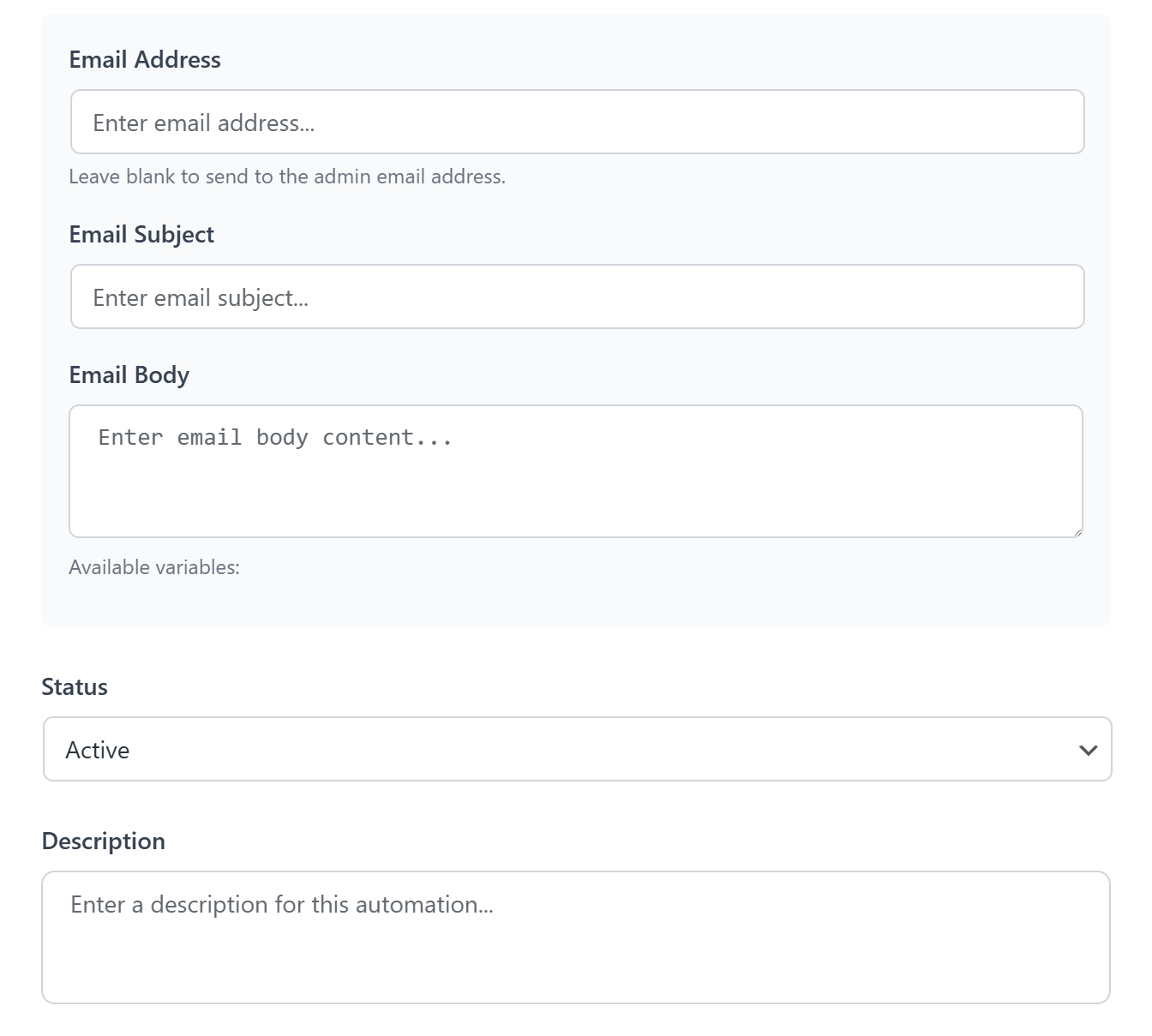
1. Email content and details
This window lets you type your own subject line and message body to match your brand’s voice.
For example, for a price drop, you might enter a subject like “Good news! Your item is now on sale.” You can also use placeholders like {product_name} in the message body so the email automatically shows the specific item the customer saved.
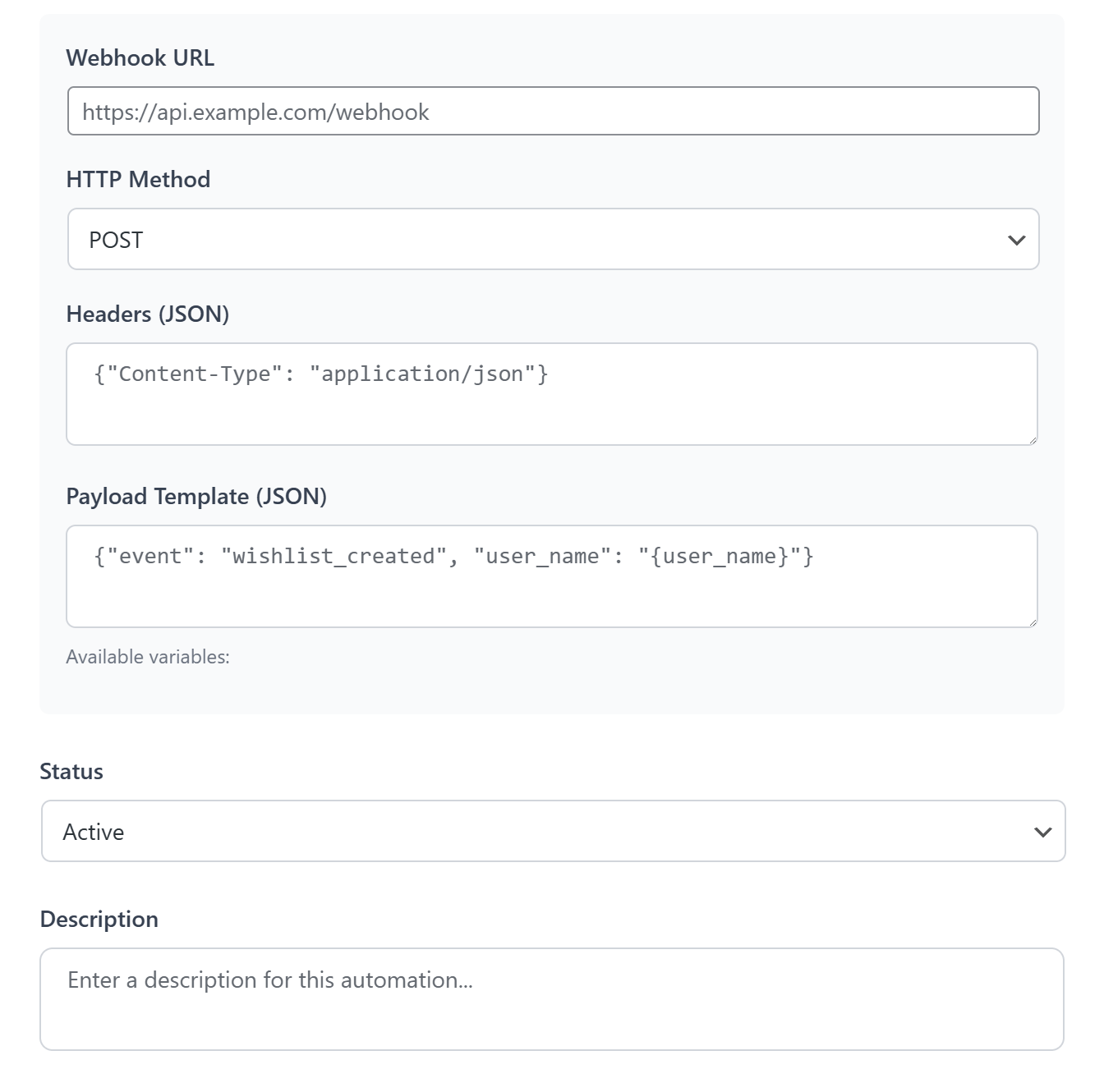
2. Webhook settings and data
Here, you can enter the specific URL and data format required by your external apps.
For instance, you might paste a link from a tool like Zapier to notify your team when a new wishlist is created. You can also enter specific product codes into the data field to keep your marketing lists organized and up to date.
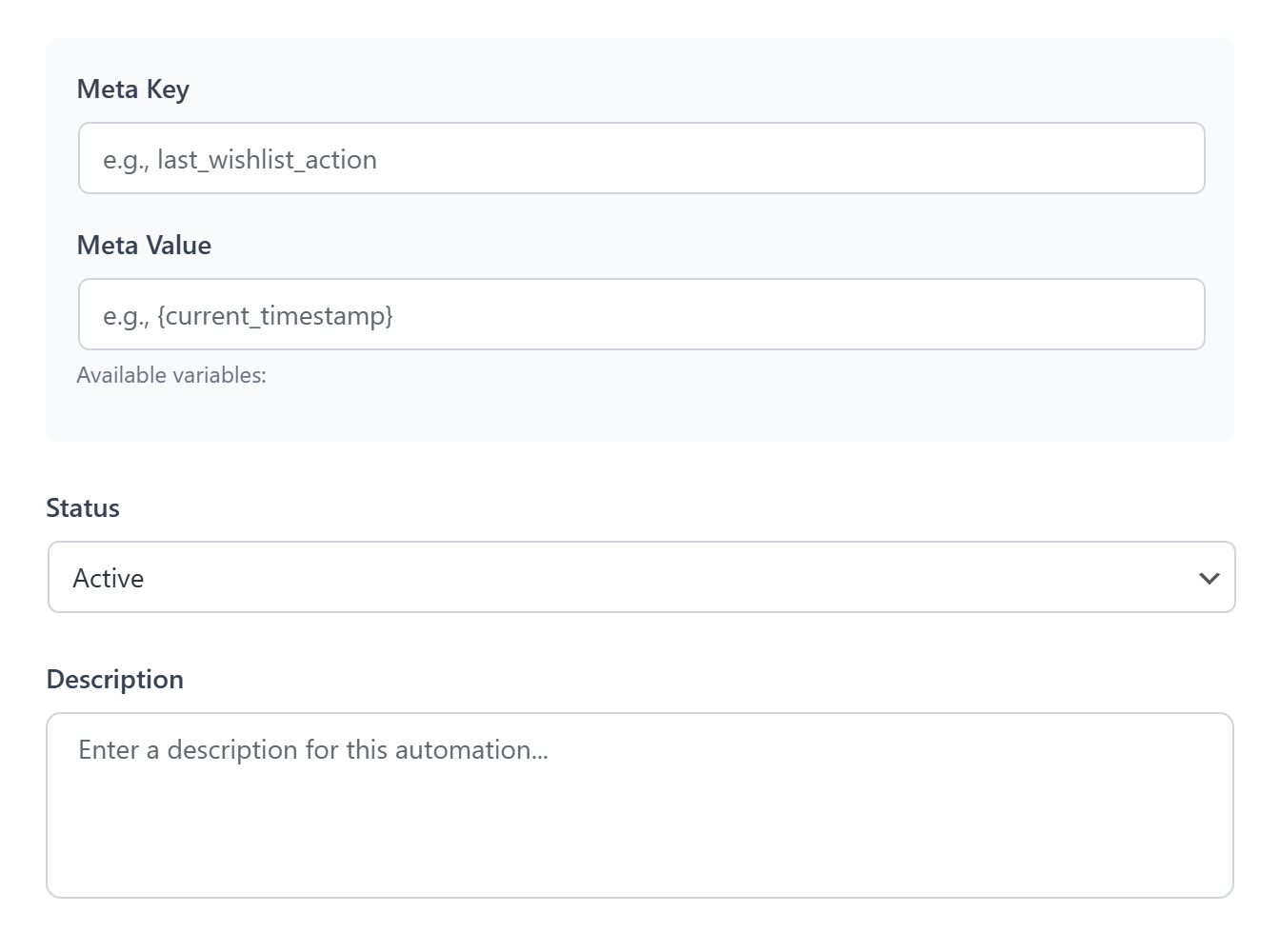
3. Meta keys and values
This section allows you to define the specific names for the tags added to a user’s profile.
For example, you could enter “loyal_shopper” as a key when someone adds ten items to their list. You could also set a value like “cleared” to remove a label if a customer decides to empty their wishlist.
By filling out these fields, you make sure your store responds exactly the way you intend. It gives you total power over the final result of your work.
Expert Tips For Using Wishlist Automation
Setting up these tools is just the start of your journey. To get the best results, you should focus on making your messages helpful rather than annoying. We have seen what works best for keeping customers happy and engaged.
🤝 Pro Tip 1: Be helpful, not pushy
Since these wishlist automations happen in real-time, focus on making your messages feel like a service. For example, instead of just saying “Buy this now,” use your email template to say, “We noticed you saved this! Here are some details to help you decide.” This keeps the interaction feeling supportive rather than like a high-pressure sales pitch.
✉️ Pro Tip 2: Use clear subject lines
Your customers get a lot of emails every single day. Make sure your subject line clearly mentions the item they saved or the price drop they’re waiting for. This helps your message stand out in a crowded inbox so they actually open it.
🔗 Pro Tip 3: Test your webhook connections
If you’re sending data to other apps, always run a quick test first. You want to make sure the information is landing in the right place before you go live. This prevents any messy data errors in your marketing tools or customer lists.
Following these simple steps will help you build trust with your shoppers. It ensures your automation feels like a helpful service rather than a sales pitch.
Conclusion
Setting up wishlist automation takes the guesswork out of following up with your customers. Instead of hoping shoppers remember to come back, your store stays connected with them by sending the right information at the right time. Whether it’s a simple restock notice or a quick update on a price drop, these automated steps help turn casual browsing into completed sales.
To recap, this guide explored the following wishlist automation concepts:
- Smart triggers that watch your store
- Automatic actions that follow up for you
- Customizing your automatic responses
Remember, when you let SaveTo Wishlist Pro manage these routine tasks, you can focus on the bigger parts of your business while your store works in the background to bring shoppers back.
Ready to see it in action? Upgrade to SaveTo Wishlist Pro and start building your first automation today!
FAQs: Wishlist Automation
What is Wishlist Automation, and how does it help my store?
Wishlist Automation is a feature in SaveTo Wishlist Pro that automatically helps you follow up with any customer or wishlist member who saves items on your store. It saves you time by sending reminder emails, alerting about price drops, notifying when items are back in stock, and more, encouraging customers to complete their purchases.
How does Wishlist Automation know when to trigger follow-up actions?
The system uses smart triggers that monitor specific shopping behaviors such as creating a wishlist, adding or removing items, price drops, or stock changes. When one of these events occurs, the automation system activates to perform the preset follow-up actions.
Can I customize the automatic responses sent to my customers?
Yes, you can customize the content of reminder emails, set specific webhook URLs for data transfer, and define profile tags for your customers. This allows you to tailor notifications to match your brand voice and marketing needs.
What are some best practices for using Wishlist Automation effectively?
Best practices include focusing on helpful, service-oriented email content, using clear subject lines to grab attention, and testing webhook connections before going live. These steps ensure your automation is helpful and engaging, not intrusive.
What are the main actions that Wishlist Automation can perform after a trigger?
Wishlist Automation can send personalized emails, call webhooks to connect with other apps, or update user metadata on your site, helping you organize and engage with your customers more effectively.