
 Reviewed by
 Why should you add wishlist functionality to your online store?
Consider a problem we’ve often seen store owners face: a customer likes one of their products but, for one reason or another, can’t buy it right away. They then leave your store and forget about it. The result? A lost sale.
From our experience building WooCommerce tools, a wishlist tool can counter this issue by letting shoppers save and keep track of products they like, encouraging them to return to your store and complete their purchases.
In this article, we’ll teach you how to add a wishlist feature to your store using SaveTo Wishlist—a free WooCommerce plugin we built to help store owners engage their customers and increase sales.
Let’s begin!
- Why Add Wishlist Functionality To Your WooCommerce Store?
- What Is SaveTo Wishlist?
- How To Add Wishlist Functionality To Your Store Using SaveTo Wishlist
- Tips For Setting Up Wishlists For Your Store
- Leveling Up Your Wishlist
- Conclusion
- How To Add Wishlist Functionality And Other FAQS
Why Add Wishlist Functionality To Your WooCommerce Store?
To answer this question, we must first explore how wishlists work.
Wishlist buttons show up on the shop page, product page, and cart page.
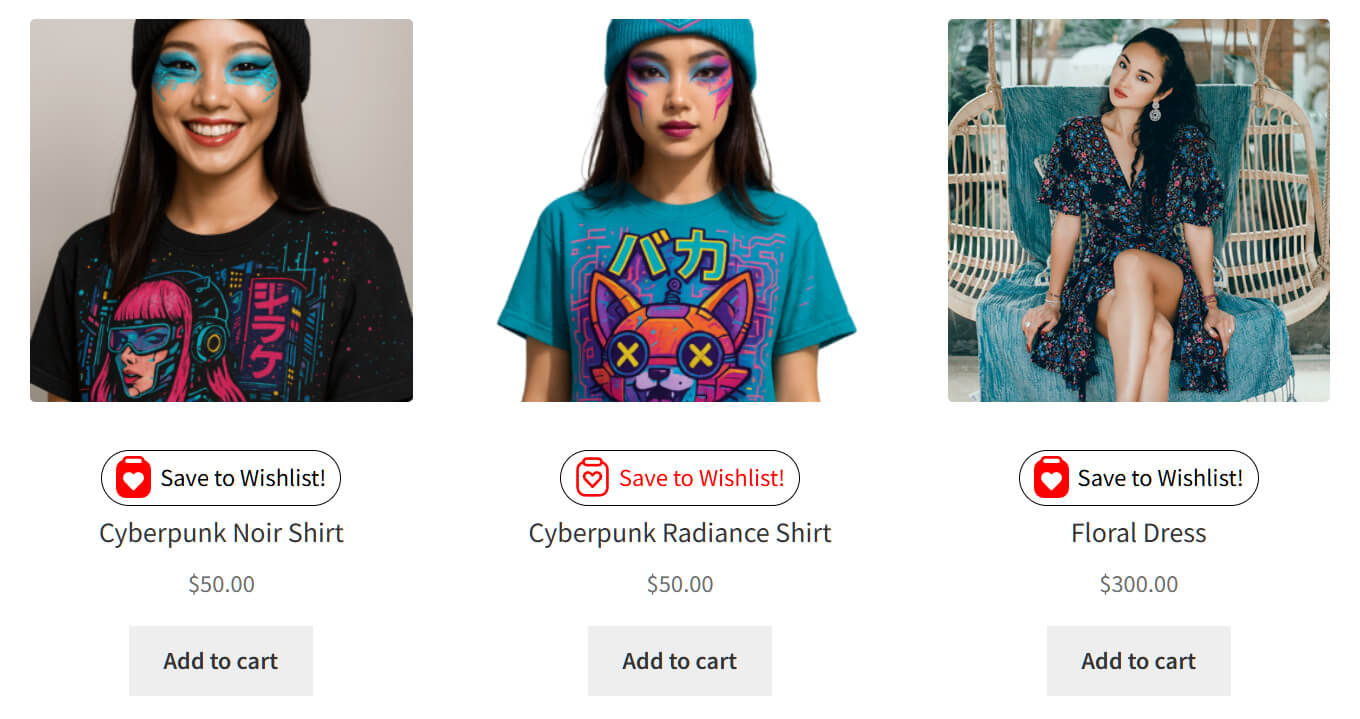
When a shopper clicks a product’s wishlist button, it’s added to a digital list of their favorite items. They can come back later and move items to their cart when they’re ready to buy. As a result, shopping becomes more convenient for customers, which is always a good thing.
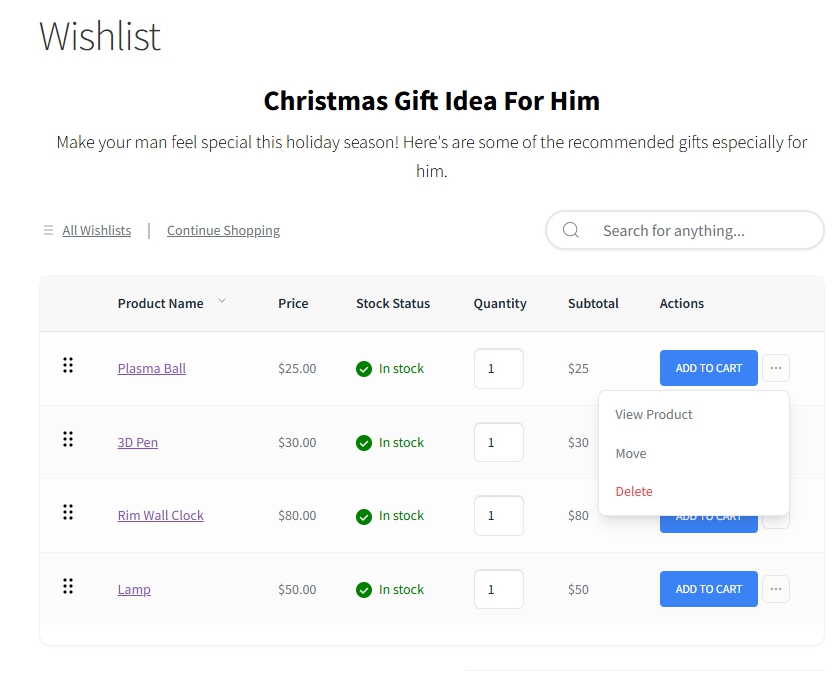
Simple, no?
And yet, wishlists offer several benefits for store owners. Specifically, they can:
- Encourage shoppers to return to your store and complete their purchase
- Build customer loyalty and promote repeat visits
- Lower the chances of abandoned carts
- Show what customers want, helping you plan stock and promotions
- Help customers share gift ideas more easily, enhancing your marketing
- Give WooCommerce the wishlist feature it’s missing
With all these advantages, adding a wishlist can boost your sales.
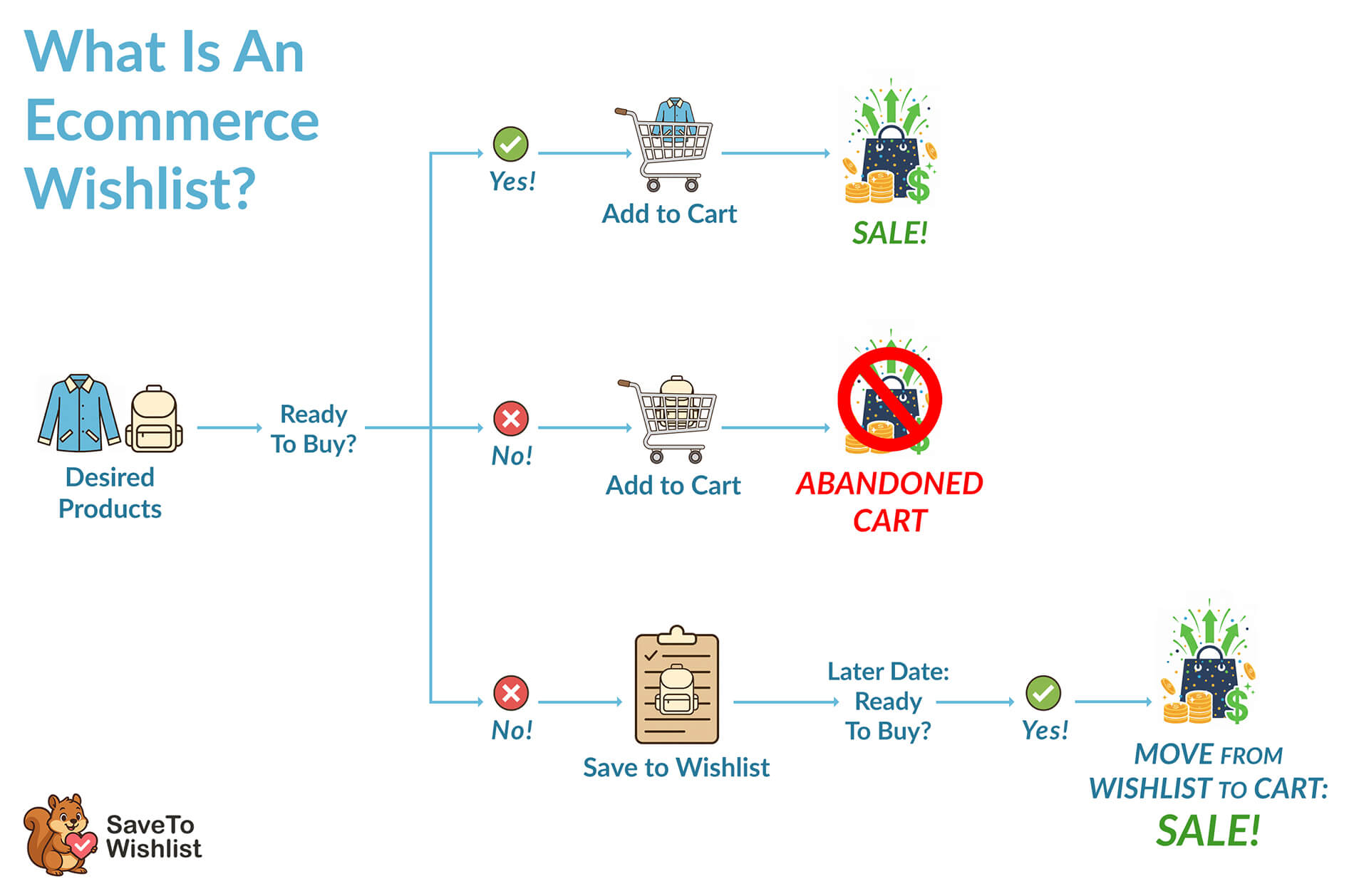
Want to know more about wishlists and why they matter for ecommerce stores? Then check out the following guide:
What Is A Wishlist And Why Is It Crucial In Ecommerce? (Easy WooCommerce Guide)

Curious about how customers use wishlists? Read this guide!
How Customers Create An Online Wishlist (Easy Guide For Store Owners)
Excited to discover the best ways to use wishlists to boost sales? Dig into our post:
Online Wishlist Maker Guide: How To Use SaveTo Wishlist To Drive Store Sales
What Is SaveTo Wishlist?
To explain how to add wishlist functionality to your store, we’ll use SaveTo Wishlist as our example.
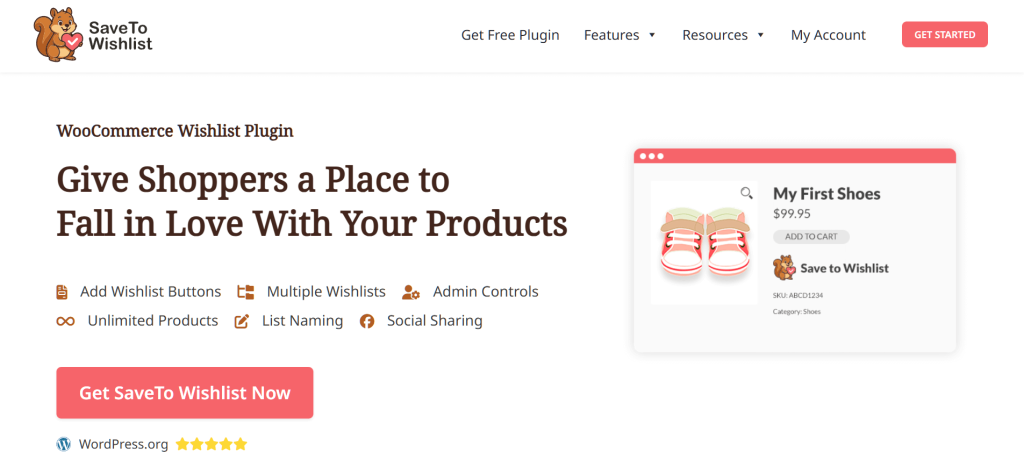
SaveTo Wishlist is a free WooCommerce plugin that lets shoppers save products they like and return to them later.
It works with many themes and lets you add a wishlist button on product pages and product lists. You can choose where the button appears. Furthermore, you can decide how it appears, so it fits the look and flow of your store.
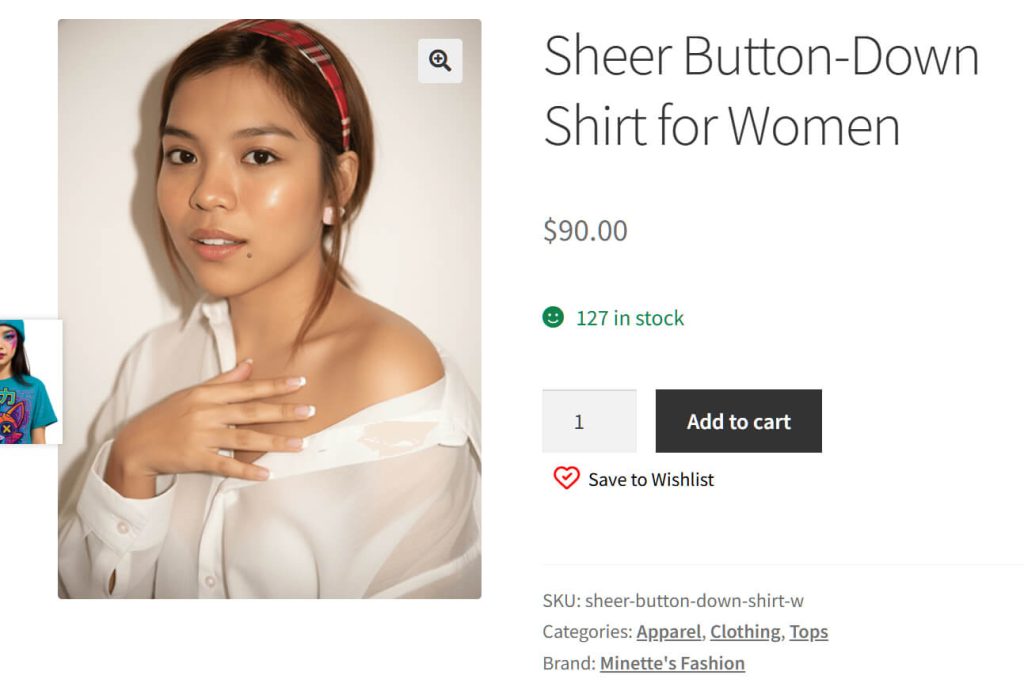
The plugin offers many useful features, including some that other plugins restrict to premium plans. For starters, shoppers can create and name multiple wishlists. Guest users can also save items, and those lists can transfer to an account if they sign up later.
Furthermore, customers can share their wishlists through a public link, which is helpful for gift suggestions or group shopping. The plugin is also translation-ready, making it useful for stores with different languages.
How To Add Wishlist Functionality To Your Store Using SaveTo Wishlist
Adding the wishlist feature to your store is super easy! Just follow the steps we’ve outlined below to get started:
1. Install SaveTo Wishlist
First, go to your WordPress dashboard. Then, select Plugins > Add New Plugin.
Use the search bar to look for SaveTo Wishlist. Once you’ve found it, click Install Now, then Activate.
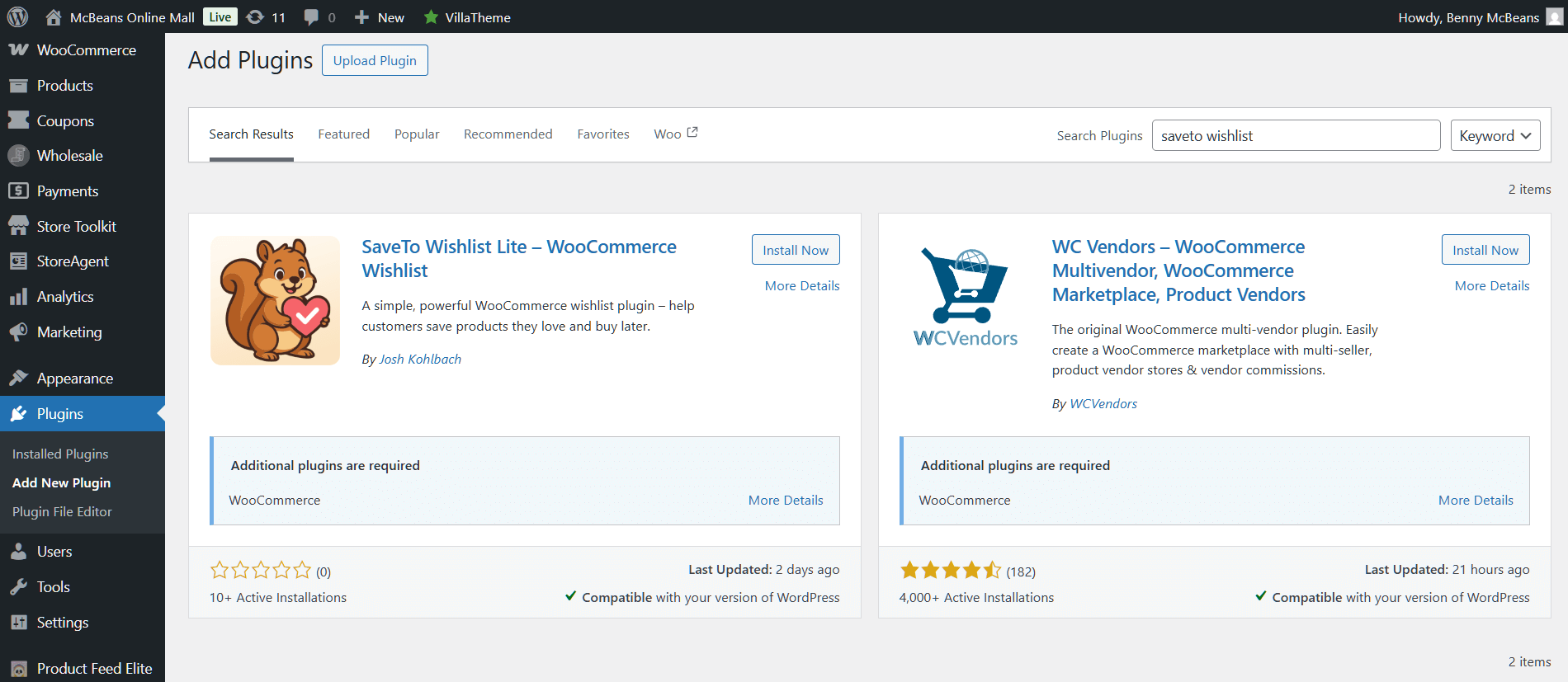
Alternatively, you can download SaveTo Wishlist from the plugin’s official website. Just click Download Free Plugin, which saves the zip file to your computer.
Then, on your WordPress dashboard, click Plugins > Add New Plugin. This time, however, click Upload Plugin > Choose File. Lastly, select the zip file, click Install Now, then Activate.
Whichever method you pick, SaveTo Wishlist will now show up in your WordPress dashboard.
For this tutorial, our main concern is the Setting submenu, as this contains the options that let you add wishlist functionality to your store.
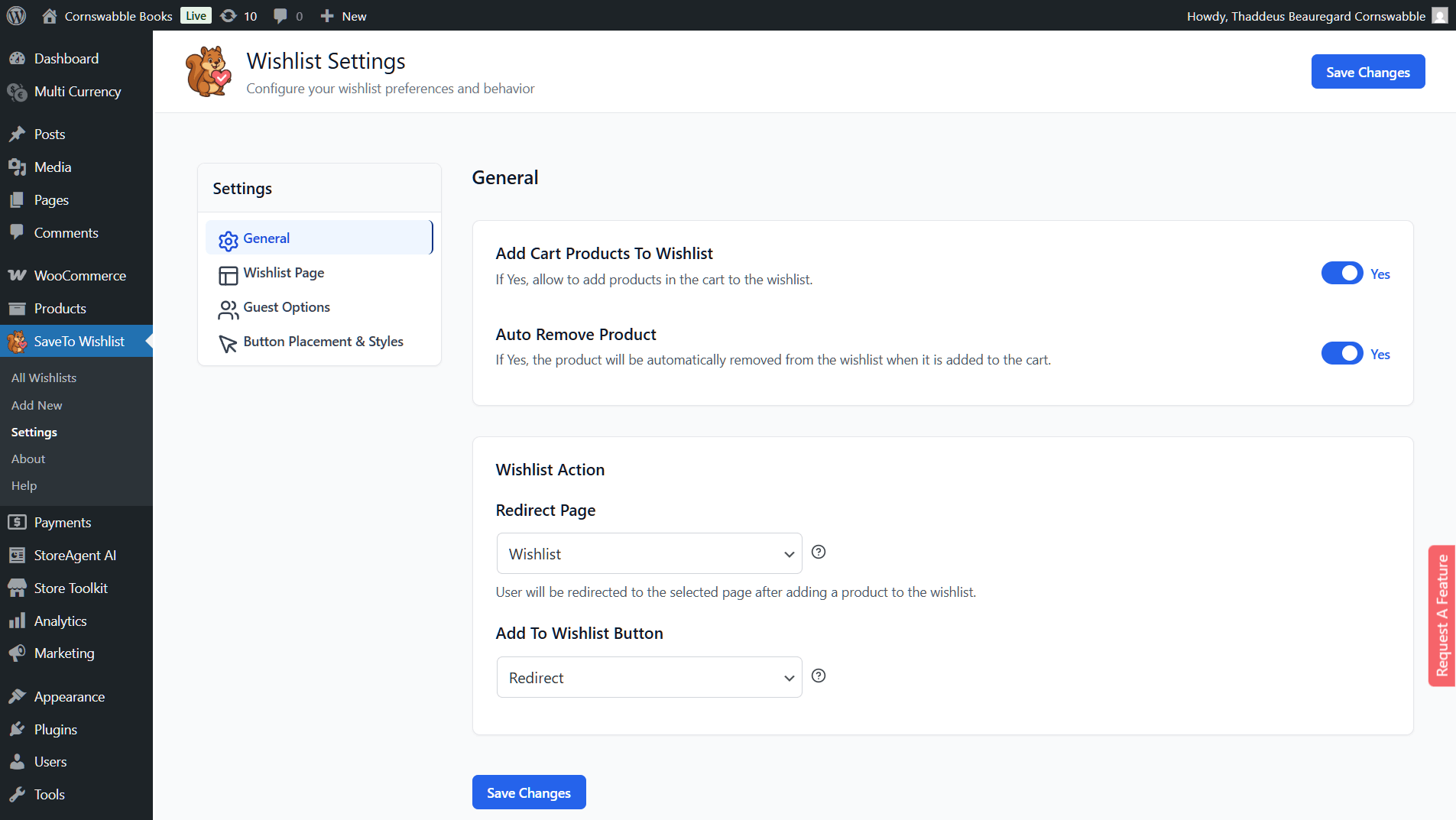
Now, let’s tackle each Settings section one by one.
2. Configure the General settings
The General settings come with two pairs of options.
The first consists of two toggle buttons shown below. These control the interaction between wishlist buttons and the shopping cart.
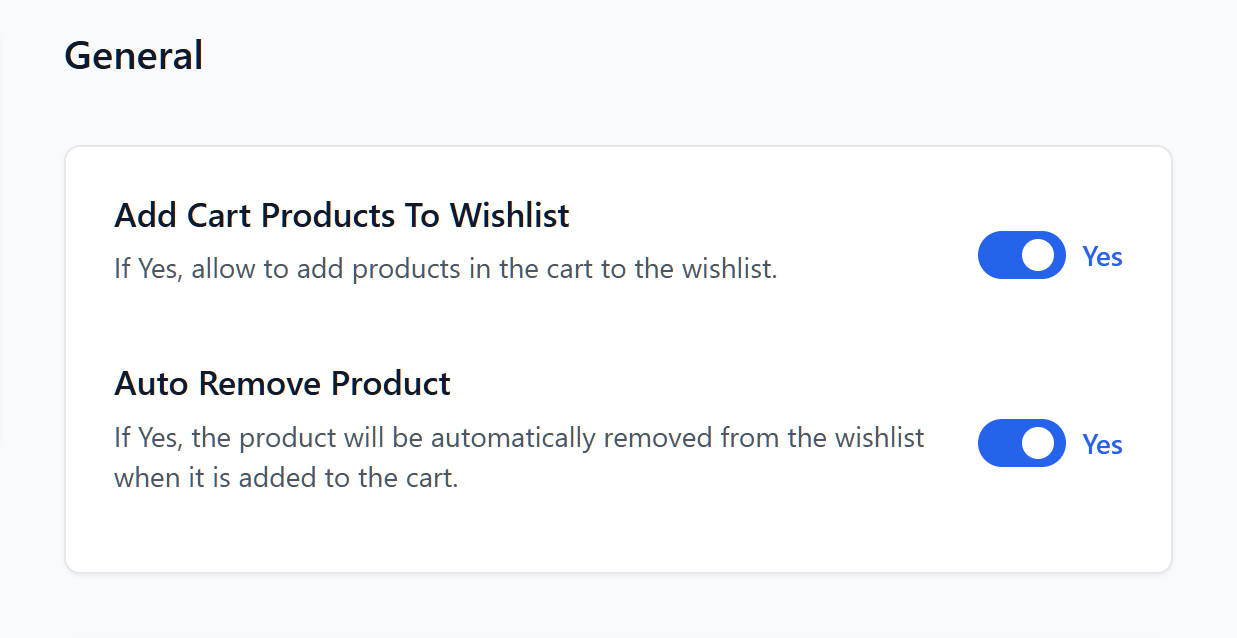
Add Cart Products To Wishlist
Toggle this on to let shoppers move items from their cart to their wishlist. This can help reduce cart abandonment. For instance, if Kat adds a product to the cart but decides it isn’t the right time to buy, she can save it to her wishlist instead. This gives her a reminder to return and purchase later.
Auto Remove Product
If toggled on, this removes a product from the wishlist once the shopper moves it to their cart. This cleans up the wishlist when a shopper is ready to buy.
The next pair determines what happens when a shopper clicks the wishlist button.
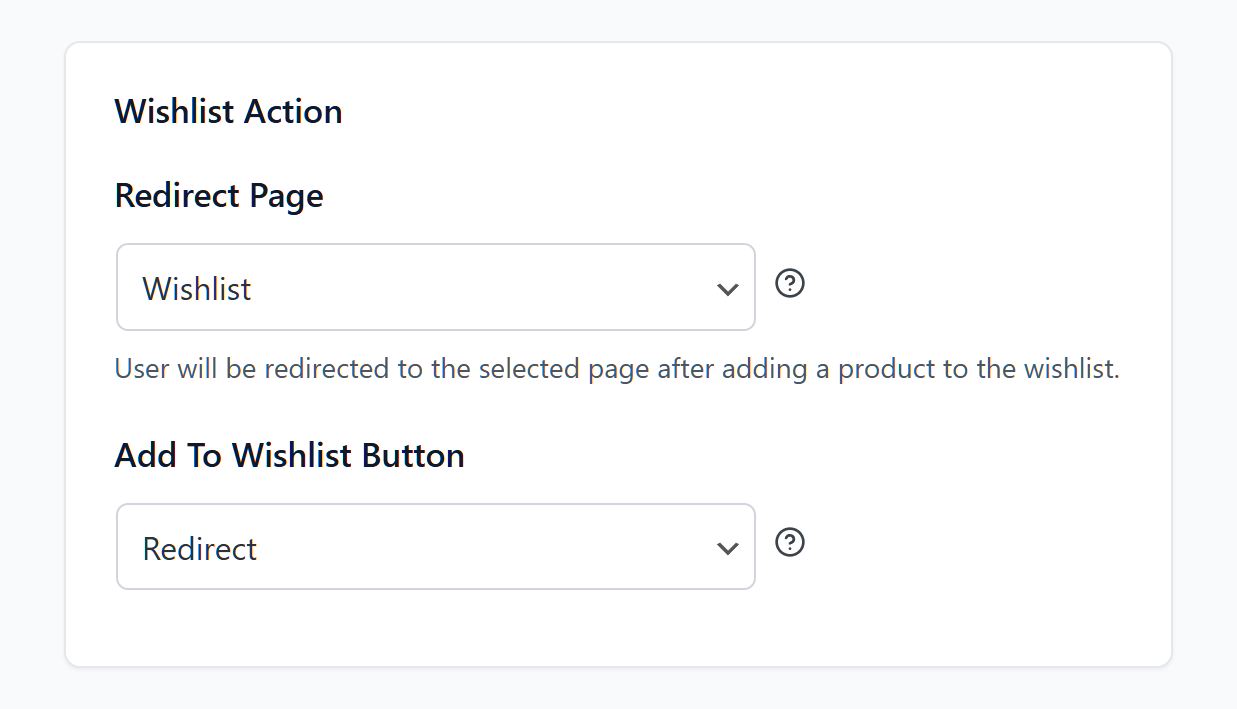
Add To Wishlist Button
Clicking the dropdown gives you two options. Choosing “Redirect” sends shoppers straight to another page as soon as they click the wishlist button.
Choosing “Popup” displays a pop-up instead, with a button that the shopper can click if they want to be redirected. In short, this option lets the shopper decide whether to go to another page.
Redirect Page
This option includes a dropdown where you can select which page the shopper is redirected to after clicking the wishlist button.
For example, selecting “Wishlist” sends them to the wishlist page, “Shop” takes them to your shop page, and “My account” redirects them to their account dashboard.
Lastly, don’t forget to click the Save Changes button!
3. Customize the Wishlist Page settings
As you can see below, your first main option lets you control how the wishlist page looks for your customers.
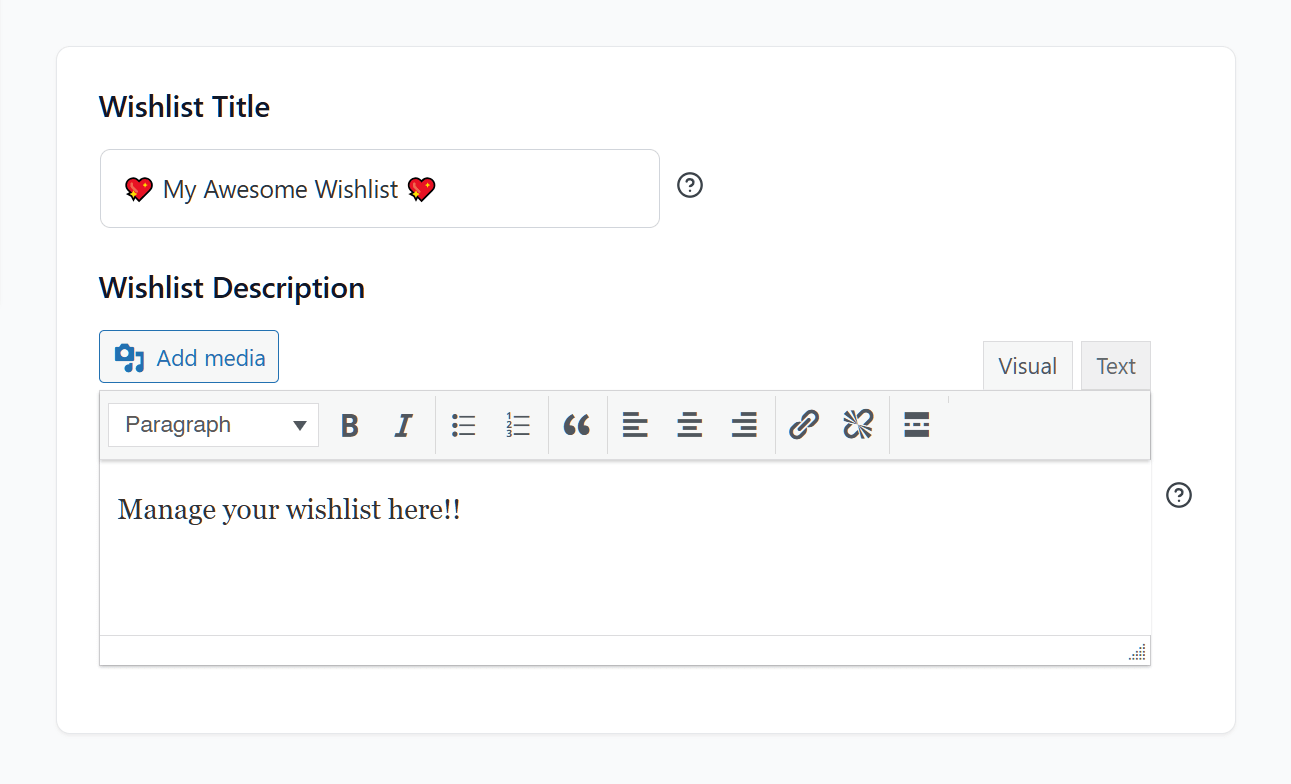
Wishlist Title
You can name your main wishlist page. We recommend coming up with something memorable and catchy!
Wishlist Description
You can also give your main wishlist page a description. You get to use a mini word processor, so you can format text, insert images and links, change fonts or alignment, and more.
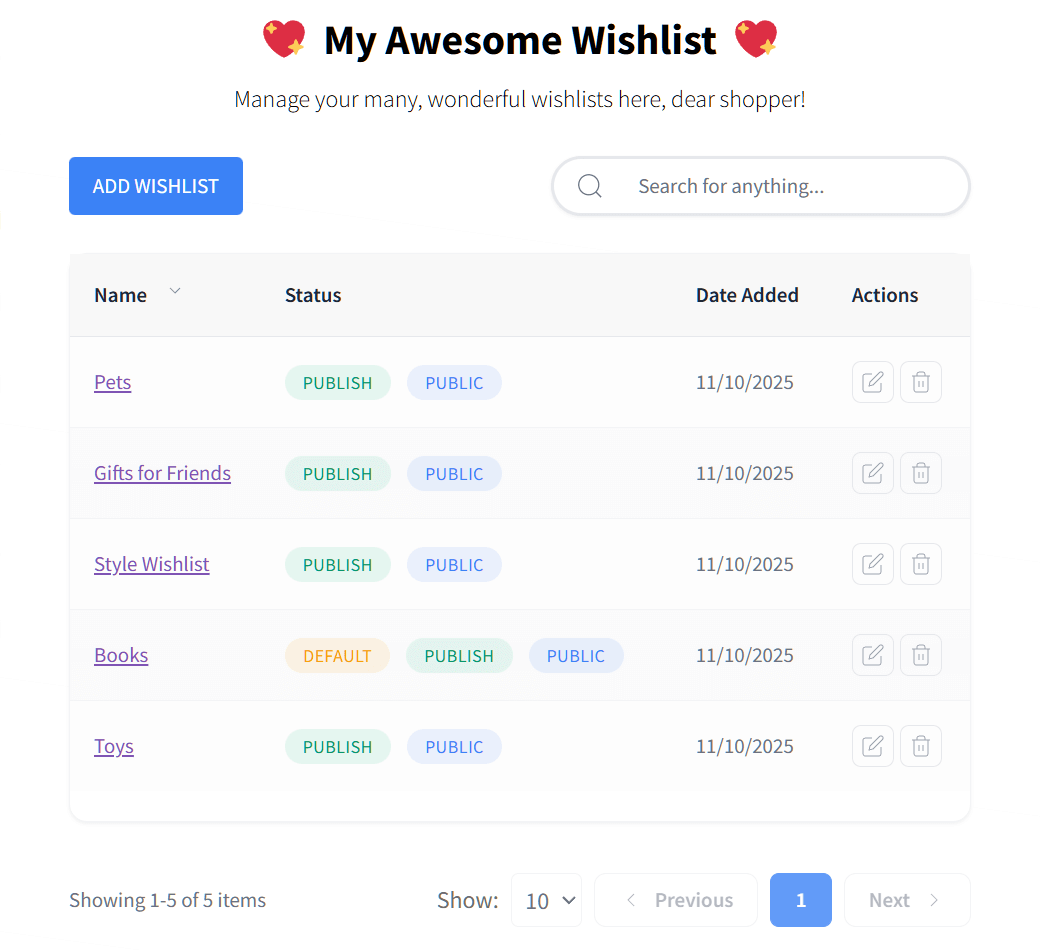
Below is an example of what the main wishlist (a.k.a. “My Wishlist”) page looks like to customers:
Next are the following two options:
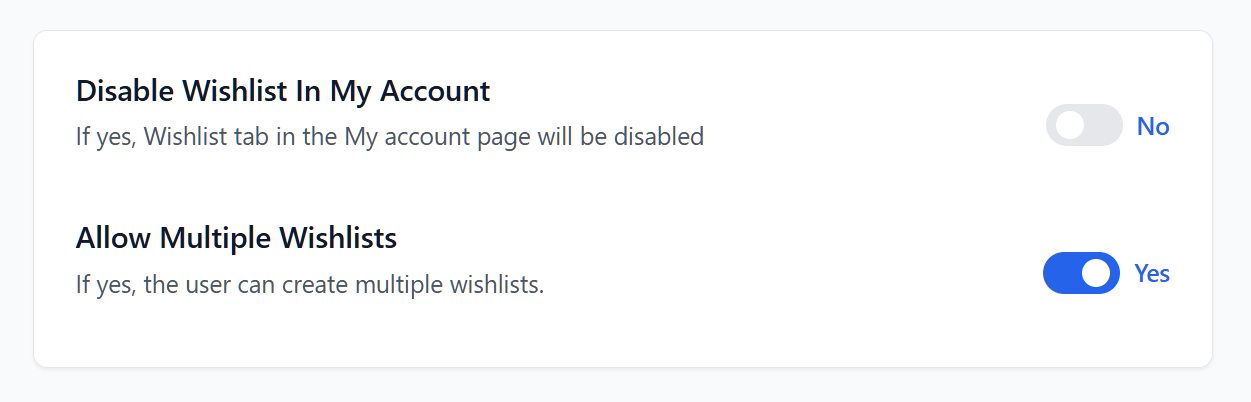
Disable Wishlist In My Account
When toggled off, the main wishlist page appears in every customer’s My account page, so they can access it anytime and shop more conveniently.
Multiple Wishlists
Why limit your customers’ wishlists to just one? When you enable multiple wishlists, each shopper can create as many lists as they want, letting them organize their favorite items by category.
For example, Hari can save his favorite literary works under a “BL Manga” wishlist, birthday presents under “Gifts for Friends,” and fishing gear under “Fishing.” This way, he can keep everything neatly organized and easily find what he’s looking for later.
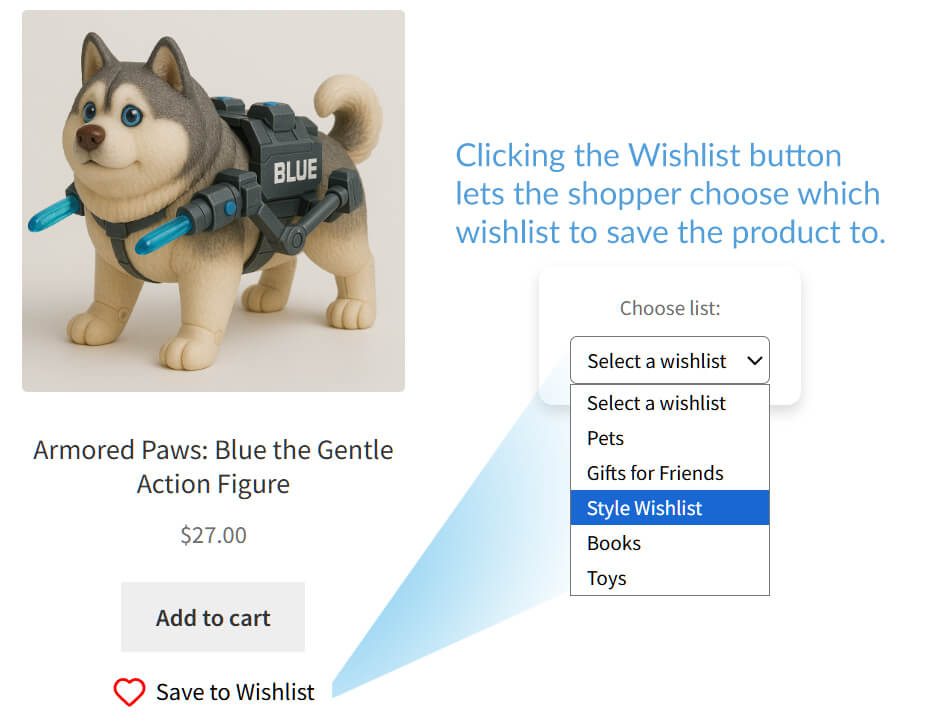
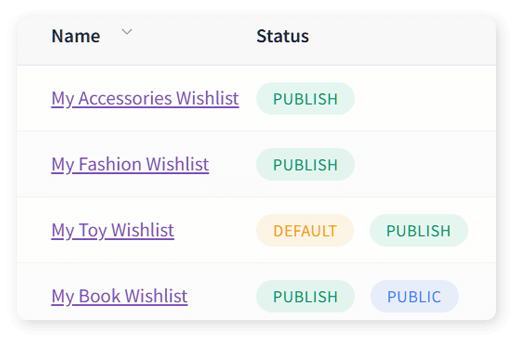
Click Save Changes before moving on to the next Settings section!
4. Control Guest Options
Many shoppers like to shop without logging into a store. In fact, Forbes states that 43% prefer guest checkout, and about 72% of them do this even if they already have an account.
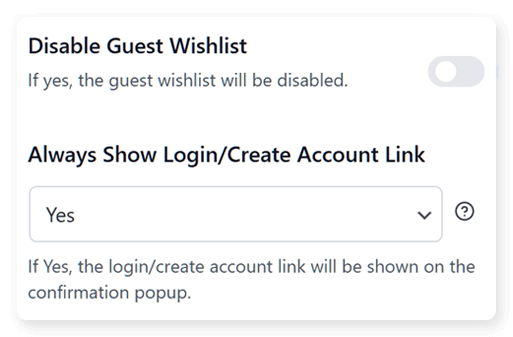
Disable Guest Wishlist
SaveTo Wishlist lets you choose whether or not to let guests use your wishlist feature.
Always Show Login/Create Account Link
This setting controls whether a link to log in or create an account appears on the confirmation pop-up after clicking the wishlist button. When set to “Yes,” the link is always shown, encouraging guest users to register or existing customers to sign in.
Click Save Changes when you’re done with these settings!
5. Adjust Button Placement & Styles
This section lets you control how your wishlist buttons look and where they appear.
Wishlist Button Label
The first option lets you set the text on the button. For example, in the image below, we chose the button to display “Save to Wishlist.”
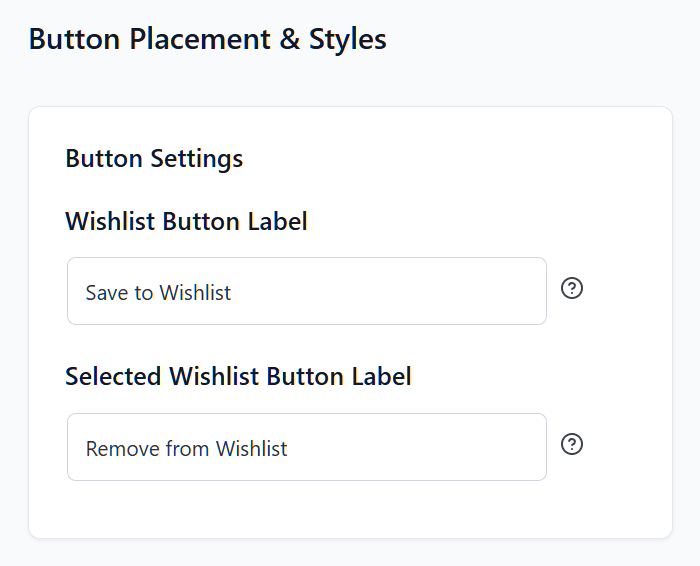
Here’s how the button text looks to customers on the front end of our store:
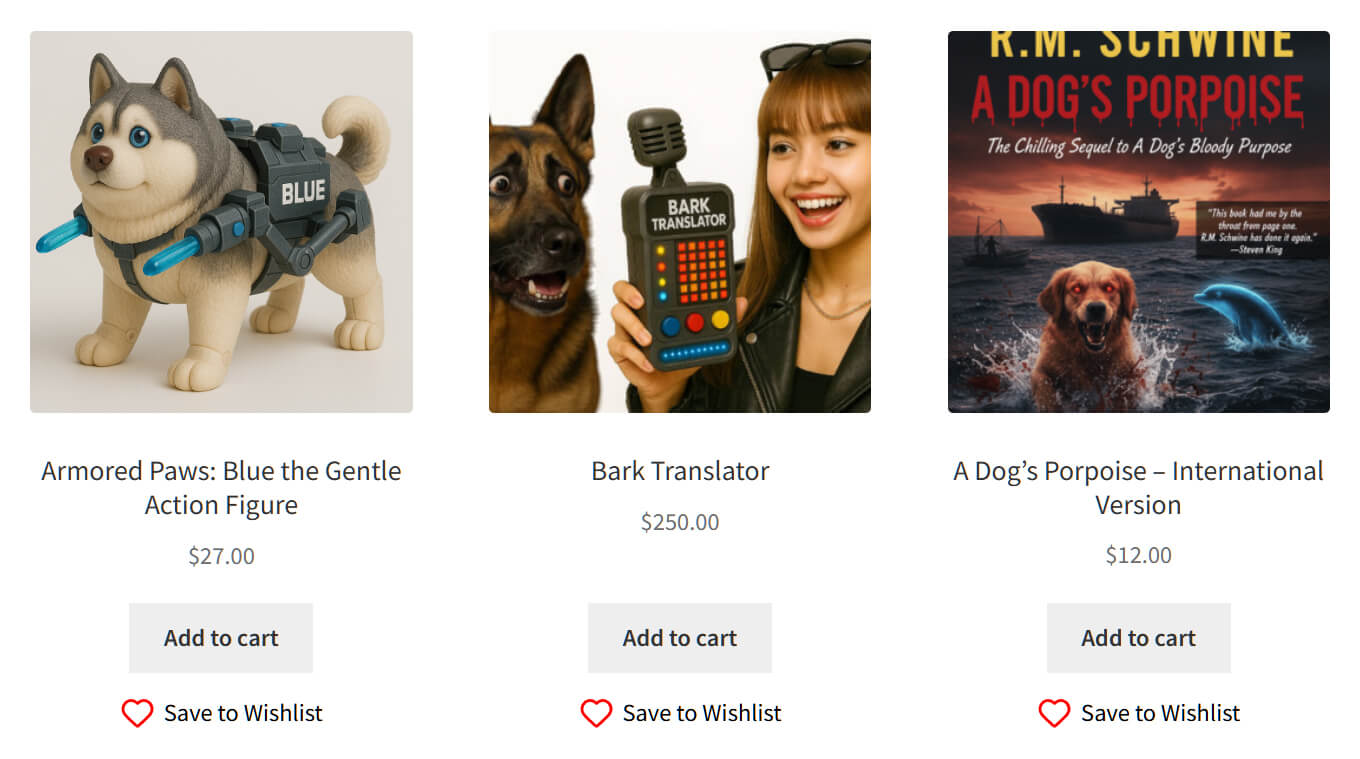
Product Page
This subsection lets you choose where and how the wishlist buttons appear on the product page.

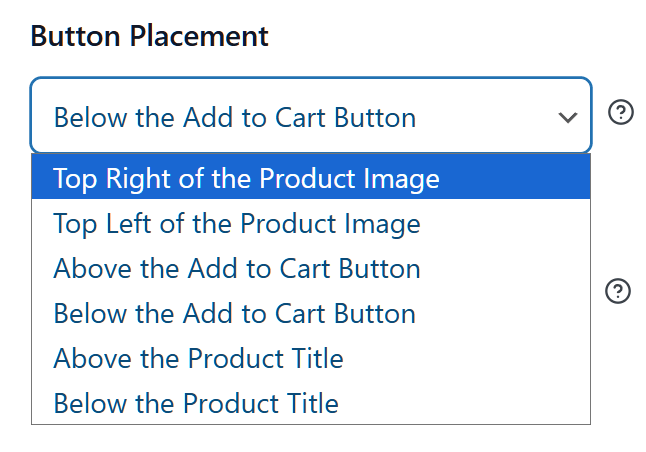
For starters, you get a dropdown menu, which lets you choose the button’s position on the product page. For example, you can place the button at the top right of the product image, below the product title, or above the Add to Cart button.
Then, you have a bunch of options allowing you to pick the button’s colors, including its:
- Text color
- Hover text color
- Background color
- Hover background color
- Border color
- Hover border color
- Border width
- Icon color
- Text size
- Button text style (normal or italic)
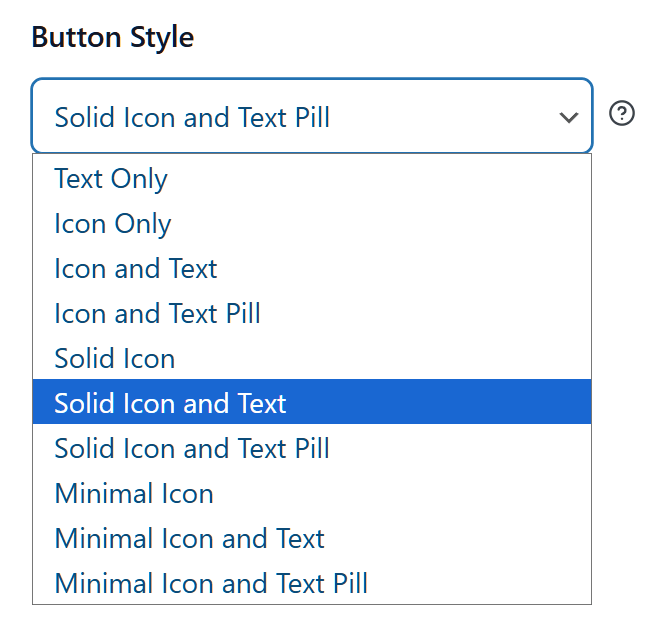
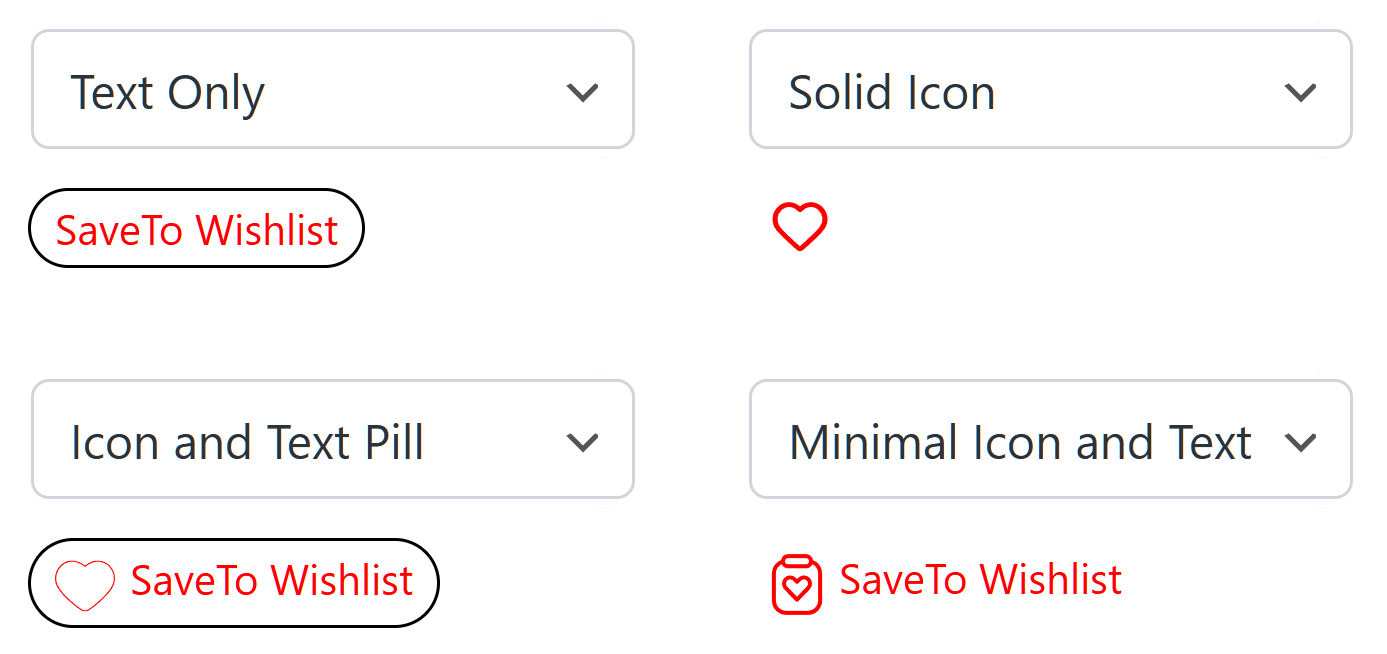
Finally, you can choose the button’s style, including its shape and design. For example, it can appear as text only, a pill-shaped icon with text, a solid heart icon, and more.
Note that a live preview is available, giving you a good look at how the button will appear to customers on the front end. It updates in real time as you try different styles, making it easy to see the changes and pick the right one for your store.
Shop Page
This subsection has the same options as the Product Page subsection, except it controls the placement and appearance of wishlist buttons on the shop page.
Cart Page
This subsection works like the Product Page and Shop Page settings, but it applies to the wishlist buttons on your cart page.
Finally, click Save Changes… and you’re done configuring SaveTo Wishlist for your store!
Tips For Setting Up Wishlists For Your Store
Adding wishlists is easy, but a few smart tweaks can make them even more effective. Here are some tips to help you get the most out of SaveTo Wishlist:
- Name your wishlists clearly: Give your main wishlist page a clear, friendly name. For example, “My Favorites” or “Wishlists” makes it easy for shoppers to understand what it’s for.
- Use multiple wishlists strategically: Enable multiple wishlists so customers can organize items by category, occasion, or interest. This makes it easier for them to find what they saved and encourages repeat visits.
- Place buttons where shoppers notice them: Add wishlist buttons to both product and shop pages, and position them in spots customers naturally look, like near the product image or Add to Cart button.
- Customize button style and text: Make the button match your store’s look and feel. You can change the text, color, shape, or icon to make it stand out without clashing with your design.
- Encourage sharing: Remind shoppers they can share their wishlists with friends or family. This can bring new visitors to your store and give your products extra exposure.
- Keep guest users in mind: Allow guest shoppers to use wishlists. You can gently prompt them to create an account so their wishlist is saved permanently, which helps retain potential customers.
- Preview changes before publishing: Use the live preview feature to see how buttons and the wishlist page appear on the front end. This helps ensure everything looks right and works smoothly for shoppers.
These simple tips help you set up wishlists that are easy to use, visually appealing, and more likely to boost engagement and sales.
Leveling Up Your Wishlist
Once you’ve seen how helpful the free version of SaveTo Wishlist is, you may be ready to unlock more powerful tools.
SaveTo Wishlist Pro is the premium version of the plugin we built to help store owners grow their sales. While the free version gives you a solid wishlist system, the Pro version is designed to help you increase conversions, build customer loyalty, and grow your business in a more strategic way.
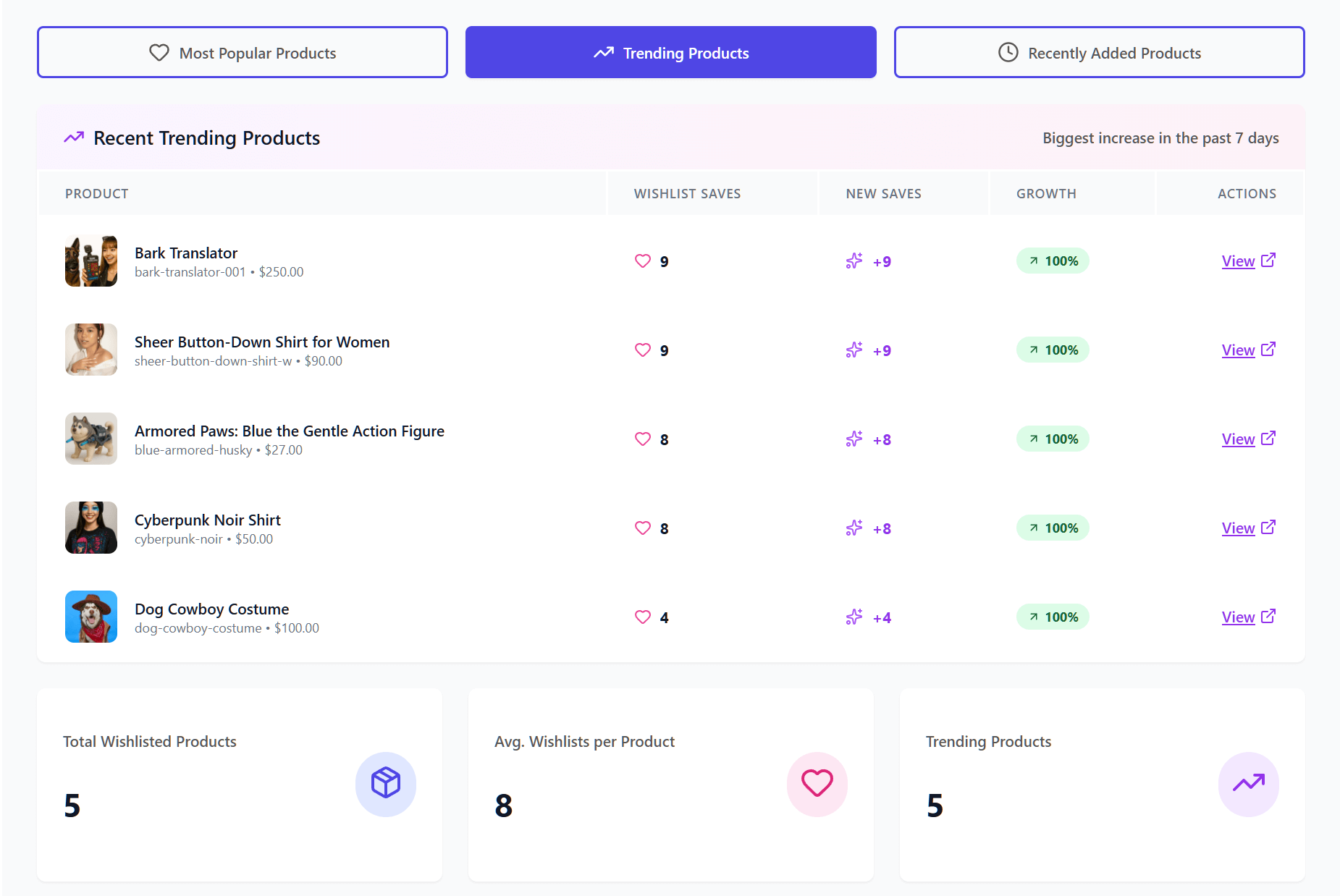
With SaveTo Wishlist Pro, you can:
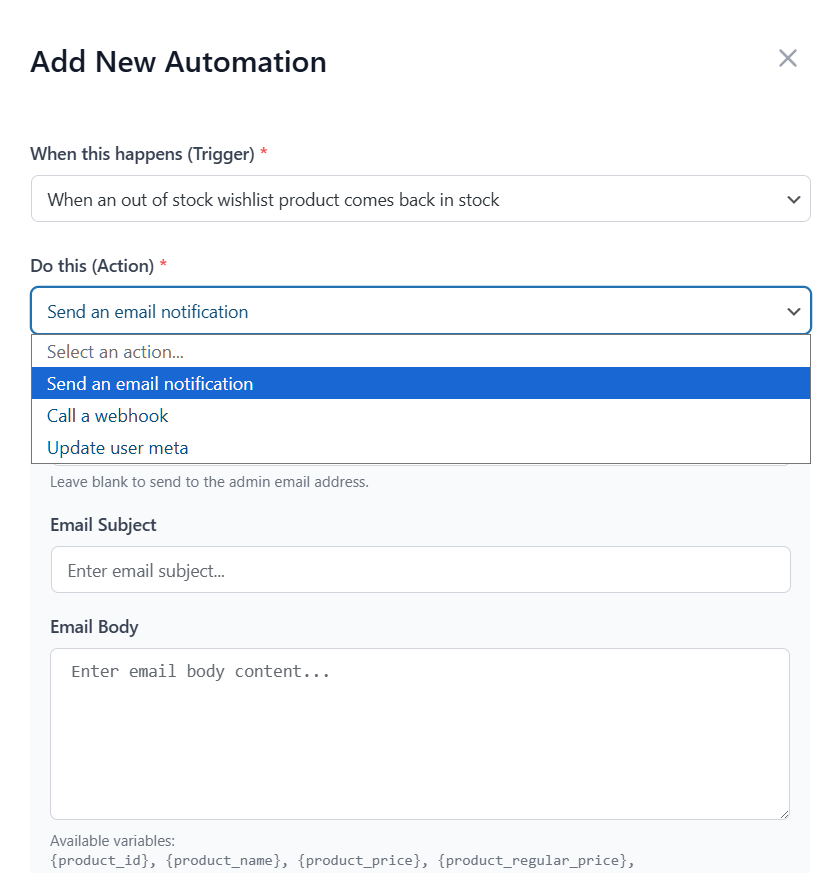
- Send automated price drop and back in stock email alerts to bring shoppers back
- View detailed wishlist analytics to understand which products customers want most
- Track customer behavior so you can make smarter marketing decisions
- Connect with advanced tools and integrations to improve your workflows
- Customize the wishlist experience to better match your store and brand
Every feature is based on real ecommerce needs. As a result, you get tools that are practical, reliable, and focused on measurable growth. Most importantly, the Pro version helps you use wishlist data to make better decisions and drive more sales over time.
If you’re serious about scaling your store, upgrading to SaveTo Wishlist Pro is a smart next step.
Curious about SaveTo Wishlist Pro? Then check out the following article:
SaveTo Wishlist Pro: How To Turn Saved Items Into A Growth Engine
Conclusion
Adding a wishlist feature to your WooCommerce store is simple. Best of all, it helps customers save the products they love, return later, and complete their purchases.
By following the steps in this guide and using the tips we shared, you can create a wishlist system that fits your store’s style and keeps shoppers engaged.
To recap, this article explored the following concepts:
- Why add wishlist functionality to your WooCommerce store?
- What is SaveTo Wishlist?
- How to add wishlist functionality to your store using SaveTo Wishlist
- Tips for setting up wishlists for your store
Add wishlist functionality to your store today! Start using SaveTo Wishlist and make shopping easier for your customers while giving your store a boost in sales.
How To Add Wishlist Functionality And Other FAQS
How can I customize the appearance and placement of the wishlist buttons on my store?
You can customize wishlist buttons by adjusting their placement—such as above the add to cart button or near the product image—and styling options like colors, shape, and icons through the plugin’s settings, with live previews available to see changes in real time.
Can guests use the wishlist feature on my store?
Yes, SaveTo Wishlist allows guest users to save items to their wishlists, and they can transfer those lists to an account if they decide to register later.
How do I install SaveTo Wishlist on my WooCommerce store?
You can install SaveTo Wishlist by searching for it in your WordPress dashboard under Plugins > Add New, then clicking Install Now and activating it, or by downloading it from the plugin’s website and uploading it manually.
What is SaveTo Wishlist, and how does it work?
SaveTo Wishlist is a free WooCommerce plugin that allows shoppers to save products they are interested in for future purchase, helping to reduce cart abandonment and improve shopping convenience.
Why should I add wishlist functionality to my online store?
Adding wishlist functionality encourages customers to save products they like, making it easier for them to return and complete their purchases, ultimately boosting your sales and building customer loyalty.