
 Reviewed by
 Here’s a number that should keep every WooCommerce store owner up at night: roughly 70% of online shopping carts are abandoned before checkout. That translates to an estimated $18 billion in lost revenue every year across ecommerce. You’ve done the hard work of getting a shopper to your store. They’ve browsed your products, maybe even added a few items to their cart. And then they vanish.
Most recovery strategies focus on how to recover abandoned carts after a shopper has already left. Case in point, retargeting ads, exit-intent popups, and abandoned cart recovery emails are all reactive tools. They kick in once the damage is done.
But what if you could get ahead of abandonment entirely?
That’s where WooCommerce wishlists come in. A wishlist isn’t just a “save for later” feature. When used strategically, it drives proactive cart abandonment recovery for WooCommerce by capturing purchase intent early and keeping shoppers engaged over time. Furthermore, it gives you several ways to bring customers back to your store before they even reach the final checkout page.
I’ve spent the last several months testing these strategies with SaveTo Wishlist, and the results have been genuinely impressive. In this guide, I’ll walk through seven specific WooCommerce cart abandonment recovery strategies you can implement using wishlists and show you exactly how each one works.
What You’ll Learn:
- 1st Strategy: Price Drop Alerts On Wishlisted Items
- 2nd Strategy: Back-in-Stock Notifications
- 3rd Strategy: Wishlist Reminder Emails
- 4th Strategy: Wishlist-Based Product Recommendations
- 5th Strategy: Exclusive Discounts For Wishlist Users
- 6th Strategy: Guest Wishlist Capture
- 7th Strategy: Collaborative Wishlists For Gift Buying
- Free vs. Pro: Which Strategies You Can Use Today
- FAQs: Cart Abandonment Recovery For WooCommerce
Which Strategies Need Free vs. Pro?
Before we dive in, here’s a quick reference so you know which strategies you can start with right away and which require an upgrade:
| Strategy | SaveTo Wishlist Lite | SaveTo Wishlist Pro | Tools Needed |
|---|---|---|---|
| Price Drop Alerts | ❌ | ✅ | SaveTo Wishlist Pro |
| Back-in-Stock Notifications | ❌ | ✅ | SaveTo Wishlist Pro |
| Guest Wishlist Capture | ✅ | ✅ | SaveTo Wishlist Lite |
| Collaborative Wishlists | ✅ | ✅ | SaveTo Wishlist Lite |
You’ll need SaveTo Wishlist Pro for two of these strategies. However, the other two work on the free plan, SaveTo Wishlist Lite. Thus, there’s no barrier to getting started today.
Now let’s break each one down.
Strategy 1: Price Drop Alerts On Wishlisted Items
How it works
When a customer adds an item to their wishlist, SaveTo Wishlist Pro tracks the product’s price. If you run a sale, apply a discount, or manually lower the price, the plugin automatically sends the customer an email letting them know the item they saved just got cheaper.
It’s a simple trigger: price drops, email fires, customer clicks through to buy.
Why it converts
Price sensitivity is the number-one reason shoppers abandon carts, accounting for roughly 48% of all abandonments. A price drop alert directly addresses that objection. The customer already expressed interest by wishlisting the product. You’re simply removing the last barrier.
What makes this particularly effective is timing. The alert arrives at the exact moment the product becomes more affordable. Therefore, you create natural urgency without resorting to fake countdown timers or pressure tactics.
Implementation with SaveTo Wishlist Pro
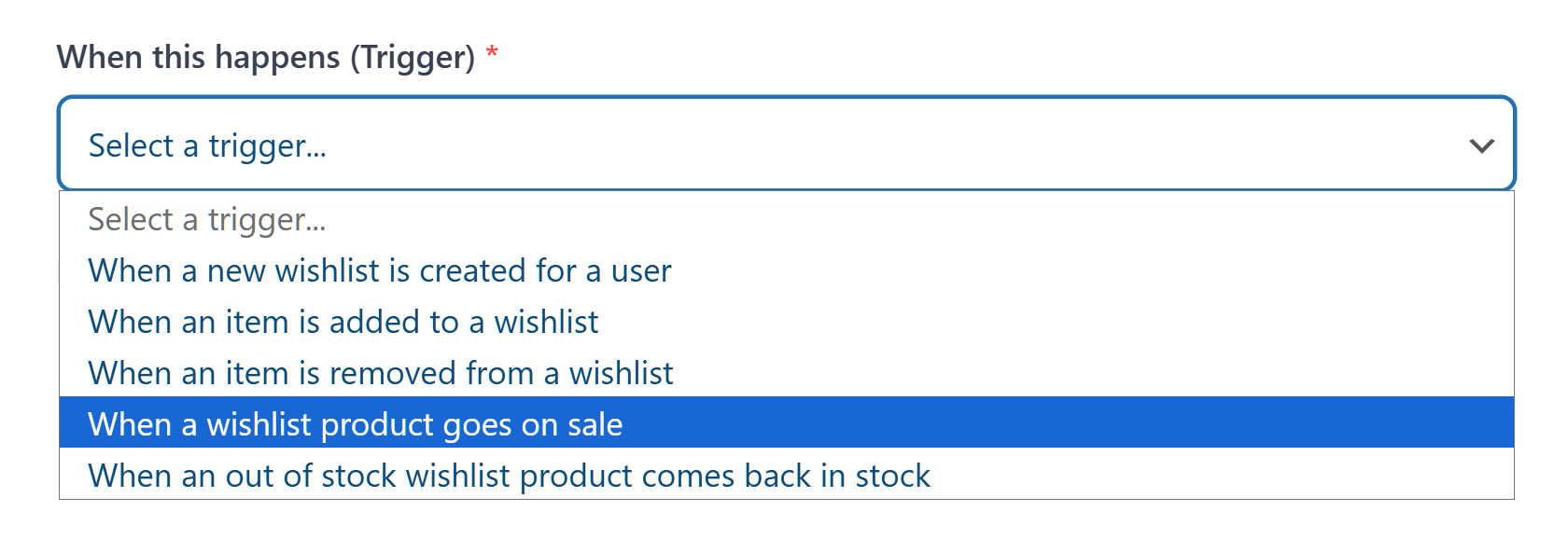
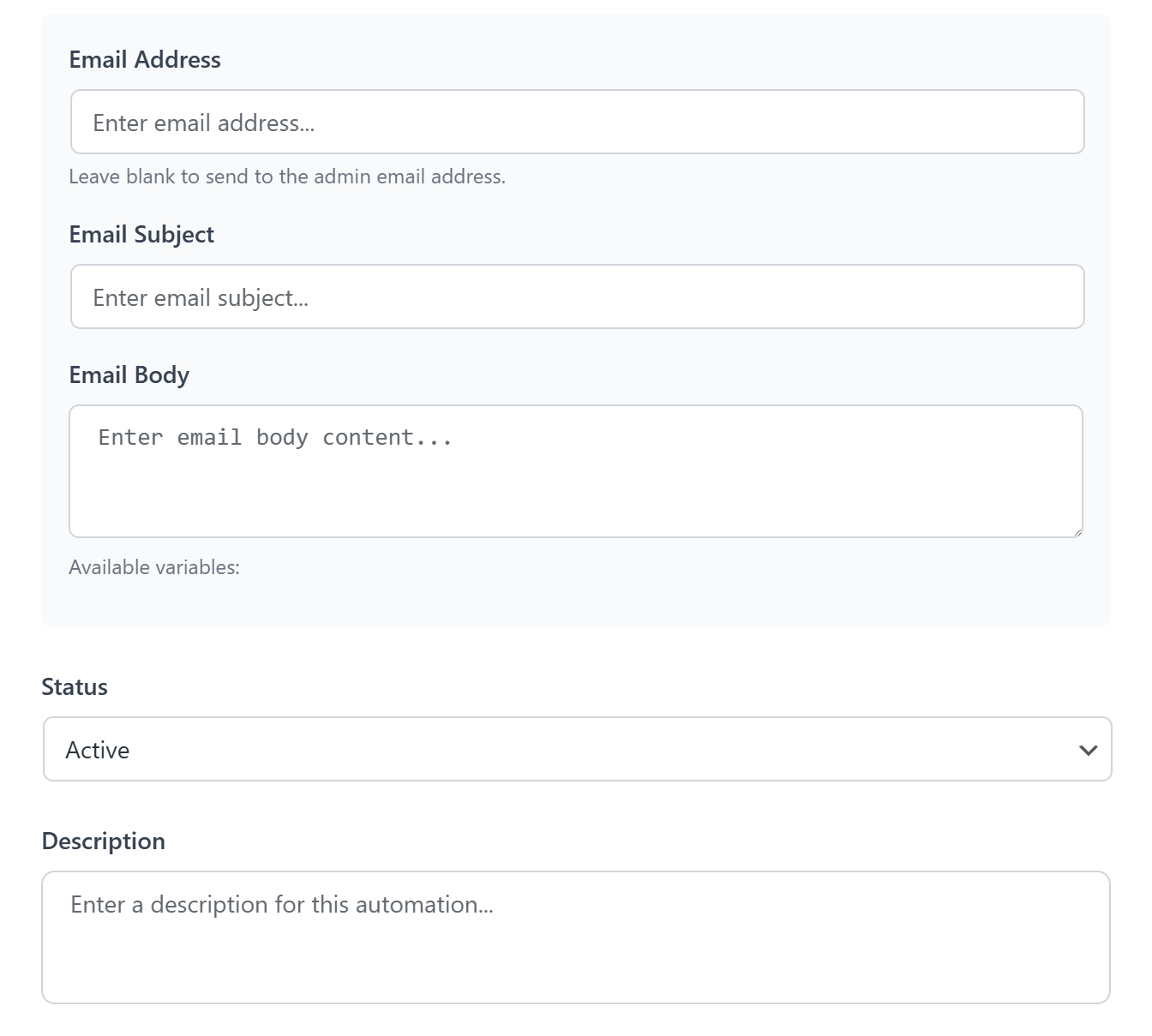
To enable price drop alerts in SaveTo Wishlist Pro, navigate to SaveTo Wishlist > Automation. Then, select “Send an email notification” as the Action, and “When a wishlist product goes on sale” as the Trigger.
You can customize the email template however you wish. This allows you to match your branding.
Strategy 2: Back-in-Stock Notifications
How it works
When an out-of-stock product sits on a customer’s wishlist, SaveTo Wishlist Pro monitors inventory levels. The moment the product is restocked, an automated email goes out to every customer who wishlisted it.
This turns your wishlist into a demand-capture system. Instead of losing a sale when inventory runs dry, you’re queuing up buyers for the restock.
Why it converts
Out-of-stock items account for a significant share of lost sales in ecommerce. A back-in-stock notification captures that demand and channels it directly into a purchase.
The psychology is straightforward: scarcity made the customer want the product more, and the notification creates a “now or never” moment that drives fast action.
Implementation with SaveTo Wishlist Pro
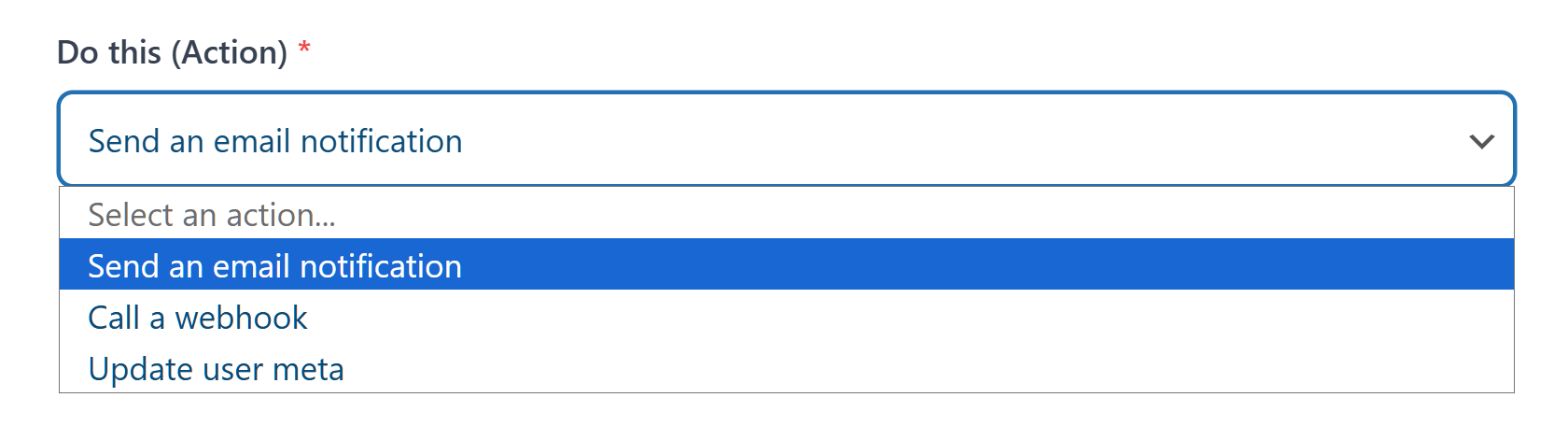
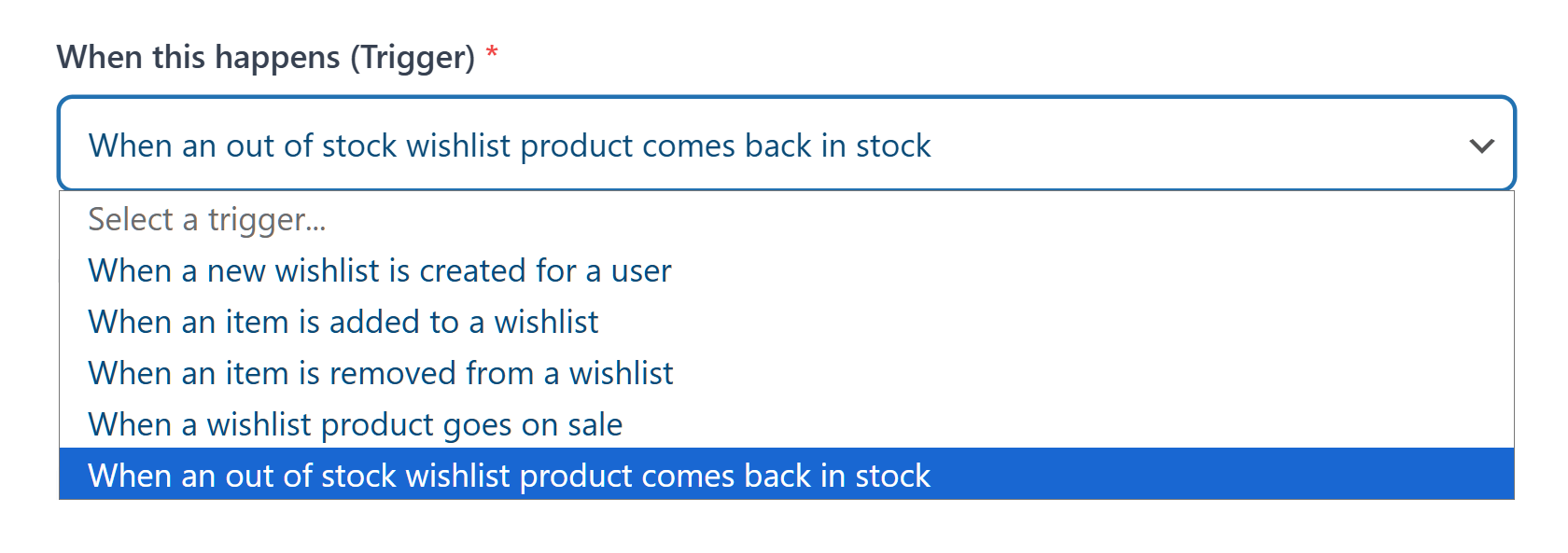
To enable back-in-stock notifications, navigate to SaveTo Wishlist > Automation. Then, pick the Action, “Send an email notification,” followed by the Trigger, “When an out of stock wishlist product comes back in stock.”
The system hooks into WooCommerce’s native stock management, so there’s no additional inventory setup required. You can customize the email content.
Strategy 3: Wishlist Reminder Emails (7/14/30 Day Staggered)
How it works
This strategy uses a timed email sequence to re-engage customers who’ve added items to their wishlist but haven’t purchased. SaveTo Wishlist Pro is designed to integrate with popular email platforms like Klaviyo and Mailchimp to trigger staggered reminders at 7, 14, and 30 days after a product is wishlisted.
Each email in the sequence takes a slightly different approach:
- 7th Day: A gentle reminder, like, “Still thinking about these items?”
- 14th Day: Add social proof or urgency, such as, “X other shoppers have this saved too” or “Stock is running low”
- 30th Day: Offer an incentive, like a small discount or free shipping to close the deal
Why it converts
According to Litmus, email marketing delivers an average ROI of $36 for every $1 spent, and wishlist-based emails outperform generic campaigns because they’re built on demonstrated interest. The staggered approach matters because different customers convert at different points in their decision cycle. Some need a gentle nudge at day 7; others need a stronger push at day 30.
Implementation with SaveTo Wishlist
Connect SaveTo Wishlist Pro to your email marketing platform through the plugin’s integration settings. SaveTo Wishlist pushes wishlist event data (item added, item removed, wishlist created) directly to Klaviyo or Mailchimp, where you build the automation flows. This gives you full control over the email content, segmentation, and timing.
Strategy 4: Wishlist-Based Product Recommendations
How it works
SaveTo Wishlist Pro tracks which products your customers are saving, giving you valuable data about purchase intent across your store. You can use this wishlist data to inform your product recommendation strategy. For example, you can feature frequently wishlisted products in email campaigns, homepage sections, or category highlights to drive conversions.
Why it converts
Products saved to wishlists show you exactly what your customers want. By putting these popular items front and center on your website and in your marketing, you take the guesswork out of what to sell. This data is especially helpful for making seasonal inventory decisions. Ultimately, if an item is getting a lot of saves, it deserves the spotlight.
Combining wishlist data with your email marketing (via the Klaviyo or Mailchimp integrations covered in Strategy 3) lets you send personalized recommendations based on a customer’s wishlist contents, such as complementary products or items from the same category.
Implementation with SaveTo Wishlist
SaveTo Wishlist Pro provides wishlist analytics that show you which products are generating the most saves. Use this data to inform your merchandising decisions and email marketing campaigns. Pair it with your email platform integration to send product recommendation emails based on each customer’s wishlist activity.
Strategy 5: Exclusive Discounts For Wishlist Users
How it works
This strategy uses WooCommerce’s built-in coupon functionality (or a coupon plugin like Advanced Coupons) to create discounts you send to customers with items on their wishlists.
For example, you can create a coupon code and send it via email to customers who have been holding items on their wishlist for a certain period. Because you’re targeting shoppers who have already demonstrated interest, the discount feels personalized rather than generic.
Why it converts
Generic sitewide discounts cut into your margins across the board. On the other hand, wishlist-targeted discounts are surgical: they apply only where purchase intent already exists, so you’re spending your discount budget on the customers most likely to convert. The personalization also increases perceived value — a discount on “the jacket you saved last week” feels very different from “15% off everything.”
Implementation with SaveTo Wishlist
This works on both the free and Pro tiers of SaveTo Wishlist. Here’s how to set it up:
- Create a coupon in WooCommerce or use a coupon plugin like Advanced Coupons for more advanced conditions
- Use SaveTo Wishlist Pro’s email integration (via Klaviyo or Mailchimp) to identify customers with items on their wishlists
- Send the coupon code to those customers in a targeted email campaign referencing their wishlisted products
This approach keeps the discount targeted to high-intent shoppers rather than applying it sitewide.
Strategy 6: Guest Wishlist Capture
How it works
Most WooCommerce wishlist plugins require users to create an account before saving items. That’s a conversion killer. After all, you lose all the anonymous browsers who aren’t ready to commit to an account yet.
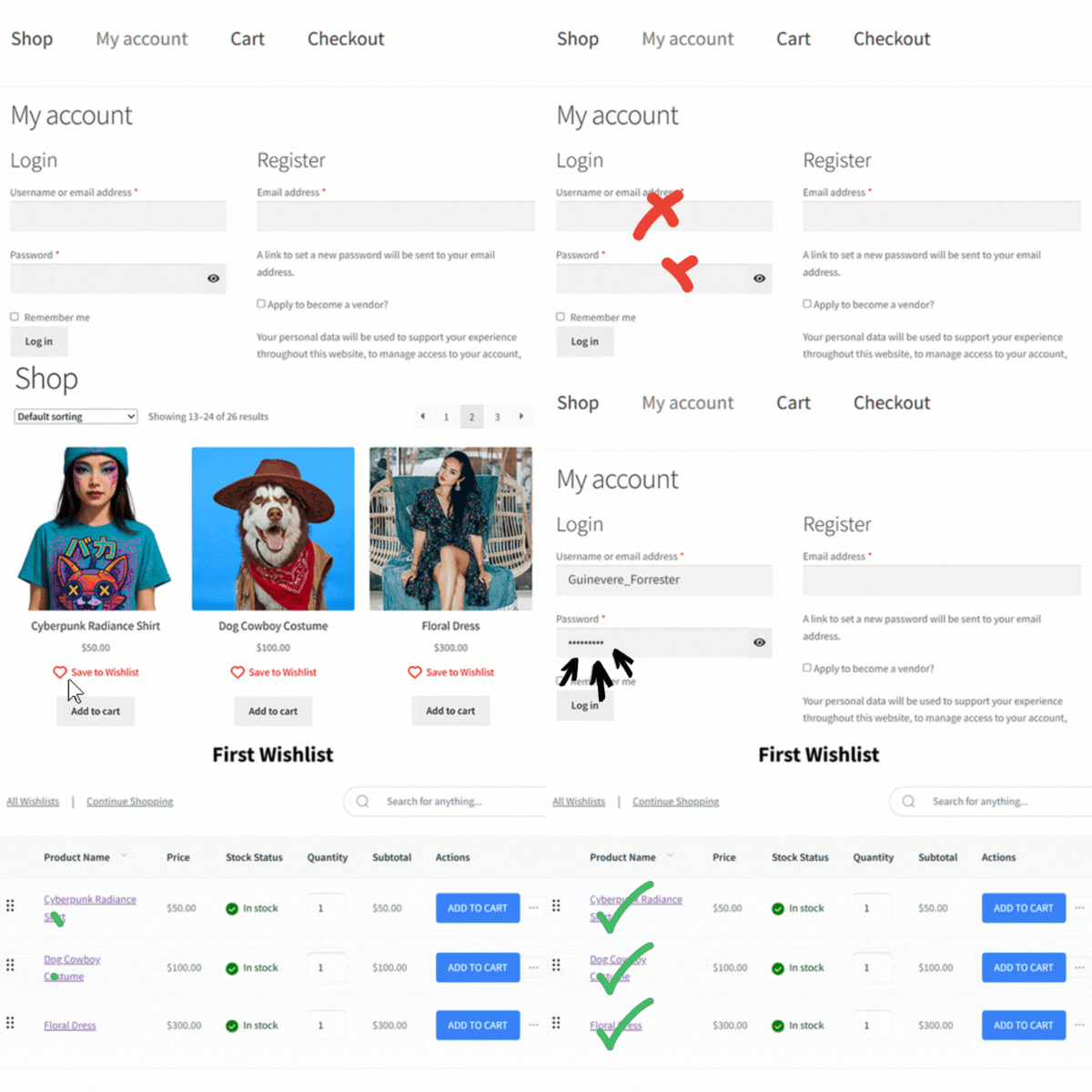
SaveTo Wishlist Lite’s guest wishlist feature lets visitors save items without logging in. The wishlist is stored locally and persists across sessions. When the guest eventually creates an account (or provides their email through a soft prompt), their saved items transfer seamlessly.
Why it converts
According to the Baymard Institute, 26% of shoppers abandon carts because the site required them to create an account. Guest wishlists remove that friction entirely and prevent lost sales from anonymous browsers who aren’t ready to create an account yet. You capture purchase intent from a much larger pool of visitors, then convert them to known contacts over time.
Think of it as a three-step conversion. First, you capture their product interests (low commitment). Then, you capture their email (medium commitment). Lastly, you convert the sale (high commitment). Each step is small enough that shoppers don’t bounce.
Implementation with SaveTo Wishlist Lite
To enable guest wishlists, head to SaveTo Wishlist > Settings > Guest Options. Then, toggle the Disable Guest Wishlist option so it says “No.” This way, every shopper without an account or who hasn’t logged in yet can save items to their wishlist. Later, once they’ve logged into their account, their saved items are automatically merged with it.
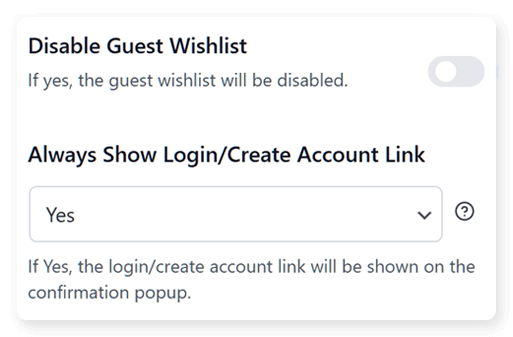
Moreover, you can encourage account creation. First, go to SaveTo Wishlist > Settings > General, and choose “Popup” from the Add to Wishlist Button option. Next, navigate to SaveTo Wishlist > Settings > Guest Options and look for Always Show Login/Create Account Link. Select “Yes” so that every time a guest saves an item, a popup appears prompting them to create an account.
Strategy 7: Collaborative Wishlists For Gift Buying
How it works
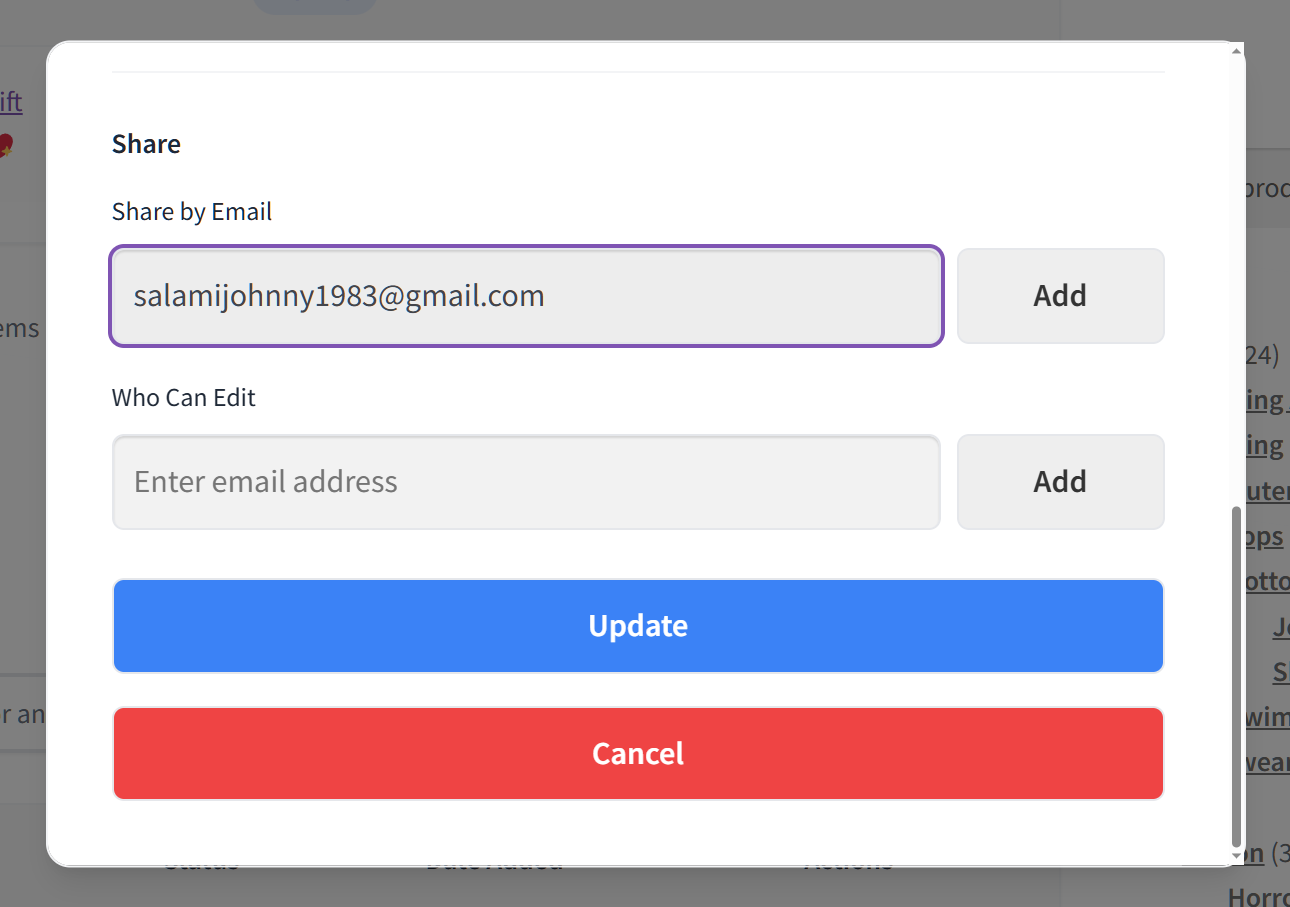
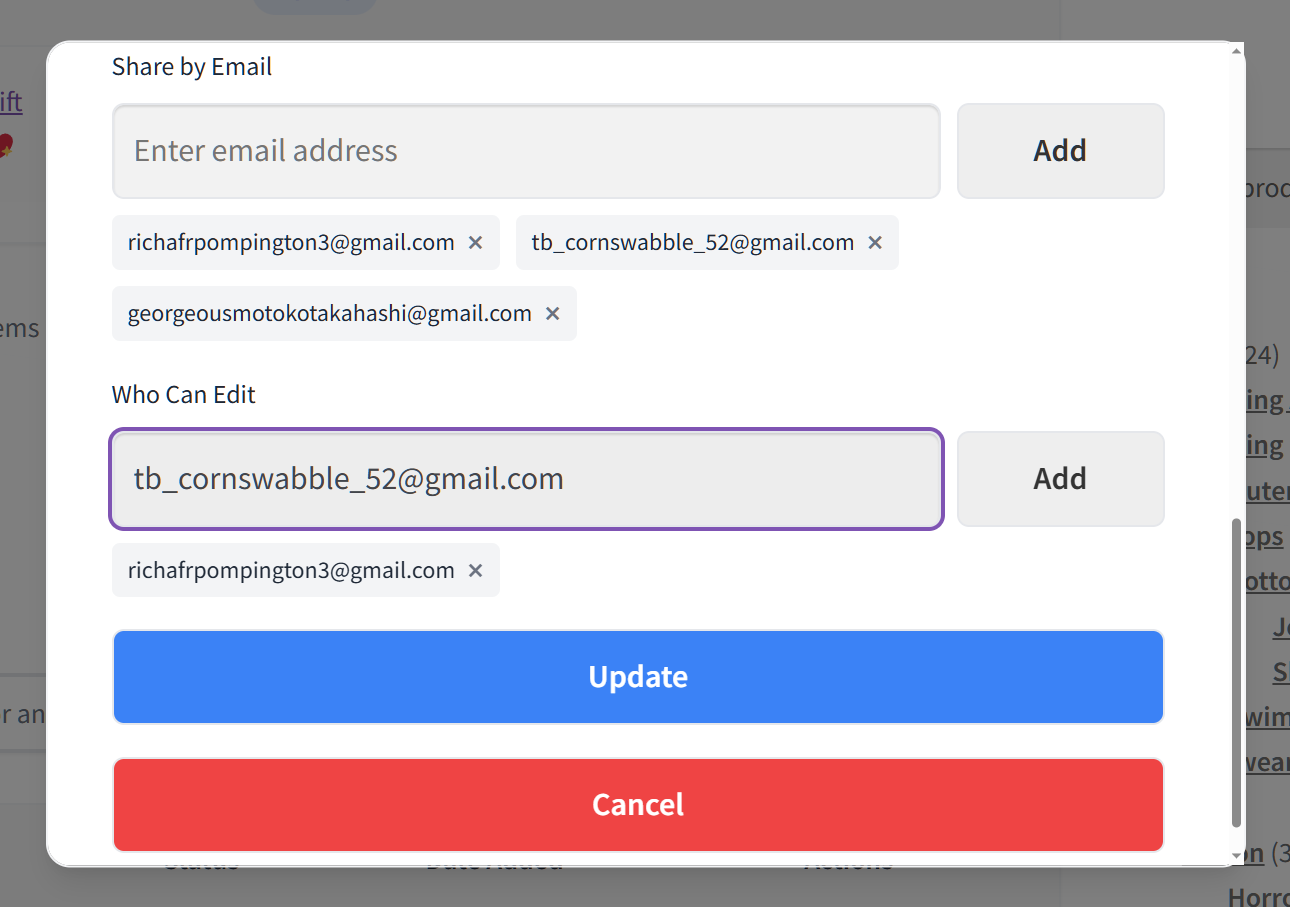
SaveTo allows customers to create shared wishlists with custom sharing and permissions. For instance, a shopper can build a wishlist and share it with family, friends, or a partner, who can then view the list, add their own suggestions, or purchase items directly from it.
Basically, this turns a single customer’s wishlist into a multi-person shopping experience. Birthday lists, holiday gift guides, wedding registries, and housewarming collections are all possible through collaborative wishlists.
Why it converts
Collaborative wishlists multiply your reach. For example, if one customer creates a wishlist and shares it with five people, you end up with six potential buyers instead of one. It’s organic, word-of-mouth traffic driven by real purchase intent.
This is particularly powerful during peak gifting seasons (holidays, Valentine’s Day, Mother’s Day), when shoppers actively want to know what their loved ones want. A shared wishlist removes the guesswork from gift buying and sends buyers directly to your store.
Implementation with SaveTo Wishlist Lite
Collaborative wishlists are available for free on SaveTo Wishlist Lite. Customers can share lists by sharing a unique URL with people they trust.
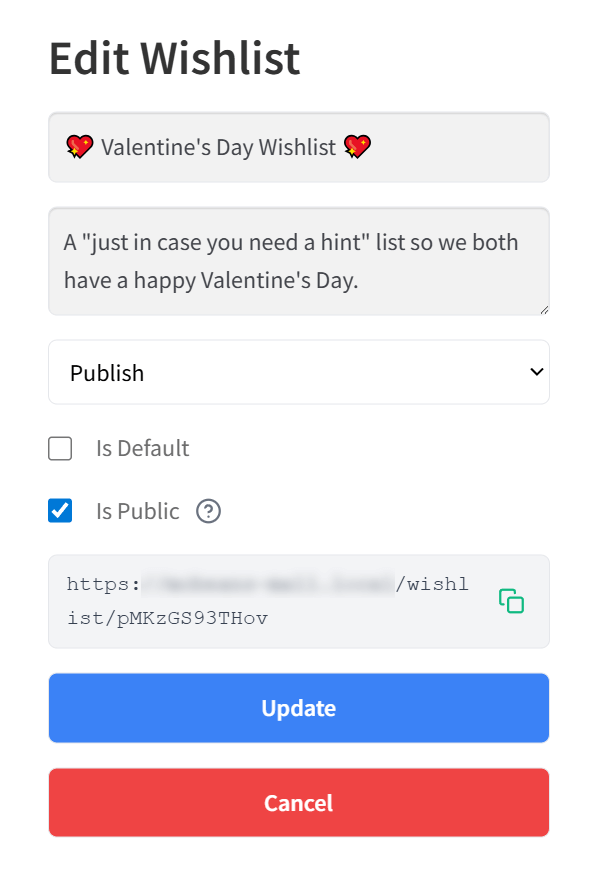
On the other hand, Pro users can also invite others via email. Moreover, they can set permission levels that let them control whether collaborators can edit the list or view it only.
These sharing options are available to both free and premium users by default.
Putting It All Together
These four strategies aren’t mutually exclusive. However, they’re most powerful when layered together. Here’s how I’d approach implementation if I were starting from scratch:
- Phase 1 (Free tier, Day 1): Enable guest wishlists (Strategy 6) and collaborative sharing (Strategy 7). Also, install Advanced Coupons and set up wishlist-targeted discounts (Strategy 5). These three strategies require zero additional cost and start capturing intent immediately.
- Phase 2 (Pro tier, Week 2): Upgrade to SaveTo Wishlist Pro and activate price drop alerts (Strategy 1) and back-in-stock notifications (Strategy 2). These automated triggers work in the background with no ongoing effort.
- Phase 3 (Pro + Email, Week 3–4): Connect SaveTo Wishlist Pro to Klaviyo or Mailchimp and build your staggered reminder sequence (Strategy 3). Then, use your wishlist analytics to power product recommendation campaigns (Strategy 4). At this point, you have a fully automated recovery system running across multiple channels.
Ready to turn wishlists into your most powerful recovery tool? Get started with SaveTo Wishlist today for free.
FAQ: Cart Abandonment Recovery For WooCommerce
Can wishlists really reduce cart abandonment?
Yes, and the data supports it. Wishlists address several of the top reasons for cart abandonment and lost sales, such as price sensitivity and out-of-stock items, by giving shoppers a low-commitment way to save products and re-engage later. The key is pairing the wishlist with automated follow-ups like price alerts and reminders. While a passive wishlist sitting unused won’t move the needle, an active wishlist strategy absolutely will.
Do I need SaveTo Wishlist Pro for all of these strategies?
No. Two of the four strategies—guest wishlist capture and collaborative wishlists—work on the free tier. The Pro-only features are the automated notification strategies: price drop alerts and back-in-stock notifications. Thus, if you’re just getting started, the free strategies alone can make a meaningful impact.
What’s the difference between a wishlist recovery strategy and a standard abandoned cart email?
Standard abandoned cart emails target people who’ve already started checkout and dropped off. In other words, they’re reactive by design. In contrast, wishlist recovery strategies capture intent much earlier in the funnel, before a customer even adds an item to their cart. This gives you a longer engagement window and more touchpoints. Instead of a single “you left items in your cart” email, you can run a multi-week sequence of price alerts and back-in-stock reminders. Basically, the two approaches complement each other. While wishlists handle early-funnel intent, abandoned cart recovery emails handle late-funnel drop-off.