
 Reviewed by
 A wishlist feature can encourage shoppers to keep revisiting your store—something we’ve observed repeatedly in WooCommerce stores. So, to get the most out of this tool, you need to know how customers create an online wishlist.
For your wishlist feature to bear fruit, it has to be simple to use. From our experience, customers only care about speed and ease. A complicated feature won’t just annoy them; it can make them leave your site, too.
In this article, we’ll walk you through the exact steps customers take with SaveTo Wishlist, a free wishlist plugin we created based on our experience helping WooCommerce stores. This shows how thoughtful design drives more customer usage and higher sales.
So let’s get right to it!
Why Wishlist Simplicity Matters
Customers are always busy, and their attention span is short. If your wishlist is hard to use, they’ll simply ignore it. Therefore, it needs to be less like a chore and more like a helpful assistant.
Good design is the difference between a curious browser and a committed buyer. When saving an item is fast, shoppers click the button more often. Each saved product signals a true buying intent to your store.
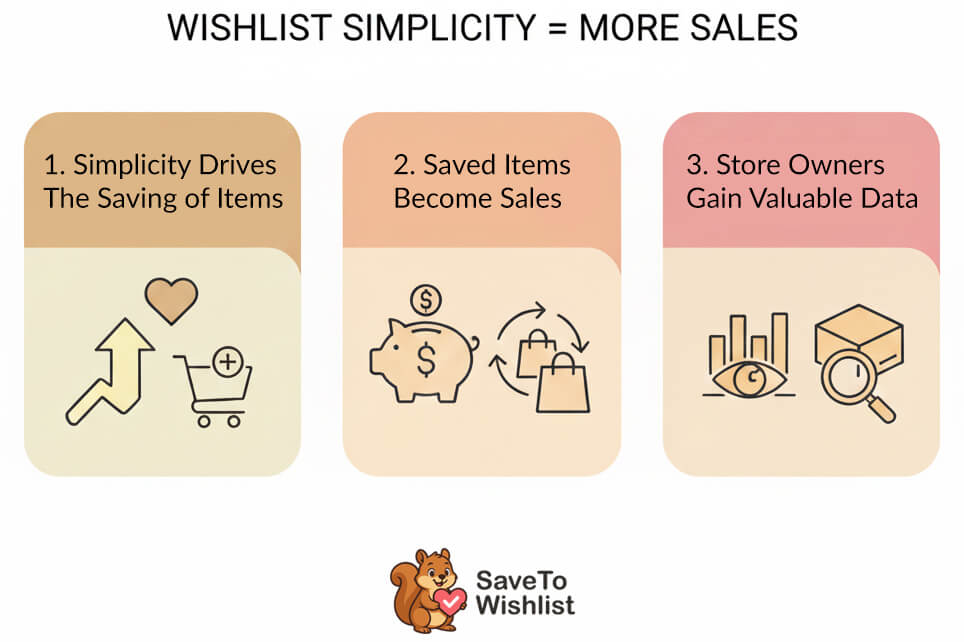
1. Simplicity drives saved items
Industry research shows that 88% of online shoppers won’t return to a site after a single bad experience. In other words, if a feature is frustrating to use, you could lose sales.
In contrast, a process that takes one simple click can motivate them to use it on dozens of items.
Therefore, a good wishlist feature should be simple and quick to navigate. This makes it easy for shoppers to keep adding items, building a list they can later move to their cart.
2. Saved items become sales
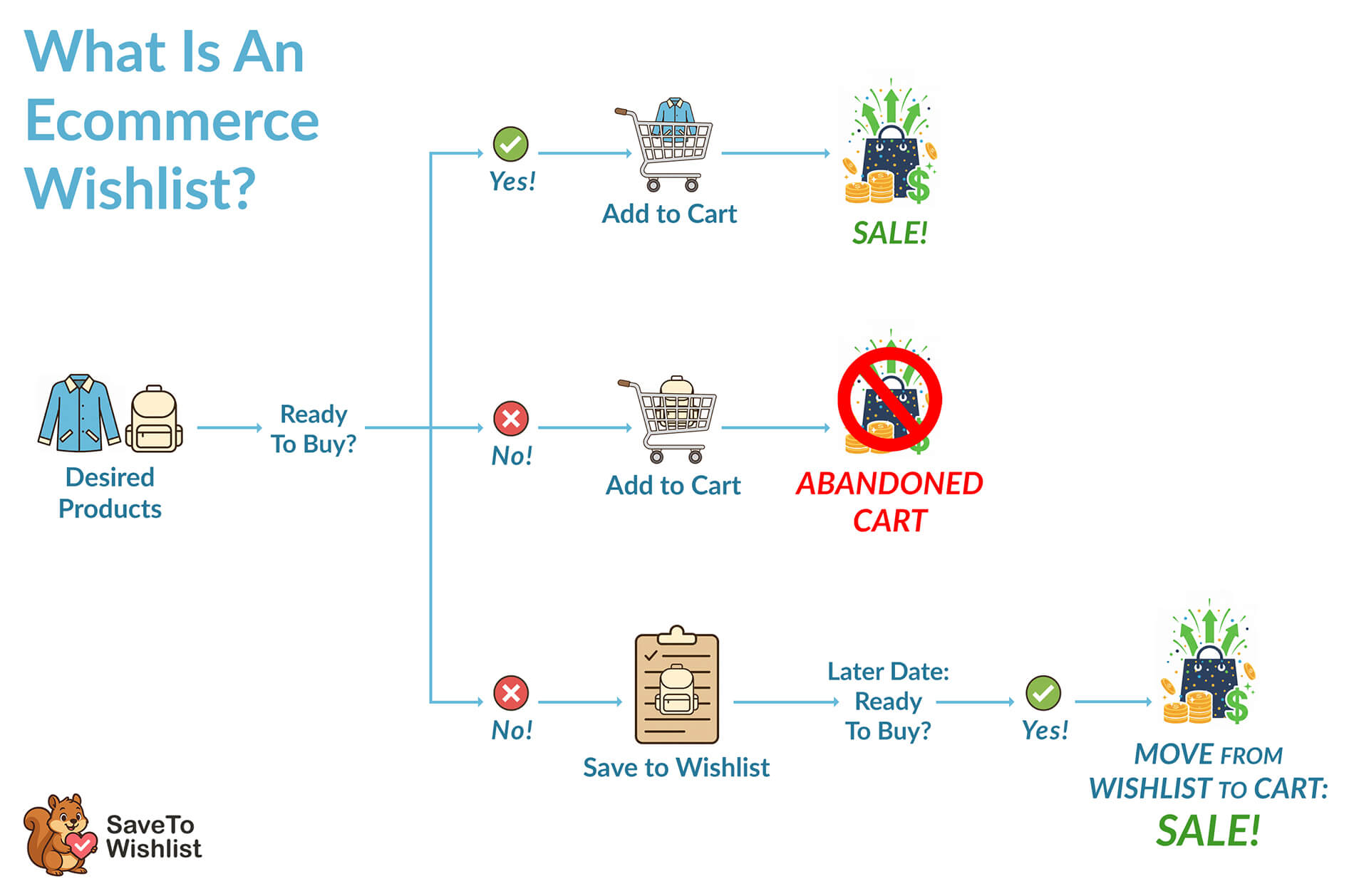
Every item on a wishlist is a potential future purchase. These lists act like a personal reminder that the shopper sets for themselves to return and complete their shopping.
Over time, frequent revisits to their saved items make shoppers return to your store more frequently and remember your brand. This makes it more likely they’ll move items to their cart and buy them. As a result, you improve your chances of boosting your sales.
Moreover, sharing wishlists or having multiple lists can further boost visibility and encourage gift purchases, bringing new customers to your store.
3. You gain valuable data
A wishlist only works if shoppers actually use it. A simple, easy-to-use tool makes them save items more often, giving you better ideas about what they like.
This information helps you see trends, plan stock, and make offers your customers will want. Even if shoppers don’t buy right away, their saved items give clues about their interests. Over time, an easy wishlist makes this information more useful for running your store.
This effortless experience is what makes a good wishlist plugin so effective.
Want to know more about wishlists and how they can benefit store owners? Then read the following guide:
What Is A Wishlist And Why Is It Crucial In Ecommerce? (Easy WooCommerce Guide)

The Customer Journey: How To Create An Online Wishlist With SaveTo Wishlist
For this tutorial, we’ll use SaveTo Wishlist as our example. This free WooCommerce plugin comes with many essential features that make saving items more convenient.
To fully understand the customer journey, it’s a good idea to first familiarize yourself with how to install and set up SaveTo Wishlist.
Would you like to know more about how to create your wishlist feature for your ecommerce store? Then check out the following complete guide:
How To Add Wishlist Functionality To Your WooCommerce Store (Easy Starter Guide)
Now, to see how easy it is for customers to use SaveTo Wishlist, we’ll follow a shopper named Denise as she creates an online wishlist in a store:
1. Access your store
Of course, the first step in the customer journey is to visit your store.
If you require customer registration, Denise must first log in to your site before she can use your wishlist feature.
Alternatively, if you allow guest users to use the wishlist feature, she can start saving products anytime.
2. Create a wishlist
SaveTo Wishlist automatically creates a wishlist, “First Wishlist,” for every new logged-in user. This is the default wishlist where all saved products go. The customer can change the default wishlist at any time (as we’ll see later).
If the customer is a guest, items are stored temporarily. However, they can log in later to save permanently.
So, how can a customer create an online wishlist?
From the My Account page, Denise clicks the Wishlists panel. This takes her to her My Wishlist page, which shows all the wishlists she’s created.
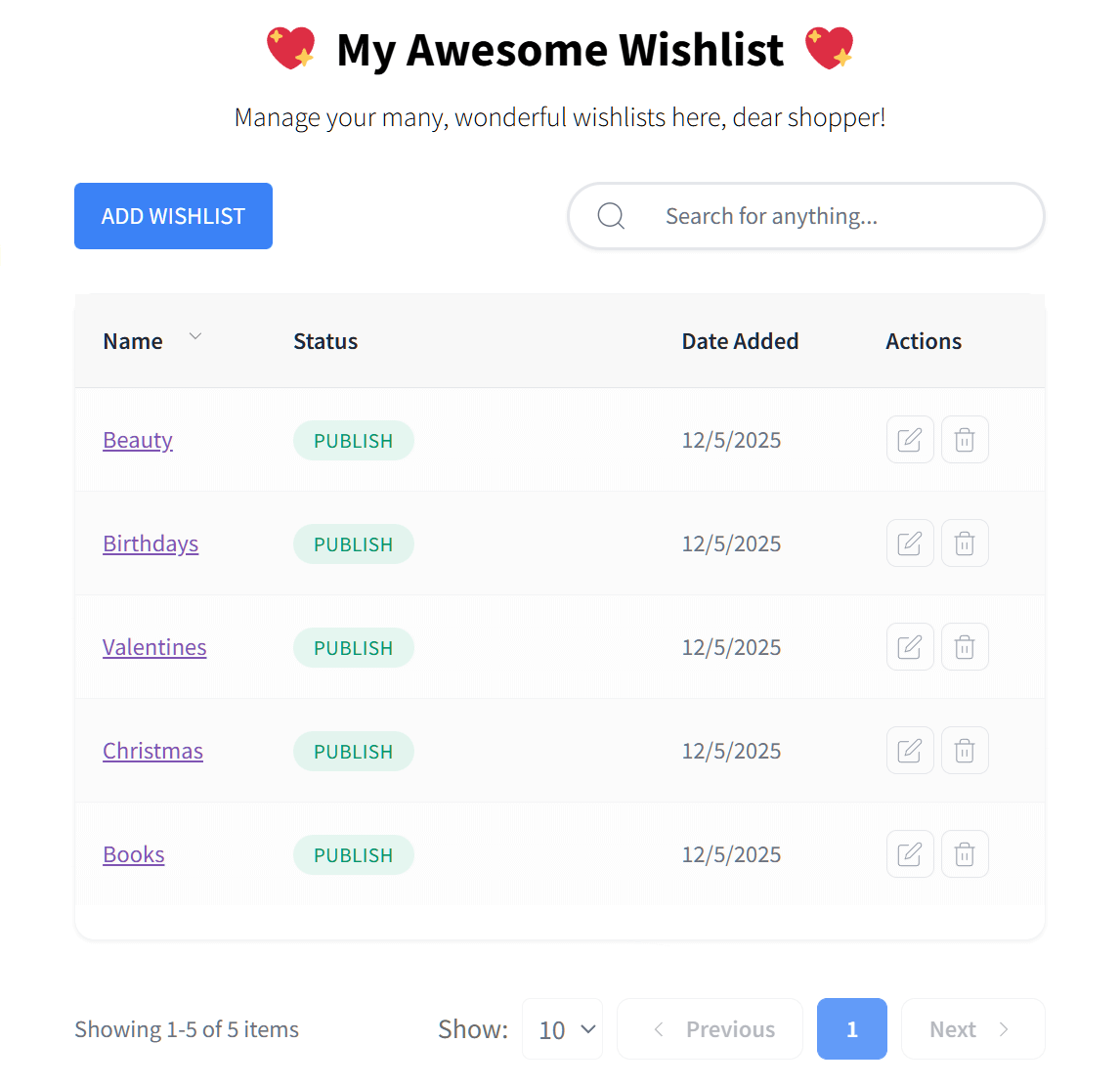
To create a wishlist, Denise clicks the Add Wishlist button near the top of the page.
This opens a pop-up as shown below:
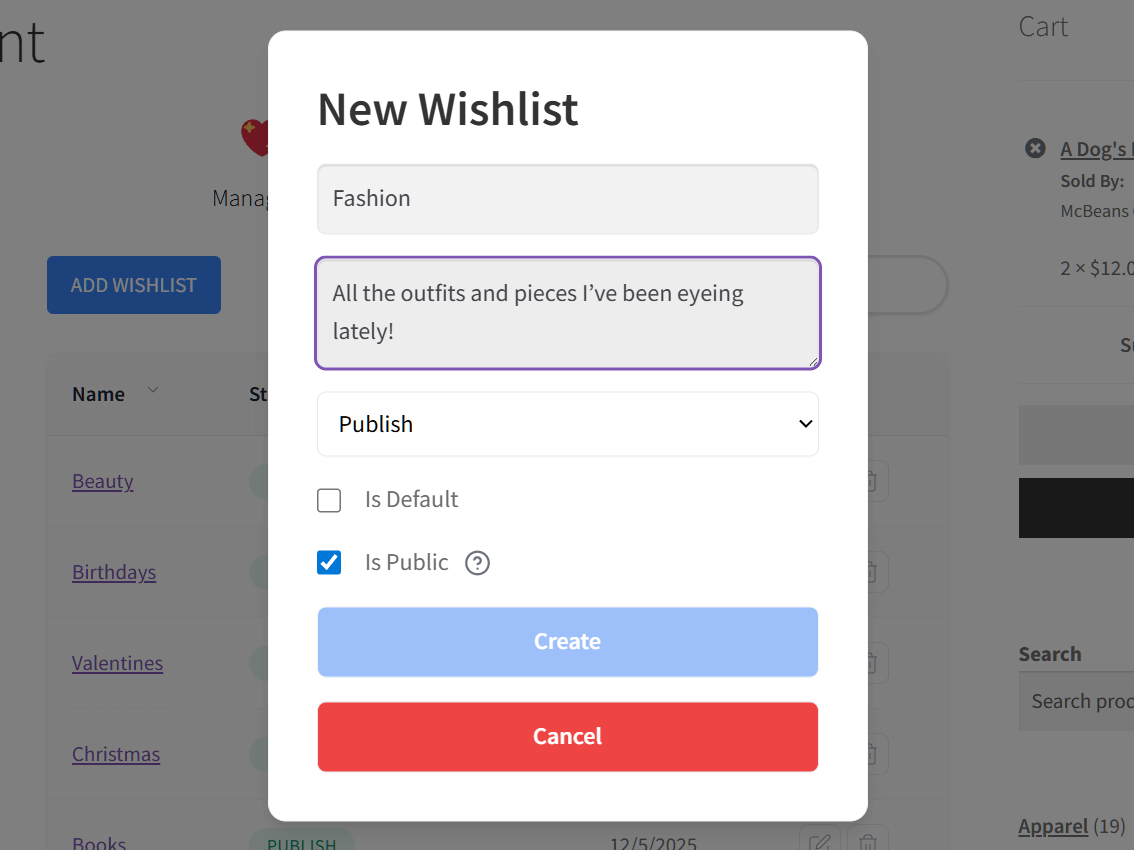
Now, Denise can give her new wishlist a name and an optional description. She names it “Fashion” and writes a description that says, “All the outfits and pieces I’ve been eyeing lately!”
To publish the new wishlist on her My Wishlist page, Denise clicks the dropdown menu and selects “Publish.” On the other hand, a customer who isn’t ready to publish the wishlist can pick “Draft.”
Denise can also configure the wishlist’s visibility setting by ticking or unticking the Is Public checkbox. She sets it to public, so she’s given a unique URL that she can share with others, who’ll then be able to view the items she’s saved.
Then there’s the Is Default checkbox. If checked, the wishlist becomes the new default.
Once Denise is happy with her new wishlist settings, she clicks the Create button.
3. Save products to a wishlist
Denise is excited to do some shopping! She visits your shop page and spots the novel A Dog’s Porpoise:
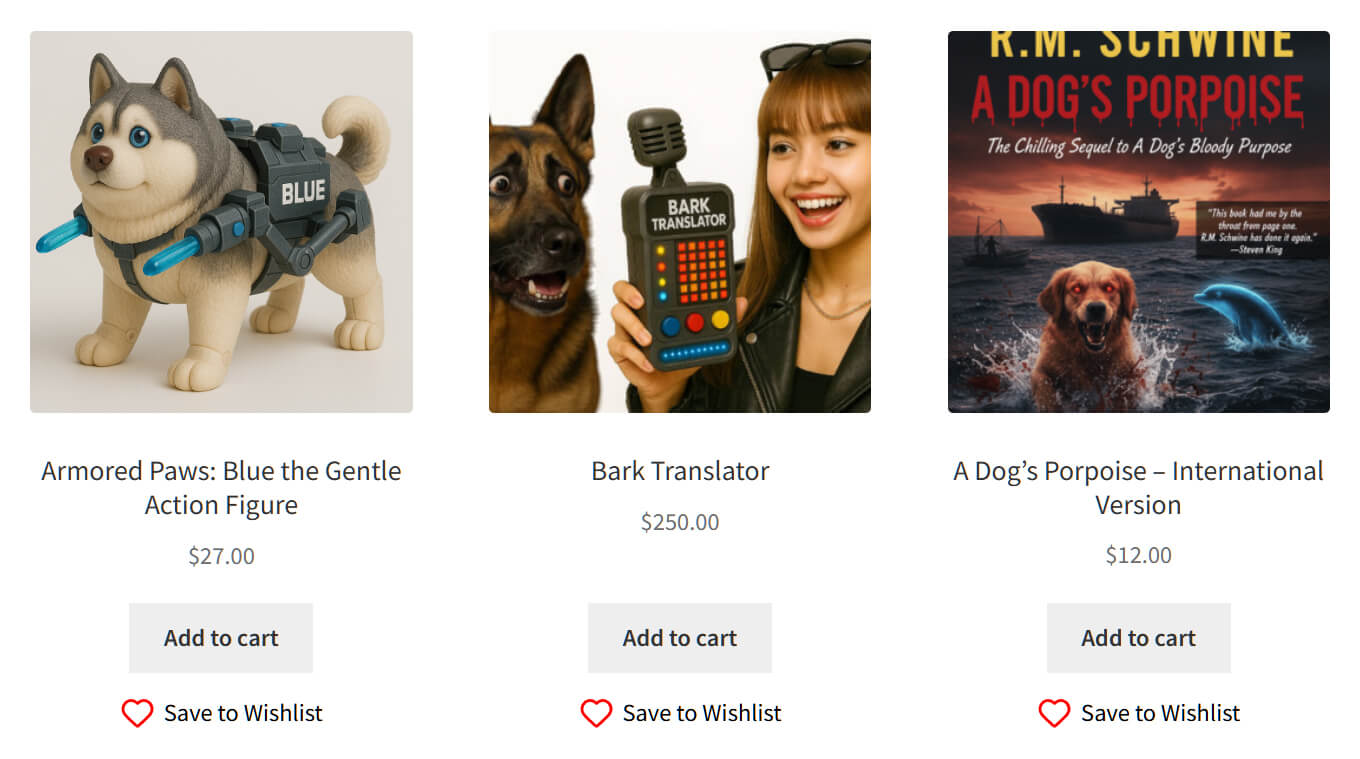
To save a product to a default wishlist, all Denise must do is click its Save to Wishlist button.
However, she wants to save it to her “Books” wishlist, instead. So, rather than clicking the Save to Wishlist button, she hovers her mouse button over it. This immediately reveals a dropdown:

She then moves down the list and selects her “Books” wishlist to save A Dog’s Porpoise to it.
Alternatively, she can go to the item’s product page and add the item to her wishlist from there.

Denise can add as many products to as many wishlists as she wants.
4. Manage wishlists
For a complete and rewarding shopping experience, customers must be able to manage their wishlists.
For starters, Denise can view her wishlists by returning to her My Account page and clicking Wishlists.
To view an individual wishlist, she simply has to click its name. To edit or delete one, she must click the edit or delete button.
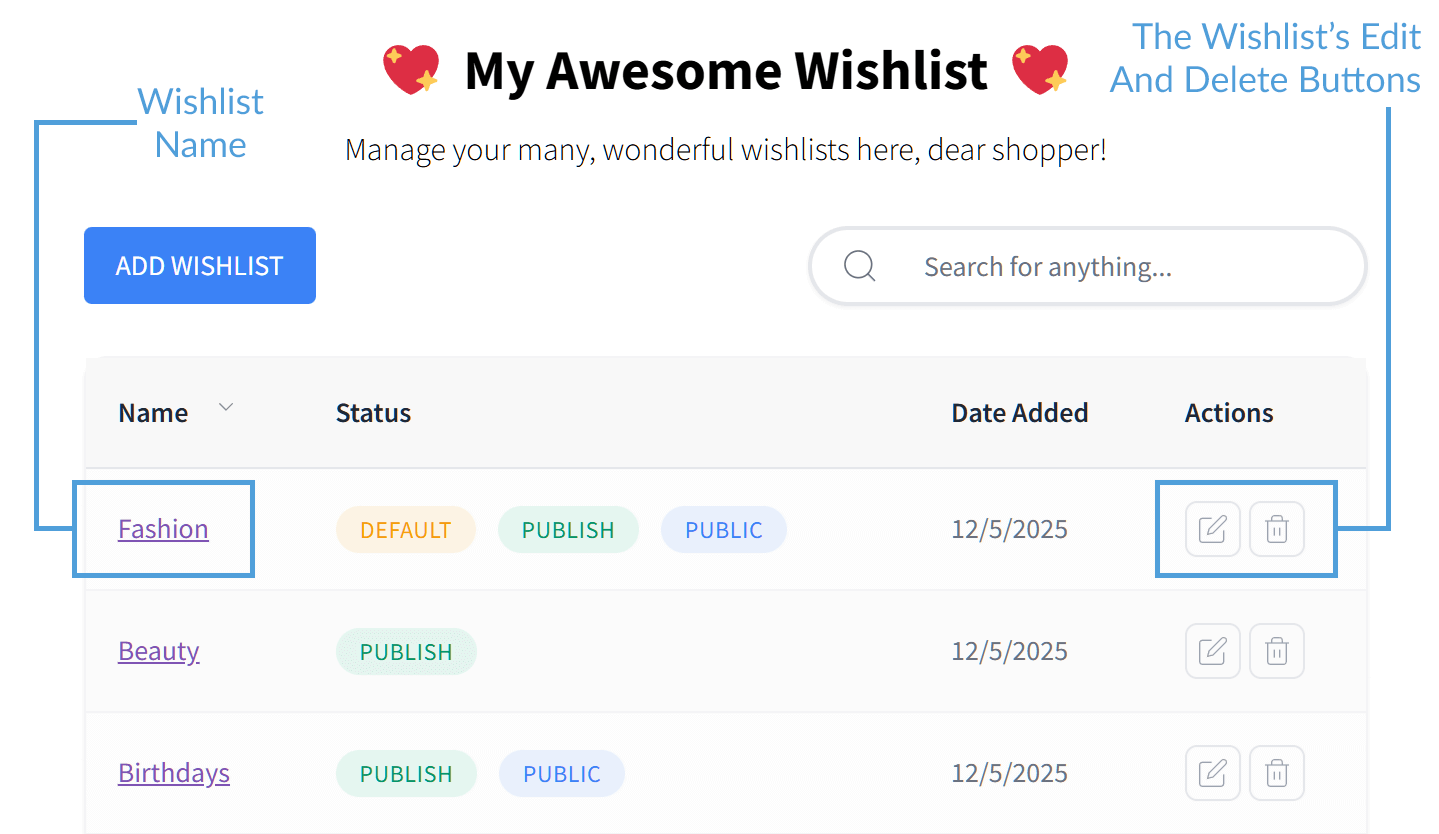
Note that deleting a wishlist also deletes its public link.
Editing a wishlist lets Denise change its name or description. She can also adjust its privacy settings, publish or unpublish it, set it as the default, or remove it as the default.
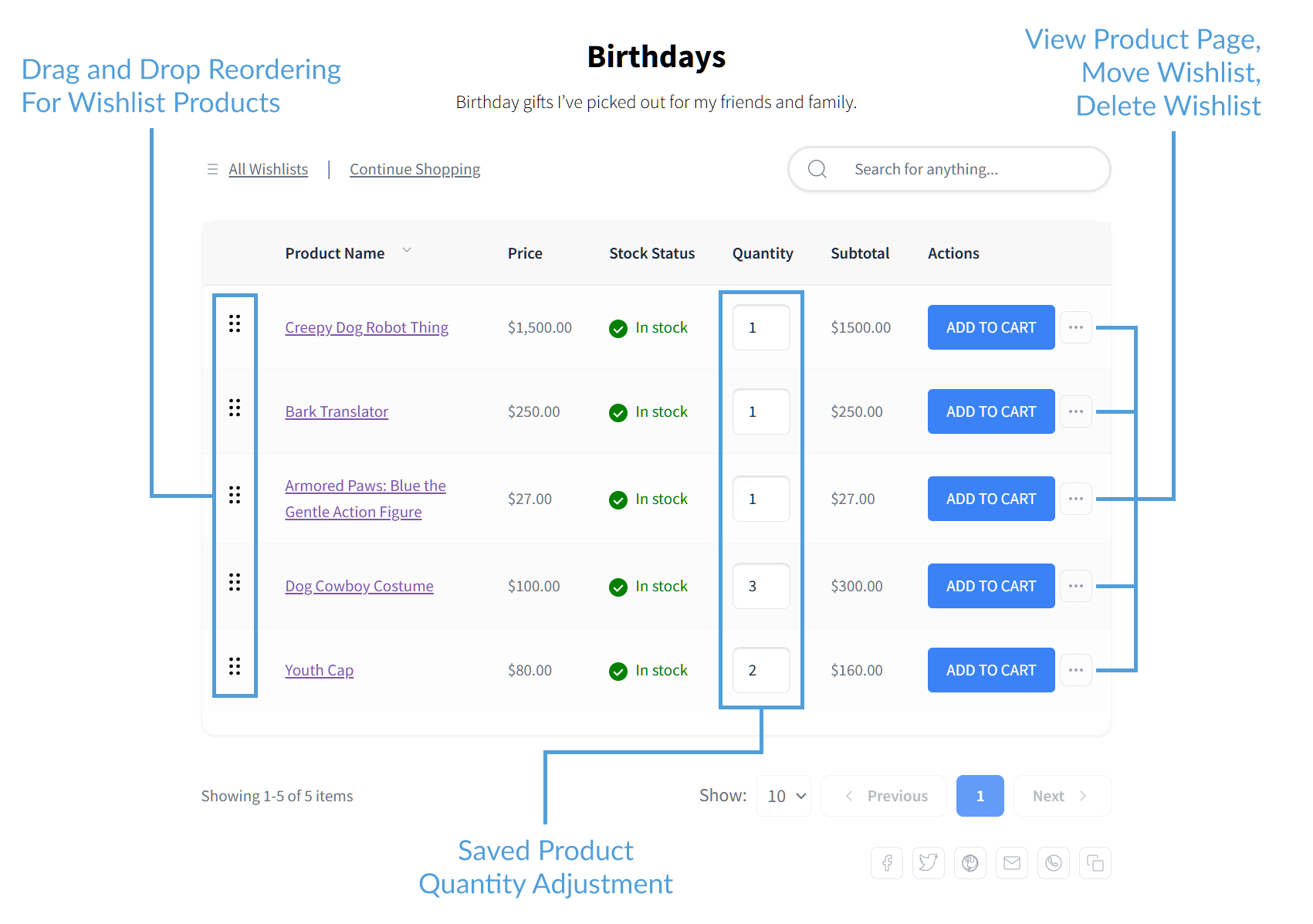
On an individual wishlist page, Denise can:
- View details for each saved product, including name, price, stock status, quantity, and subtotal
- Rearrange items by dragging them up or down
- Change the quantity of any saved product
- Add a product directly to the cart
- Visit the product’s page
- Move a product to another wishlist
- Remove a product from the wishlist
5. Share wishlists
Denise has various ways to share her wishlists.
As mentioned in Step 2, when a wishlist is set to public, a unique shareable URL is provided. Denise can simply share this URL with others to let them see the products she’s saved.
However, as you can see below, she can also use the buttons at the bottom of the wishlist.
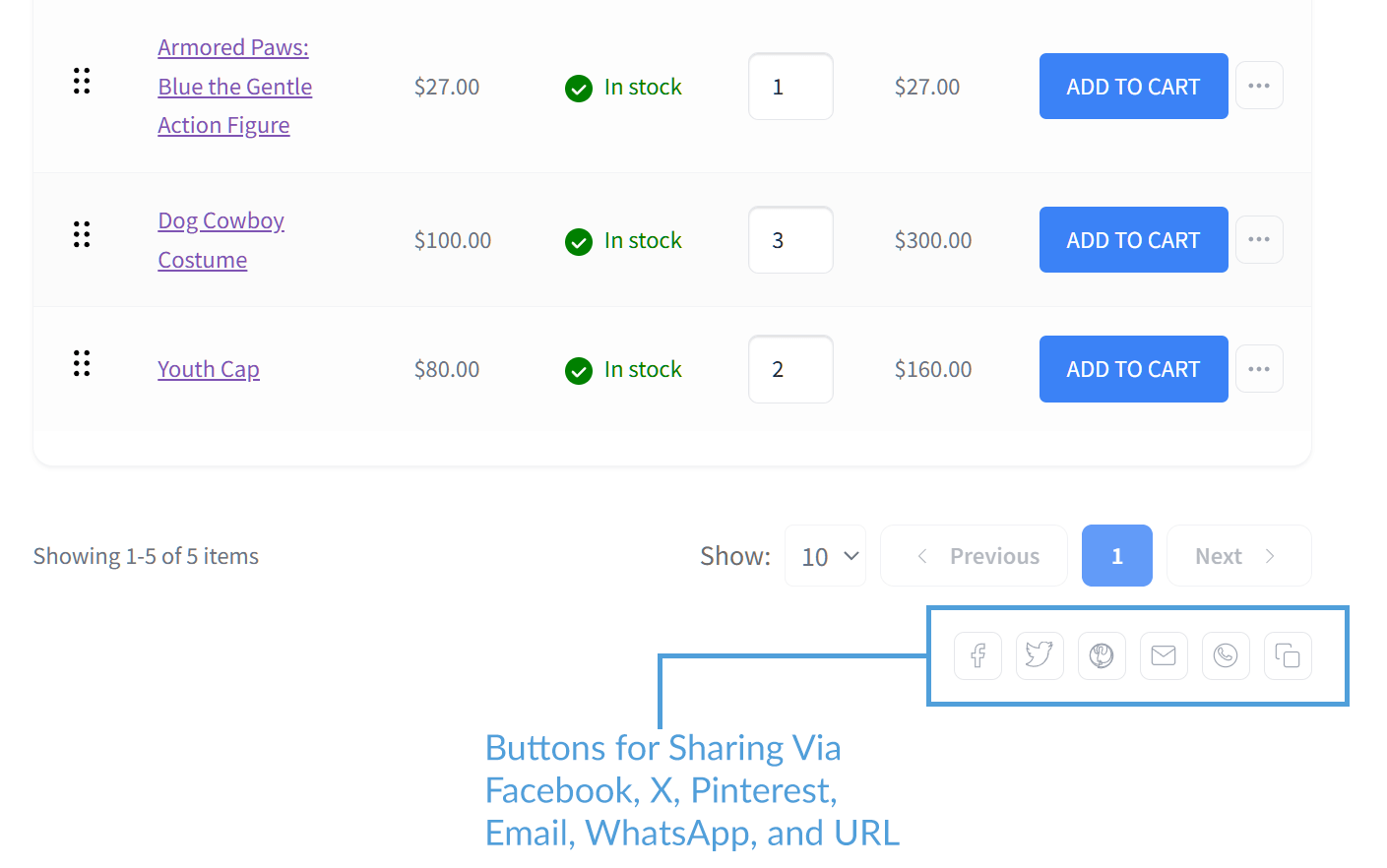
These buttons allow Denise to share her wishlist via:
The last button lets her copy the wishlist’s unique shareable URL.
And that’s all it takes for a customer to create an online wishlist. The convenience and usefulness this feature offers can help create a smoother, more enjoyable shopping experience. As customers return to review their saved items, this naturally builds engagement and increases the chances of future sales.
Helping Customers Get The Most Out Of Wishlists
To help customers get the most out of wishlists, store owners can provide clear tips and guidance. Basically, you can do this through blog posts, email newsletters, or on-site prompts. These suggestions show shoppers how to organize, manage, and share their favorite items effectively.
With that in mind, here are some practical tips store owners can share with their customers to use their wishlists effectively:
1. Encourage organized wishlists
Guide customers to name and categorize their wishlists clearly, such as “Birthday Gifts,” “Summer Outfits,” or “Home Essentials.” Clear, descriptive names help shoppers quickly identify and revisit their saved items, making the wishlist feature more practical and engaging.
Thoughtful naming also encourages customers to save more products. After all, a well-organized system feels manageable and enjoyable, motivating them to continue using the feature.
2. Promote sharing options
Highlight the ways customers can share public wishlists with friends, family, or even social followers. For example, make sure they know they can share their wishlists by using the sharing buttons for Facebook, WhatsApp, email, and direct links.
You could also suggest creative ways for customers to share, such as sending a curated wishlist for birthday gifts or holiday shopping. This not only helps the customer but can also attract new visitors to your store organically.
3. Simplify editing and management
Encourage shoppers to periodically review their wishlists. Then, suggest that they remove items they no longer want or consolidate similar products.
When customers keep wishlists up to date, they can better plan future purchases and rediscover items they may have forgotten. This guidance helps them use the wishlist more actively, which increases engagement and makes them more likely to return to your store.
4. Support guest and registered users
Explain how guest users can save items temporarily and what happens when they register or log in later. For instance, you could provide gentle reminders that logging in will permanently save their selections and even allow them to access multiple wishlists.
Remember, when you share your wishlist instructions and prompts clearly, you reduce confusion and prevent lost wishlist items. Furthermore, you encourage more users to create accounts, ultimately benefiting both the customer and the store.
Want a more detailed guide on how you can use wishlists to boost your sales? Then check out the following article:
Online Wishlist Maker Guide: How To Use SaveTo Wishlist To Drive Store Sales
Interested in even more advanced wishlist features, such as data analytics and automation? Read this guide:
SaveTo Wishlist Pro: How To Turn Saved Items Into A Growth Engine
Conclusion
By walking through Denise’s simple step-by-step journey, it’s clear how easy it is for customers to create an online wishlist with SaveTo Wishlist.
A clean, intuitive design encourages shoppers to save, manage, and share products more often, which directly increases engagement and the likelihood of purchases. And for WooCommerce store owners, providing this seamless experience is key to turning casual visitors into repeat buyers.
To recap, this article explored the following core concepts:
- Why wishlist simplicity matters
- How to create an online wishlist from the customer’s perspective
- Helping customers get the most out of wishlists
We hope you’ve learned a lot from seeing how a customer can create an online wishlist easily using the right WooCommerce tool. Try it yourself—download SaveTo Wishlist for free today!
FAQs About How To Create An Online Wishlist
How does a customer create an online wishlist in SaveTo Wishlist?
To create an online wishlist, the customer clicks the Wishlists panel in their account, then hits the Add Wishlist button. Next, they enter the wishlist’s name and optional description and set its visibility. Lastly, they click Create.
How can customers save products to their wishlist?
Customers can click the Save to Wishlist button to add a product to their default wishlist. Alternatively, they can hover over the button, then select which wishlist to save it to from a dropdown.
What are some ways customers can manage their wishlists effectively?
Customers can view, edit, or delete wishlists, change item quantities, rearrange items, move products between wishlists, and view product pages.