
SaveTo Wishlist includes two core settings tabs — General and Wishlist Page — that control how wishlists behave across your store and how the wishlist page appears to customers. This article walks through every setting on both tabs so you can configure SaveTo Wishlist to match your store’s needs.
How to Access the Settings
To open the SaveTo Wishlist settings, go to SaveTo Wishlist → Settings in your WordPress admin.
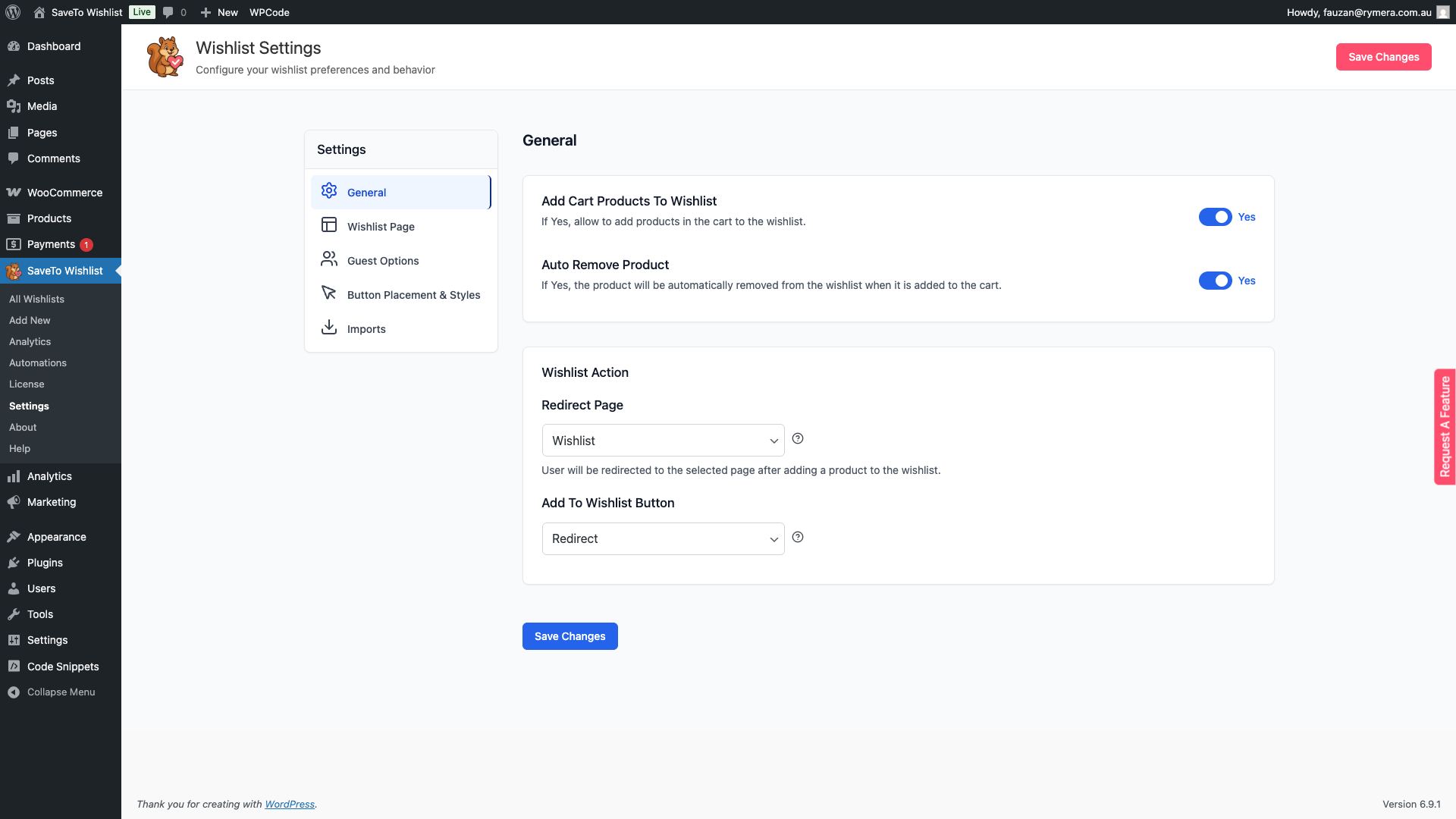
General Tab
The General tab controls core wishlist behaviour — how products interact with the cart and what happens when a customer clicks the Add to Wishlist button.
Save to Wishlist Settings
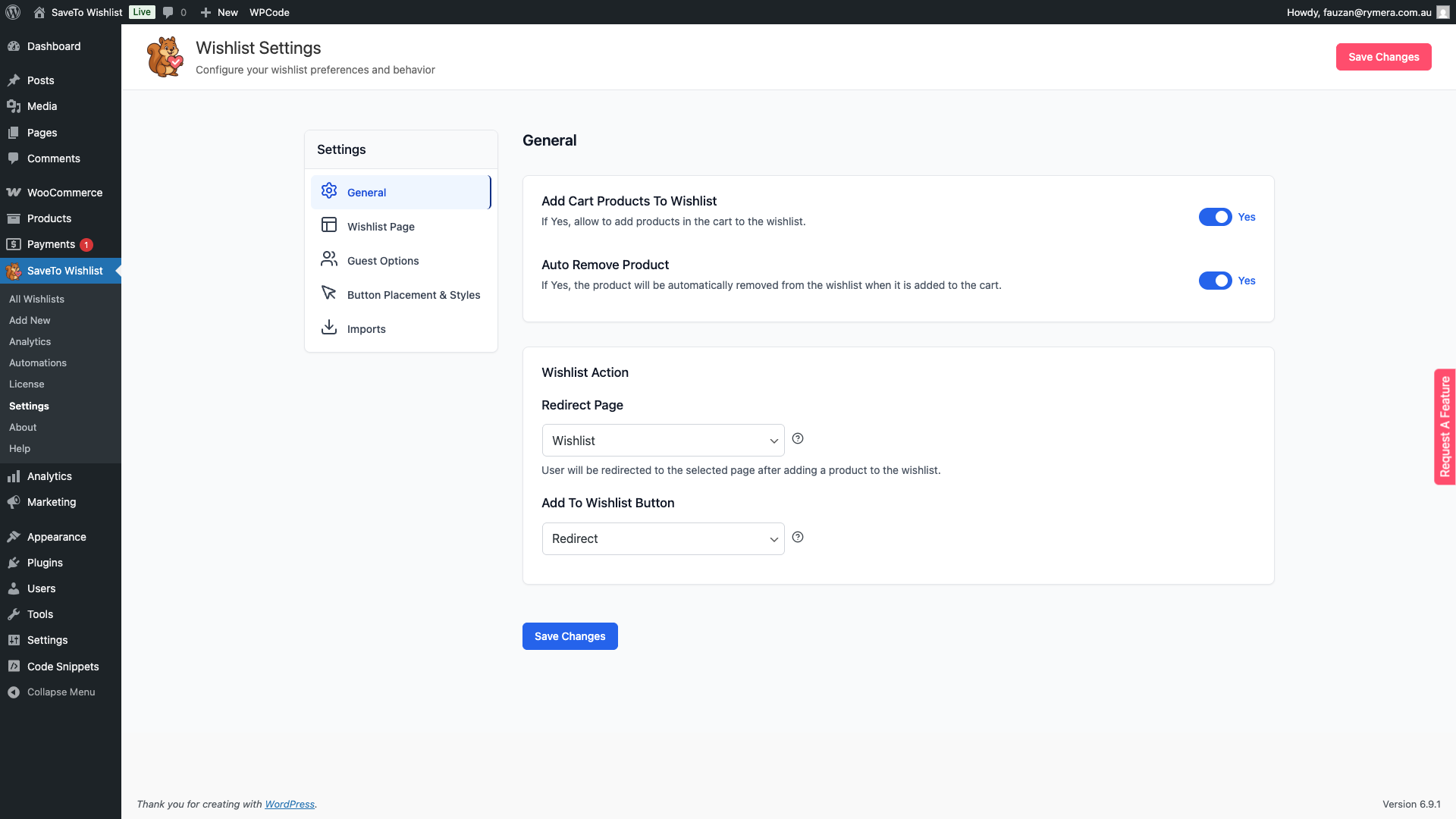
| Setting | Description | Default |
|---|---|---|
| Add cart products to wishlist | When enabled, customers can save products already in their cart to their wishlist. Disable this if you only want customers to save items from product pages. | Enabled |
| Auto remove product | When enabled, a product is automatically removed from the wishlist as soon as the customer adds it to the cart. Useful for keeping wishlists tidy once a customer has acted on a saved item. | Enabled |
Wishlist Action Settings
These settings control where customers land after saving a product and how the Add to Wishlist button responds when clicked.
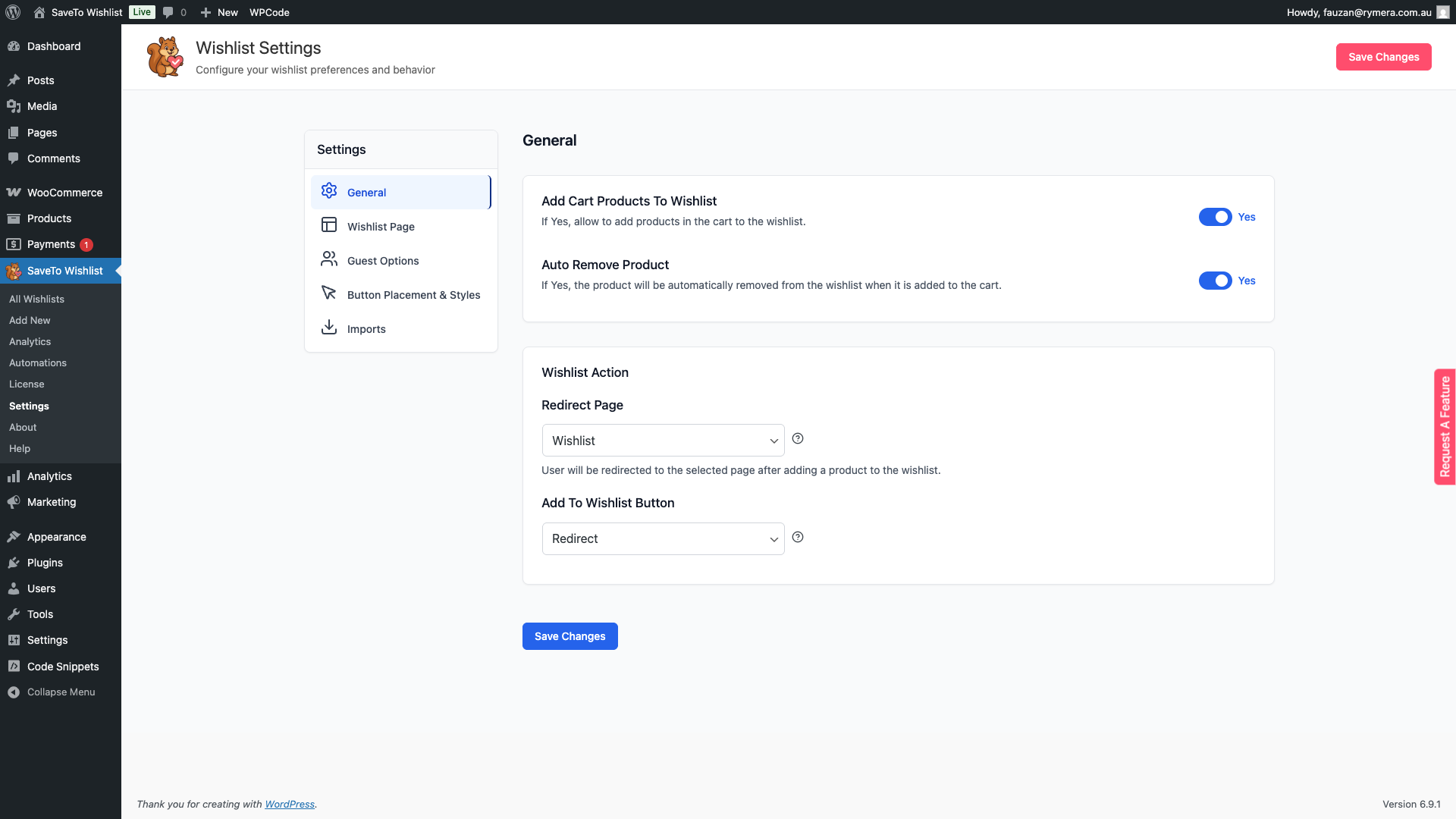
| Setting | Description | Default |
|---|---|---|
| Redirect page | The page customers are sent to after adding a product to their wishlist when the button action is set to Redirect. Select any published page from the dropdown. If no page is selected, customers are redirected to the My Account page instead. | None (falls back to My Account) |
| Add to wishlist button | Controls what happens when a customer clicks Add to Wishlist. Redirect sends the customer to the Redirect page. Popup displays a confirmation dialog with a link to the wishlist. Fade briefly fades the button to signal success without navigating away. | Redirect |
Wishlist Page Tab
The Wishlist Page tab controls what customers see on the dedicated wishlist page — the title and description for both personal and public wishlists, My Account integration, whether customers can create multiple wishlists, and whether the public wishlists section is visible.
Text Settings
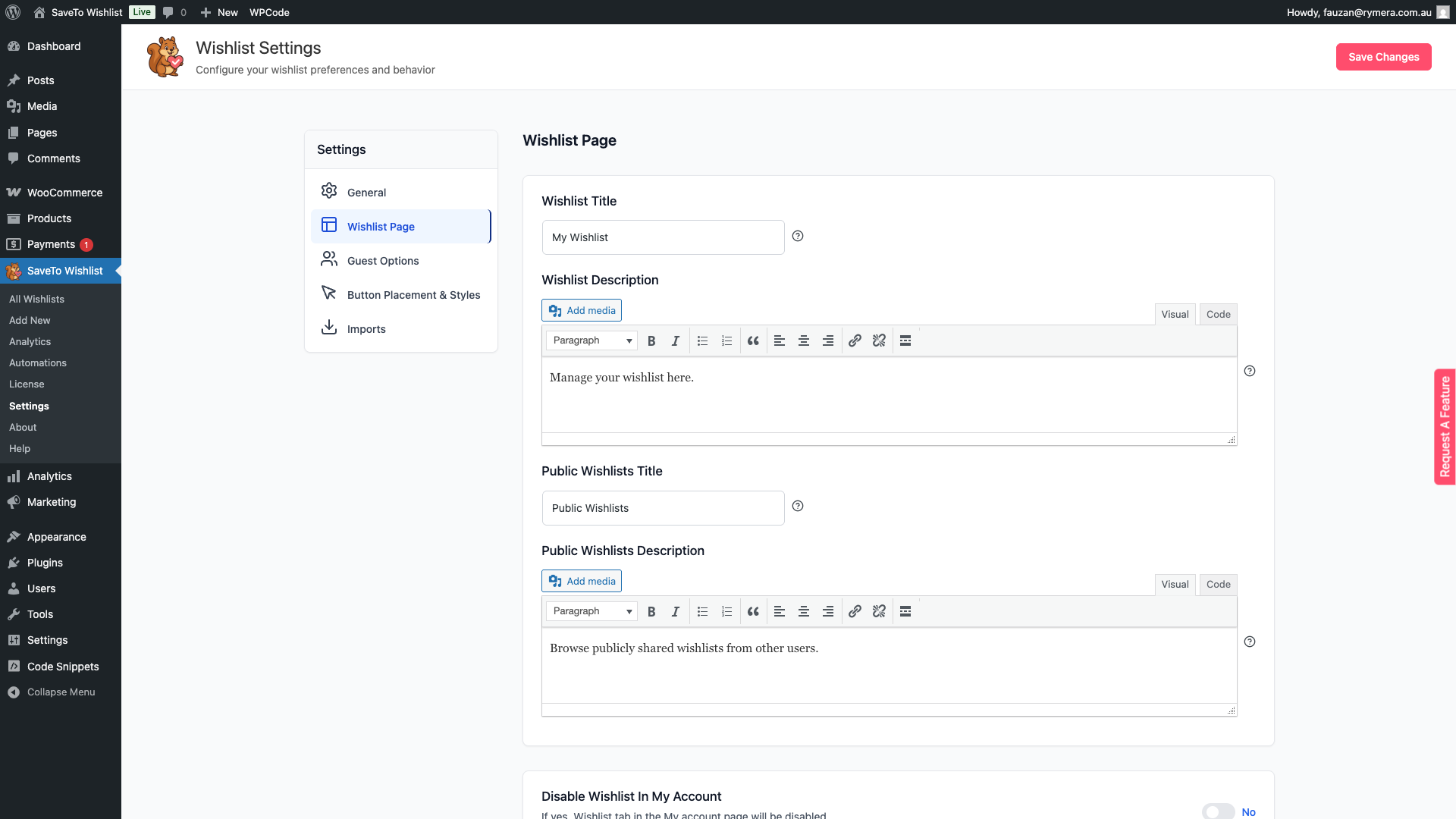
| Setting | Description | Default |
|---|---|---|
| Wishlist Title | The heading displayed at the top of the customer-facing wishlist page. | My Wishlist |
| Wishlist Description | A short description shown below the title on the wishlist page. Supports basic text formatting via the built-in editor. | Manage your wishlist here. |
| Public Wishlists Title | The heading displayed above the section where customers can browse wishlists shared publicly by other users. | Public Wishlists |
| Public Wishlists Description | A short description shown below the Public Wishlists heading. | Browse publicly shared wishlists from other users. |
Behaviour Settings
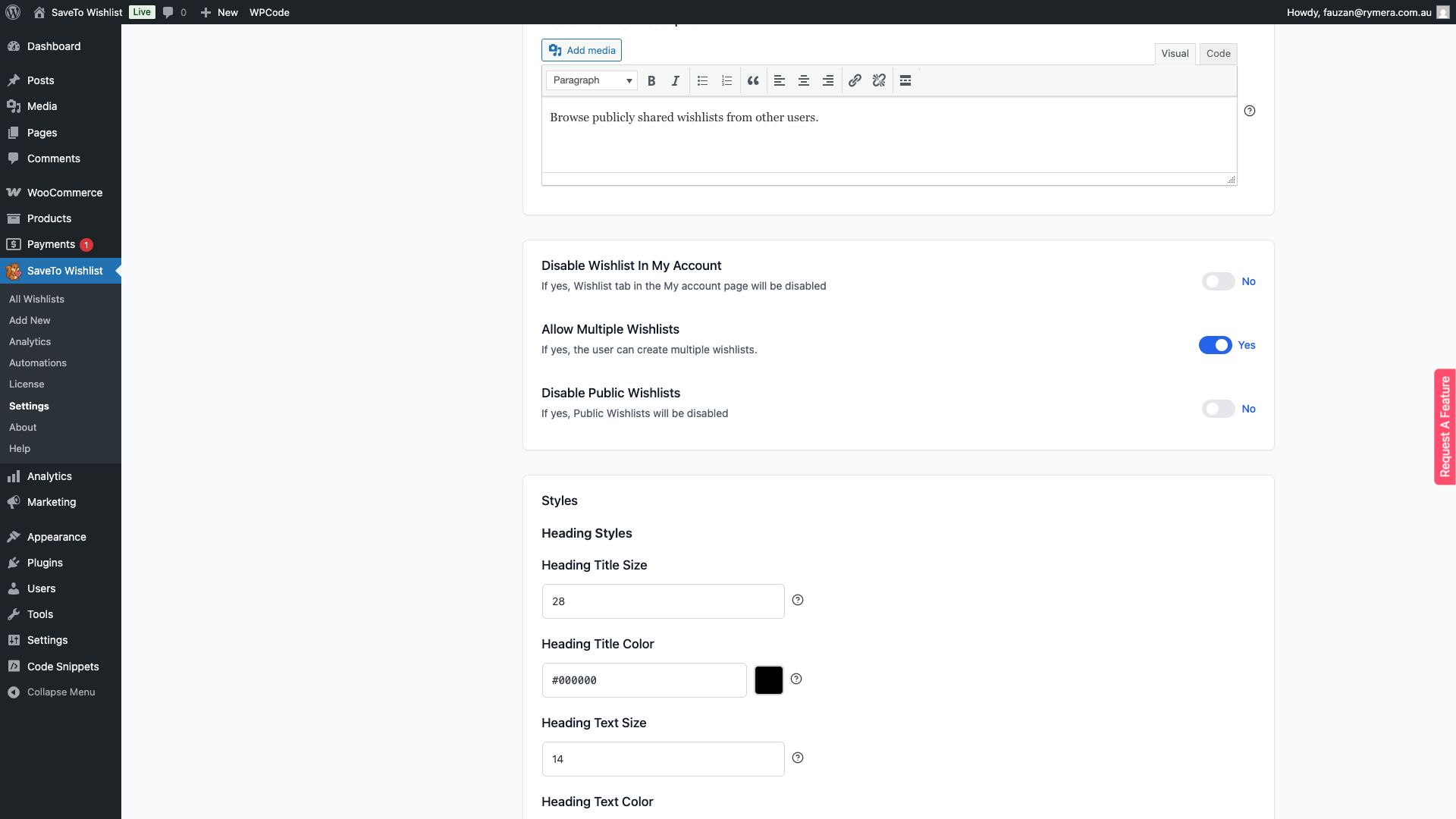
| Setting | Description | Default |
|---|---|---|
| Disable Wishlist in My Account | When enabled, the Wishlist tab is hidden from the WooCommerce My Account area. Enable this if you prefer customers to access their wishlist only from the dedicated wishlist page. | Disabled |
| Allow Multiple Wishlists | When enabled, customers can create and name more than one wishlist — for example, a Birthday list and a Christmas list. When disabled, each customer is limited to a single wishlist. See also: [Link to How to Set Wishlist to Single or Multiple Mode?] | Enabled |
| Disable Public Wishlists | When enabled, the public wishlists section is hidden from the wishlist page. Customers will not be able to browse wishlists that other users have made publicly visible. | Disabled |
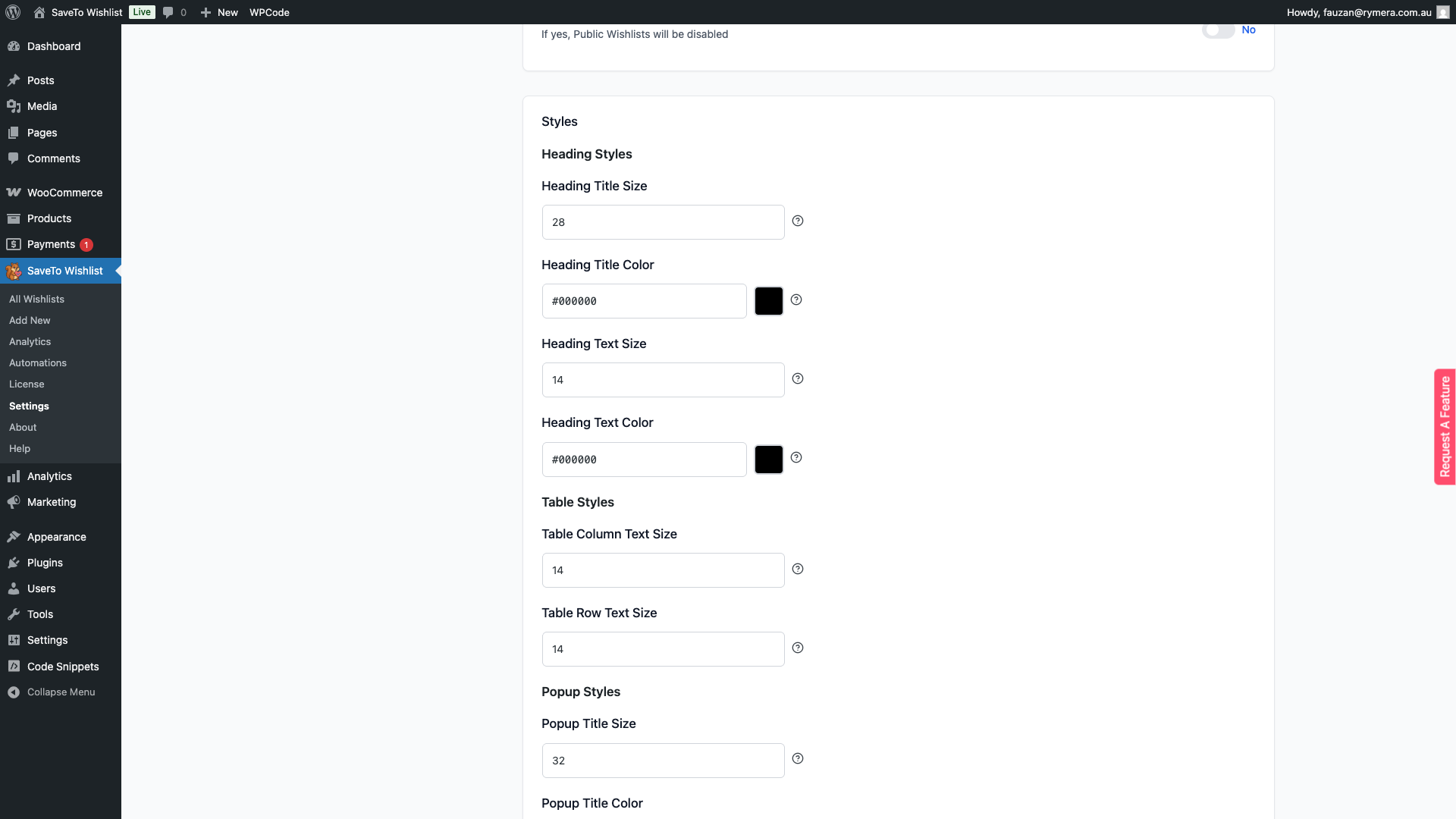
Heading & Table Styles
The Styles section at the bottom of the Wishlist Page tab controls the visual appearance of the wishlist page heading and product table. You can set the font size and colour for both the heading title and description text, and adjust the column text size in the wishlist table. These controls let you match the wishlist page to your store’s design without writing custom CSS.
Frequently Asked Questions
What happens if I don’t select a Redirect page?
If the Redirect page field is left empty, SaveTo Wishlist will send customers to the WooCommerce My Account page after they add a product to their wishlist.
Can I keep items on the wishlist after they’re added to the cart?
Yes. Disable the Auto remove product toggle on the General tab. Items added to the cart will stay on the customer’s wishlist until manually removed.
What’s the difference between the Popup and Fade button actions?
The Popup action opens a confirmation dialog after the customer saves a product, which can include a link to view their wishlist. The Fade action gives a subtle visual confirmation directly on the button — it briefly fades to signal success — without opening a dialog or navigating away from the current page.
Need Help?
If you have a question or run into any issues, we’re here to help.
- Premium users: Open a support ticket
- Free users: Visit our community forum
