
When customers click the wishlist button on your store, they’re taken to your Wishlist page. If that page has been deleted, is no longer assigned in settings, or has been left in Draft status, visitors will see a 404 error instead of their wishlist.
This article walks through the most common causes of a Wishlist page 404 error and how to fix each one.
Fix 1 — Re-assign the Wishlist Page in Settings
The plugin stores your Wishlist page as a setting. If this setting was cleared or reset, the wishlist button will have no page to link to. To re-assign it:
- Go to SaveTo Wishlist → Settings in your WordPress dashboard.
- Click the General tab.
- Find the Redirect page dropdown and select your Wishlist page from the list.
- Click Save changes.
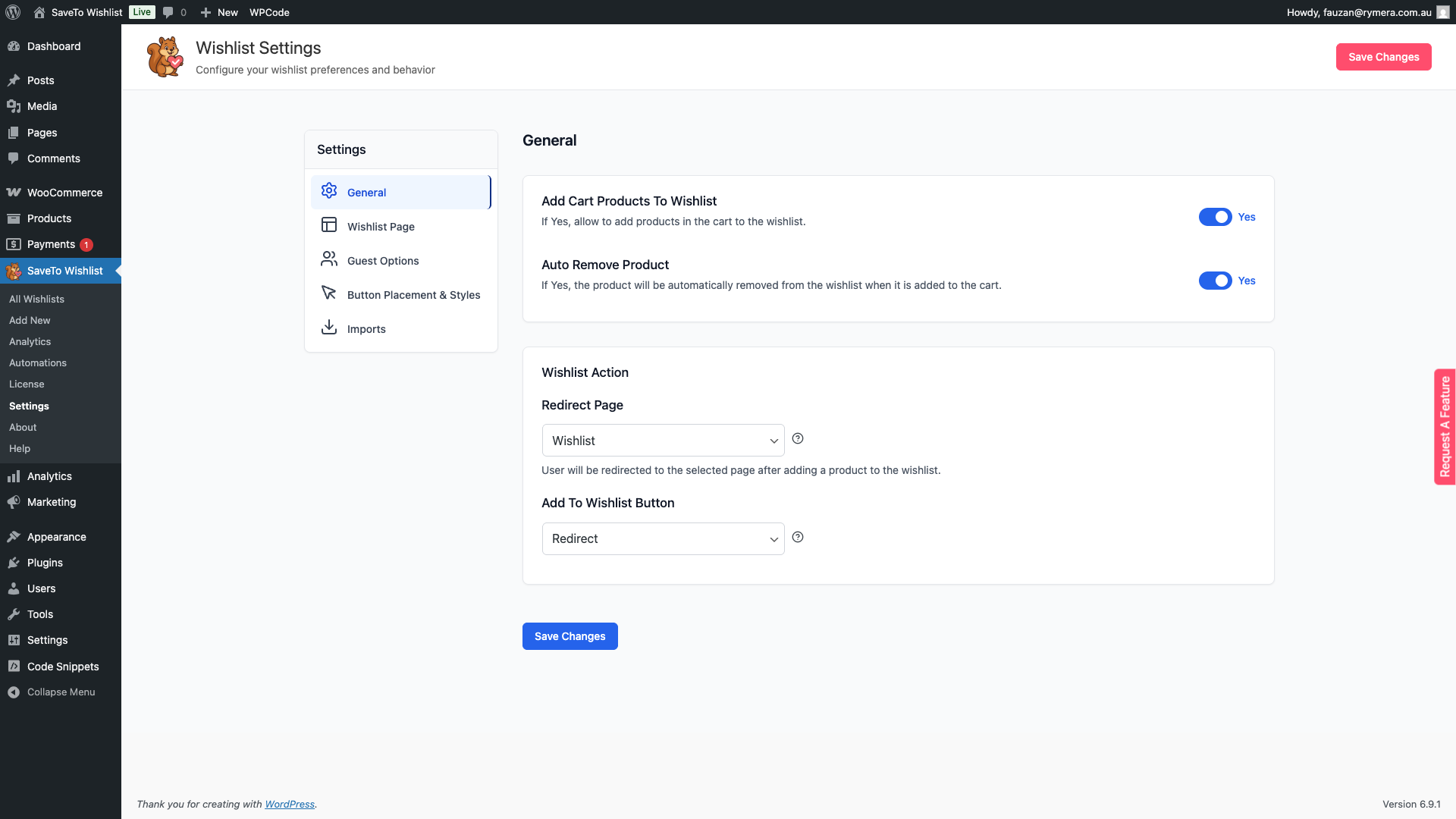
After saving, test the wishlist button on a product page to confirm it links correctly.
Fix 2 — Recreate a Deleted Wishlist Page
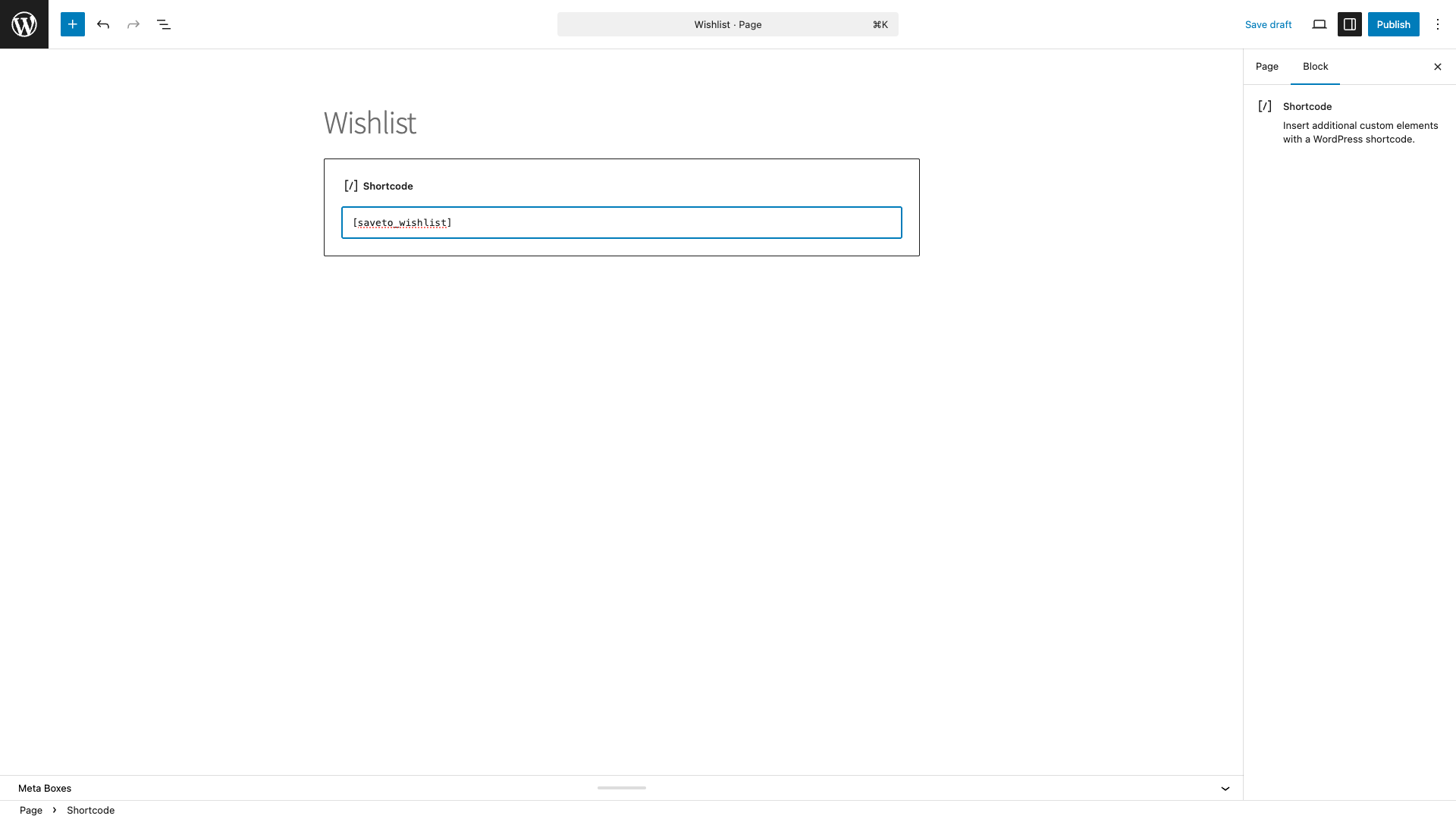
If the Wishlist page was deleted, you’ll need to recreate it and then re-assign it in settings. The page must contain the [saveto_wishlist] shortcode to display the wishlist correctly.
- Go to Pages → Add New Page in your WordPress dashboard.
- Set the title to Wishlist (or any title you prefer).
- In the content area, add a Shortcode block and enter
[saveto_wishlist]. - Set the page status to Published and click Publish.
- Now go to SaveTo Wishlist → Settings → General, select the new page from the Redirect page dropdown, and click Save changes.
Fix 3 — Flush Permalink Rules
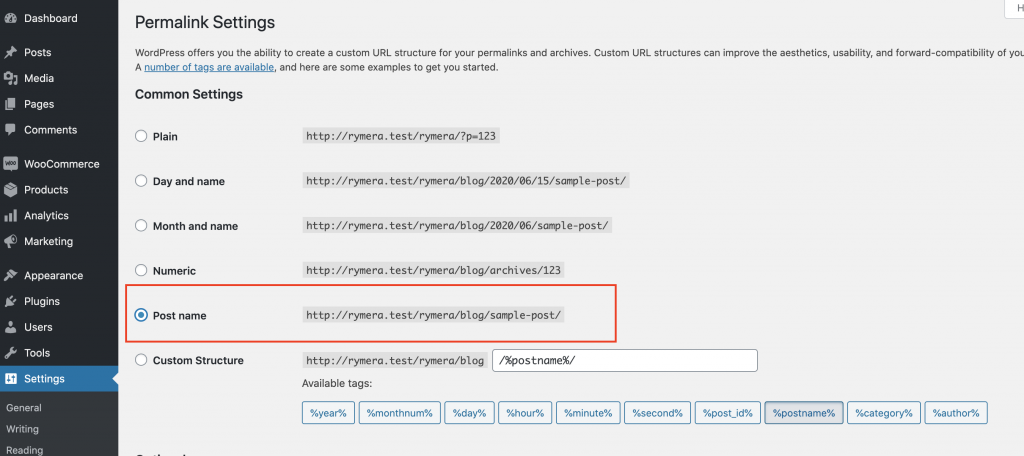
If your Wishlist page is assigned correctly but still returns a 404, stale permalink rules may be the cause. This commonly happens after activating a plugin or making changes to your site structure.
- Go to Settings → Permalinks in your WordPress dashboard.
- Make sure the Post Name option is selected.
- Click Save Changes to flush and rebuild the permalink structure.
Fix 4 — Publish a Draft Wishlist Page
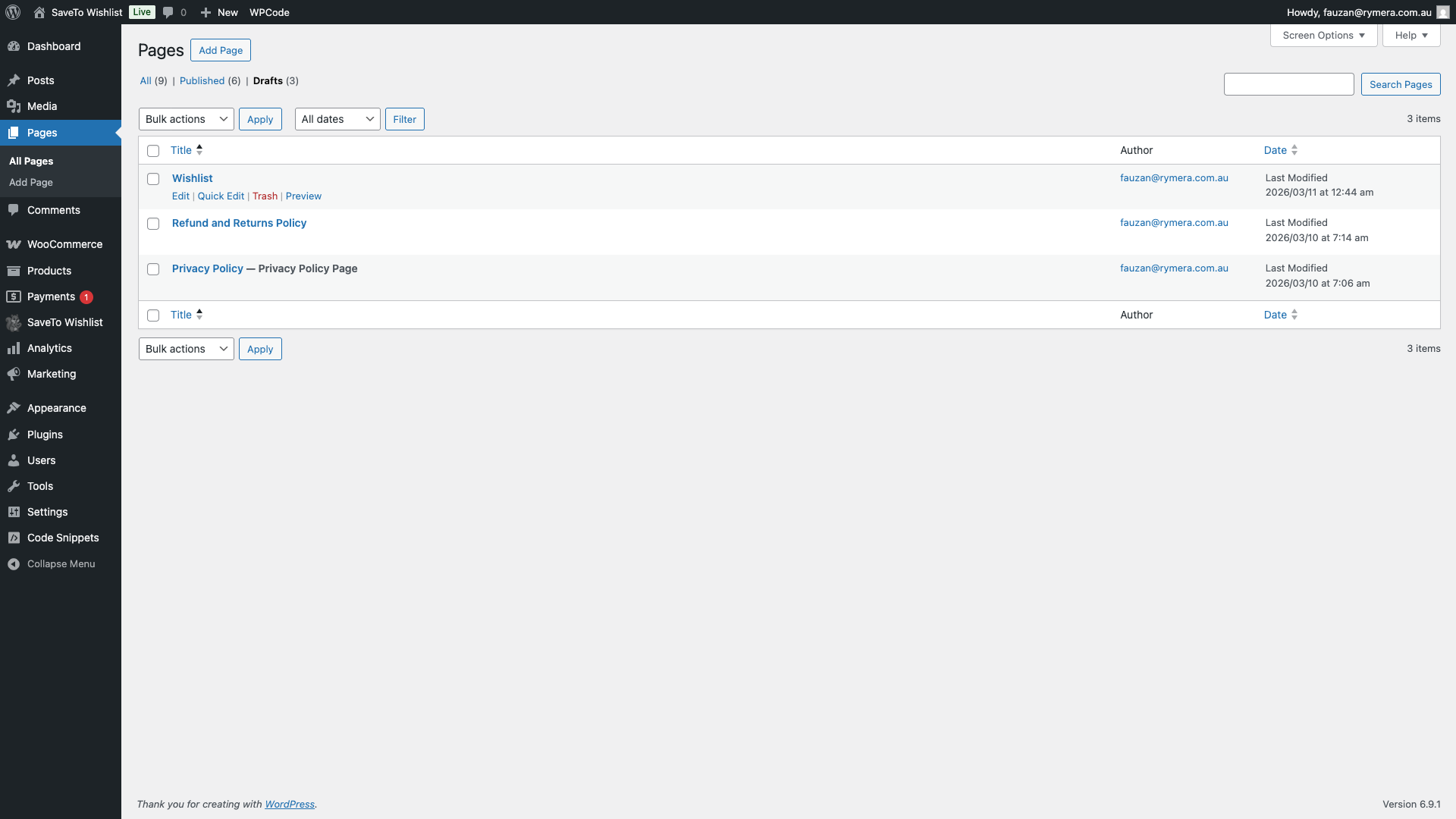
A Wishlist page in Draft status is only visible to logged-in administrators. Customers and other visitors will see a 404 error. To check the page status:
- Go to Pages in your WordPress dashboard.
- Find your Wishlist page and check its status in the Status column.
- If it shows Draft, click the page title to open the editor.
- Click Publish to make it publicly accessible.
Fix 5 — Clear Caching
Caching plugins or server-side caching can sometimes serve a stale 404 response even after you’ve fixed the underlying issue. If the Wishlist page still returns a 404 after trying the fixes above:
- If you have a caching plugin enabled, temporarily disable it and test the wishlist URL.
- If the URL works correctly after disabling the cache, purge or clear the cache and re-enable the plugin.
- Some hosts implement server-side caching. If the issue persists, contact your hosting provider to ensure server-side caching isn’t blocking wishlist URLs.
Need Help?
If you have a question or run into any issues, we’re here to help.
- Premium users: Open a support ticket
- Free users: Visit our community forum
