
SaveTo Wishlist gives you two ways to display wishlist content on your store: a [saveto_wishlist] shortcode you can place on any page, and automatic integration with WooCommerce blocks that adds the Add to Wishlist button inside Cart and product blocks without any extra setup. This article explains how to use both methods.
The Wishlist Page
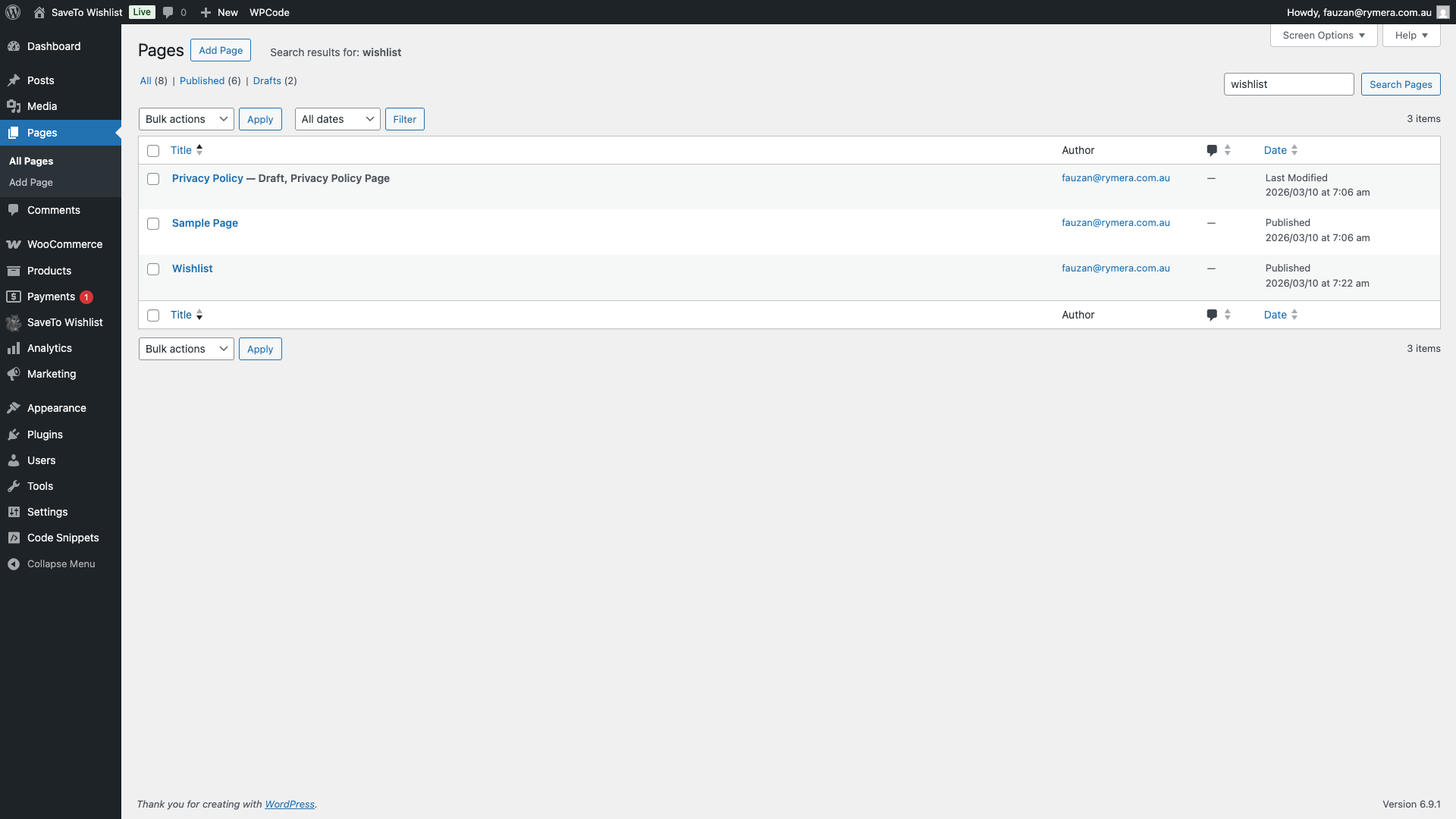
When you install and activate SaveTo Wishlist, the plugin automatically creates a dedicated Wishlist page and places the [saveto_wishlist] shortcode on it. You do not need to set this up manually — the page is ready to use as soon as the plugin is active.
To find or update this page, go to Pages in your WordPress admin and look for the page named Wishlist.
How to Add the Shortcode to a Page
If you want to display wishlist content on a page other than the default Wishlist page — for example, inside a tab, a landing page, or a custom template — you can add the [saveto_wishlist] shortcode manually.
In the Gutenberg Editor
- Open the page where you want to display the wishlist in the WordPress block editor.
- Click the + icon to add a new block.
- Search for Shortcode and select the Shortcode block.
- In the shortcode field, enter:
[saveto_wishlist] - Click Update or Publish to save the page.
![Gutenberg editor with a Shortcode block containing [saveto_wishlist]](https://savetowishlist.com/wp-content/uploads/save-to-wishlist-shortcode-gutenberg-block.png "save-to-wishlist-shortcode-gutenberg-block - SaveTo Wishlist")
In the Classic Editor
If you are using the Classic Editor, switch to the Text tab and type [saveto_wishlist] where you want the wishlist to appear. It will render when the page is viewed on the front end.
In a Page Builder
Most page builders (Elementor, Divi, Beaver Builder, etc.) include a shortcode widget or element. Add the shortcode widget to your layout and enter [saveto_wishlist] to embed the wishlist in any section of your page.
Displaying a Specific Wishlist by ID
By default, [saveto_wishlist] displays the currently logged-in user’s wishlist. To display a specific wishlist — for example, on a shared wishlist page — you can pass the wishlist ID using the id attribute:
[saveto_wishlist id="123"]Replace 123 with the actual wishlist ID. This is useful for displaying a shared or public wishlist at a specific URL.
How the Wishlist Display Adapts to the Visitor
The shortcode automatically detects who is viewing the page and shows the appropriate wishlist view:
| Visitor type | What is displayed |
|---|---|
| Logged-in customer | The customer’s full wishlist, including all saved products with Add to Cart, quantity, and remove options. |
| Guest (when guest wishlists are enabled) | A guest wishlist view showing products saved in the browser’s local storage, with a prompt to log in or create an account. |
| Guest (when guest wishlists are disabled) | A prompt to log in or create an account. No wishlist content is shown. |
Guest wishlist behaviour is controlled by the Disable Guest Wishlist setting in SaveTo Wishlist → Settings → Guest Options. [Link to How to Configure Guest Wishlist Options in SaveTo Wishlist]
Add to Wishlist Button in WooCommerce Blocks
SaveTo Wishlist automatically injects the Add to Wishlist button into WooCommerce Cart and product blocks — no shortcode or extra setup is required. This is separate from displaying the wishlist itself: the wishlist display uses the shortcode above, while the integration below is about where customers can add products to their wishlist.
Cart Block
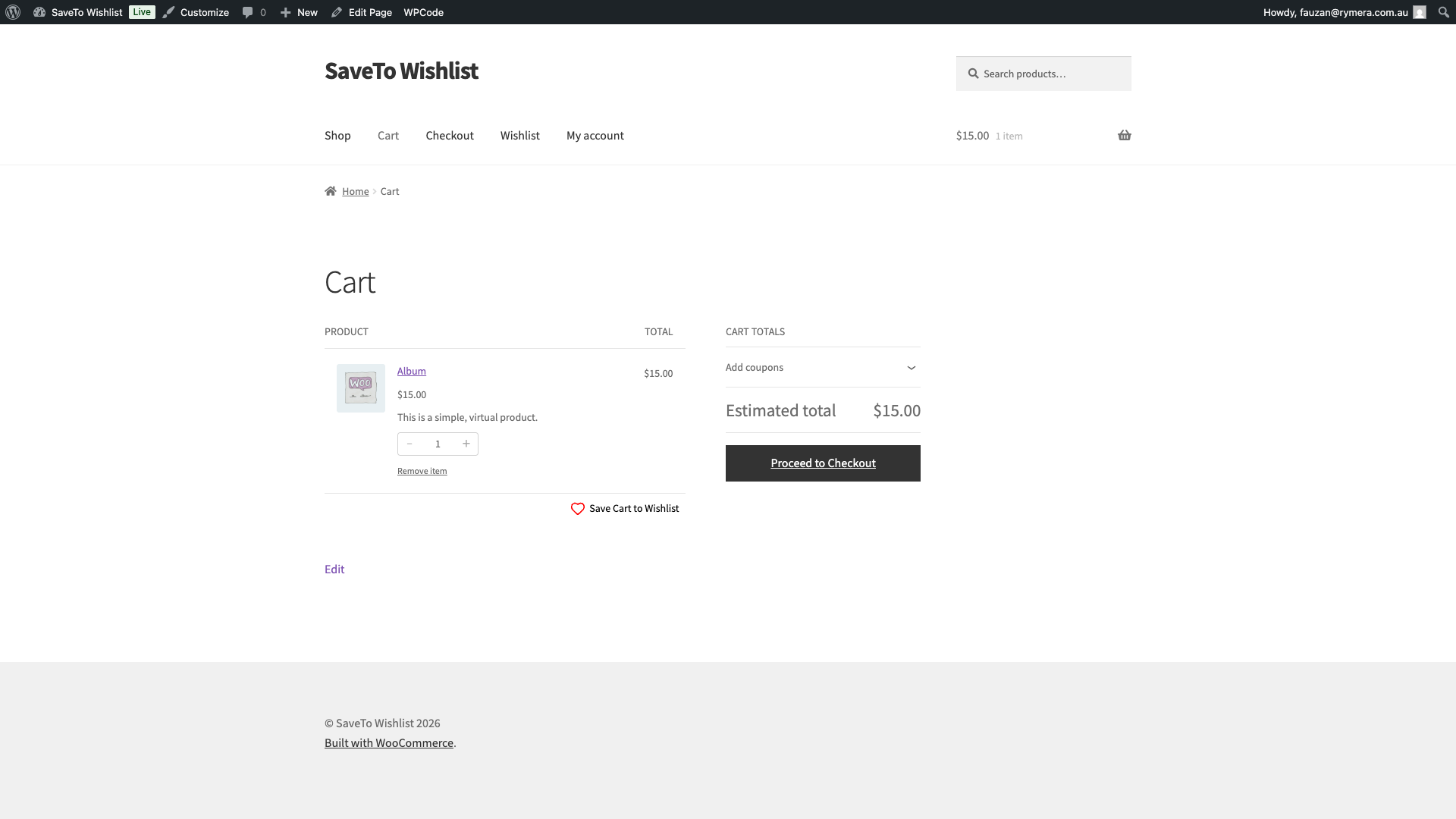
When a customer views the cart page, a Save Cart to Wishlist button appears below the cart items. This lets customers save their entire cart to a wishlist in one click, without going back to individual product pages.
Product Blocks
When WooCommerce product blocks are used (for example, on a page built with the block editor using product-image or product-button blocks), the Add to Wishlist button is injected automatically into the product display.
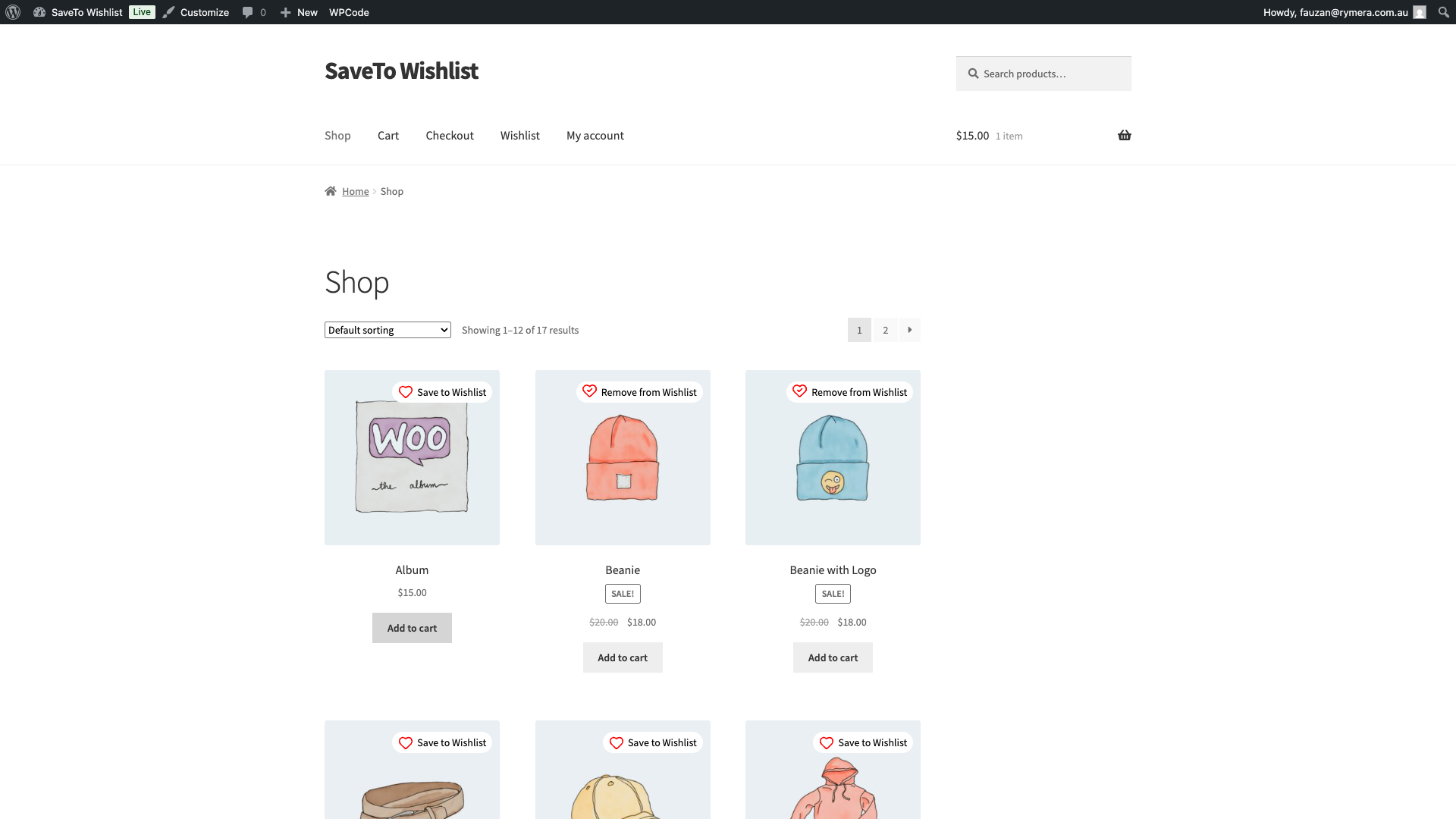
This integration requires no configuration. It works as long as SaveTo Wishlist is active and the Add to Wishlist button is enabled in your settings.
Frequently Asked Questions
Can I use the shortcode more than once on the same page?
You can place the shortcode on multiple pages, but we recommend using it once per page. Placing it multiple times on the same page may result in duplicate wishlist displays.
The wishlist page shows a blank area — what should I check?
Confirm the page contains the [saveto_wishlist] shortcode by editing it in the WordPress admin. If the shortcode is present but nothing renders, check that the plugin is active and that any caching plugins are not serving a stale version of the page.
Does the Add to Wishlist button work with the WooCommerce Cart block?
Yes. SaveTo Wishlist automatically hooks into the WooCommerce Cart block and injects the button without any extra setup. Make sure you are using SaveTo Wishlist version 1.0.4 or later, which includes a fix for the wishlist icon not displaying correctly in cart blocks.
Need Help?
If you have a question or run into any issues, we’re here to help.
- Premium users: Open a support ticket
- Free users: Visit our community forum
