
 Reviewed by
 Here’s a number that should make every WooCommerce store owner pause: roughly 19% of shoppers will abandon a site when forced to create an account before they can do anything meaningful. That stat comes from Baymard Institute’s cart abandonment study, and it has massive implications for how we think about WooCommerce wishlists.
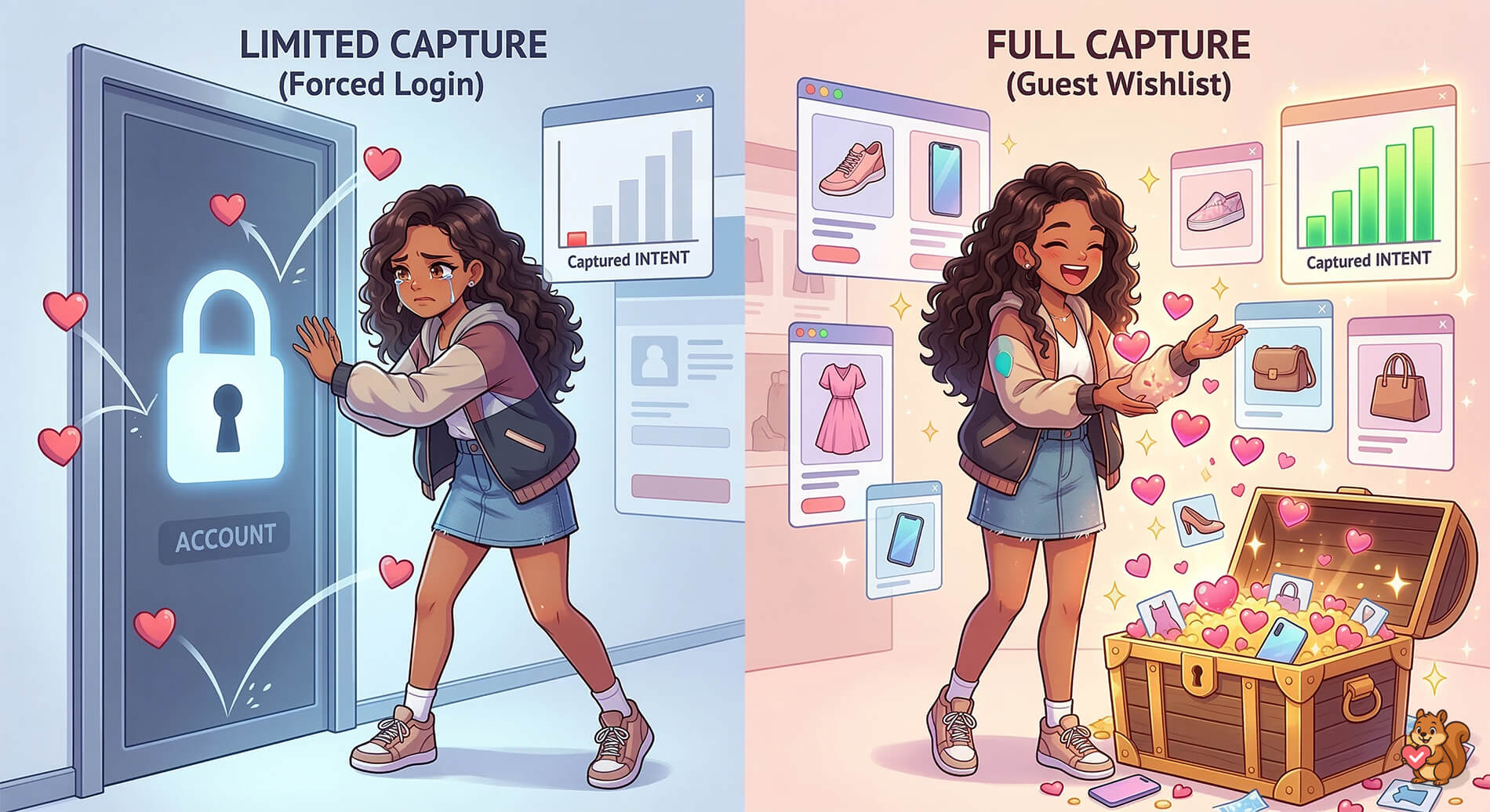
We see this constantly across the industry: a store installs a wishlist plugin, but usage is abysmal because it demands an account upfront. By putting a login wall between anonymous, mobile-heavy shoppers and a “save” button, you lose their purchase intent entirely.
That’s the problem a WooCommerce guest wishlist solves. In this guide, I’ll walk you through exactly how guest wishlists work under the hood and how to set one up using SaveTo Wishlist, and the strategies that turn anonymous wishlist activity into registered customers and real revenue.
Table Of Contents
Why Guest Wishlists Matter More Than You Think
The modern shopping journey is messy. A customer might discover your product on Instagram, tap through to your store on their phone during a lunch break, browse for two minutes, and leave. They come back three days later on a laptop. Then again, the following weekend.
At no point in that journey does the average shopper want to create an account “just to save something for later.” And the data backs this up:
- 19% of shoppers will leave a site rather than go through a forced registration flow (Baymard Institute).
- Mobile commerce now accounts for over 60% of all ecommerce traffic globally (Statista, 2023), and mobile users are even less likely to complete registration forms on small screens.
Without a WooCommerce guest wishlist, you’re invisible to the intent signals of your largest audience segment. You can’t retarget based on saved products or send reminders. You can’t even personalize the experience. All of that purchase intent just evaporates.
WooCommerce wishlist plugins that require a login let you capture a fraction of shopper interest only. To fill that gap, it’s best to use a tool that comes with guest wishlist functionality.
How WooCommerce Guest Wishlists Actually Work
Understanding the mechanics helps you set things up properly, so let me break down what happens behind the scenes when a guest saves a product.
Cookie and session-based storage
When a logged-out visitor clicks “Add to Wishlist,” the plugin stores their wishlist data using a browser cookie tied to a unique session identifier. This means:
- The wishlist persists across page loads during the same browsing session.
- If the visitor closes their browser and returns later (on the same device and browser), their saved items are still there, as long as the cookie hasn’t expired.
- No account, no email, no form. The experience is completely frictionless.
The cookie-based approach has a natural limitation: it’s specific to the device and browser. If a guest saves items on their phone and later visits on their laptop, those are treated as separate sessions. This is where the next piece matters.
Merge on registration
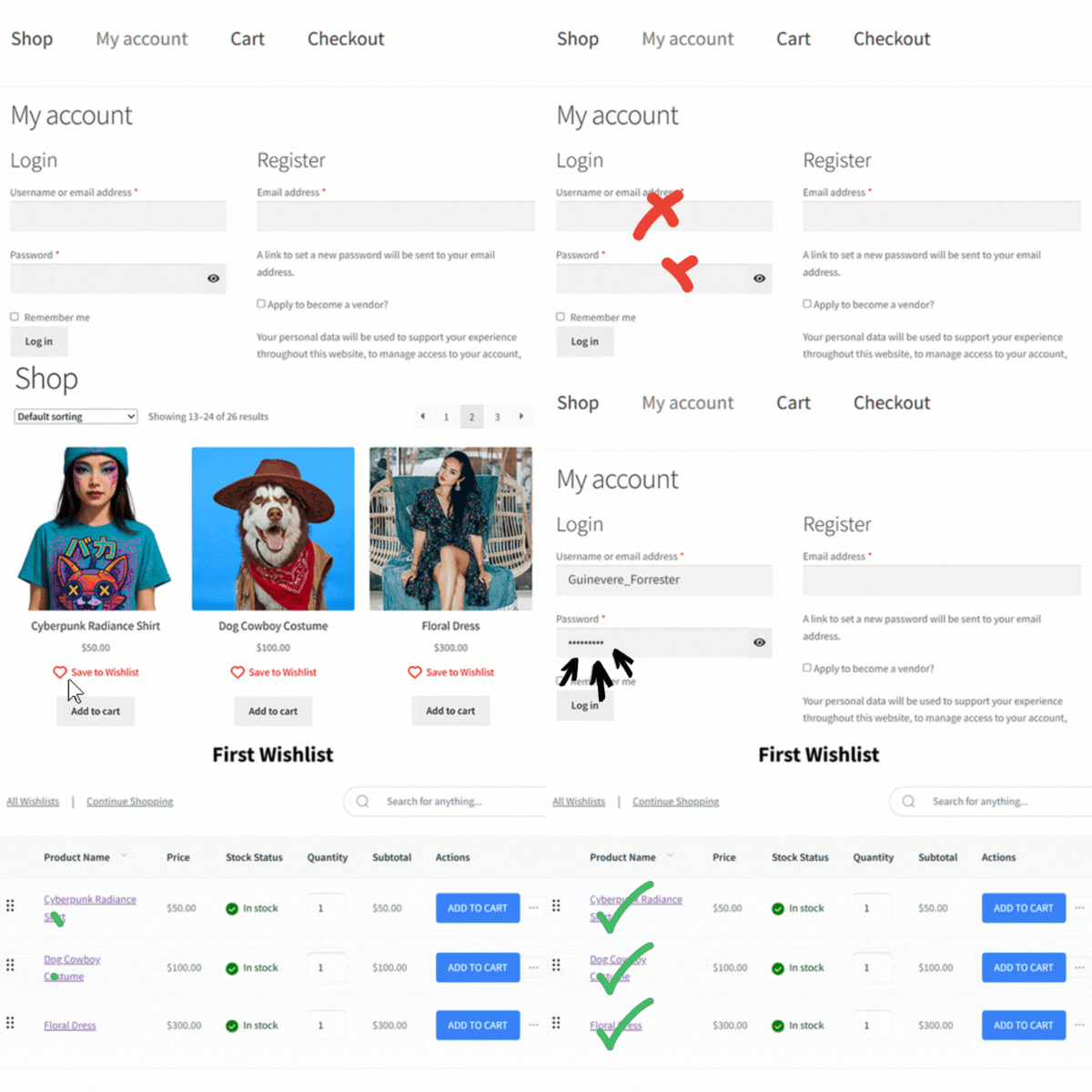
Here’s where a well-built guest wishlist really proves its value. When a guest eventually decides to create an account—maybe during checkout, maybe through a prompt—the WooCommerce plugin merges their anonymous wishlist data into their new registered profile.
This means nothing gets lost. Every item they saved while browsing as a guest carries over seamlessly. It’s a small technical detail that makes a big difference in user experience, because nobody wants to re-save 12 products after signing up.
During my hands-on testing of SaveTo Wishlist’s merge feature, I saved eight products across two separate guest sessions (clearing cookies in between to simulate a fresh visit, then restoring them). When I finally registered an account, all items merged cleanly into a single wishlist tied to my new profile. No duplicates, no missing products, no lag. It just worked.
Guest vs. registered wishlist capabilities
Here’s a quick comparison of what guests and registered users can do:
| Feature | Guest User | Registered User |
|---|---|---|
| Save products to wishlist | Yes | Yes |
| Wishlist persists across sessions | Yes (cookie-based, same device) | Yes (account-based, any device) |
| Merge wishlist on registration | Yes | N/A |
| Create multiple wishlists | No | Yes |
| Share wishlist via link | Limited | Yes |
| Receive price-drop or back-in-stock emails | No (no email on file) | Yes (Premium Plan) |
| Wishlist syncs across devices | No | Yes |
| Accessible in analytics dashboard | Yes (aggregated) | Yes, on Premium Plan (individual + aggregated) |
The main takeaway: guests get the core save-and-return experience. Registration unlocks the full set of key features. This creates a natural incentive for guests to convert without forcing their hand.
Setting Up WooCommerce Guest Wishlists With SaveTo Wishlist
As one of the most effective WooCommerce wishlist plugins today, SaveTo Wishlist supports guest wishlists out of the box, including on the free plan. Here’s how to get it running.
Step 1: Install and activate SaveTo Wishlist
If you haven’t already, install the free SaveTo Wishlist plugin from the WordPress plugin repository or upload it directly. Activate it from your Plugins screen.
Step 2: Enable Guest Wishlist in Settings
WooCommerce guest wishlists are enabled by default. However, if you want to make sure, head to SaveTo Wishlist > Settings > Guest Options. Then, check that the Disable Guest Wishlist toggle is set to “No.”
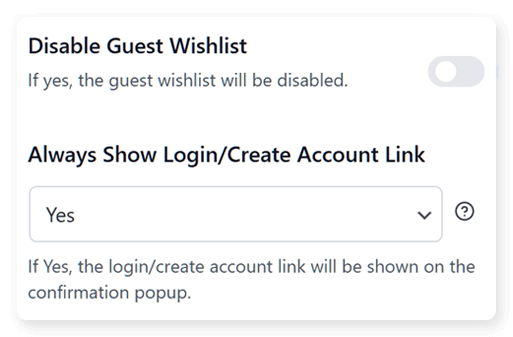
Additionally, you can prompt visitors to register by adjusting a few settings. First, navigate to SaveTo Wishlist > Settings > General and set the Add to Wishlist Button action to “Popup.” Then, head over to SaveTo Wishlist > Settings > Guest Options and enable the Always Show Login/Create Account Link setting. Once active, a popup will appear every time a guest saves a product, inviting them to create an account.
Step 3: Configure the wishlist button placement
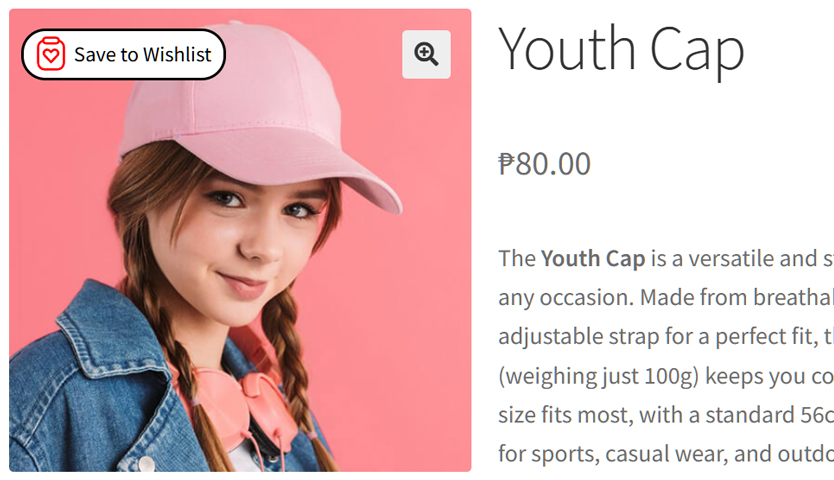
Navigate to SaveTo Wishlist > Settings > Button Placement & Styles and choose where your WooCommerce wishlist button appears.
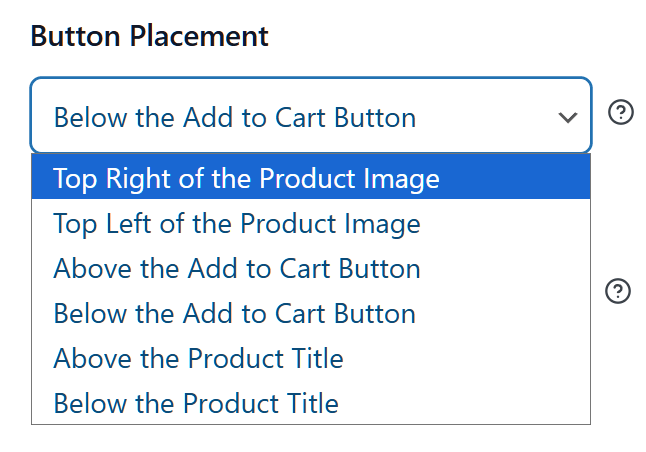
Take note that these buttons will appear on the Shop Page, Product Pages, and Cart Page. Thus, you’ll have to determine their positioning on all three.
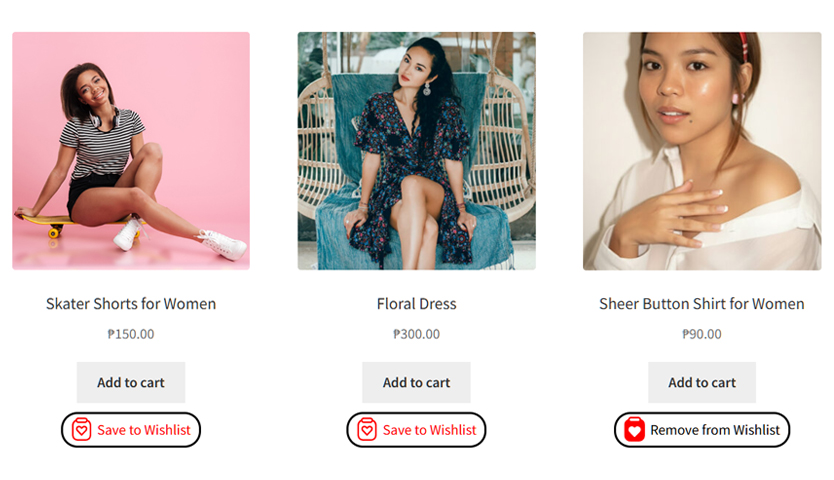
Where you place the button is up to you. Typically, however, it’s a good idea to put it near the Add to Cart button.
Step 4: Customize the wishlist button’s appearance
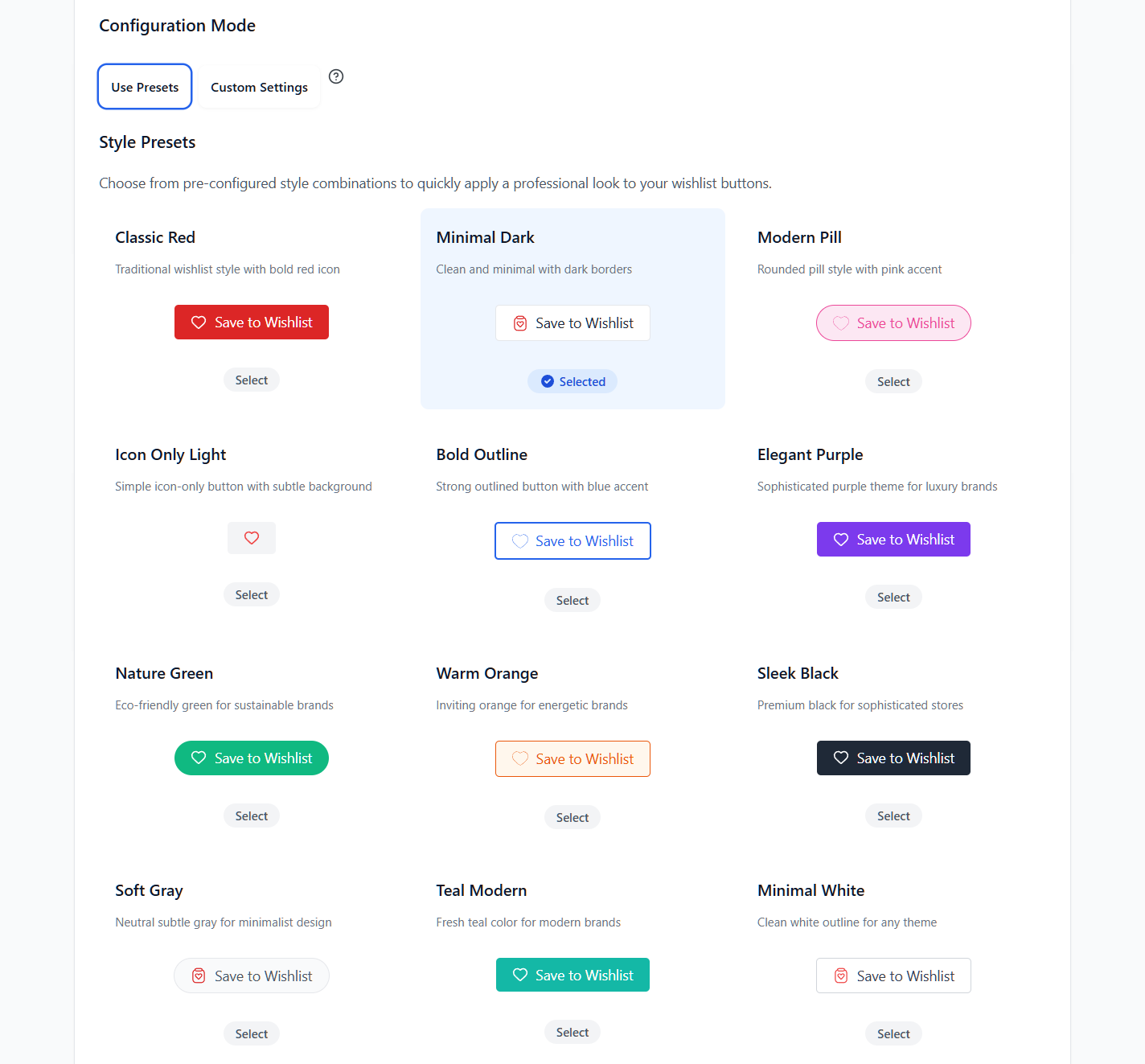
The Button Placement & Styles section also lets you decide how you’ll present your wishlist buttons to users. You can pick their color, icon, design, and the text that appears on them.

Alternatively, if you’d rather not spend time designing your buttons, you can pick one from many preset templates.
Step 5: Test the experience
SaveTo Wishlist automatically merges guest wishlist items into a registered account when a guest user signs up. This ensures that when a guest creates an account (during checkout or via a registration form), their saved items transfer automatically. No additional configuration is needed for this core behavior.
To test if the merge behavior worked, log out of your WordPress admin, open your store in an incognito window, and save a few products. Then, create a new test account and verify that the items appear in the new account’s wishlist. It takes about 60 seconds to confirm everything works.
That’s it. Five steps, no code, and your store is now capturing intent from every visitor, not just the ones willing to register.
Interested in seeing how SaveTo Wishlist stacks up? The guest wishlist feature is available on the free plan, so you can test it on your own store without any commitment.
3 Strategies To Convert Guest Wishlist Users Into Registered Accounts
Capturing guest intent is step one. Step two is giving those guests a reason to create an account so you can unlock the full suite of engagement tools, such as email reminders, cross-device sync, advanced analytics, and more.
Strategy 1: Offer a discount on registration
This is the most straightforward approach. When a guest has items in their wishlist and you prompt them to register, sweeten the deal with a percentage off their first order. You can set up a WooCommerce coupon for new registrations and promote it alongside the wishlist registration prompt.
A message like “Create an account to save your wishlist forever! Plus, get 10% off your first order!” is direct, valuable, and easy to act on.
Strategy 2: Encourage wishlist saving through registration messaging
Display a gentle registration prompt on your wishlist page or near the wishlist button: “Want to make sure you don’t lose these? Create a free account to save your wishlist across all your devices.”
This works because it’s contextual. The guest has already shown real interest. You’re not interrupting a casual browser, you’re helping an engaged shopper protect something they’ve invested time curating. You can implement this using a simple text widget, a theme customization, or a lightweight notification bar plugin.
Strategy 3: Use the checkout registration flow
Many WooCommerce stores already allow account creation during checkout. The key here is making sure the guest wishlist merge is active so that when a buyer creates an account at the point of purchase, their wishlist comes along for the ride.
This is powerful for post-purchase marketing. Now you have a registered user with a wishlist full of items they haven’t bought yet—a ready-made list of products to feature in follow-up emails.
Measuring The Impact Of Guest Wishlists
You’ve enabled guest wishlists. Now, how do you know they’re working?
Key metrics to track
- Total wishlist saves (guest vs. registered): Look for an increase in overall saves. If the saves made by guests now make up 50%+ of your total, that tells you how much intent you were previously missing.
- Guest-to-account conversion rate: Of the guests who save items, what percentage eventually create an account? Even a 10–15% conversion rate here is meaningful at scale.
- Return visit rate for guest wishlist users: Are guests with saved items coming back more often? Compare this against your general return visit rate.
- Revenue attributed to wishlist items: Track how often wishlisted products end up in carts and orders. SaveTo Wishlist Pro’s analytics feature gives you this data.
What good looks like
When you remove the login barrier, the “good” results aren’t just about numbers; they’re about reducing friction and capturing intent. While every online store is different, the natural outcome of enabling guest wishlists usually follows three patterns:
- A surge in total saves: Because there’s zero cost (time or data) for a user to save an item, you’ll see a much higher volume of wishlist activity compared to a login-only setup.
- Clearer visibility into popular products: You’re no longer guessing what your anonymous traffic wants. Even without an email address, your analytics will show you which products are being saved most often by your largest audience segment. You can then use this data to promote related products, grouping high-interest items together for cross-selling to boost your average order value.
- A natural “bookmark” effect: A guest wishlist for WooCommerce acts as a digital breadcrumb. Shoppers who have invested time curating a list are much more likely to return to your site to finish their journey than those who have to search for your products all over again.
The compounding effect
The real value of a WooCommerce guest wishlist compounds over time. When you capture interest early and often, you create more opportunities for those guests to eventually become registered customers. You aren’t just getting more clicks. You’re building a larger, more engaged pipeline of shoppers who’ve already told you exactly what they want to buy.

Frequently Asked Questions
Do guest wishlists work on mobile devices?
Yes. Since WooCommerce guest wishlists rely on browser cookies, they work on any device with a modern browser, including phones and tablets. The wishlist button is fully responsive with SaveTo Wishlist, so mobile shoppers get the same frictionless save experience as desktop users. Given that mobile accounts for over 60% of ecommerce traffic, this is essential.
What happens to a guest wishlist if cookies are cleared?
If a visitor clears their browser cookies or uses a privacy-focused browser that blocks them, the guest wishlist data will be lost. This is a known limitation of any cookie-based approach. The best mitigation is encouraging guests to create an account, which moves their wishlist to persistent, server-side storage. The merge-on-registration feature ensures nothing is lost when they do convert.
Can I see what guests are saving in my analytics?
Yes, but with some caveats. Guest wishlist data is available in aggregated form. In other words, you can see which products are being saved most often, total guest saves over time, and general trends. However, you can’t view individual guest profiles the way you can with registered users.
Is the guest wishlist feature free with SaveTo Wishlist?
Yes. WooCommerce guest wishlists are included in SaveTo Wishlist’s free plan. You don’t need a premium license to enable guest saves, cookie-based persistence, or merge-on-registration. Premium plans unlock additional capabilities like workflow automation, advanced analytics, and deeper integrations, but the core guest wishlist functionality is completely free.
Conclusion
Most WooCommerce stores are leaving a staggering amount of shopper intent on the table. When the majority of your visitors are anonymous, and your wishlist demands an account, you’re building a system that works for the minority and ignores everyone else.
A WooCommerce guest wishlist flips that equation. It lets every visitor, logged in or not, easily add products to a saved list, build intent, and come back ready to buy. When you pair that with a smooth merge-on-registration flow and smart conversion strategies, you create a pipeline that turns anonymous browsers into identified, engaged customers.
SaveTo Wishlist makes this straightforward to implement. The guest wishlist feature is completely free, takes about five minutes to set up, and starts capturing intent immediately.
Get SaveTo Wishlist Lite and start capturing guest shopper intent.
Stop losing anonymous purchase signals. Install SaveTo Wishlist for WooCommerce today, enable guest wishlists, and let every visitor tell you what they want, whether they have an account or not.