
 Reviewed by
 Your customers are telling you exactly what they want to buy. If you have a wishlist for WooCommerce set up, every single time someone clicks “Save to Wishlist” in your store, they’re handing you a buying signal on a silver platter. The product name. Their email address. A clear statement of intent. And most stores? They ignore it completely.
I’ve spent the last several months building and testing WooCommerce wishlist email marketing workflows for online stores, and the difference between stores that act on wishlist data and stores that don’t is staggering. We’re talking about a channel that drives strong engagement.
You might see open rates north of 40%, but take that number with a grain of salt. Apple’s Mail Privacy Protection uses bots to automatically ‘open’ emails behind the scenes, which artificially inflates your numbers. Instead of tracking open rates, focus on your click-through rates and the actual revenue each email brings in.
In this guide, I’ll walk you through the five essential wishlist email workflows every WooCommerce store should have running. Furthermore, I’ll show you how to set them up using SaveTo Wishlist Pro and your email platform of choice. Lastly, we’ll explore the exact templates and subject lines that drive results.
Let’s turn those saved items into revenue.
Table Of Contents
- Why Wishlist Emails Outperform Standard Campaigns
- What You Need Before You Start
- The 5 Essential Wishlist Email Workflows
- Setting Up Your Wishlist Email Pipeline
- Email Template Best Practices
- Subject Lines You Can Steal
- Measuring And Optimizing Performance
- FAQs: Wishlist Email Marketing For WooCommerce
- Conclusion
Why Wishlist Emails Outperform Standard Campaigns
Before we build anything, it’s worth understanding why WooCommerce wishlist email marketing works so well compared to other types of ecommerce email.
Standard promotional emails go out to your entire list with a generic offer. You’re hoping the right person sees the right product at the right time. The odds aren’t great. According to Mailchimp’s email marketing benchmarks, the average ecommerce email open rate sits around 29.8%, with click rates around 1.7%.
Wishlist emails flip that equation. You already know the person wants the specific product. You’re not guessing—they told you. That’s why personalized, behavior-triggered emails consistently outperform batch sends. According to Omnisend’s 2024 email marketing report, automated emails accounted for just 2% of email sends but drove 37% of all email-generated sales. This is a massive efficiency advantage over standard campaigns.
And here’s what makes wishlist data uniquely powerful: it captures high-intent browsing behavior that sits between “just looking” and “added to cart.” According to Baymard Institute, the global average cart abandonment rate sits around 70%. But here’s the kicker: on mobile devices, where most people read their emails, that rate jumps to over 80%.

Wishlist users who get targeted follow-up emails convert better because you’re reaching them with a product they already picked. You can even increase your average order value by showcasing relevant product add-ons right inside these marketing emails.
Just make sure your mobile checkout is dead simple. Therefore, clearly display costs whether they choose an overnight courier or a standard post shipping method. This way, you don’t lose them again to surprise fees.
The takeaway is simple. If you have wishlist data and you’re not emailing those customers, you’re leaving money on the table every single day.
What You Need Before You Start
I want to be transparent about the technical requirements here. Building these workflows requires SaveTo Wishlist Pro, a dedicated WooCommerce wishlist plugin. The free version handles the basic wishlist display, but you need the Pro version to connect your data to your email platform. Keep in mind, this is a paid tool. You’ll need the Growth plan, which costs $49.50 for your first year. The Business plan starts at $99.50 and renews at $199.00.
Here’s your checklist:
- SaveTo Wishlist Pro installed and activated on your WooCommerce store
- An email marketing platform that supports advanced automation. If you use Mailchimp, be aware that you need a paid Standard or Premium plan to catch incoming data from your store. Free or Essentials plans won’t work for this setup.
- Webhooks configured in SaveTo Wishlist Pro (I’ll walk through this below)
- Product data flowing properly between WooCommerce and your email platform
- At least 100 wishlist users before you start optimizing (you need enough data to see patterns)
The 5 Essential Wishlist Email Workflows
I’ve tested dozens of email workflow variations, and these five consistently deliver the best results. I’m listing them in the order I recommend building them. Start with workflow #1 and add each subsequent one as you have bandwidth.
1. Welcome to your wishlist
Trigger: Customer saves their first item to a wishlist
Timing: Immediate (within minutes of the save event)
Priority: Build this first
This is your handshake email. The customer just engaged with your wishlist feature for the first time. Keep this email strictly functional to confirm their item was saved. Do not include coupons or incentives to keep shopping. Adding promotional offers turns a simple receipt into a marketing email, which can get you flagged for spam if they haven’t opted in to your marketing list.
Why it works: This email sets expectations. Once customers know they’ll get price drop alerts and restock notifications, they save more items. This gives you more data to work with down the road. It’s a virtuous cycle.
Expected performance:
- Open rate: 50-60%
- Click rate: 15-20%
- Direct conversion: Low (this is a relationship-builder, not a closer)
The immediate timing matters. If someone saves a product and gets a confirmation email within two minutes, it reinforces the behavior. If the email shows up six hours later, the moment has passed.
2. Price drop alert
Trigger: A product on a customer’s wishlist has its price reduced (sale, coupon, markdown)
Timing: Within 1 hour of the price change
Priority: High-converting workflow
This is a great workflow to build early. While back-in-stock emails are the true heavyweight champions of ecommerce, price drop alerts still perform incredibly well. Think about the psychology: someone wanted a product enough to save it, but the cost held them back. Lowering the price removes that barrier.
What to include:
- The product image (large, high-quality)
- The original price with strikethrough
- The new price prominently displayed
- The savings amount or percentage
- A single, clear CTA: “Buy Now at $X” or “Grab It Before It’s Gone”
- Urgency if applicable (sale end date, limited quantity)
- Trust signals (like a money back guarantee or free returns) to remove any remaining hesitation
Expected performance: Open rates and click rates will look artificially high due to email bots, but you should track your actual sales closely. A great price drop email converts at about 6%. That might sound small, but in the email marketing world, 6% is a massive win that drives real, predictable profit.
Timing detail: You want this going out within an hour or two of the price change. Don’t set it to send instantly. Why? If you make a typo while updating a price and fix it two minutes later, an instant trigger will blast your customer with duplicate emails. To ensure the price is final before the email goes out, use your email platform to set a short delay, like a two-hour wait.
Would you like to know more about wishlist price drop alerts? Then check out the following guide:
How To Set Up Wishlist Price Drop Alerts In WooCommerce (Complete Guide)
3. Back-in-stock notification
Trigger: A previously out-of-stock wishlist item becomes available again
Timing: Immediate (as soon as inventory is updated)
Priority: Essential for stores with inventory fluctuation
Out-of-stock products on wishlists represent some of the highest-intent signals you can capture. The customer wanted it, couldn’t get it, and saved it anyway. That’s strong purchase intent.
What to include:
- Clear “It’s Back” messaging in the subject line and header
- Product image and current price
- Current stock level if limited (“Only 12 left”)
- A single CTA: “Add to Cart” or “Buy It Now”
- Keep it short. Urgency does the selling here
Why it works: Scarcity drives action. The customer already experienced the product being unavailable once. They don’t want it to happen again. This natural urgency means you don’t need to manufacture it, so just communicate the facts.
Expected performance:
Open rates and click rates will look artificially high due to email bots. For your conversion rate, expect around 6%. While 6% might sound small, it is actually the highest-converting automated email in the ecommerce industry and will drive major revenue.
The numbers on back-in-stock emails are often the highest across all workflows because the intent is so strong. The customer didn’t just browse but also saved something they literally couldn’t buy.
Timing detail: Immediate is non-negotiable here. If a popular product comes back in stock, every hour you wait is an hour someone might buy it elsewhere or the item might sell out again before your customer sees the email.
Curious about wishlist automation? Then read the following guide:
4. Wishlist reminder sequence
Trigger: Customer hasn’t interacted with their wishlist or purchased wishlist items for a set period
Timing: Staggered (7, 14, and 30 days of inactivity)
Priority: High-volume revenue driver over time
Not every customer converts on the first touchpoint. The wishlist reminder sequence is your gentle nudge system, keeping saved products top of mind without being pushy.
I recommend a three-touch staggered sequence:
Email 1 (Day 7): The Gentle Reminder
- Subject: “Still thinking about [Product Name]?”
- Tone: Helpful, not salesy
- Content: Show their top 2-3 wishlist items with current prices. You can also feature a few related products dynamically pulled from your catalog to spark their interest.
- CTA: “View Your Wishlist”
Email 2 (Day 14): The Social Proof Nudge
- Subject: “[Product Name] is popular right now”
- Tone: Informational with subtle urgency
- Content: Wishlist items plus social proof (highlighting stellar customer reviews, popularity metrics, or “X people are viewing this”)
- CTA: “Don’t Miss Out”
Email 3 (Day 30): The Last Chance
- Subject: “We’re keeping your wishlist safe—for now”
- Tone: Direct, final nudge
- Content: Full wishlist summary, possible exclusive offer (10% off if your margins support it)
- CTA: “Complete Your Wishlist”
Expected performance (averaged across sequence):
- Open rates and click rates will be artificially inflated by bots.
- Conversion rate: 1.7% to 1.9% (This aligns with real industry averages for reminder and abandonment emails)
The conversion rate is lower per email than price drop or back-in-stock alerts, but the volume makes up for it. Every wishlist user who doesn’t purchase within 7 days enters this sequence, so it touches a large portion of your audience.
Important: Stop the sequence immediately if the customer purchases a wishlist item or interacts with their wishlist. Nobody wants a reminder about something they already bought.
5. Seasonal wishlist campaign
Trigger: Calendar-based (tied to holidays, sales events, or seasonal periods)
Timing: Scheduled 3-7 days before the event
Priority: Supplementary but high-impact during peak periods
This workflow isn’t behavior-triggered but calendar-triggered. However, it targets the same audience: people with active wishlists.
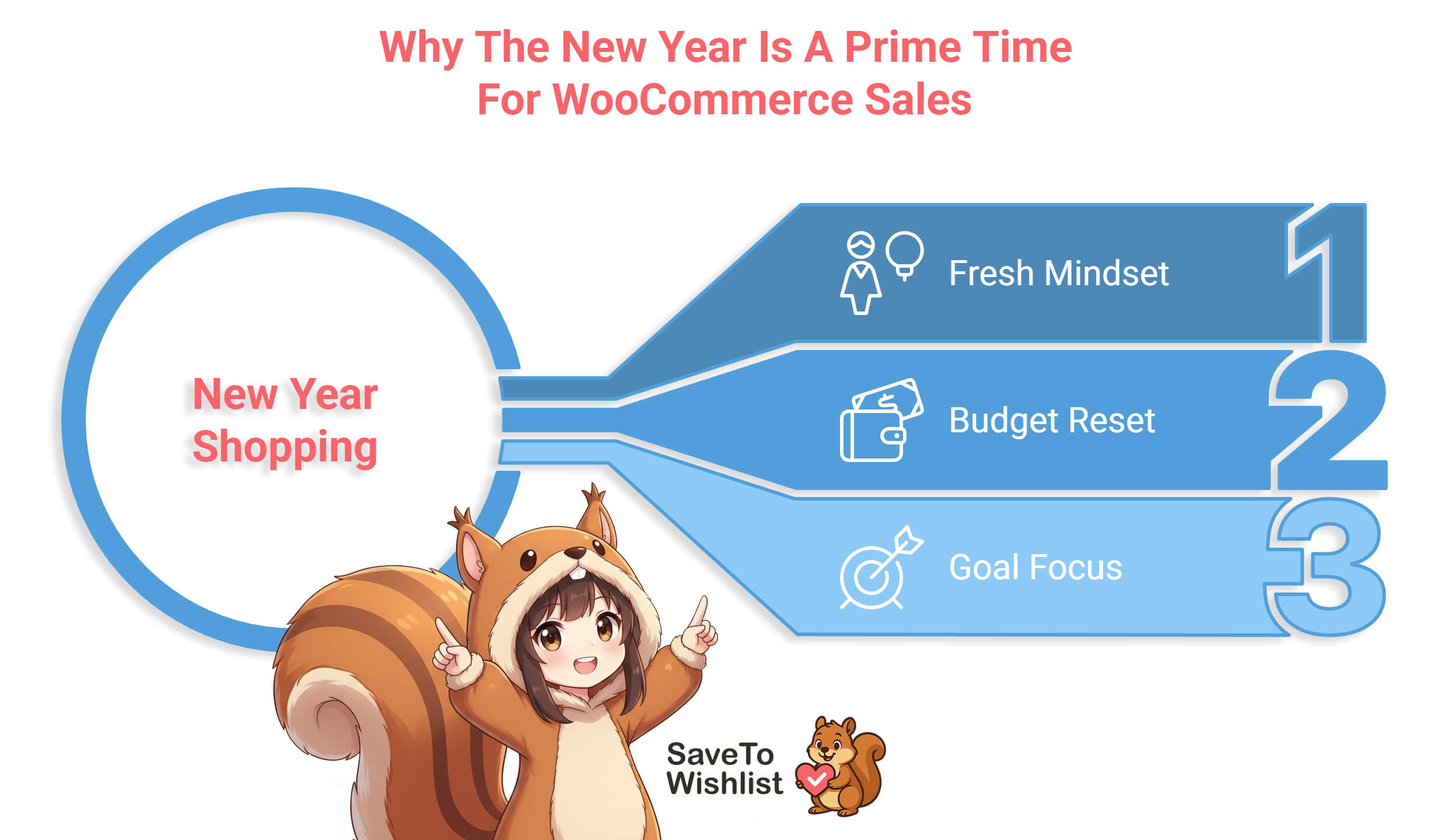
The idea is simple. Before major shopping events (Black Friday, Christmas, Valentine’s Day, your store’s anniversary sale), you send wishlist holders a heads-up that deals are coming.
What to include:
- Acknowledgment that they have saved items (“Your wishlist has [X] items waiting”)
- A preview of the upcoming event or sale
- A hint at potential savings on their specific wishlist items
- CTA: “Check Your Wishlist” or “Get Ready for [Event Name]”
Seasonal calendar to plan around:
- Valentine’s Day (Feb): Gift-focused messaging
- Mother’s/Father’s Day (May/June): “Treat yourself” or gift angle
- Back to School (Aug): Category-dependent
- Black Friday/Cyber Monday (Nov): Highest urgency
- Holiday Season (Dec): Gift-giving framing
- Post-Holiday (Jan): Clearance, new year refresh
Expected performance:
- Open rates and click rates will be artificially inflated by bots.
- Conversion rate: Roughly 1.9% (This will spike during major events like Black Friday, but standard performance mirrors general automated campaigns).
The real power of seasonal campaigns is that they prime customers to buy during your highest-traffic periods. A well-timed “Your wishlist items might go on sale this Friday” email sent on Tuesday before Black Friday can drive significant revenue.
Want to know more about how wishlists can help you earn more during a special occasion? Head over to:
Valentine’s Sale Ideas + Wishlists: How To Capture Romantic Buying Intent
The 5 WooCommerce Wishlist Email Marketing Workflows At A Glance
Here’s what this looks like in practice (example data):
| Workflow | Trigger | Timing | Expected Open Rate | Priority |
|---|---|---|---|---|
| Welcome to Your Wishlist | First item saved | Immediate | 50-60% | Build first |
| Price Drop Alert | Price decrease | 1-2 hour delay | 55-65% | High priority |
| Back in Stock | Item restocked | Immediate | 60-70% | Highest converting |
| Wishlist Reminder | 7/14/30 day inactivity | Staggered | 35-45% | High volume |
| Seasonal Campaign | Calendar event | 3-7 days before | 40-50% | Supplementary |
Setting Up Your Wishlist Email Pipeline
Here’s the practical walkthrough. I’m covering the Klaviyo and Mailchimp paths since those are the two platforms I see WooCommerce stores use most often.
Step 1: Configure SaveTo Wishlist Pro
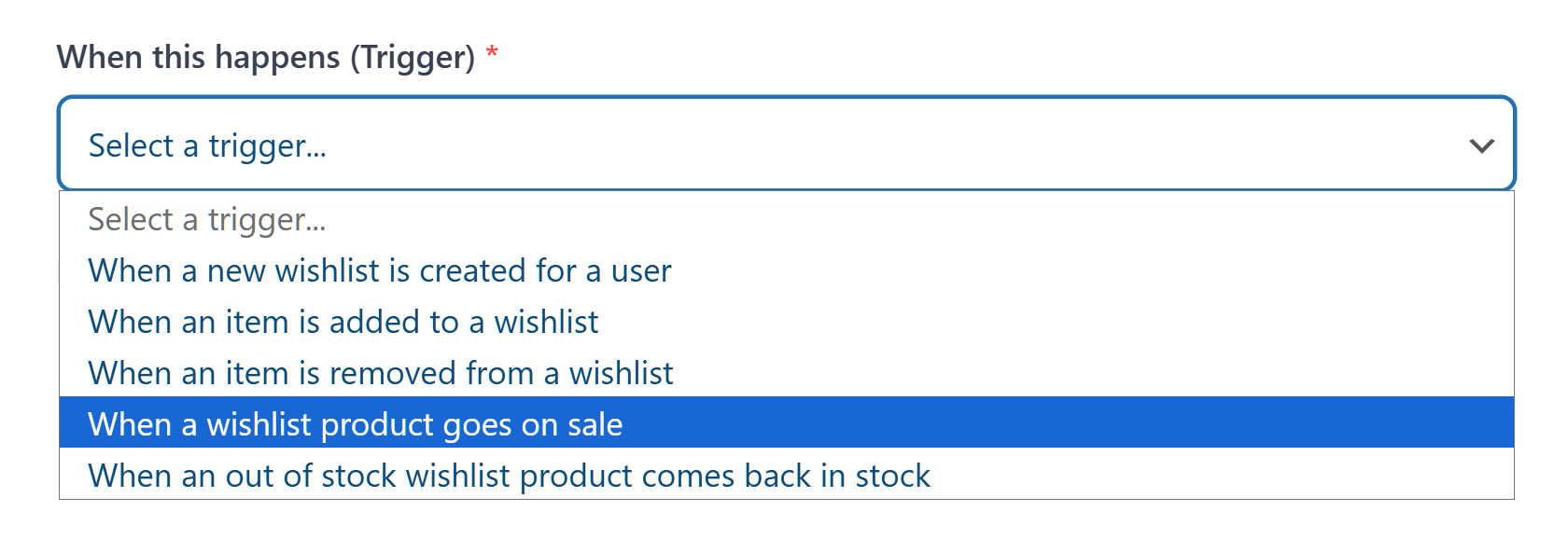
In your WordPress dashboard, go to SaveTo Wishlist > Automations. Click Add New Automation. Here, you can set a trigger (like “When a wishlist product goes on sale”) and choose “Webhook” as your action to tell the system where to send the data.
The WooCommerce Wishlist plugin generates a raw data package containing customer and product details. Just a heads-up: you can’t simply plug this generic data straight into modern visual email builders. To use drag-and-drop product blocks in Klaviyo or Mailchimp, you must map specific data points (like the Item ID and Image URL) to match their strict formatting rules.
To get started, create endpoints for:
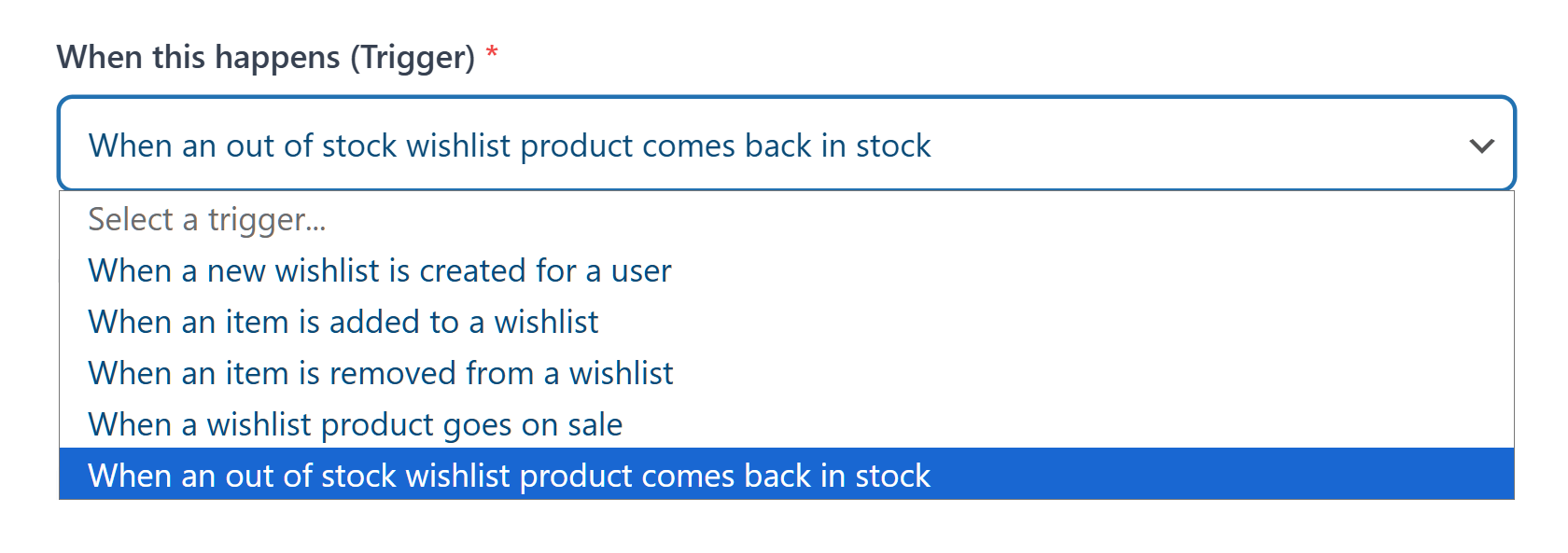
wishlist_item_added: triggers when any item is savedwishlist_item_price_changed: triggers on price reductionswishlist_item_back_in_stock: triggers when inventory returnswishlist_reminder_due: triggers on inactivity thresholds
Step 2: Connect to your email platform
For Klaviyo:
- You can’t just paste a simple web link to bring data in. Klaviyo requires you to send data to their specific “Events API.” To cross this bridge, your data payload needs special formatting, including your private key and the customer’s details. You’ll need to follow Klaviyo’s developer guide to format this data properly so you can build your emails.
- Once the payload is ready and you’ve authenticated your private key, you can successfully send the data over. From there, you can create a new Flow in Klaviyo using your newly created custom event as the trigger.
For Mailchimp:
- You can use Mailchimp’s built-in tools if your paid plan allows it. Otherwise, you can use a middleman app like Zapier to catch the data. However, take note that Zapier’s webhook feature is a Premium tool. It starts at $19.99 a month and gets much more expensive as your store sends more alerts.
- Create a webhook-triggered automation in Mailchimp for each workflow
- Map the incoming product data fields to your email template merge tags
- Test each workflow end-to-end before going live
Step 3: Build your email templates
For each workflow, create an email template in your platform. I recommend starting with the Price Drop Alert (workflow #2) since it has the highest ROI, then building the others.
Step 4: Test everything
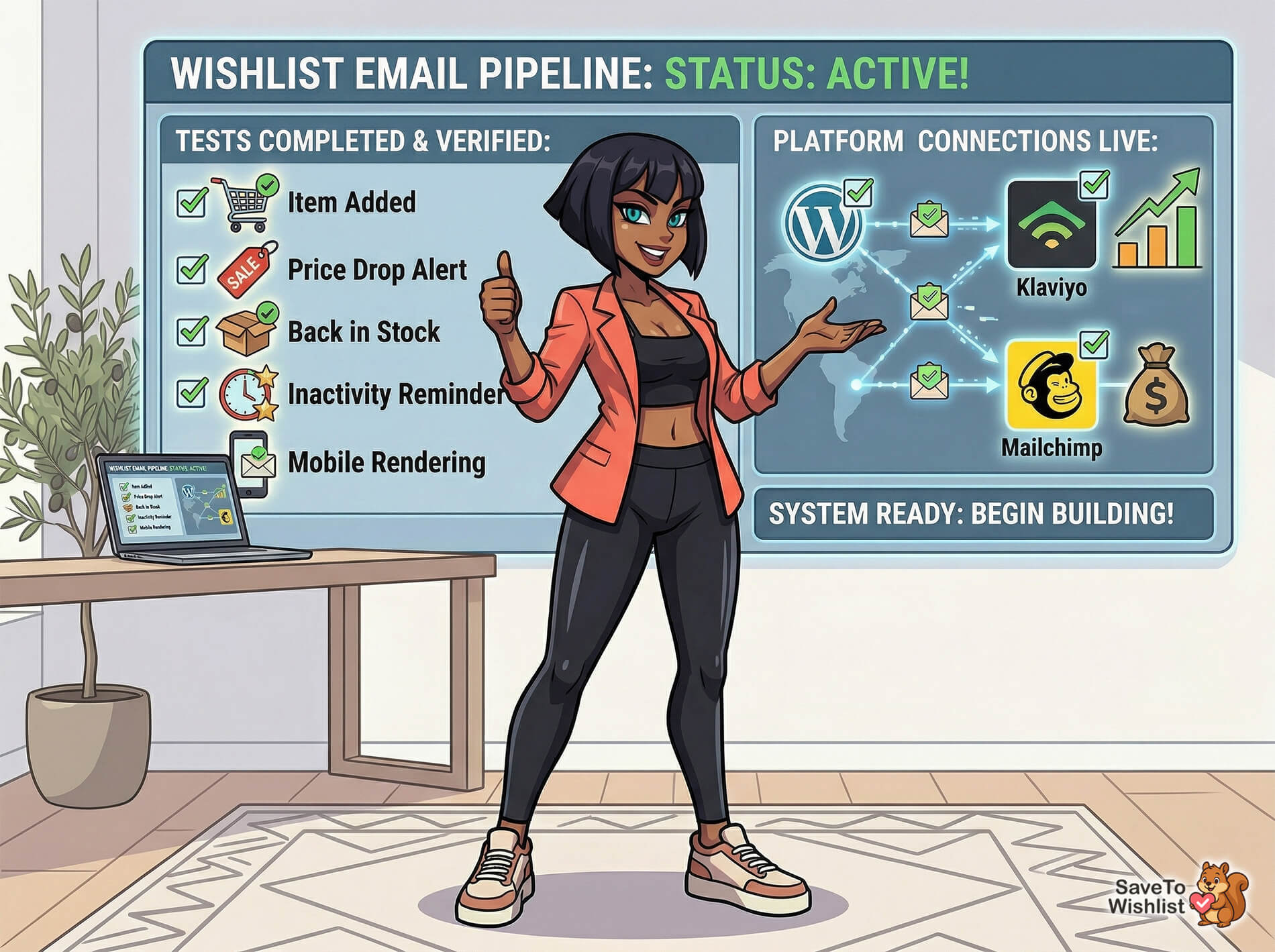
Before going live, test each workflow yourself:
- Add a product to your wishlist using a test account.
- Trigger the relevant event (change a price, update stock, wait for the timer).
- Verify the email arrives with the correct product data.
- Click through and confirm the product link works.
- Check mobile rendering. After all, more than half your customers will read these on their phone.
Ready to start building these workflows? You’ll need SaveTo Wishlist Pro’s webhook engine to connect your wishlist data to your email platform. See what’s included in SaveTo Wishlist Pro.
Email Template Best Practices
After testing dozens of WooCommerce wishlist email marketing variations, here are the design principles that consistently perform best:
1. Lead with the product image. Your customer saved a specific product. Show it to them immediately above the fold and large enough to recognize. In addition, use a high-quality product image, as this triggers instant recognition and recall.
2. Show the current price prominently. For price drop emails, show both the original and the new price with the savings highlighted. For all other workflows, always include the current price so the customer can make a quick decision without clicking through.
3. One primary CTA per email. Don’t give customers three different things to click. Each email gets one clear button: “Buy Now,” “View Your Wishlist,” or “Add to Cart.” Also, make it large enough to tap easily on a mobile device.
4. Design mobile-first. I’ve seen data across multiple stores showing 55-70% of wishlist emails are opened on mobile devices. Thus, use a single-column layout, minimum 44px tap targets for buttons, and keep your total email width under 600px.
5. Keep copy short. These aren’t newsletters. Aim for under 100 words per email.
6. Get explicit permission first. Under privacy laws like GDPR, a customer clicking ‘Save to Wishlist’ does not give you legal permission to email them. You must include a clear, unchecked opt-in box when they create an account, asking if they want price drop and restock alerts. And of course, always include an unsubscribe link in your emails.
7. Include your store’s physical address. To comply with the CAN-SPAM Act, you must include a valid postal address (like a street address or a registered P.O. Box) in the footer of every email. Skipping this can lead to massive fines.
Subject Lines You Can Steal
Subject lines make or break email performance. Here are tested subject lines for each workflow that you can adapt for your store:
Welcome to Your Wishlist:
- “Your wishlist is ready. Here’s what’s next!”
- “Nice pick! [Product Name] is saved for you.”
- “Welcome to your wishlist (we’ll watch it for you)!”
Price Drop Alert:
- “Price drop! [Product Name] is now $[Price]!”
- “Good news: something on your wishlist just got cheaper.”
- “Your wishlist item dropped [X]%. Grab it before it goes back up!”
- “[Product Name] is on sale. You saved it for a reason.”
Back in Stock:
- “It’s back! [Product Name] is available again.”
- “Remember [Product Name]? It just came back in stock.”
- “Your wishlist item is back, but it won’t last.”
Wishlist Reminder:
- “Still thinking about [Product Name]?”
- “Your wishlist misses you (and so do these [X] items).”
- “Quick check: are these still on your list?”
- “We’re keeping [X] items safe on your wishlist.”
Seasonal Campaign:
- “Black Friday is coming. Your wishlist has [X] items waiting.”
- “Your wishlist + our holiday sale = a very good weekend”
- “Heads up: deals are coming for items on your wishlist!”
Measuring And Optimizing Performance
Once your workflows are live, track these metrics weekly:
- Open rate by workflow type (are your subject lines working?)
- Click-through rate by workflow type (Is your email content compelling?)
- Conversion rate by workflow type (are clicks turning into purchases?)
- Revenue per email by workflow type (which workflow generates the most revenue per send?)
- Unsubscribe rate (are you sending too frequently?)
Use the advanced wishlist analytics in SaveTo Wishlist Pro to see which products appear most on wishlists and which wishlist events drive the most revenue. This data helps you prioritize which workflows to optimize first.
Optimization priorities:
- Are the open rates low? Then test new subject lines.
- Are the click rates low? Then test email design (bigger images, clearer CTAs).
- Seeing low conversion rates? Then examine the landing page experience and pricing.
- Seeing a spike in unsubscribe rates? Then reduce frequency or improve targeting.
Start simple: get all five workflows live, then optimize one at a time based on the data.
FAQs: Wishlist Email Marketing For WooCommerce
How many wishlist emails is too many?
There’s no single answer, but I use this rule of thumb: no customer should receive more than two wishlist-related emails in a single week, excluding transactional confirmations. If a customer has multiple price drops and a back-in-stock event all hit in the same week, batch them into a single “wishlist update” email rather than sending three separate messages. Most email platforms let you set frequency caps at the workflow level. Make sure to use them.
Do I need SaveTo Wishlist Pro for all of these workflows?
Yes. The webhook system that powers these workflows—sending real-time wishlist event data to your email platform—is a SaveTo Wishlist Pro feature. The free version provides the customer-facing wishlist experience, but the automation, webhook triggers, and analytics that make email marketing possible require Pro.
Which email platform works best with SaveTo Wishlist Pro?
Any platform that can receive webhook data and trigger automation flows should work. In my testing, Klaviyo and Mailchimp are the most common choices among WooCommerce stores. Klaviyo has stronger ecommerce-specific features and more granular segmentation. Mailchimp is more accessible if you’re starting out. ActiveCampaign is also a solid option.
What conversion rate should I expect from wishlist emails?
It varies by workflow, but you should base your expectations on real industry data. The absolute best-performing email—the back-in-stock alert—averages a 6.12% conversion rate. Standard automated emails sit closer to 1.9%. While these numbers sound smaller than what some marketers promise, a steady 2% to 6% conversion rate on automated emails will drive massive, predictable profit. If you are significantly below 2%, start auditing your email timing, subject lines, and checkout process.
Every wishlist saved in your WooCommerce store is a customer telling you what they want to buy. The five workflows in this guide—welcome, price drop, back in stock, reminder, and seasonal—give you a systematic way to act on those signals.
Conclusion
Start with the welcome email and your back-in-stock notifications. Since back-in-stock alerts are the undisputed champions of ecommerce conversions, building those two first will drive the most measurable revenue from day one. Then layer in the remaining workflows as you build confidence with the system.
The key ingredient is the connection between your wishlist data and your email platform, and that’s exactly what SaveTo Wishlist Pro’s webhook engine is built for.
Start building your wishlist email workflows today. Get SaveTo Wishlist Pro and connect your wishlist data to the email platform you already use. Your customers are already telling you what they want—it’s time to listen.