
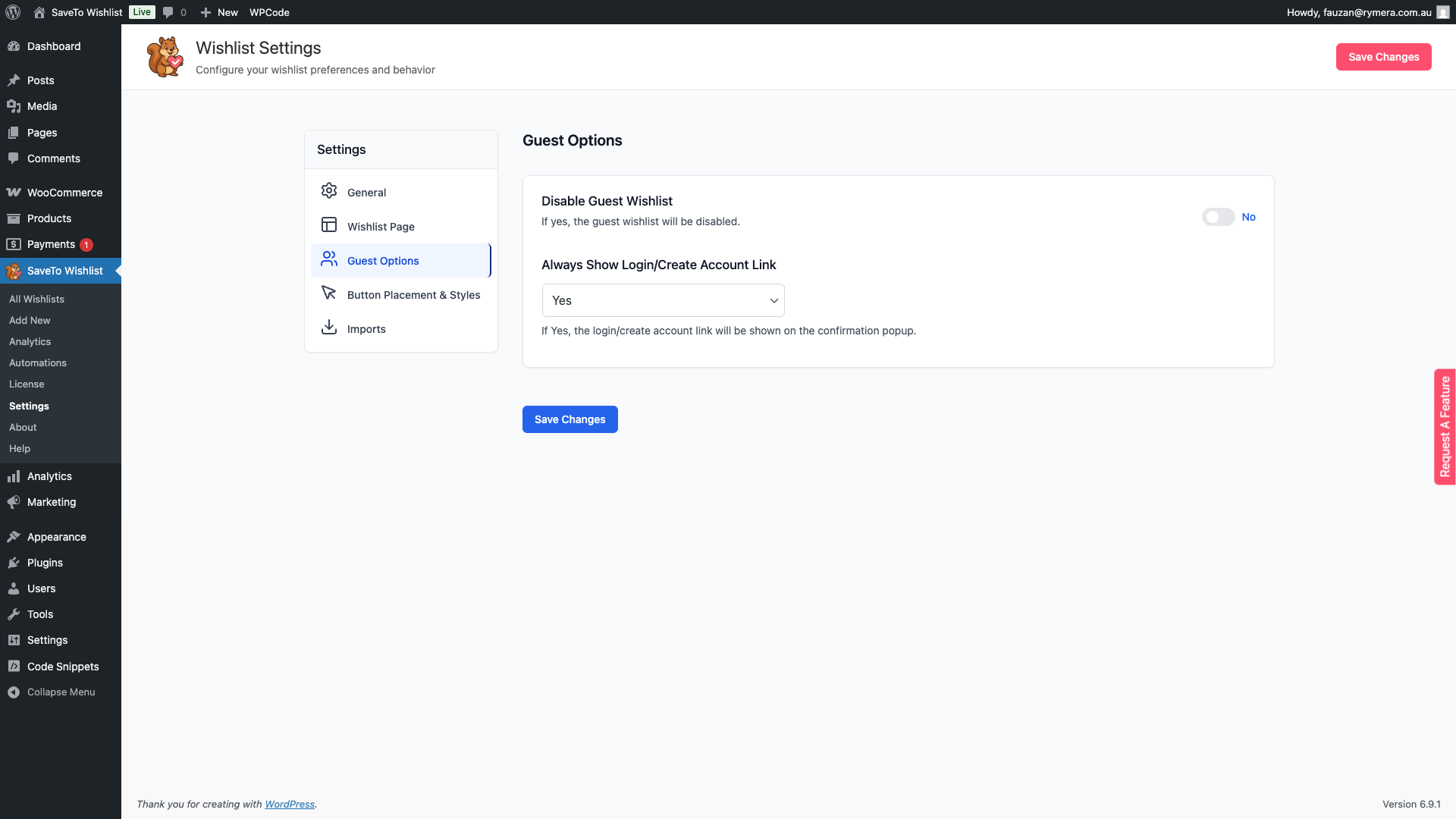
By default, SaveTo Wishlist allows visitors who are not logged in to save products to a guest wishlist. The Guest Options settings tab gives you control over this behaviour — you can disable guest wishlists entirely or configure how the login prompt appears. This article explains each setting and when to use it.
How to Access Guest Options
To open the Guest Options settings, go to SaveTo Wishlist → Settings in your WordPress admin, then click the Guest Options tab in the left-hand settings panel.
How Guest Wishlists Work
When guest wishlists are enabled, visitors who are not logged in can add products to their wishlist without creating an account. Their wishlist items are stored in the browser’s local storage — tied to the device and browser they are using, not to an account. This means:
- Guest wishlist items persist between page visits on the same device and browser.
- Items are not synced across devices or browsers.
- When a guest logs in or creates an account, their guest items do not automatically transfer to their new account.
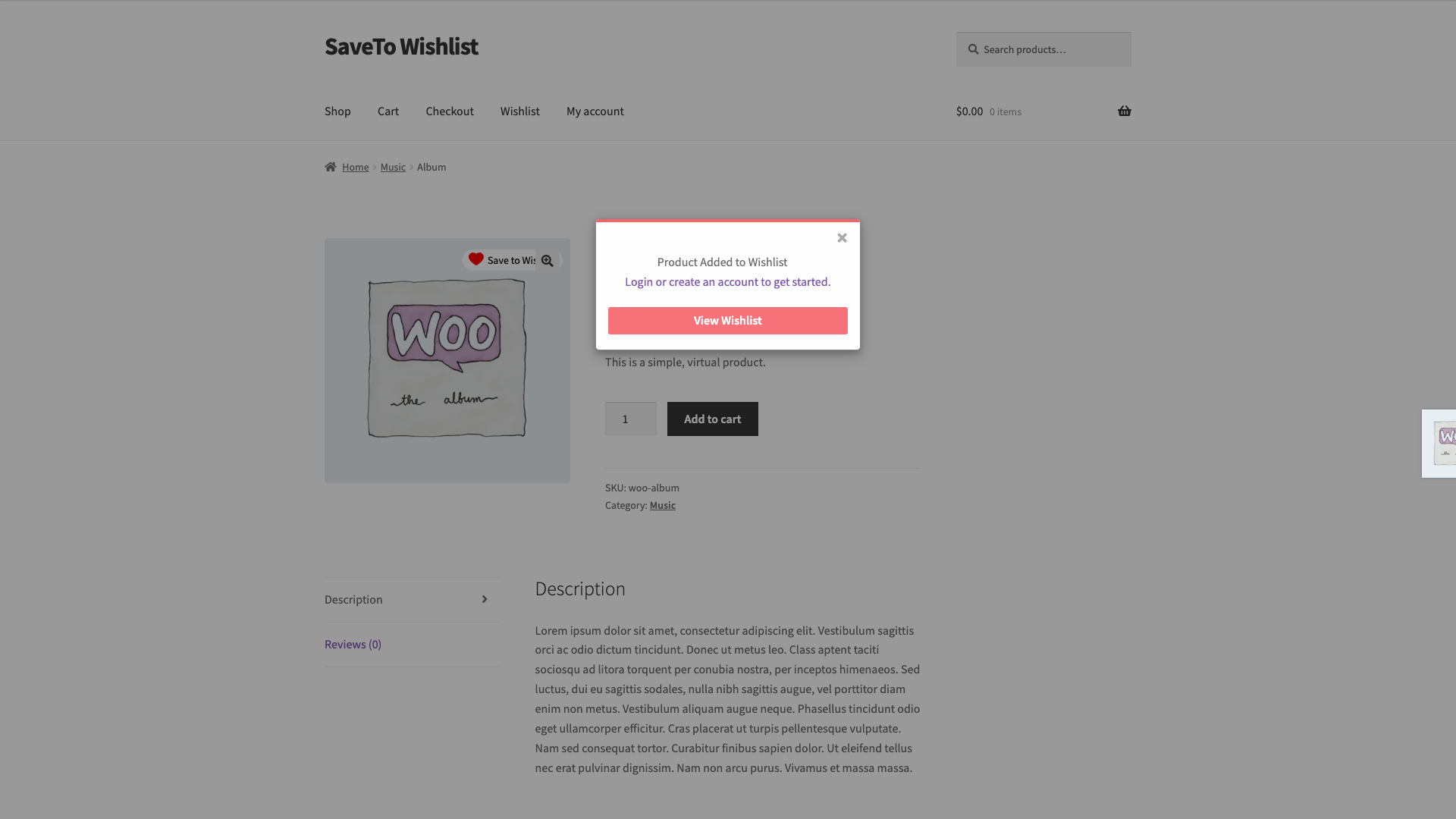
Guests who visit the wishlist page see a “Guest Wishlist” view showing the products they have saved, along with a prompt to log in or create an account to get started with a full account wishlist.
Guest Options Settings
| Setting | Description | Default |
|---|---|---|
| Disable Guest Wishlist | When enabled, the Add to Wishlist button is hidden entirely for visitors who are not logged in. Guests will not be able to save products or view a wishlist until they create an account or log in. | Disabled (guest wishlists are on by default) |
| Always Show Login/Create Account Link | When set to Yes, a login/create account link appears in the Add to Wishlist confirmation popup for all users — even those who are already logged in. Useful for stores that want to encourage account creation at every touchpoint. This setting is only visible when guest wishlists are enabled. | Yes |
Disable Guest Wishlist
This toggle controls whether non-logged-in visitors can interact with the wishlist feature at all.
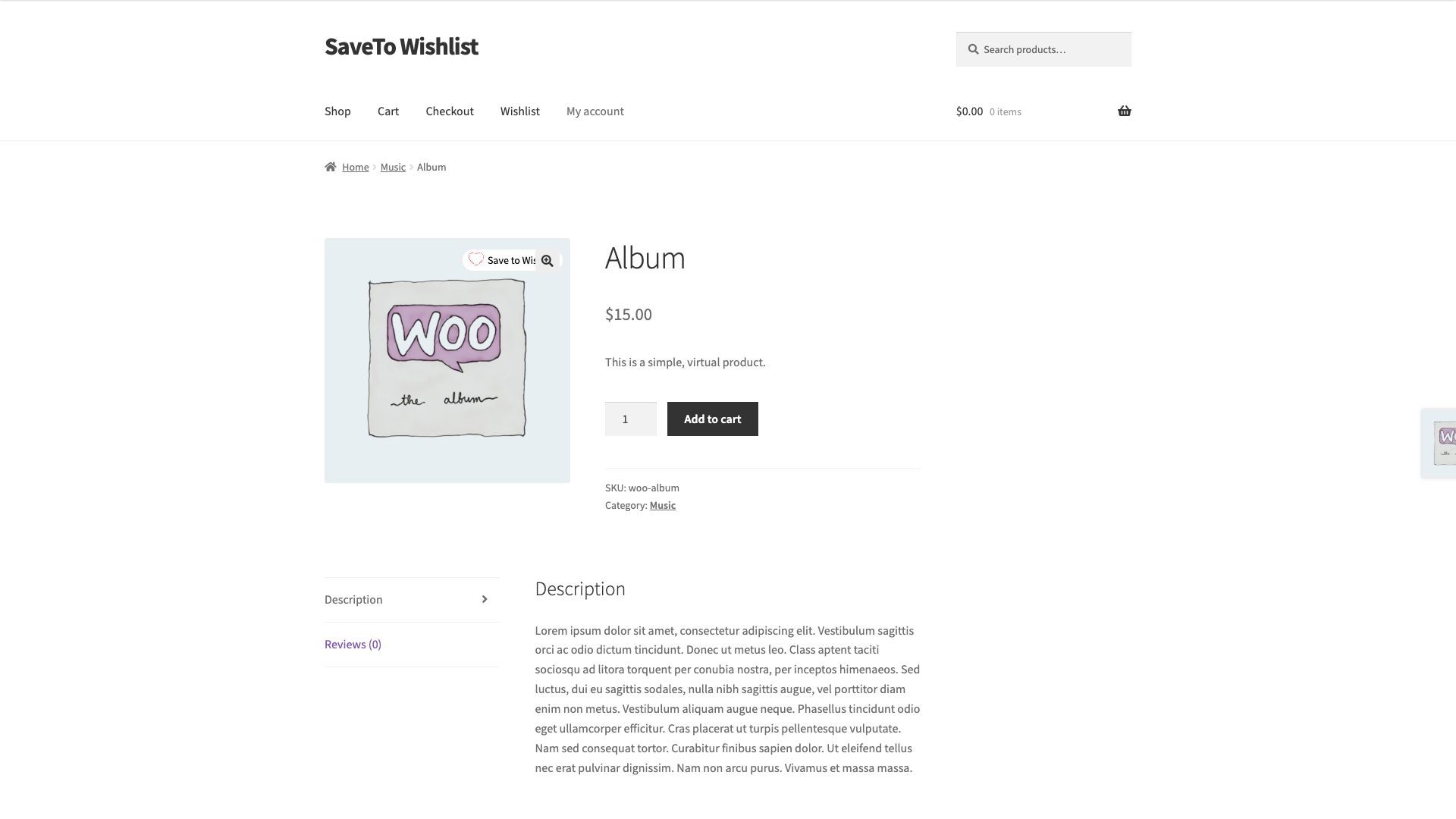
- Disabled (default): The Add to Wishlist button appears on product and shop pages for everyone, including visitors who are not logged in. Guests can save products and view their wishlist.
- Enabled: The Add to Wishlist button is completely hidden for non-logged-in visitors. Guests will not see any wishlist UI on product or shop pages. The wishlist feature becomes account-only.
Always Show Login/Create Account Link
This setting controls whether a login/create account link appears in the Add to Wishlist confirmation popup. It is only shown when the Disable Guest Wishlist toggle is off (i.e., guest wishlists are active).
- Yes (default): A login or create account link appears in the popup after a product is saved to the wishlist, encouraging guests to create an account.
- No: The login/create account link is hidden from the popup. The popup shows only the standard confirmation without a login prompt.
When to Enable or Disable Guest Wishlists
The right setting depends on your store’s goals:
| Scenario | Recommended setting |
|---|---|
| You want to let shoppers save items without friction — no account required | Leave Disable Guest Wishlist off (default). Guest wishlists let visitors engage before committing to an account. |
| Your wishlist feature is tied to a loyalty programme or account-only benefits | Enable Disable Guest Wishlist. This ensures only account holders can save and view wishlists. |
| You want to use the wishlist as a conversion tool to grow your account base | Leave guest wishlists on and set Always Show Login/Create Account Link to Yes. Guests can save items but are prompted to create an account at every step. |
| You want a clean popup without a login prompt | Set Always Show Login/Create Account Link to No. |
Frequently Asked Questions
Do guest wishlist items transfer to the customer’s account when they log in?
No. Guest wishlist items are stored in the browser’s local storage and are not automatically moved to an account when the guest logs in or registers. Customers will need to manually re-add items to their account wishlist after signing in.
What happens to guest wishlist items if the customer clears their browser data?
Because guest items are stored in local storage, clearing browser data (cookies, cache, or site data) will remove the guest wishlist permanently. There is no way to recover it without a logged-in account.
If I disable guest wishlists, will existing guest wishlist data be deleted?
No. Disabling the guest wishlist only hides the Add to Wishlist button from non-logged-in visitors going forward. Any data already stored in browser local storage remains until the visitor clears their browser data. The button is simply no longer shown on product and shop pages.
Need Help?
If you have a question or run into any issues, we’re here to help.
- Premium users: Open a support ticket
- Free users: Visit our community forum
