
If you use external tools like a CRM or marketing platform to manage your store, Webhooks are a powerful way to keep your data in sync. SaveTo Wishlist Pro can “ping” these other apps the moment a wishlist event occurs, allowing you to automate your workflow across multiple platforms.
What is a Webhook?
A webhook is a way for SaveTo Wishlist Pro to send real-time information to another application. Instead of you manually exporting data, the plugin pushes a data “payload” to a specific URL as soon as a customer takes action on your site.
Understanding Automation Triggers (When This Happens)
Triggers define when an automation should run. In other words, they determine the specific wishlist activity that sends a notification to the admin.
You can create automations based on the following wishlist events:
- A new wishlist is created
You can also enable the option “Also fire for admin-created wishlists” if you want automations to run when wishlists are created manually in the admin area. - An item is added to a wishlist
You can choose to trigger this for:- Products from all categories, or
- Products from a specific category only
- An item is removed from a wishlist
You can also limit this to:- All product categories, or
- A specific category
- A wishlisted product goes on sale
Perfect for notifying customers the moment a saved item becomes more affordable. - An out-of-stock wishlisted product comes back in stock
Ideal for recovering missed sales when inventory is replenished.
By selecting the appropriate trigger, you ensure you’re notified at the right moment to take action.
Step-by-Step: Setting Up a Webhook Action
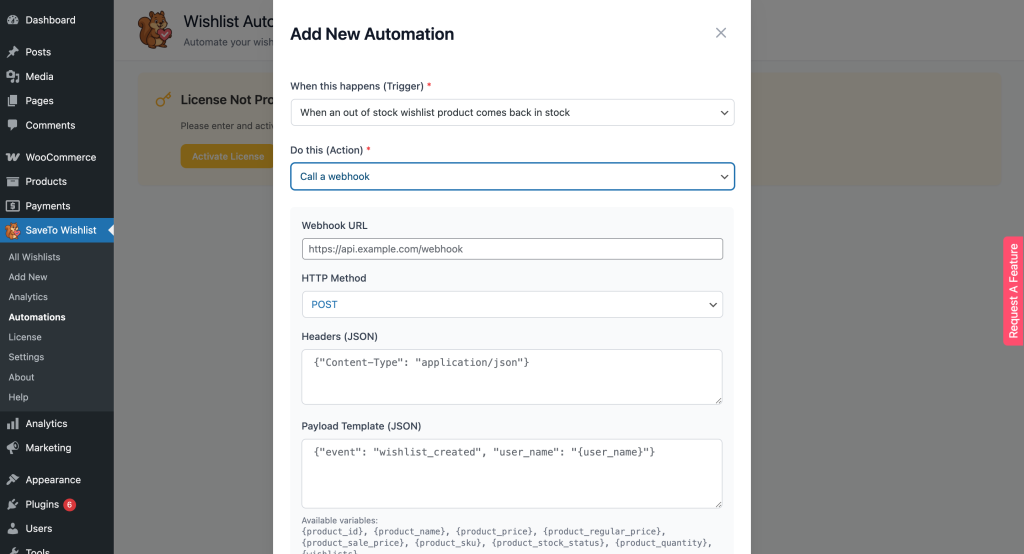
- Open Automations: Navigate to SaveTo Wishlist → Automations.
- Start a New Automation: Click Save Automation.
- Pick Your Trigger: Choose the event that should send data, such as Item Added to Wishlist.
- Select Webhook Action: Choose Call a Webhook as your action type.
- Enter Connection Details:
- Webhook URL: Paste the unique URL provided by your external app where the data should be sent.
- HTTP Method: Select the appropriate request method, typically POST, PUT, or PATCH.
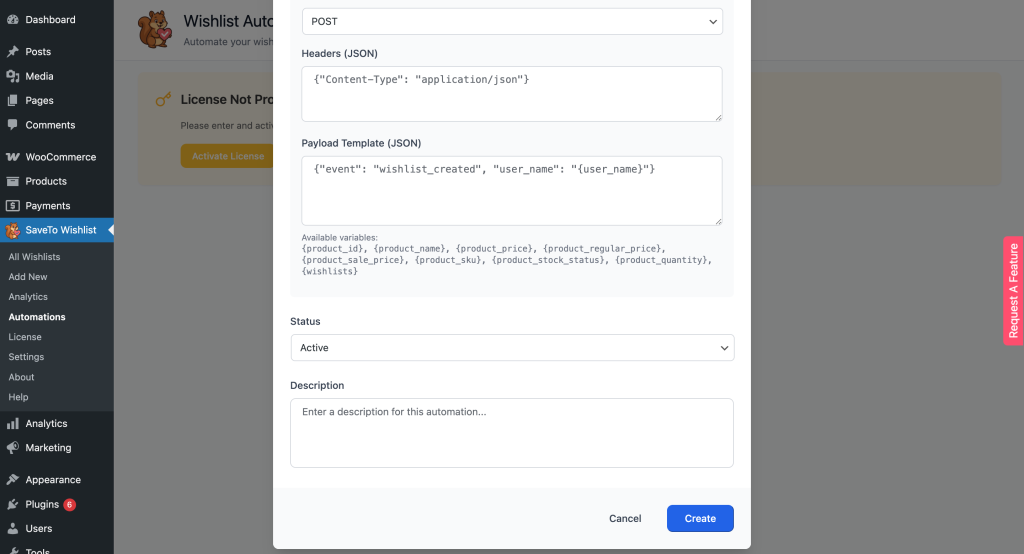
- Headers (JSON): Add any necessary headers in JSON format, such as
Content-Type: application/jsonor authentication tokens required by the external app. - Webhook Payload: Define the data being sent; you can use variables to include details like the product ID or user info.
- Payload Template (JSON): Define the data to send in JSON format. You can include dynamic variables to pass relevant information, such as:
{customer_id}– The unique ID of the customer{customer_name}– The customer’s name{customer_email}– The customer’s email address{wishlist_name}– The name of the wishlist{wishlist_url}– The direct URL to the wishlist{created_date}– The date the wishlist was created
- Activate: Set the status to Active and save your settings.
For example, your JSON payload might look like this:
{
  "customer_id": "{customer_id}",
  "name": "{customer_name}",
  "email": "{customer_email}",
  "wishlist": "{wishlist_name}",
  "wishlist_url": "{wishlist_url}",
  "created_at": "{created_date}"
}
This setup ensures your external app receives all the relevant wishlist and user information automatically.
Example Use Case
time a New Wishlist is Created, you can trigger a webhook to add that customer’s details to a specific “Wishlist Users” segment in an external marketing tool like Mailchimp or Klaviyo.
Seamlessly Connect Your Store to External Apps with Automated Webhooks
Webhooks bridge the gap between your WooCommerce store and the rest of your tech stack. Once configured, your customer data flows effortlessly to your chosen CRM. Try setting up a webhook with a service like Zapier to see how wishlist events can trigger hundreds of different third-party app actions.
Help & Support
We have a dedicated support team for SaveTo Wishlist Pro for WooCommerce who knows our products, WooCommerce, and the industry very well. You’re welcome to make use of their expertise at any time, worldwide.
If you would like to know more about this plugin or find any issues with it, please go to the support ticket request form and send us a message.
Help & Support
We have a dedicated support team for SaveTo Wishlist Pro for WooCommerce who knows our products, WooCommerce, and the industry very well. You’re welcome to make use of their expertise at any time, worldwide.
If you would like to know more about this plugin or find any issues with it, please go to the support ticket request form and send us a message.
