
Your store has its own look, with its own colors, fonts, and layout. This guide shows you how to match the SaveTo Wishlist button to it, across the product, shop, and cart pages, without touching any code.
Prerequisites
- WooCommerce installed and configured.
- SaveTo Wishlist Lite installed and active.
- Administrator access to your WordPress dashboard.
Wishlist action
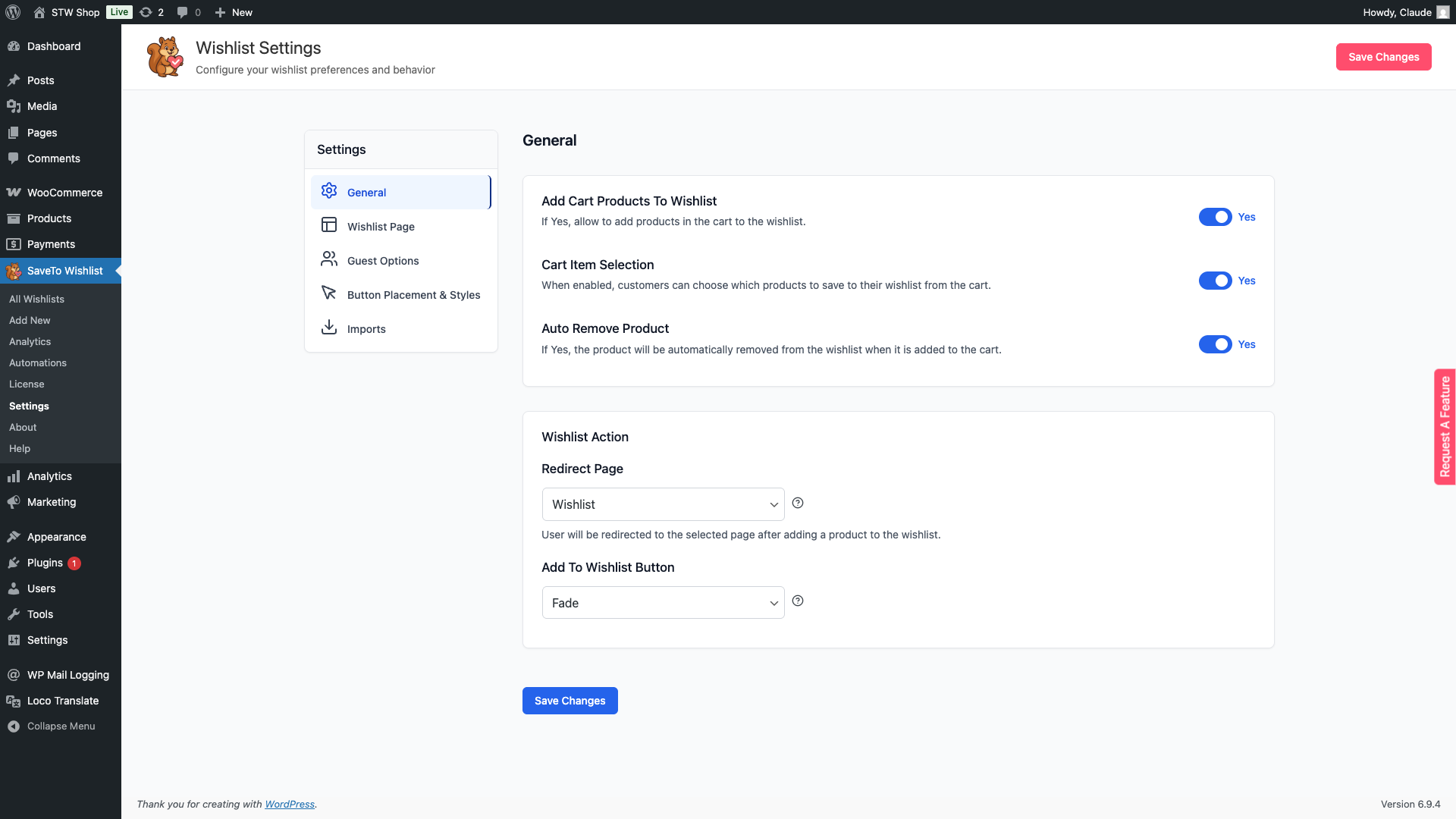
The Add to wishlist button setting controls what happens when a customer clicks the wishlist button. You’ll find it under SaveTo Wishlist → Settings → General → Wishlist Action.
There are three options:
- Redirect: sends the customer straight to their wishlist page after clicking. Good for stores where you want customers to review their wishlist immediately.
- Popup: shows a confirmation popup without navigating away. Useful when you want shoppers to stay on the page and keep browsing.
- Fade: a small confirmation message fades in next to the button to confirm the product was saved, with no navigation or popup. It’s the most subtle option, ideal when you want minimal interruption to the shopping flow.
Where to find the settings
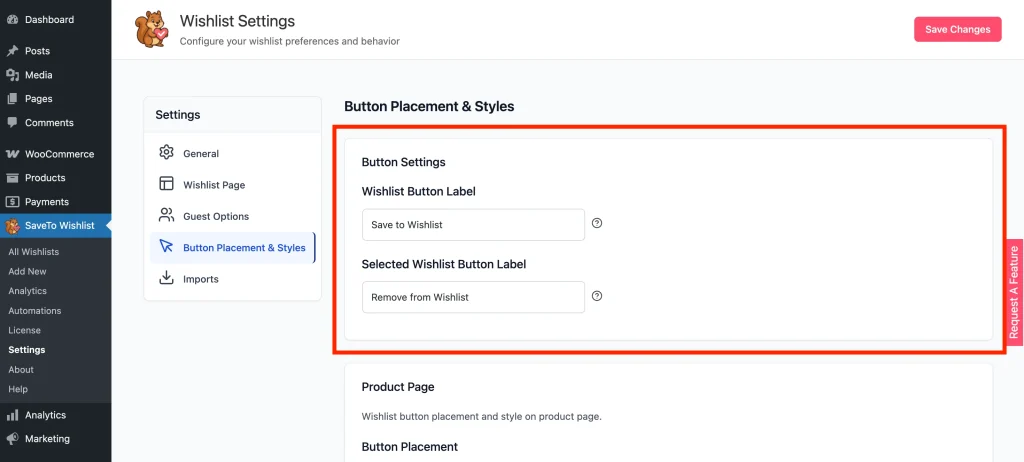
Go to your WordPress Dashboard → SaveTo Wishlist → Settings → Button Placement & Styles.
You’ll see five main sections:
- Button Settings – wishlist button label and the label shown after a product is added
- Frontend Styling – the Frontend CSS Loading setting that controls how much of the plugin’s CSS loads on your storefront (covered in the Frontend CSS loading section below)
- Product Page – button placement and style on single product pages
- Shop Page – button placement and style on product listings
- Cart Page – style and label for the “Save Cart to Wishlist” button
Button settings
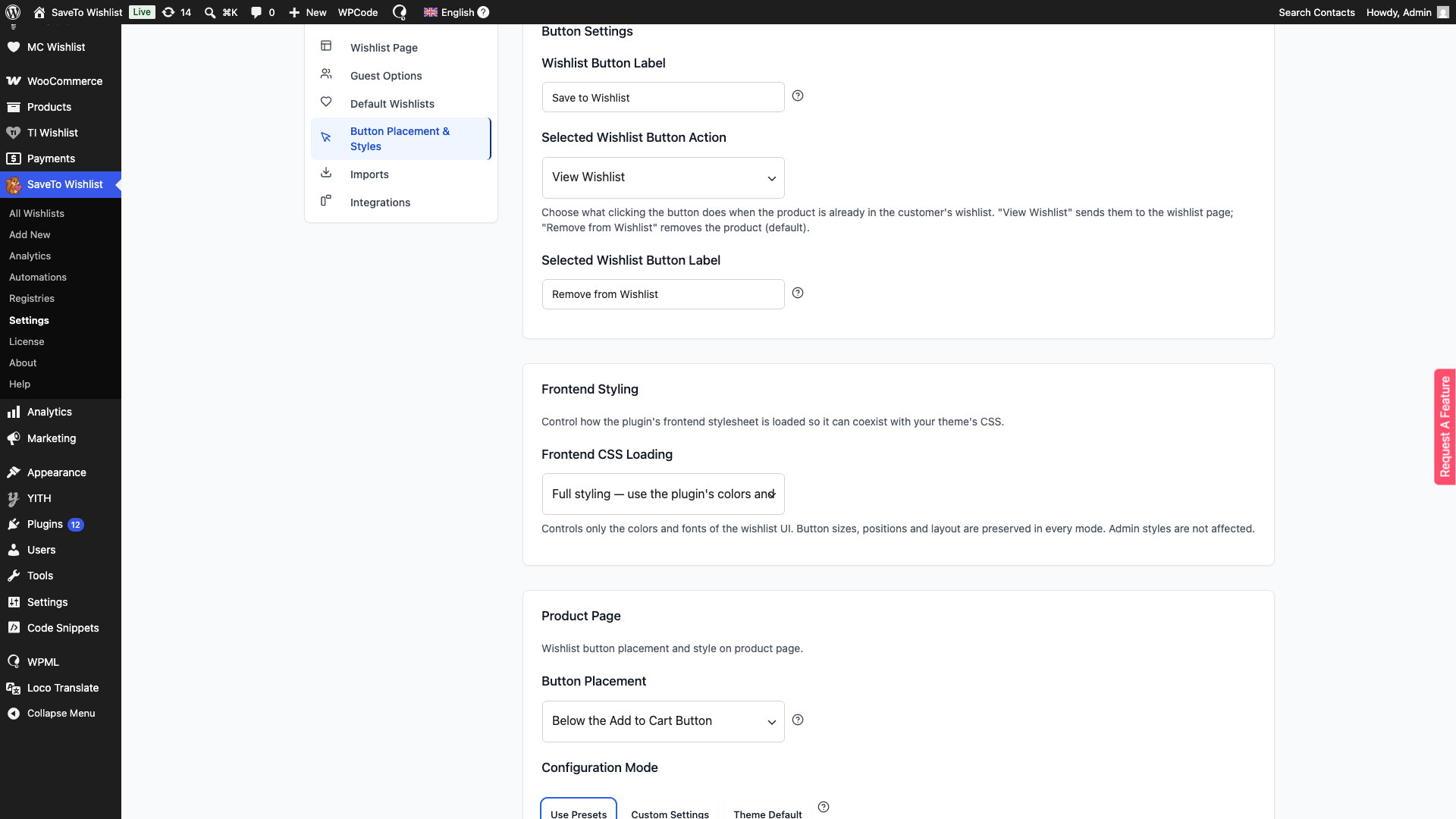
Wishlist Button Label sets the default text for all wishlist buttons across your store. The default is Save to Wishlist, but you can change it to anything that fits, like Add to Favorites or Save for Later. Keep it short and clear.
Selected Wishlist Button Label lets you show a different label once a product has been added to the wishlist. The default is Remove from Wishlist, which lets shoppers remove the item with one click. You can change it to anything that fits your store.
Selected Wishlist Button Action controls what happens when a shopper clicks the button on a product that is already in their wishlist. The default is Remove from Wishlist, which takes the product back out in one click. Switch it to View Wishlist to send the shopper to their wishlist page instead.
Pro tip: Keep button labels short and action-oriented to make it easy for shoppers to take action.
Product page
The Product Page section controls how the wishlist button appears on individual product pages where shoppers view a single product before buying.
Button Placement decides where the button appears on the product page. The default is Below the Add to Cart Button, but you can also choose Above the Add to Cart Button, Inline with the Add to Cart Button, Above the Product Title, Below the Product Title, Top Right of the Product Image, or Top Left of the Product Image. To hide the wishlist button on single product pages entirely, choose Don’t show.
⚠️ Products without a price or out of stock: As of version 1.0.7, the Above the Add to Cart Button and Below the Add to Cart Button placements also show the wishlist button on products that have no price, are out of stock, or are in catalog mode. These products normally hide WooCommerce’s Add to Cart form, so the button now falls back to a nearby spot in the product summary instead of disappearing.
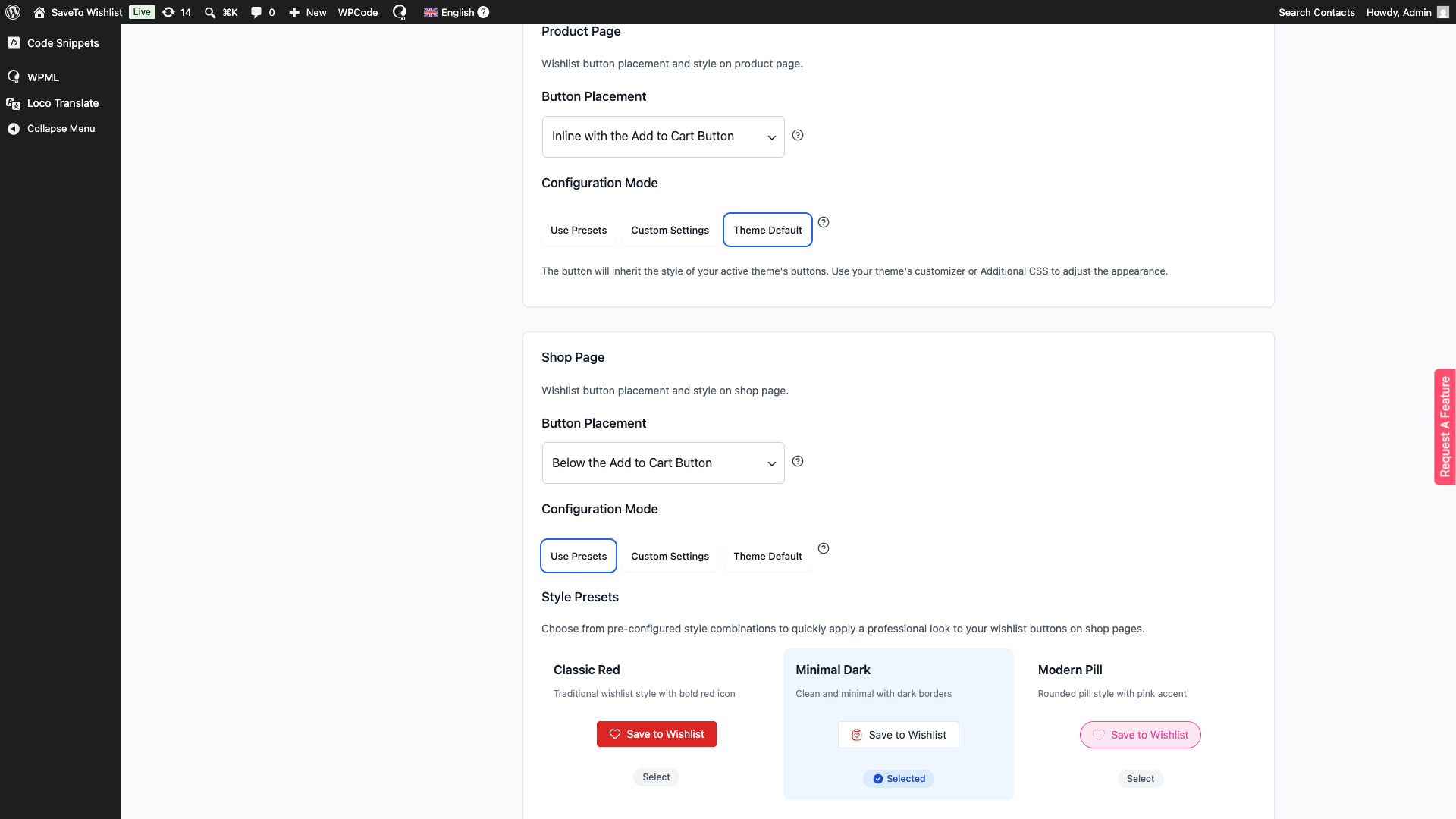
The next setting is the Configuration Mode option. Choose Use Presets to pick from ready-made style combinations, Custom Settings to access the full color picker, fonts, and size controls manually, or Theme Default to inherit your active theme’s own button appearance.
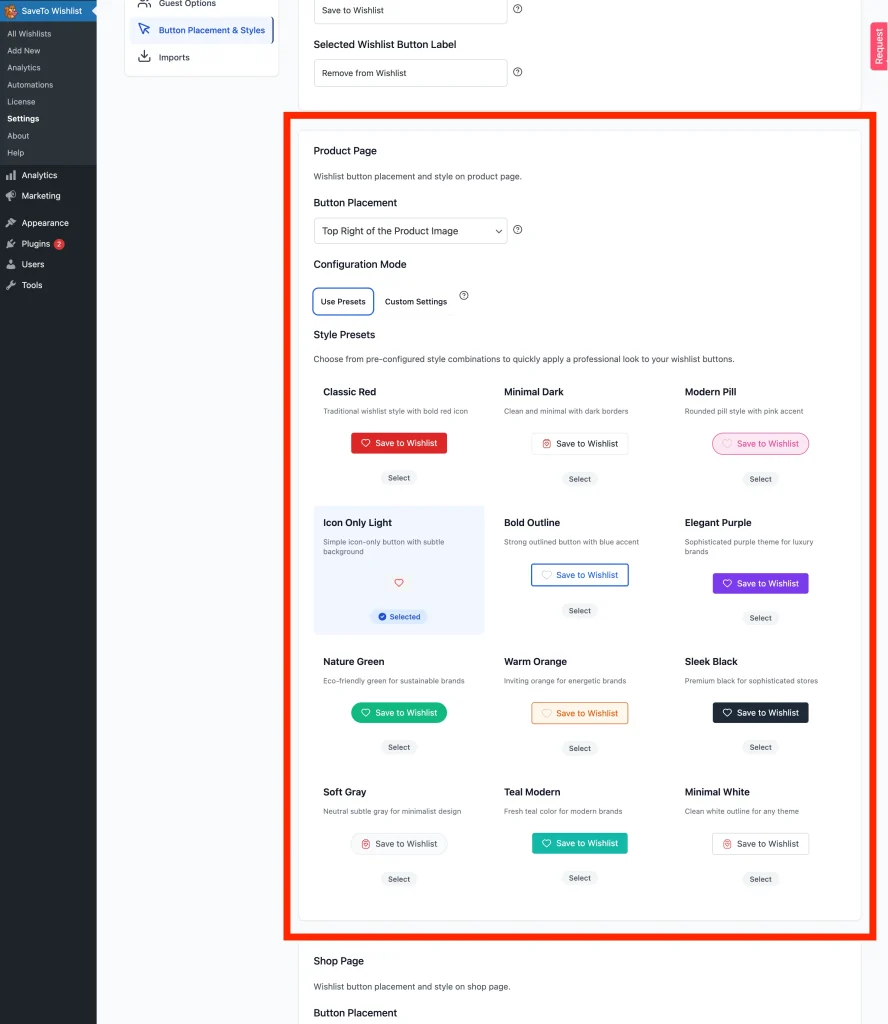
Pro tip: Use the live preview to see how your button looks in both normal and hover states before saving your changes.
Shop page
The Shop Page section controls how wishlist buttons appear on your product grids, category pages, and archive pages, anywhere shoppers browse multiple products at once.
Button Placement defaults to below the Add to Cart button, but you can also position the button in the top corners of product images or above/below product titles. For a clean, modern look on grid pages, the top-corner position tends to work really well. To hide the wishlist button on shop, category, and archive pages, choose Don’t show.
Like the Product Page section, it has the Configuration Mode option. Choose Use Presets for a quick setup with ready-made combos, Custom Settings to fine-tune every color, font size, border width, and text style to match your store branding, or Theme Default to inherit your active theme’s button appearance.
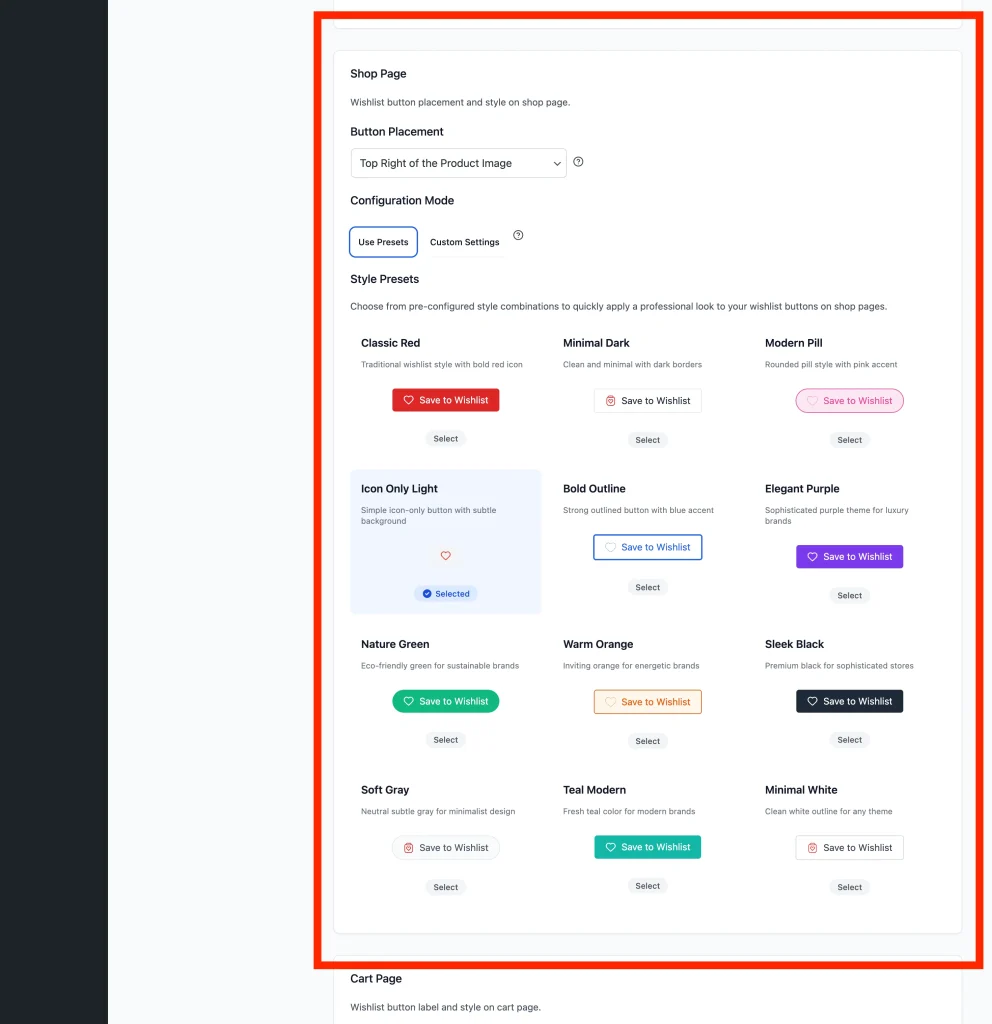
Pro tip: For a sleek, modern shop page, try Icon Only buttons in the top corners. It saves space while keeping the wishlist option visible.
Cart page
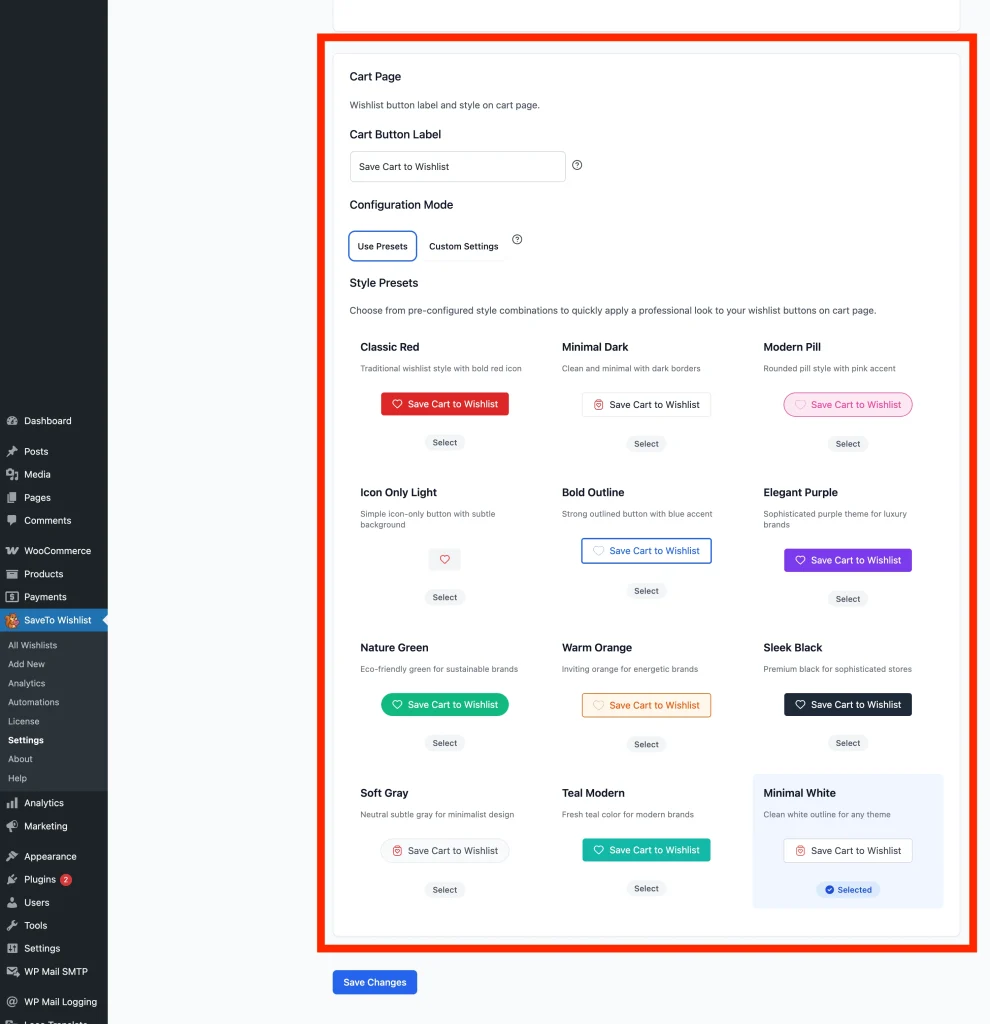
The Cart Page section is for the “Save Cart to Wishlist” button, the button that lets shoppers save their entire cart at once. It’s great for customers who want to come back later or share their picks.
The Cart Button Label defaults to “Save Cart to Wishlist”. You can change it to something friendlier like Save Cart for Later or ♥ Save My Cart. The same style, color, font, and size options available on the product and shop pages apply here, so you can keep things consistent across your store.
This section also has the Configuration Mode option: choose Use Presets for a quick setup, Custom Settings to control the colors, fonts, and sizes yourself, or Theme Default to inherit your active theme’s button appearance.
Frontend CSS loading
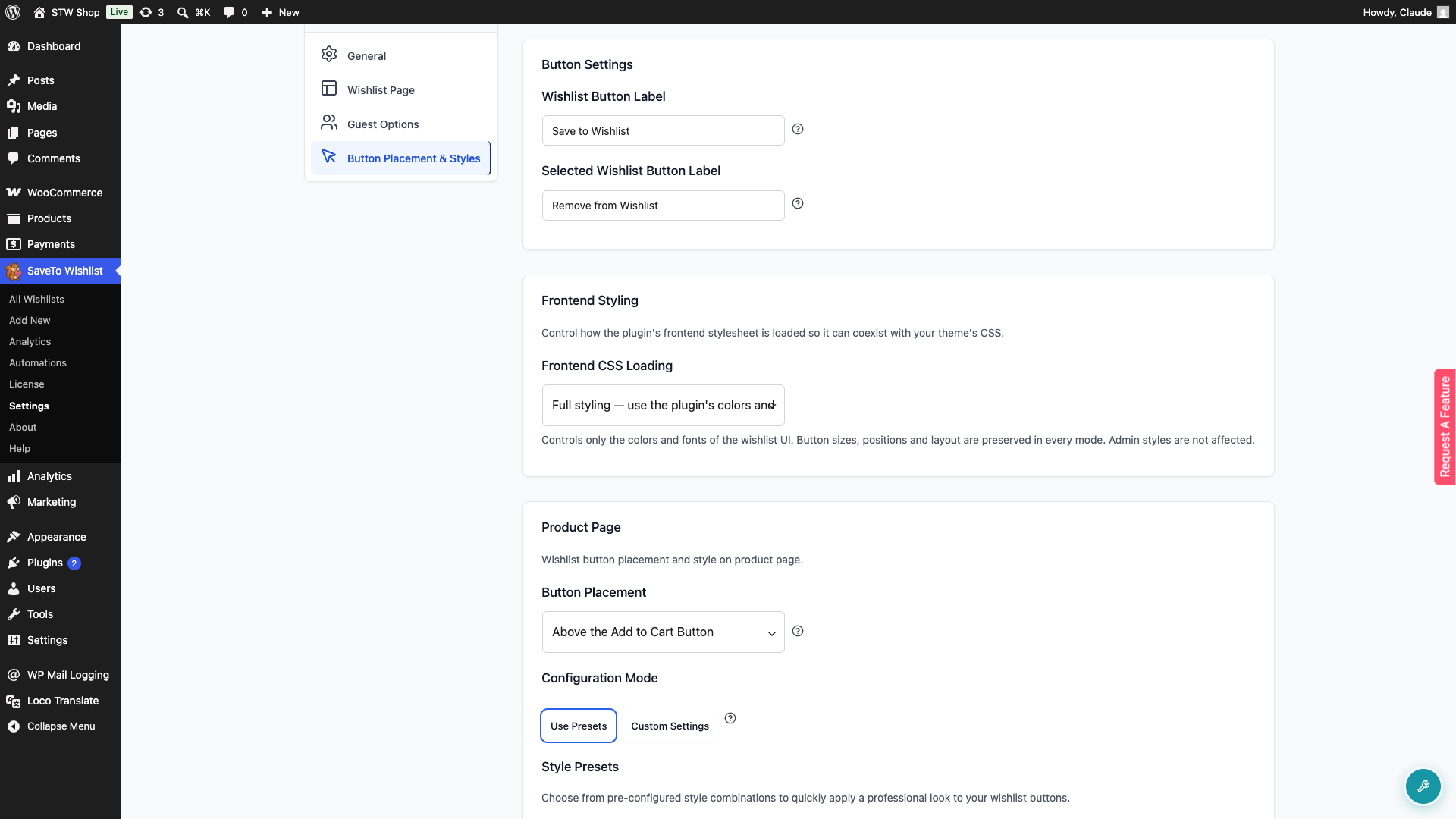
The Frontend CSS Loading setting controls how much of the plugin’s stylesheet loads on your storefront. You’ll find it under SaveTo Wishlist → Settings → Button Placement & Styles → Frontend Styling.
There are three options:
- Full styling: use the plugin’s colors and fonts (default). Loads the plugin’s complete stylesheet. Works out of the box for most stores.
- Minimal styling: let your theme override colors and fonts. Loads colors and backgrounds without
!importantoverrides, so your theme’s CSS can win where it conflicts. Try this first if the wishlist button is clashing with your theme. - No styling: inherit colors and fonts from the active theme. Drops the plugin’s colors and fonts so the button picks them up from your theme. Best for developers doing a full custom build. The plugin’s button sizes, positions, and layout CSS are preserved in every mode.
Summary
Use Wishlist Action (Settings → General) to control what happens after a click. Use Button Placement & Styles to set labels, placement, colors, and CSS loading for every page where the button appears, with Redirect, Popup, or Fade controlling what happens after a click.
Best practices
- Match button colors and style to your store theme
- Keep labels short and action-oriented
- Test buttons on mobile for readability and tap size
- Use the live preview to confirm your settings before saving
Troubleshooting
Button style not updating after saving
If you change settings and the button looks the same on the front end, try switching the Configuration Mode from Use Presets to Custom Settings (or vice versa) and saving again. Also clear any caching plugins or CDN cache. Cached CSS can prevent style changes from showing.
Wishlist button clashing with theme CSS
If the button looks broken or conflicts with your theme styles, go to SaveTo Wishlist → Settings → Button Placement & Styles → Frontend Styling and switch Frontend CSS Loading from Full styling to Minimal styling. This lets your theme’s CSS override colors and fonts where they conflict. For a fully custom build, No styling gives you a blank slate.
Frequently asked questions
What’s the difference between Use Presets and Custom Settings?
Presets give you a set of ready-made style combinations, so one click applies a coordinated look. Custom Settings unlock individual controls for color, font size, border width, icon, and hover effects so you can fine-tune everything manually.
What does Fade actually do visually?
On product and shop pages, clicking the wishlist button shows a small confirmation message (a check icon and “Added to [wishlist name]”) that fades in next to the button, stays for about two seconds, then fades out. The button itself stays visible the whole time. On the cart page, the Save Cart to Wishlist button fades briefly to confirm the save. There’s no popup and no page redirect.
Will my customizations carry over if I switch themes?
Yes. Button styles are saved in the plugin settings, not in your theme. Switching themes won’t reset your label text, colors, or placement choices. That said, some themes override button styles with their own CSS, so it’s worth checking the appearance after a theme change.
Need help?
- Premium users: Open a support ticket
- Free users: Visit our community forum

