

 Reviewed by
 A shopper scrolls your shop page and spots a hoodie they like. They click Quick View, pick a size and read the price. Then they hesitate. It’s payday next week.
In many stores, that’s where the trail ends. The shopper closes the modal, keeps scrolling and forgets the hoodie by dinner. A WooCommerce quick view modal shows a lot of what a product page does. However, it doesn’t come with a way to say “not yet”.
The free SaveTo Wishlist Lite plugin now fixes that for stores using ShapedPlugin’s Reno Quick View. Below, I’ll show you how to set up the wishlist button inside the quick view modal. I’ll also share how to use it to turn quick browsing into sales you can follow up on.
Jump to:
- Why Your Quick View Modal Needs A Wishlist Button
- What The Reno Quick View Integration Does
- What You Need Before You Start
- How To Add A Wishlist Button To Your WooCommerce Quick View
- How To Check The Integration Is Working
- 5 Ways To Turn Quick View Saves Into Sales
- Things To Know Before You Switch It On
- Frequently Asked Questions
- Ready To Add A Wishlist Button To Your Quick View?
Why Your Quick View Modal Needs A Wishlist Button

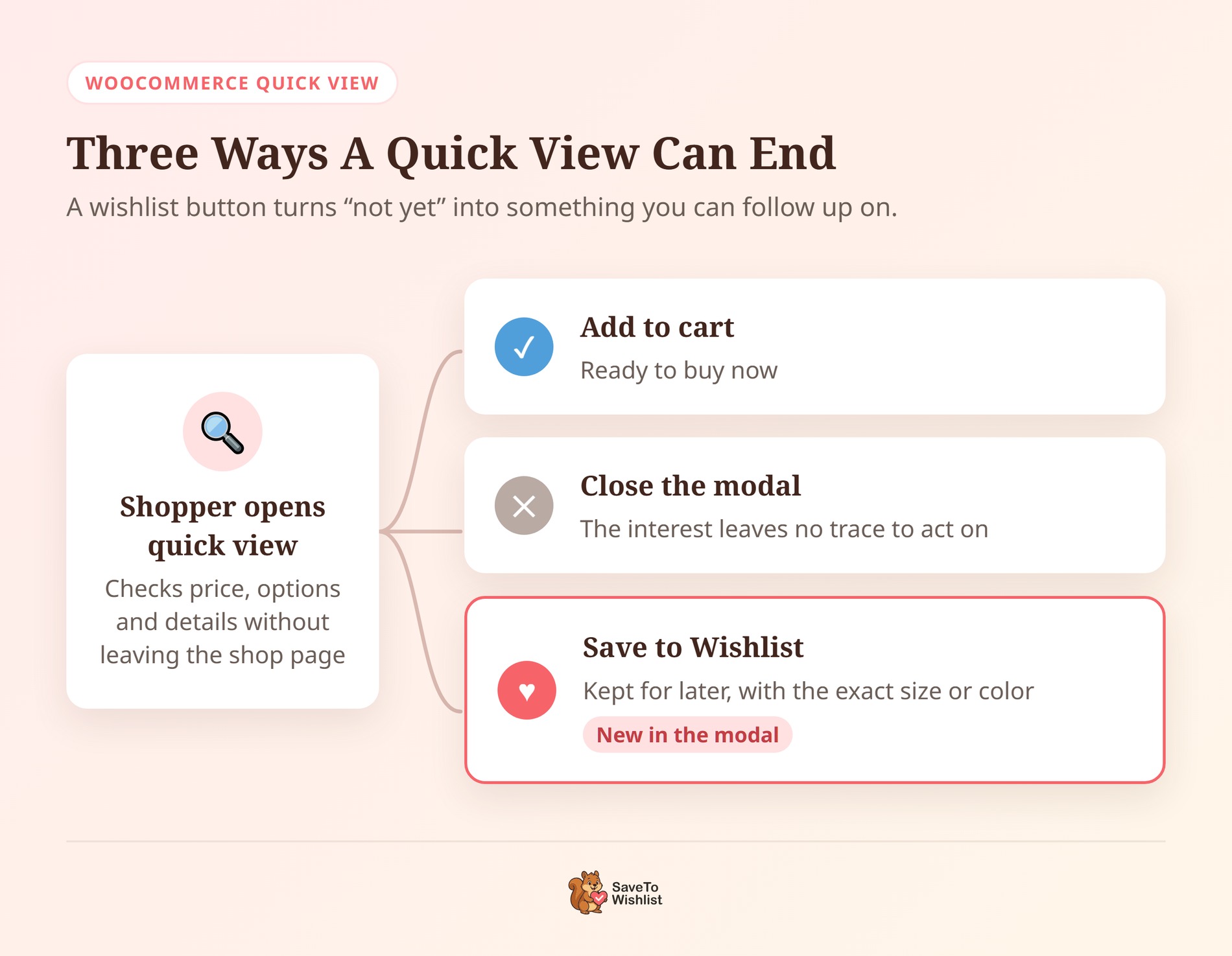
Quick view exists for shoppers who are browsing, not buying. It lets them check a product’s price, options and description without leaving the shop page. As a result, it’s often used at a moment when shoppers aren’t ready to commit.
The numbers back this up. In Baymard Institute’s research, 42% of US online shoppers have abandoned a cart while “just browsing / not ready to buy”. Those shoppers liked something enough to add it to a cart. Plenty of others look at a product in a quick view and move on without adding anything.
Without a save option, a quick view modal leaves two main actions: add to cart or close. So a shopper who isn’t ready to buy closes it, and you never learn they were interested.
A wishlist button adds a third option. The shopper saves the product in one click and keeps browsing. You get a record of real interest, which is the whole point of a wishlist.
What The Reno Quick View Integration Does
SaveTo Wishlist Lite 1.1.7 adds the Save to Wishlist button to the Reno Quick View modal. Reno Quick View is the new name for ShapedPlugin’s “Quick View for WooCommerce” plugin. You may know it by either name.
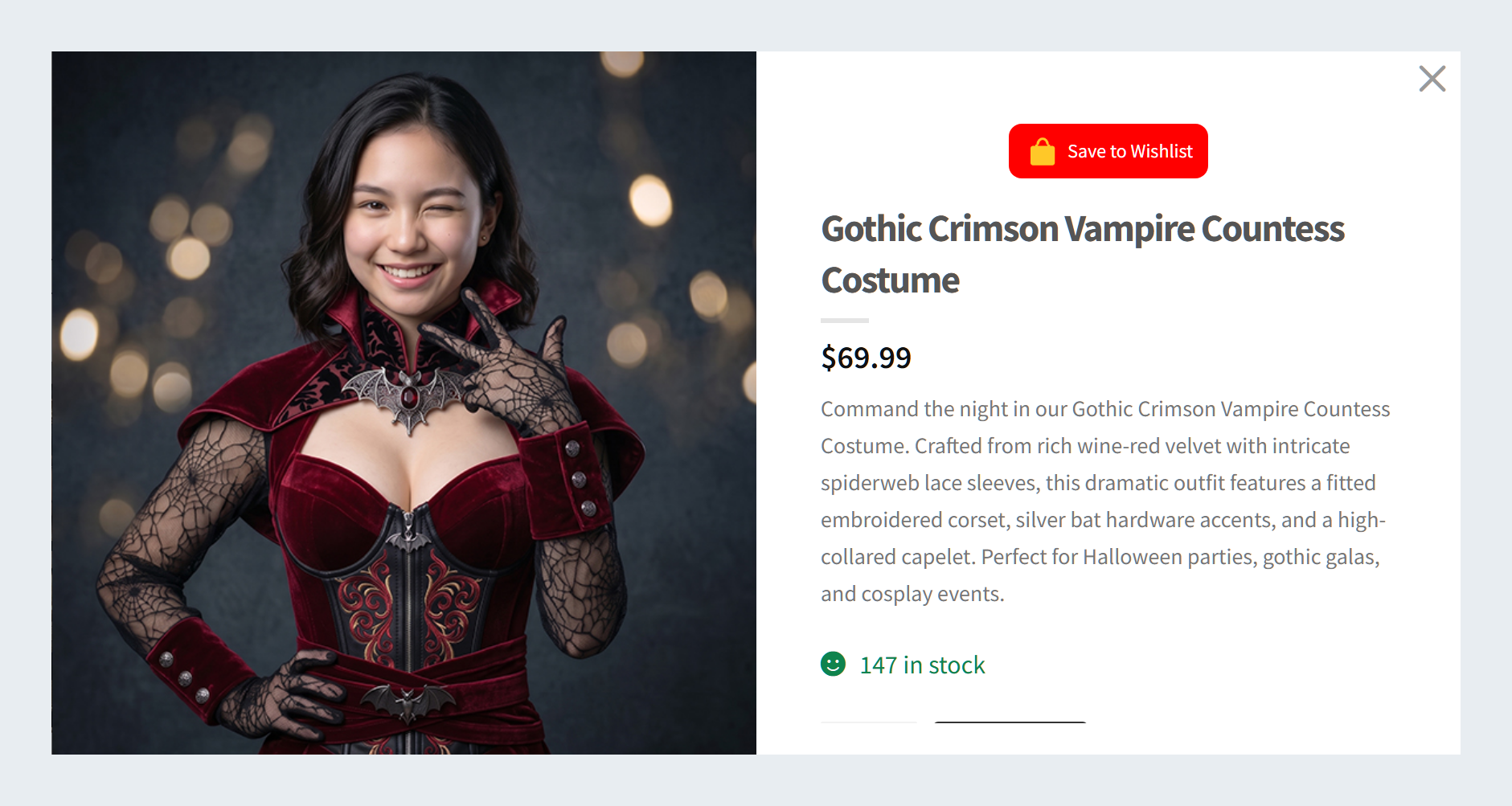
Before this update, the button didn’t show in the modal on a default SaveTo Wishlist setup. That’s because the modal uses its own compact product layout, which doesn’t include the spots our default placement relies on. The integration adds the button to that layout. Here’s what it does:
- Follows your product page placement: The modal uses the same product page Button Placement you’ve already chosen. If your product pages show no button, the modal shows none either.
- Shows exactly one button: No duplicates, whichever placement you pick.
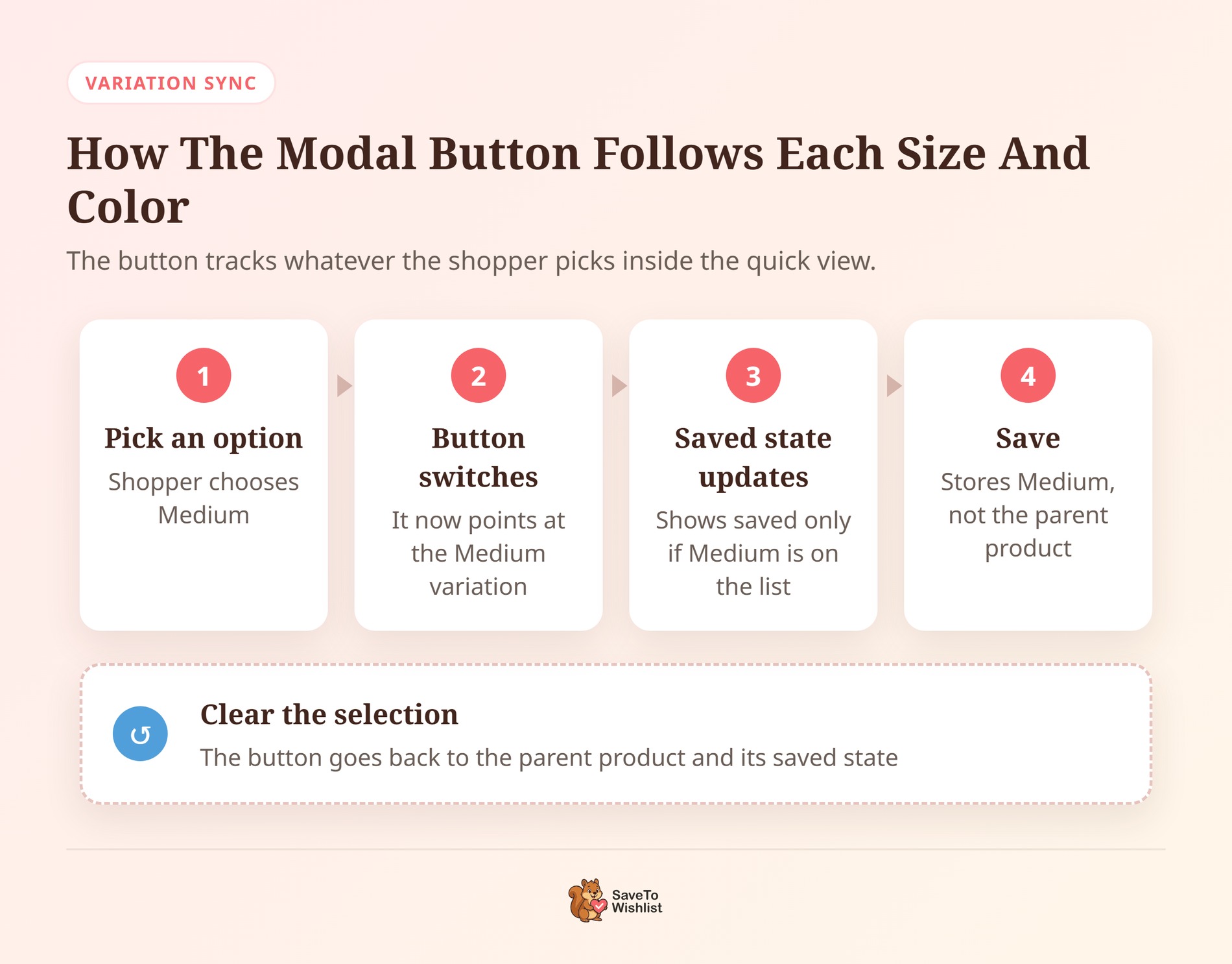
- Tracks the chosen variation: When a shopper picks a size or color in the modal, the button switches to that variation. It saves that exact variation, not the parent product.
- Shows the right saved state: If the shopper already saved the product or chosen variation, the button shows it as saved. This works for guests and logged-in customers.
- Works for out-of-stock products: The button still shows when a product has no Add to Cart button. That includes out-of-stock products.
It also leaves the rest of the page alone. For example, a variation picked in the modal won’t change the wishlist button on the product card behind it.
What You Need Before You Start
You need two free plugins:
- SaveTo Wishlist Lite, version 1.1.7 or later: The integration ships in the free plugin. If you use SaveTo Wishlist Pro, it runs on top of Lite, so you get it too.
- Reno Quick View: ShapedPlugin’s Reno Quick View plugin is free and has 2,000+ active installs on WordPress.org. Its listing name is “Quick View for WooCommerce – Reno QuickView”.
Our team tested the integration with Reno Quick View 2.3.0, the current version at the time of writing.
How To Add A Wishlist Button To Your WooCommerce Quick View
The setup takes five steps. The integration is on by default, so most of this is about choosing how the button behaves.
Step 1: Install both plugins
Go to Plugins > Installed Plugins and update SaveTo Wishlist Lite to 1.1.7 or later. New to the plugin? Our quick start guide covers the first setup. Then go to Plugins > Add New Plugin, search for “Reno Quick View” and install the ShapedPlugin plugin. Activate it.
Reno Quick View adds a Quick View button to the product cards on your shop page. Its own settings control that button, the modal’s look and which product details the modal shows.
Step 2: Check the quick view toggle is on
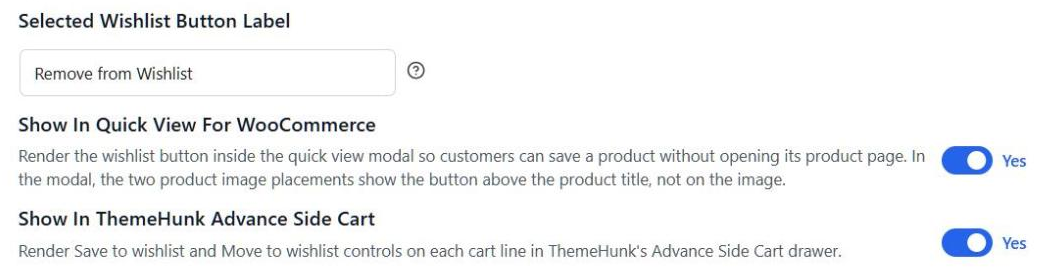
Go to SaveTo Wishlist > Settings > Button Placement & Styles and open Button Settings. Find Show in Quick View for WooCommerce. It’s on by default, so you only need to confirm it.
This toggle only shows up while Reno Quick View is active. If you can’t see it, check that the ShapedPlugin plugin is activated.
Step 3: Pick where the button sits
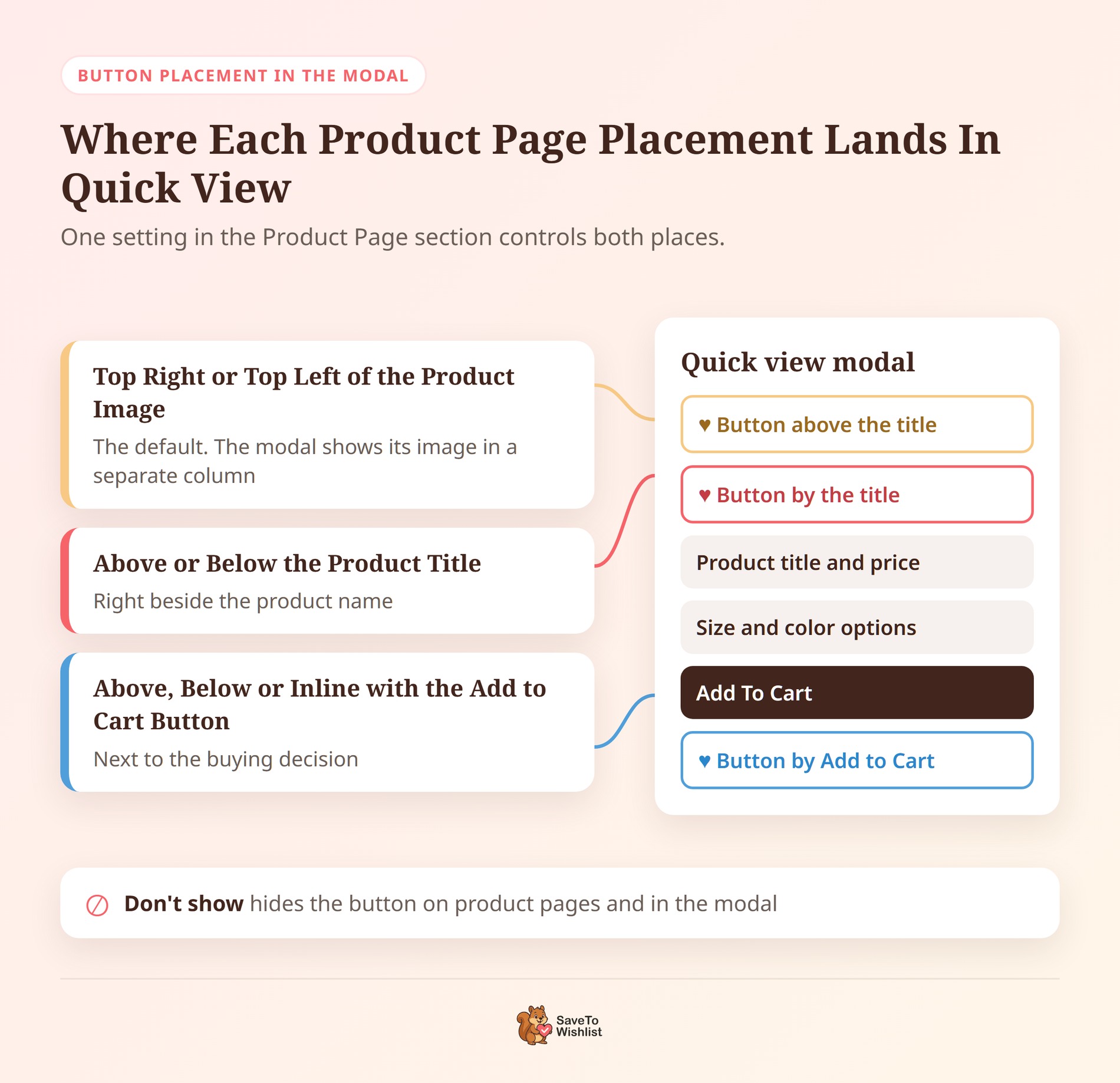
On the same settings page, open the Product Page section and find Button Placement. The modal follows this setting, so one choice controls both places:
- Above or Below the Product Title: The button sits right by the product name in the modal.
- Above, Below or Inline with the Add to Cart Button: The button sits next to Add to Cart, where buying decisions happen.
- Top Right or Top Left of the Product Image: This is the default. The modal shows the image in its own column. So here the button moves above the product title.
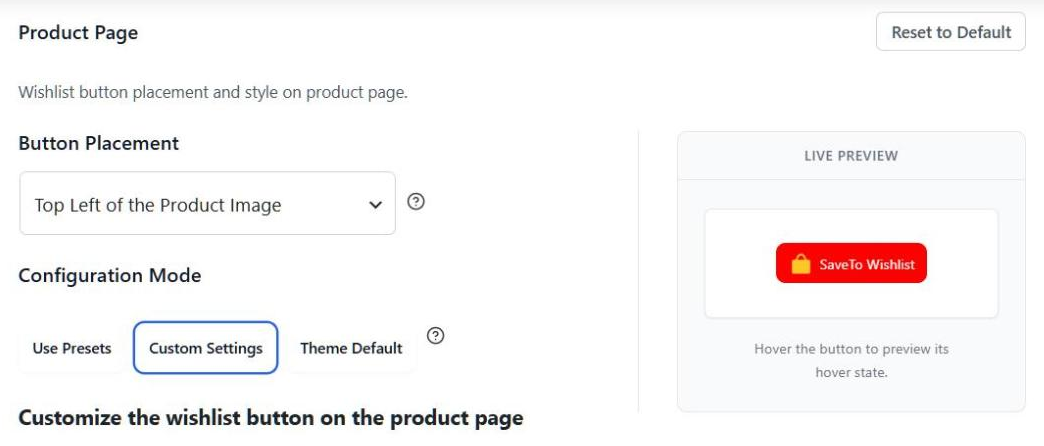
Because this setting also moves the button on your product pages, check one of those pages after any change. The modal also uses the Product Page button style, so style changes there show up in both places.
Step 4: Choose what happens after a click
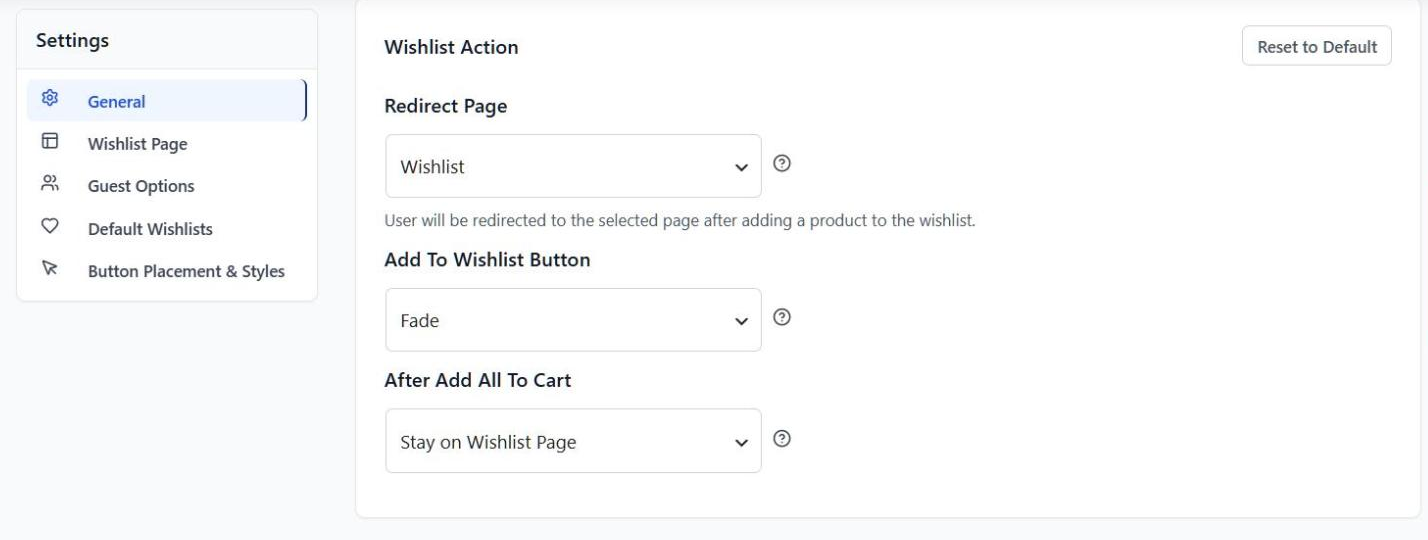
Next, go to SaveTo Wishlist > Settings > General and find Add To Wishlist Button under Wishlist Action. You have three choices:
- Redirect: Sends the shopper to the wishlist page after each save. This is the default.
- Popup: Shows a confirmation popup.
- Fade: The button fades to confirm the save, and the shopper stays where they are.
Step 5: Decide whether guests can save
Finally, go to SaveTo Wishlist > Settings > Guest Options. If Disable Guest Wishlist is on, logged-out shoppers won’t see the modal button. I’d leave guest saving on, and our guide to guest wishlists explains why.

How To Check The Integration Is Working
Set the add action to Fade first, so the modal stays open while you test. Then open your shop page in a private window and run these checks:
- Click Quick View on a simple product. The modal should show one Save to Wishlist button.
- Click the button, then open your wishlist page in a new tab. The product should be there.
- Open Quick View on a variable product and pick a size or color. Save it, close the modal and open it again.
- Pick the same option again. The button should show as saved. Pick a different option, and it should show as not saved.
- Open Quick View on an out-of-stock product. You should still see one wishlist button.
🔍️ What we’ve seen: On our test store, the modal button looked different from the shop page buttons. That’s expected, because the modal uses your Product Page button style. To change its look in the modal, edit the Product Page style. Then check your product pages too.
5 Ways To Turn Quick View Saves Into Sales
A quick view save is a shopper telling you “I like this, but not right now”. These five habits help you act on that.
Use Fade so shoppers keep browsing
Fade keeps shoppers on the shop page after a save. That suits quick view, which exists to save shoppers a page load. By contrast, Redirect sends them to the wishlist page after every save, so they lose their place.
🔍️ What we’ve seen: It’s easy to add quick view and leave the wishlist add action on its default, Redirect. In that case, the first save takes the shopper away from the shop page. Switching to Fade fixes it in one setting.
Put the button where your shoppers decide
If your products need a choice, like a size or color, place the button near Add to Cart. That way, shoppers see it right after they pick an option. For simple products that sell on looks, a spot by the title works well. It’s the first thing they see.
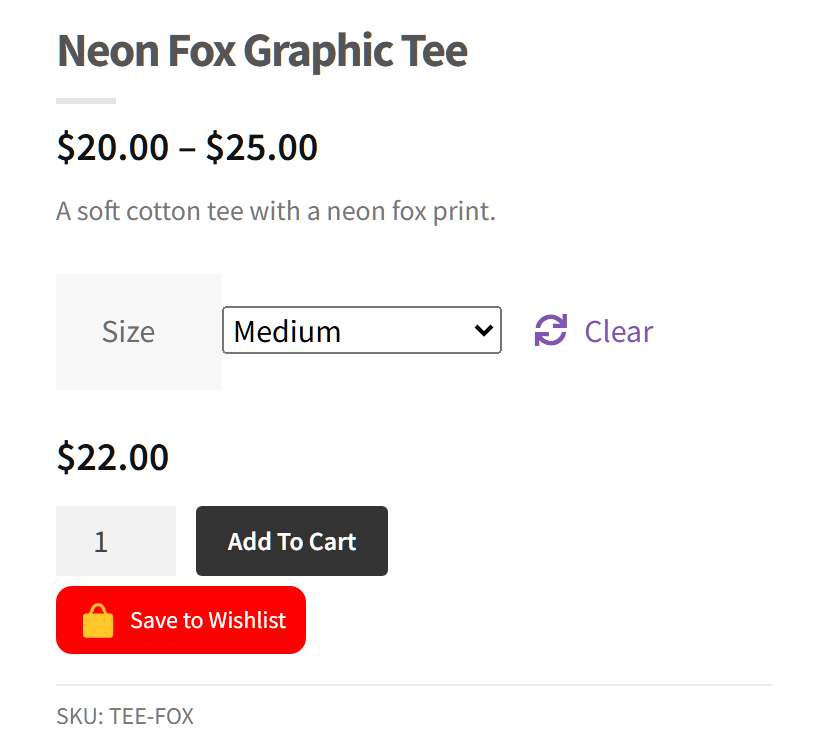
Remember that your product pages follow the same setting. So pick the spot that works for both.
Use variation saves to plan stock
Because the button saves the exact variation, each saved item records the size or color the shopper chose. That’s more useful than knowing someone liked “the hoodie”. For instance, a follow-up can name the medium hoodie. And a restock can start with the options people saved.
Let shoppers save out-of-stock products
An out-of-stock product has no Add to Cart button, so the modal offers nothing to click. The wishlist button gives them one. Those saves show there’s demand waiting for the restock. Our guide to wishlist email marketing covers how to follow up.
Keep guest saving on and invite sign-ups
Many shoppers browse without logging in. If you turn off guest saving, the button disappears for all of them. Let guests save first. Then SaveTo Wishlist can show a login link on the guest wishlist, so they sign in and keep their saves.
Things To Know Before You Switch It On
A few details are worth knowing so nothing surprises you:
- No separate placement for the modal: The modal follows the product page Button Placement. You can’t put the button in one spot on product pages and another in the modal.
- Image placements move: The two image placements show above the product title in the modal, not on the image itself.
- Turning it off is modal-only: If you switch off Show in Quick View for WooCommerce, the modal loses the button. Your product pages keep theirs.
- Guest saves live in the browser: A guest’s wishlist is stored in their browser until they log in. It won’t follow them to another device.
Frequently Asked Questions
Do I need SaveTo Wishlist Pro for the quick view integration?
No. The integration is part of the free SaveTo Wishlist Lite plugin, version 1.1.7 or later. SaveTo Wishlist Pro runs on top of Lite, so Pro users get it as well.
Does it work with variable products?
Yes. When a shopper picks a size or color in the modal, the button switches to that variation and saves it. It also shows whether that exact variation is already on the wishlist.
Can guests save products from the quick view modal?
Yes, as long as Disable Guest Wishlist is off. A guest’s saves are stored in their browser. If you turn Disable Guest Wishlist on, the modal button is hidden from logged-out shoppers.

Ready To Add A Wishlist Button To Your Quick View?
Quick view makes browsing faster. With a wishlist button in the modal, shoppers can keep the products they like on a list for later.
- Install both plugins and confirm the quick view toggle is on.
- Switch the add action to Fade so the modal never jumps to another page.
- Run the five checks in a private window.
- Watch which variations get saved and plan your stock around them.
Your WooCommerce quick view is one free update away from a wishlist button. Install or update SaveTo Wishlist Lite to version 1.1.7 to get started.



