
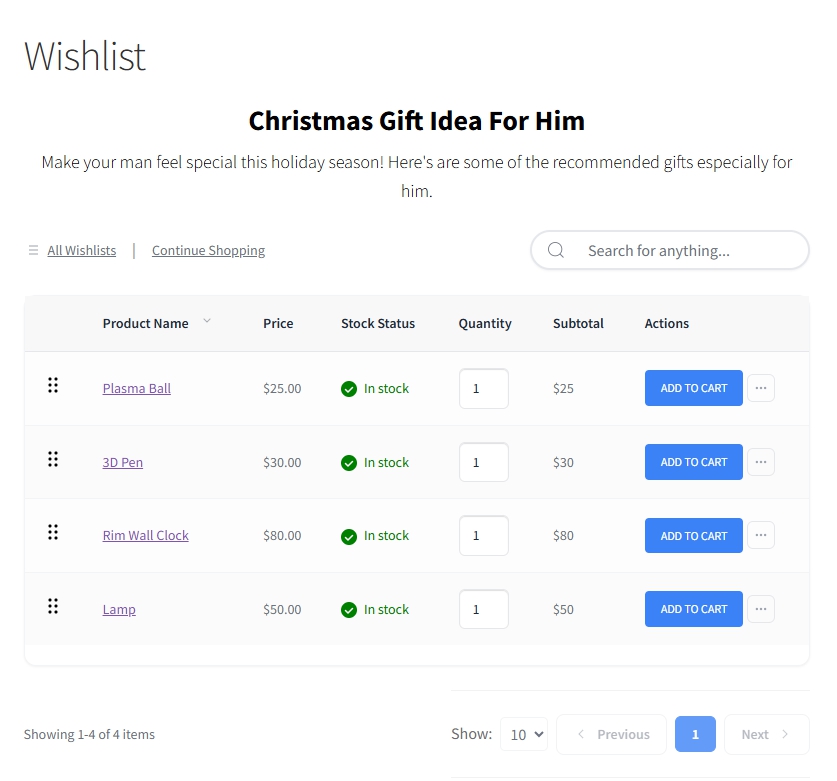
Public wishlists empower your customers to share curated product collections through a unique link. Anyone with the link can view the wishlist, making it perfect for birthdays, weddings, holidays, or personalized recommendations.
From a business perspective, this feature isn’t just convenient. It’s a powerful zero-cost marketing engine that increases visibility, boosts conversions, and attracts new customers organically.
Marketing Benefits at a Glance:
- Increased lifetime value as users return to maintain their lists
- Higher organic traffic from shared links
- Social proof via friend-to-friend product discovery
- Viral reach through social media sharing
- Improved conversions from motivated gift-givers
- User-generated content that promotes your store
Creating a Public Wishlist (Admin Dashboard)
Use these steps when creating wishlists on behalf of customers, for demos, or for marketing campaigns.
Step 1: Access the Wishlist Lists Page
- Go to SaveTo Wishlist in your admin sidebar.
- You’ll land on the Wishlist Lists page, displaying all user wishlists.
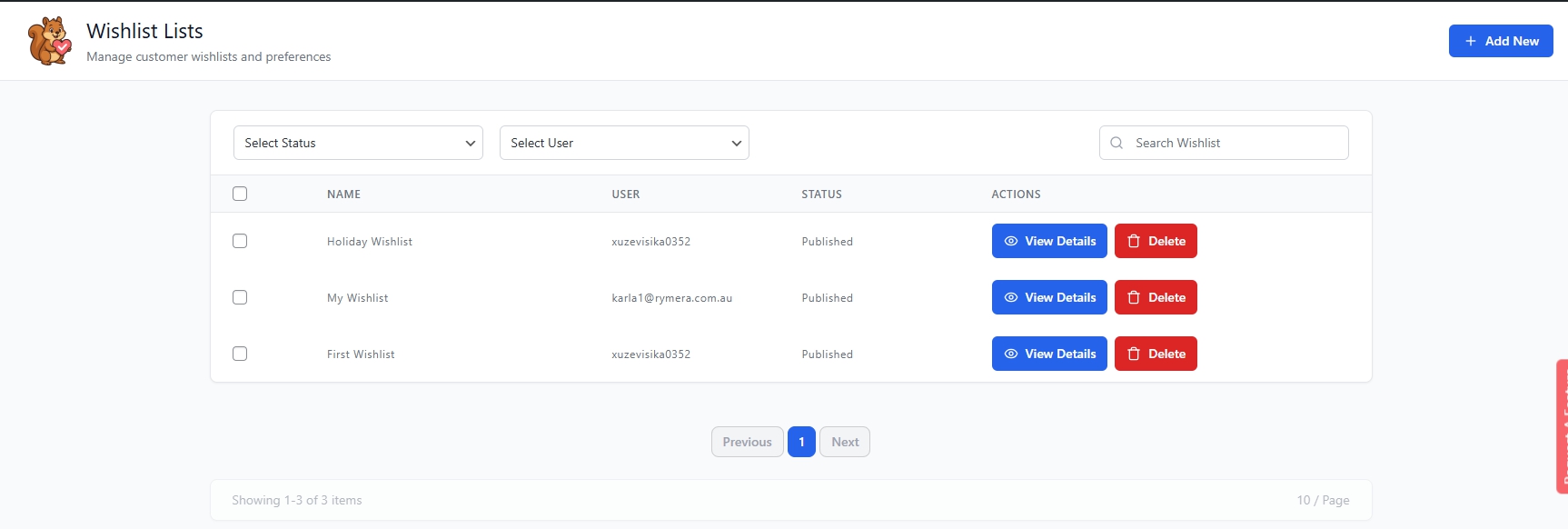
Available Tools:
- Filter by status (Published/Draft)
- Filter by customer
- Search by wishlist name
- Review all wishlist activity in one place
Step 2: Add a New Wishlist
- Click the “+ Add New” button at the top right.
- You’ll be redirected to the wishlist creation page.
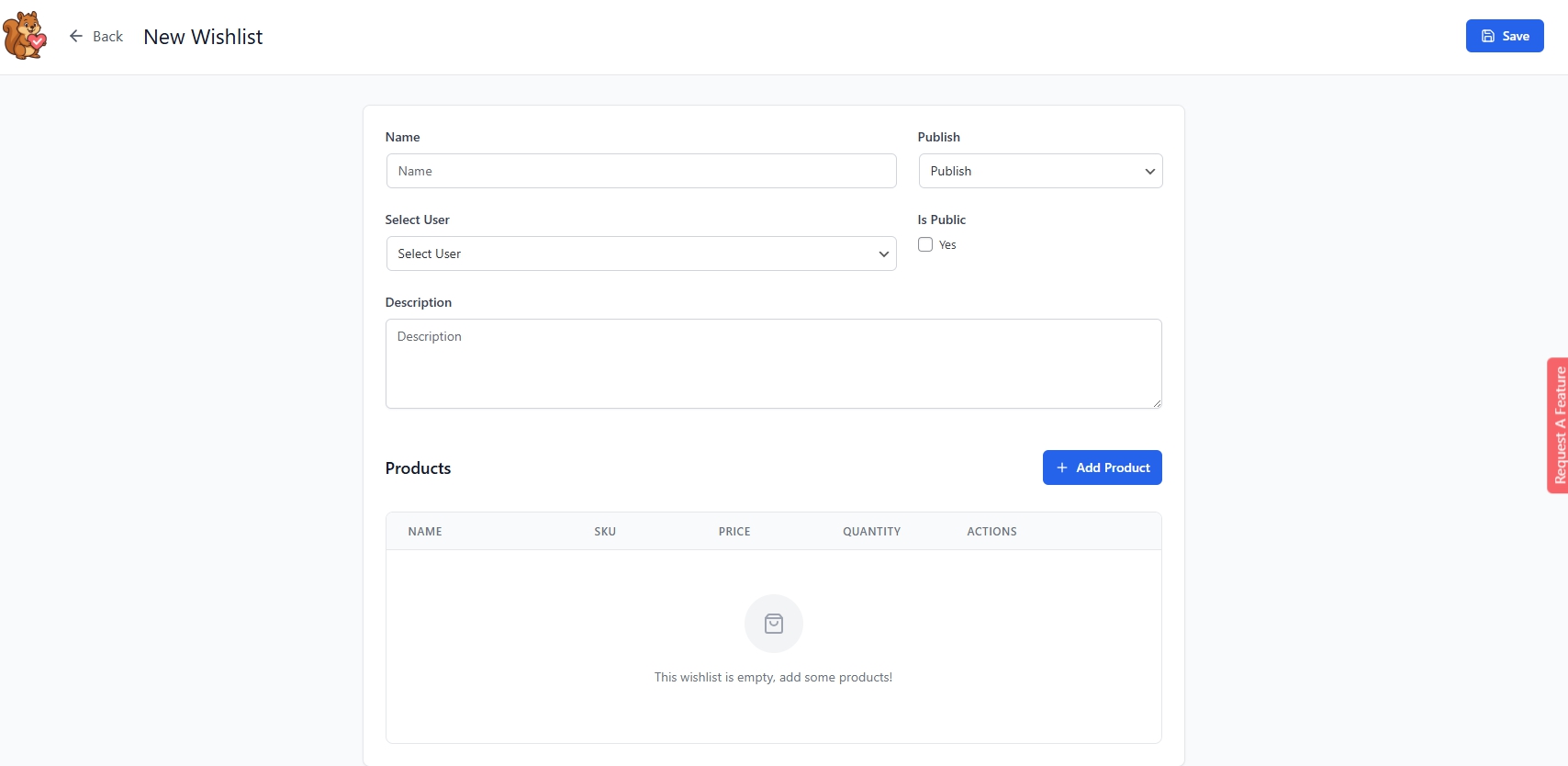
Marketing Tip: Create branded demo wishlists for tutorials, onboarding, or promotional campaigns.
Step 3: Enter Wishlist Details
Name (Required)
Create descriptive, engaging names such as:
- “Holiday Gift Ideas 2025”
- “Sarah’s Wedding Registry”
- “Birthday Wishlist for Dad”
Marketing note: Names with emotional context perform better on social media.
Select User (Required for Admins)
Assign the wishlist to a customer using the dropdown.
Description (Optional, but highly recommended)
Add event details or instructions.
This increases engagement and conversions when shared publicly.
Step 4: Publish Settings
Publish Status
Choose:
- Publish – activates the wishlist
- Draft – saves for later, stays inactive
Enable Public Sharing
Check “Is Public” to generate a shareable wishlist URL.
Critical for Marketing: Published + Public wishlists are what drive traffic and referrals.
Step 5: Add Products
Click “+ Add Product” to pre-load items into the wishlist.
Ideal for:
- Creating gift guide collections
- Influencer or ambassador wishlists
- Seasonal marketing campaigns
- Demo wishlists for tutorials
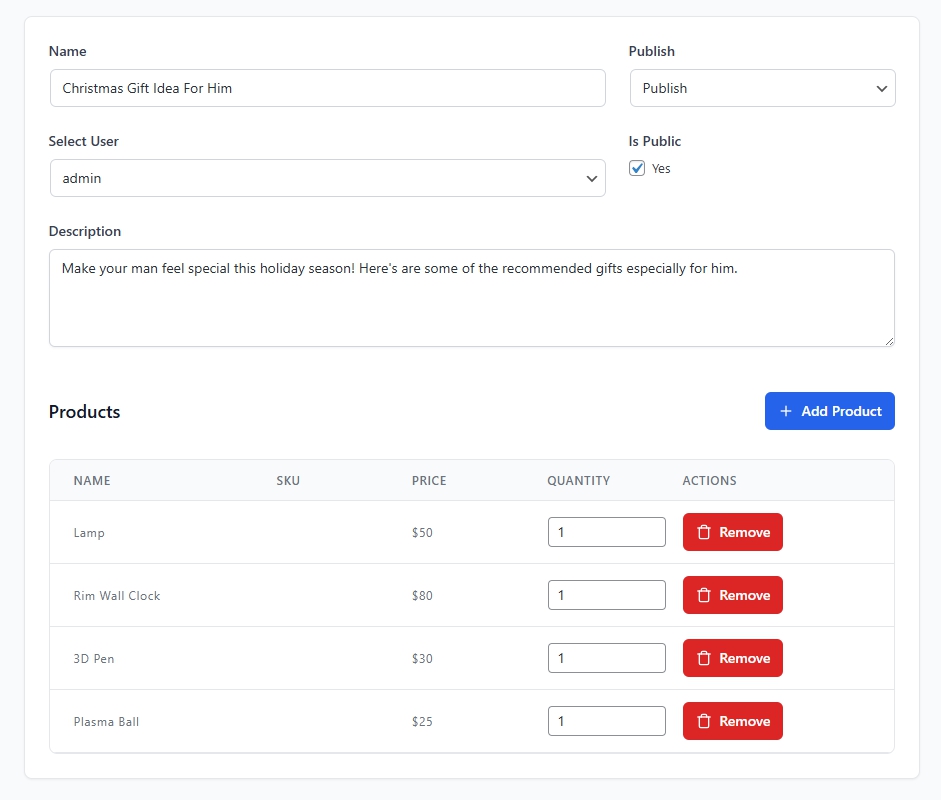
Step 6: Save the Wishlist
Click “Save” in the upper-right corner.
The wishlist will now appear in the Wishlist Lists table with status badges (e.g., Published, Public).
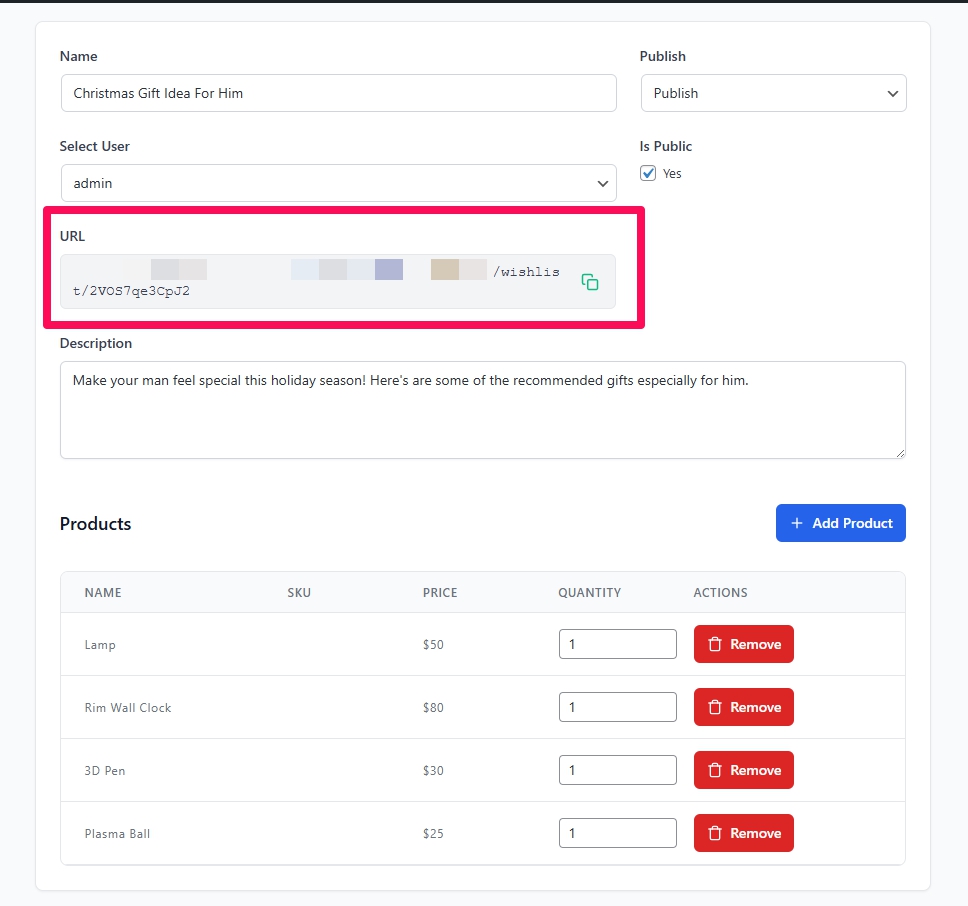
Step 7: Copy the Public Link
- Go to the Wishlist Lists page
- Click “View Details”
- Copy the unique public link
Use this link for:
- Email newsletters
- Social media promotions
- Homepage banners
- Seasonal gift campaigns
Conclusion
Public wishlists are a simple yet powerful way to transform your customers into enthusiastic brand advocates. By enabling easy sharing across social platforms, you generate organic traffic, boost conversions, and strengthen customer loyalty with minimal effort.
Promote the feature actively, encourage creative wishlist building, and pair it with strategic marketing campaigns to maximize results.
Help & Support
We have a dedicated support team for SaveTo Wishlist for WooCommerce who knows our products, WooCommerce, and the industry very well. You’re welcome to make use of their expertise at any time, worldwide.
If you would like to know more about this plugin or find any issues with it, please go to the support ticket request form and send us a message.
If you are a free plugin user, please send us a support request on the forum, we actively monitor the WordPress.org support forums for the free plugin and help our users there as best as we can.
