
The SaveTo Wishlist plugin lets you control whether your customers can have one wishlist or multiple wishlists. This guide will show you how to set it up and explain what each option means for your store and your shoppers.
Where to Find the Setting
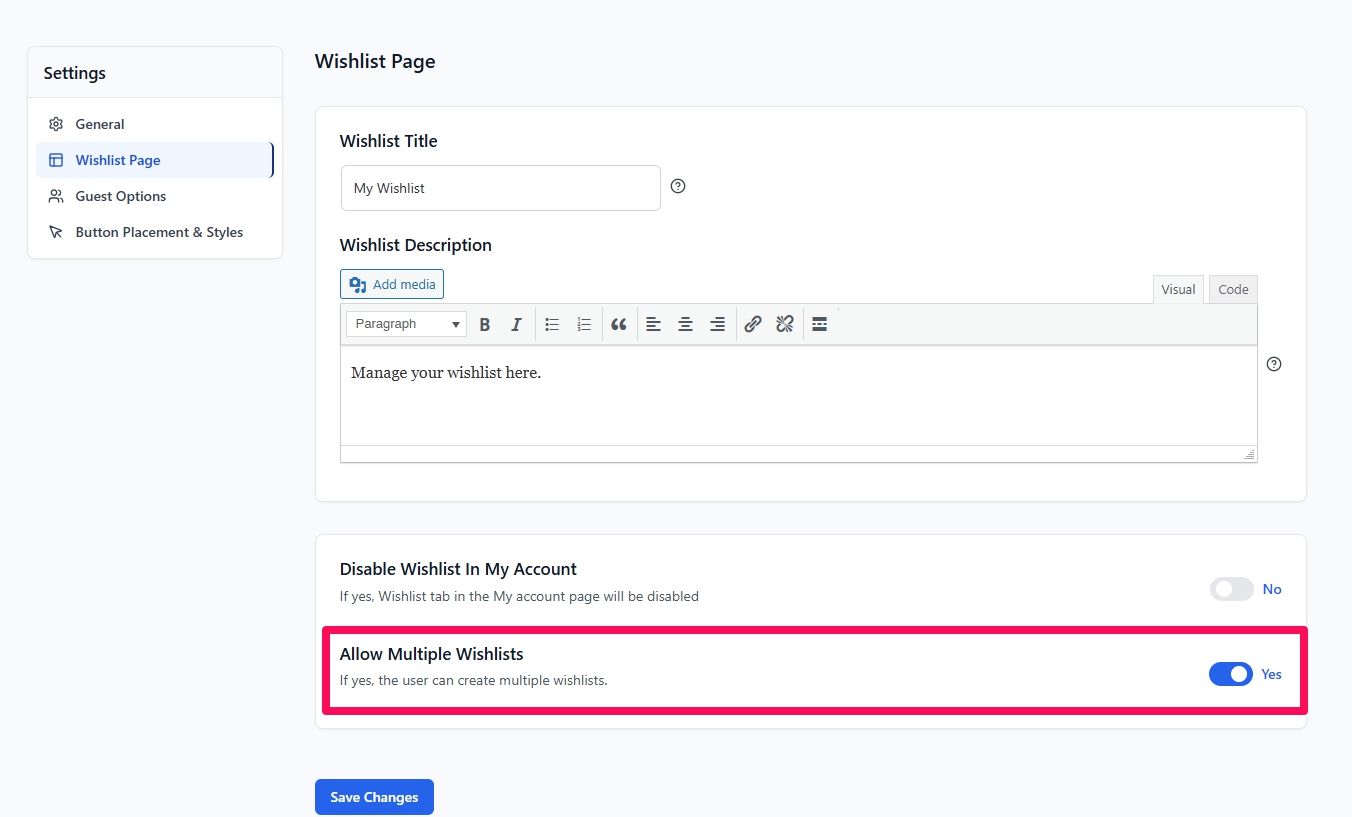
- On your WordPress Admin Dashboard, go to SaveTo Wishlist → Settings.
- Click on the Wishlist Page tab.
- Look for the toggle labeled “Allow Multiple Wishlists”.
- Yes: Customers can create multiple wishlists.
- No: Customers are limited to a single wishlist.
Don’t forget to Save Settings after making changes.
What Each Option Does
Multiple Wishlists
- Customers can create as many wishlists as they want.
- Each wishlist can have its own name, like “Birthday 2025” or “Home Office.”
- Perfect for stores with lots of products or customers who shop for different occasions.
Customer Benefits:
- Organize products by category or event
- Move items between wishlists
- Share specific lists with friends or family
Example Uses:
- Gift planning: “Mom’s Birthday,” “Secret Santa”
- Personal categories: “Tech Gadgets,” “Books to Buy”
- Seasonal shopping: “Black Friday Deals,” “Back to School”
Single Wishlist
- Customers have just one wishlist.
- All saved items go to this single list.
- Ideal for stores with smaller or simpler catalogs.
Customer Benefits:
- Everything in one place
- No need to choose between multiple lists
- Simple and fast to use
Example Uses:
- Boutique or specialty stores
- Subscription box products
- Gift registries
Switching Between Single and Multiple
- Single → Multiple:
Existing wishlist stays, and customers can now create new wishlists. No items are lost. - Multiple → Single:
All existing wishlists remain accessible. However:- Customers cannot create new wishlists.
- When adding a product, it automatically goes to the default wishlist. They cannot choose which wishlist to add it to.
Tip: If you’re switching from multiple to single, make sure customers know that new items will always go to the default wishlist.
Help & Support
We have a dedicated support team for SaveTo Wishlist for WooCommerce who knows our products, WooCommerce, and the industry very well. You’re welcome to make use of their expertise at any time, worldwide.
If you would like to know more about this plugin or find any issues with it, please go to the support ticket request form and send us a message.
If you are a free plugin user, please send us a support request on the forum, we actively monitor the WordPress.org support forums for the free plugin and help our users there as best as we can.
