
 Reviewed by
 Picture this: a customer browses your store, falls in love with a product, and adds it to their wishlist. Two weeks later, you drop the price by 20%. It’s the kind of deal that makes people buy, but the customer never finds out. They’ve forgotten about it, and your sale ends without a single purchase.
Now imagine the alternative. The moment the price drops, an email lands in their inbox: “Good news! That item you’ve been eyeing is now on sale.” They click through and buy.
That’s the power of a WooCommerce wishlist price drop alert, and it’s one of the highest-converting automated emails you can send from your store.
In this guide, I’ll walk you through exactly how to set up price drop alerts in WooCommerce using SaveTo Wishlist Pro. We’ll cover every step from installation to your first live alert, plus the email design strategies that maximize clicks and conversions.
Table Of Contents
- Why Price Drop Alerts Convert So Well
- Prerequisites For Wishlist Price Drop Alerts
- Step-by-Step Setup: Wishlist Price Drop Alerts
- Email Design Best Practices
- Wishlist Price Drop Alerts: Advanced Configuration
- Measuring The Performance Of Your Wishlist Price Drop Alerts
- FAQs: Wishlist Price Drop Alerts
- Conclusion
Why Price Drop Alerts Convert So Well
Price drop alerts tap into something fundamental about how people shop online: intent combined with timing.
When someone adds a product to their wishlist, they’re telling you two things. First, they want the product. Second, something is holding them back, usually price. A price drop alert removes that barrier at the exact moment it disappears.
The numbers back this up. According to Barilliance, emails that trigger based on customer behavior get 306% more clicks than regular email blasts. Meanwhile, Campaign Monitor reports that segmented and targeted emails bring in 58% of all email sales. Omnisend also found something amazing: even though automatic emails make up less than 2% of all the emails a store sends, they bring in 29% of all orders.
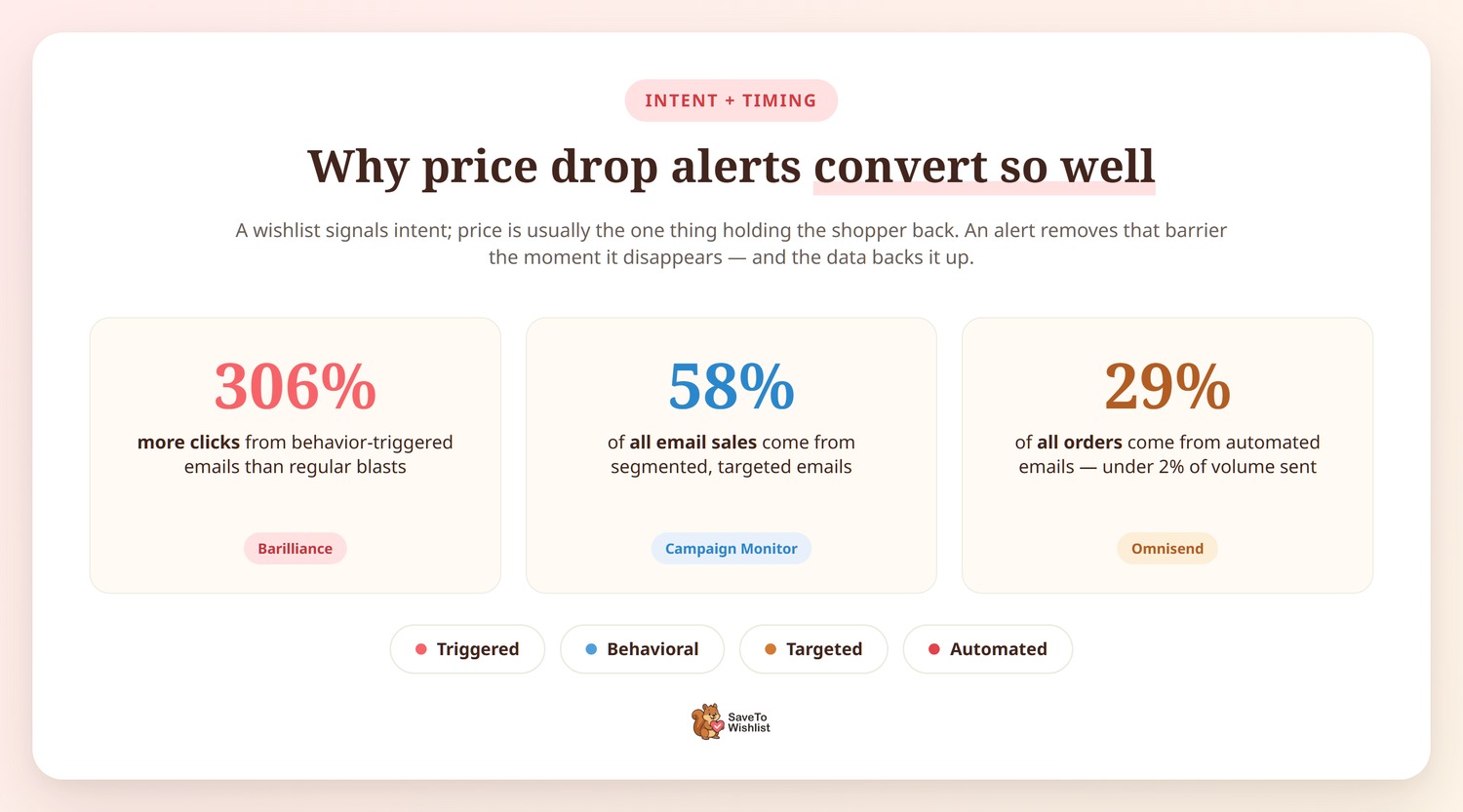
Price drop alerts sit at the intersection of all these trends: they’re triggered, behavioral, targeted, and automated.
Here’s how they stack up against other common email types:
Note: The following figures are illustrative estimates based on industry benchmarks and our own observations. Actual performance will vary by store, audience, and implementation. Verify against your own analytics after launch.
| Metric | Price Drop Alerts | Generic Sale Emails | Cart Abandonment |
|---|---|---|---|
| Open Rate | 50-60% | 15-25% | 40-50% |
| Click-Through Rate | 15-25% | 2-5% | 10-15% |
| Conversion Rate | 8-15% | 1-3% | 5-10% |
The numbers speak for themselves. Price drop alerts easily beat regular sale emails. They even work just as well as cart reminder emails, which are usually seen as the absolute best automated emails a store can send.
Prerequisites For Wishlist Price Drop Alerts
Before we dive into the setup, let me be upfront about what you need.
Wishlist price drop alerts require SaveTo Wishlist Pro, specifically the Growth plan ($49.50 for the first year, then $99/yr), Plus ($99.50 for the first year, then $199/yr), or Business ($199.50 for the first year, then $399/yr). While the free version of SaveTo Wishlist handles basic wishlist features, you need a Pro license for automations, including price drop triggers.
You can check the full plan comparison on the pricing page.
Here’s what you need to have in place:
- WooCommerce (latest version recommended)
- SaveTo Wishlist Pro: Growth, Plus, or Business plan, installed and activated
- A working email setup: either WooCommerce’s default email system or a transactional email provider like WP Mail SMTP
- At least a few products in your store with customers who have active wishlists (even test wishlists work for initial setup)
If you’re new to SaveTo Wishlist’s automation features, the automation overview guide covers the broader system. This tutorial focuses specifically on the price drop trigger.
Ready? Then let’s build this!
Step-by-Step Setup: Wishlist Price Drop Alerts
Step 1: Navigate to the Automations dashboard
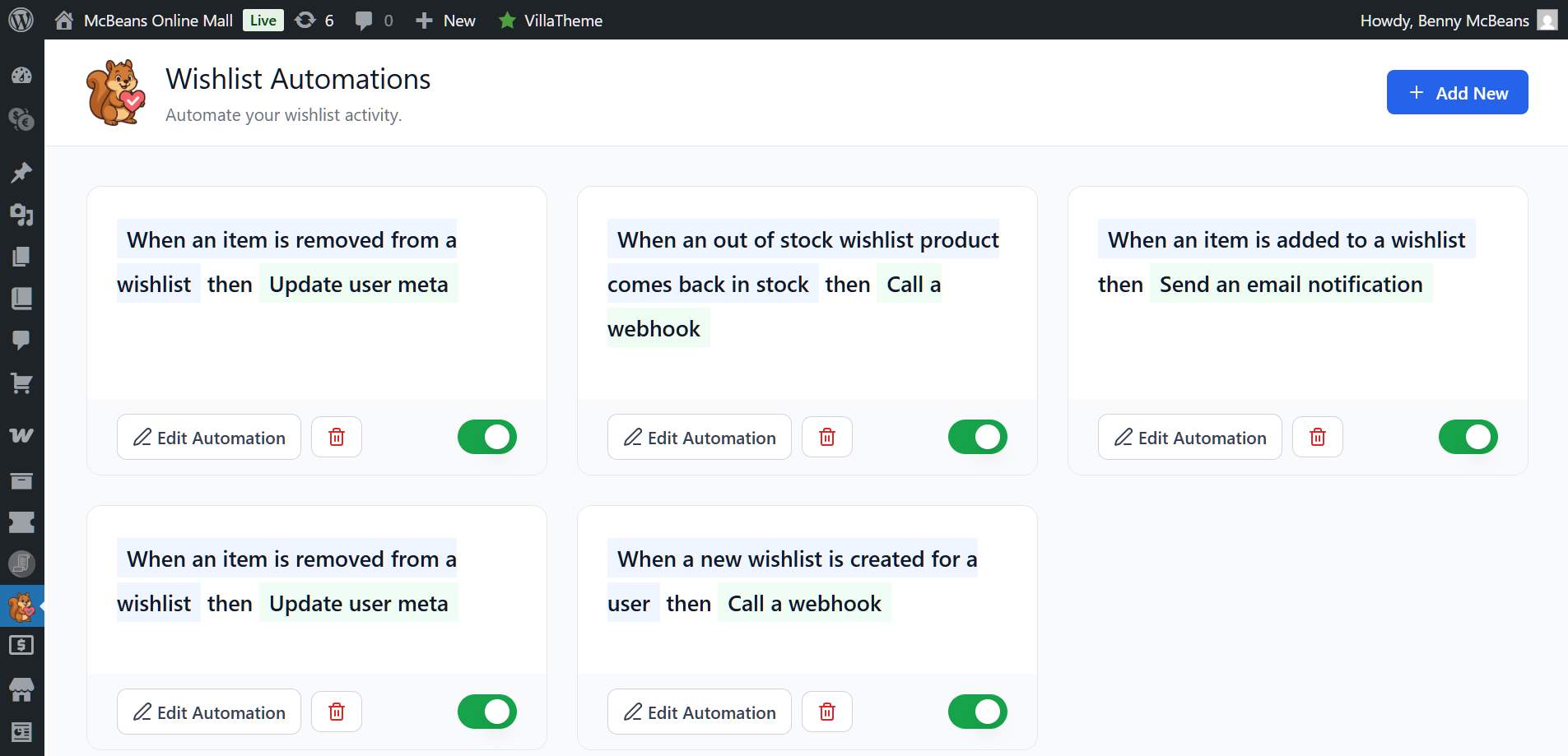
From your WordPress dashboard, go to SaveTo Wishlist > Automations in the left sidebar. This is the central hub for all wishlist-based automations.
If this is your first automation, you’ll see an empty state screen with a prompt to create your first workflow. However, if you’ve already set up other automations (like back-in-stock alerts), your existing workflows will be listed here.
Step 2: Create a new automation with the right trigger
Click “Add New Automation” and you’ll be presented with a list of available triggers.
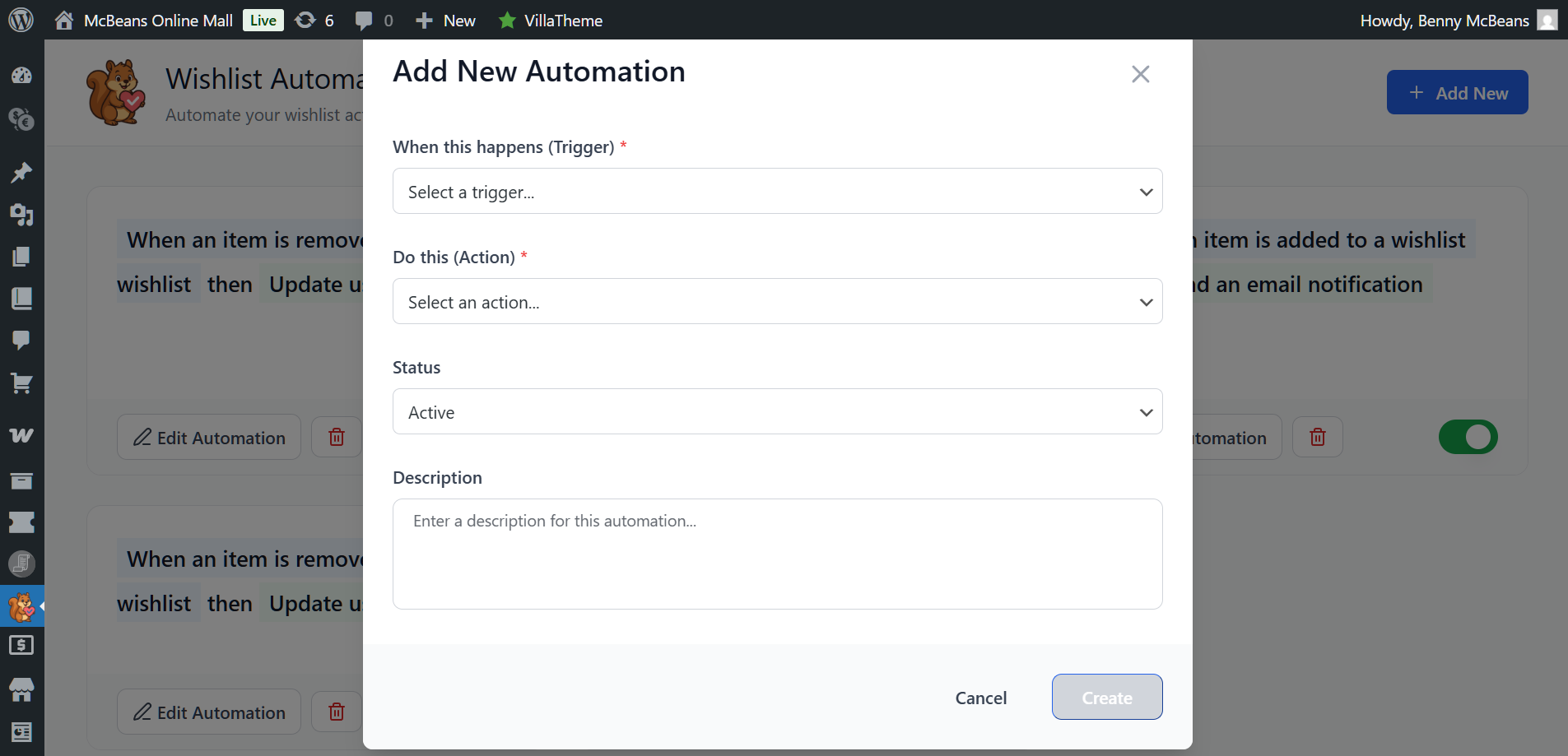
From the dropdown, select “When a wishlist product goes on sale” from the trigger options.
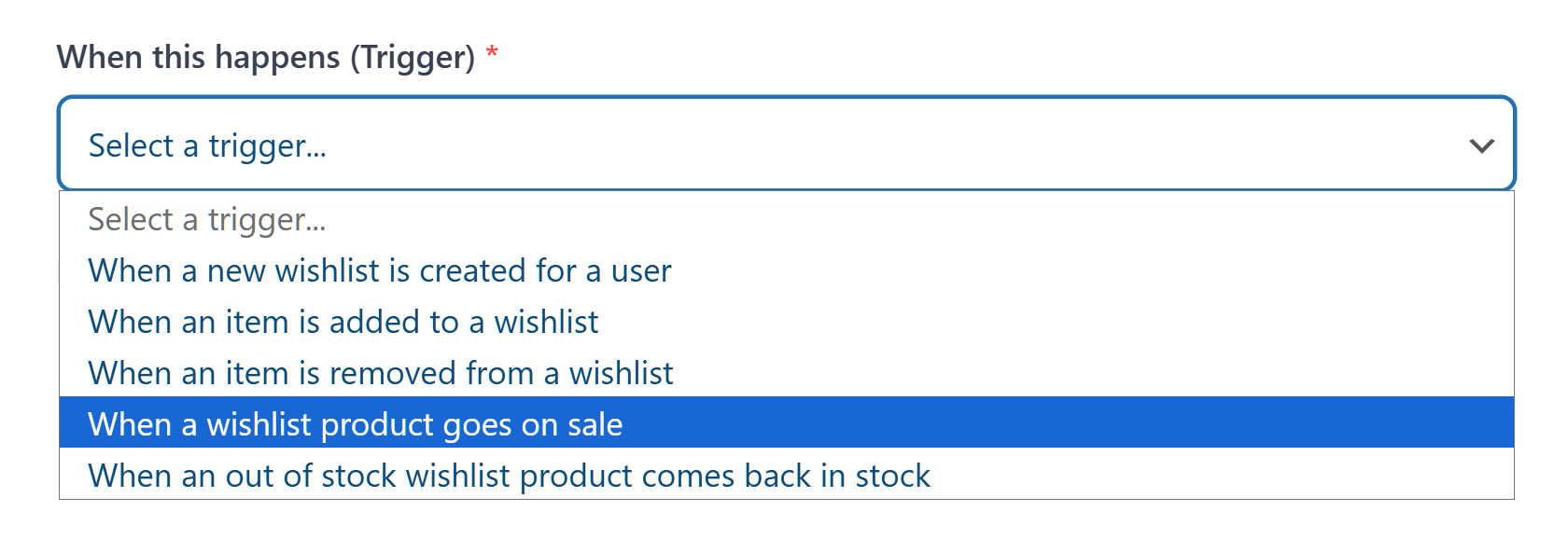
Select the price decrease trigger to start building your wishlist price drop alert.
Now, to pick an action…
Step 3: Select the corresponding action
Next, use the dropdown to choose the action that will result from the trigger. For this guide, we’ll pick “Send an email notification.“
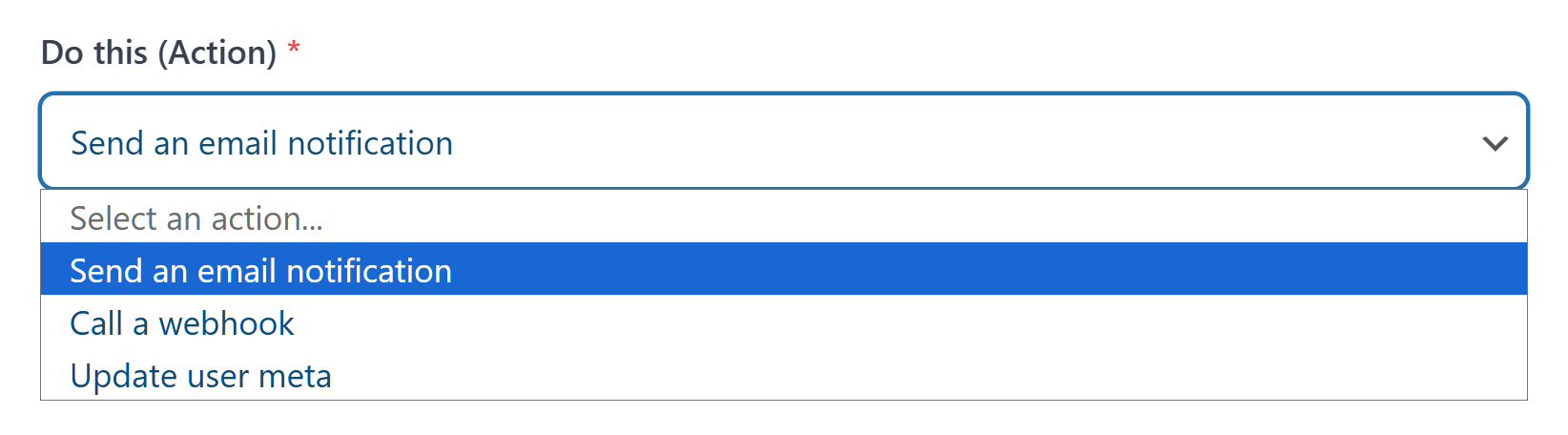
Once you select the trigger and action, SaveTo Wishlist Pro builds the basic outline of the automation for you: a starting event connected to an email.
Step 4: Set up the email notification
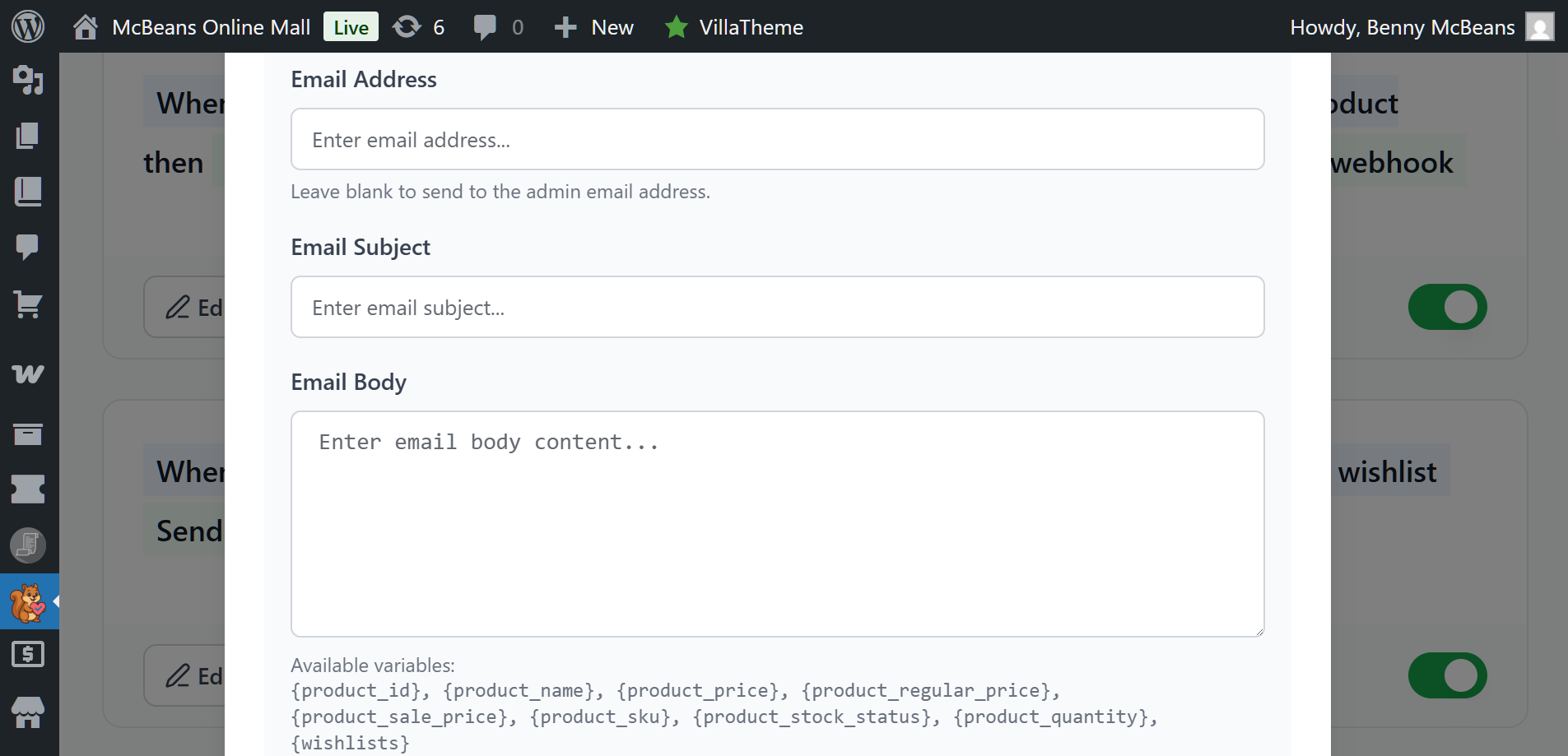
Click on the email action block to open the email editor. Here you’ll configure:
- Email Address: This is the email address the notification will be sent to. If you leave it blank, it will be sent to the site admin.
- Email Subject: This is your most important element. Keep it specific and urgent.
- Email Body: You can personalize each email automatically by using available tags, such as
{{product_name}},{{product_price}},{{product_regular_price}},{{product_sale_price}}, and more.
Step 5: Test with a sample product
Before going live, always test. Here’s how:
- Add a product to your own wishlist (or a test account’s wishlist).
- Go to that product’s edit screen in WooCommerce.
- Set a sale price that meets your minimum threshold.
- Save the product and wait for the trigger to fire.
Check your inbox. Verify the email renders correctly. This means the product ID, names, prices, and other details should display accurately.
During my testing, I found it helpful to test with both simple and variable products. Variable products display the specific variation that dropped in price, which is a nice touch, but worth confirming renders properly in your email client.
Step 6: Activate and monitor
Once you’re satisfied with the test, toggle the automation “Status” to “Active” and click Save.
Your price drop alerts are now live. When any product’s price decreases, every customer who has that product in their wishlist will receive a personalized email.
For the first few days, keep an eye on the automation’s analytics within the SaveTo dashboard. Watch for delivery failures, unusually low open rates (which might indicate a subject line issue), or any error logs.
Want to start converting wishlists into sales? Then get SaveTo Wishlist Pro and set up price drop alerts quickly!
Email Design Best Practices
The email itself can make or break your wishlist price drop alert. A well-designed email with the right subject line turns a notification into a conversion.
Subject Line Formulas That Work
Here are three copyable subject line formulas you can use right away:
Formula 1: Direct price drop
Price drop alert: {product_name} is now {product_sale_price}, down from {product_regular_price}!
Formula 2: Personal and urgent
Good news! An item on your wishlist just went on sale!
Formula 3: Stock status alert
Your wishlisted product, {product_name}, is now {product_sale_price} only!

Hurry! Only {product_stock_status} left!
Design Principles
- One product, one email. Don’t batch multiple price drops into a single email. Each alert should feel personal and specific.
- Show the price comparison visually. Display the original price with a strikethrough next to the new price. The visual contrast drives urgency.
- Use a single, prominent CTA. “Shop Now” or “Get This Deal” — one button, above the fold.
- Keep copy short. The product image and price do the heavy lifting. Two to three sentences of body copy is plenty.
- Include a wishlist link. Add a secondary link to “View Your Full Wishlist” at the bottom for customers who might want to browse other saved items.
Wishlist Price Drop Alerts: Advanced Configuration
Once your basic price drop alerts are running, consider these advanced options:
Combining with Coupons
Are you running Advanced Coupons alongside SaveTo Wishlist Pro? Then you can include a personalized coupon code in the price drop email, stacking the sale price with an additional exclusive discount. This creates a compelling “double savings” message.
Webhook Integration
For stores using external marketing platforms, SaveTo Wishlist Pro supports webhook triggers. Therefore, you can push price drop events to tools like Klaviyo, ActiveCampaign, or Mailchimp for more sophisticated email sequences.
Measuring The Performance Of Your Wishlist Price Drop Alerts
After your price drop alerts have been running for at least two weeks, it’s time to evaluate performance. Here’s what to track:
- Open rate: Aim for 50%+. If you’re below 40%, revisit your subject lines.
- Click-through rate: Target 15-25%. Below 10% suggests the email content or design needs work.
- Conversion rate: 8-15% is the benchmark. Track this as purchases attributed to the alert within 48 hours of the email send.
- Revenue per email: The ultimate metric. Divide total revenue from price drop purchases by total alerts sent.
- Unsubscribe rate: Keep this below 0.5%. Higher rates mean you’re sending too frequently or the alerts don’t feel relevant.
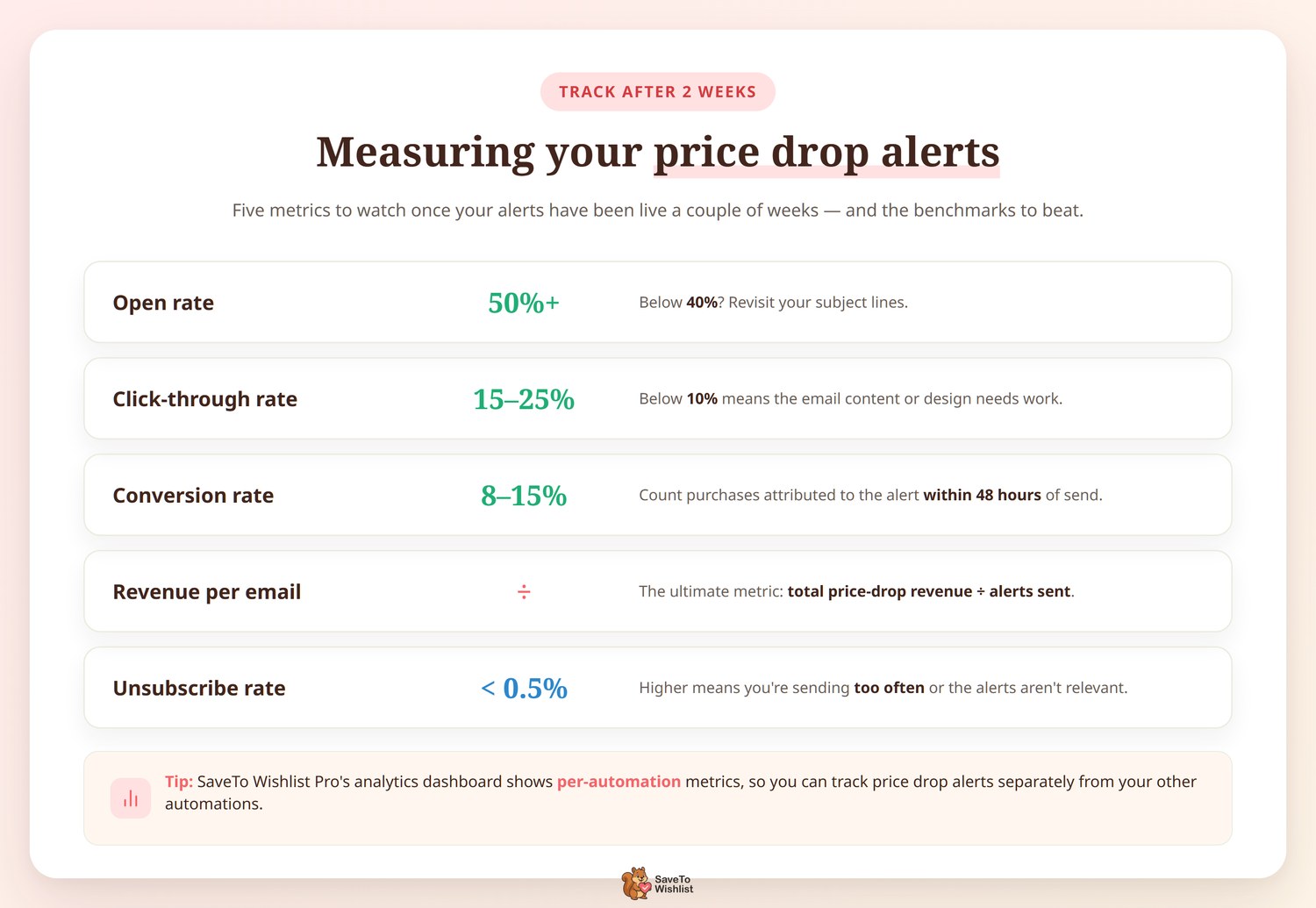
SaveTo Wishlist Pro’s built-in analytics dashboard shows per-automation metrics, so you can track wishlist price drop alert performance separately from other automations.
FAQs: Wishlist Price Drop Alerts
Does the wishlist price drop alert work with variable products and specific variations?
Yes. SaveTo Wishlist Pro tracks wishlisted items at the variation level. Thus, if a customer wishlists a “Blue / Large” variation and that specific variation’s price drops, they’ll receive an alert for that exact variation, not a generic product notification. This precision is one of the reasons the click-through rates are so high.
How quickly are price drop emails sent after I change a product’s price?
By default, the system runs a check to track price changes every 15 minutes using WooCommerce’s built-in cron system. However, if you need near-instant delivery, you can configure a real server cron job to run more frequently. Most stores find the 15-minute interval works well. It’s fast enough to feel timely while providing a buffer against accidental price changes.
Conclusion
Setting up WooCommerce wishlist price drop alerts is one of the highest-ROI automations you can add to your store. You’re reaching customers who have already expressed interest in a product, at the exact moment you’ve removed their biggest objection: price.
The setup takes a short time with SaveTo Wishlist Pro, and the emails essentially run themselves from there. Every time you discount a product, every customer who wishlisted it gets a personalized, timely notification that drives them back to your store ready to buy.
If you’re leaving wishlists as a passive feature—just a list customers save and forget—you’re missing the conversion engine they’re meant to be.
Get started with SaveTo Wishlist Pro and turn every price drop into a sales opportunity. Plans start at $49.50/year for the Growth tier, which includes price drop alerts and all other automation features. View pricing and feature comparison.