

 Reviewed by
 Every holiday season, WooCommerce store owners watch shoppers browse, fill a cart, then leave without buying. If you’ve ever wondered how to create a gift guide that turns browsing into orders, you’re not alone.
Baymard research puts cart abandonment at 70.22%, averaged across 50 separate studies. The same research finds 42% of people who abandon do so because they were just browsing. A gift guide meets those people exactly where they are. It turns a vague “I need a present” into a curated shortlist they can act on.
Done well, it also gives shoppers a way to save and share their picks. That quietly brings fresh visitors back to your store when their friends click through. And for the big occasions, where a whole group is buying from one list, a gift registry turns that same guide into a shared shopping event hosted on your store.
Table of Contents
Why Gift Guides Sell For WooCommerce Stores

If you want to know how to create a gift guide that actually sells, start by understanding its main purpose. Essentially, it removes the hardest part of gift shopping: deciding.
Gift buyers often don’t know your catalog, don’t know the recipient’s exact taste, and are working against a deadline. A guide does the thinking for them by grouping products around a person, an occasion, or a price point.
In our experience, the guides that convert best are narrow, not broad. “Gifts under $50 for coffee lovers” beats “Our Holiday Collection” every time. It matches the phrase already running through the shopper’s head. That specificity is also what search engines and AI assistants pick up on when someone asks for gift ideas.
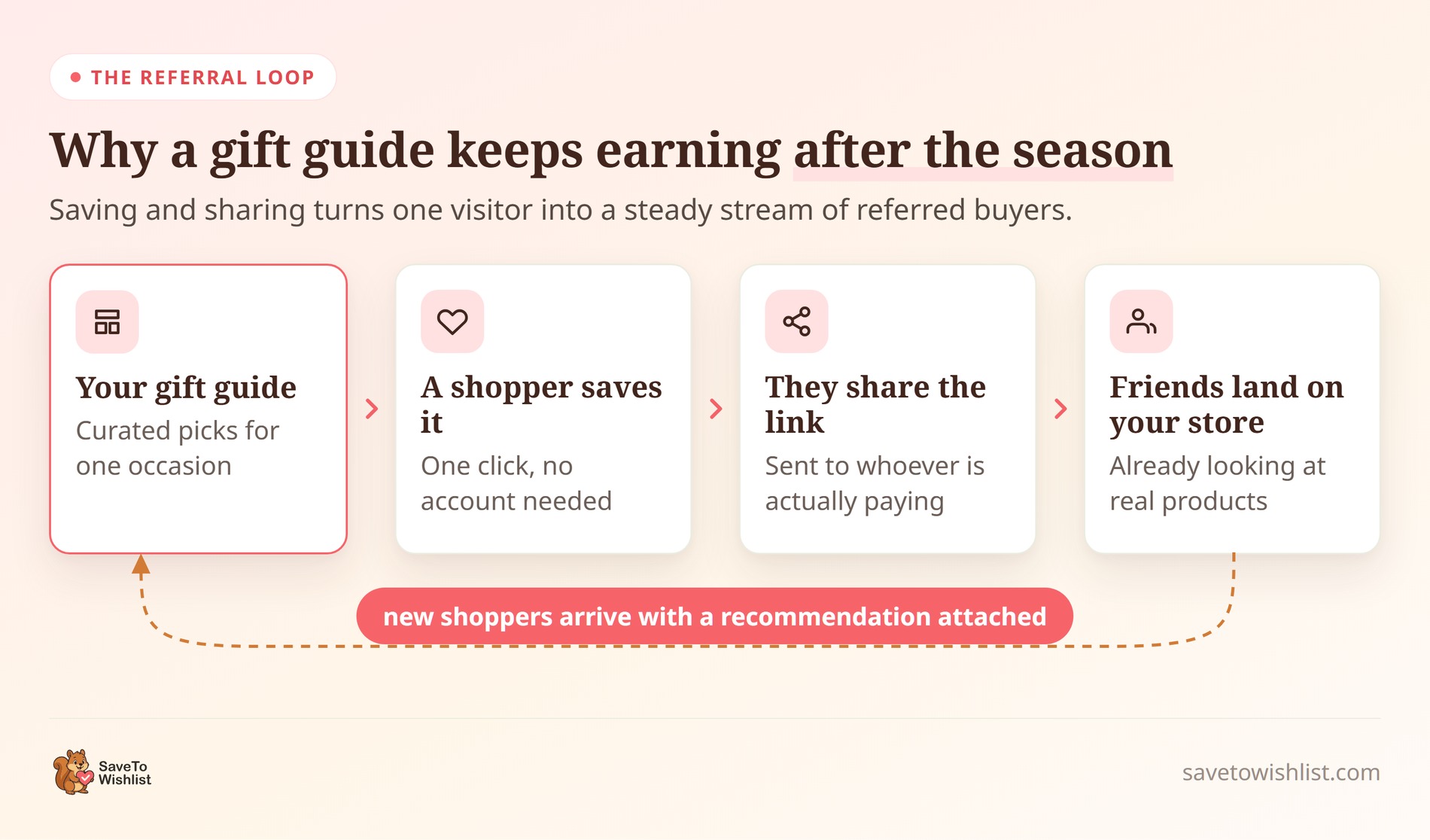
There’s a second payoff most store owners miss: a good gift guide is inherently shareable. Someone planning a birthday or group present wants to send their shortlist to family or friends. Every time they do, that link becomes referral traffic pointing back at your products. It arrives with a built-in recommendation attached.
One thing we commonly see is stores treating gift guides as one-and-done seasonal pages. In reality, the sharing and saving behavior is what keeps them earning traffic long after the occasion passes.
How To Create A Gift Guide Step By Step
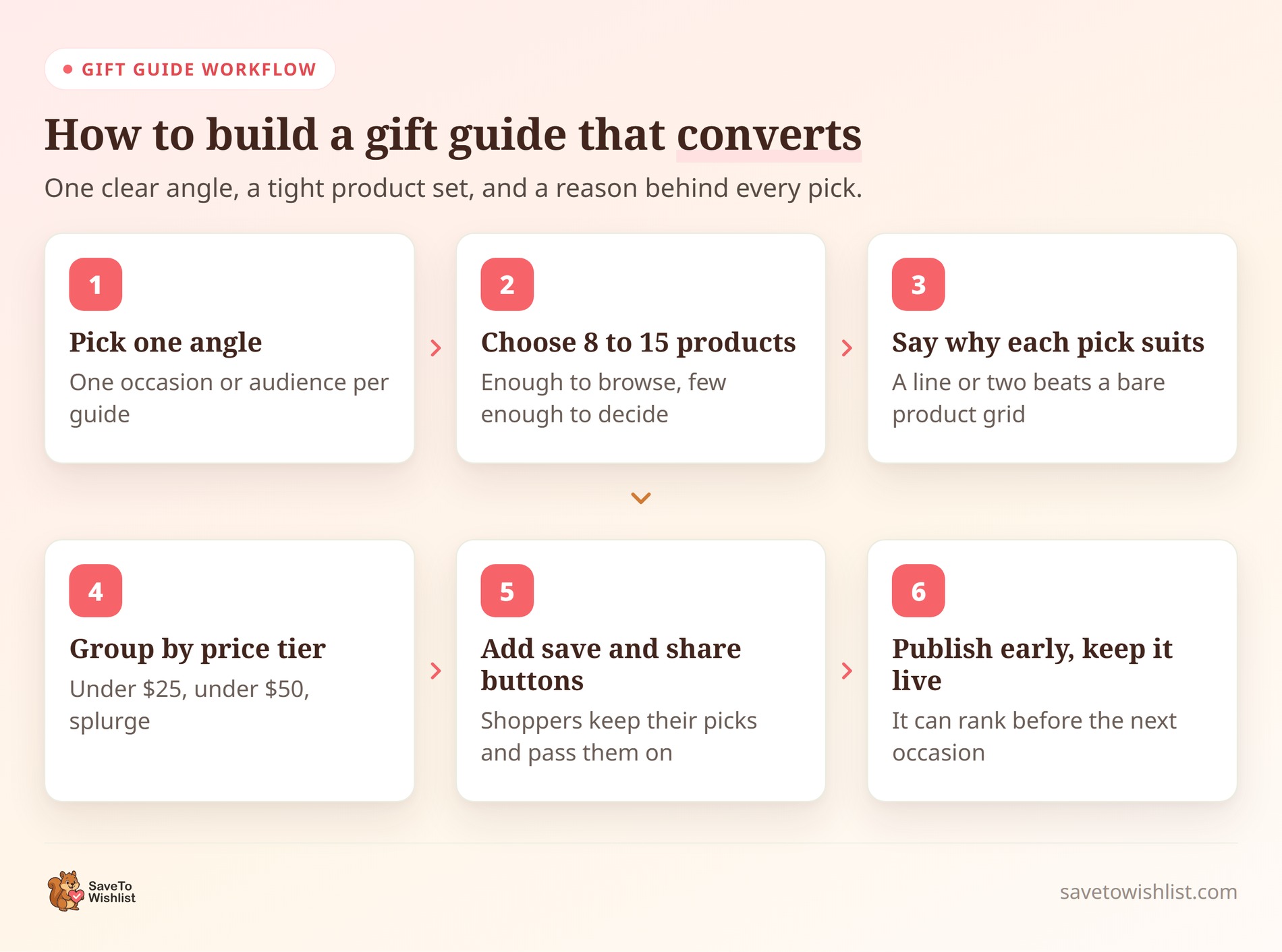
If you’re wondering how to create a gift guide, start by picking one clear angle per guide, then build the page around products that genuinely fit it. A focused guide is easier to write, easier to rank, and easier for a shopper to trust.
Here’s the order we recommend:
- Choose an occasion or audience: Mother’s Day, “gifts for new parents,” or “stocking stuffers under $25.” One theme per guide.
- Pull 8 to 15 products that truly match. Too few looks thin, too many brings back the decision paralysis you’re trying to solve.
- Write a short reason for each pick. One or two sentences on who it suits and why beats a bare product grid.
- Group by price where it helps. Budget tiers (“under $25,” “under $50,” “splurge”) let shoppers filter fast.
- Add clear calls to action, so each product links straight to its page and shoppers can save it for later.
- Publish early and keep it live. A gift guide that stays up all year can rank before the next occasion arrives.
The biggest lift usually comes from step 3. A plain “great for someone who…” line under each product turns the page from a catalog dump into advice. As a result, more shoppers click through to individual products instead of bouncing.
It’s worth putting a gift card in the guide itself, for the shoppers who read every pick and still can’t commit. Advanced Coupons explains how gift certificates work if you don’t offer one yet.
Let Shoppers Save And Share Gift Ideas With Wishlists
A save button turns a gift guide from a page people read into a page people act on and pass around. Instead of losing a shopper who isn’t ready to buy today, you give them a button to save the item. They can come back later, or send their shortlist to whoever’s actually paying.
With SaveTo Wishlist, even the free Lite version lets shoppers build multiple wishlists with custom names. Think “Dad’s Christmas” or “Emma’s Birthday,” each with a shareable link.
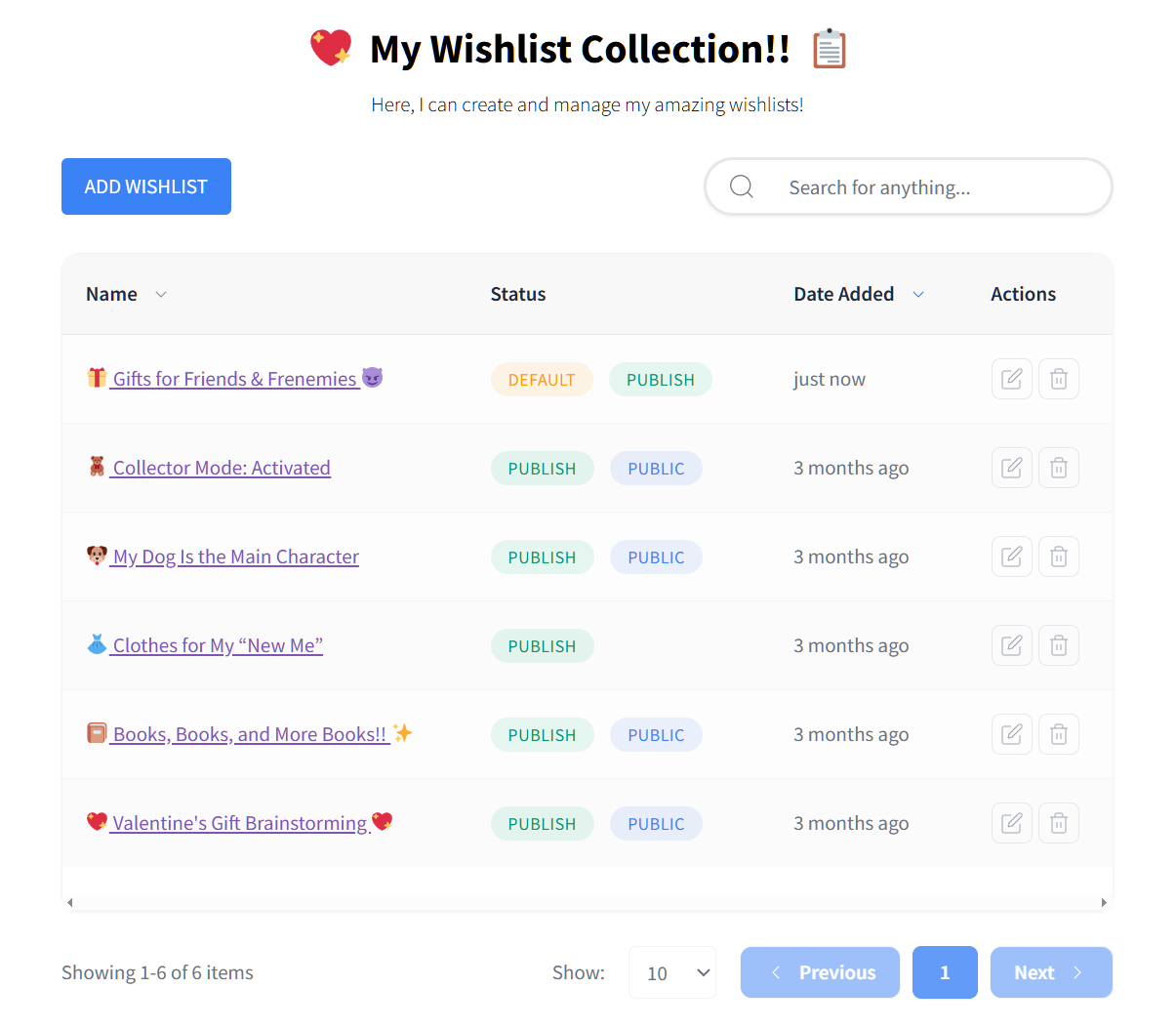
Guest shoppers can save without an account, and their list merges when they log in later. That matters on a gift guide, because a lot of gift traffic is first-time visitors.
As you map out how to create a gift guide, you can add those save buttons to your product pages and layouts with an online wishlist maker for WooCommerce. No code needed.
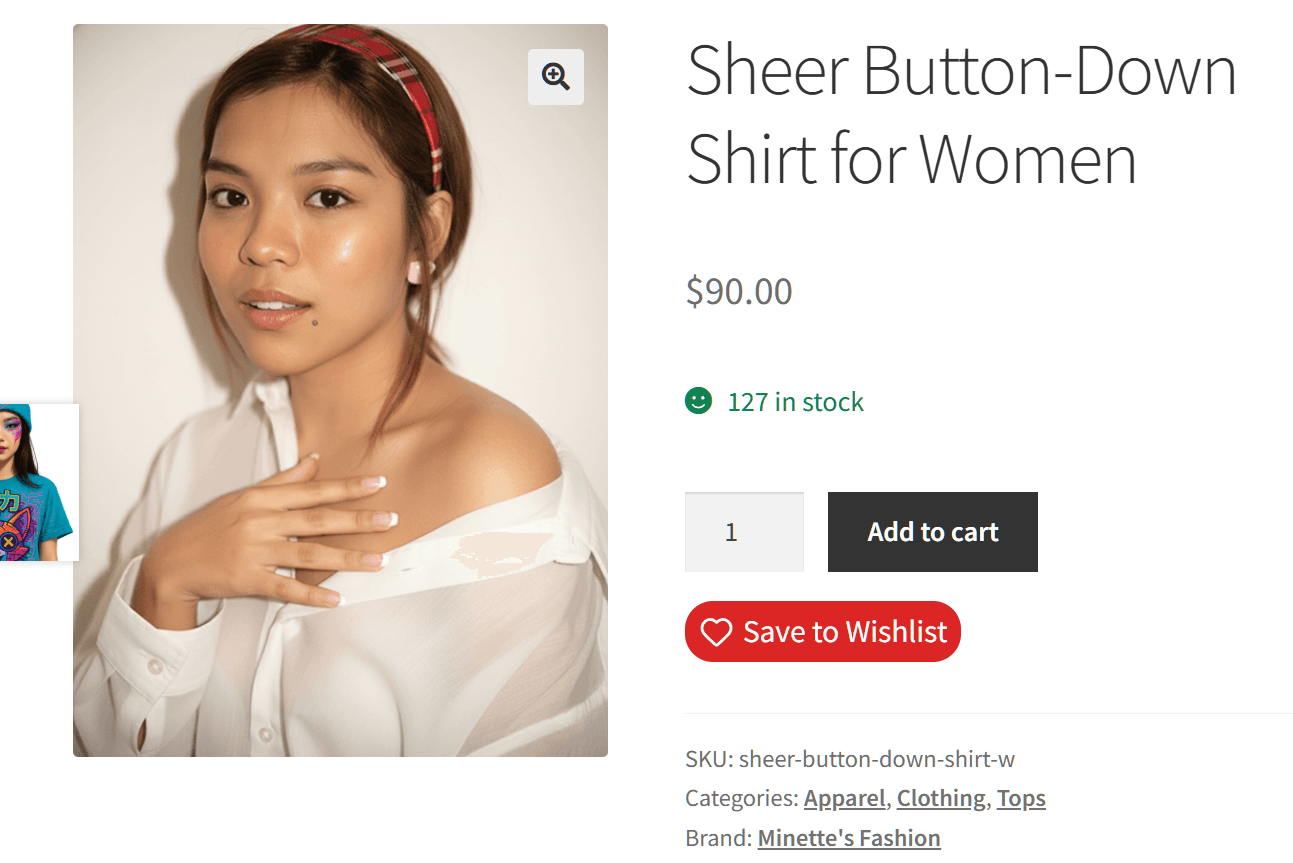
The sharing side is where referral traffic quietly compounds. When a shopper sends a wishlist link to friends, everyone who opens it lands on your store. They arrive already primed to buy specific products. To route those saves into follow-up marketing, SaveTo Wishlist Pro adds automated emails for wishlisted products that go on sale or come back in stock. It also has configurable webhooks that can send wishlist activity to a compatible endpoint or automation service such as Zapier. Other platforms, including Klaviyo, may require an intermediary or a separately configured webhook endpoint.
SaveTo Wishlist Pro can send automated emails itself through WordPress, or it can send wishlist data to an external email, CRM, or automation platform through a webhook.
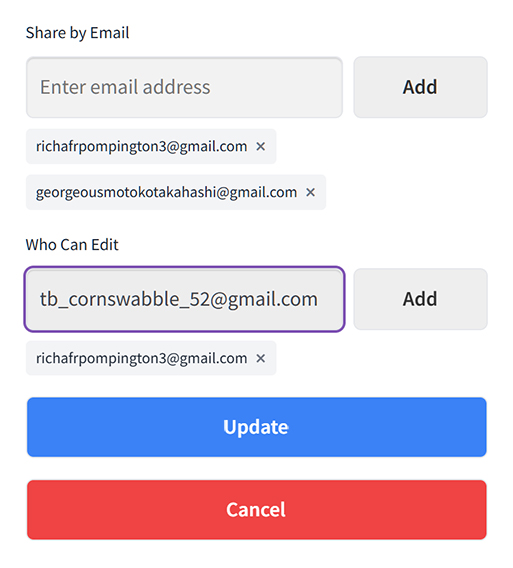
SaveTo Wishlist Lite already lets shoppers make a wishlist public or private and share public lists using unique links. However, Pro adds advanced access controls, email invitations, and collaborative editing permissions. For presents being organized by more than one person, a collaborative shared wishlist lets a group build one list together.
Add A Gift Registry For Group Gifting And Referrals
A gift registry takes the wishlist idea and builds it for occasions where several people chip in. Think weddings, baby showers, birthdays, and housewarmings, where a group wants to reduce the risk of buying duplicates. It’s the same idea as a wedding registry, except the list lives on your store instead of a third-party site, so the sale and the customer data stay with you.
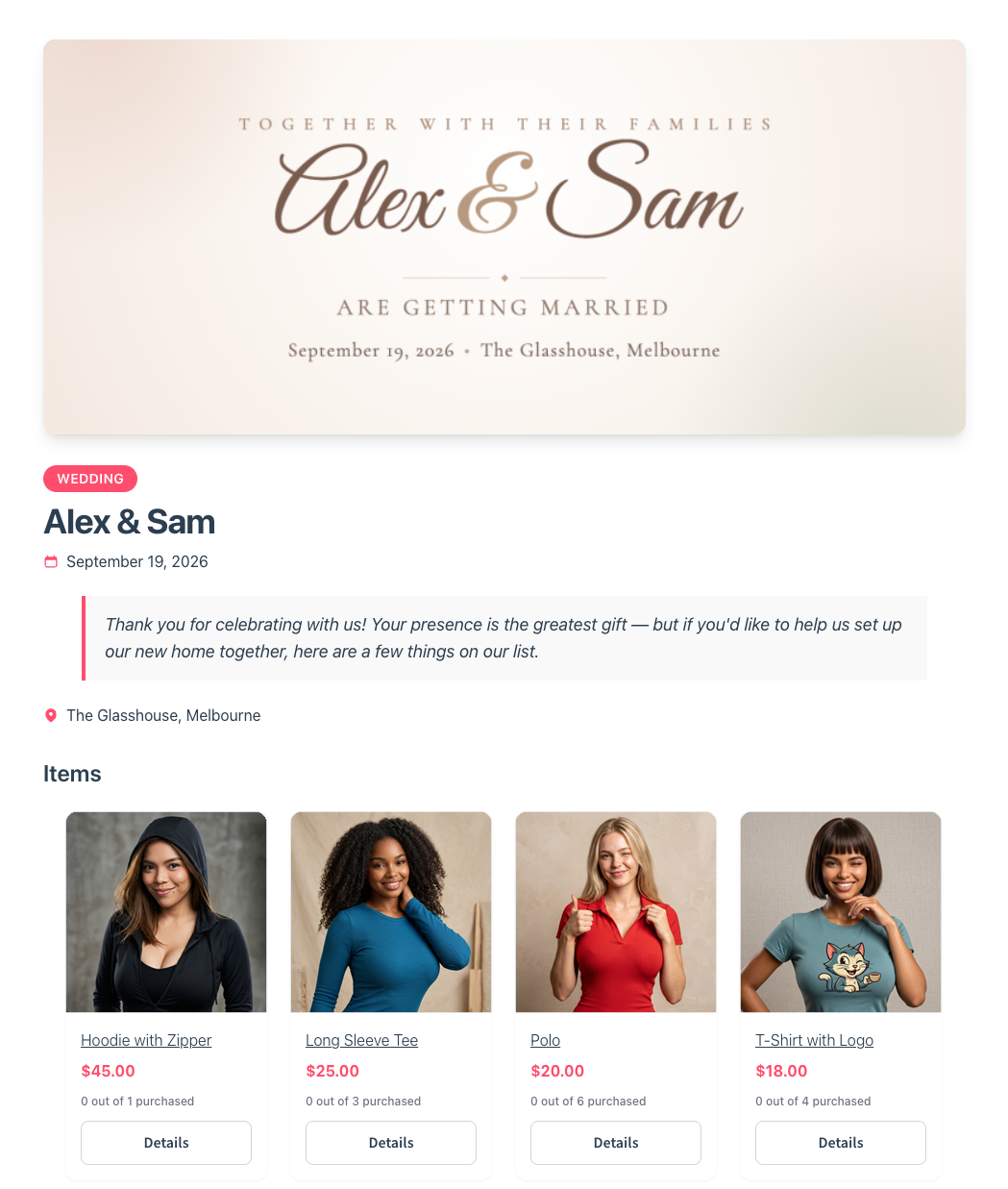
When planning how to create a gift guide, this matters more than it first looks. Your guide does the discovery, helping someone find the right presents. Meanwhile, a registry does the distribution because one list gets shared with an entire guest list. Every guest who opens that link arrives at your store with specific products in mind, and some may be first-time visitors.
That’s what the SaveTo Wishlist Gift Registry Addon is built for. It’s a separate extension that sits on top of the free SaveTo Wishlist plugin, and it’s included with the Plus and Business plans. Activating it doesn’t convert or replace your existing wishlists. It adds separate registry pages, data, and settings alongside them.
What The SaveTo Wishlist Gift Registry Addon Adds
Shoppers start from a wishlist they already have. A Convert to Registry button on the wishlist page opens a short form where they set the event type (wedding, baby shower, birthday, or any type you’ve defined), the event date, the registrant names plus an optional co-registrant for a couple, a welcome message, and a cover image. The wishlist must contain at least one item before it can be converted, but owners can add more gifts after the registry is created.
That cover image is a quiet win. Shoppers normally can’t upload images to a WordPress site, and the registry form lets them anyway. Event pages end up looking polished with no design work on your side.
Key features and capabilities
Once created, the registry goes live on a public link the owner can share with anyone. Here’s what the addon layers on top of a normal wishlist:
- Automatic purchase tracking. Each item shows how many are requested, how many are claimed, and how many are still available, so guests can see what’s still needed.
- A built-in share button. Only the owner sees it. One click lets them copy the link, send a pre-filled email, or post straight to Facebook, X, or WhatsApp.
- A private owner dashboard. It sits under My Account in a Gift Registries tab and shows who bought what, the order number, and a thank-you toggle owners tick off as they send notes.
- A Find a Registry search page. Created and published automatically on activation, it lets guests look up a registry by registrant name and event type.
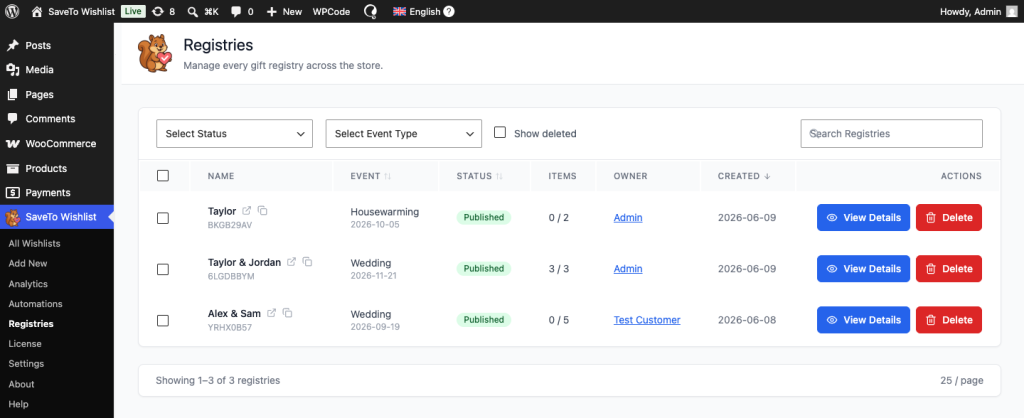
- Admin management and registry creation. Store administrators can manage existing registries under SaveTo Wishlist > Registries, where they can view, edit, archive, delete, or restore them. To create a registry on a customer’s behalf, an administrator converts one of the customer’s wishlists from the All Wishlists screen.
- Email notifications. The owner can receive notifications when a gift is purchased or an order is refunded. Furthermore, the store administrator can optionally receive a notification whenever a new registry is created.
Registries aren’t locked once created either. Owners keep adding items as plans change, and they can drag the list into the order they want, big-ticket gifts first or whatever they need soonest.
How Guests Buy Without Creating An Account
This is the part that decides whether a registry earns its keep.
A guest opens the link, picks an item, enters their name and email, sets a quantity, and adds the gift to the normal WooCommerce cart for checkout. No account is required to view a registry, and guests can buy without an account if WooCommerce guest checkout is enabled. The guest enters their name and email in the registry’s gift-purchase window, and those details are carried through the cart and order so the registry owner knows who sent the gift.
Behind the scenes: order tracking and stock logic
Tracking happens on your side, not the shopper’s. The purchased count updates when the WooCommerce order first enters a paid status, normally Processing or Completed. This can include offline-payment orders such as cash on delivery when the gateway moves them into Processing.
Once an item is fully claimed, the registry shows the full purchased count and prevents further normal add-to-cart claims for that item. Because carts don’t reserve registry quantities, simultaneous purchases can still result in an over-purchase. A refund or cancellation puts the gift back on the list, and a partial refund adjusts the count.
Items sitting in a guest’s cart don’t reserve the registry’s remaining requested quantity or block another guest from adding the same registry item. That’s the right call for a registry, since fake scarcity would only frustrate gift-givers during the exact week they’re trying to buy.
🔍️ What we’ve seen: Stores that pair a seasonal gift guide with a registry option see the guide keep working after the sale ends. One registry gets shared with a dozen guests. Several of those guests become first-time customers who never would have found the store otherwise.
If you’re weighing whether registries fit your store, our guide to WooCommerce gift registry wishlists walks through the setup and the occasions they suit best.
The Gift Registry Addon release post covers each feature in more detail. For most stores, a shareable wishlist on every gift guide plus a registry for the big events covers how people actually buy presents.
Turn Your Gift Guide Into Repeat Sales
Understanding how to create a gift guide is only half the battle. Two things do the heavy lifting here: the guide that helps someone choose, and the list that lets them save it and pass it on. Here’s what to do next:
- Pick one angle and build the guide around 8 to 15 products that genuinely fit it.
- Put a save button on every pick so browsers can come back later or send the shortlist to whoever’s paying.
- Offer a registry for the group occasions, where one shared list reaches an entire guest list.
- Publish well ahead of the date and leave the page live so it’s already indexed next time round.
The timing is worth planning too. A guide should be live and indexed weeks before the occasion, while registries run on a longer clock. A couple builds one months ahead, and guests trickle in right up to the event date. Publish the guide early, link the registry option from it, and the same page keeps working across both timelines.
Gift buyers are often first-time customers who found you through someone else’s list, so it pays to give them a reason to come back on their own behalf. Advanced Coupons covers how loyalty programs drive repeat sales.
Ready to make your next gift guide do double duty? Start with save-and-share wishlists so every guide keeps pulling in referral traffic and repeat buyers. Get SaveTo Wishlist Pro to access advanced sharing and editing permissions, collaborative wishlists, and automated on-sale and back-in-stock notifications.
And when you’re ready to host weddings, baby showers, and other group events on your own store? Buy the Gift Registry Addon on the Plus and Business plans to access full registries without custom development.

Frequently Asked Questions
Do I need a plugin to create a gift guide?
No, you can build a basic gift guide as a normal WooCommerce page or blog post with product links. A plugin helps when you want shoppers to save and share their picks. Adding wishlists lets a browsing visitor bookmark items and send a shortlist to whoever’s buying. That’s where a guide starts driving referral traffic instead of just informing.
How many products should a gift guide include?
Aim for roughly 8 to 15 products per guide. Fewer can look thin and undercut trust, while a huge list brings back the decision paralysis you’re trying to remove. If you have more great picks, split them into separate guides by audience or price tier. A focused guide converts and ranks better.
What’s the difference between a wishlist and a gift registry?
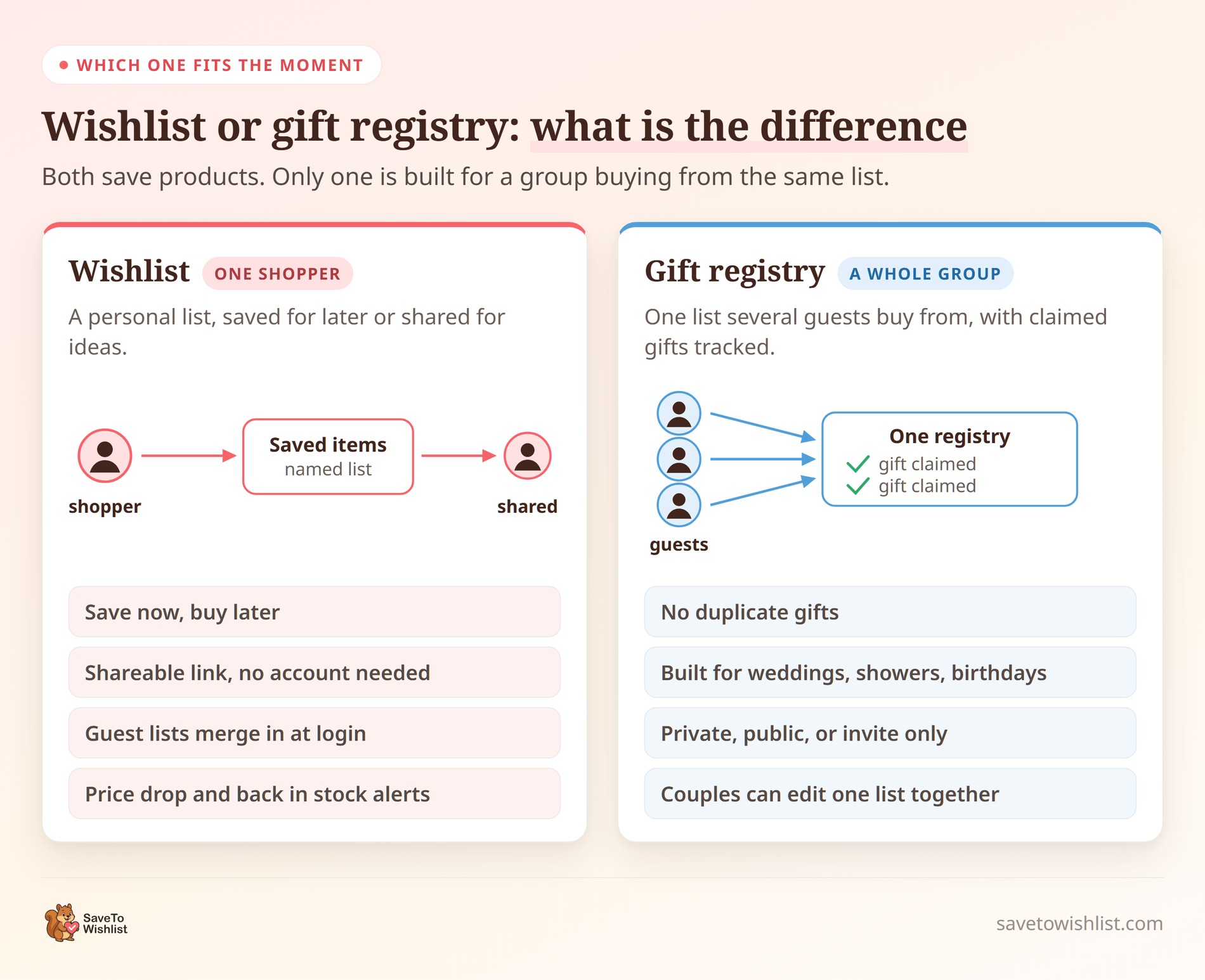
A wishlist is a personal list of products a shopper wants to save for later or share. A gift registry is built for occasions where several people buy from one shared list, like weddings or baby showers, and it tracks completed purchases to reduce duplicate gifts. Because items in carts don’t reserve registry quantities, simultaneous purchases can still exceed the requested amount. SaveTo Wishlist handles the wishlist side, and the Gift Registry Addon adds registries on the Plus and Business plans.
Which plan includes the Gift Registry Addon?
The Gift Registry Addon is a premium extension that runs alongside the free SaveTo Wishlist plugin, and it’s included with the Plus and Business plans. Plus is $99.50 for the first year and renews at $199 a year, while Business is $199.50 for the first year and renews at $399 a year. You’ll also need WordPress 5.8 or newer, WooCommerce 4.0 or newer, PHP 7.4 or newer, and SaveTo Wishlist Lite installed and active.
When should I publish my holiday gift guide?
Publish well ahead of the occasion and keep the page live year-round. Gift searches ramp up weeks before the date. A guide that’s already indexed will rank sooner than one you post at the last minute. Leaving it published also means it can catch next year’s traffic without a rebuild. Wishlist saves and shares keep sending visitors back to it in the meantime.
Where can I find inspiration for my store?
Looking at successful competitors in your niche is a great starting point when learning how to create a gift guide. Pay attention to how they group their products by price or theme, and use those insights to structure your own pages.



