

 Reviewed by
 A shopper fills a wishlist with eight products and sets a quantity on each one. Then they hit a wall: what does the whole list actually cost? Until now, they had to add up every Subtotal by hand. With SaveTo Wishlist Lite 1.1.8, the WooCommerce wishlist total now shows up right below the items.
This release also adds a new privacy switch. It turns off the cookie our plugin writes each time a customer saves a product. That matters if your store needs consent before it sets a marketing cookie.
Both features came from questions a store owner asked us before buying, and both are free in Lite. In this article, we’ll cover how each one works, where its setting lives, and what to check first.
Jump to:
Major Updates: Wishlist Totals And Cookie Control
This release answers two questions from that store owner. The first is a clear figure for what a wishlist is worth. The second is more control over what the plugin stores in a shopper’s browser.
1. Wishlist total: see what the whole list is worth
Your wishlist page already shows a price, a quantity, and a Subtotal for each item. Now it adds them all up. A Total row sits below the items on both the logged-in and the guest wishlist page.
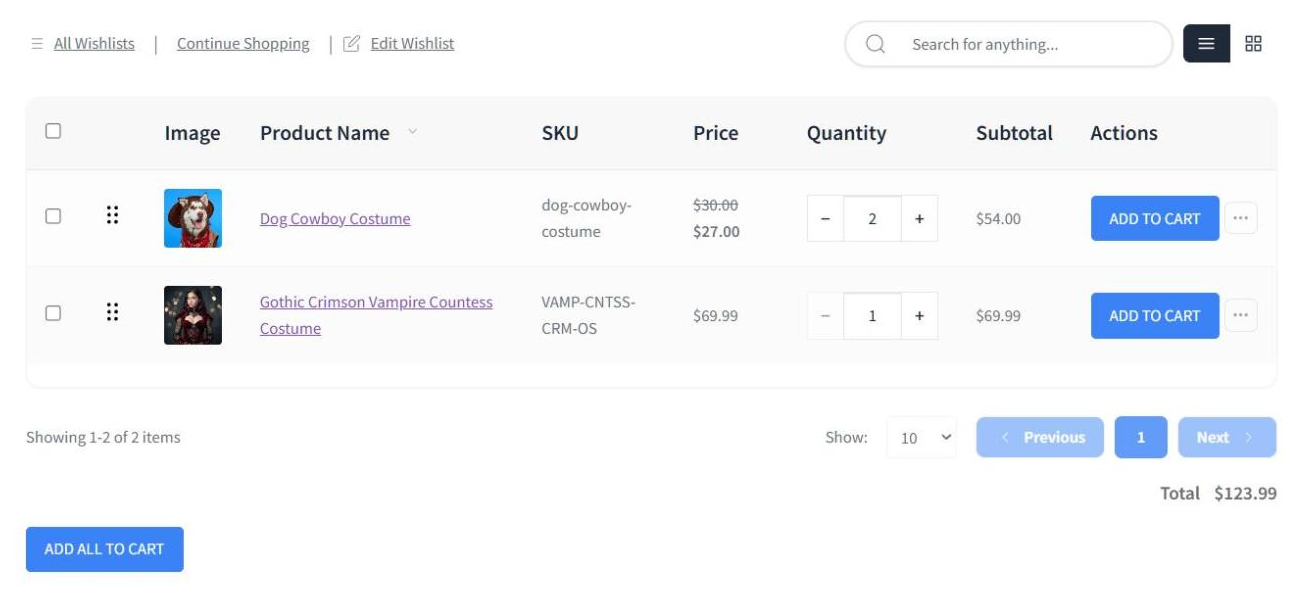
The total is on by default. To find its setting, go to your WordPress dashboard. Then click SaveTo Wishlist > Settings > Wishlist Page > General Options and look for Show Wishlist Total.
What you need to know:
- It covers the whole list: The total adds up every item in the wishlist, not only the page on screen. A shopper can click through to page two and the figure stays the same.
- It follows the search box: When a shopper searches their wishlist, the total narrows to the matching items. Clear the search and the full total comes back.
- It moves with quantities: Change a quantity with the quantity buttons and the total updates right away. Removing an item updates it too.
- It matches the Subtotal column: The total uses the same price math as each Subtotal, so the two always agree. Items with no price are left out.
- It fails safe: If the total can’t load, the page shows no total rather than a wrong one. The wishlist table keeps working either way.
- One switch turns it off: Set Show Wishlist Total to No and the row disappears. Your shoppers’ items still list as normal.
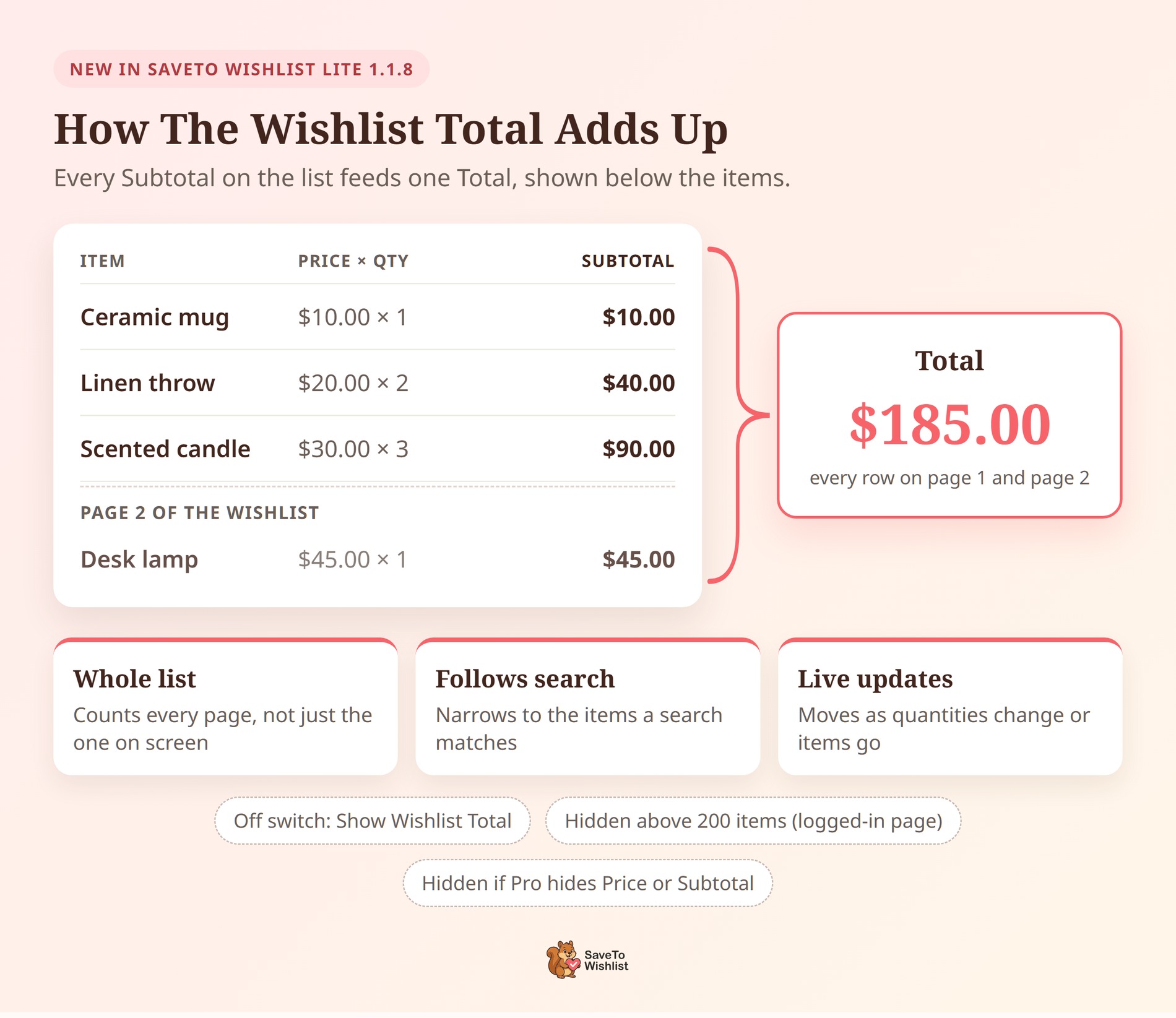
Here’s why that matters. Lite already has an Add All to Cart button that moves a whole list into the cart. Now shoppers can see what that list costs before they click it.
A couple of limits are worth knowing. On the logged-in wishlist page, the total doesn’t show when more than 200 items match. The cap keeps the extra request that fetches every item small. Guest wishlists don’t have this cap.
The total also stays hidden when SaveTo Wishlist Pro hides the Price or Subtotal column of the items table. That way, shoppers never see a total for figures you’ve chosen to hide.
For developers: Two JavaScript filters let you change the total without editing plugin files. stwlite_wishlist_total changes the number, then stwlite_wishlist_total_html changes the markup on the page. Both come from wp.hooks, so enqueue your script with wp-hooks as a dependency. Load it before the SaveTo Wishlist script so your filters register first.
wp.hooks.addFilter( 'stwlite_wishlist_total', 'my-plugin', function ( total, items ) { return total * 0.9; } );There are guardrails here too. If the number filter returns anything that isn’t a finite number, the plugin ignores it and keeps the calculated total. Plus, the plugin strips scripts and unsafe markup from the HTML filter’s output before it renders.
2. Privacy control: turn off the wishlist add signal cookie
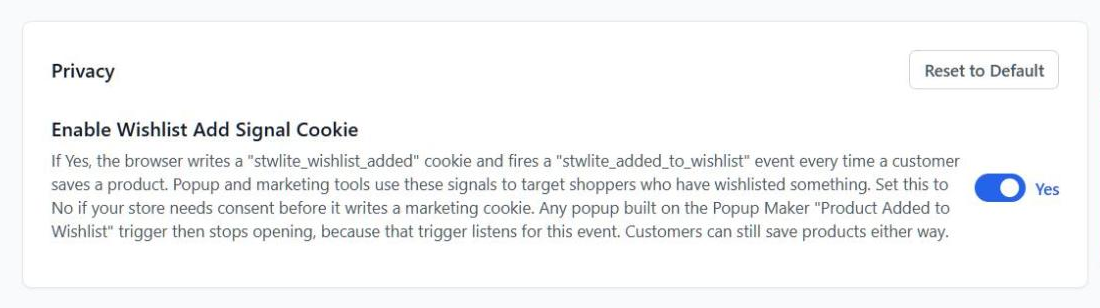
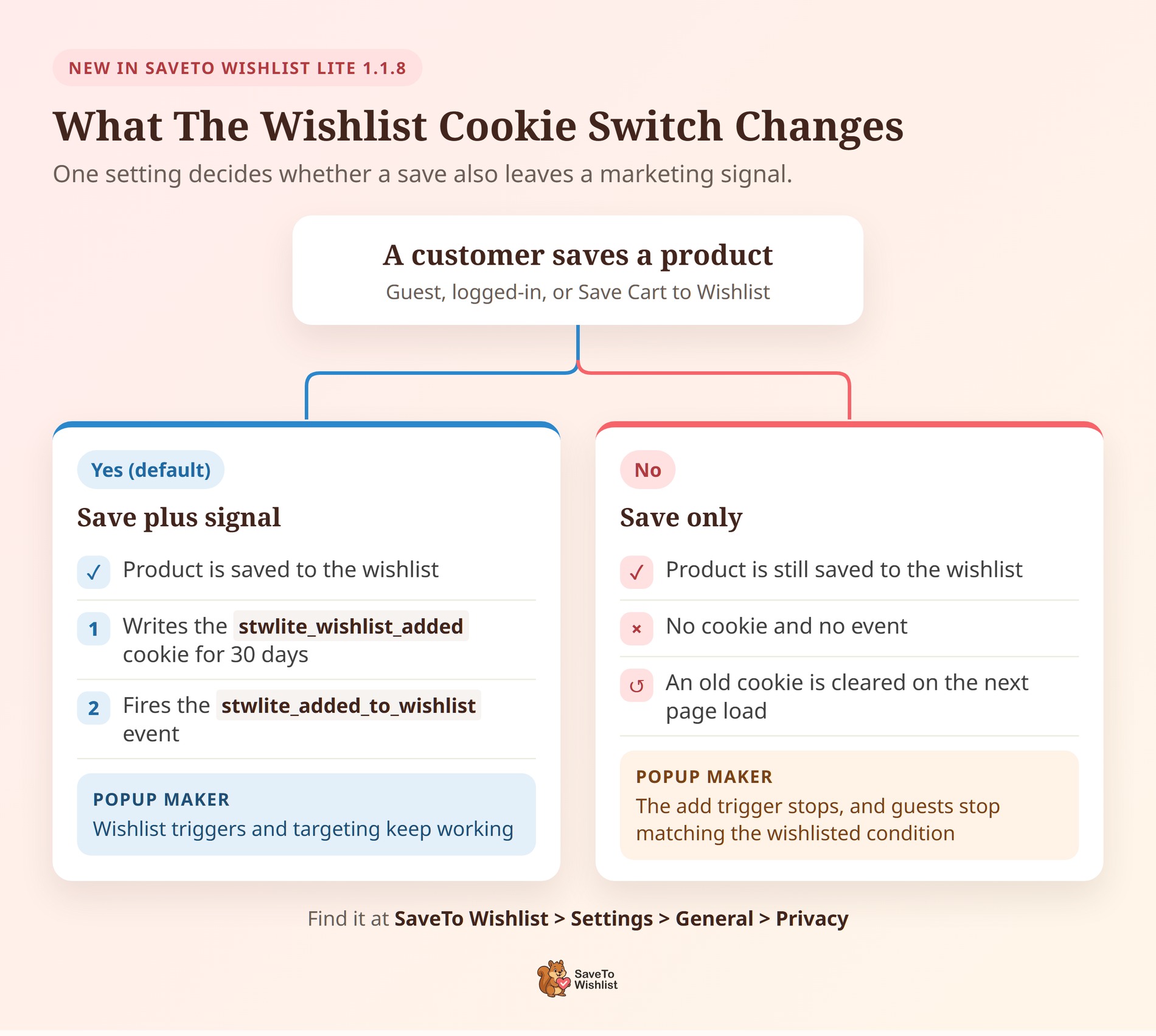
Each time a customer saves a product, SaveTo Wishlist writes a cookie called stwlite_wishlist_added. It also fires a browser event named stwlite_added_to_wishlist. The cookie lasts 30 days, and popup and marketing tools use both signals to spot shoppers who’ve wishlisted something.
That’s handy if you run wishlist popups. However, under rules like the GDPR or Germany’s TDDDG, a marketing cookie may need the shopper’s consent first. Before this release, the only way to stop the cookie was to edit a plugin file. That edit got wiped out with every update.
Now there’s a proper switch. Go to SaveTo Wishlist > Settings > General and find the Privacy section. Then set Enable Wishlist Add Signal Cookie to No.
What you need to know:
- Saving still works: Customers can save products to their wishlists exactly as before. Only the cookie and the event stop.
- Old cookies get cleared: If a shopper already has the cookie, it’s removed the next time they load a page. It doesn’t sit in their browser for the rest of its 30 days.
- Cart saves too: It applies to guest saves, logged-in saves, and the Save Cart to Wishlist button.
- It’s on by default: Nothing changes when you update. Your current popup setups keep working until you flip the switch.
- There’s a code option too: Developers can use the
stwlite_enable_wishlist_add_signal_cookiefilter, which defaults to true. It overrides the setting in both directions.
Check these two things before you switch it off:
- Some popups will stop: The Popup Maker “Product Added to Wishlist” trigger stops firing, because it listens for this event. The “Customer Has Wishlisted Products” condition also stops matching guests. Logged-in customers still match.
- Flush your page cache: The setting is baked into each page when your server builds it. If you use full-page caching, clear the cache after you change it. Otherwise, cached pages keep the old behavior.
Developers can also tie the cookie to a cookie consent banner through the filter. In that case, the page must bypass your cache or vary on your consent cookie. If it doesn’t, one shopper’s consent choice can get cached and served to the next shopper.
One honest note: we can’t tell you whether your store legally needs this switch. That depends on where you sell and how you use the cookie. So check with whoever handles privacy compliance for your business.
How Store Owners Can Use These Updates
The total works as soon as you update, and the cookie switch takes one click. Still, a few kinds of stores will get the most out of them.
Gift lists and special occasions
A shopper planning birthday or holiday gifts usually has a budget in mind. The total tells them whether the list fits it, with no calculator needed. Plus, customers who keep multiple wishlists see a separate total for each list they open.
Bulk and repeat orders
Some customers treat a wishlist as a shopping list, with a quantity set for each item. For example, an office manager might save the supplies they order every month. The total gives them the order value before they click Add All to Cart.
Stores that sell to EU shoppers
If you sell into the EU, the new switch gives you a supported way to hold back the wishlist cookie. You don’t need to edit plugin files, and your choice survives every update.
Whichever group you’re in, both settings take a few seconds to change. That makes them easy to test on your own store first.
Frequently Asked Questions
Is the WooCommerce wishlist total free?
Yes. The wishlist total ships in SaveTo Wishlist Lite 1.1.8, the free version of the plugin. It works on both the logged-in and the guest wishlist page.
Does the wishlist total include tax?
The total follows the same rule as the Subtotal column. Both use the product’s own price and don’t apply WooCommerce’s tax display setting. So the total always matches the Subtotals your shoppers see on the page.
Why isn’t the total showing on my wishlist page?
First, check that Show Wishlist Total is set to Yes. Next, count the items, because the logged-in page skips the total above 200 matches. Finally, check whether SaveTo Wishlist Pro hides your Price or Subtotal column.

Conclusion
That covers the core features in SaveTo Wishlist Lite 1.1.8. You can get both right now by updating the plugin from your WordPress dashboard.
Here’s what we covered:
- A WooCommerce wishlist total that adds up the whole list, across every page
- The Show Wishlist Total setting, plus two JavaScript filters for developers
- A privacy switch for the wishlist add signal cookie
- What to check with Popup Maker and page caching before you turn the cookie off
If you’re ready to show shoppers what their lists are worth, update the plugin and open your wishlist page. Need a hand with either setting? Visit our knowledge base or reach out to our support team.
New to wishlists? Download the free version of SaveTo Wishlist and give it a try. You can upgrade to SaveTo Wishlist Pro whenever you want more features.



