

 Reviewed by
 A new update for SaveTo Wishlist Lite is officially live!
Version 1.1.7 adds WordPress Abilities API support. In plain terms, AI assistants can now read and manage your store’s wishlists when you ask them to. You can also adjust your wishlist button through the same chat.
We also made your wishlist button blend in better with your theme. Plus, the wishlist table’s action menu now opens in full on every list. In this article, we’ll cover what the Abilities API does and how to start using it. Then we’ll walk through the two new improvements.
Jump to:
- Major Update: WordPress Abilities API Support
- Helpful New Improvements
- Frequently Asked Questions
- Conclusion
Major Update: WordPress Abilities API Support
AI assistants can only work with what a plugin describes to them. Without a shared standard, each assistant needs its own custom integration for each plugin.
That’s the gap this release closes. SaveTo Wishlist Lite now registers its wishlist actions with the WordPress Abilities API. As a result, any AI assistant that speaks MCP (Model Context Protocol) can find and use them.
What the Abilities API means for your store
The Abilities API is a WordPress standard. It lets a plugin list the things it can do in a format that software can read. Each item on that list is called an “ability.”
Once a plugin declares its abilities, an MCP-capable assistant can discover them on its own. So you don’t need a separate add-on for each AI tool. Instead, you ask in plain language, and the assistant picks the right ability to run.
For example, you could ask your assistant to list every wishlist holding at least five items. Or you could ask it to rename a customer’s wishlist, or change your button label for the holidays.
Every SaveTo Wishlist ability sits under one shared “SaveTo Wishlist” group. If you also run SaveTo Wishlist Pro, its own abilities join the same group. That way, your assistant sees one tidy toolset.
The 10 new wishlist abilities
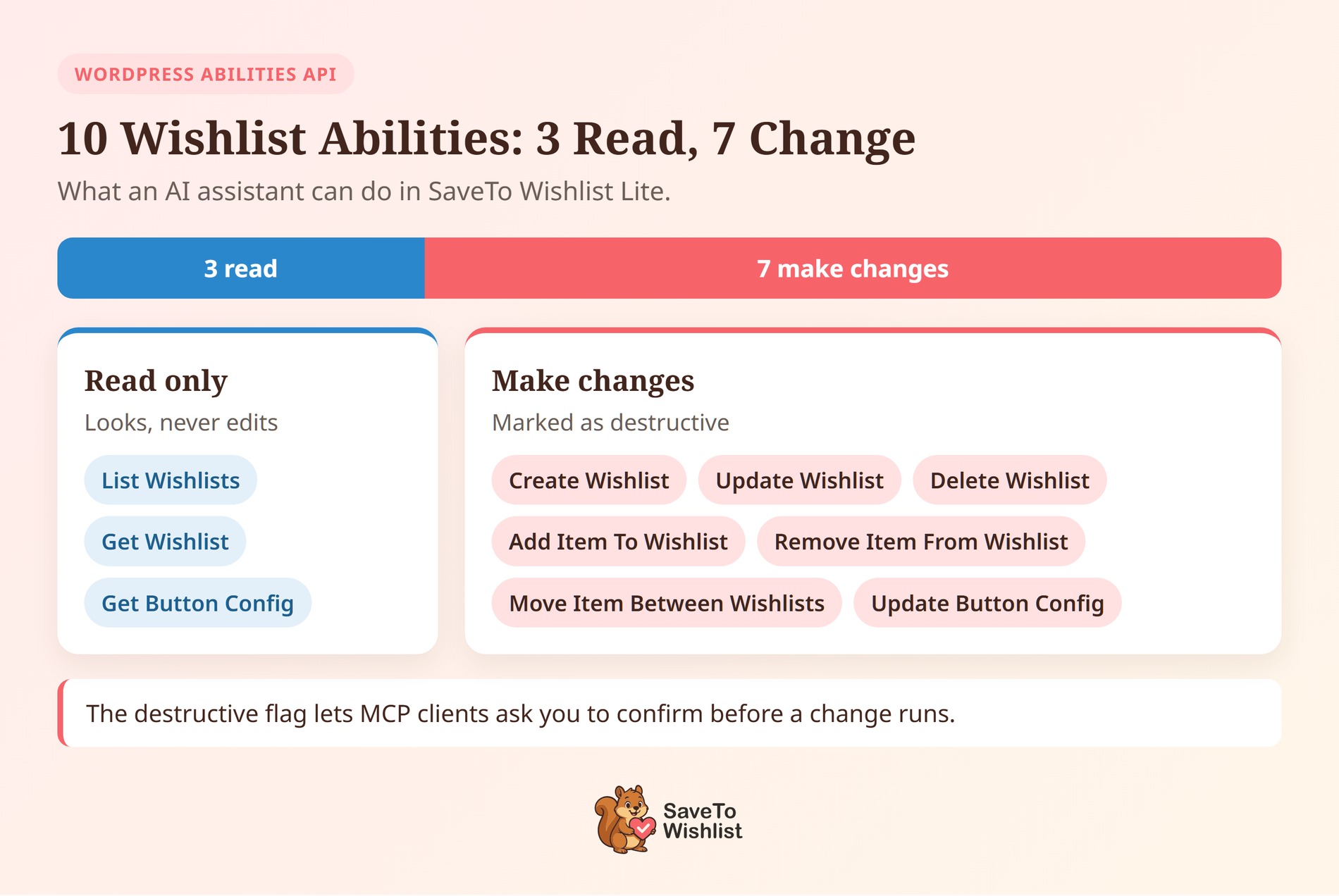
The free Lite plugin adds 10 abilities. Three of them only read information, and seven of them make changes.
What you need to know:
- List Wishlists: Pull a list of wishlists filtered by owner, search term, or status. You can also show only default or public wishlists, or set a minimum or maximum item count.
- Get Wishlist: See one wishlist in full, including its name, owner, privacy, share code, dates, and every saved item.
- Create Wishlist: Make a new wishlist for a customer.
- Update Wishlist: Change a wishlist’s name, description, status, visibility, or owner.
- Delete Wishlist: Remove one or more wishlists at once.
- Add Item To Wishlist: Add a product or a specific variation to a wishlist. If the product is already there, its quantity goes up instead of creating a duplicate row.
- Remove Item From Wishlist: Take one or more products off a wishlist.
- Move Item Between Wishlists: Shift a saved item from one of a customer’s wishlists into another.
- Get Button Config: Read your current wishlist button labels, placement, style, and colors.
- Update Button Config: Change those button labels, placements, styles, and colors.
Better yet, items added through an assistant behave like items a shopper saves. They trigger the same plugin events that our email marketing integrations listen for. That includes automations you’ve built in FluentCRM, Mail Mint, Groundhogg, Noptin, Email Subscribers, or FunnelKit.
How to start managing wishlists with AI
There’s no new settings page to switch on. The abilities register on their own as soon as you update the plugin.
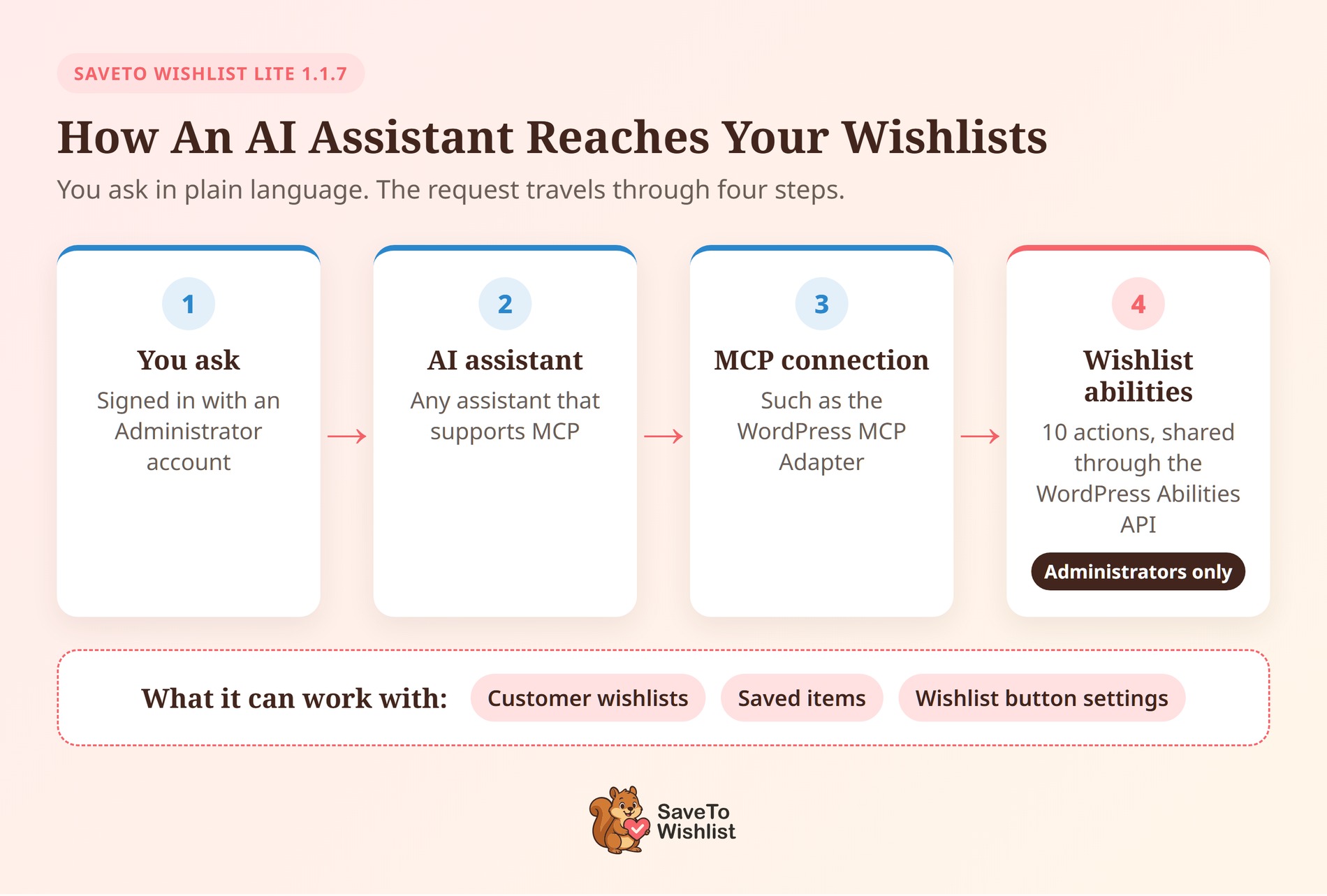
That said, SaveTo Wishlist doesn’t link to your AI tool by itself. Your site also needs an MCP connection that hands abilities to your assistant. One option is the official WordPress MCP Adapter, which bridges the Abilities API to MCP clients.
Here’s the general flow:
- Update SaveTo Wishlist Lite to version 1.1.7 from your WordPress dashboard.
- Set up an MCP connection on your site, such as the WordPress MCP Adapter.
- Connect your MCP-capable AI assistant using a WordPress Administrator account.
- Ask the assistant about your wishlists in plain language.
Running a WordPress version older than 7.0? You’re still covered. The plugin ships its own copy of the Abilities API, so the abilities work there too. On newer versions, WordPress’s built-in copy takes over.
Built-in safety rules
Giving an AI tool access to customer data deserves care. So we built the abilities to follow the same rules as your wishlist admin screens.
What you need to know:
- Administrators only: Every Lite ability, even the read-only ones, needs an Administrator account. Shop Managers, Customers, and Subscribers are turned away.
- Clear labels for changes: The seven abilities that change data are marked as “destructive.” This flag lets MCP clients ask you to confirm before running them.
- Owner checks: An assistant can’t add an item for someone who doesn’t own that wishlist. It also can’t move items between two different customers’ wishlists.
- Safe button edits: Every button change is checked first. If one value in a request is invalid, nothing gets saved.
- Your chosen mode stays put: Button styles and colors only change while the button is in Custom Settings mode. That way, an assistant won’t overwrite a preset or theme style you picked.
Helpful New Improvements
Along with the Abilities API, this release brings two smaller updates for your storefront. Both help the wishlist feel like a natural part of your store.
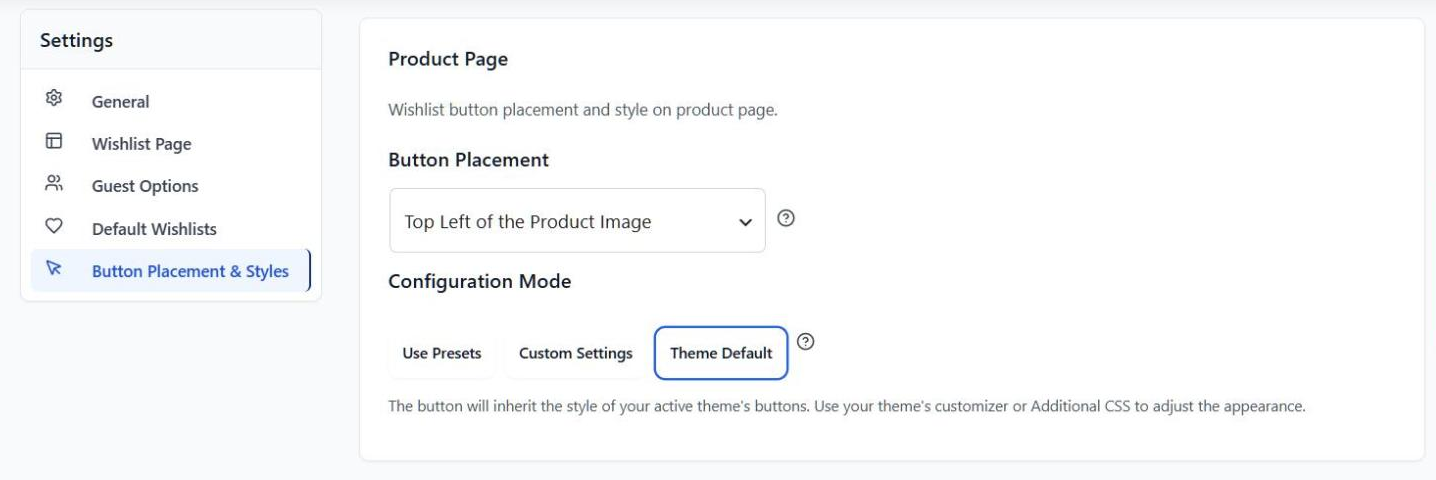
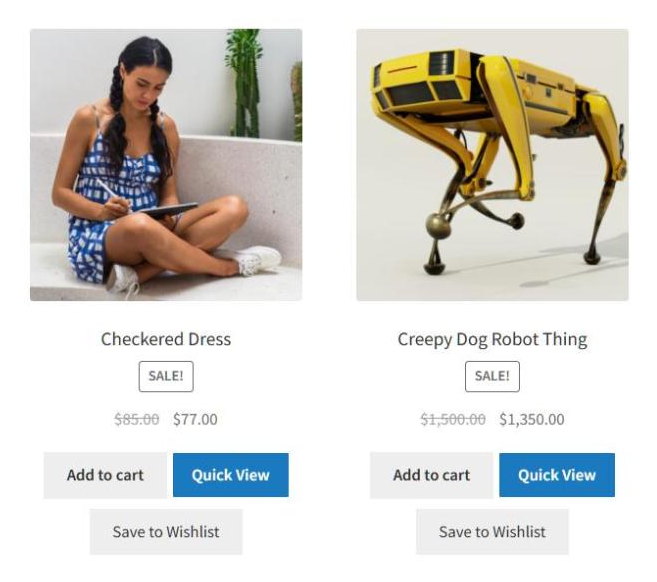
- Theme Default buttons that match Add to Cart: Pick Theme Default as the Configuration Mode under SaveTo Wishlist > Settings > Button Placement & Styles. Your wishlist button now takes on your theme’s Add to Cart height, padding, and font size. It also picks up the Add to Cart color your theme uses on each page type, including Shop pages. Themes style buttons in different ways, so preview your product and shop pages after switching.
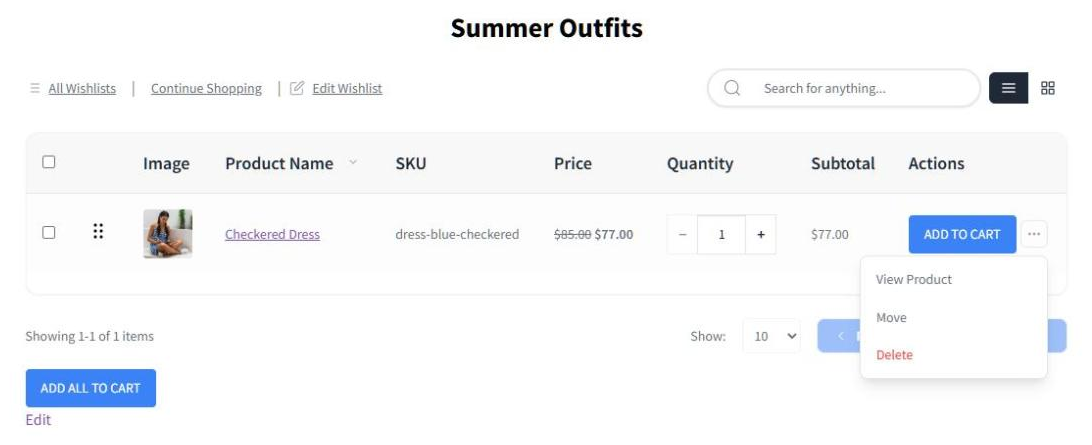
- A “More Actions” menu that always opens in full: Shoppers can click the … button on any wishlist item to see View Product, Move, and Delete. The whole menu now shows below the button, even when a wishlist holds just one item. That works in both the table view and the grid view, with no scrolling needed.
Frequently Asked Questions
What is the WordPress Abilities API?
It’s a WordPress standard that lets plugins describe what they can do in a machine-readable way. Paired with an MCP connection, it lets AI assistants find and run those actions. SaveTo Wishlist Lite 1.1.7 registers 10 wishlist abilities with it.
Do I need SaveTo Wishlist Pro to use the Abilities API?
No. All 10 abilities in this release come with the free SaveTo Wishlist Lite plugin. SaveTo Wishlist Pro adds its own abilities on top, in the same SaveTo Wishlist group.
Can my shop manager use the wishlist abilities?
Not the 10 abilities in SaveTo Wishlist Lite. Each one requires an Administrator account, which matches the access our wishlist admin tools already require. SaveTo Wishlist Pro’s abilities follow their own permission rules.
Can an AI assistant see guest wishlists?
No. In SaveTo Wishlist Lite, guest wishlists are stored in the shopper’s own browser, not on your site. So the abilities work with the wishlists of logged-in customers only.
Can I turn the wishlist abilities off?
Yes, with a small code change. Define the STWLITE_DISABLE_ABILITIES constant as true, or return true from the stwlite_disable_abilities filter. Either one skips registering the Lite abilities and leaves everything else in place.
Conclusion
That wraps up SaveTo Wishlist Lite 1.1.7! You can get these updates right now by updating the plugin from your WordPress dashboard.
Here’s what we covered:
- WordPress Abilities API support with 10 wishlist abilities for MCP-capable AI assistants
- Built-in safety rules, including Administrator-only access and owner checks
- Theme Default buttons that match Add to Cart on each page type
- A “More Actions” menu that opens in full on every wishlist
Need a hand getting set up? Check out our knowledge base or reach out to our support team.
If you’re ready to add wishlists to your store, download the free version of SaveTo Wishlist and give it a try. You can upgrade to SaveTo Wishlist Pro whenever you want more features.



