

 Reviewed by
 A shopper opens your WooCommerce side cart to check the total. There are four items in it, and the total is more than they planned to spend. So they start trimming.
In most cart drawers, the way to trim is the remove button. So a shopper who wants that jacket “maybe next month” deletes it. Later, they’d have to find it again, and many won’t go looking.
The free SaveTo Wishlist Lite plugin now gives them a better option inside ThemeHunk’s Advance Side Cart. Below, I’ll show you how to set up “Move to wishlist” in your cart drawer. I’ll also share how to use it to keep more of the sales your cart would normally lose.
Jump to:
- Why Your Side Cart Needs A Move To Wishlist Button
- What The Advance Side Cart Integration Does
- What You Need Before You Start
- How To Add Move To Wishlist To Your WooCommerce Side Cart
- How To Check The Integration Is Working
- 5 Ways To Turn Side Cart Moves Into Sales
- Things To Know Before You Switch It On
- Frequently Asked Questions
- Ready To Add Move To Wishlist To Your Side Cart?
Why Your Side Cart Needs A Move To Wishlist Button
Most carts are never checked out. Baymard Institute puts the average documented online shopping cart abandonment rate at 70.22%, based on 50 different studies.
A big share of that isn’t a checkout problem at all. Baymard found 42% of US online shoppers left a cart because they were “just browsing / not ready to buy”. It also lists saving items for later and comparing prices as normal shopping habits.
In other words, many shoppers use the cart as a holding area. That works until they need to cut the total. At that point, removing a product means it leaves no trace for the shopper to come back to.
A Move to wishlist button changes what “not now” means. The product leaves the cart, so the total drops, but it lands on the shopper’s wishlist. That keeps the interest on your store, which is the core idea behind how wishlists help conversion.
What The Advance Side Cart Integration Does
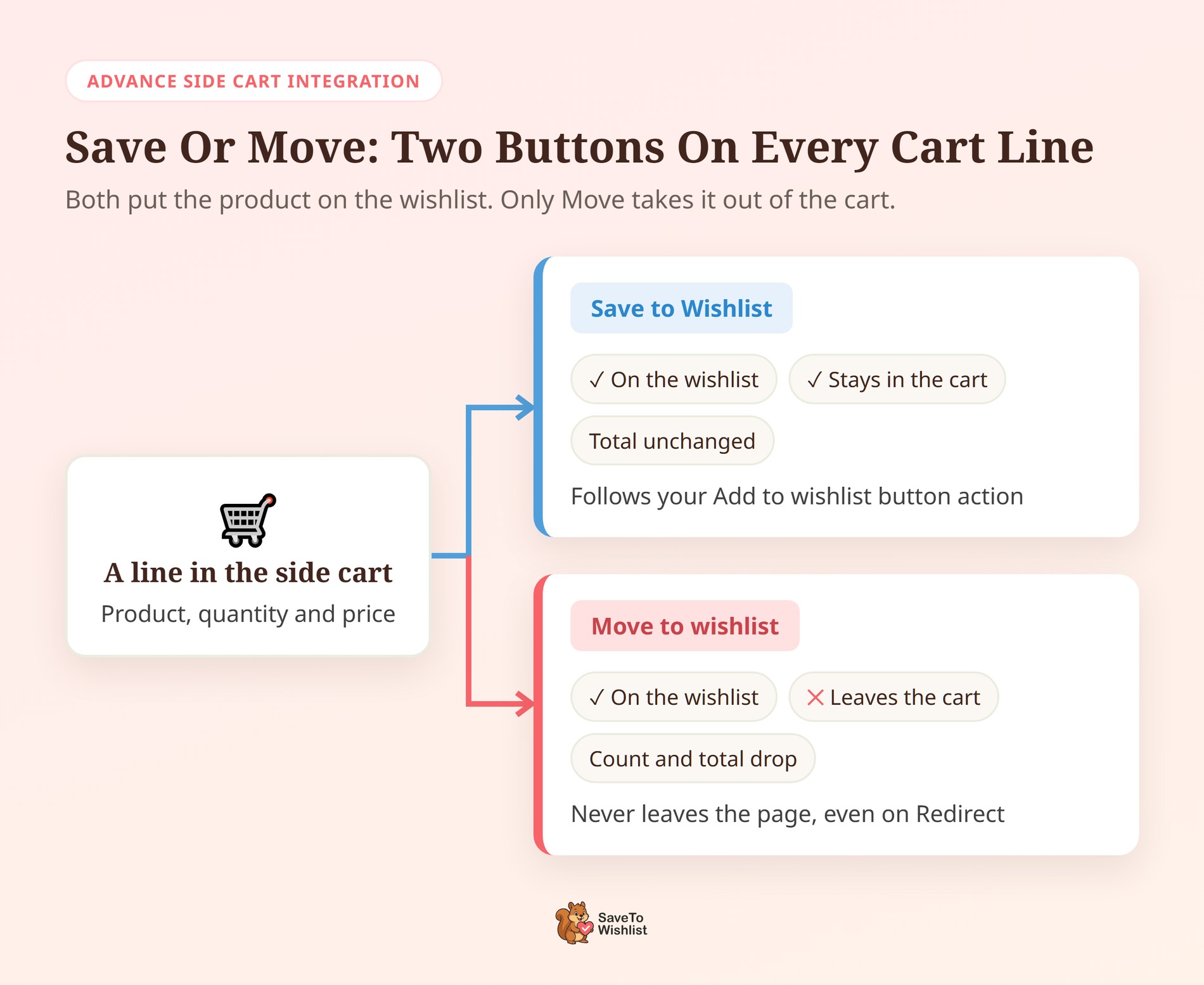
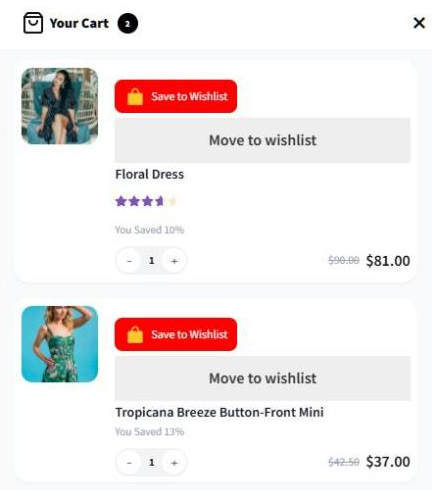
SaveTo Wishlist Lite 1.1.7 adds two buttons to every line in ThemeHunk’s side cart drawer:
- Save to Wishlist: Adds the product to the wishlist and leaves it in the cart. This is your normal per-item wishlist button.
- Move to wishlist: Adds the product to the wishlist, then removes that line from the cart.
Here’s how Move behaves, based on the plugin code and the release’s test scenarios:
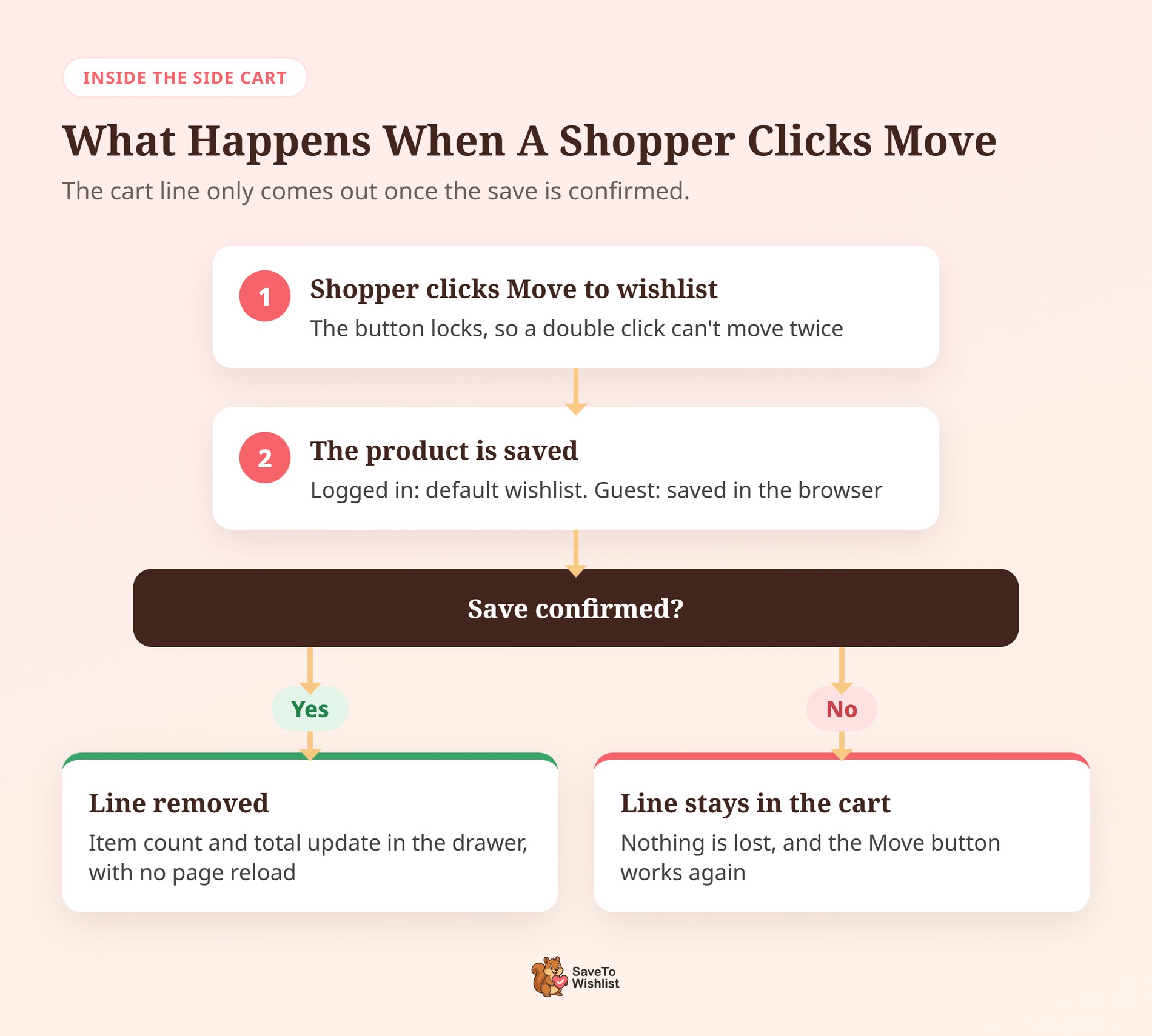
- No page reload: The line disappears, and the drawer’s item count and total update in place. The shopper stays on the page they were browsing.
- Safe by design: The cart line is only removed once the save is confirmed. If the save fails, the product stays in the cart and the button works again.
- No duplicates: Moving a product that’s already on the wishlist won’t add a second copy. It just removes the cart line.
- Variations kept: Moving a “Blue” variation saves that exact variation, not just the parent product.
- Drawer only: The buttons don’t appear in other mini-carts, such as the WooCommerce mini-cart widget or your theme’s own cart.
Also, when the drawer is open on the cart or checkout page, a Move refreshes that page’s totals too. Block-based cart and checkout pages reload to do this. Either way, the drawer and the page show the same numbers.
What You Need Before You Start
You need two free plugins:
- SaveTo Wishlist Lite, version 1.1.7 or later: The integration ships in the free plugin. If you use SaveTo Wishlist Pro, it runs on top of Lite, so you get it too.
- Advance Side Cart: ThemeHunk’s Advance Side Cart plugin is free and has 5,000+ active installs on WordPress.org. Its full listing name is “Advance Side Cart, Ajax Cart & Floating Cart for WooCommerce”.
Our team tested the integration with Advance Side Cart 2.3.7, the current version at the time of writing.
How To Add Move To Wishlist To Your WooCommerce Side Cart
The setup takes four steps. Most stores can keep the defaults, so this is mostly a check.
Step 1: Install both plugins
Go to Plugins > Installed Plugins and update SaveTo Wishlist Lite to 1.1.7 or later. Then go to Plugins > Add New Plugin, search for “Advance Side Cart” and install the ThemeHunk plugin. Activate it.
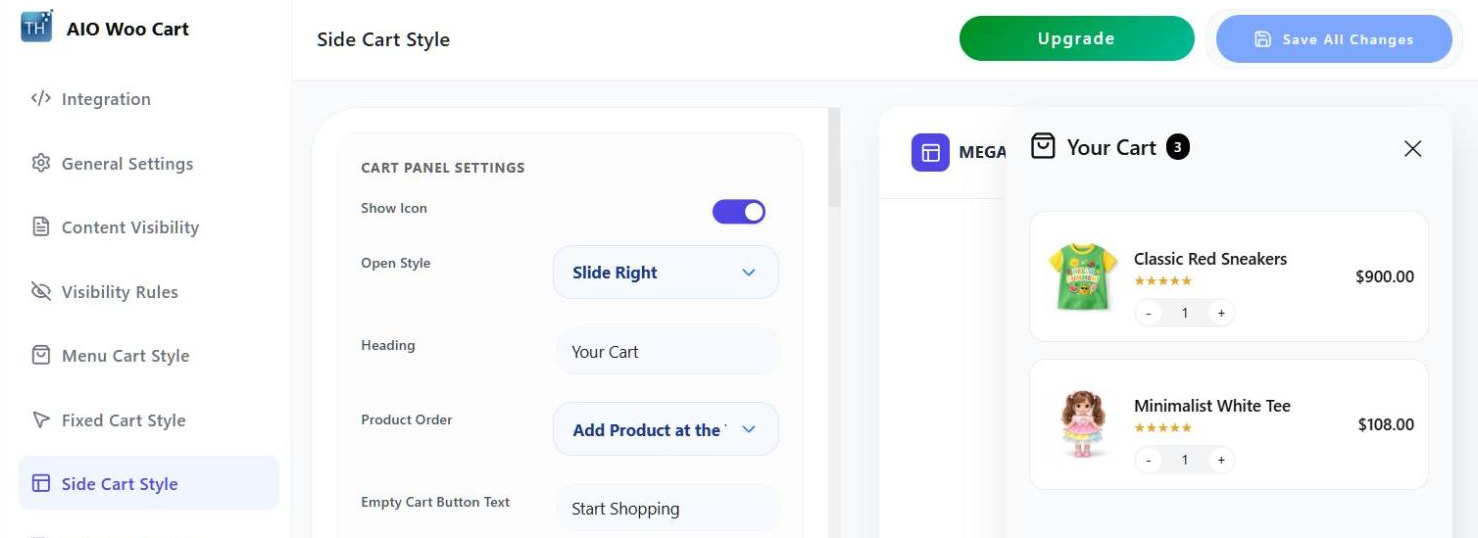
You’ll find the side cart’s own settings under ThemeHunk > AIO Woo Cart. That’s where you pick the cart style, the open style and what each line shows.
Step 2: Check the side cart toggle is on
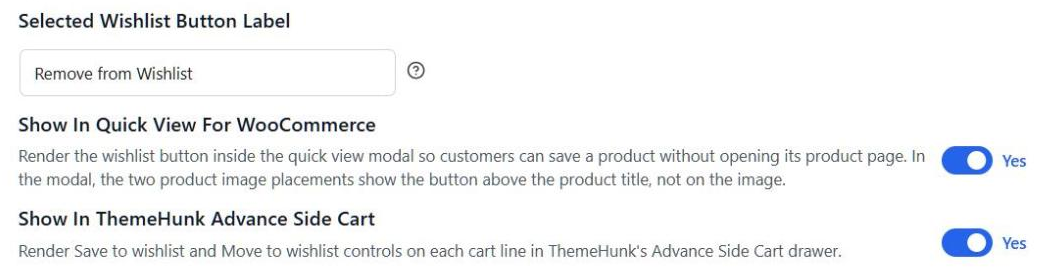
Go to SaveTo Wishlist > Settings > Button Placement & Styles and open Button Settings. Find Show in ThemeHunk Advance Side Cart. It’s on by default, so you only need to confirm it.
This toggle only shows up while Advance Side Cart is active. If you can’t see it, check that the ThemeHunk plugin is activated.
Step 3: Choose what Save does after a click
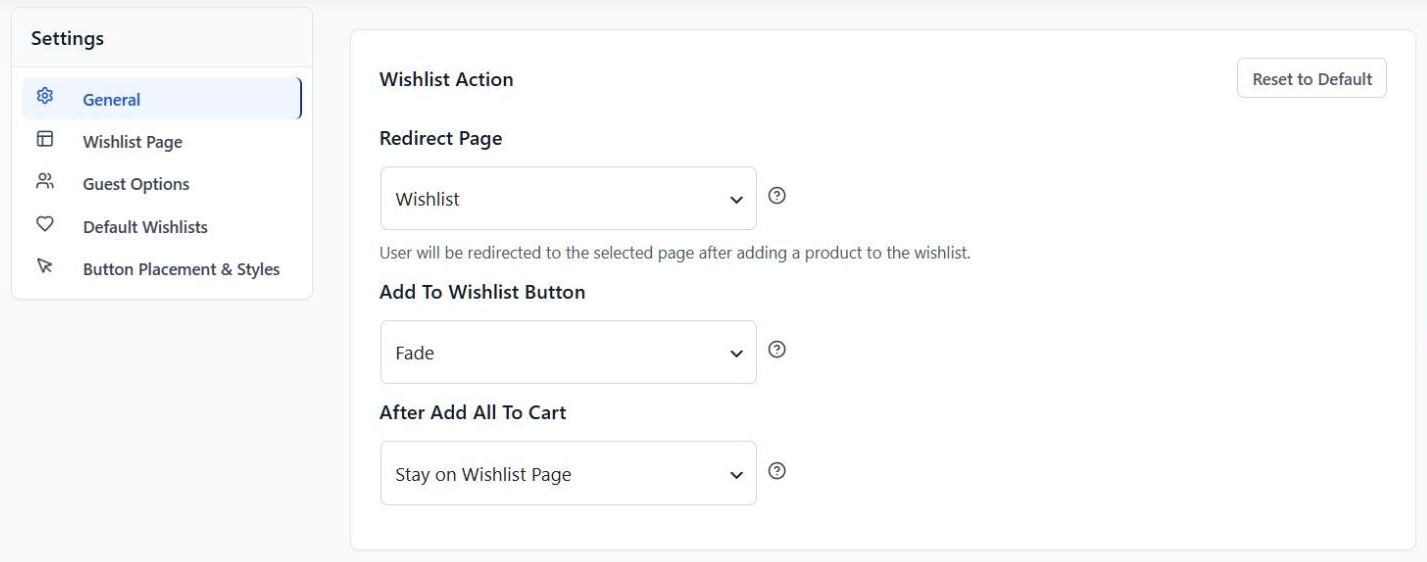
Next, go to SaveTo Wishlist > Settings > General and find Add to wishlist button under Wishlist Action. This controls the Save to Wishlist button. You have three choices:
- Redirect: Sends the shopper to the wishlist page after each save. This is the default.
- Popup: Shows a confirmation popup.
- Fade: The button fades to confirm the save, and the shopper stays where they are.
Move to wishlist ignores this setting. It never leaves the page, even when Save is set to Redirect.
Step 4: Decide whether guests can save
Finally, go to SaveTo Wishlist > Settings > Guest Options. If Disable Guest Wishlist is on, logged-out shoppers won’t see either button. I’d leave guest saving on, and our guide to guest wishlists explains why.
How To Check The Integration Is Working
Open your store in a private window, add two products to the cart and open the side cart. Then run these checks:
- Each line should show one Save to Wishlist button and one Move to wishlist button.
- Click Move to wishlist on one line. The line should disappear, and the count and total should drop, with no page reload.
- Open your wishlist page. The moved product should be there.
- Click Save to Wishlist on the other line. The product should save and stay in the cart.
- Log in as a test customer and repeat the Move. The product should land on that customer’s wishlist.
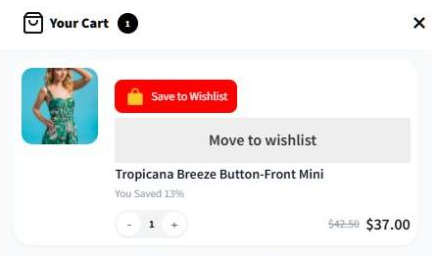
🔍️ What we’ve seen: When we tested this, the Save button looked different from Move. That’s because Save follows your Product Page button style, not the Cart Page one. If Save looks wrong in the drawer, change the Product Page style. Then check your product pages too.
5 Ways To Turn Side Cart Moves Into Sales
A moved product is a shopper telling you “I want this, just not today”. These five habits help you act on that.
Use Fade for Save so shoppers keep shopping
The side cart is built to keep shoppers on the page. Redirect works against that, since every Save sends them to the wishlist page. Fade confirms the save and lets them carry on browsing.
🔍️ What we’ve seen: Store owners often set up a cart drawer to avoid page loads. Then they leave the wishlist add action on Redirect. The result is a drawer that jumps to another page on the first save. Switching Save to Fade fixes it in one setting.
Follow up on moved products by email
For logged-in shoppers, a Move uses the same add-to-wishlist request as any other save. As a result, your wishlist email marketing setup sees it as a normal save. A reminder about a product someone nearly bought is a timely, relevant email to send.
Keep guest saving on and invite sign-ups
Account requirements cost sales. Baymard’s study looked at shoppers who left for reasons other than browsing. Of those, 18% said the site wanted them to create an account. Let guests move products first. Then SaveTo Wishlist can show a login link on the guest wishlist, so they sign in and keep their saves.
Watch for products shoppers keep parking
A product that keeps getting moved out of carts has real interest behind it. A small discount or a free shipping offer could help it over the line. SaveTo Wishlist Pro’s analytics flags products with many saves but few sales, which is a good place to start.
Keep in mind that the reports can’t tell a side cart save from a product page save. So compare your total saves before and after you switch the integration on.
Give shoppers save buttons in every cart
If you also run other cart popups or pages, SaveTo Wishlist covers more of them. For example, the Fast Cart integration adds a wishlist button to Barn2’s popup cart. The more places shoppers can park a product, the fewer products get deleted outright.
Things To Know Before You Switch It On
A few details are worth knowing so nothing surprises you:
- Move goes to the default wishlist: If you allow multiple wishlists, Move always saves to the shopper’s default list. Logged-in shoppers can still pick a list with Save.
- One wishlist entry per move: Moving a line with three units saves the product once. The shopper can set the quantity again when they buy.
- Separate from the cart page button: Your cart page’s Cart item selection setting doesn’t control the side cart buttons. Use the side cart toggle instead.
- Guest saves live in the browser: A guest’s wishlist is stored in their browser until they log in. If the browser blocks storage, Move keeps the product in the cart rather than losing it.
Both are real buttons, so shoppers can reach them with the Tab key, a mouse or a tap.
Frequently Asked Questions
Does Move to wishlist remove the product from the cart?
Yes. Move saves the product to the wishlist first, then removes that line from the cart. To save a product and keep it in the cart, use the Save to Wishlist button on the same line.
Do I need SaveTo Wishlist Pro for the side cart integration?
No. The integration is part of the free SaveTo Wishlist Lite plugin, version 1.1.7 or later. SaveTo Wishlist Pro runs on top of Lite, so Pro users get it as well.
Can guests move products to a wishlist from the side cart?
Yes, as long as Disable Guest Wishlist is off. A guest’s moved products are saved to their browser’s wishlist. If you turn Disable Guest Wishlist on, both side cart buttons are hidden from logged-out shoppers.
Ready To Add Move To Wishlist To Your Side Cart?
Shoppers will always trim their carts. With a Move button in the drawer, the products they trim stay on their wishlist, ready for later.
- Install both plugins and confirm the side cart toggle is on.
- Switch Save to Fade so the drawer never jumps to another page.
- Run the five checks in a private window and as a test customer.
- Follow up on moved products with wishlist emails.
Your WooCommerce side cart is one free update away from Move to wishlist. Install or update SaveTo Wishlist Lite to version 1.1.7 to get started.



