

 Reviewed by
 A shopper finds your coffee subscription, likes the beans, and then hesitates. Monthly or every two weeks? They close the tab to think about it, and too often they never come back.
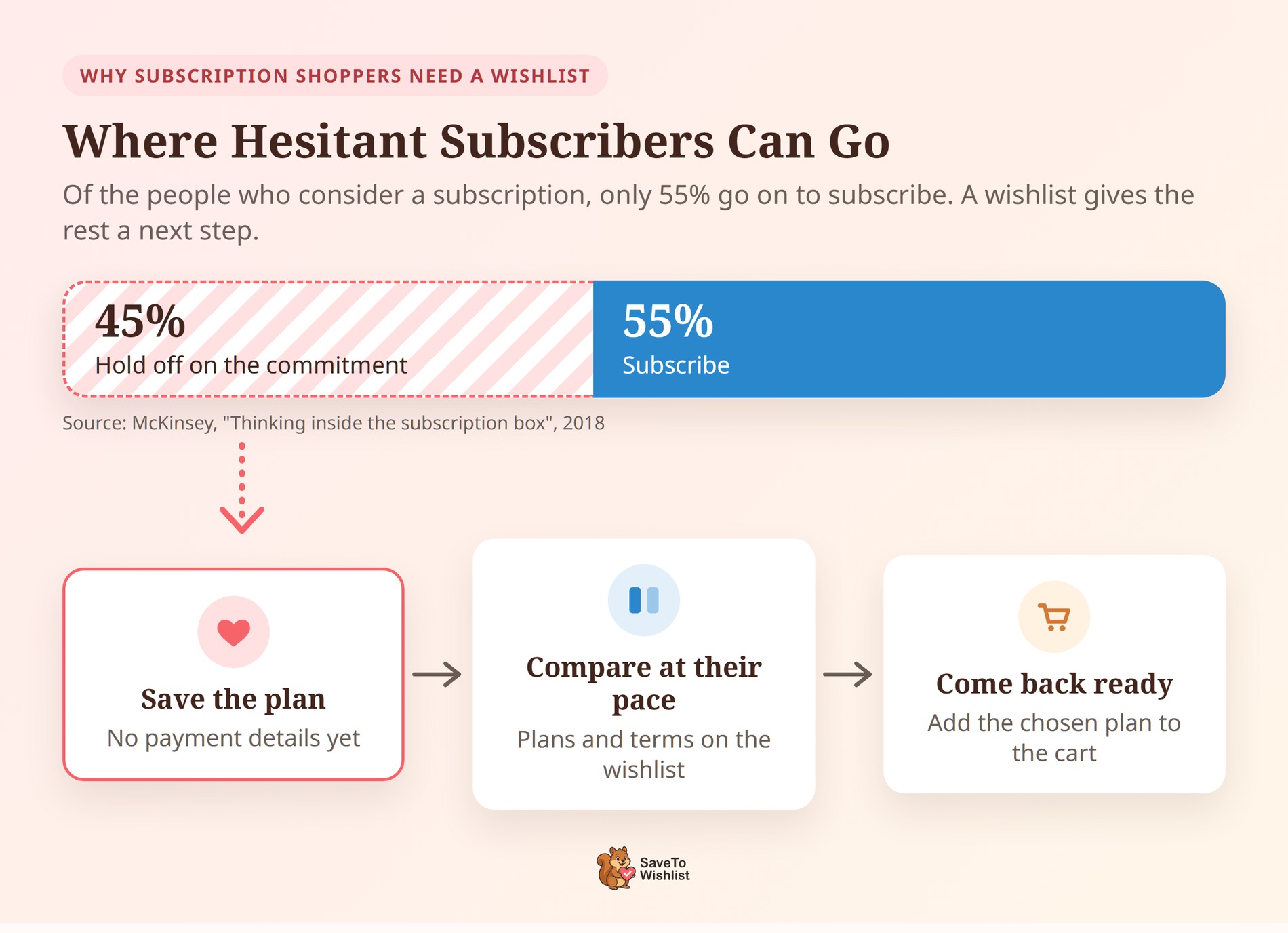
McKinsey found that only 55 percent of people who consider a subscription go on to subscribe. That gap makes sense, because a long-term commitment can feel like a big step.
I think that pause is where a wishlist earns its keep. With SaveTo Wishlist and Flexible Subscriptions, shoppers can save a WooCommerce subscription product. They see its full recurring price and pick a plan when they’re ready.
In this guide, we’ll cover what the integration does, how to set it up, and how to check it’s working. Plus, we’ll share practical ways to turn saved subscriptions into sign-ups.
Jump to:
- Why Subscription Shoppers Need A Wishlist
- What The Flexible Subscriptions Integration Does
- What You Need Before You Start
- How To Set Up Wishlists For WooCommerce Subscription Products
- How To Check The Integration Is Working
- 5 Ways To Turn Saved Subscriptions Into Sign-Ups
- Things To Know Before You Switch It On
- Frequently Asked Questions
- Ready To Add Wishlists To Your Subscriptions?
Why Subscription Shoppers Need A Wishlist

A WooCommerce subscription asks more of a shopper than a one-off purchase. They’re agreeing to a price that repeats, often with a trial or a sign-up fee attached. So it makes sense that many of them want time to compare plans before they commit.
The same McKinsey research found that 15 percent of online shoppers had signed up for at least one product subscription. However, nearly 40 percent of subscribers had canceled. Keep in mind the survey dates from 2018, so treat the exact figures as a snapshot rather than today’s numbers.
Still, the pattern is useful. Subscribers can be hard to keep, and shoppers who hesitate are easy to forget. A wishlist gives the hesitant ones a low-pressure next step:
- Save without committing: The plan stays one click away, and nobody has to enter payment details yet.
- Compare at their own pace: Shoppers can come back, read the terms again, and choose the plan that actually fits.
- Give you a signal: Every saved subscription tells you which plans people are weighing up.
What The Flexible Subscriptions Integration Does
Flexible Subscriptions is a free WP Desk plugin that adds two WooCommerce subscription product types: Subscription and Variable Subscription. SaveTo Wishlist works with both, and the integration runs on its own. There are no settings to configure.
Here’s what shoppers see on the wishlist page:
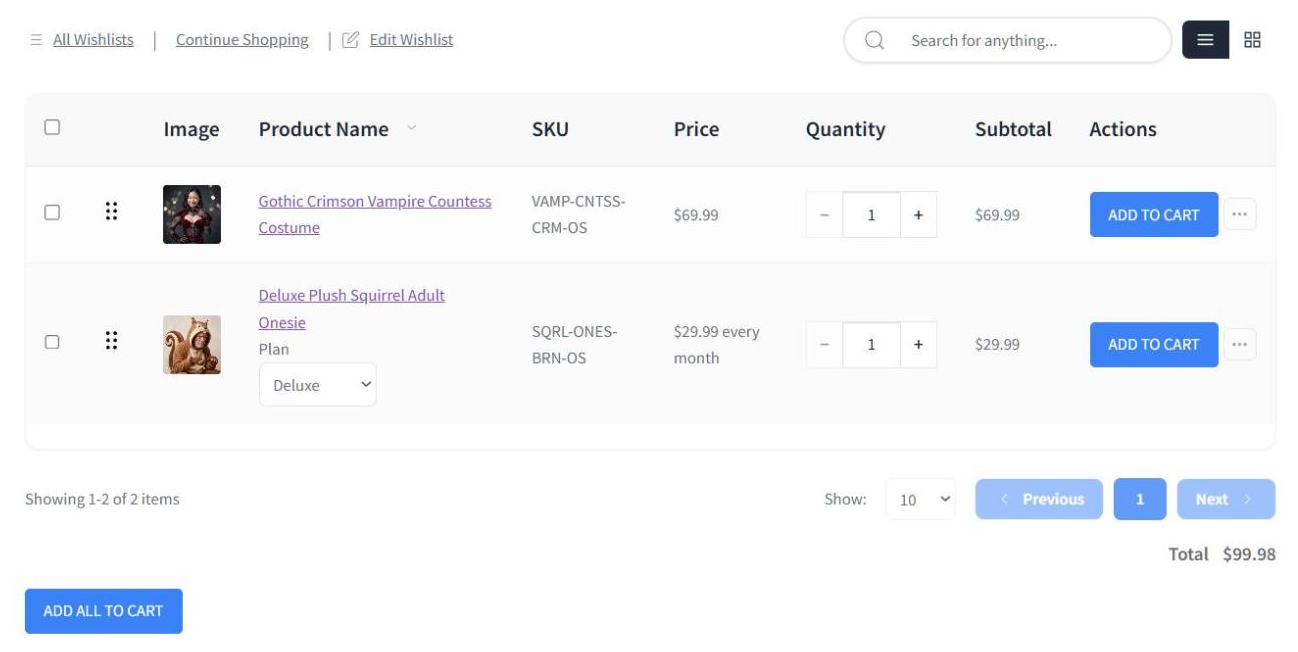
- The full recurring price: The Price column shows Flexible Subscriptions’ own price text, such as “$10.00 every month”. If the product has a free trial, a set length, or a sign-up fee, that text includes them too.
- A plan picker for variable subscriptions: Each Variable Subscription row gets a dropdown per attribute, like plan or box size. This arrived in SaveTo Wishlist 1.1.8.
- A plan is always selected: If the shopper saved a specific plan, the row shows it already selected. Otherwise, each dropdown starts on its first option.
- The right plan in the cart: Add to Cart sends the plan chosen on that row, not the parent product. So shoppers reach checkout with the plan they actually picked.
- Bulk buttons work too: Add All to Cart and Add Selected to Cart send each subscription with its chosen plan.
- Guests included: The plan dropdown also shows on guest wishlists, so shoppers don’t need an account to save a plan.
What depends on your SaveTo Wishlist version
We added the plan picker in 1.1.8. Before that, a Variable Subscription row had no way to choose a plan. Its Add to Cart button also sent the parent product instead of a plan. Single-plan WooCommerce subscription products already worked, so the update matters most if you sell plans as variations.
One detail depends on which version of SaveTo Wishlist you run. On a Variable Subscription row, the free version shows the starting price, such as “From $15.00 every month”. With SaveTo Wishlist Pro 1.0.4 or later and an active license, the Price column shows the chosen plan’s price instead. In both cases, the Subtotal column follows the chosen plan.
What You Need Before You Start
You only need a few things in place:
- WooCommerce installed and active.
- Flexible Subscriptions by WP Desk, installed and active.
- SaveTo Wishlist Lite 1.1.8 or later if you sell Variable Subscription products. Simple subscriptions work in earlier versions.
- At least one WooCommerce subscription product, using the product type Subscription or Variable Subscription.
SaveTo Wishlist Pro is optional. You only need it for the chosen-plan price in the Price column and for price-drop emails, which we’ll cover below.
How To Set Up Wishlists For WooCommerce Subscription Products
Setup is quick because the integration switches itself on. Most of the work happens in Flexible Subscriptions.
Step 1: Install and activate both plugins
Install SaveTo Wishlist and Flexible Subscriptions from your WordPress dashboard, then activate them. If SaveTo Wishlist is already running, update it to 1.1.8 or later so variable subscriptions get their plan picker.
Step 2: Create your subscription product
Add or edit a WooCommerce product. In the product type dropdown, choose Subscription for a single plan or Variable Subscription for several plans. Then set the price, the billing period, and any free trial or sign-up fee.
WP Desk’s documentation covers every Flexible Subscriptions field in detail. It’s worth a read if this is your first subscription product.
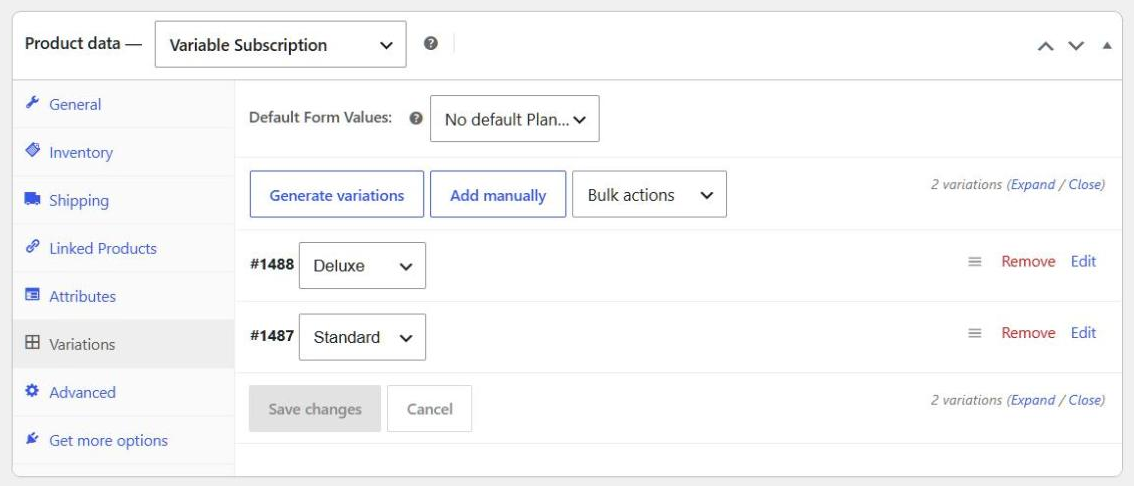
Step 3: Set up each plan as a variation
For a Variable Subscription, add an attribute such as “Plan” with your plan names. Next, create a variation for each plan and give each one its own price. The wishlist builds its dropdown from these variations, so every plan needs its own.
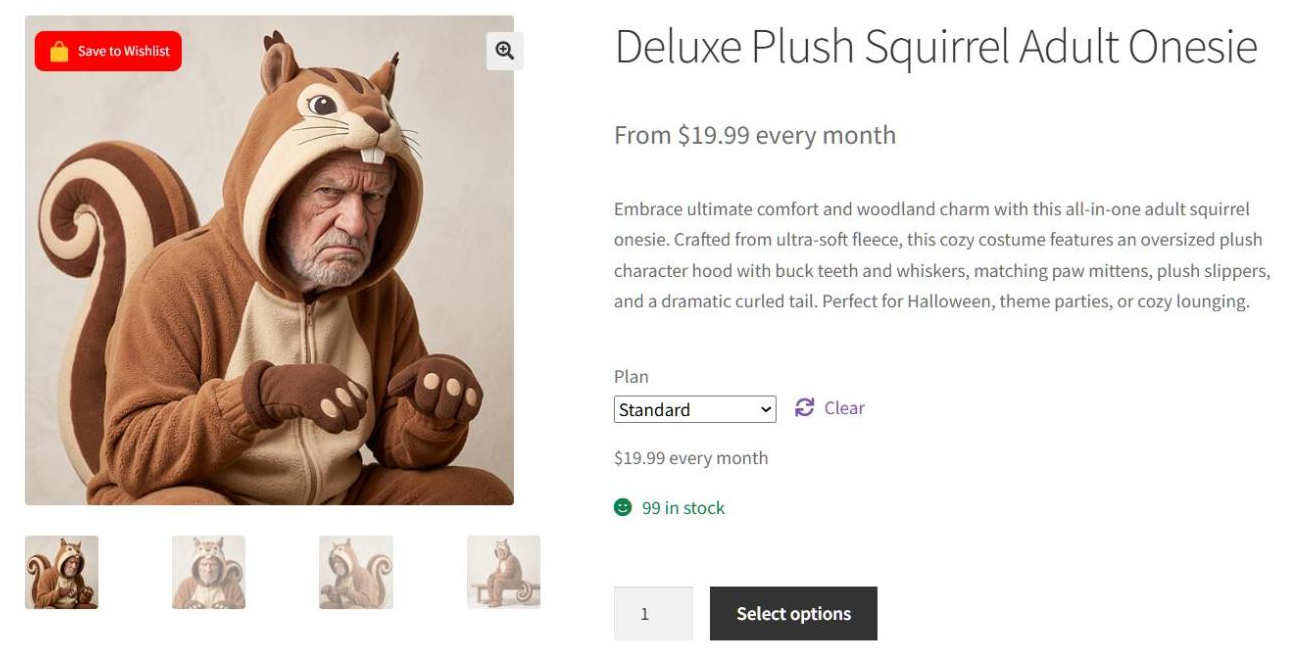
Step 4: Save a subscription to a wishlist
Open the product on your storefront and click the wishlist button. Then go to the wishlist page and check the row. You should see the recurring price, and a variable subscription should show its plan dropdown.
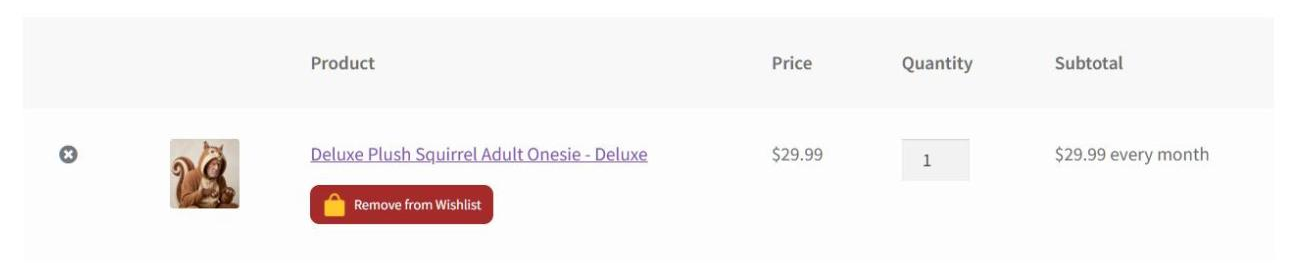
Step 5: Move a plan to the cart
Choose a plan on the row and click Add to Cart. Open the cart and confirm the line shows the plan you picked. If you sell simple subscriptions too, check that one also lands in the cart with a single click.
How To Check The Integration Is Working
Run this quick test after setup, after any update, or after you add a new WooCommerce subscription plan:
- Save a Variable Subscription product to a wishlist.
- Open the wishlist page and confirm the row shows a plan dropdown and a recurring price.
- Switch to a different plan and watch the Subtotal change to match it.
- Click Add to Cart and confirm the cart names the plan you chose.
If the row shows no plan dropdown, update SaveTo Wishlist to 1.1.8 or later first. Then make sure Flexible Subscriptions is active and the product type is Variable Subscription. Finally, check the product has at least one plan set up as a variation.
5 Ways To Turn Saved Subscriptions Into Sign-Ups
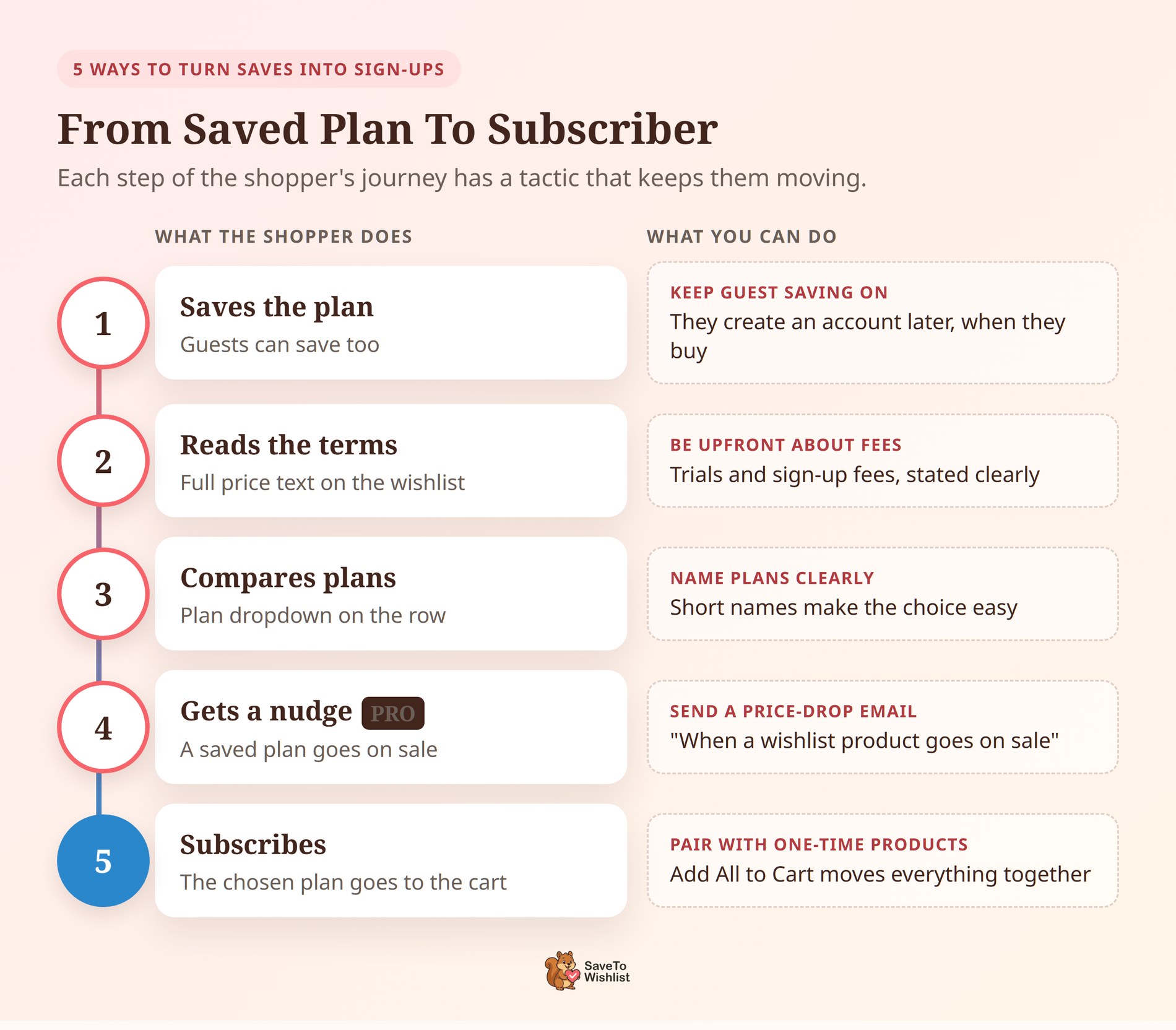
Getting a WooCommerce subscription onto a wishlist is the first step. These tactics can help more of those saves turn into paying subscribers.
Be upfront about trials and fees
The wishlist shows the full price text from Flexible Subscriptions, including any trial or sign-up fee. So write those terms clearly in the product itself. Shoppers who return to their wishlist then see exactly what they’re agreeing to, with no surprises at checkout.
Name plans so they’re easy to compare
Plan names show up in the dropdown on every wishlist row. Short, clear names like “Starter”, “Standard”, and “Family” make the choice easy. Vague names push shoppers back to the product page to work out the difference.
Email shoppers when a saved plan goes on sale
With SaveTo Wishlist Pro, you can build a wishlist automation using the When a wishlist product goes on sale trigger. It runs when you give a subscription, or one of its plans, a sale price lower than its regular price. That’s a natural moment to nudge a hesitant shopper, as our guide to wishlist price drop alerts explains.
Keep guest saving switched on
Flexible Subscriptions requires shoppers to create an account when they buy a subscription. However, saving to a wishlist doesn’t. Letting guests save plans means they can start deciding now and create an account when they buy. Guest wishlists are on by default, so leave the Disable Guest Wishlist setting turned off.
Pair subscriptions with one-time products
A shopper might save a coffee subscription alongside a grinder, or a pet food box with a new bed. Add All to Cart moves everything across together, each subscription with its chosen plan. Customers who keep multiple wishlists can even build a separate list for each occasion.
None of these needs much setup. Pick one or two that suit your store and test them for a few weeks.
Things To Know Before You Switch It On
A few details about how the wishlist handles a WooCommerce subscription are worth knowing, so nothing catches you off guard:
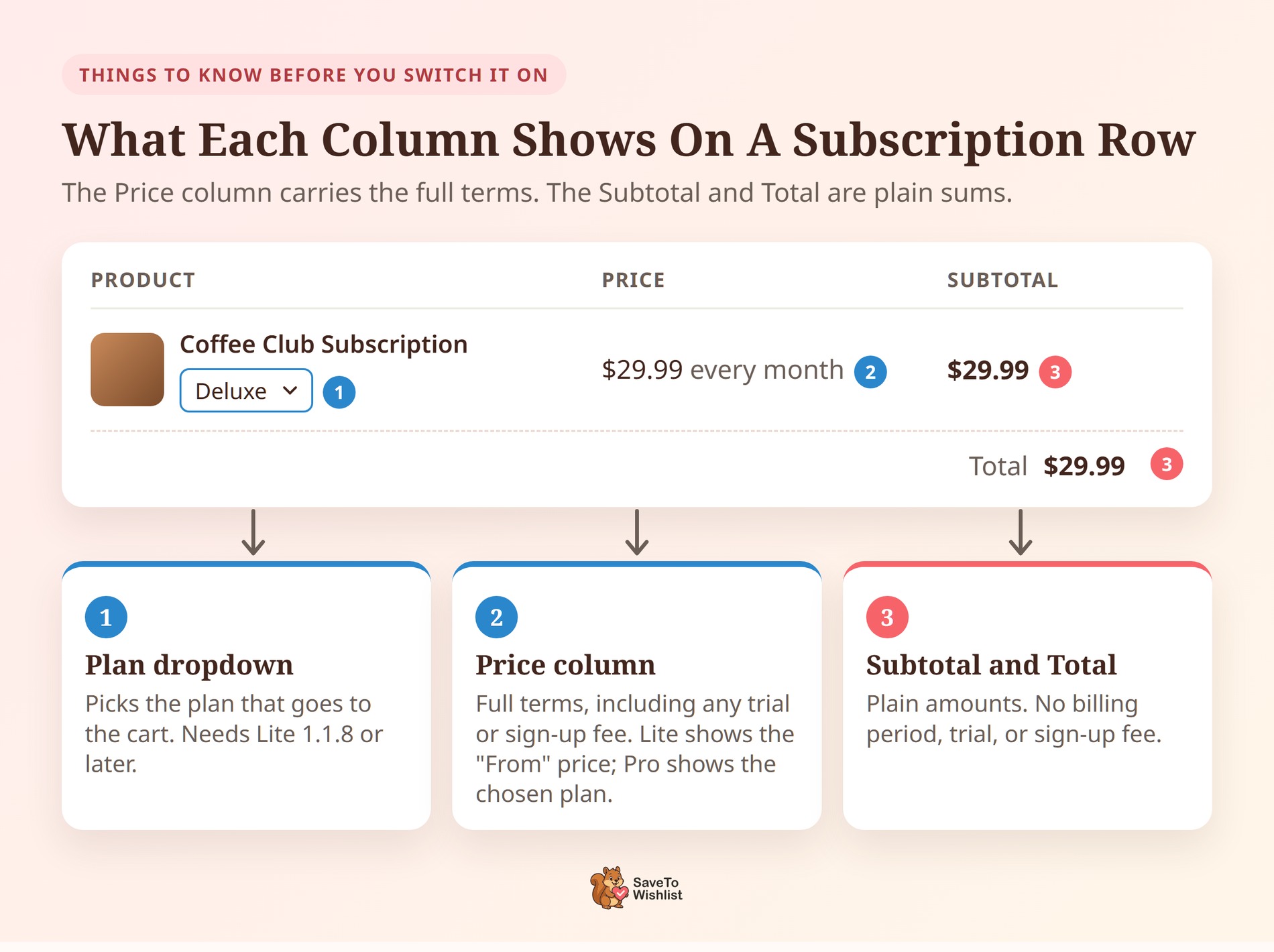
- Subtotals show plain amounts: The Subtotal column and wishlist Total add each plan’s recurring price as a plain number. They leave out the billing period, the free trial, and the sign-up fee. The Price column shows the full terms.
- The starting price shows without Pro: In the free version, a Variable Subscription row’s Price column shows “From” pricing. The Subtotal still follows the chosen plan.
- Price-drop emails need a sale price: The Pro sale trigger runs on a sale price lower than the regular price. Lowering the regular price without a sale price doesn’t start it, and neither does changing only the billing period.
- Other products are unaffected: The integration only changes how Variable Subscription products behave. Everything else on the wishlist works as before.
Frequently Asked Questions
Do I need SaveTo Wishlist Pro for the Flexible Subscriptions integration?
No. The integration is part of SaveTo Wishlist Lite, the free version. Pro adds the chosen plan’s price in the Price column and price-drop emails through wishlist automations.
Can shoppers save a WooCommerce subscription to a wishlist?
Yes. Both Flexible Subscriptions product types, Subscription and Variable Subscription, save like any other product. Shoppers see the subscription terms on their wishlist and can switch plans there.
Do simple subscriptions need SaveTo Wishlist 1.1.8?
No. Simple subscription products worked on the wishlist in earlier versions too. Version 1.1.8 adds the plan dropdown and the correct cart behavior for Variable Subscription products.
Why doesn’t the Subtotal show the billing period or sign-up fee?
Those columns are for adding things up, so they use each plan’s price as a plain number. For the full terms, including the billing period, trial, and sign-up fee, look at the Price column.
Can guests save subscription plans?
Yes. Guests get the same plan dropdown as logged-in customers. They’ll still create an account at purchase time, since Flexible Subscriptions needs one for every subscription order.

Ready To Add Wishlists To Your Subscriptions?
Subscriptions ask shoppers for a bigger commitment, so many of them need time. With SaveTo Wishlist and Flexible Subscriptions, they can save a plan, compare the terms, and come back when they’re ready.
Here’s what we covered:
- Why subscription shoppers hesitate, and how a wishlist gives them a low-pressure next step
- What the integration shows on the wishlist, including the plan picker added in 1.1.8
- How to set it up in five steps and check that it works
- Five ways to turn saved subscriptions into sign-ups
- The limits worth knowing before you switch it on
If you’re ready to try it, install both plugins and save one of your WooCommerce subscription products to a wishlist. For more detail, read our Flexible Subscriptions knowledge base guide.
New to wishlists? Download the free version of SaveTo Wishlist and give it a whirl. You can upgrade to SaveTo Wishlist Pro when you want automations and price-drop emails.



