


 Reviewed by
 Which products are shoppers saving but not buying? On most stores, answering that takes a trip through wp-admin, a few reports, and often a spreadsheet.
With WooCommerce MCP, you can ask Claude or ChatGPT instead. It reads your wishlist data and answers in plain English.
SaveTo Wishlist Lite 1.1.8 adds an AI / MCP settings tab that walks you through the setup. It connects your store through the free StoreAgent plugin. Plus, it gives you one switch to allow or block AI changes to your wishlists.
Below, I’ll show you what the tab does and how to set it up. Then I’ll share six wishlist jobs worth handing to AI, and how to keep its changes safe.
Jump to:
- What WooCommerce MCP Means For Your Wishlists
- What The AI / MCP Settings Tab Does
- What You Need Before You Start
- How To Connect SaveTo Wishlist To Claude Or ChatGPT
- 6 Wishlist Jobs To Hand Your AI Assistant
- How To Keep AI Changes Safe
- Troubleshooting The AI / MCP Tab
- Frequently Asked Questions
- Ready To Run Your Wishlists From A Chat?
What WooCommerce MCP Means For Your Wishlists

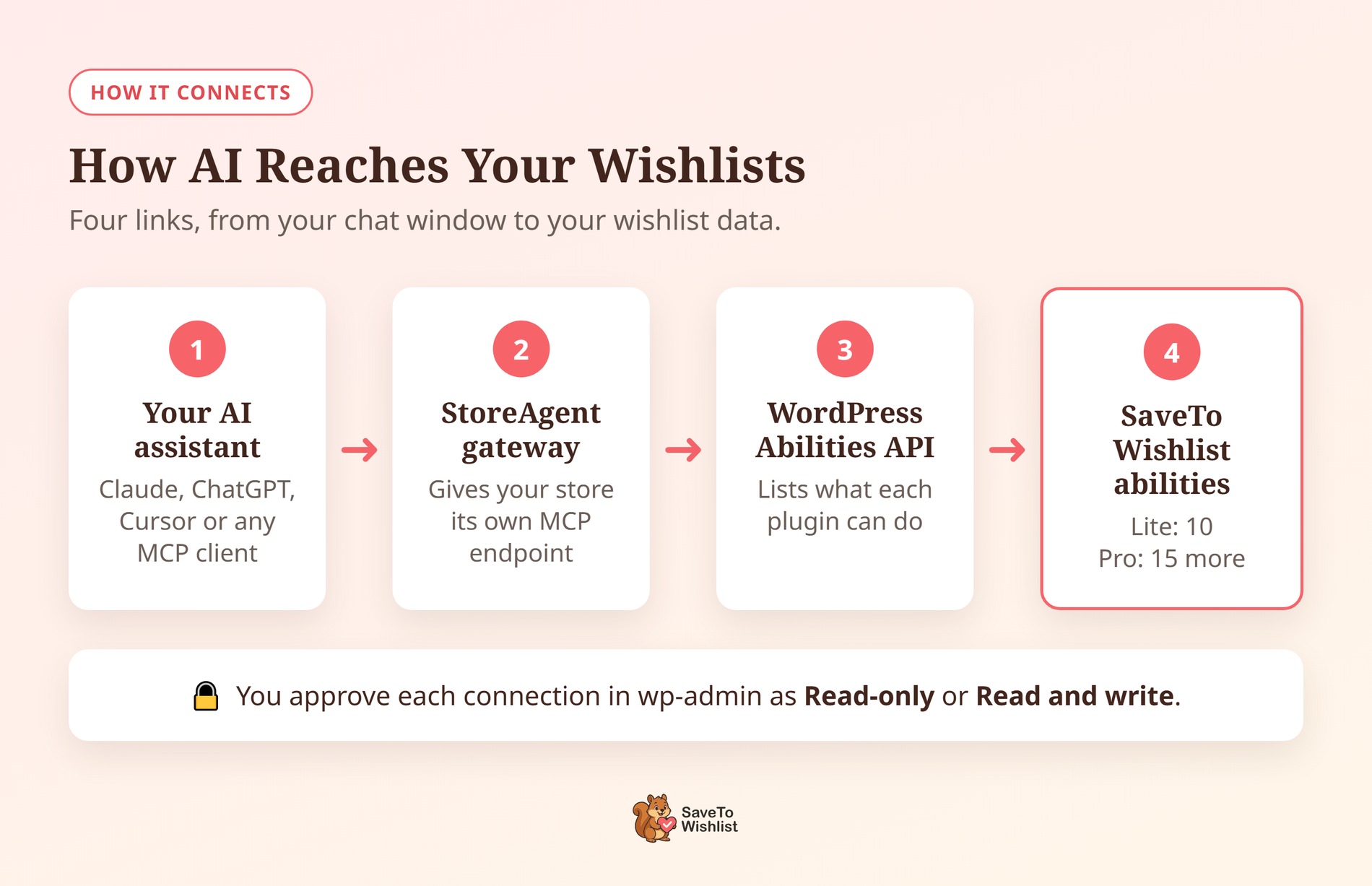
MCP stands for Model Context Protocol. It’s an open-source standard that connects AI apps like Claude and ChatGPT to outside systems, like your store.
For a WooCommerce store, the outside tools are called abilities. An ability is one action, like “list wishlists” or “update the wishlist button”. Plugins register their abilities with the WordPress Abilities API. Then an MCP server hands them to your AI assistant.
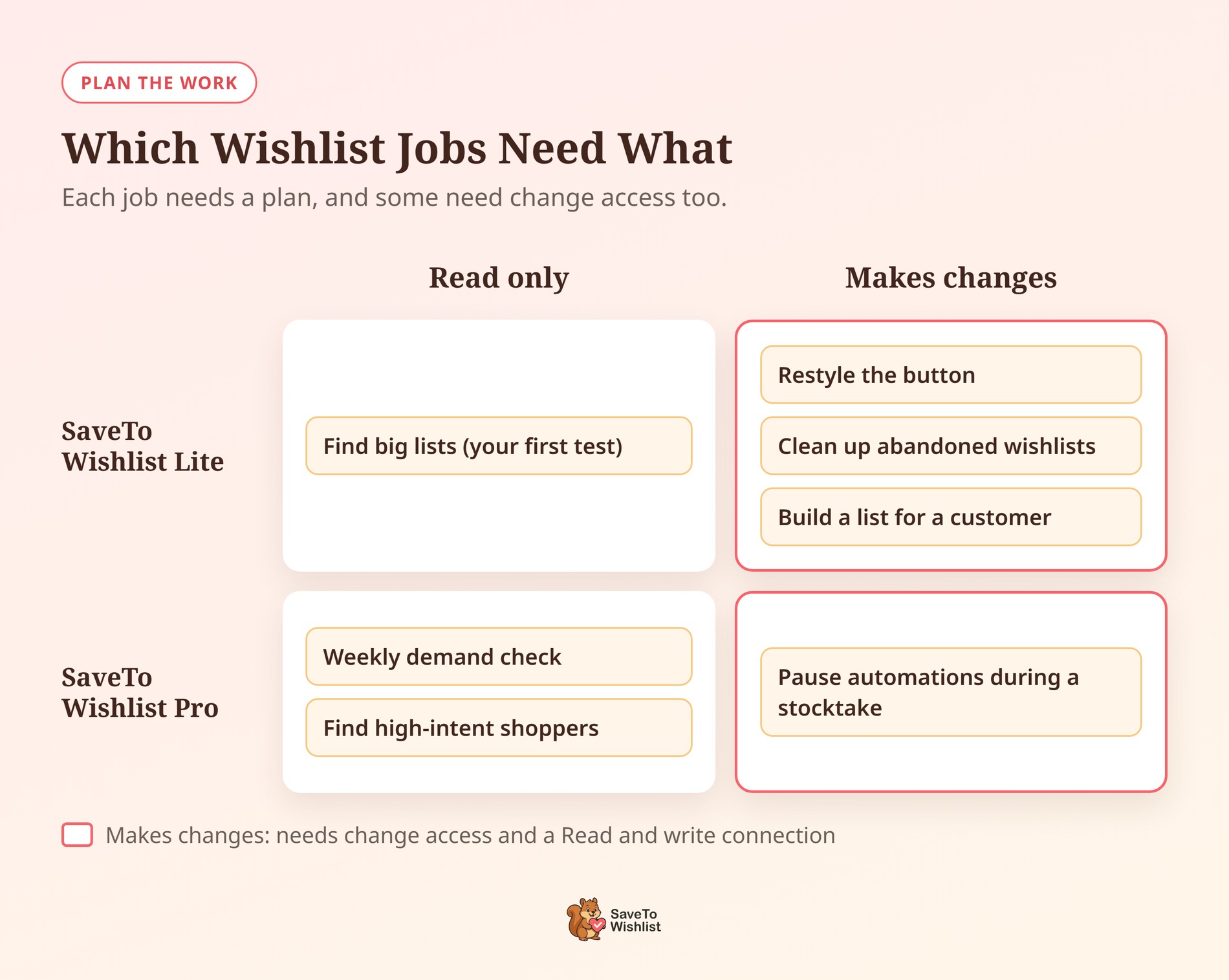
SaveTo Wishlist Lite registers 10 abilities. Three only read data, while seven make changes. SaveTo Wishlist Pro adds 15 more for analytics, customers, automations and sharing.
StoreAgent is the bridge between the two. Its WooCommerce MCP server gives your store its own address that Claude, ChatGPT and other MCP clients can connect to.
Why does this matter for wishlists? Wishlist data is full of buying signals, like which products people want but haven’t bought. However, signals only help if someone looks at them. When the question takes one sentence instead of a round of reports, it’s easier to ask it every week.
What The AI / MCP Settings Tab Does
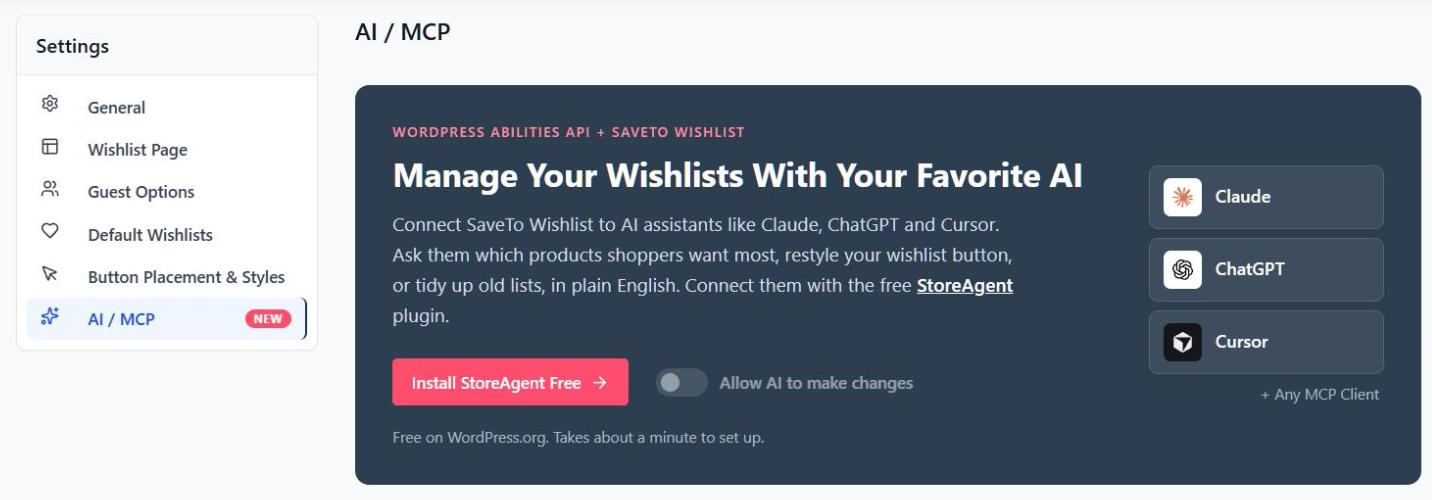
You’ll find the tab under SaveTo Wishlist > Settings > AI / MCP, right after Button Placement & Styles. It has no Save button. Instead, everything on it saves the moment you click.
A setup button that knows where you are
We built the tab to check your WooCommerce MCP setup in StoreAgent and show one button for your next step. That way, you never have to guess what’s missing.
| Your StoreAgent setup | What the button says |
|---|---|
| Not installed | Install StoreAgent Free |
| Not installed, and plugins can’t be installed from your dashboard | Get StoreAgent on WordPress.org |
| Installed but not active | Activate StoreAgent |
| Active, but older than 1.1.9 | Update StoreAgent |
| Active, but not connected or MCP is off | Finish StoreAgent Setup |
| Connected with MCP on | Manage StoreAgent Connection |
One switch for AI changes
The Allow AI to make changes toggle adds every SaveTo Wishlist ability that makes changes to StoreAgent’s allowlist. That covers Lite and Pro in one click, so you don’t have to switch each one on in StoreAgent.
Turn it off, and every SaveTo Wishlist ability leaves the allowlist again. Other plugins’ abilities stay as they are. Meanwhile, read-only abilities aren’t affected either way.
Ready-made prompts to copy
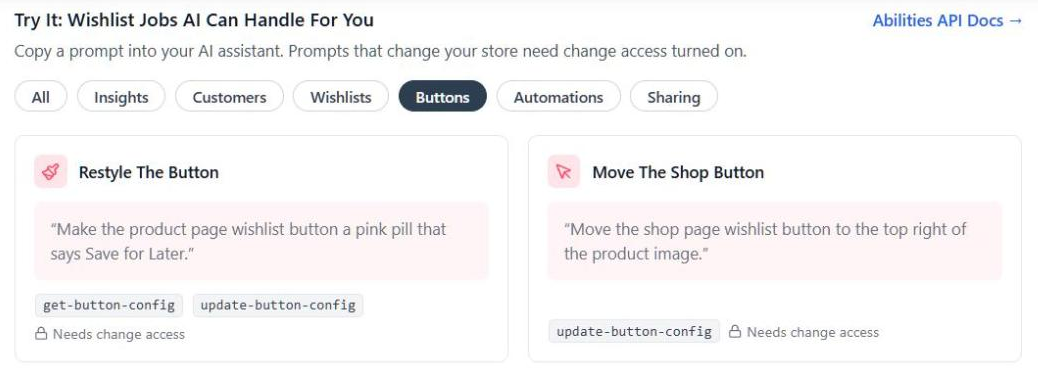
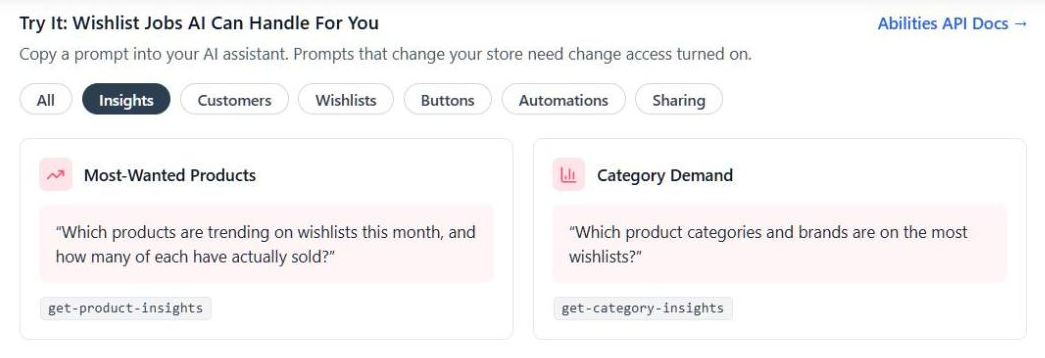
The Try It: Wishlist Jobs AI Can Handle For You section shows 12 prompt cards. Filter them by Insights, Customers, Wishlists, Buttons, Automations or Sharing, then copy one into your assistant.
Cards that need Pro carry a Pro badge when Pro isn’t active. Plus, cards that change your store show Needs change access while the toggle is off.
Your store’s MCP endpoint
Once StoreAgent is connected with MCP on, the tab shows your store’s WooCommerce MCP endpoint with a Copy button. That’s the address you paste into your AI assistant.
What You Need Before You Start
- SaveTo Wishlist Lite 1.1.8 or later: The tab ships in the free plugin. Lite includes its own copy of the Abilities API, so there’s nothing extra to install.
- SaveTo Wishlist Pro 1.0.2 or later (optional): Only if you want the 15 Pro abilities.
- StoreAgent 1.1.9 or later: The StoreAgent plugin is free. WooCommerce MCP comes with every plan, including the free Lite plan.
- An AI plan that supports custom connectors: Claude Free, Pro, Max, Team or Enterprise, or a paid ChatGPT plan. Claude Free allows one custom connector.
- An administrator account: You need one to set this up and to use the Lite abilities.
How To Connect SaveTo Wishlist To Claude Or ChatGPT
Most of the WooCommerce MCP setup is clicking through StoreAgent’s connection steps. Here’s the full path, from the tab to your first question.
Step 1: Open the AI / MCP tab
Update SaveTo Wishlist Lite to 1.1.8 or later. Then go to SaveTo Wishlist > Settings and open AI / MCP.
Step 2: Install or activate StoreAgent
Click Install StoreAgent Free or Activate StoreAgent. Then the tab does it in place and reloads, so you stay on the same screen.
Step 3: Connect StoreAgent and turn on MCP
Click Finish StoreAgent Setup. If it asks, connect your StoreAgent account.
Then go to StoreAgent > Settings > MCP, open the General sub-tab, and switch on Enable MCP for this store.
Step 4: Add your store to your AI assistant
Back on the AI / MCP tab, copy your endpoint. In Claude, go to Customize > Connectors, click + Add, then Add custom connector. Paste the endpoint as the server URL.
By contrast, ChatGPT uses a custom MCP server. StoreAgent’s MCP connection guide walks through both assistants.
Step 5: Approve the connection in wp-admin
This is the step people miss. Approval doesn’t happen inside Claude or ChatGPT. Instead, your store opens its own approval page in wp-admin.
Pick Read-only the first time, then choose Approve. That said, you can reconnect with more access later.
Step 6: Ask a read-only question
Start a new chat and switch on your store’s connector. In ChatGPT, type @ and pick it. Then try this:
“List every public wishlist with 10 or more items, newest first.”
If you get a list back, you’re connected. Since read-only questions can’t change anything, they’re the safe way to test.
Step 7 (optional): Let AI make changes
Turn on Allow AI to make changes on the AI / MCP tab. The toggle saves straight away.
Next, check your connection’s scope on StoreAgent’s Connections sub-tab. A Read-only connection never sees abilities that make changes. So to upgrade, choose Revoke on its row, then approve it again as Read and write.
6 Wishlist Jobs To Hand Your AI Assistant
Setup is the easy part. The value of WooCommerce MCP comes from the questions you ask every week. Here are six jobs that put wishlist data to work.
Run a weekly demand check before you reorder
Wishlists show what shoppers want before they buy. As a result, they’re useful when you plan stock.
“Which products are trending on wishlists this month, and how many of each have actually sold?”
A product with lots of saves and few sales may be priced too high. Meanwhile, a product with lots of saves and strong sales may need a bigger reorder. This uses Pro’s wishlist analytics.
Find your high-intent shoppers
Some customers save a lot but buy nothing. They already like your products, so I’d treat them as warm leads.
“Which customers have 5 or more items saved but haven’t bought any of them yet?”
Then use the answer to plan a targeted offer or a wishlist automation. This one needs Pro too.
Restyle the button for a sale in one sentence
Seasonal sales often call for a new look. However, changing button text and colors usually means a trip to the button settings.
“Make the product page wishlist button a pink pill that says Save for Later.”
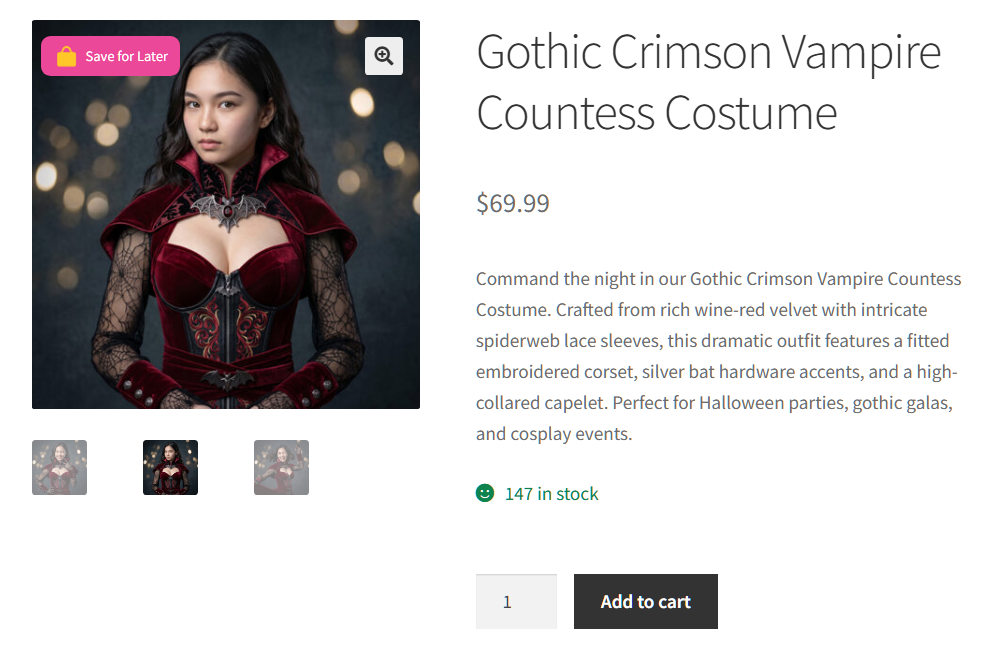
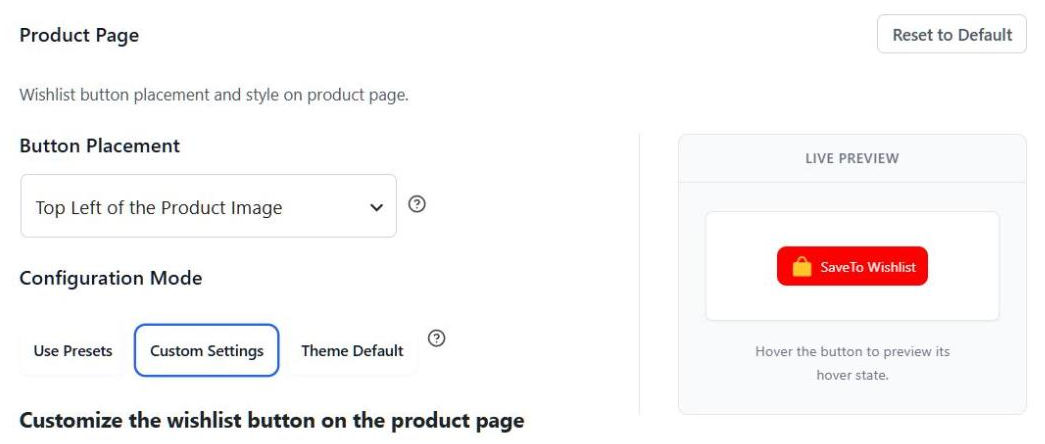
This works on Lite with change access on. That said, the style and colors only change when that button’s Configuration Mode is Custom Settings, which is the default. On Use Presets, AI can change the label but not the look. Afterward, ask the assistant to read the button settings back, so you can confirm what changed.
Clean up abandoned wishlists
Old, empty draft lists clutter your wishlist admin and make real lists harder to find.
“Find draft wishlists with no items that haven’t been updated in 6 months, then delete them.”
To stay safe, ask for the list first, check it, then ask for the delete. Deleting can’t be undone. Still, it skips any wishlist that is a customer’s only one.
Build a list for a customer
Do you help shoppers by phone, chat or email? Build their shortlist for them, so it’s waiting in their account.
“Create a Holiday Picks wishlist for customer #482 and add products #1290 and #1304.”
In practice, use customer and product IDs. No ability finds a product by its name, so IDs keep the request exact.
Pause automations during a stocktake
Back-in-stock emails can go out while you count and adjust inventory, which you may not want. Plus, pausing them one by one takes time.
“Pause every active back-in-stock automation, then list the ones you paused so I can turn them back on later.”
The list matters. No ability turns automations back on at a set time, so you’ll restart them yourself. This one needs Pro.
Start with one read-only job, like the demand check. Once you trust the answers, add the jobs that make changes.
How To Keep AI Changes Safe
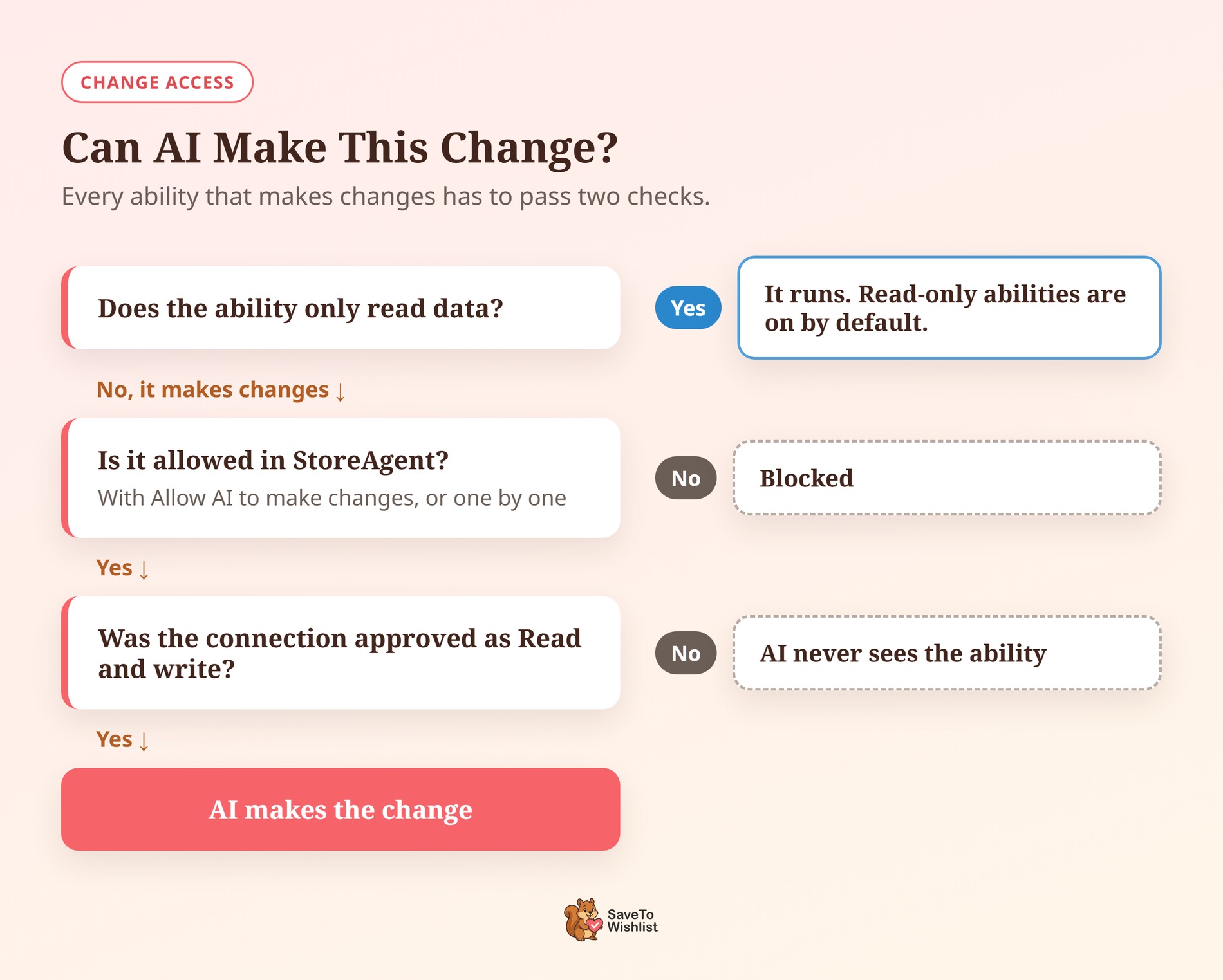
With change access, WooCommerce MCP lets AI edit real wishlists, button settings and automations. So a few habits keep it under control.
- Start read-only: Stick to questions for a while before you allow changes. You’ll learn how your assistant reads your data.
- Watch the repeat actions: Create Wishlist, Share Wishlist by Email, Create Automation and Trigger Manual Notification run again every time. Ask twice, and a customer may get two emails.
- Expect your automations to run: Items added by AI fire the same hooks as the storefront button. Your CRM and Pro automations react the same way they would to a shopper.
- Treat store content as untrusted: Your assistant reads reviews, notes and descriptions. Someone else could plant an instruction in that text, so check any change you didn’t ask for.
- Remember it’s store-wide: The toggle applies to every AI client connected through StoreAgent. Revoke any connection you no longer use.
Also, StoreAgent plans come with AI tasks, and MCP use can draw on them. Check how your plan counts them. The free Lite plan includes 200 one-time AI tasks, and paid plans add a monthly allowance.
Troubleshooting The AI / MCP Tab
The toggle is greyed out
The toggle stays disabled until StoreAgent 1.1.9 or later is active and connected. Until then, follow the button on the tab. You’re set when it reads Manage StoreAgent Connection.
The toggle shows off, but some abilities are on
The toggle only shows on when every SaveTo Wishlist ability that makes changes is allowed. So if you switched on only a few in StoreAgent, it shows off. Turning it off removes those too.
The assistant says it can’t make changes
Check the Scope column on StoreAgent’s Connections sub-tab. If it reads Read only, revoke the connection and approve it again as Read and write.
You see “The StoreAgent MCP allowlist is full”
StoreAgent caps how many abilities its WooCommerce MCP allowlist can hold. Remove some entries in StoreAgent > Settings > MCP, then try the toggle again.
A shop manager can’t use the Lite abilities
In Lite 1.1.8, the 10 Lite abilities need an administrator account. However, shop managers can use the 15 Pro abilities. So connect with an administrator account if you need both.

Frequently Asked Questions
Do I need SaveTo Wishlist Pro to use WooCommerce MCP with my wishlists?
No. The AI / MCP tab and 10 abilities come with the free SaveTo Wishlist Lite plugin. SaveTo Wishlist Pro adds 15 abilities for analytics, customers, automations and sharing.
Does StoreAgent cost anything?
The plugin is free on WordPress.org, and MCP is included on every StoreAgent plan, including the free Lite plan. The Lite plan’s 200 AI tasks are one-time. Paid plans include a monthly allowance.
Which AI assistants work with it?
Claude and ChatGPT both connect through StoreAgent. Plus, Cursor and other MCP clients can connect too, using the same endpoint.
Can AI change my store without my permission?
Not by default. Read-only abilities only look at data. Abilities that make changes stay off until you allow them, with the toggle or one by one in StoreAgent. They also need a Read and write connection.
Does turning the toggle off affect other plugins?
No. It only removes SaveTo Wishlist abilities from StoreAgent’s allowlist. Abilities from WooCommerce and other plugins keep their current settings.
Ready To Run Your Wishlists From A Chat?
Your wishlists already hold what shoppers want. WooCommerce MCP lets you ask about it in plain English.
- Connect StoreAgent from the AI / MCP tab.
- Test with a read-only question first.
- Pick one weekly wishlist job to hand over.
- Allow changes only when you need them.
For every ability and who can use it, see our AI abilities guide. Then update SaveTo Wishlist Lite to 1.1.8 and open the AI / MCP tab to get started.



