

 Reviewed by
 You built a product grid with Ultimate Store Kit, and it looks great. The cards have hover icons, sale badges and a quick Add to Cart button.
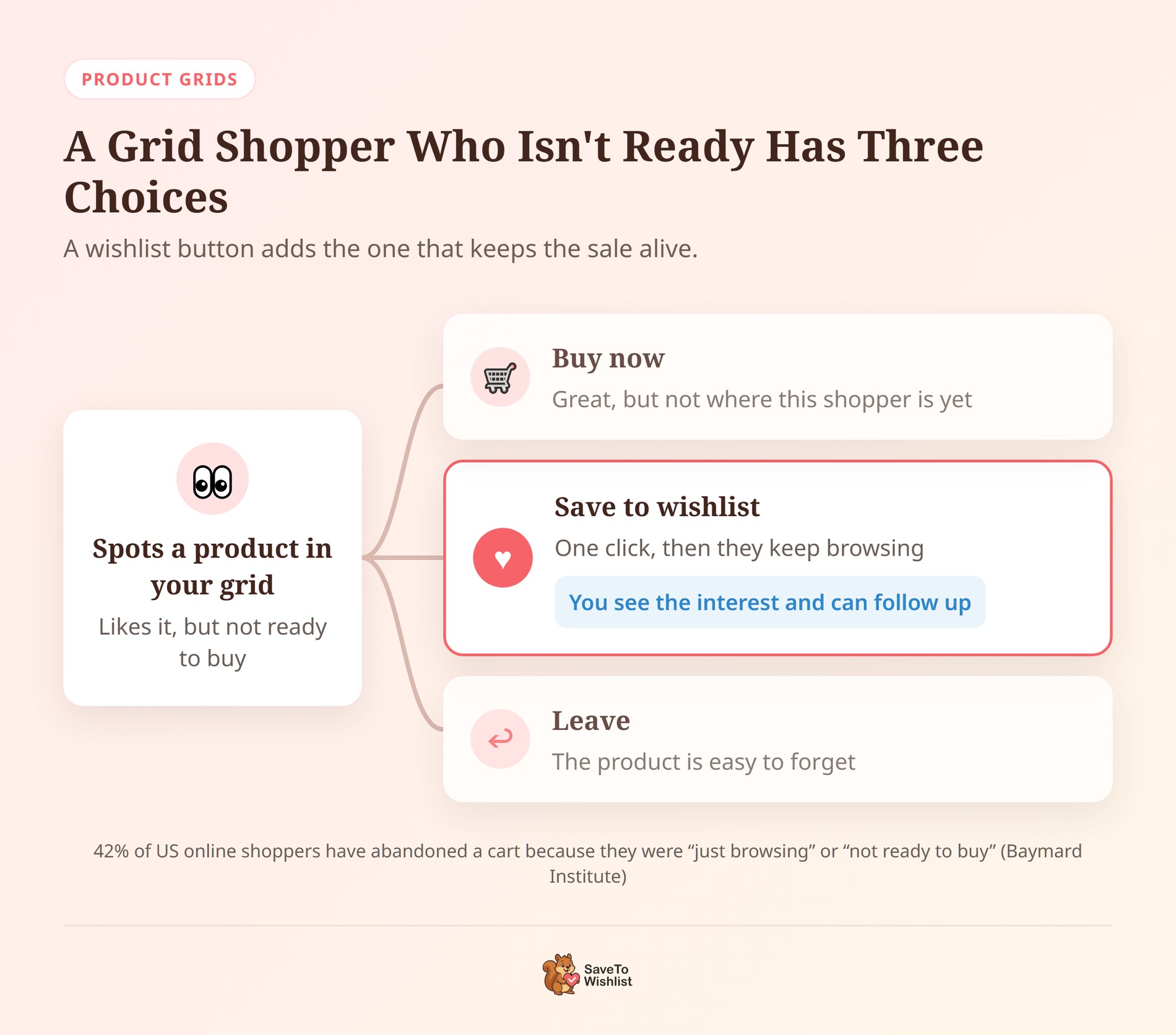
But a shopper who likes a product and isn’t ready to buy has two choices: buy now or leave. Ultimate Store Kit draws its own product cards. So wishlist buttons that rely on WooCommerce’s shop hooks never show up on them.
The free SaveTo Wishlist Lite plugin now adds its button to those cards for you. We tested it on our demo store. Below, I’ll show you how to set it up, check it works, and turn the saves into sales.
Jump to:
- Why Your WooCommerce Product Grids Need A Wishlist Button
- What The Ultimate Store Kit Integration Does
- What You Need Before You Start
- How To Add Wishlist Buttons To Ultimate Store Kit Grids
- How To Check The Integration Is Working
- 5 Ways To Turn Product Grid Saves Into Sales
- Things To Know Before You Switch It On
- Frequently Asked Questions
- Ready To Add Wishlist Buttons To Your Ultimate Store Kit Grids?
Why Your WooCommerce Product Grids Need A Wishlist Button
A wishlist button catches the shoppers who like a product but aren’t ready to buy. That matters most on a WooCommerce product grid. Shoppers use grids on your homepage, category pages and landing pages to scan many products at once. As a result, the grid is often where they first spot a product they want.
That group is larger than it looks, and Baymard Institute’s research shows it. 42% of US online shoppers have abandoned a cart because they were “just browsing” or “not ready to buy”. And those are only the shoppers who got as far as the cart.
Here’s where a wishlist button helps: it gives them a third choice. They save the product in one click and keep browsing. Meanwhile, you learn which products they want, and that’s what makes a wishlist worth having on your store.
So the button earns its place where shoppers browse the most. On an Ultimate Store Kit store, that’s the product grids and carousels.
What The Ultimate Store Kit Integration Does
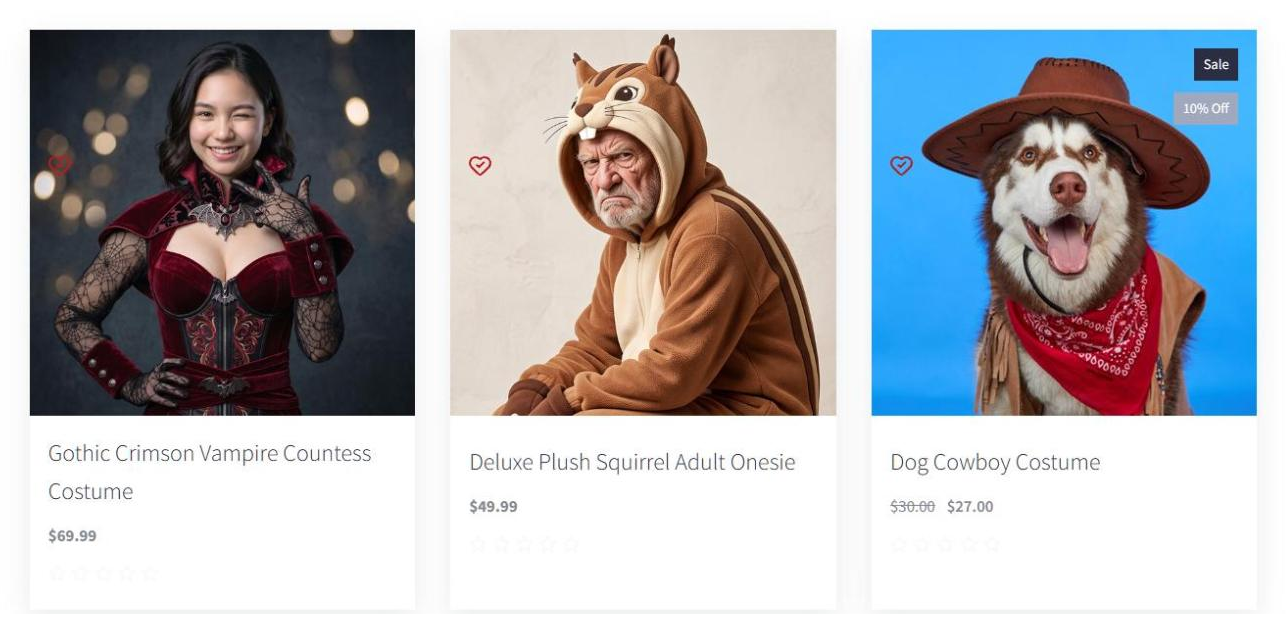
SaveTo Wishlist Lite 1.1.8 puts a wishlist button on every Ultimate Store Kit product card, with no widget to add.
Ultimate Store Kit by BdThemes is an Elementor add-on with 3,000+ active installs on WordPress.org. It adds widgets for WooCommerce product grids, carousels, sliders and accordions.
However, each of those widgets runs its own product query and prints every card from its own template. Because of that, they skip the standard WooCommerce shop hooks that wishlist buttons attach to. The integration closes that gap. Here’s what it does:
- Adds the button to every card: Each card gets one Save to Wishlist button beside its Add to Cart action. There’s no widget to drag into each card.
- Prevents double hearts: Ultimate Store Kit has its own wishlist icon. While a grid’s own Wishlist switch is on, SaveTo Wishlist hides its button, so a card never shows two hearts.
- Matches the card’s icons: The button shows as an icon without text, so it fits beside the card’s other icons.
- Saves the right product: Each button carries its own card’s product, so a click saves the item the shopper sees.
- Leaves other grids alone: A classic WooCommerce product loop on the same page keeps its normal single button.
The button shows on the Ultimate Store Kit widgets that have their own Add to Cart action. That covers the Glossy, Shiny and Florence grids and carousels. It also covers the Heaven, Mentor and Showcase sliders, plus Product Accordion, Product Image Accordion and Image Hotspot.
What You Need Before You Start
You need three plugins, and all of them have free versions:
- SaveTo Wishlist Lite, version 1.1.8 or later: The integration ships in the free plugin. If you use SaveTo Wishlist Pro, it runs on top of Lite, so you get it too.
- Elementor: The free version is enough.
- Ultimate Store Kit: The free plugin from WordPress.org includes the Glossy Grid we used in our tests.
Our developers verified the integration with Elementor 4.2.4 and Ultimate Store Kit 3.1.4. On top of that, we tested it on our demo store with Ultimate Store Kit 4.0.0.
How To Add Wishlist Buttons To Ultimate Store Kit Grids
The integration switches itself on when it detects Ultimate Store Kit. However, you need to flip one switch in each grid before the button shows. Here are the steps.
Step 1: Install or update the plugins
Go to Plugins > Installed Plugins and update SaveTo Wishlist Lite to 1.1.8 or later. New to the plugin? Our quick start guide covers the first setup. Then make sure Elementor and Ultimate Store Kit are installed and active.
Step 2: Add or open an Ultimate Store Kit grid
Open a page in Elementor and search the widget panel for a grid, such as Glossy Grid. Drag it onto the page, then pick your products and layout. Already have a grid? Then click it to open its settings.
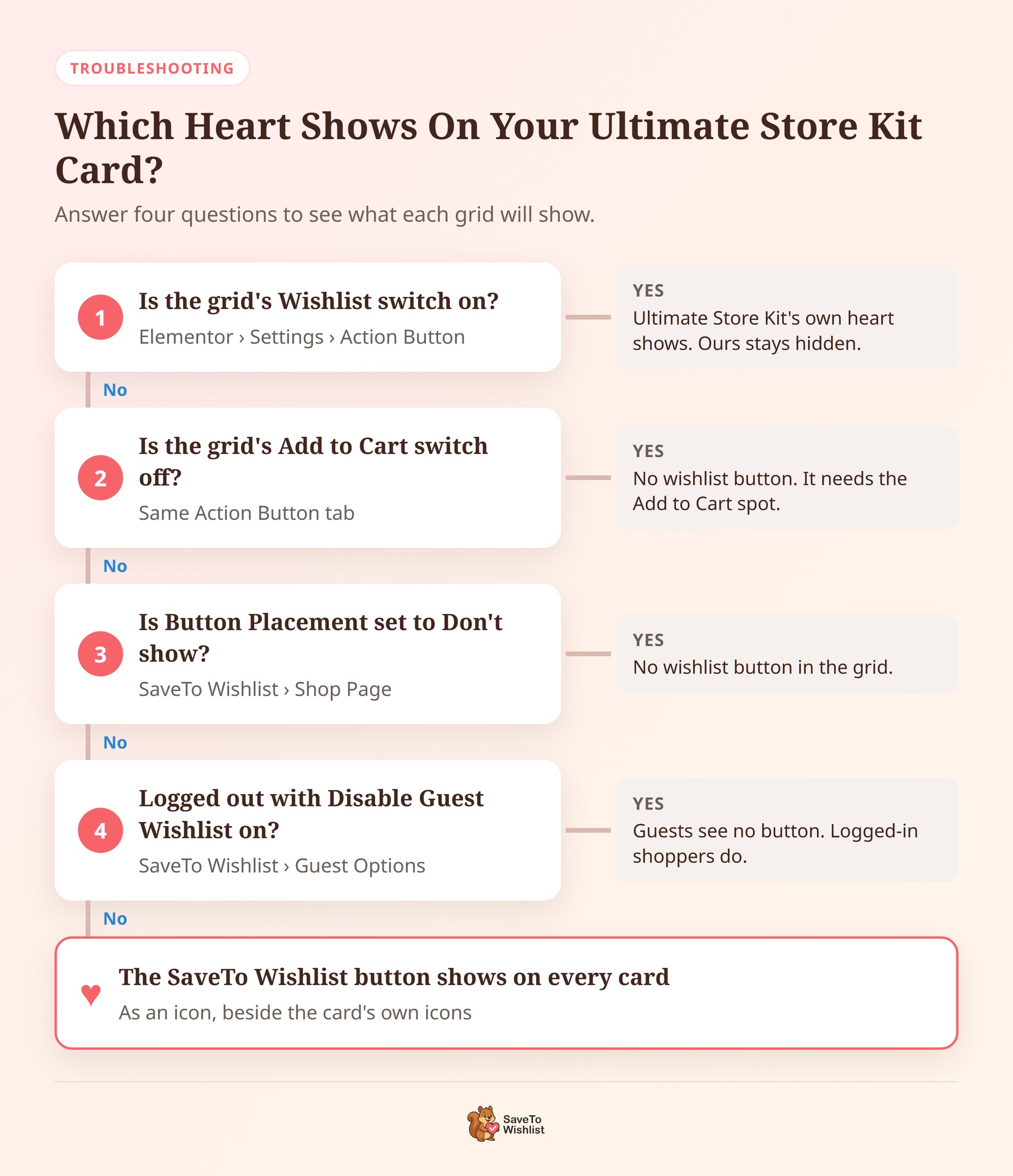
Step 3: Turn off the grid’s own Wishlist switch
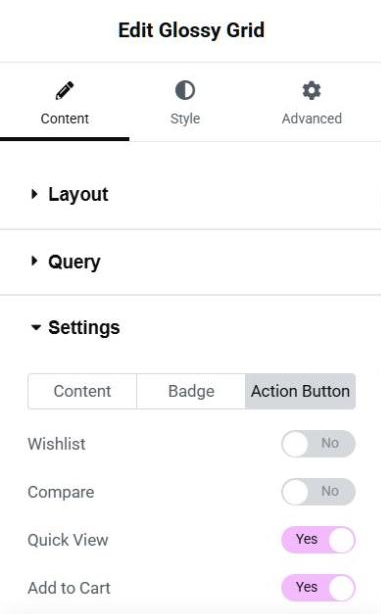
This step decides whether the button shows at all. With the grid selected, go to the Content tab and open the Settings section. Then open the Action Button tab:
- Turn the Wishlist switch off. That hides Ultimate Store Kit’s own heart and lets the SaveTo Wishlist button through.
- Keep the Add to Cart switch on. The button sits next to the card’s Add to Cart action, so without it there’s nowhere to put the button.
After that, click Publish or Update. Each grid has its own switches, so repeat this for every grid where you want the SaveTo Wishlist button.
Step 4: Choose where the button sits
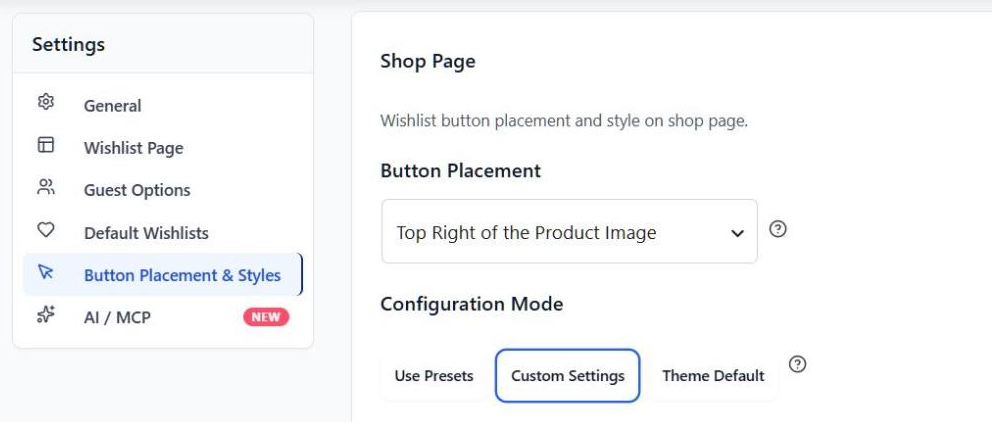
Go to SaveTo Wishlist > Settings > Button Placement & Styles. In the Shop Page section, find Button Placement. Ultimate Store Kit cards read this setting a little differently from your shop page:
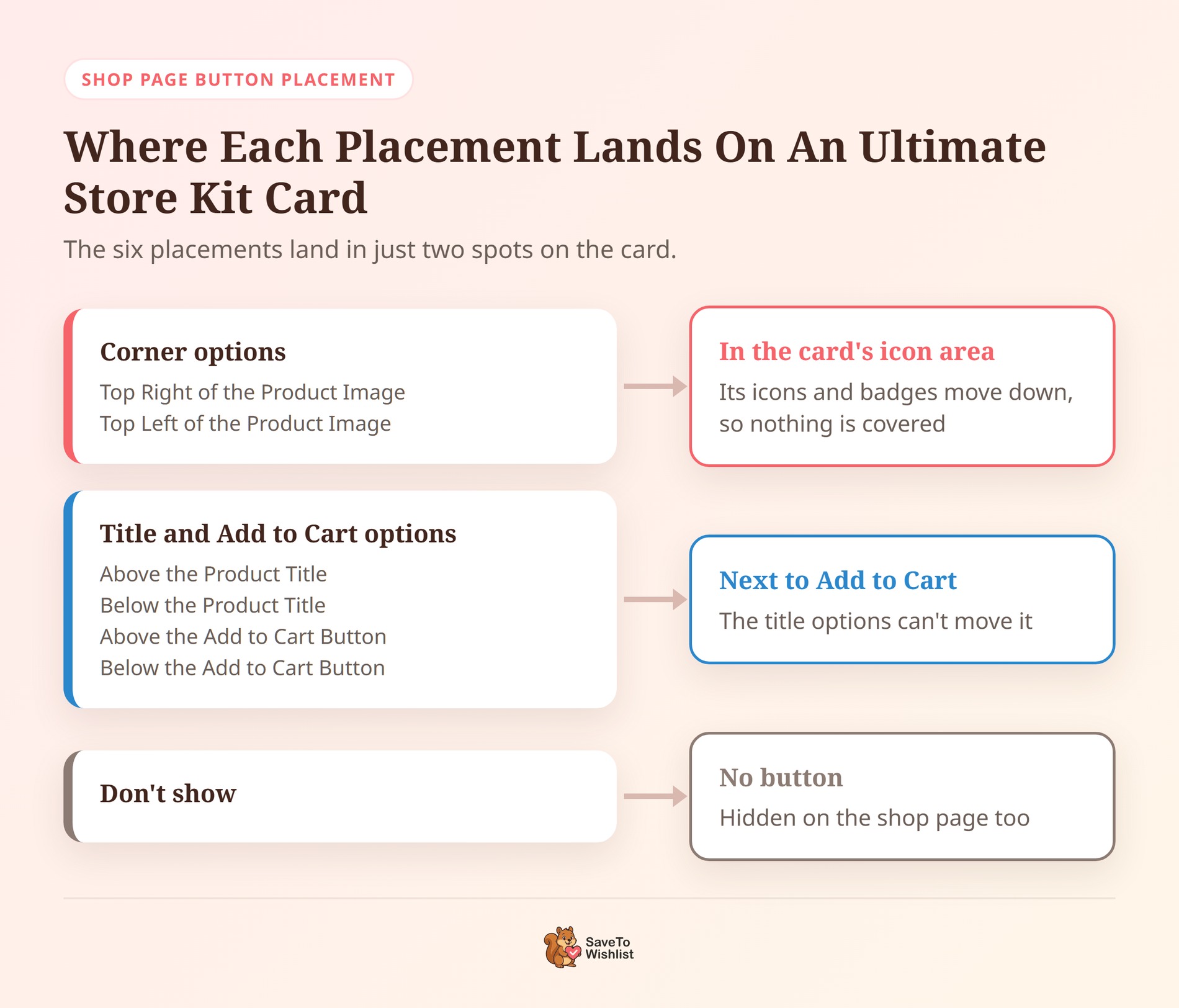
- Top Right or Top Left of the Product Image: The button joins the card’s icons on the image. It moves Ultimate Store Kit’s own icons and sale badges down a little, so nothing gets covered.
- The title and Add to Cart options: The button shows next to the card’s Add to Cart action. That covers Above the Product Title and Below the Product Title. It also covers Above the Add to Cart Button and Below the Add to Cart Button. Ultimate Store Kit offers only that one spot, so the title options can’t move it.
- Don’t show: Hides the button on your shop page and in your Ultimate Store Kit grids.
Because this is your Shop Page setting, a change here also moves the button on your shop and category pages. Check one of those pages after you save.
Step 5: Check the button’s icon and colors
Also on that tab, the Shop Page style settings decide the icon’s shape and colors. In Ultimate Store Kit cards, the button always shows as an icon only, and a few rules apply:
- Icon size: Anything larger than 20 px shows at 20 px, so it fits beside the card’s own icons.
- Light icons on solid styles: A white icon on a dark button (like Classic Red) takes the button’s color. That keeps it visible on the product photo.
- Theme Default mode: The cards show the standard red heart, because that mode has no icon settings of its own.
Step 6: Decide whether guests can save
Finally, go to SaveTo Wishlist > Settings > Guest Options. If Disable Guest Wishlist is on, logged-out shoppers won’t see the button in your grids. I’d leave guest saving on, and our guide to guest wishlists explains why.
With those six steps done, your Ultimate Store Kit grids show the button the way you want.
How To Check The Integration Is Working
Don’t test inside the Elementor editor. There, the button may not show at all, and if it does, clicking it does nothing. Instead, open the live page in a private window and run these checks:
- Look at each card. Every card should show exactly one wishlist button, and it should be the SaveTo Wishlist one.
- Hover over a card. Ultimate Store Kit’s own Add to Cart icon should still be there and still add the product to the cart.
- Click the wishlist button on any card, then reload the page. The button should show as saved.
- Open your wishlist page. The product from that card should be listed there.
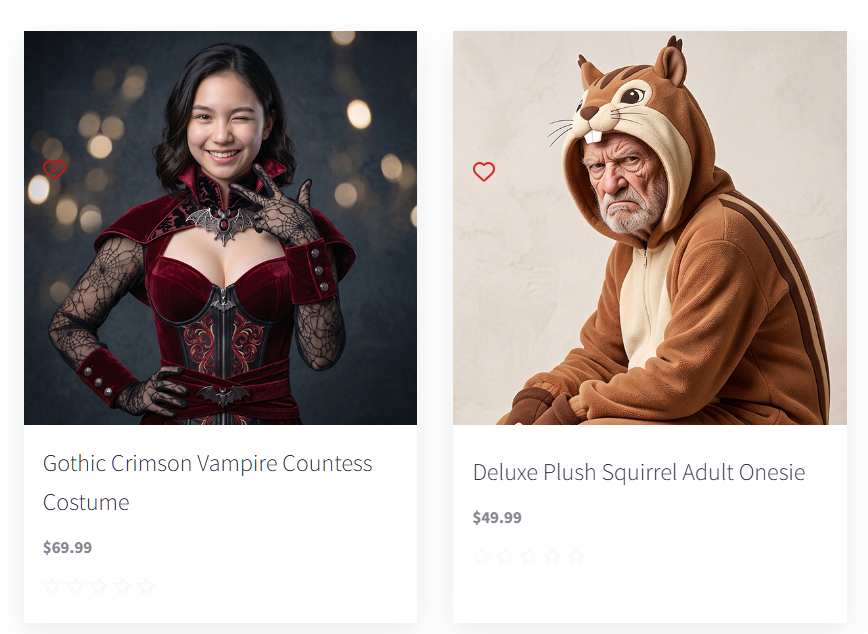
🔍️ What we’ve seen: Ultimate Store Kit hides its own action icons until a shopper hovers. The SaveTo Wishlist button stays visible. With a plus-sign icon, it can look like a stray mark on the photo. A heart icon reads as “save” at a glance.
5 Ways To Turn Product Grid Saves Into Sales
A save from a grid is a shopper telling you “I like this, but not yet”. These five habits help you act on it.
Use a corner placement on image-led grids
Ultimate Store Kit cards are built around product photos. So a heart in the image corner is a familiar, easy-to-spot place for the button. It also stays in view while the hover icons are hidden, so the save option is always one click away.
Use Fade so shoppers keep browsing
Go to SaveTo Wishlist > Settings > General. Under Wishlist Action, set Add to wishlist button to Fade. The button confirms the save, and the shopper stays in the grid. By contrast, the default Redirect sends them to the wishlist page after every save, so they lose their place.
Give each grid a job
Since every grid has its own Wishlist switch, you decide grid by grid. For example, use the SaveTo Wishlist button on the grids that sell, like new arrivals or bestsellers. That way, every save lands in one wishlist you can follow up on, instead of being split across two systems.
Build a “save it for the sale” carousel
In the weeks before a big sale, add a carousel of the products you plan to discount. Invite shoppers to save their favorites ahead of time. When the sale starts, you’ll know which products to promote first. Our Black Friday wishlist ideas cover more ways to use saves during the sale.
Follow up on what shoppers saved
In practice, saves only turn into sales when you follow up. Use them to plan restock reminders, price-drop emails or a friendly “still thinking about it?” message. Our guide to wishlist email marketing walks through the options.
Start with the habit that fits your store today. Then add the others as the saves come in.
Things To Know Before You Switch It On
The integration has a few limits. Knowing them now saves you a confused test later:
- The Wishlist switch is on by default: New grids show Ultimate Store Kit’s heart until you turn it off.
- No Add to Cart, no button: A grid with its Add to Cart switch off shows no wishlist button.
- Some widgets aren’t covered: Product List, Product Table, Product Category and Sub Category show no wishlist button.
- One spot per card: The title placements can’t move the button. It shows next to Add to Cart or in the image corner.
- Icon only: Button text doesn’t show inside these cards, even if your shop page uses a text style.
- No widget needed: Ultimate Store Kit cards can’t hold other Elementor widgets. The Save to Wishlist widget still shows in the panel’s Ultimate Store Kit section, for use elsewhere.
Frequently Asked Questions
Do I need SaveTo Wishlist Pro for the Ultimate Store Kit integration?
No. The integration is part of the free SaveTo Wishlist Lite plugin, version 1.1.8 or later. SaveTo Wishlist Pro runs on top of Lite, so Pro users get it as well.
Can I keep Ultimate Store Kit’s heart in one grid and use SaveTo Wishlist in another?
Yes. Each grid has its own Wishlist switch. Leave it on for Ultimate Store Kit’s icon. Turn it off for the SaveTo Wishlist button.
Ready To Add Wishlist Buttons To Your Ultimate Store Kit Grids?
Your Ultimate Store Kit grids already show shoppers what you sell. Now, with a wishlist button on every card, they can also keep track of what they want for later.
Using another Elementor add-on too? Our Premium Addons for Elementor guide covers wishlist buttons in its product grids.
- Update SaveTo Wishlist Lite to 1.1.8 or later.
- Turn off each grid’s Wishlist switch and keep Add to Cart on.
- Pick a corner placement for image-led grids.
- Follow up on what shoppers save to turn interest into orders.
Install or update SaveTo Wishlist Lite, then flip the Wishlist switch on your first grid.



