
Does your store feel too “disruptive” every time a customer saves an item? While redirects and popups work for some, many modern shoppers prefer a smoother experience that doesn’t interrupt their browsing flow.
The Fade Notification feature in SaveTo Wishlist is the perfect middle ground. Instead of a jarring screen change, it provides instant confirmation by briefly fading the button and displaying a sleek, automated “Adding…” message right where the customer is looking. This maintains browsing momentum and modernizes your UI with a responsive feel, requiring zero extra clicks from you.
By the end of this guide, you’ll know how to activate this professional notification style to keep your customers engaged and shopping longer.
Prerequisites
- SaveTo Wishlist installed and activated (latest version required).
- Administrator access to your WordPress dashboard.
- Note: This feature is fully compatible with both the Shop page and individual Product pages.
Step 1: Access the General Wishlist Settings
Your notification preferences are located in the core plugin settings.
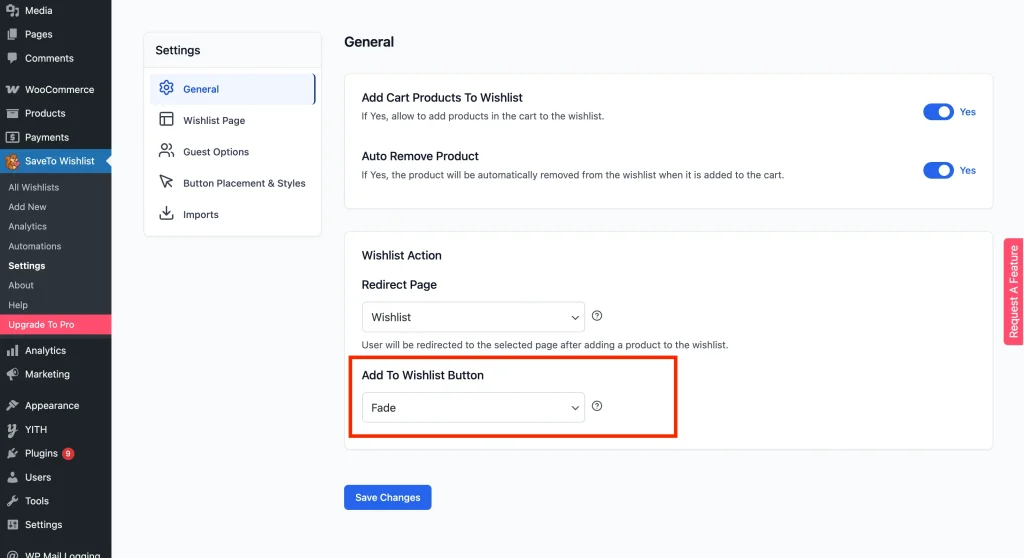
- Navigate to SaveTo Wishlist → Settings.
- Click the General tab.
- Scroll to the Wishlist Action section. The setting you want is Add to wishlist button.
Step 2: Select the Fade Button Action
- Locate the Add To Wishlist Button setting dropdown.
- Look for the Fade option alongside Redirect and Popup.
- Select Fade from the list.
- Click Save Changes at the bottom of the page.
Step 3: Check What Customers See
To see the feature in action, head to your shop page:
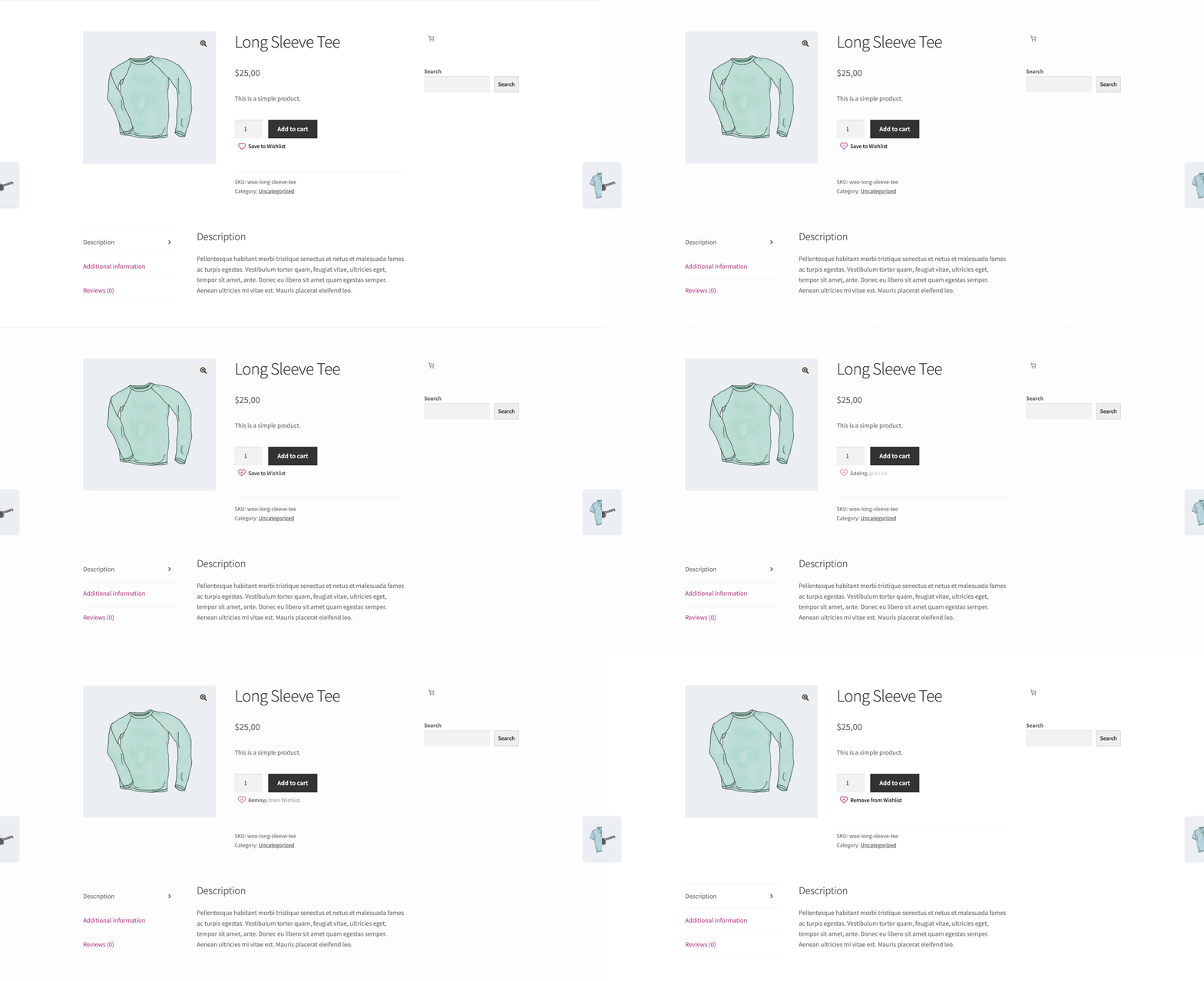
- Click the Button: The button briefly fades out and back in to show the click was registered.
- Check the Message: A notification fades in saying “Adding…”.
- Watch it Transition: No need to click anything; the message automatically fades out and changes to the “Remove from Wishlist” text after approximately 2 seconds.
Who Sees the Fade Notification
Both signed-in customers and guests see it, as long as guest wishlists are enabled. Guests get the same fade animation on the button, and their saved items are held in the browser until they log in or create an account.
Because Fade replaces the confirmation popup, guests no longer see the login or create account prompt that the popup can carry. If nudging guests to register matters more to you than a quiet confirmation, use Popup for the button action instead.
Troubleshooting Design and Animation Issues
⚠︎ The Fade option doesn’t appear in the dropdown:
Your store is likely running an older version of the plugin. Update to the latest version via Plugins → Installed Plugins.
⚠︎ The animation doesn’t play (button “jumps” instead):
This usually means jQuery isn’t loading properly. Some performance plugins defer jQuery too late. Check your browser console for errors and ensure jQuery loads before the wishlist scripts.
⚠︎ The notification doesn’t appear after clicking:
A caching plugin (like WP Rocket, Autoptimize, or LiteSpeed) may be minifying or deferring savetowishlist-frontend-scripts.js. Clear your site cache and ensure this script isn’t being combined.
⚠︎ Text overflows or looks broken:
The fade notification doesn’t wrap long text. If you’ve customized your wishlist names to be very long, the “Added to [Name]” banner may overflow the button container.
Frequently Asked Questions
Is this mobile-friendly?
Absolutely. In fact, the Fade notification is often preferred for mobile users as it doesn’t take up the entire small screen like a traditional pop-up might.
Can I change the color of the fade notification?
Currently, the fade notification uses a subtle greyed text style when showing the “Adding…” state, which then transitions to the standard text color when it changes to “Remove from Wishlist.” This behavior is designed to create a smooth, unobtrusive visual transition. At the moment, there is no option to customize the color of this notification.
How can I customize the “Remove from Wishlist” label?
You can customize the text shown after an item has been added to the wishlist by going to: Settings → Button Placement & Styles. From there, look for the Selected Wishlist Button Label option and enter the text you would like to display when the product is already in the wishlist.
Create a smooth wishlist flow for your customers
You’ve successfully upgraded your store with the most modern feedback system available in SaveTo Wishlist. By providing clear, specific confirmation without interrupting the shopper, you’re creating a much more professional environment for your customers.
Now that your “Add” action is subtle, make sure your wishlist page looks just as good! Check out our guide on Customizing Wishlist Page Styles to match your colors perfectly.
Help & Support
We have a dedicated support team for SaveTo Wishlist Pro for WooCommerce who knows our products, WooCommerce, and the industry very well. You’re welcome to make use of their expertise at any time, worldwide.
- Premium users: Open a support ticket
- Free users: Visit our community forum

