
A shopper who fills a wishlist is usually ready to buy. You can send them straight to checkout the moment they add their wishlist items to the cart, so they skip the extra clicks between choosing and paying. This guide shows you how to turn on the redirect in SaveTo Wishlist and what your customers see.
Before you begin
- WooCommerce and SaveTo Wishlist Lite 1.0.9 or later must be active on your site.
- You need an administrator account to change the settings.
Turn on the checkout redirect
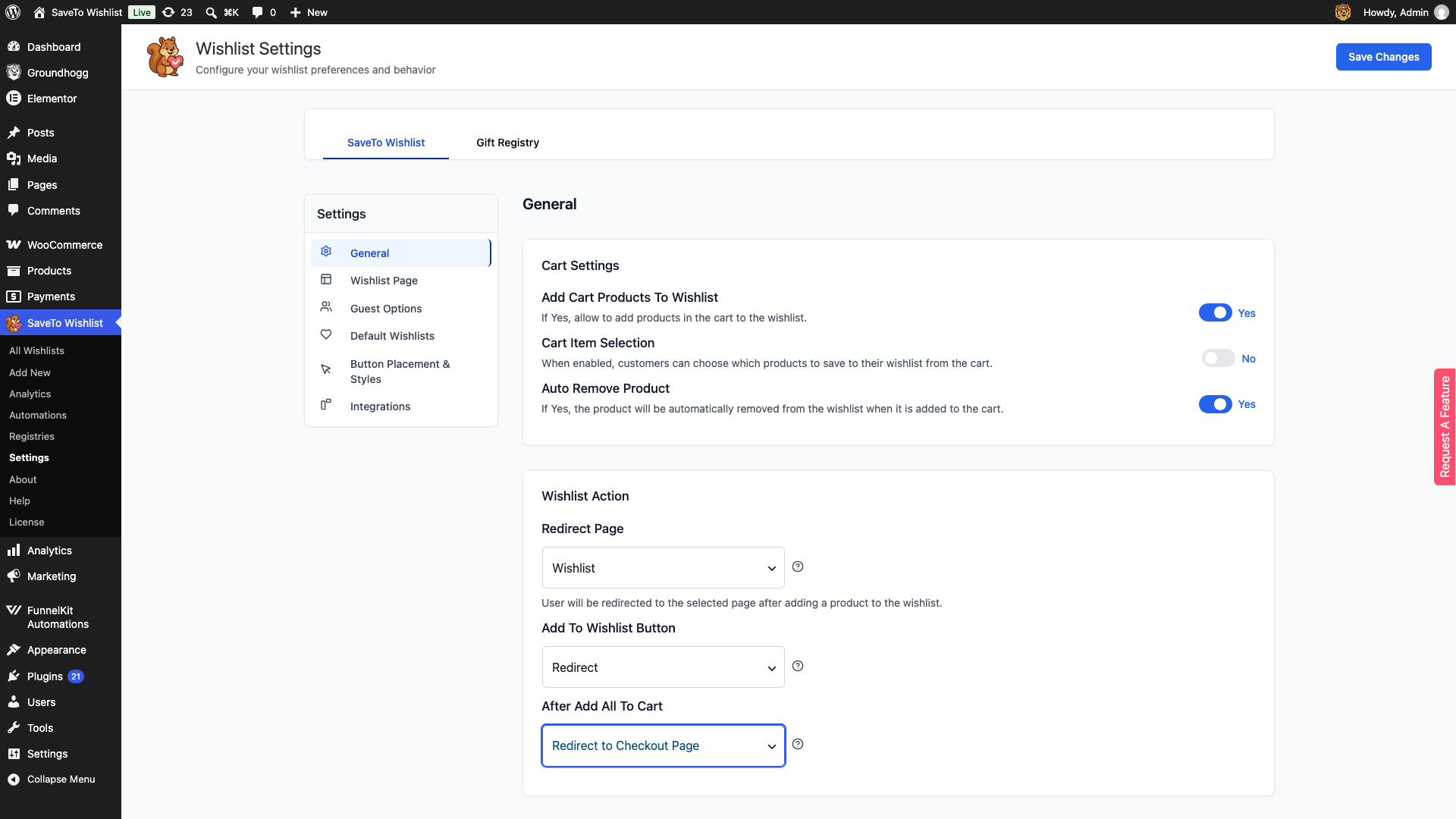
- In your WordPress admin, go to SaveTo Wishlist → Settings.
- On the General tab, scroll to the Wishlist Action section.
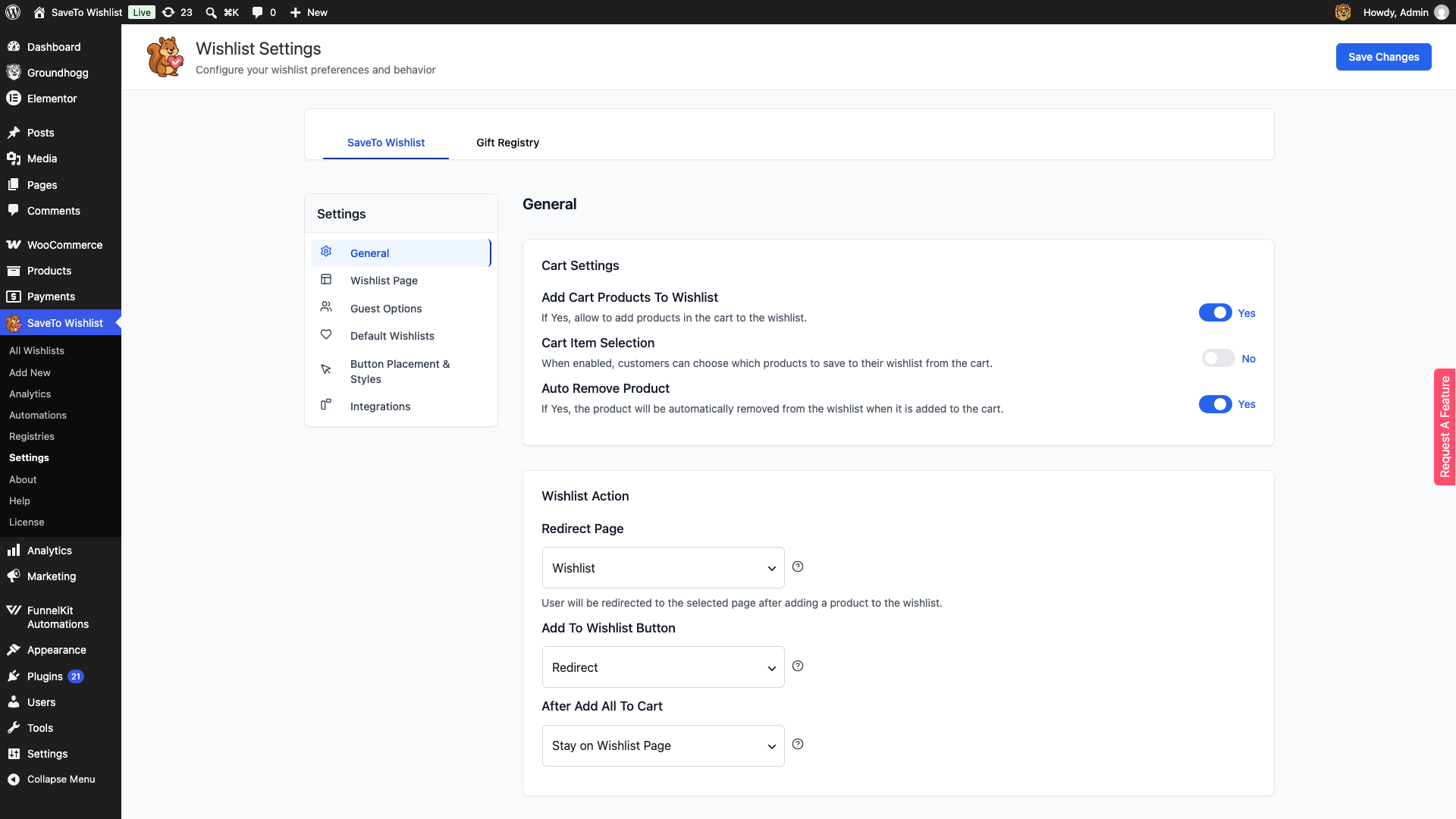
- In the After Add All to Cart dropdown, select Redirect to Checkout Page.
- The default is Stay on Wishlist Page.
- To send shoppers to the cart instead, select Redirect to Cart Page.
- Click Save Changes.
What your customers see
On the wishlist page, the Add All to Cart button adds every item to the cart. When a shopper ticks one or more items, an Add Selected to Cart button appears and adds only those items. After either button finishes, the shopper lands on your checkout page with the items already in the cart.
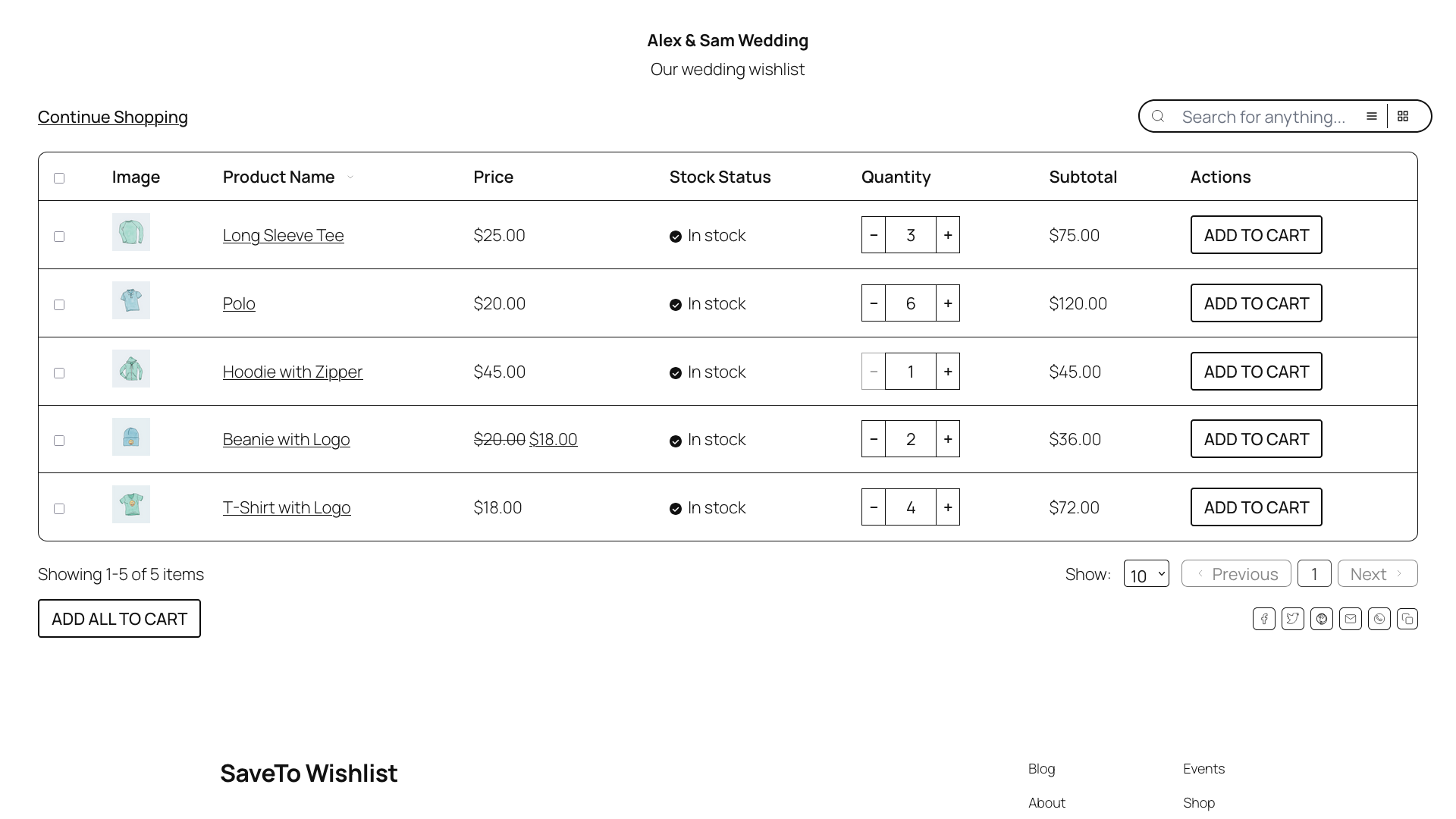
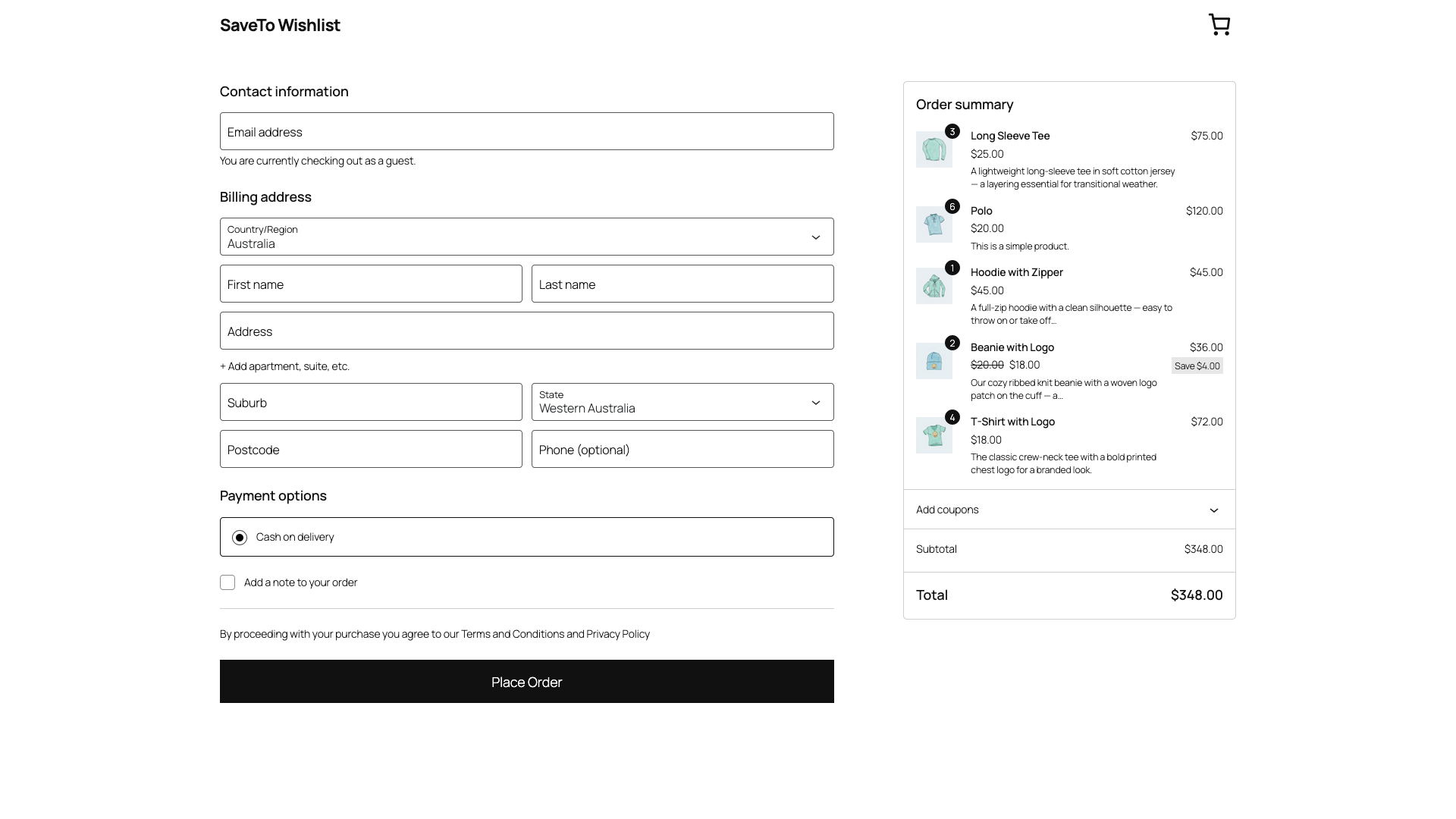
The redirect works on a logged-in customer’s wishlist page, on the guest wishlist, and on a wishlist someone opens from a shared link. That makes it a good fit for gift buying: a friend opens the shared wishlist, clicks Add All to Cart, and goes straight to paying. See How to share your wishlist and manage edit permissions for how customers share their wishlists.
The Add to Cart button on a single wishlist row does not redirect. The shopper stays on the wishlist page after adding one item, whatever this setting says.
Troubleshooting
Shoppers stay on the wishlist page instead of going to checkout
Check that the shopper used Add All to Cart or Add Selected to Cart. The single-row Add to Cart button never redirects.
Check the stock level and purchase settings of any product that did not reach the cart. When the store refuses even one item, the shopper sees the notice Some items could not be added to cart. and the redirect is skipped. The items that were added stay in the cart.
Also confirm After Add All to Cart still shows Redirect to Checkout Page and that you clicked Save Changes.
Some wishlist items are missing at checkout
The buttons skip items that cannot go into the cart. The skipped items are:
- Out-of-stock products
- Products that cannot be purchased
- Variable products with no variation selected in the wishlist row
- Products with required add-on fields from a product options plugin
Ask the shopper to pick a variation in the wishlist row before clicking the button. For add-on products, the shopper completes the options on the product page.
The message “No eligible items to add to cart.” appears
None of the items on the wishlist can go into the cart, for the reasons above, so nothing is added and there is no redirect. Restock the products or ask the shopper to choose variations first.
The Add All to Cart button does not appear
The button only shows on a published wishlist that has at least one item. Ask the wishlist owner to add products and publish the wishlist.
Frequently Asked Questions
Can I send shoppers to the cart instead of checkout?
Yes. Select Redirect to Cart Page in the After Add All to Cart dropdown. Shoppers can then review the cart before they check out.
Does this setting change the Add to Cart button on product pages?
No. It only affects the Add All to Cart and Add Selected to Cart buttons on the wishlist page. Product pages and shop pages keep their normal WooCommerce behavior.
What’s next
- How to configure general wishlist settings in SaveTo Wishlist
- How to share your wishlist and manage edit permissions
- How customers can use wishlists in your store
Need Help?
If you have a question or run into any issues, we’re here to help.
- Premium users: Open a support ticket
- Free users: Visit our community forum

