
Sending wishlist events into your store from another system? SaveTo Wishlist Pro‘s inbound webhook now requires an API key before it accepts anything, so a site that hasn’t generated one refuses every request instead of accepting it unchecked. This covers where to generate that key, how your integration should send it, and what to expect if it’s missing or wrong. Sending events the other way, out of your store, is covered in How to connect external tools using wishlist webhooks.
Before you begin
- SaveTo Wishlist Pro is installed and active.
- You have access to the external system that will send wishlist events, so you can store the key it needs to send with each request.
Generate the webhook API key
Until a key exists, the webhook endpoint refuses every request, so this is the first thing to do.
- Go to SaveTo Wishlist > Settings.
- Click the General tab.
- In the Webhook API section, click Generate API Key and confirm when prompted.
- Copy the value that appears in the Wishlist Webhook API Key field.
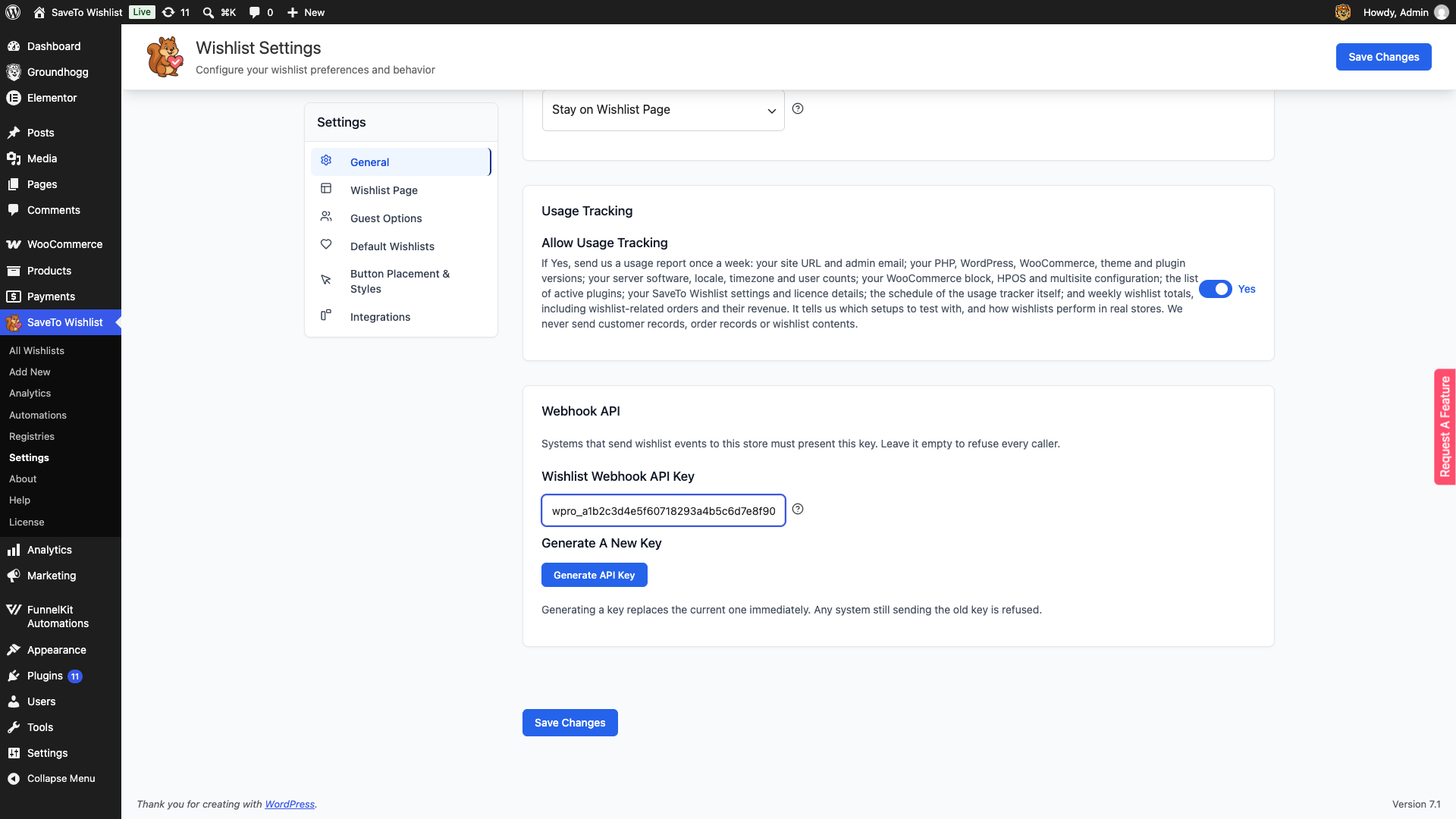
The Wishlist Webhook API Key field also accepts a key you type in yourself, if your external system needs to supply its own value instead of using a generated one. Either way, click Save Changes to store it.
Send the key with your requests
Configure your external system to send the key on every call to POST /wp-json/saveto-wishlist-pro/v1/webhook/wishlist-created. There are two ways to send it:
- As an x-api-key request header. This is the preferred method.
- As an api_key query string parameter, if your system can’t set custom headers.
Copy the key exactly as it appears in the Wishlist Webhook API Key field, with no extra spaces or line breaks added before or after it. The comparison is case-sensitive, so a key that doesn’t match exactly is treated the same as a missing one.
What happens when the key is missing or wrong
A request without a valid key gets a 401 Unauthorized response instead of being processed, whether the key is missing entirely, doesn’t match what’s stored in Settings, or hasn’t been generated yet on your store. This is true even for a site that has never generated a key: with nothing stored to compare against, every caller is refused rather than let through.
Clicking Generate API Key again replaces the stored key immediately. Any system still sending the old key starts getting refused right away, so update your integration with the new value as soon as you regenerate it.
Troubleshooting
Every request to the webhook gets a 401 response
Check that a key has actually been generated in SaveTo Wishlist > Settings > General, under Webhook API. If the field is empty, generate one and save your changes. If a key is already there, confirm your integration is sending it as the x-api-key header (or the api_key query parameter) and that it was copied without any surrounding whitespace.
The integration worked before, but now every request fails
This usually means the key was regenerated on the General tab since the integration was last updated. Generating a new key replaces the old one immediately, so update the calling system with the current value from the Wishlist Webhook API Key field.
Frequently asked questions
What happens if I never generate a key?
The webhook endpoint refuses every request. An empty key can never match anything a caller sends, so this is the same as the endpoint being switched off.
Can I use the query string instead of a header?
Yes. Send api_key=your-key as a query parameter if your system can’t set the x-api-key header. The header is checked first, so it takes priority if both are present.
Does regenerating the key break my existing integration?
Yes, immediately. The previous key stops working as soon as you click Generate API Key again, so only regenerate it when you’re ready to update the calling system with the new value at the same time.
Need help?
- Premium users: Open a support ticket
- Free users: Visit our community forum

