
Want to add your wishlist to a page without touching a shortcode? SaveTo Wishlist includes a Wishlist block for the WordPress editor. This article shows you how to add it and when to use its one setting.
The Wishlist block is the block equivalent of the [saveto_wishlist] shortcode. See How to Use the Wishlist Shortcode for the shortcode version. It shows the same wishlist and follows the same guest, logged-in, and shared-wishlist behavior, so you can use whichever you prefer.
How to add the Wishlist block
- Edit the page where you want the wishlist to appear.
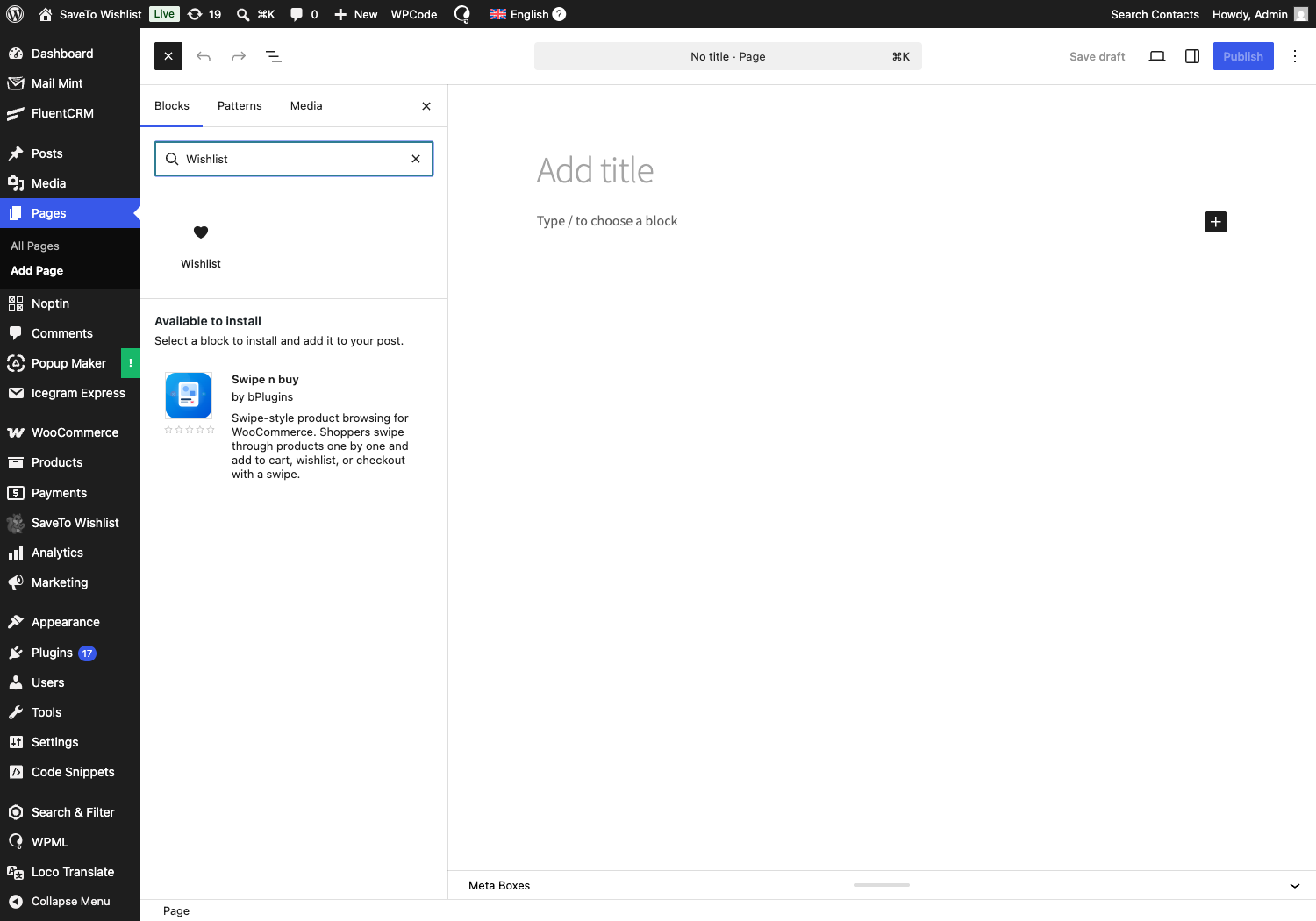
- Click the + block inserter and search for Wishlist. It appears under the SaveTo Wishlist category with a heart icon.
- Select the Wishlist block to add it to the page.
- Publish or update the page.
Showing a specific wishlist
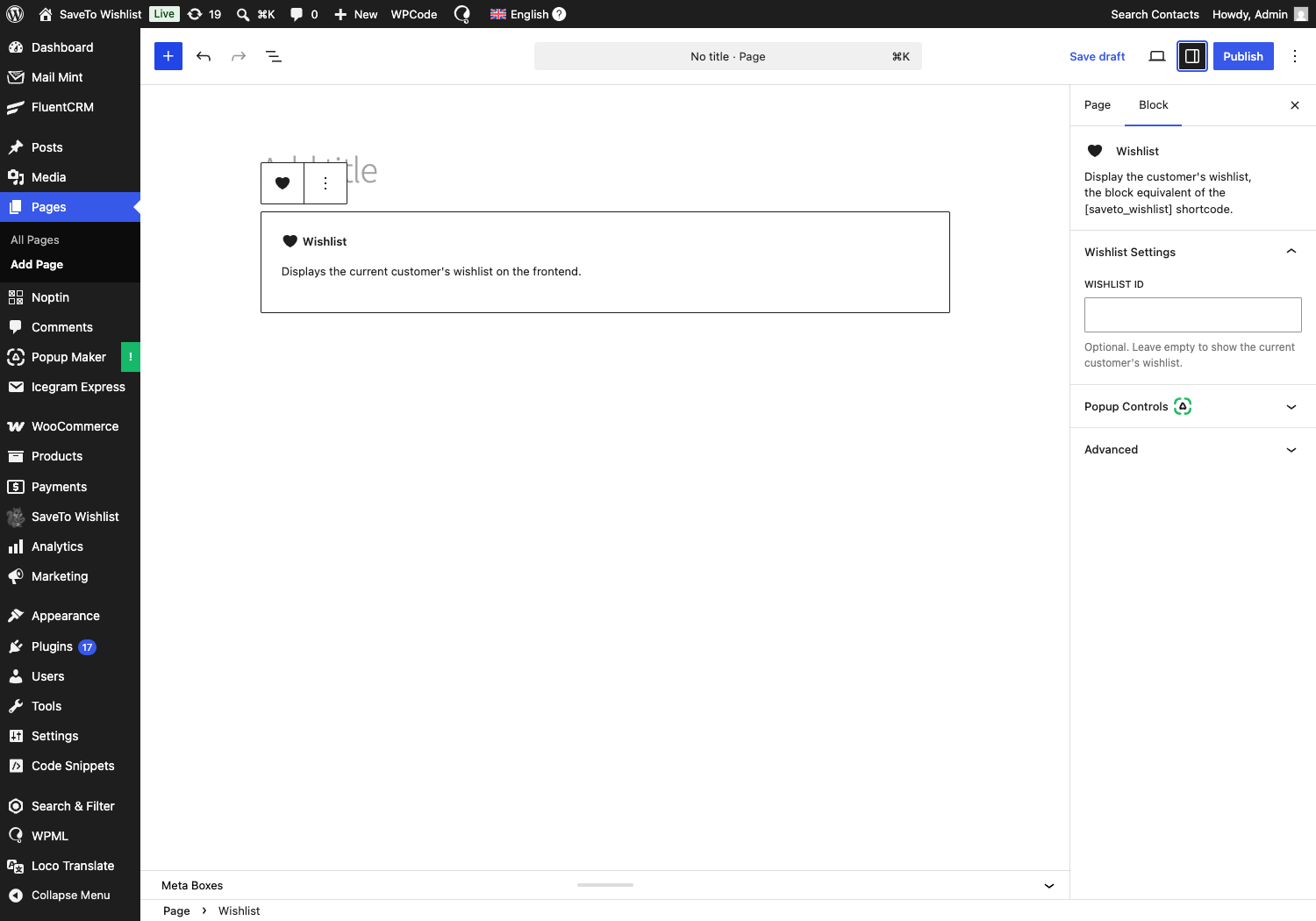
By default the block shows the current customer’s wishlist. To show one specific wishlist instead, select the block and open the Wishlist Settings panel on the right, then enter a value in the Wishlist ID field. Leave it blank to keep the default behavior.
Frequently asked questions
Is the block different from the shortcode?
No. It renders the same wishlist. Use the block if you prefer the editor, or the shortcode if you are working in a text or template context.
What do guests see?
The same as with the shortcode. Guest and login behavior follows your SaveTo Wishlist settings.
Need help?
If you have a question or run into any issues, we’re here to help.
- Premium users: Open a support ticket
- Free users: Visit our community forum

