
Want to make your wishlist page more visual for customers? SaveTo Wishlist lets you show a product image column in the wishlist items table with a single toggle. Flip it on and every wishlist row gets a featured image at the left, so the page looks less like a spreadsheet and more like a shop.
Requirements
- SaveTo Wishlist Lite installed and active
- Products with a featured image set in WooCommerce
How to Enable the Product Image Column
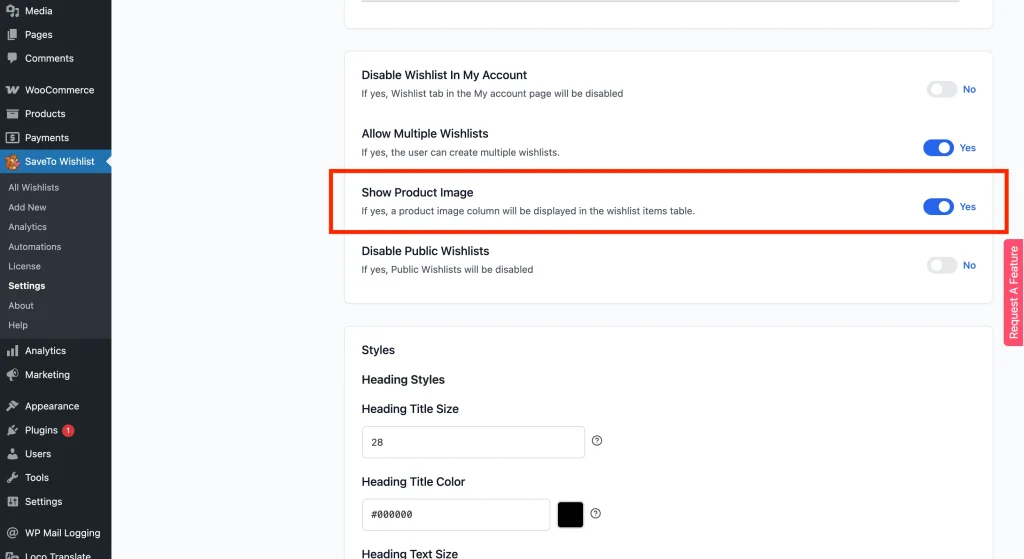
The product image column is turned on by default. If it has been disabled, here is how to turn it back on, or off if you prefer a text-only table.
- In your WordPress admin, go to SaveTo Wishlist → Settings.
- Click the Wishlist Page tab.
- Scroll to the General Options section. The toggle sits there, below the wishlist page text fields.
- Find the Show Product Image toggle.
- Set it to Yes to show the image column, or No to hide it.
- Click Save Changes.
What Customers See
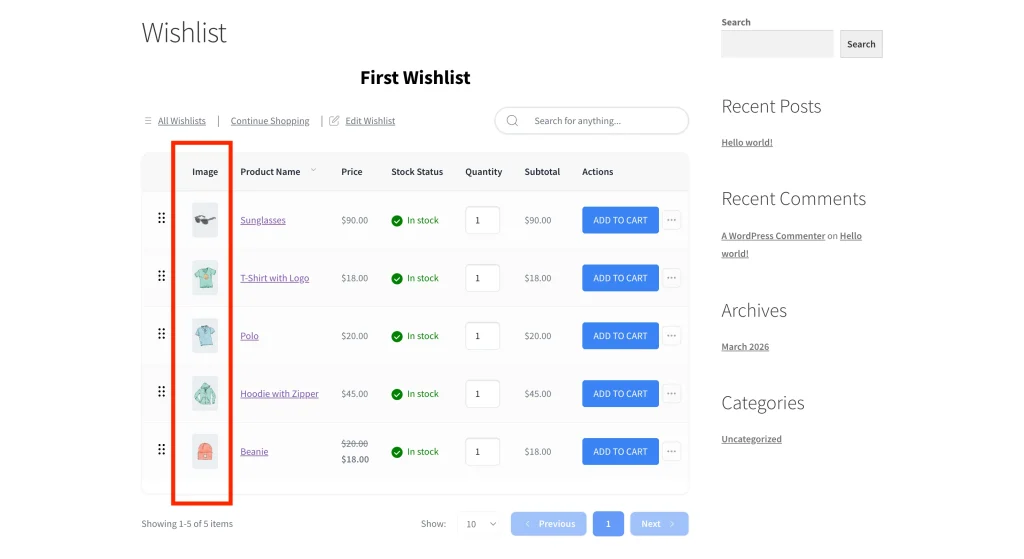
When the setting is enabled, an image column appears at the left of the wishlist items table. It displays each product’s featured image. If a product doesn’t have a featured image, the cell is empty.
Frequently Asked Questions
Is the product image column shown by default?
Yes. The setting defaults to Yes, so images will show on your wishlist table straight after installation unless you turn it off.
What if a product has no image?
If a product doesn’t have a featured image, the image cell in that row will appear empty. Set a featured image on the product in WooCommerce → Products to fill it in.
Need Help?
If you have a question or run into any issues, we’re here to help.
- Premium users: Open a support ticket
- Free users: Visit our community forum

