
If your frontend wishlist tables show more columns than shoppers need, SaveTo Wishlist Pro lets you hide any of them per table and add an SKU column that is off by default. This article shows you where to find the Column Visibility toggles and what each one hides or adds, so you can set the tables up the way your shoppers need.
Prerequisites
- SaveTo Wishlist Pro version 1.0.4 or later is installed and active with a valid license.
- SaveTo Wishlist Lite version 1.1.6 or later is also active (Pro depends on Lite for the frontend wishlist templates).
The three tables you can control
The Column Visibility settings are grouped by which frontend table each toggle affects. Knowing which table is which makes it easier to pick the right toggles for your store.
Wishlist Items Table. The table that shows the products inside a single wishlist. A shopper sees this after they open one of their wishlists. Guests who are not logged in see the same table, with the same columns, on their guest wishlist page. It has six columns you can hide: Image, Price, Stock Status, Quantity, Subtotal, and Actions. You can also turn on a seventh column, SKU, which is off by default.
Wishlists Collection Table. The table a logged-in shopper sees in My Account showing all the wishlists they’ve created. It has three columns you can hide: Status, Date Added, and Actions.
Public Wishlists Table. The public listing of wishlists other shoppers have chosen to share. Same three columns as the Collection table: Status, Date Added, and Actions.
Hide a column, or show the SKU column
- Go to SaveTo Wishlist → Settings in your WordPress admin menu.
- Open the Wishlist Page tab.
- Scroll to the Column Visibility section.
- Find the table you want to change (Wishlist Items Table, Wishlists Collection Table, or Public Wishlists Table) and turn on the toggle for each column you want to hide. To add the SKU column instead, turn on Show SKU Column, listed with the Wishlist Items Table toggles.
- Click Save Changes.
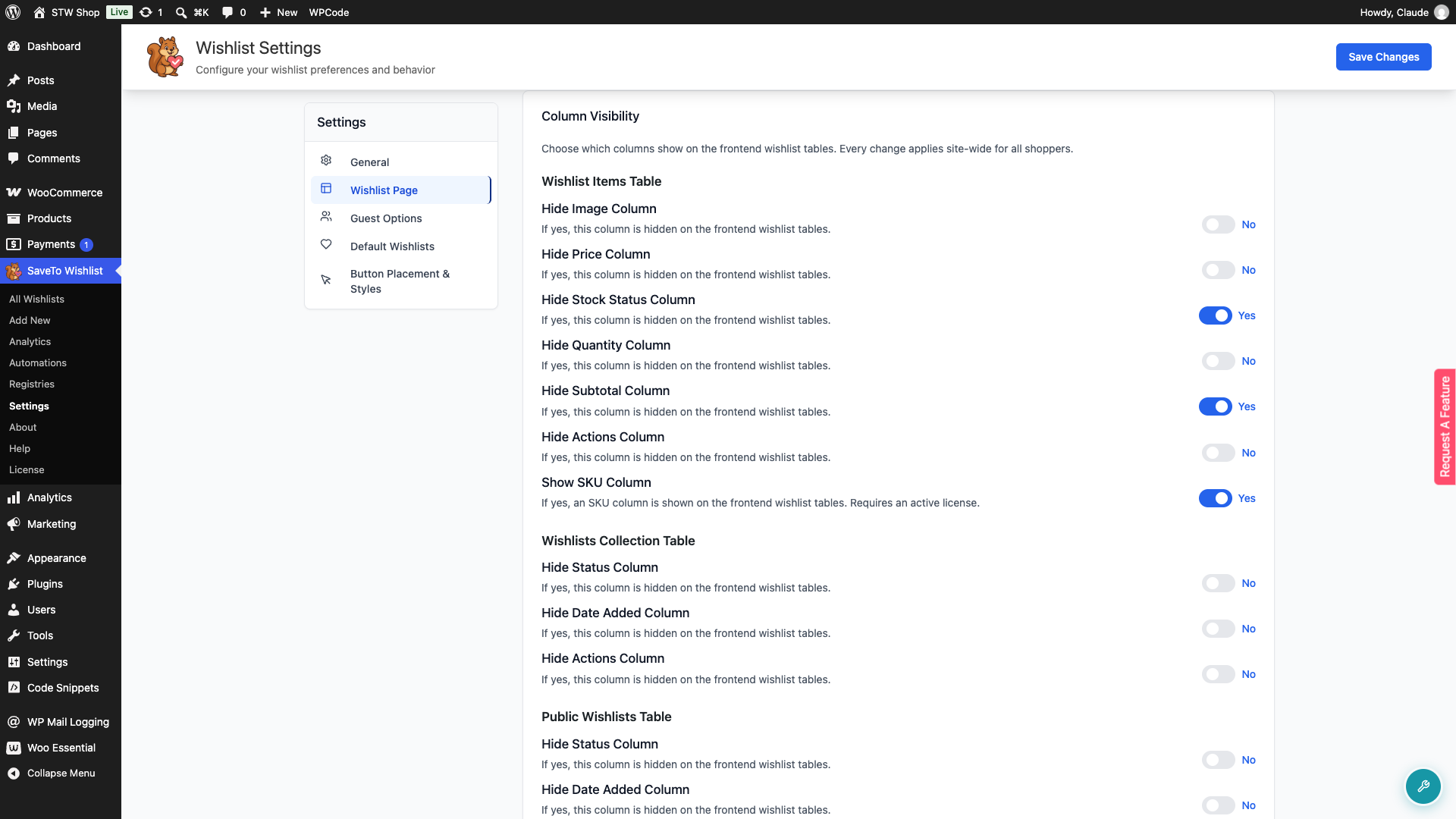
The hidden columns disappear from the frontend as soon as you save. There’s no cache to flush, and shoppers already on the page will see the change the next time they load or navigate.
What each toggle hides or shows
Wishlist Items Table
| Toggle | What it hides |
|---|---|
| Hide Image column | The product thumbnail column in the items table. |
| Hide Price column | The per-unit product price column. |
| Hide Stock Status column | The In stock / Out of stock indicator column. Useful for stores that don’t track stock. |
| Hide Quantity column | The quantity selector column. |
| Hide Subtotal column | The row-level subtotal (price × quantity). Useful for B2C stores where per-row totals don’t add value. |
| Hide Actions column | The row-level action buttons (remove, move to cart, and similar). |
Wishlists Collection Table and Public Wishlists Table
These two tables share the same three toggles because they show the same columns.
| Toggle | What it hides |
|---|---|
| Hide Status column | The wishlist visibility status (Private, Public, Shared). |
| Hide Date Added column | The date the wishlist was created. |
| Hide Actions column | The action buttons for each wishlist row (edit, share, delete, and similar). |
Show SKU Column
Unlike the toggles above, Show SKU Column adds a column instead of hiding one. Turn it on and an SKU column appears on the Wishlist Items Table (both list and grid view). If a shopper shares that wishlist and someone opens the link without logging in, they see the same SKU column on their guest view of it. A guest who is not logged in also sees it on their own guest wishlist page. It’s off by default. Neither the Wishlists Collection Table nor the Public Wishlists Table gets an SKU column, since both list wishlists, not products.
In grid view, the SKU shows as its own line under the product name rather than as a table column.
For a product with a selected variation, the column shows that variation’s own SKU. If the variation doesn’t have one, it falls back to the parent product’s SKU. If neither has an SKU, the column shows N/A.
Troubleshooting
A column I turned off is still showing on the frontend
Hard-refresh the wishlist page in your browser (Cmd+Shift+R on macOS, Ctrl+F5 on Windows). The Column Visibility script that hides columns loads once per page, so the browser may still be running a cached copy from before you saved. If a page-caching plugin sits in front of the frontend (WP Rocket, LiteSpeed Cache, and similar), clear its cache for the wishlist page.
The Image column keeps showing even though I turned it off
Check that the Hide Image column toggle is on under the Wishlist Items Table heading. The Items table’s Image column is a separate toggle from any image column on the other tables, so turning off Image on Collection or Public doesn’t affect the Items table. SaveTo Wishlist Lite used to have a separate “Show Product Image” switch on the Wishlist Page tab. Pro replaces that switch with its own image-column toggle, so if you’re upgrading from Lite-only, the change now lives in Column Visibility rather than the Lite switch.
Different shoppers see different columns
Column Visibility settings are site-wide, not per-user. Every shopper sees the same columns hidden or shown. If different users are seeing different columns, something else is at play: the most likely cause is a page-caching plugin serving an older cached version of the page to some visitors. Clear the cache for the wishlist page and test again. User role plugins (like Members or User Role Editor) don’t affect Column Visibility either, since the toggles apply globally.
I turned on Show SKU Column but no SKU column appears
Check that your SaveTo Wishlist Pro license is active. Show SKU Column requires an active license and has no effect without one. If the license is active, make sure SaveTo Wishlist Lite is version 1.1.6 or later. Earlier versions show the setting in Pro but do not render the column on the frontend.
Frequently asked questions
Can I hide different columns for different customer roles?
Not out of the box. Column Visibility is a single, site-wide setting per column. If you need role-based visibility, hide the column in Column Visibility for everyone, then use a custom CSS or JS snippet gated on the customer role to show it back for the roles that need it.
Do the columns affect the wishlist data, or just the display?
Display only. Hiding the Price column doesn’t remove the price from the wishlist item, and the value is still available in the underlying data (for exports, emails, or REST API responses). Column Visibility only affects what shoppers see in the three frontend tables.
Will hidden columns come back if I switch themes?
No. Column Visibility settings are stored on the SaveTo Wishlist Pro plugin, not the theme, so they carry over when you switch themes.
Can I hide a column on the mobile view only?
Not through Column Visibility. Each toggle hides the column across all viewport sizes. For responsive-only hiding, use a small custom CSS snippet with a media query targeting the column’s data-column attribute.
Does the SKU column affect the Wishlists Collection Table or the Public Wishlists Table?
No. Show SKU Column only affects the Wishlist Items Table, including the guest view of a shared wishlist and a logged-out guest’s own wishlist page. The Wishlists Collection Table and Public Wishlists Table both list wishlists rather than individual products, so neither one has an SKU to show.
Developer note
Each toggle is stored as its own option in the wp_options table. If you need to debug or read the current state without opening the admin UI, use WP-CLI:
wp option get stwpro_hide_col_items_image
wp option get stwpro_hide_col_collection_status
wp option get stwpro_hide_col_public_actions
wp option get stwpro_settings_show_sku_column
The pattern is stwpro_hide_col_<table>_<column>, where <table> is items, collection, or public, and <column> is the column key (image, price, stock_status, quantity, subtotal, actions, status, created_at). A value of yes means the column is hidden.
Show SKU Column doesn’t follow that pattern: it’s stored as stwpro_settings_show_sku_column, alongside Pro’s other Wishlist Page settings. A value of yes means the SKU column is showing.
Need help?
If you have a question or run into any issues, we’re here to help.
- Premium users: Open a support ticket
- Free users: Visit our community forum

