

 Reviewed by
 You open your wishlist page in Flatsome’s UX Builder to make it match the rest of your store. You add a row, a heading, maybe a banner. Then you click Update, load the page, and the wishlist is gone.
Nothing errors and nothing warns you. Shoppers who saved products for later land on an empty page, and they may not tell you. It’s an easy one to miss, and it’s why we built a Flatsome wishlist element.
It ships in the free SaveTo Wishlist Lite plugin as a native Save to Wishlist element for UX Builder. Below, I’ll show you why the page goes blank and how to place the element. I’ll also cover the one spot it can’t reach.
Jump to:
- Why Your Flatsome Wishlist Page Goes Blank In UX Builder
- What The SaveTo Wishlist Flatsome Integration Actually Does
- What You Need Before You Start
- How To Add The Wishlist To A Flatsome Page With UX Builder
- Which Page Should Hold The Wishlist Element
- The One Placement To Avoid: UX Blocks
- How To Confirm Your Flatsome Wishlist Works
- What About The Save To Wishlist Button On Flatsome?
- Frequently Asked Questions
- Ready To Add Your Wishlist To Flatsome?
Why Your Flatsome Wishlist Page Goes Blank In UX Builder
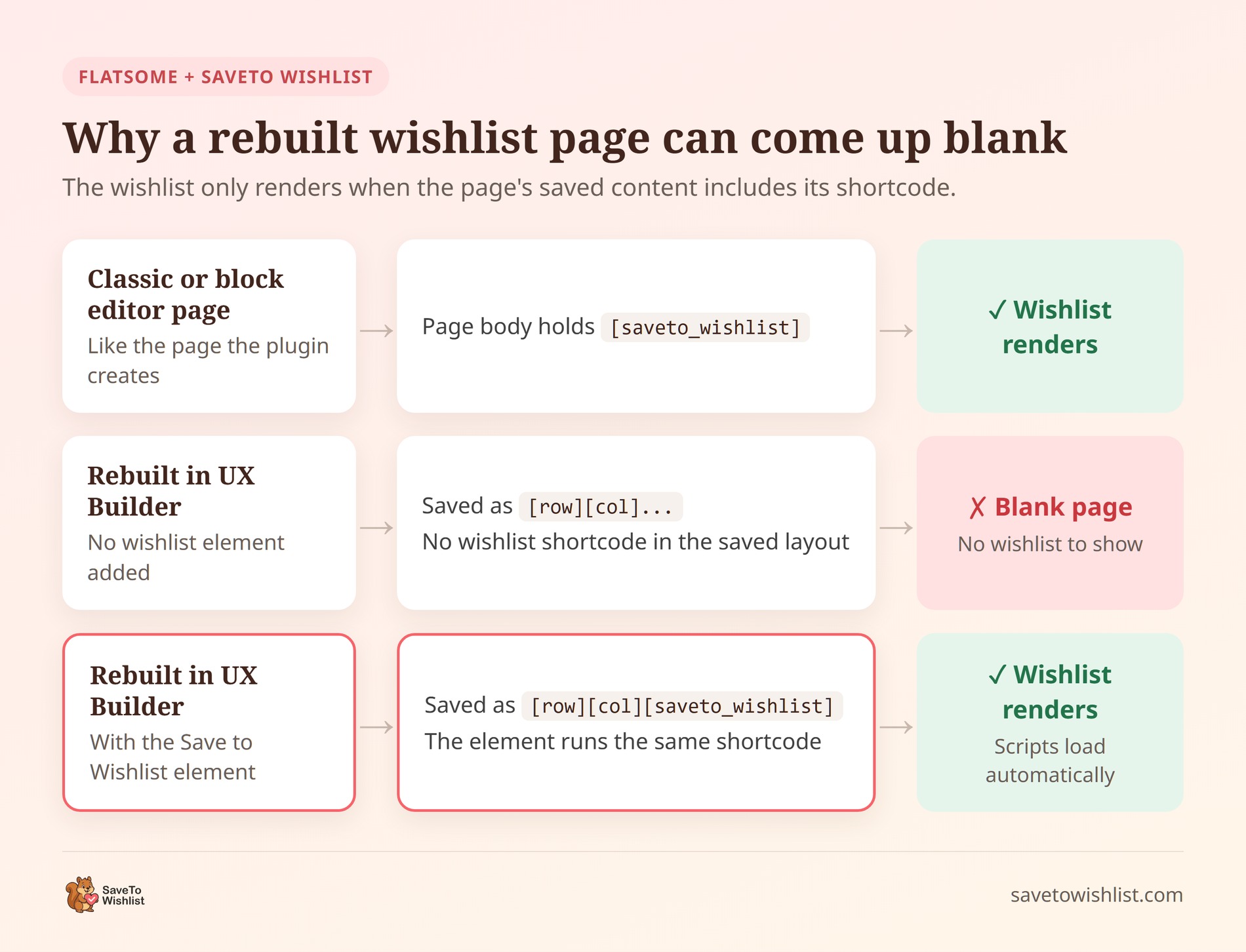
The wishlist page reaches the browser in exactly one way. WordPress runs the [saveto_wishlist] shortcode stored in the page body, and that shortcode draws the wishlist.
A UX Builder page stores its own layout instead. When you save, UX Builder writes that layout as its own shortcodes, such as [row] and [col]. Rebuild the wishlist page without our element, and the saved layout has no wishlist shortcode left in it.
That’s normal page-builder behavior, not a Flatsome bug. Any builder that owns the page body decides what renders there, so the wishlist needs a piece the builder understands.
Flatsome is a popular theme, so this setup is common. According to the Flatsome listing on ThemeForest, the theme has 270,319 sales. The listing calls it the best-selling WooCommerce theme. It also shows up in theme roundups, including Wholesale Suite’s list of WooCommerce themes for wholesale stores.
A blank wishlist page costs more than it looks. According to Baymard Institute’s product page research, 21% of 1,193 study respondents rely on “Save” features. The same research found 89% of sites don’t make Save features easy to access and use. A page that renders nothing is the far end of that problem. It undoes the conversion value a wishlist adds.
What The SaveTo Wishlist Flatsome Integration Actually Does
The integration adds one thing: a Save to Wishlist element in UX Builder’s element picker. It ships in SaveTo Wishlist Lite 1.1.3 and later. There’s no settings page and no toggle to switch on.
- Same shortcode underneath: The element attaches UX Builder options to the existing
saveto_wishlistshortcode instead of creating a new one. So it renders exactly like the shortcode, with the same guest, customer and shared-list handling. - Two optional settings: Wishlist ID and Show the default wishlist only. They map straight onto the shortcode’s own
idanddefaultonlyattributes, so nothing can drift between the two. - A safe placeholder in the editor: Inside UX Builder you see a static box, not your live wishlist. That way a stray click in the editor can’t change your own saved items.
- Scripts that load where they’re needed: The plugin scans a page’s content for the shortcode before loading its wishlist app. Because the element uses that same tag, any page carrying it gets the scripts and styles it needs.
That check keeps the full wishlist app off pages that don’t show a wishlist. Our speed test measures what SaveTo Wishlist adds to a product page. On any other theme, the integration does nothing. Its builder hook only fires inside a UX Builder request, and the placeholder checks for Flatsome first.
What the integration doesn’t do
The scope is narrow on purpose. Here’s where the element’s job ends.
| Area | Covered by the Flatsome integration? |
|---|---|
| A wishlist inside a page you edit in UX Builder | Yes, through the Save to Wishlist element |
| A wishlist inside a UX Block pulled into a footer, menu or product layout | No. The wishlist scripts and styles don’t load there |
| Flatsome-specific Save to Wishlist button styling | No. The button follows your normal Button Placement & Styles settings |
| The My Account wishlist tab | Not needed. Flatsome doesn’t draw that tab through UX Builder |
| A settings page or on/off switch | None. The element is there whenever Flatsome is active |
That’s a different shape from our theme integrations for Woostify and Blocksy, which restyle the button itself. The Flatsome integration is about the wishlist page. It’s closest to our Divi Builder module, which places the wishlist in Divi layouts the same way.
What You Need Before You Start
You need three things in place, and you probably have two of them already.
- The Flatsome theme: With UX Builder enabled for the page you want to edit.
- SaveTo Wishlist Lite 1.1.3 or later: The current release is 1.1.6, so update first if you’re on anything older.
- A page to build on: Usually the wishlist page the plugin created when you activated it.
The element is part of the free plugin. You don’t need SaveTo Wishlist Pro for it, although Pro stores get it too.
A quick, honest note on versions. Our developers verified the element by hand on Flatsome 3.15.5, and Flatsome is on 3.20.11 at the time of writing. Flatsome is a paid theme, so it isn’t part of our automated test site. The element uses Flatsome’s own builder functions, but give it a quick check after any big theme update.
How To Add The Wishlist To A Flatsome Page With UX Builder
Here’s the full setup. You do it once per page, and it doesn’t involve any code. The steps match our Flatsome knowledge base guide.
- Open your wishlist page in UX Builder.
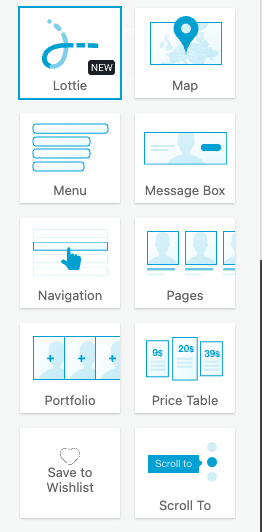
- Click Add elements, then find Save to Wishlist in the Content group. Look for the heart icon, or type “save to wishlist” to search.
- Drag the element into the row or column where the wishlist should appear.
- Click the element to open its options panel.
- Leave both options at their defaults unless you need a specific list. The table below explains each one.
- Click Apply, then Update to save the page.
- Open the page outside the builder to see the live wishlist.

Set the two element options
You can leave both alone. Then the element behaves exactly like the [saveto_wishlist] shortcode on a standard wishlist page.
| Option | What it does | Default |
|---|---|---|
| Wishlist ID | Pins the element to one specific wishlist, by its numeric ID. Leave it blank for a normal wishlist page. | Empty |
| Show the default wishlist only | When set to Yes, a logged-in customer sees one list, their default, instead of the full multi-list table. With no default set, it falls back to their first published list. | No |
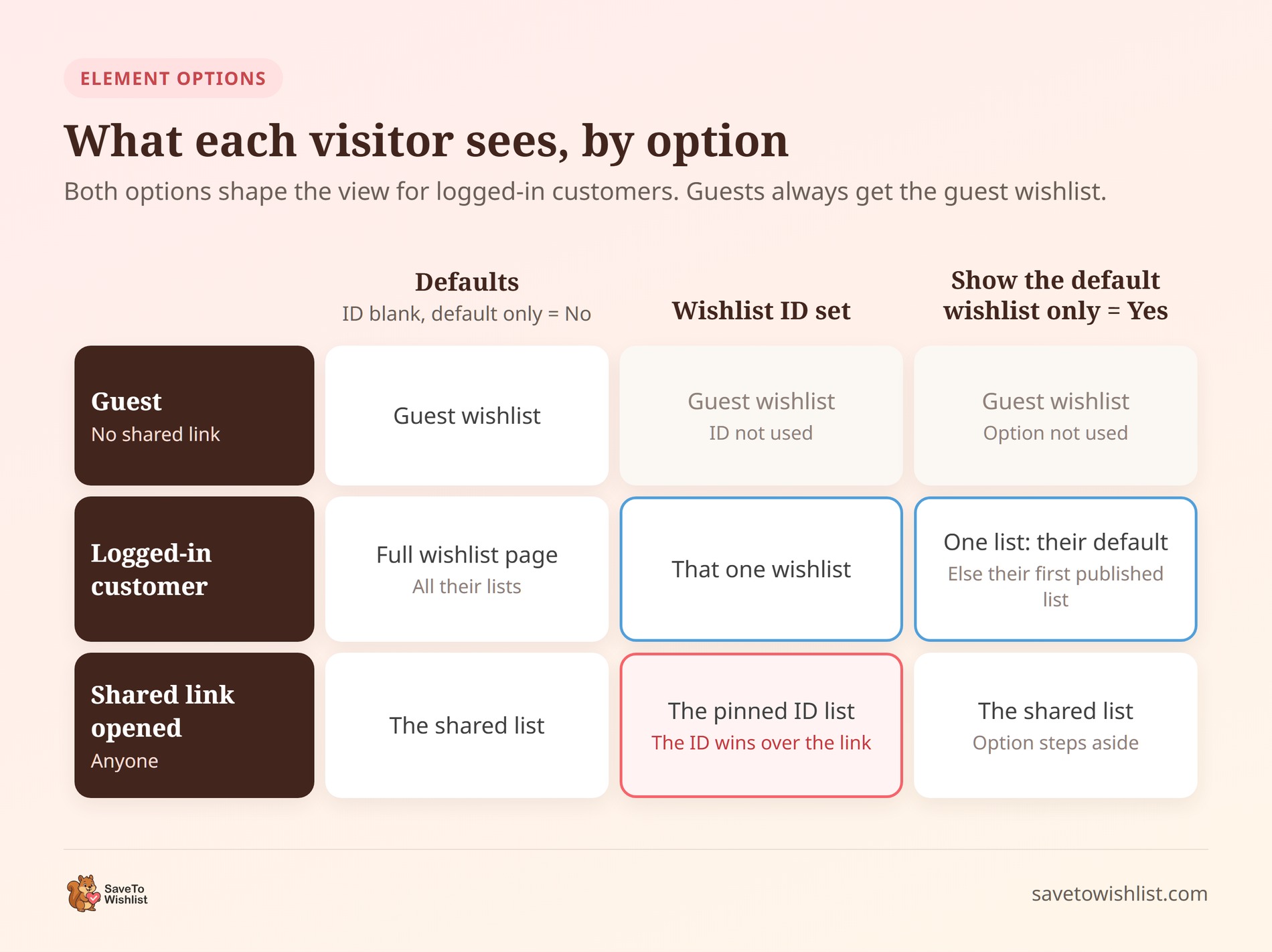
Both options shape what logged-in customers see. A guest always gets the guest wishlist view, whatever you set. Shared wishlist links behave differently for each option, which the diagram below maps out.
There’s one trap worth knowing. A pinned Wishlist ID wins over a shared link. Open a shared list on that page, and it shows the pinned list instead. Keep Wishlist ID blank on your main wishlist page, where shared links open.
Show the default wishlist only is the same feature as the shortcode’s defaultonly="yes" attribute. We explained why a one-list page suits most customers when that attribute shipped.
What you’ll see inside the builder
In the editor, the element draws a plain box with a note that the wishlist appears on the live page. That’s expected, and it isn’t a styling problem.

The real wishlist is a live app that saves to your account. Rendering it on the canvas would let a stray click add or remove items from your own list. So the placeholder only shows inside the builder, and only to logged-in users who can edit posts.
🔍️ What we’ve seen: The placeholder is easy to mistake for a broken or unstyled wishlist. It’s tempting to start troubleshooting from inside UX Builder, but the element is probably fine. Check the live page instead, and check it twice: once logged out and once as a customer.
Which Page Should Hold The Wishlist Element
For most stores, the answer is the wishlist page the plugin created at activation. It’s already wired into the rest of the plugin, so nothing else needs to change.
You can also place the element on a new page, or on more than one. It works on any page UX Builder edits directly. Our developers specifically checked a page that wasn’t the wishlist page, and the wishlist loaded there too.

If you move the wishlist to a new page, update one setting. In SaveTo Wishlist > Settings, point the Redirect page dropdown at the new page. That’s where shoppers land after saving a product when the button is set to redirect them.
Keep the wishlist page’s URL stable once customers start using it. Some will bookmark it, and others paste shared wishlist links into messages to friends and family.
The One Placement To Avoid: UX Blocks
Place the element directly on the page. Don’t put it inside a reusable UX Block that another part of your site pulls in.
Flatsome can embed a UX Block indirectly with a [block id="..."] reference. You’ll find these in theme-option footers, per-page footers, menu item blocks and custom product layouts.
The plugin decides whether to load the wishlist app by scanning the page’s own content. However, it can’t see inside a block stored somewhere else. The element still prints, but the wishlist’s scripts and styles don’t load with it. Without them, the wishlist can’t run properly.
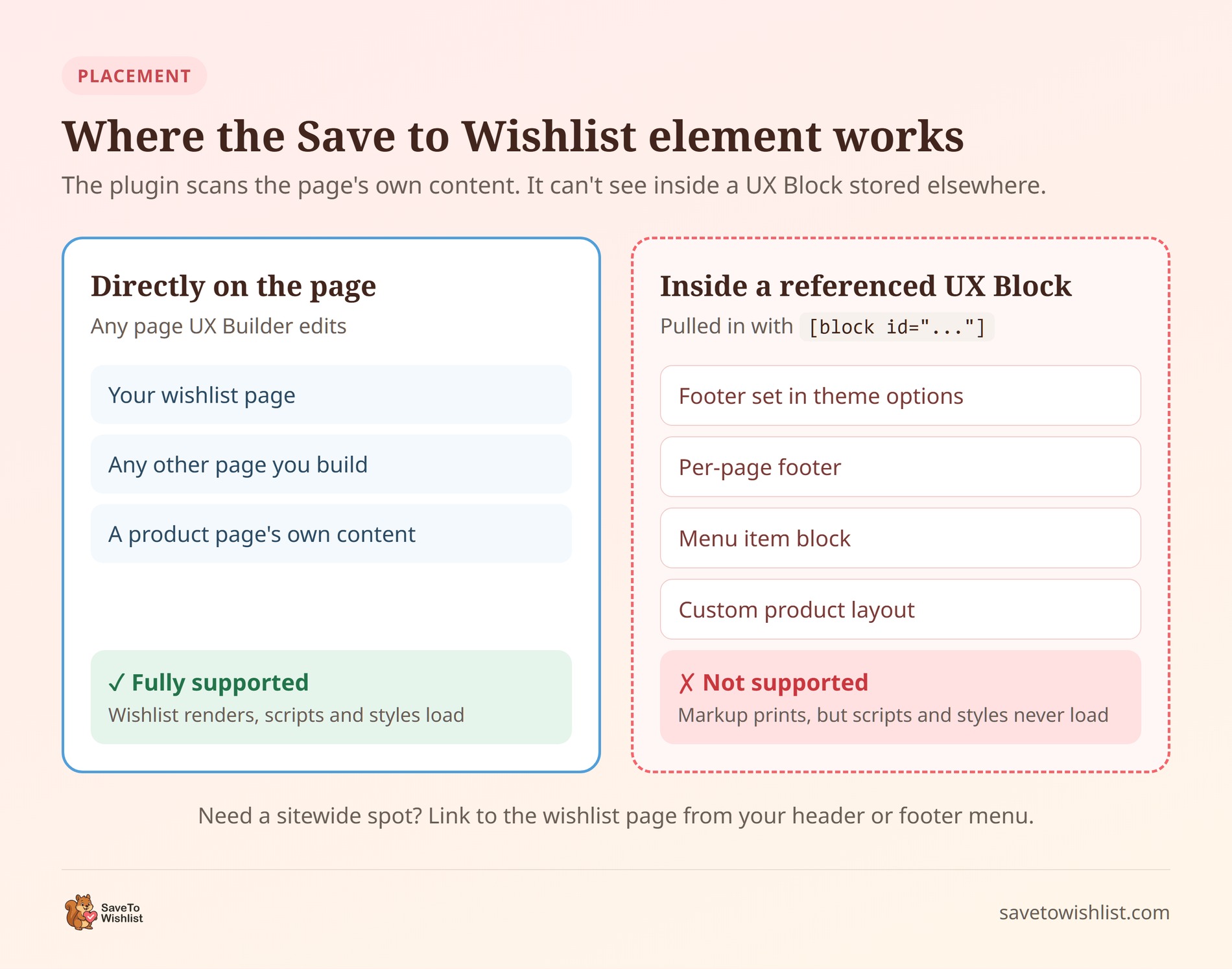
Want a wishlist in a sitewide spot like the header or footer? Add a menu link to the wishlist page instead. It’s one menu item, and it works on every page.
How To Confirm Your Flatsome Wishlist Works
Run these checks once after setup, and again after any big Flatsome update. They mirror the scenarios our developers verified by hand.
- Logged out: Open the page in a private window. You should see the guest wishlist, as long as guest wishlists are switched on.
- As a customer: Log in with a test customer account, save a product, then open the page. The product should be listed.
- As an admin, outside the builder: You should see the live wishlist, never the placeholder box.
- My Account: Open the Wishlist tab under My Account. It should show the live wishlist too.
- A shared link: Make a test list public, share it, then open the link logged out. It should show that list.
One edge case is already handled for you. UX Builder preview links carry a URL parameter. A customer who follows one still sees their own wishlist. The placeholder only shows to users who can edit posts.
A guest who hasn’t saved anything yet sees an empty state, which is normal. If guests get no wishlist at all, check that Disable Guest Wishlist is off. You can also customize the guest wishlist page if it reads too bare.
What About The Save To Wishlist Button On Flatsome?
The Save to Wishlist button doesn’t need the integration. It hooks into the standard WooCommerce product templates, and Flatsome’s templates fired those hooks in our tests.
Our developer tested this on Flatsome 3.15.5. The button rendered on all 12 shop cards and on the single product page. On that test store, the shop button sat inside Flatsome’s price area on each card. That’s where the Above the Add to Cart Button placement attaches.
Unlike Woostify and Blocksy, Flatsome gets no theme-specific button styling. Choose your placement under SaveTo Wishlist > Settings > Button Placement & Styles. We haven’t tested every placement on Flatsome, so check yours on a shop page, a product page and a phone.
Getting the button right matters because most carts don’t make it to checkout. According to Baymard Institute’s cart abandonment research, the average documented abandonment rate is 70.22%, across 50 studies. A visible wishlist button gives those shoppers somewhere to park a product. That gives you a way to win some of those sales back.
Does a placement crowd your Flatsome cards? You can hide the button on one page type and keep it on the other.
Frequently Asked Questions
Does the Flatsome integration need SaveTo Wishlist Pro?
No. The Save to Wishlist element ships in the free SaveTo Wishlist Lite plugin, version 1.1.3 and later. Install or update the free plugin. The element then appears in UX Builder’s Content group while Flatsome is active.
Why is my wishlist page blank after I edited it in UX Builder?
A UX Builder page saves its own layout, made of builder shortcodes. If you rebuild the page without our element, that layout has no [saveto_wishlist] shortcode to draw the wishlist. Add the Save to Wishlist element from the element picker, then save the page again.
Can I still use the wishlist shortcode on a Flatsome store?
Yes, on pages you don’t edit with UX Builder. The shortcode works in the block editor as usual, as our wishlist shortcode guide shows. Inside a UX Builder layout, use the element instead. It runs the same shortcode underneath, with a proper options panel.
Will my customers ever see the builder placeholder?
No. The placeholder only appears inside UX Builder, and only for logged-in users who can edit posts. Everyone viewing the live page, including you, sees the real wishlist.
Ready To Add Your Wishlist To Flatsome?
A wishlist page only earns its keep if it actually renders. On Flatsome, that comes down to one choice. Build the page with the Save to Wishlist element, not a shortcode UX Builder will rewrite.
- Understand why the page goes blank before you rebuild anything.
- Add the Save to Wishlist element to your wishlist page in UX Builder.
- Keep it out of UX Blocks and link to the page from your footer instead.
- Run the five checks as a guest, a customer and an admin.
Your Flatsome wishlist is one element away from working. Install or update SaveTo Wishlist Lite and add it to your wishlist page today.



