
 Reviewed by
 The newest update for SaveTo Wishlist Lite is officially live!
We designed this absolutely free release to tackle cart abandonment head-on. By giving your customers more control over their checkout and adding product images to their lists, we’re making it much easier for them to buy what they want now and save the rest for later.
Ready to see the new tools in your arsenal? Then read on!
✨️ Major Update: Smarter Carts & Visual Wishlists
We focused on two main areas for this release: checkout management and wishlist design. First, we gave customers the ability to save specific items straight from their cart instead of forcing them to save their whole order. Second, we added product images to the wishlist table so users can actually see what they saved.
1. Greater Flexibility & Smarter Carts
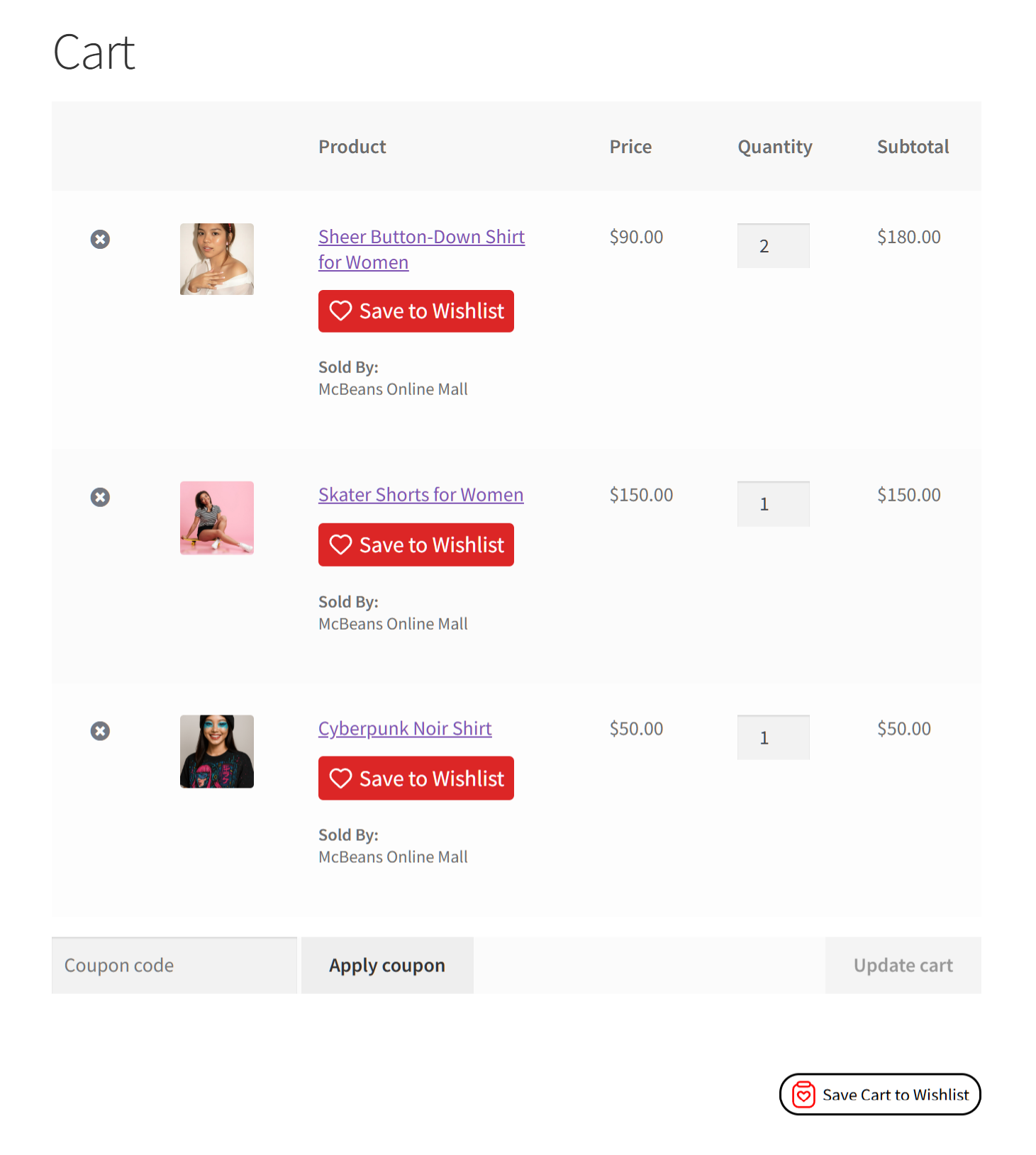
Customers can now save specific items to their wishlist directly from their cart without saving their entire order at once. We added a dedicated “Save to Wishlist” button for each item on the cart page. Moreover, the cart now actively monitors saved items and automatically updates the buttons to prevent duplicate wishlist entries.
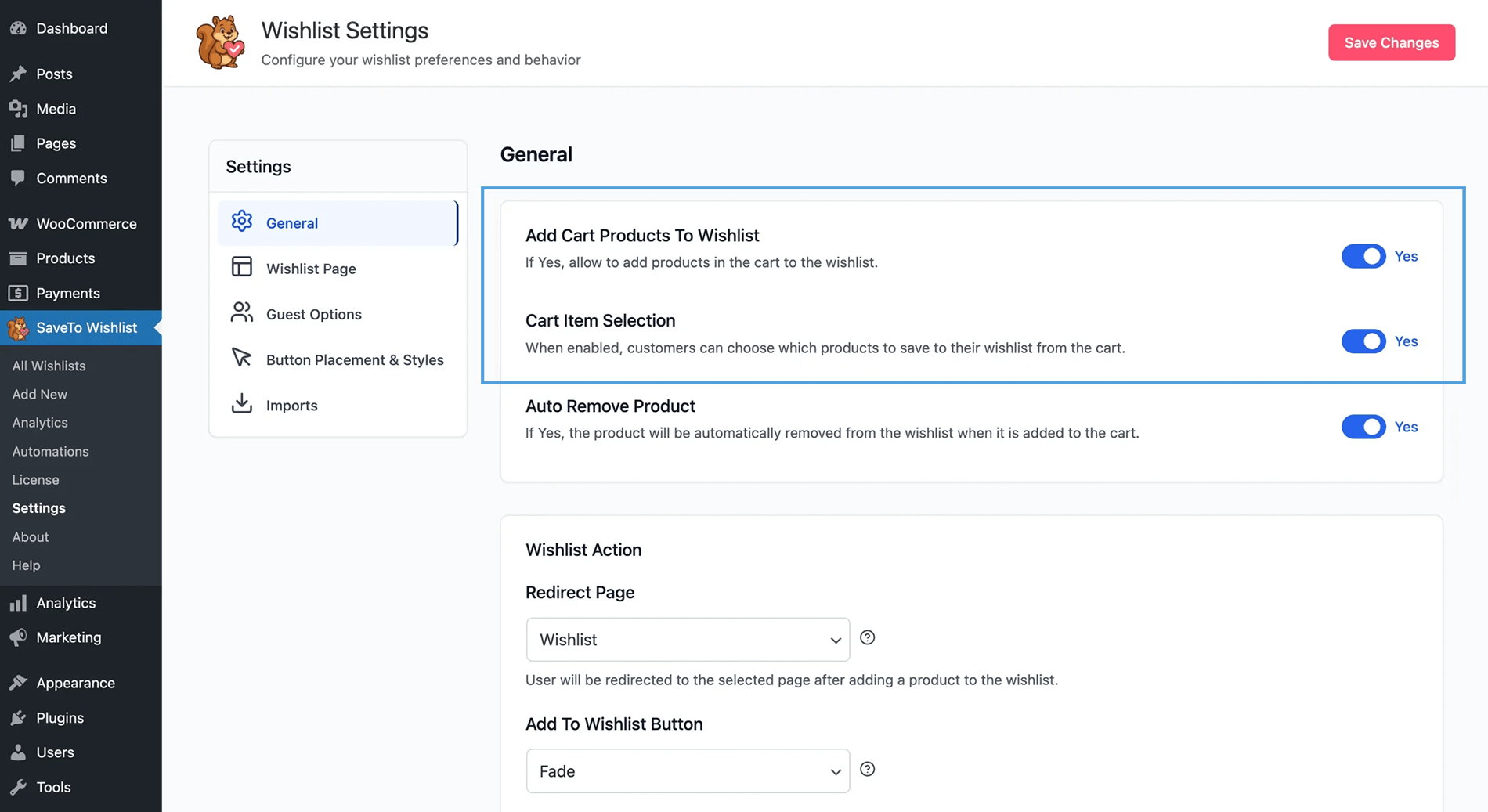
What you need to know:
- Item-level control: A save button appears within each cart row, near the remove icon and below the product name.
- Quantity handling: If a customer saves a simple or variable product that’s already in their list, the plugin increases the item quantity instead of making a duplicate row.
- Dynamic individual buttons: The individual “Save to Wishlist” buttons automatically hide for any cart items the customer already saved.
- Intelligent bulk button: The main “Save Cart to Wishlist” button disables itself if all cart items are already saved. Furthermore, hovering over it displays a clear tooltip: “All cart items are already in your wishlist.”
- Bulk saving remains: The original bulk “Save Cart to Wishlist” button stays at the bottom of the cart so users can still save everything at once.
- Zero cart interference: These new options operate completely independently. They don’t interrupt standard cart actions like changing quantities or removing items.
- Accuracy first: The individual per-product save buttons are strictly restricted to logged-in users to ensure tracking accuracy.
2. Visual Wishlists: Product Images
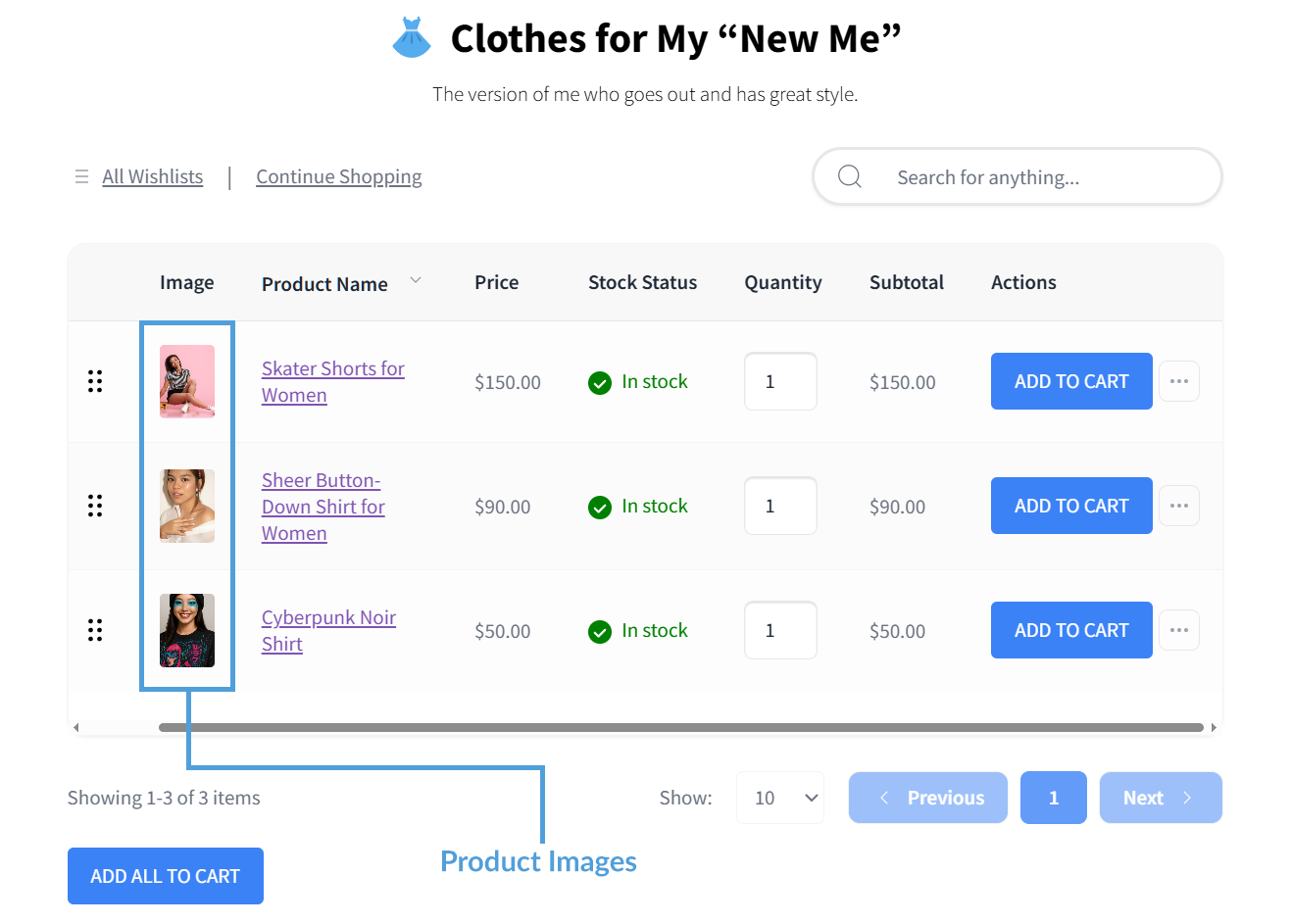
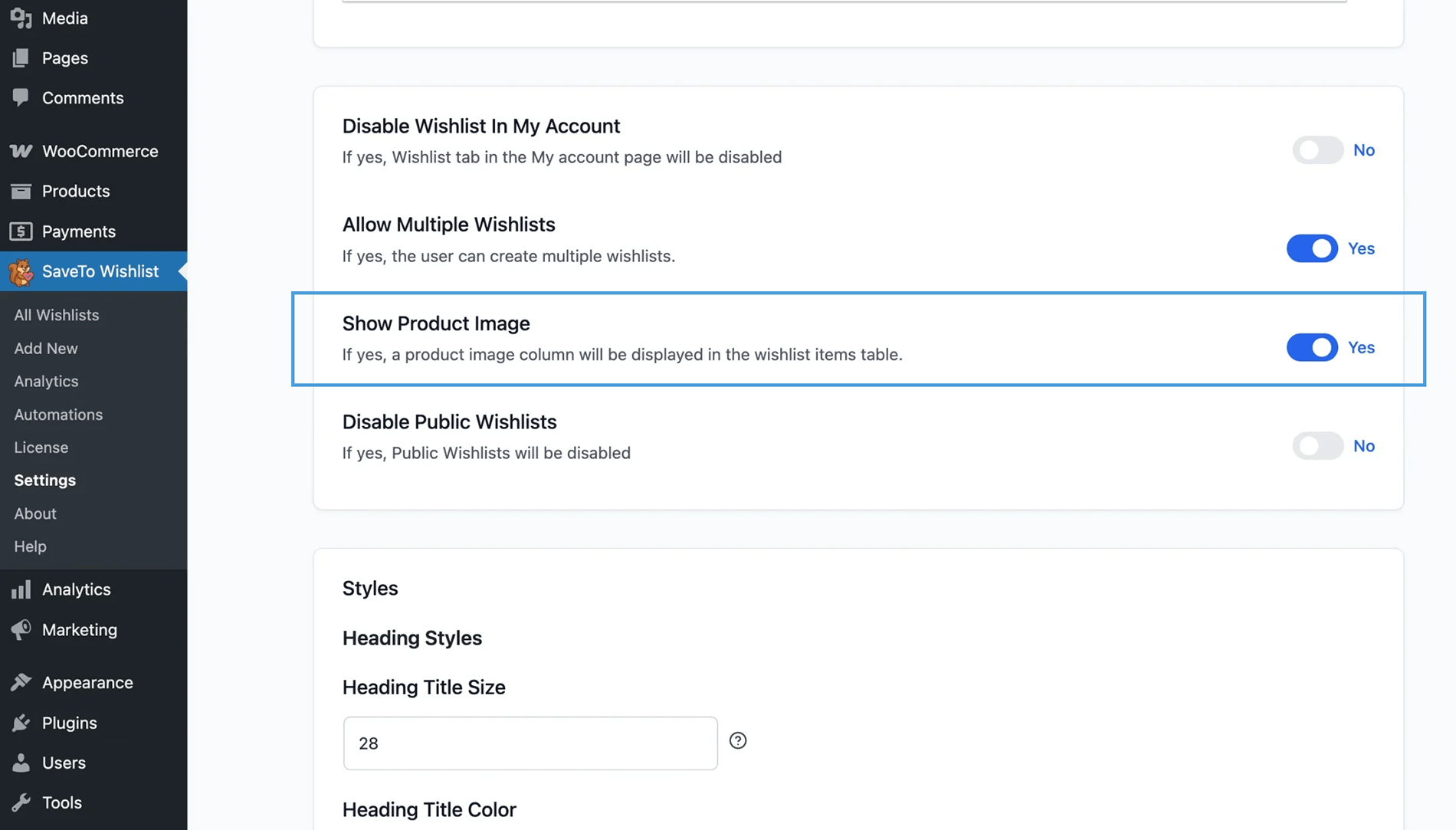
Text-only wishlists make it hard for shoppers to quickly find what they saved. We added a Product Image column to the wishlist table so your customers can visually spot their items instead of reading through blocks of text.
What you need to know:
- Placement and sizing: The image sits at the front of the table for both logged-in and guest users. It uses your standard WooCommerce thumbnail sizing so it matches your current theme.
- Product variations: The table displays exact variation images, like a specific red shirt. Also, it updates automatically if a customer changes their choice in the wishlist.
- Lazy loading: The plugin uses native “lazy loading.” This means the browser only loads an image when a customer scrolls down to look at it, keeping your site fast even if they have 50 items on their list.
- Settings control: This visual upgrade is on by default. You can turn it off by going to SaveTo Wishlist > Settings > Wishlist Page and toggling the Show Product Image setting.
⚡ What Else is New With Lite?
Beyond the cart and visual upgrades, we also added a helpful administrative setting to give you more control over your store’s onboarding experience.
Custom “First Wishlist” Branding
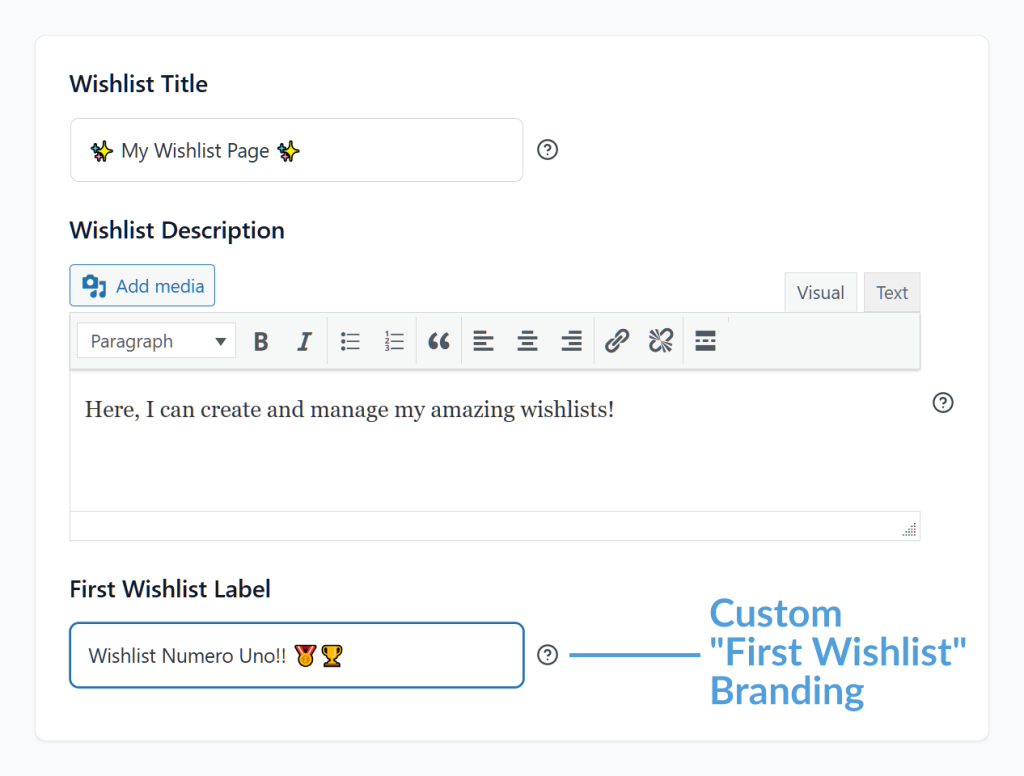
Previously, the plugin automatically created a list named “First Wishlist” for every new account. Now, a new First Wishlist Label setting gives you full control to name this initial list whatever you want so it fits your brand voice.
What you need to know:
- Simple setup: Go to SaveTo Wishlist > Settings > Wishlist Page to enter your custom brand name.
- Automatic updates: The system applies your custom label automatically when new customers register or when a user logs in for the very first time.
- Existing users: This setting only applies to lists that are auto-created for new accounts. It protects your database, meaning it won’t overwrite or alter any wishlists that your current customers have already manually named.
- Fail-safe protection: If you accidentally leave the setting blank, the system safely defaults back to “First Wishlist” so your wishlists never break or appear blank.
What About SaveTo Wishlist Pro?
We didn’t just update the free version. SaveTo Wishlist Pro also received a major upgrade focused entirely on automating your sales and cutting down your administrative work.
If you use the Pro version, you now have access to new tools like:
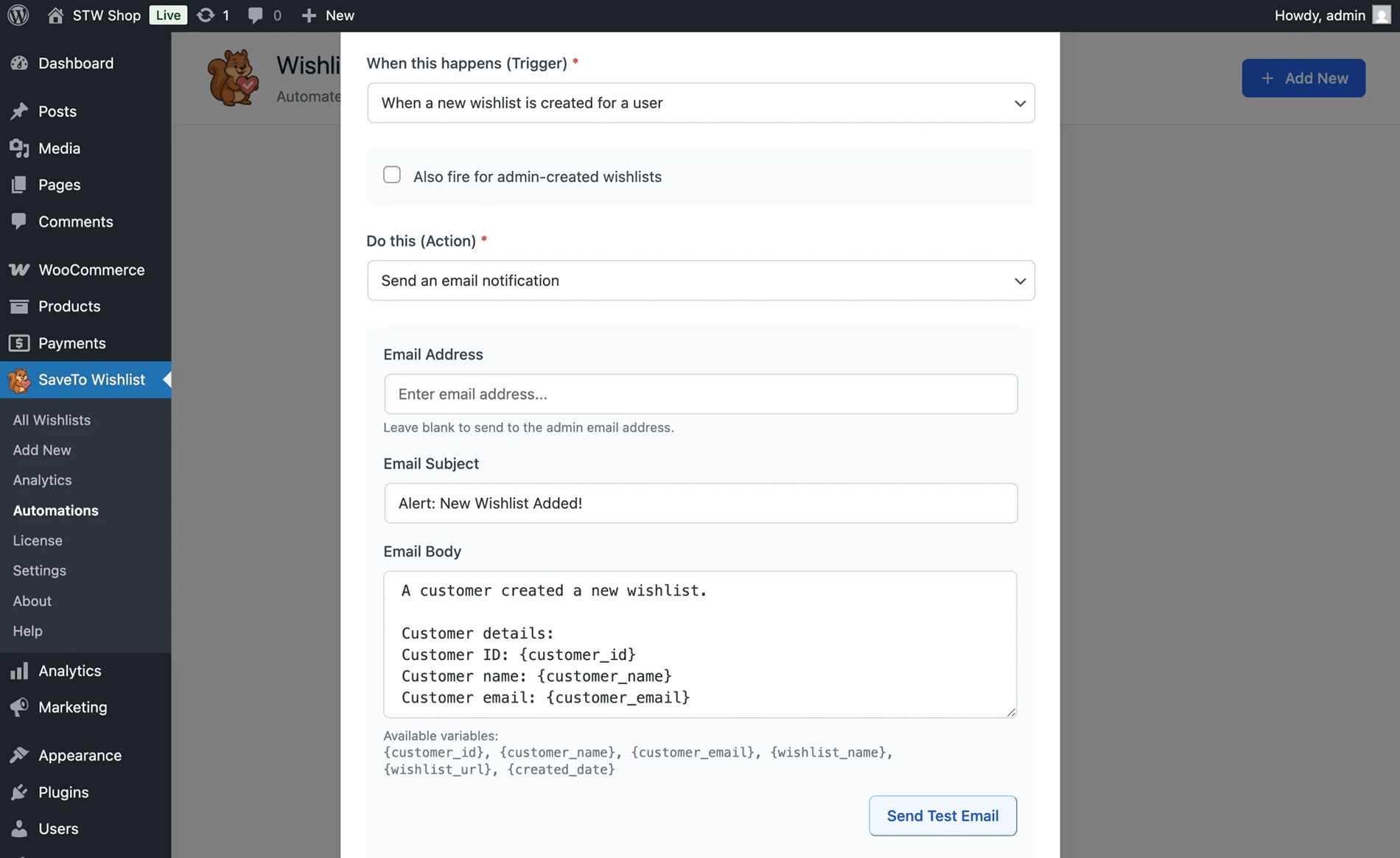
- Direct customer alerts: Automatically email shoppers the exact moment a product they saved goes on sale or comes back in stock.
- Live email testing: Send a test email to yourself with one click so you can check your design before it reaches your buyers.
- B2B & global support: Deliver automated emails in your customers’ native languages using WPML, and show accurate wholesale prices for your B2B buyers right inside their lists.
Want to see the complete list of premium upgrades? Then check out the full announcement:
New Features! Direct Customer Alerts, Live Email Testing, And B2B Integration
Conclusion
That wraps up everything in this SaveTo Wishlist Lite update! You can access these new features right now by updating the plugin directly from your WordPress dashboard.
To recap, this announcement explored the following new features:
- Greater flexibility and smarter carts
- Visual wishlists: product images
- Custom “First Wishlist” branding
If you want to unlock even more tools to grow your store—like automated back-in-stock emails and wholesale pricing support—check out SaveTo Wishlist Pro.