

 Reviewed by
 Your WooCommerce my account page is one of the most overlooked pages in the whole store. Most owners set it up once, forget it, and treat it as a password reset screen. That’s a missed chance.
When shoppers have no reason to log back in, they drift away. You then pay again through ads to win them back. Meanwhile the account area sits empty and generic.
The fix is to give people a reason to return. That means order history, easy reordering, and saved wishlists in one place. This guide covers the setup first, then shows how to make the page pull customers back.
Jump to:
- What Is The WooCommerce My Account Page?
- How To Set Up The WooCommerce My Account Page
- How To Control Who Can Create An Account
- How To Rename Or Remove Account Page Tabs
- How To Add A Custom Tab To The Account Menu
- Why The Account Page Keeps Customers Coming Back
- How To Make Reordering One Click
- How To Add Wishlists To Your My Account Page
- Settings To Check After You Add Wishlists
- How To Show Wishlists Elsewhere On Your Site
- What To Test Before You Call It Done
- How To Fix Common My Account Page Problems
- How To Tell If Your Account Page Is Working
- Frequently Asked Questions: WooCommerce My Account Page
- Turn Your Account Page Into A Reason To Return
What Is The WooCommerce My Account Page?
The WooCommerce my account page is the logged-in dashboard where customers view past orders, manage addresses, and update their details. WooCommerce creates it for you during installation. The whole page runs on a single shortcode.
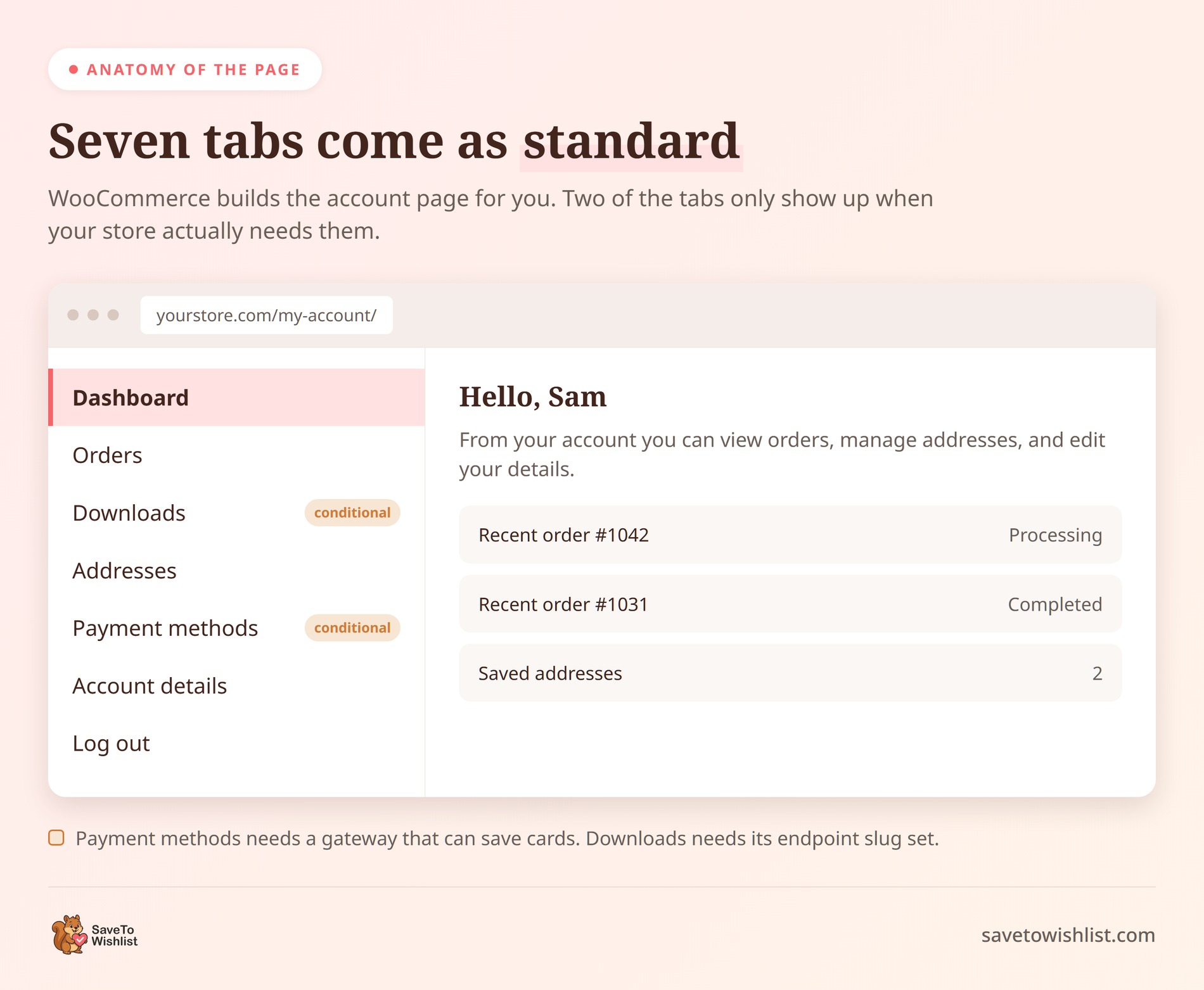
The page is split into sections called endpoints. Each one is part of the same page, not a separate page you build by hand. WooCommerce ships with seven of them:
- Dashboard: a short welcome screen with links to the other sections
- Orders: past orders, their status, and a link to view each one
- Downloads: downloadable files the customer has bought
- Addresses: saved billing and shipping addresses
- Payment methods: saved cards and other stored payment details
- Account details: name, email, and password
- Log out: ends the session
You may not see all seven. Payment methods only appears when one of your active payment gateways can save cards. Any tab also disappears if you clear its endpoint slug in your settings, which is covered further down.
Plugins can add their own sections here too. Advanced Coupons, for example, shows a customer’s store credit balance in this same area.
The default setup works, but it’s plain. It answers “where’s my order?” and not much else. That’s exactly why so few customers ever go back to it. The page only earns its keep once people have something worth returning for.
How To Set Up The WooCommerce My Account Page
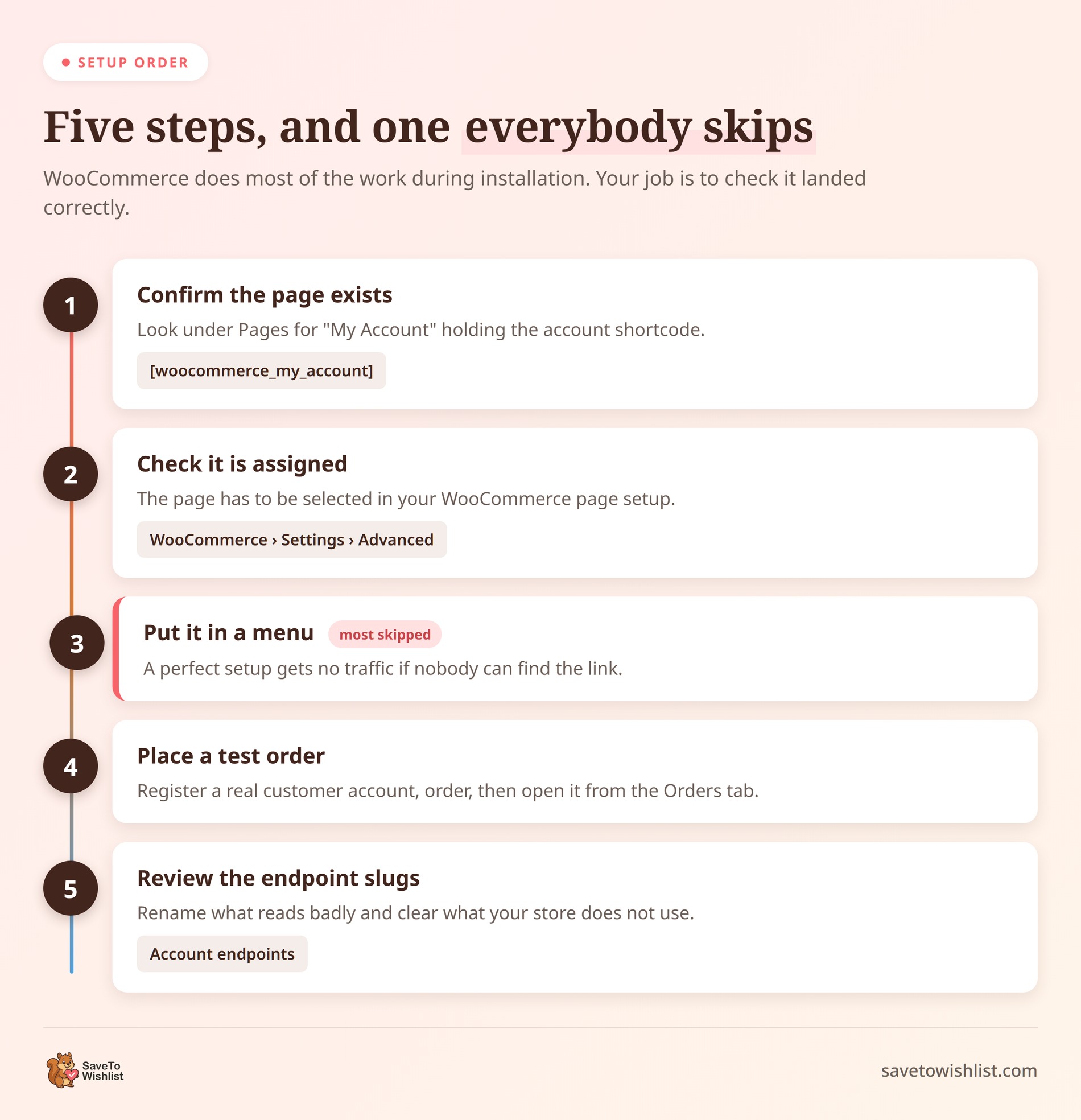
Setup takes a few minutes because WooCommerce builds most of it during installation. Your job is to check it’s assigned correctly, then tidy it up.
Here’s the order to follow on a fresh store:
- Go to Pages and confirm a page exists, usually called “My Account”. It should hold the
[woocommerce_my_account]shortcode. - Go to WooCommerce, then Settings, then Advanced. Under Page setup, check that “My account page” points to that page.
- Add the page to your main menu or footer menu so customers can find it.
- Register a test account, place a test order, and open it from the Orders tab.
- Scroll down the same Advanced screen to Account endpoints and review the slugs.
The step people skip most is the menu placement. The page can be set up perfectly and still get no traffic because nobody can find it. Add a clear “My Account” link, then check it while logged out and logged in. Menus often show different items in each state.
🔍️ What we’ve seen: A common mistake is testing the account page while logged in as an admin. Admins see a different view from customers, and some themes hide or restyle sections for them. Always test with a real customer account.
How To Control Who Can Create An Account
An account page is only worth having if people can get accounts. Those switches sit in WooCommerce, then Settings, then Accounts & Privacy. It’s a different screen from the page setup you used earlier.
The top of that screen decides what happens at checkout:
- Enable guest checkout: lets people buy without registering. Most stores should leave this on
- Enable log-in during checkout: shows returning customers a login prompt so their saved details load
Account creation options
Below that sit three checkboxes for account creation. WooCommerce can offer an account after checkout, during checkout, or on the My Account page itself.
The after checkout option is the interesting one. In Baymard Institute’s list of abandonment reasons, 18% picked “the site wanted me to create an account”. Offering it afterwards gets you the customer record without costing you the sale.
Two more settings sit under Account creation options:
- Send password setup link: emails a link instead of asking for a password on the form. Fewer fields, fewer drop-offs
- Generate account login: builds the username from their name, falling back to their email address if it has to
🔍️ What we’ve seen: Store owners switch guest checkout off to force signups and grow the customer list. Orders drop, and the accounts they do collect mostly belong to people who would have bought anyway. Leaving guest checkout on and offering the account after the order works out better.
Privacy and data retention settings
Scroll further and you reach the privacy controls. Account erasure requests can strip personal data from orders and pull download access when a customer asks for it.
Personal data retention sits below that. It controls how long inactive accounts and old orders are kept. Leave a field blank and that data stays indefinitely.
If you do set a limit, be generous with it. A customer who buys once a year looks inactive right up until the moment they buy again.
How To Rename Or Remove Account Page Tabs
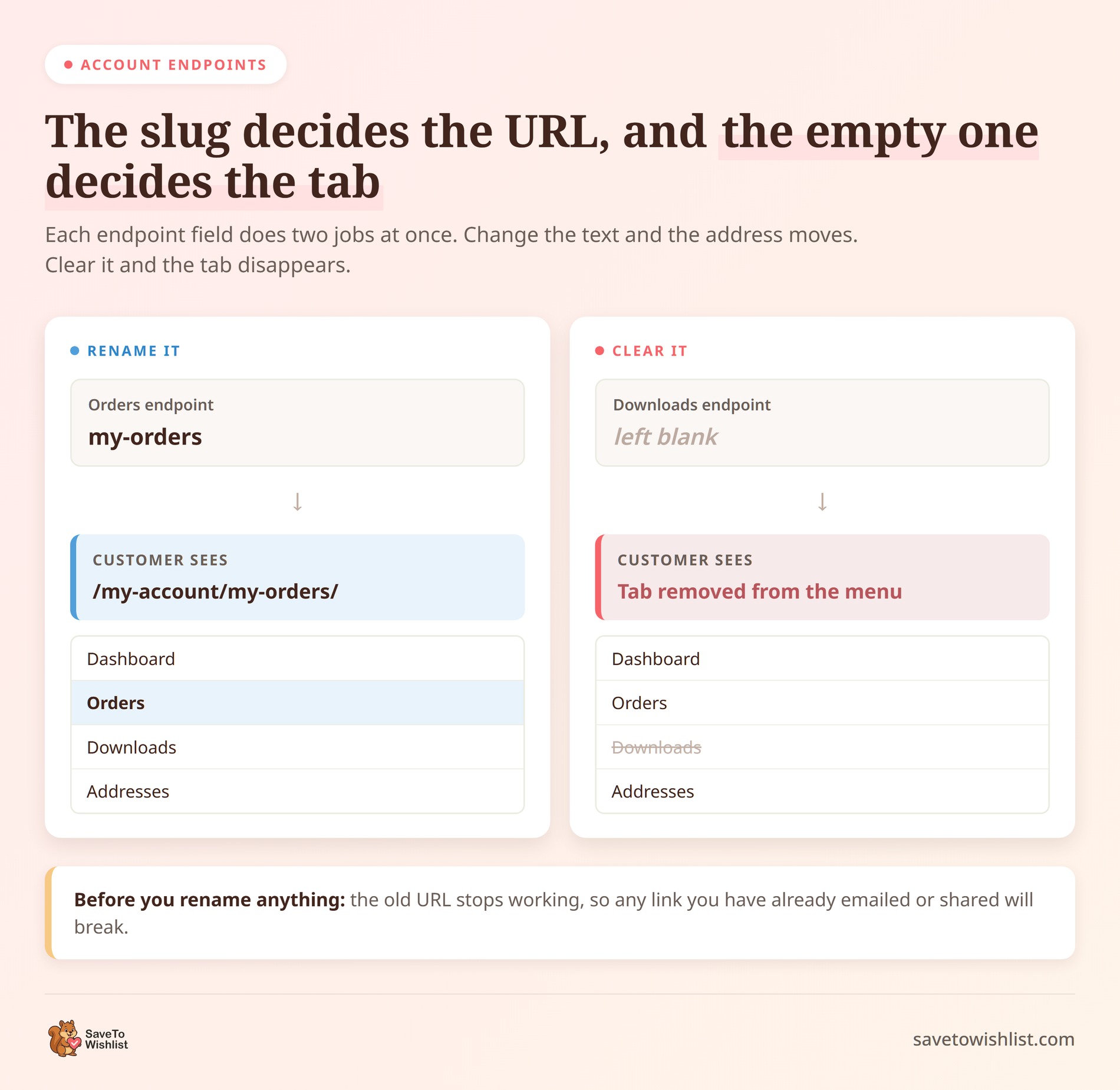
You can rename or hide most tabs without any code. The controls sit in WooCommerce, then Settings, then Advanced, in a section called Account endpoints.
Each field holds the slug that appears in the URL. Change “orders” to “my-orders” and the tab moves to a new address. Clear a field completely and that section disappears from the menu.
Two things to keep in mind before you start deleting:
- Changing a slug changes the URL, so any link you’ve shared or emailed will break
- Removing a tab hides the feature from customers, so only remove what your store genuinely doesn’t use
Downloads is the usual candidate for removal. If you sell nothing downloadable, that tab is just noise. Keep the menu short. Three or four useful sections beat a long list that buries the ones people actually want.
How To Add A Custom Tab To The Account Menu
Renaming a tab needs no code. Adding a brand new one takes three small pieces, or a plugin that ships its own tab for you.
Each piece does a different job. One registers the URL, one adds the link to the menu, and one prints what the tab shows.
// 1. Register the endpoint so /my-account/support/ resolves.
add_action( 'init', function () {
    add_rewrite_endpoint( 'support', EP_ROOT | EP_PAGES );
} );

// 2. Add the link, keeping Log out at the bottom.
add_filter( 'woocommerce_account_menu_items', function ( $items ) {
    $logout = $items['customer-logout'];
    unset( $items['customer-logout'] );

    $items['support']         = 'Support';
    $items['customer-logout'] = $logout;

    return $items;
} );

// 3. Print the tab content.
add_action( 'woocommerce_account_support_endpoint', function () {
    echo '<p>Need a hand with an order? Email [email protected].</p>';
} );
Two details catch people out here. The action name in step three follows the endpoint you registered, so a “support” endpoint fires woocommerce_account_support_endpoint.
The other is menu order. Appending an item the simple way drops it underneath Log out, which reads badly. Pulling Log out from the array and putting it back last, as above, keeps the menu sensible.
That same filter reorders everything else too. Rebuild the array in whatever order suits your store and the navigation follows it.
One last step matters. After saving the code, open Settings, then Permalinks, and click Save once. Until you do, the new tab returns a 404.
🔍️ What we’ve seen: Snippets like this usually go straight into a theme’s functions.php file, then vanish the day the theme changes. Put them in a site-specific plugin or a code snippets plugin instead, and they survive a redesign.
If code isn’t your thing, plugins can add tabs on your behalf. SaveTo Wishlist adds its own Wishlists tab with no snippet at all, which is covered further down.
Why The Account Page Keeps Customers Coming Back
The account page is the one place a returning customer expects to land. That makes it valuable space. Every reason you add to log back in is a reason not to forget you.
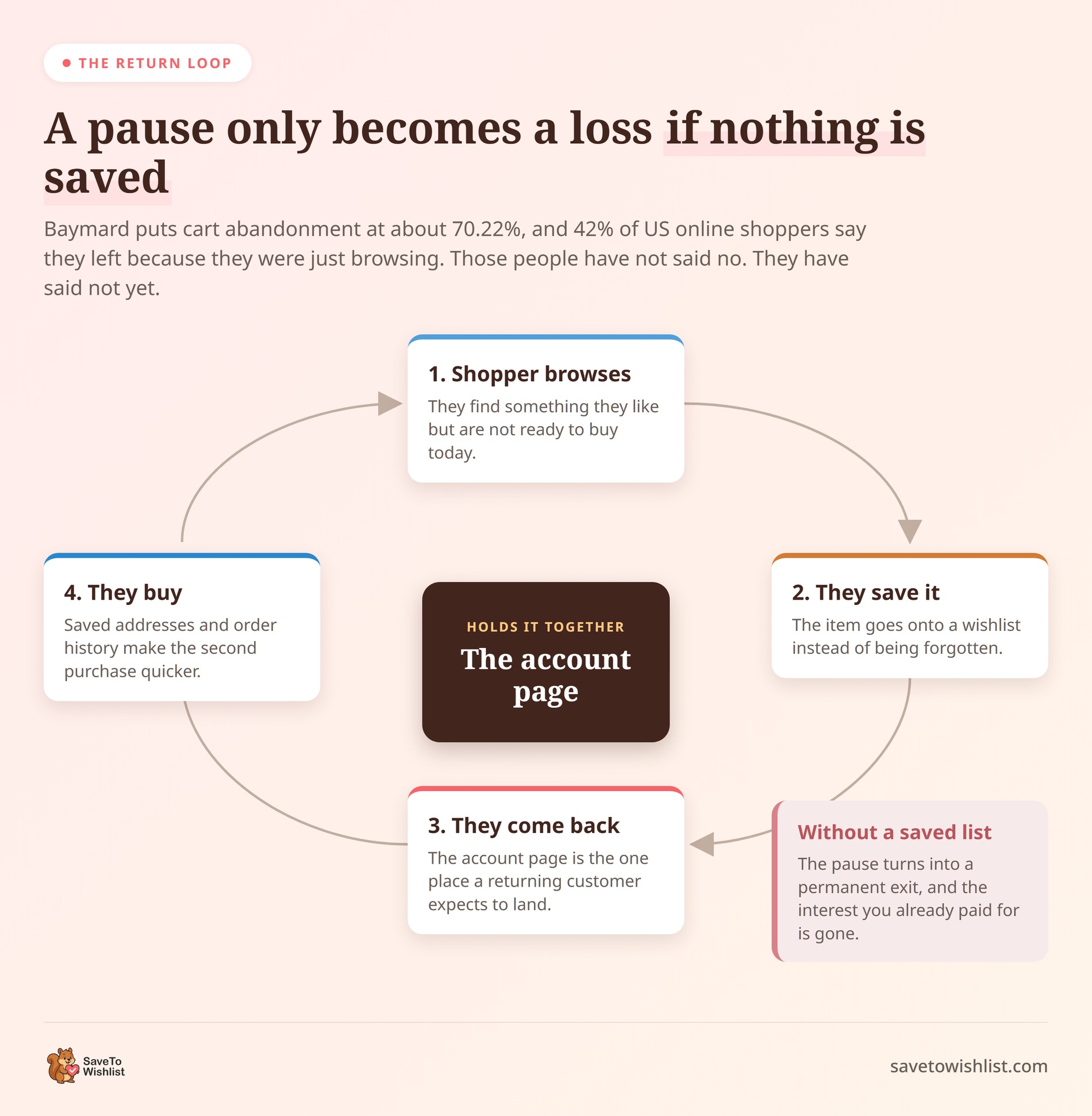
The abandonment numbers show why this matters. Baymard Institute puts cart abandonment at about 70.22%, averaged across 50 studies. The same page reports that 42% of US online shoppers have abandoned a cart while just browsing.
Those people haven’t rejected your store. They’ve paused. Without somewhere to save what caught their eye, that pause usually becomes a permanent exit.
A good account area catches that interest. Order history makes reordering simple. Saved addresses cut friction at checkout. Saved wishlists give browsers a home for items they weren’t ready to buy.
Each one turns a single sale into an ongoing relationship. Our guide on wishlists and customer retention in ecommerce breaks down how saved intent feeds repeat purchases over time.
How To Make Reordering One Click
A repeat order is the cheapest sale your store will ever make. The customer already knows the product, so there’s nothing left to convince them of.
WooCommerce ships an Order again button for exactly this. Plenty of customers never see it, because of where it lives and when it shows up.
- It sits on the single order view, not the Orders list, so the customer has to click View first
- It only appears for orders marked Completed
The Orders list is sparse by design. Pay only shows while an order still needs paying, and Cancel only on pending or failed orders. For a completed order, View is the only button there.
That status rule catches stores with slow fulfillment. If your orders sit on Processing for weeks, nobody gets the button in the meantime. This snippet widens the rule:
add_filter( 'woocommerce_valid_order_statuses_for_order_again', function ( $statuses ) {
    $statuses[] = 'processing';

    return $statuses;
} );
Think it through before you use it. Reordering a Processing order lets someone buy the same thing twice before the first one arrives. That suits coffee and dog food, and rarely suits furniture.
Also check how your store handles statuses. Mark orders Completed only at month end, and the button stays hidden until then.
Wishlists handle the other half of the job. A customer keeps a named list of the things they buy again. An add to cart button sits beside each saved item.
Order history covers what people already bought. A saved list covers what they meant to buy. Our ultimate guide to WooCommerce wishlists goes deeper on the second half.
How To Add Wishlists To Your My Account Page
Adding wishlists gives shoppers a personal reason to log back in. Their saved items sit right where they already check orders and addresses.
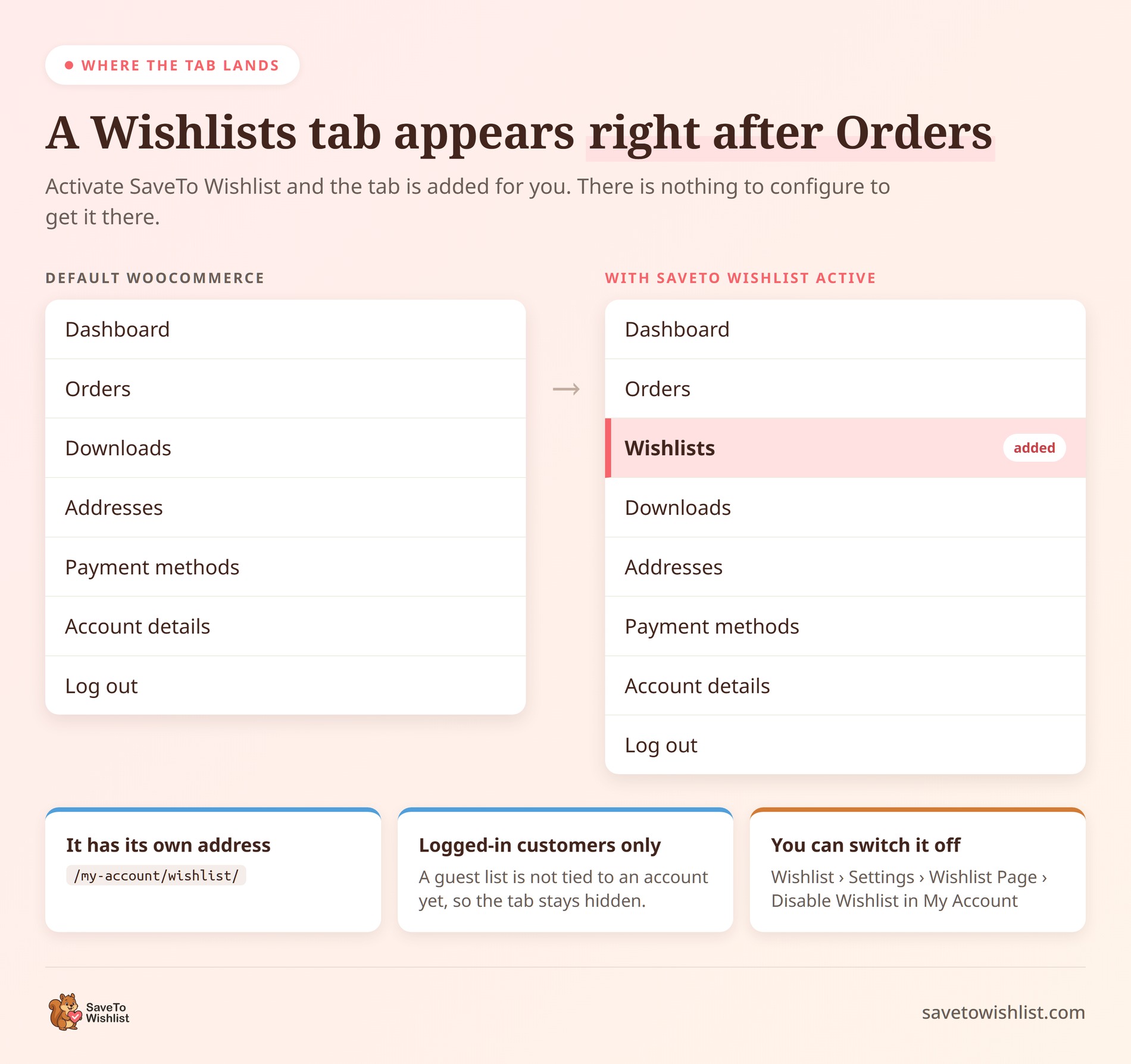
With SaveTo Wishlist, this needs no setup. Activate the plugin and a tab called Wishlists is added to the account menu, directly after Orders. It lives at /my-account/wishlist/ and shows the customer’s saved lists.
Two details are worth knowing:
- The tab only shows for logged-in customers, since a guest list isn’t tied to an account yet
- You can switch it off under Wishlist, then Settings, then Wishlist Page, using “Disable Wishlist in My Account”
The free version covers what most stores need here. Customers can keep several lists with their own names, like “Birthday ideas” or “Restock later”. They can set one as their default and reorder items by dragging them.
Guest saves matter too. A visitor can save products before they ever register. When they log in or create an account, that list moves across on its own and nothing is lost.
🔍️ What we’ve seen: Stores that keep saved lists inside the account area get more return visits than those that bury them elsewhere. The account page starts working like a saved cart. People check back on what they were eyeing instead of starting over on the homepage.
If you’re still deciding how to structure lists and buttons, our online wishlist maker overview covers the options.
Settings To Check After You Add Wishlists
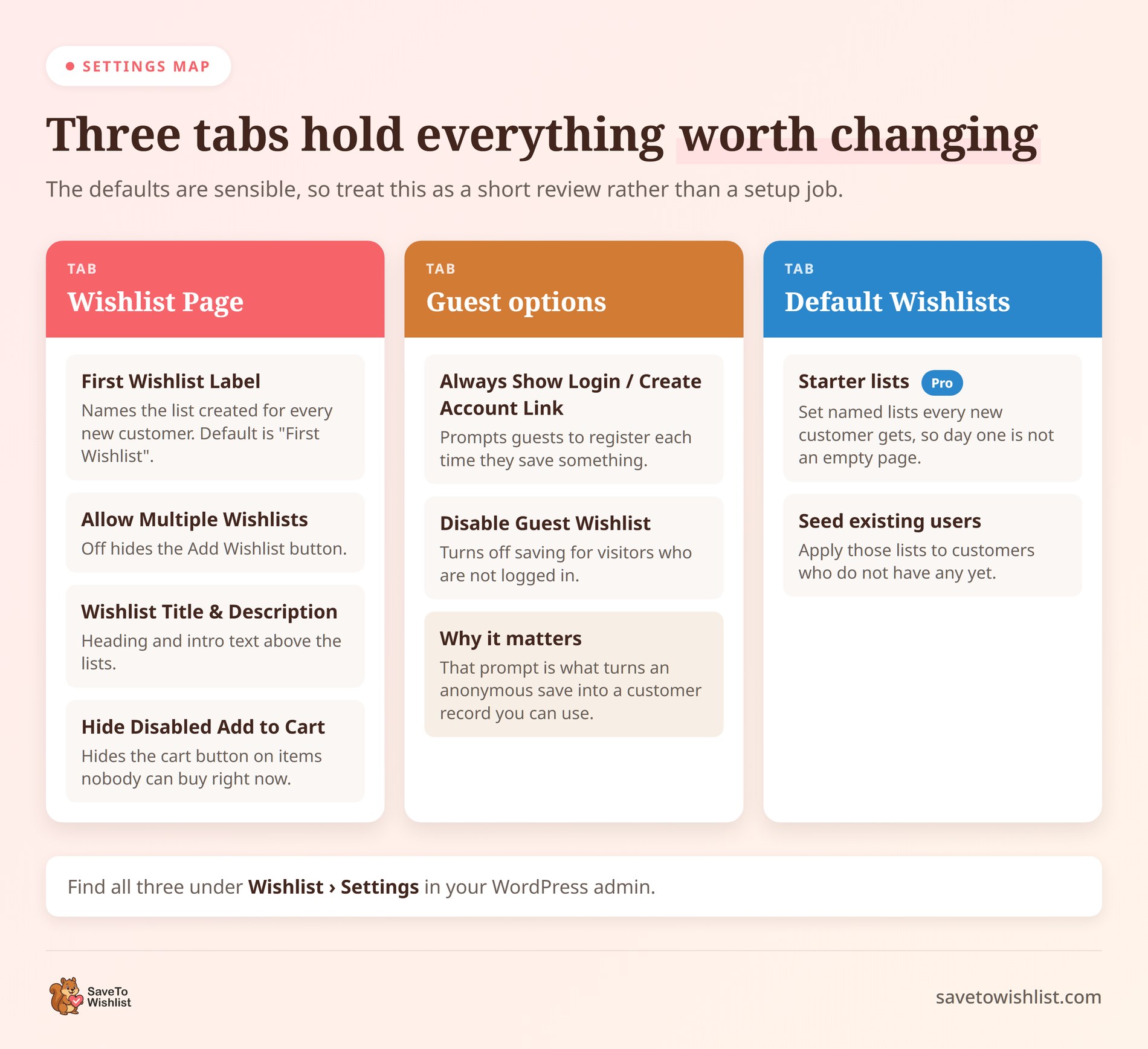
The defaults are sensible, but a few settings shape how the account page feels. You’ll find these under Wishlist, then Settings.
On the Wishlist Page tab:
- First Wishlist Label: names the list that gets created automatically for a new customer. The default is “First Wishlist”, which is a bit flat. Something like “My Saved Items” reads better
- Allow Multiple Wishlists: leave this on if you want customers making their own named lists. Turn it off and the Add Wishlist button disappears
- Wishlist Title and Description: the heading and intro text shown above the lists
- Hide Disabled Add to Cart Buttons: hides the cart button on items nobody can buy right now, like out-of-stock products
On the Guest options tab, “Always Show Login/Create Account Link” is the one to look at. Switch it on and guests get a prompt to make an account each time they save something. That prompt is what turns an anonymous save into a customer record you can actually use later.
Our guide to building an email list for your WooCommerce store covers the same idea. The trick is asking for the signup at the moment someone saves.
SaveTo Wishlist Pro adds a Default Wishlists tab in the same settings area. It sets up named starter lists that every new customer gets. Their account page isn’t empty on day one. You can also apply those lists to existing customers who don’t have any. We covered it when it shipped in our default wishlists release notes.
How To Show Wishlists Elsewhere On Your Site
The account tab isn’t the only place lists can appear. Some stores want a standalone wishlist page too, usually to link it straight from the main menu.
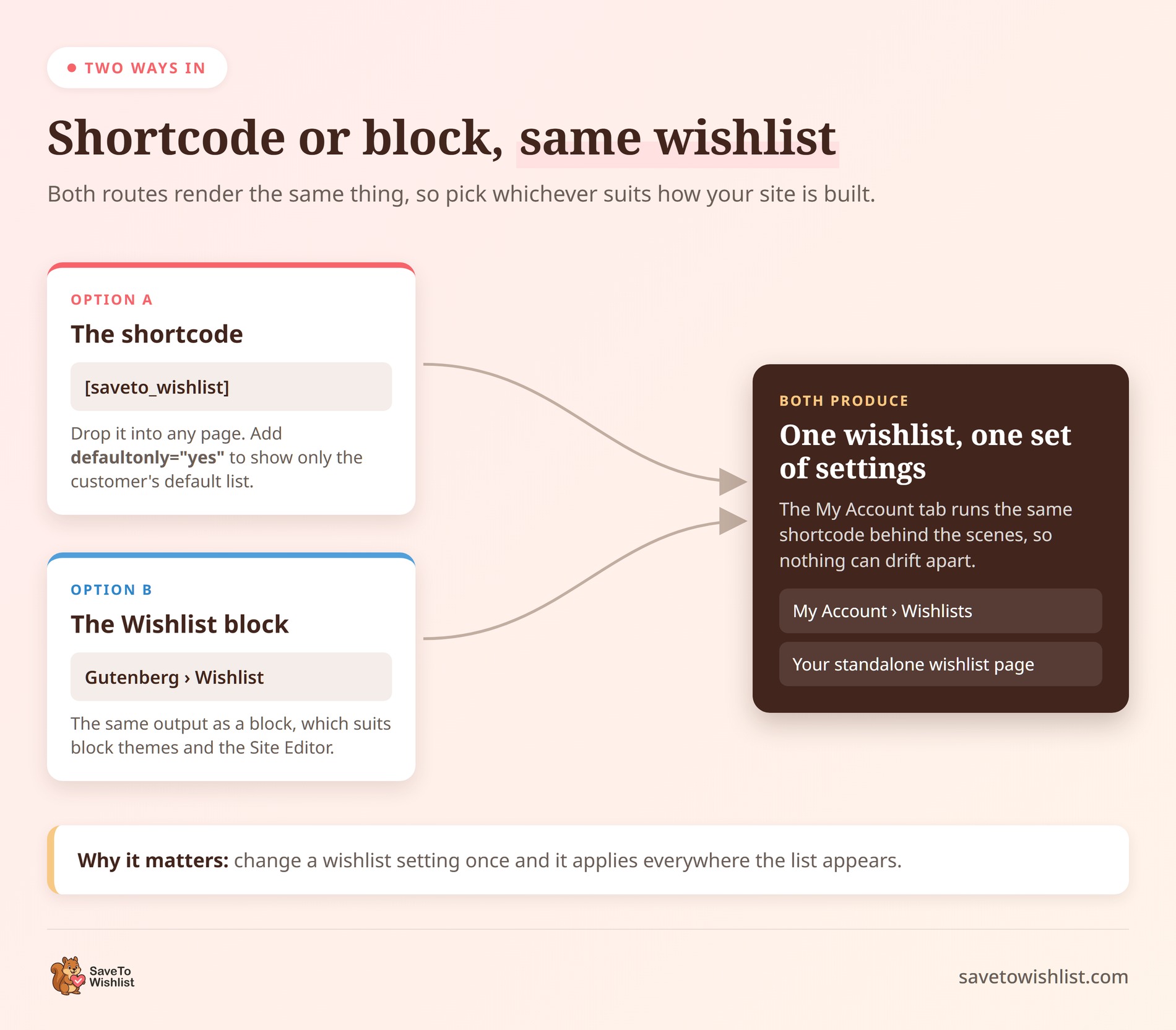
You have two ways to do that, and both show the same thing:
- The shortcode: drop
[saveto_wishlist]into any page - The Wishlist block: the same thing as a Gutenberg block, which suits block themes and the Site Editor
The shortcode takes a couple of attributes. Use [saveto_wishlist defaultonly="yes"] to show only the customer’s default list instead of all of them. That’s handy for a simple “My Saved Items” page where several lists would be overkill.
Worth noting: the account tab renders the same shortcode behind the scenes. Whatever you change in the wishlist settings applies in both places. Your two setups can’t drift apart.
What To Test Before You Call It Done
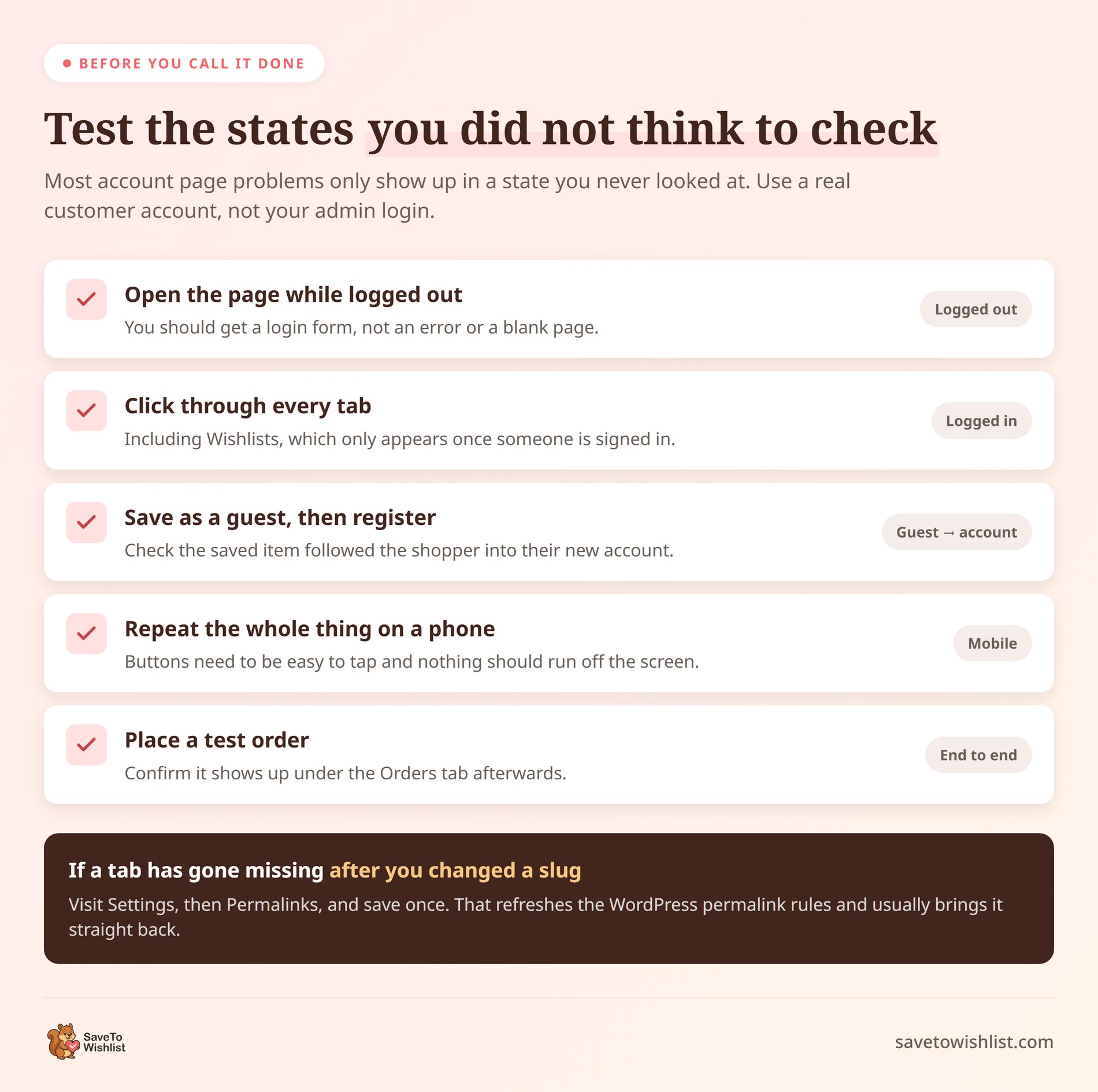
Most account page problems show up in states you didn’t check. Run through this list with a real customer account, not your admin login.
- Open the page while logged out. You should see a login form, not an error or an empty page.
- Log in and click through every tab, including Wishlists.
- Save a product as a guest, then create an account. Check the saved item followed you across.
- Repeat the whole thing on a phone. Check buttons are easy to tap and nothing runs off the screen.
- Place a test order and confirm it appears under Orders.
Anything that misbehaves in one of those states usually has a familiar cause. The next section covers the faults that come up most often, and how to clear them.
For a fuller tour of the plugin’s screens, our SaveTo Wishlist walkthrough goes through each one.
How To Fix Common My Account Page Problems
Almost every account page fault traces back to a handful of causes. This table covers the ones that come up again and again.
| What you’re seeing | Usual cause | What fixes it |
|---|---|---|
| A login form shows even when you’re logged in | A page cache is serving the logged-out version of the page | Exclude the account page from caching |
| The page is completely blank | The shortcode was deleted from the page content | Add [woocommerce_my_account] back to the page |
| A tab returns a 404 | Rewrite rules went stale after an endpoint change | Open Settings, then Permalinks, and save once |
| A tab is missing from the menu | Its endpoint slug is empty, or no gateway can save cards | Refill the slug under Account endpoints |
| The layout broke after an update | An outdated template override sitting in your theme | Compare the theme’s copy against the current template |
That last row deserves more than one line. Themes are allowed to take over account page templates by copying them into a woocommerce/myaccount/ folder inside the theme.
The copy keeps running long after WooCommerce has moved on. A file copied three years ago will happily render a three-year-old layout, and nothing warns you about it.
So when the account page looks wrong after an update, check the theme before you blame the plugin. Deleting an outdated override often restores the current layout on its own.
Duplicate pages cause the other stubborn fault. A store gets rebuilt, a second My Account page appears, and the setting quietly points at the empty copy.
Search your Pages list for the shortcode to find out how many copies exist. Keep the one that’s assigned, then move the spare to drafts rather than deleting it outright.
How To Tell If Your Account Page Is Working
A working account page shows up in behavior, not in traffic. Judge it on page views and it will always look like a failure.
Four numbers tell you far more:
- Repeat purchase rate: the share of customers with more than one order. This is the clearest signal the page is doing its job
- Account page entrances: sessions that start on a
/my-account/URL, which means somebody came back on purpose - Reorders: orders placed through the Order again button instead of a fresh browse
- Saves that become orders: products added to a wishlist and bought later
The first three come out of your analytics tool. In Google Analytics 4, filter landing pages down to your account URLs. Then compare that group’s conversion rate against the rest of the site.
The fourth needs the plugin to report it. SaveTo Wishlist Pro includes wishlist analytics and reports. You get to see what customers actually save, instead of guessing.
🔍️ What we’ve seen: Owners check account page traffic, see a small number, and write the page off. Traffic there is supposed to be small. The figure worth watching is what share of your repeat orders passed through it.
Whatever you decide to track, write the numbers down before you change anything. Without a baseline you’ll never know whether the wishlist tab helped or the season did.
Frequently Asked Questions: WooCommerce My Account Page
Where do I find the WooCommerce My Account page?
WooCommerce creates the WooCommerce My Account page during installation, and it usually sits under Pages titled “My Account”. It’s linked in WooCommerce, then Settings, then Advanced, under Page setup. If it’s missing, create a new page, add the [woocommerce_my_account] shortcode, and assign it there. Test it while logged in and logged out, because the view changes based on the visitor.
Why is the Payment methods tab missing from my account page?
WooCommerce hides that tab unless one of your active payment gateways can save a customer’s payment details for reuse. If none of them support it, there’s nothing for the tab to show, so it doesn’t appear. The other reason a tab goes missing is an empty endpoint slug under WooCommerce, then Settings, then Advanced.
Can guests save a wishlist before creating an account?
Yes. SaveTo Wishlist supports guest wishlists, so shoppers can save items without registering first. When that guest later logs in or creates an account, the saved list moves into their account automatically. This matters because plenty of browsers aren’t ready to commit on a first visit. Forcing a signup before they can save usually loses them.
Why should I add wishlists to the account page?
Because wishlists give returning customers a personal reason to log back in. Many shoppers leave simply because they’re not ready to buy yet. A saved list holds that interest instead of losing it. When saved products sit inside the account page, the customer has a clear place to return to. That supports repeat visits over time.
Does the account page work on mobile?
Yes. The page is responsive and follows your theme’s styling, so it adapts to phones and tablets. A large share of shopping happens on mobile, so test every tab on a small screen. Pay attention to the orders view and any saved wishlists. Check the buttons are easy to tap and the lists readable. Adjust your theme spacing if anything feels cramped.
Turn Your Account Page Into A Reason To Return
Set up properly, the WooCommerce my account page is more than a password reset screen. It becomes somewhere customers actually want to go back to. Here’s the path this guide covered:
- What the account page is and which tabs come as standard
- How to set it up and get it into your menu
- How to control who can create an account without losing sales to a forced signup
- How to rename or remove tabs, and how to add one of your own
- How to make reordering one click for customers who buy the same things again
- How to add wishlists and which settings to check once they’re live
- What to test, and how to fix what breaks
- How to tell whether it’s working once everything is in place
Start with a clean setup, then give shoppers something to come back for. Saved wishlists do that well. They hold the interest you already earned instead of letting it fade.
The wishlist tab works out of the box in the free plugin. Try the whole idea before spending anything. SaveTo Wishlist Pro adds price-drop and back-in-stock alerts, default starter lists, and reporting on what customers save.



