

 Reviewed by
 You send an email blast to your whole list and watch the open rate crawl. Most of those shoppers weren’t ready to buy, so the message lands as noise. WooCommerce email automation fixes the timing problem, but only if it fires on something real.
That’s where wishlists come in. When a customer saves a product, they’ve told you exactly what they want. A saved-item reminder, a price-drop alert, or a back-in-stock nudge ties to that action. It reaches someone with genuine intent, not a cold contact.
In this guide, we’ll walk through how to set up wishlist-triggered email flows in WooCommerce. We’ll cover which triggers matter most and how to connect them to the email platform you already use.
Table of Contents
- Why Wishlist Triggers Outperform Generic Email Blasts
- How WooCommerce Email Automation Works With Wishlists
- Three Wishlist-Triggered Flows Worth Setting Up
- Connecting Automations to Your Marketing Stack (The Webhook Bridge)
- The Golden Rule Of Automation: Protect Your Deliverability
- Frequently Asked Questions: WooCommerce Email Automation
- Putting Your Wishlist Automation To Work
Why Wishlist Triggers Outperform Generic Email Blasts

The hard truth is that calendar-based email marketing is lazy. Sending a blast just because it’s “Thursday at 10:00 AM” assumes your customers’ buying cycles revolve around your schedule. They don’t.
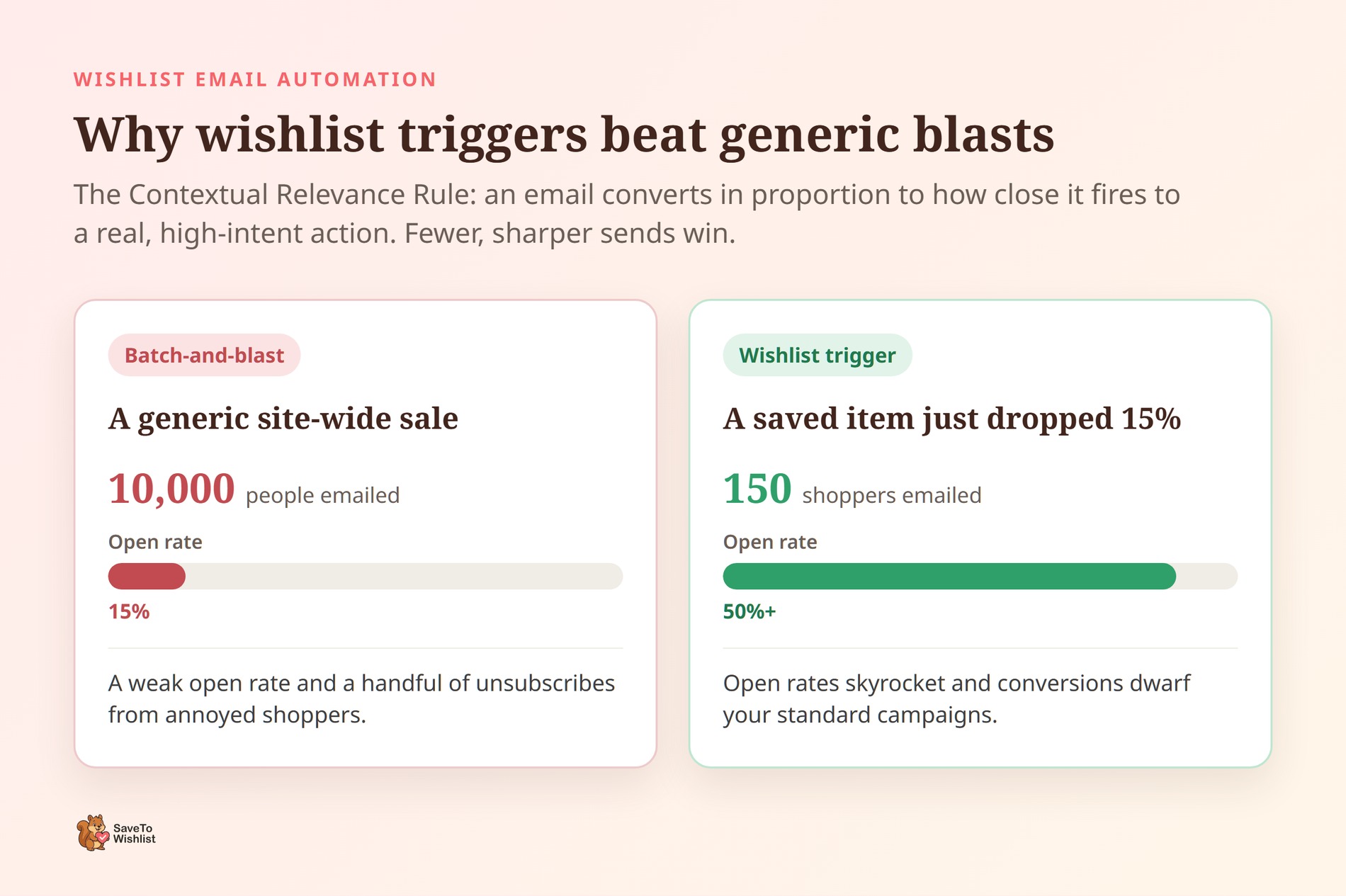
To run a highly profitable email program using WooCommerce email automation, you must destroy the Calendar-Blast Fallacy and replace it with the Contextual Relevance Rule: The conversion rate of an email is directly proportional to how close it is triggered to a specific, high-intent action.
Consider the raw math behind your traffic:
- 70.22% of shoppers who add items to a cart will abandon it.
- 43% of your entire traffic pool will abandon their session before even reaching the cart because they were “just browsing.”
These aren’t cold leads; they’re warm prospects who simply stalled. A wishlist captures this silent wave of intent before they bounce, giving you the perfect ammunition for your automated flows.
- Batch-and-Blast: You email 10,000 people about a generic site-wide sale. You get a 15% open rate and a handful of unsubscribes from annoyed users.
- Wishlist Trigger: You email 150 specific shoppers because a pair of boots they explicitly saved just dropped 15% in price. Your open rates skyrocket past 50%, and your conversion rates dwarf your standard campaigns.
You aren’t guessing what they want or when they want it. They told you exactly what to sell them. Your only job is to automate the handoff.
How WooCommerce Email Automation Works With Wishlists
To transition from generic blasts to targeted triggers, you have to shift your thinking from time-driven marketing to event-driven marketing.
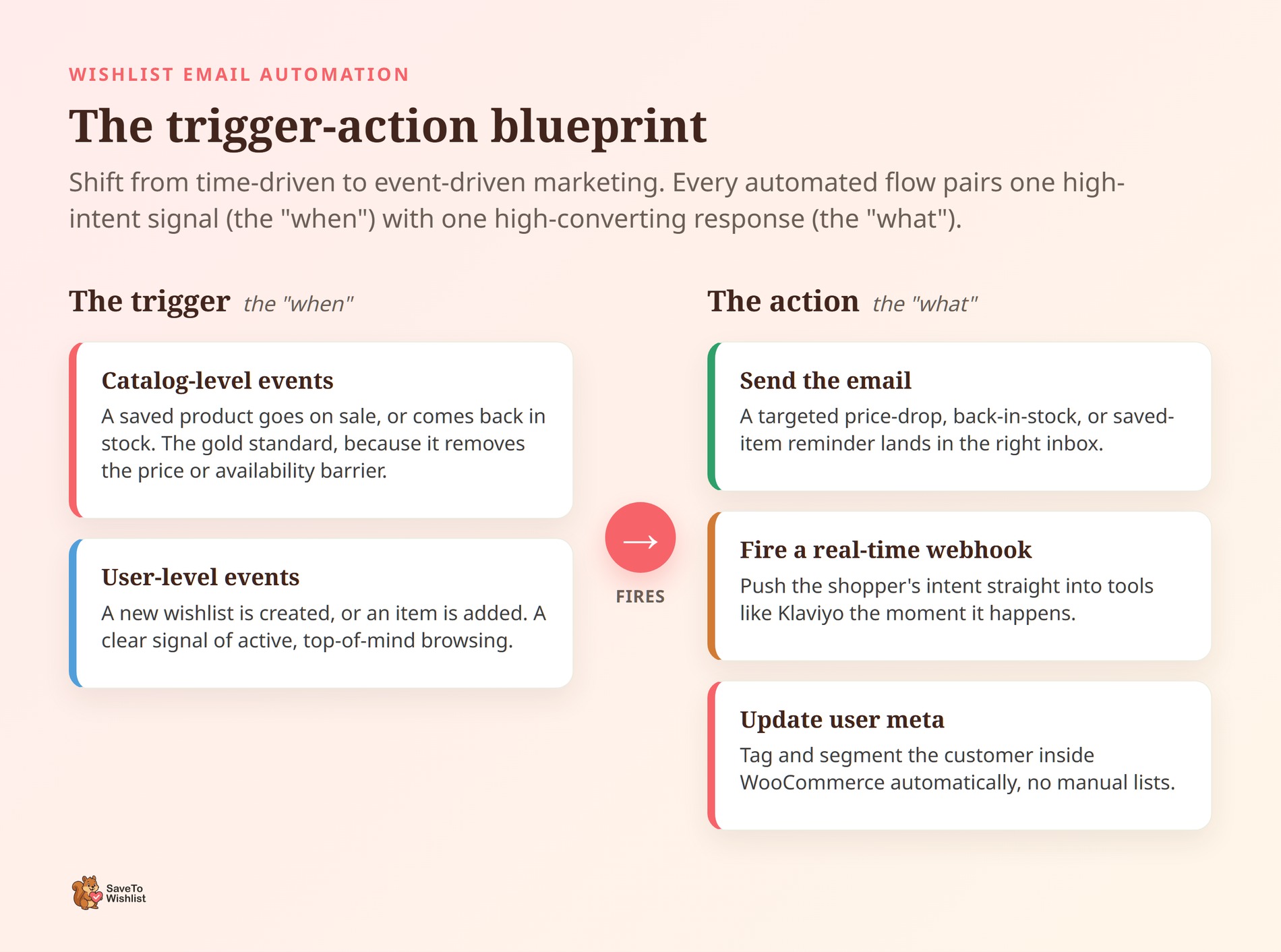
Instead of sitting down to write an email because it’s Monday morning, you let your store’s database do the driving. The secret to effective WooCommerce email automation is applying the Trigger-Action Blueprint. Every automated flow you build consists of two simple elements:
- The Trigger (The “When”): A highly specific user or catalog event.
- The Action (The “What”): The automated response that fires immediately after.
Catalog-Level And User-Level Triggers
With SaveTo Wishlist Pro, this engine runs quietly in the background of your WooCommerce store, listening for high-intent signals and pairing them with high-converting responses:
- Catalog-Level Triggers: Events like product goes on sale or product comes back in stock. These are the gold standards of recovery because they remove the friction holding the shopper back (price or availability).
- User-Level Triggers: Events like new wishlist created or item added to list. These indicate active, top-of-mind browsing behavior.
- Multi-Channel Actions: You aren’t limited to just sending an email. You can use wishlist triggers to fire a real-time webhook (pushing the shopper’s intent directly into tools like Klaviyo) or update user meta inside WooCommerce to dynamically tag and segment your customers.
💡 The Auto-Segment Advantage: The best part of this setup is that you never have to manually build or segment an email list again. No CSV exports, no messy spreadsheet merges, and no outdated contact lists. The wishlist platform automatically tracks exactly who wants what, segments them in real-time based on their exact tastes, and fires off the relevant follow-up completely on autopilot.
Three Wishlist-Triggered Flows Worth Setting Up
WooCommerce email automation doesn’t need a massive, complex web of fifty different flows to deliver a real lift in sales. In fact, trying to do too much at once is a fast track to spamming your customers and ruining your deliverability.
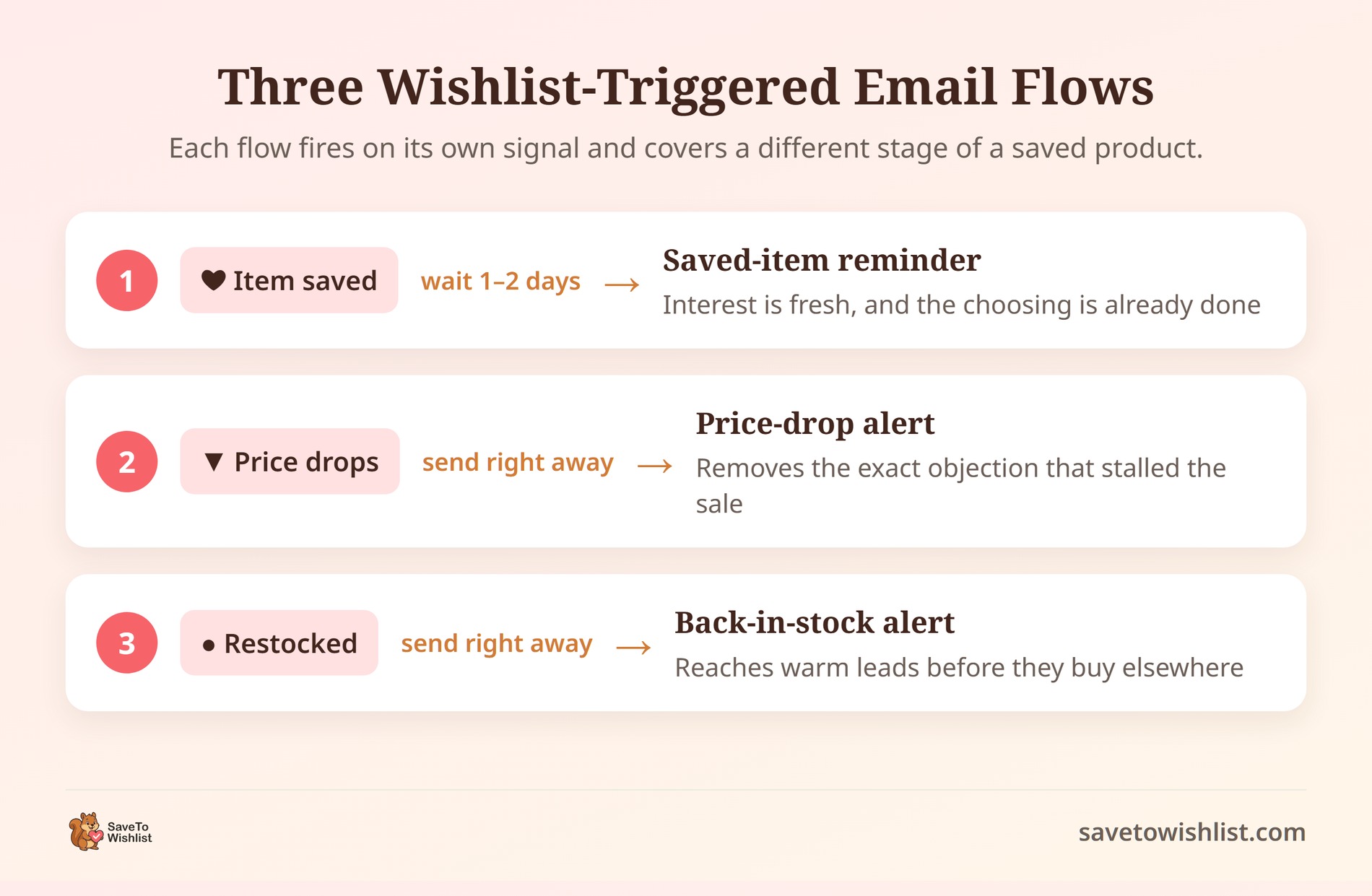
To keep your strategy clean and highly profitable, you only need to deploy The Big Three wishlist-triggered flows. Together, these cover the entire lifecycle of a saved product, from initial interest to final checkout.
1. The Saved-Item Reminder (The Subtle Nudge)
This flow triggers the second a shopper adds an item to their wishlist. Don’t pitch them immediately. Give them a 24-to-48-hour cool-down period, then send a clean, highly visual email reminding them of what they saved.
Because the interest is still fresh, this is the highest-volume flow in your WooCommerce email automation. The customer already did the hard work of choosing the product. They just need a frictionless bridge back to your site to complete the purchase.
2. The Price-Drop Alert (The Objection Crusher)
When a shopper saves a product to a wishlist, they’re often silently saying, “I want this, but not at this price.” The second that product goes on sale, you must trigger an automated price-drop email.
This is consistently the highest-converting flow in your arsenal because it systematically removes the exact objection (cost) that kept them from buying in the first place.
💡 Pro-Tip: Want to make this flow convert even higher? Instead of a sitewide sale, pair this trigger with a personalized, time-sensitive discount code. For a masterclass on how to do this correctly, check out these 10 high-converting coupon examples to see how to structure the perfect offer.
3. The Back-in-Stock Alert (The Urgency Injector)
There is nothing more frustrating to a warm buyer than finding the perfect item, only to realize their size or color is sold out. When they save that out-of-stock item, they’re begging you to tell them when they can buy it.
The millisecond your inventory updates, this trigger fires a notification directly to their inbox. It leverages pure, natural scarcity. After all, they already know the item sells out fast, so they’re highly motivated to check out instantly before it disappears again.
🔍️ What we’ve seen: Store owners who turn on all three flows tend to get the absolute most mileage from the price-drop alert. However, this only holds true when your wishlist data is clean. If shoppers are casually saving dozens of random items without thinking, the buying signal weakens. You must encourage deliberate, high-intent saves through high-contrast wishlist button placements and clear, named lists. That is what keeps the price-drop trigger meaningful and profitable.
Connecting Automations to Your Marketing Stack (The Webhook Bridge)
Don’t let your wishlist data sit uselessly inside your WooCommerce database. Whether you rely on SMS or a dedicated WooCommerce email automation platform (like Klaviyo or Mailchimp) as the engine of your marketing strategy, it is completely useless without high-intent data to fuel it.
You need to apply the Seamless Handoff Rule.
Why Real-Time Webhooks Beat Native Integrations
While many tools rely on rigid, native integrations that limit what data you can send, SaveTo Wishlist Pro uses real-time webhooks. This isn’t a limitation; it’s a superpower. It allows you to pass exact, custom wishlist events directly to over 5,000 apps in the exact format they require.
How To Build The Webhook Bridge In Three Steps
Here is exactly how to build your automated marketing bridge:
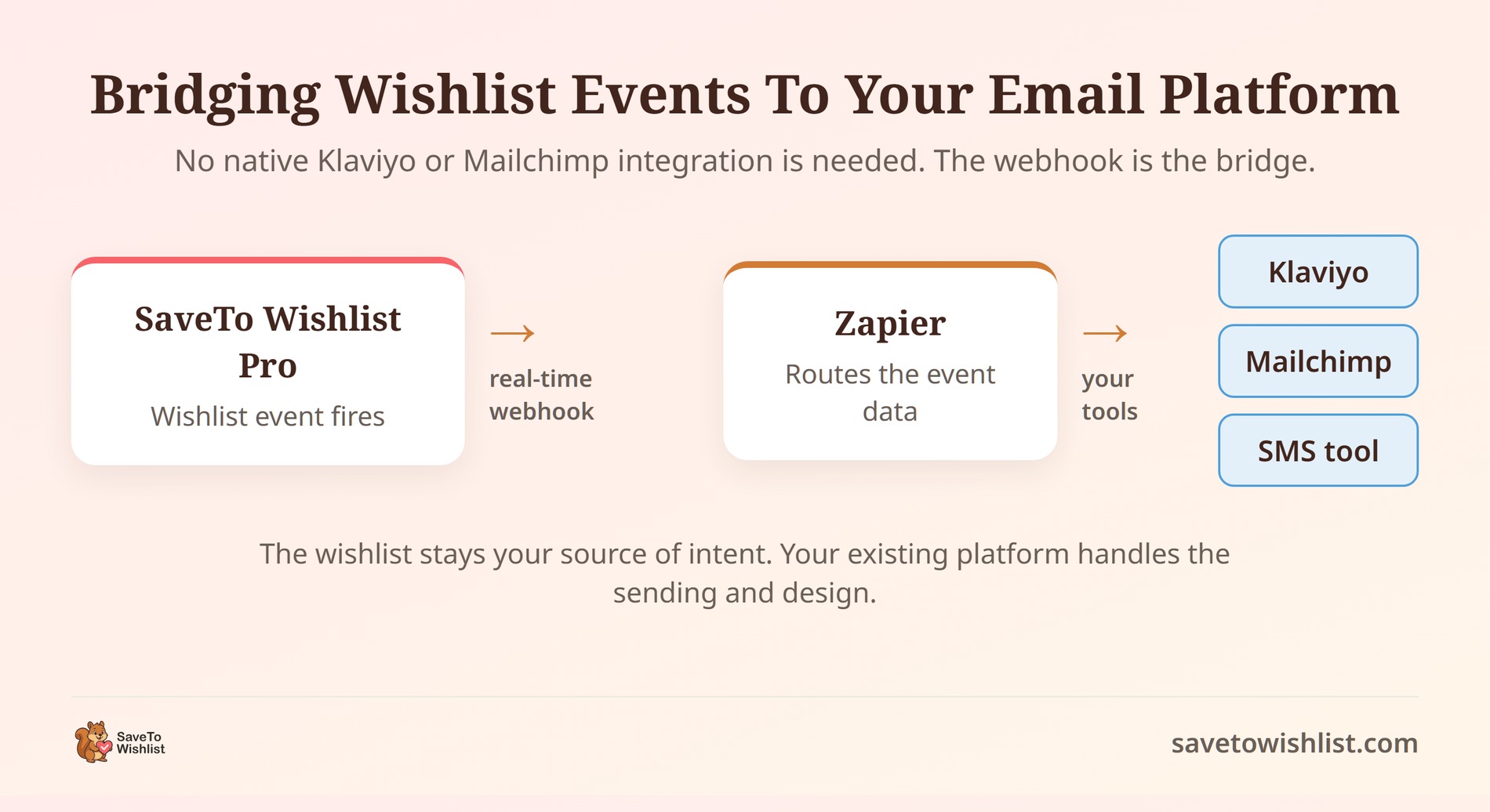
- Step 1: Set Up the Webhook Action: Inside SaveTo Wishlist Pro, create an automation and set the action to “Call a Webhook.”
- Step 2: Catch the Data with Zapier: Paste your custom Webhook URL from a connector tool like Zapier or Make. The plugin will now stream live, real-time data—like customer emails, saved product IDs, and price-drop triggers—directly to the bridge.
- Step 3: Route to Your Marketing Tools: From Zapier, push that data directly into your ESP (Email Service Provider). If a shopper saves an item, tag them in Klaviyo. If a saved item goes on sale, trigger a high-priority SMS flow in Twilio for instant, high-converting mobile open rates.
By setting up this pipeline, your wishlist becomes the source of customer intent behind your WooCommerce email automation, while the tools your team already knows and loves handle the heavy lifting of design, segmentation, and delivery. If you haven’t chosen a platform yet, it’s worth comparing the marketing automation tools built for WooCommerce stores before you wire up the webhook.
💡 Ready to write your campaigns? Don’t guess what your emails should look like once the webhook triggers them. Read our comprehensive guide to wishlist email marketing to learn how to design templates that maximize clicks and turn warm browsers into buyers.
The Golden Rule Of Automation: Protect Your Deliverability
When store owners first unlock the power of WooCommerce email automation, they tend to get a little trigger-happy with their new alerts. If a shopper goes on a wishlist spree and saves eight items on a Tuesday, you absolutely can’t send them eight separate “Saved-Item Reminder” emails on a Wednesday.
If you do, your spam complaints will skyrocket, your deliverability will tank, and your highest-intent shoppers will unsubscribe instantly.
Three Filters Every Wishlist Flow Needs
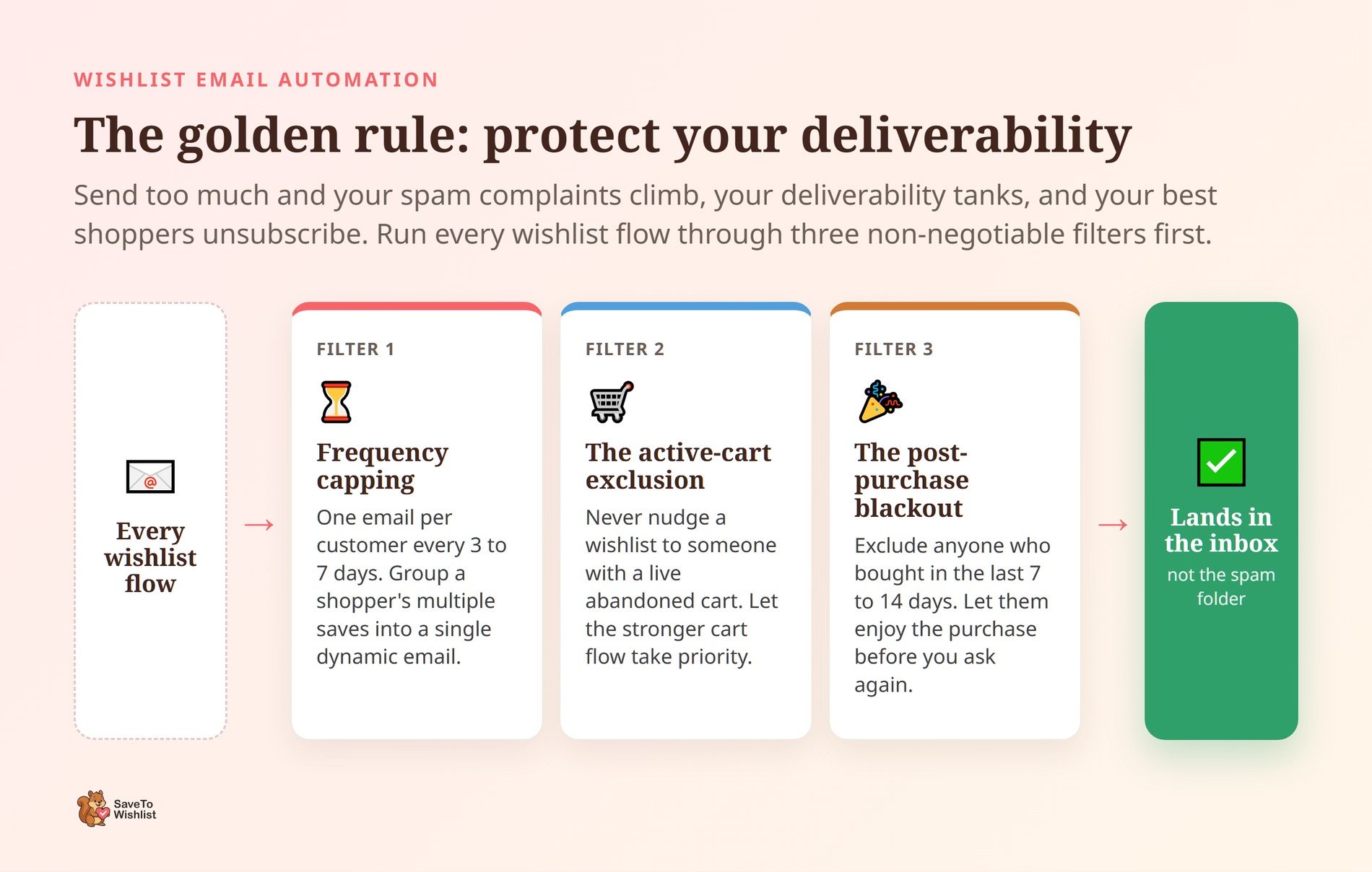
To run these automations like a seasoned retention marketer, you must set up guardrails inside your email platform (like Klaviyo or Mailchimp). Apply these three non-negotiable filters to every wishlist flow you build:
- Frequency Capping: Limit your automated wishlist emails to a maximum of one per customer every 3 to 7 days. If a shopper saves multiple items in a single session, don’t send individual emails. Group those items into a single dynamic email, or simply trigger the reminder based on the most expensive item they saved.
- The “Active Cart” Exclusion: Never send a top-of-funnel wishlist reminder to someone who currently has an active, abandoned cart. Cart abandonment is a much stronger buying signal than a wishlist save. Always let your abandoned cart flow take priority so you don’t distract or confuse the buyer with conflicting emails.
- The Post-Purchase Blackout: If a customer just handed you their money, give them a break. Instantly exclude anyone who has purchased from your store in the last 7 to 14 days from receiving automated wishlist nudges. Let them enjoy their purchase before you ask them to buy again.
By locking in these three rules, you ensure that your WooCommerce email automation feels like highly personalized customer service, rather than aggressive, spammy sales pitches.
Frequently Asked Questions: WooCommerce Email Automation
How is wishlist email automation different from regular email marketing?
Regular email marketing usually sends on a schedule to broad segments. Wishlist email automation fires on a specific action, like saving an item or a price drop. The message reaches someone who already signalled intent. The result is fewer emails sent to more relevant people. That tends to lift open and conversion rates without adding sending volume.
Which wishlist triggers should I start with?
Start with “item added to wishlist” for a saved-item reminder. It’s the simplest to set up and reaches the most shoppers. Once that’s running, add the price-drop and back-in-stock triggers, which fire less often but convert well. Layering them in one at a time lets you see what each flow contributes before you build anything more complex.
Do I need a separate email service provider?
You can send emails directly through SaveTo Wishlist Pro’s send-email action for simple flows. For branded templates, advanced segmentation, or reporting, most stores route wishlist events through a webhook to their existing provider. Either path works, so it comes down to how much design and analytics control you want over the messages.
Can I send an SMS instead of an email?
SaveTo Wishlist doesn’t send SMS on its own. You can still do it by firing a webhook to an automation tool like Zapier. Zapier then passes the wishlist data to an SMS service such as Twilio. That keeps the wishlist as the trigger while a dedicated SMS tool handles delivery, so you’re not limited to email.
Will these emails feel intrusive to shoppers?
They shouldn’t, because each one is tied to an action the shopper took. A reminder about an item they saved, or an alert that it’s now cheaper, reads as helpful rather than pushy. The key is spacing. Avoid stacking multiple automations on the same product in a short window. Always link back to the shopper’s own list.
Does SaveTo Wishlist recommend products automatically?
No, SaveTo Wishlist doesn’t generate product recommendations on its own. What it does is supply clean wishlist data showing what shoppers actually want. You can feed that into a recommendation tool or use it to shape manual picks. Think of it as the intent source that makes recommendations smarter, not the recommendation engine itself.
Which provider should I choose to run my wishlist flows?
There isn’t one single perfect option, as it heavily depends on your store’s specific needs and budget. Klaviyo, Mailchimp, and Omnisend are all popular choices for online sellers. Ultimately, as long as the tool behind your WooCommerce email automation can catch live webhook data from SaveTo Wishlist Pro, you can easily build all the automated flows mentioned in this guide.
Putting Your Wishlist Automation To Work
Wishlist-triggered flows give you WooCommerce email automation that runs on real intent instead of guesswork. You don’t need a huge stack to start. You just need a wishlist tool that watches the right actions and hands them off cleanly.
Here’s the quick recap:
- Ditch generic blasts: trigger emails based on high-intent actions rather than arbitrary calendar dates.
- Apply the trigger-action blueprint: pair specific wishlist events with automated responses.
- Deploy the big three: set up saved-item reminders, price-drop alerts, and back-in-stock notifications.
- Build a webhook bridge: route real-time wishlist data directly into Klaviyo, Mailchimp, or Twilio.
- Protect your deliverability: use frequency capping and active-cart exclusions to avoid spamming your most engaged buyers.
Ready to turn saved items into sales? SaveTo Wishlist Pro gives you the Automations, triggers, and webhooks to build every flow in this guide. Plus, you get the analytics to see which flows pay off. Set it up once and let your shoppers’ own choices do the segmenting for you.



