
 Reviewed by
Free wishlist plugins look much the same on their listing pages. The difference shows up later, when a customer wants a second list. Maybe one for a wedding and one for a new house. Some plugins handle that for free, and others need an upgrade.
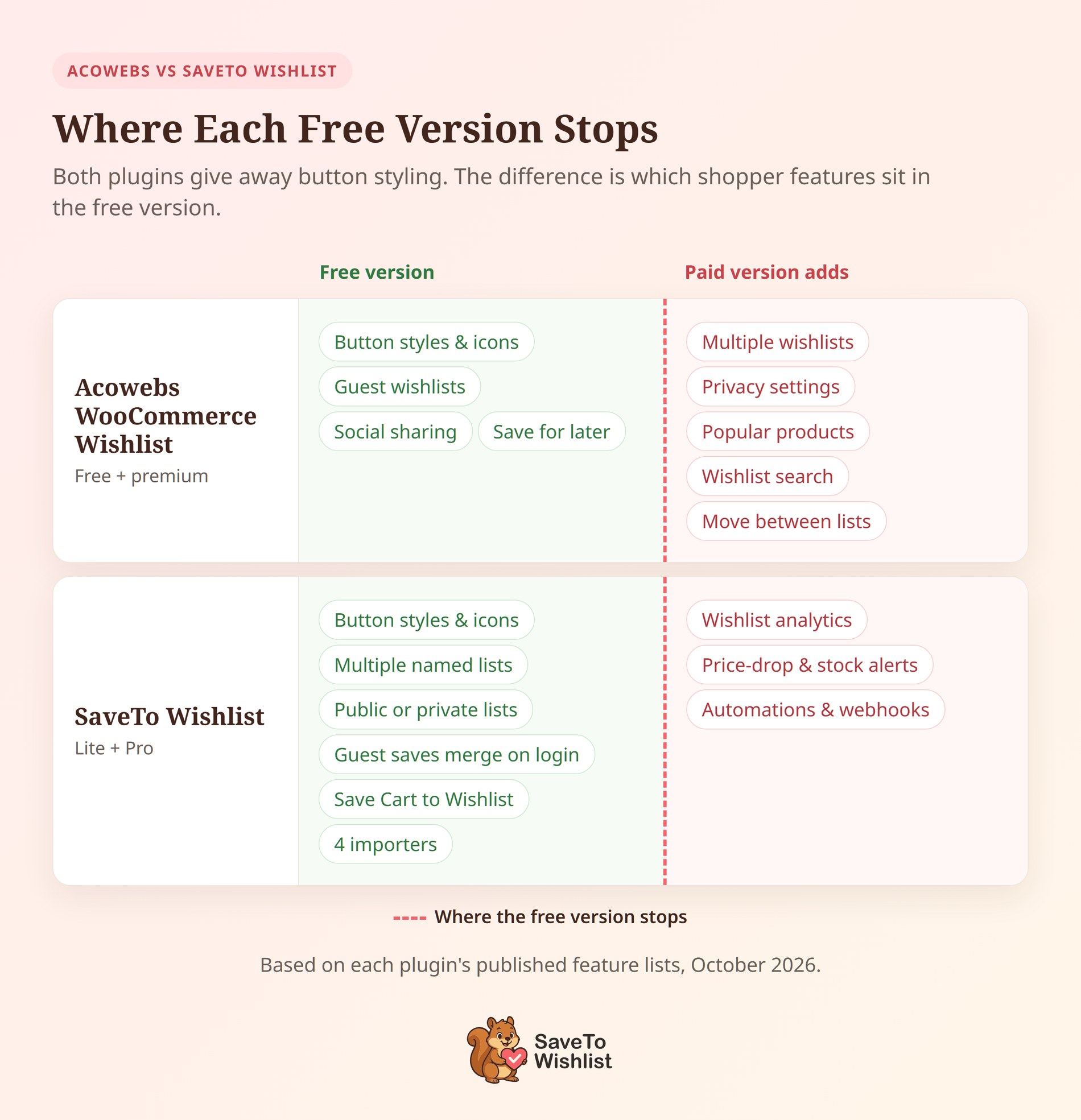
That moment is when many store owners start looking for an Acowebs wishlist alternative. Acowebs WooCommerce Wishlist gives away a lot of styling control in its free version. However, multiple wishlists and list privacy sit in its premium version.
So this comparison looks at one thing: where each free tier stops. We tested SaveTo Wishlist Lite on a staging store in August 2026. We also checked its current 1.1.6 code while updating this article.
Everything about Acowebs comes from its own product page and plugin description, read in October 2026. We didn’t install the Acowebs plugin, so I’ll say where its pages are silent rather than guess.
Jump to:
- Where Free Wishlist Plugins Usually Stop
- What Acowebs WooCommerce Wishlist Includes Free
- What SaveTo Wishlist Lite Includes Free
- What Replaces Acowebs' Save For Later
- The Multiple-Wishlists Question
- When Paying Actually Makes Sense
- Switching To Your Acowebs Wishlist Alternative
- Free Tier And Upgrade FAQ
- SaveTo Wishlist Is The Acowebs Wishlist Alternative To Pick
Where Free Wishlist Plugins Usually Stop
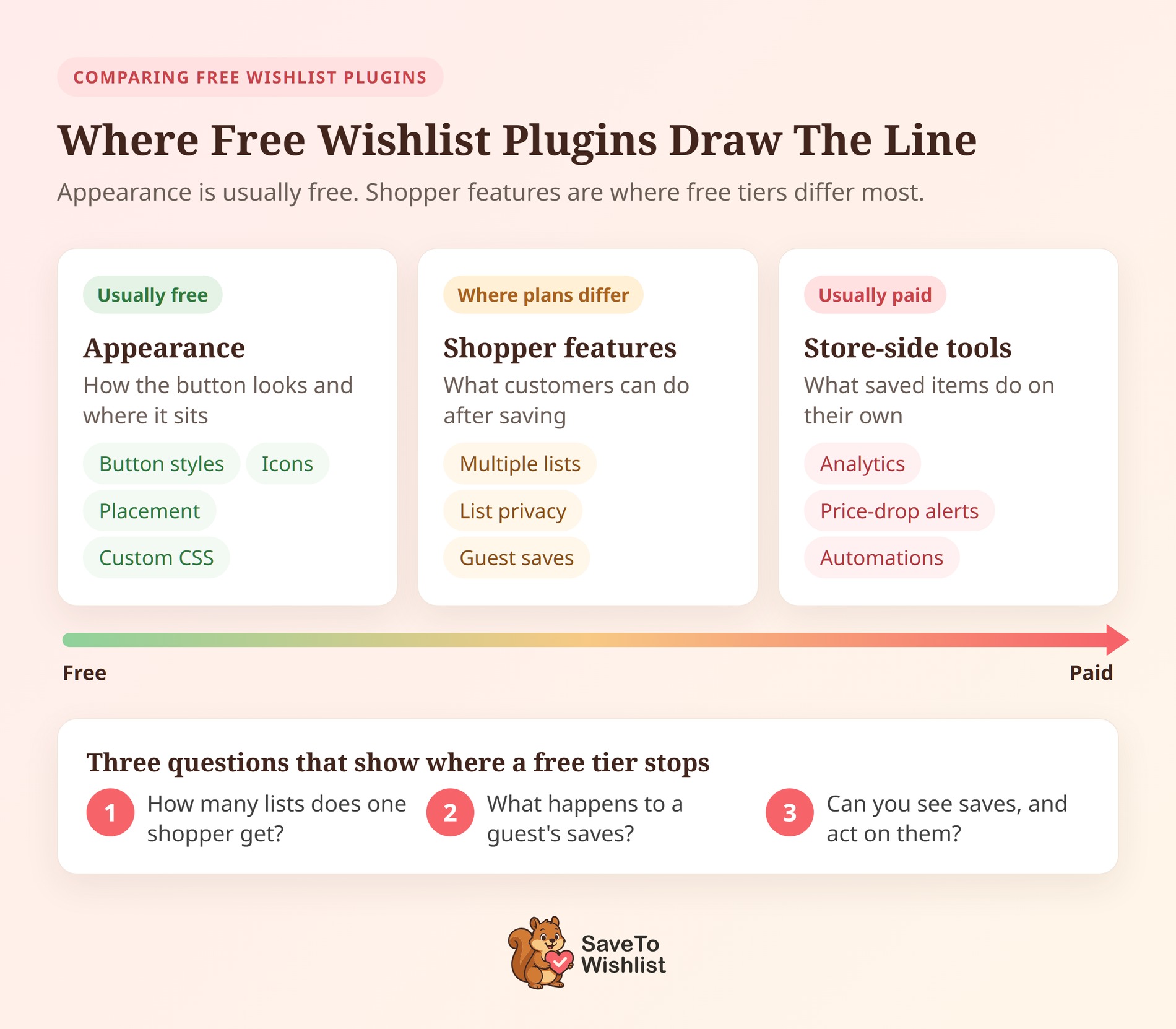
Most free wishlist plugins give away appearance and charge for extra behavior. You can restyle the button without paying, but some of what it does for shoppers needs a license.
That pattern is easy to miss while you compare plugins. A settings screen full of color pickers, icons and placement options feels generous, and it is. Still, none of it changes what a customer can do after saving something.
These three questions cut through a feature list quickly:
- How many lists does one shopper get for free? One list fills up fast. Named lists keep each saved item tied to a reason, like a birthday or a room makeover.
- What happens to a guest’s saves? Saves that vanish when the browser closes, or a required signup, lose the interest the plugin should capture.
- Can you see what was saved, and act on it? Some plugins show demand data in the admin. Others alert shoppers when a saved product drops in price. A report and an automation do different jobs.
Answer those three for any plugin, and you’ll know what its free tier is worth. Run them on any Acowebs wishlist alternative too, and the comparison usually becomes clear.
It’s also worth checking whether shoppers can control who sees a list. Sharing works best when the shopper decides who can open it.
What Acowebs WooCommerce Wishlist Includes Free
Acowebs WooCommerce Wishlist gives away plenty of presentation control in its free version. How the button looks, and where it sits, costs nothing to change.
According to Acowebs’ own plugin description, the free version covers:
- Button placement: Choose where the wishlist button sits on the product page and in the product loop.
- Visual control: Button styles, predefined icons or your own uploaded icon, and a custom CSS option.
- Shortcode placement: An “Add to wishlist” shortcode you can place anywhere on a page.
- Guest wishlists: A setting that lets shoppers use the wishlist without logging in.
- Variable product support: Shoppers can save the exact variation they picked.
- Social sharing: Facebook, X (Twitter), Pinterest, WhatsApp and email share options.
- Save for later: Shoppers move cart products to a separate list below the cart, ready for their next visit.
The premium plugin is actively maintained. Its changelog shows version 3.0.12 adds WordPress 6.9 and WooCommerce 10.5 compatibility, and HPOS support arrived in 3.0.8.
Acowebs also sells a lifetime license, which some store owners prefer to yearly renewals. Pricing is $43 a year or $99 lifetime for one site. For up to five sites, it’s $99 a year or $199 lifetime, with a 30-day money-back guarantee.
In short, the free version is generous about appearance. The next sections show where an Acowebs wishlist alternative differs on what shoppers can do for free.
What SaveTo Wishlist Lite Includes Free
SaveTo Wishlist Lite is a free Acowebs wishlist alternative that includes the shopper-facing features outright, starting with unlimited named wishlists. It isn’t a trial, and there’s no cap on lists or items.
Here’s what the free plugin covers without a license:
- Unlimited named lists per shopper: Customers name their own lists and keep as many as they need.
- Guest saves that survive signup: Saves sit in the browser, then merge into the account at login or signup.
- Public or private lists: Logged-in customers choose who can see each list.
- 12 button style presets, plus Theme Default: Theme Default copies your theme’s button look, so it matches your store.
- Shortcode and block placement: Put the wishlist page anywhere with a shortcode or block. Variations save separately, and a REST API is included.
- Four importers: Import existing wishlists from YITH Wishlist, TI WooCommerce Wishlist, MoreConvert Wishlist and WPC Smart Wishlist.
What Testing Lite On Staging Showed
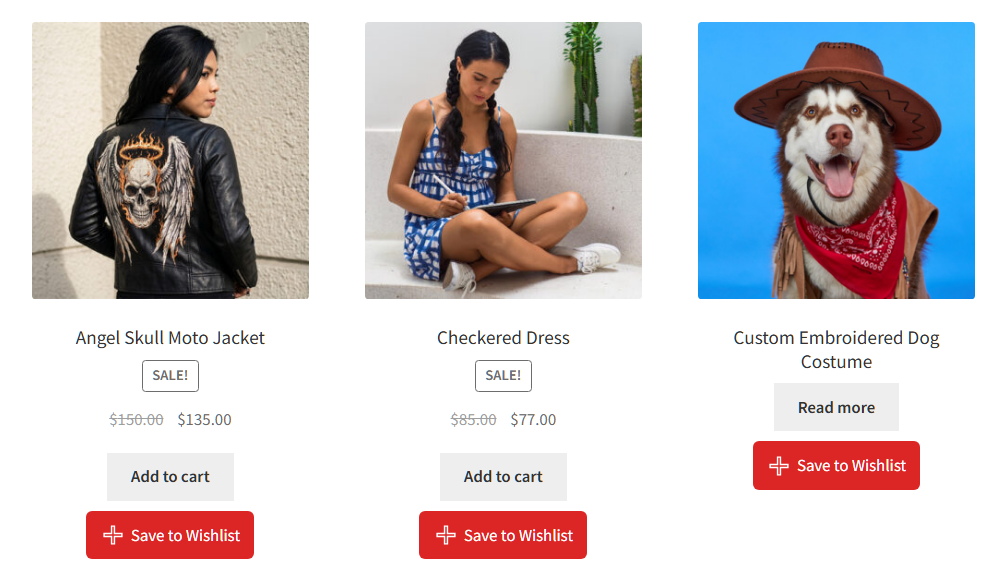
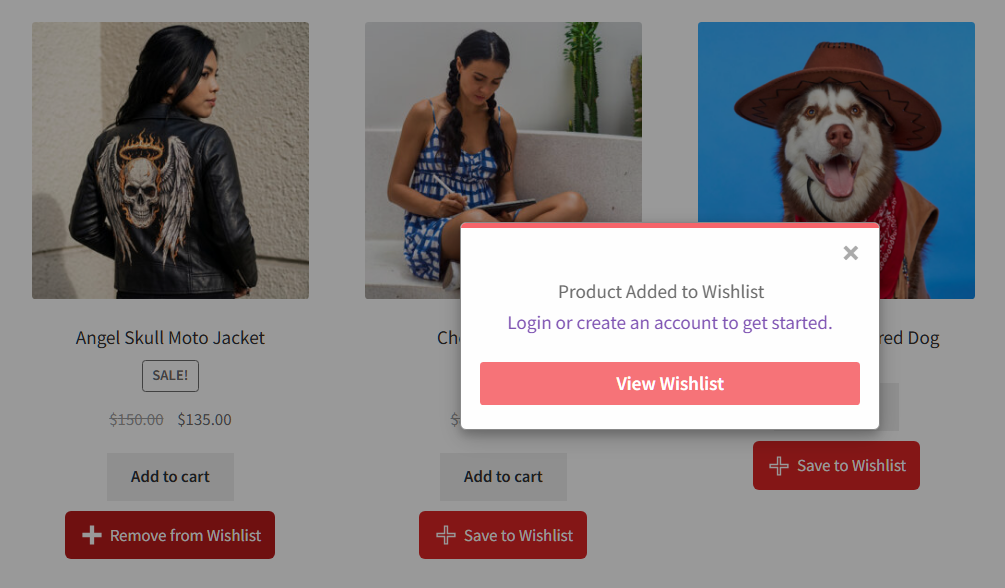
Testing Lite on staging showed details a feature list leaves out. The button appeared across the whole shop grid by default, twelve times on our shop page. After a save, the label changed to “Remove from Wishlist”, so shoppers can see what they’ve already saved.
A guest save opened a popup offering “Login or create an account to get started” beside a View Wishlist button. Lite also fires a browser event and sets a 30-day cookie on each save. As a result, popup and email tools can react to a save before you know who the shopper is.
🔍️ What we’ve seen: I’ve seen store owners upgrade for more lists while few shoppers notice the button. Placement is often the bigger factor. Make the button easy to spot, then count saves for two weeks before you spend anything.
What Replaces Acowebs’ Save For Later
Acowebs’ free save-for-later list is the one free feature worth planning for before you switch. SaveTo Wishlist Lite covers the same job from the cart page, in a slightly different way.
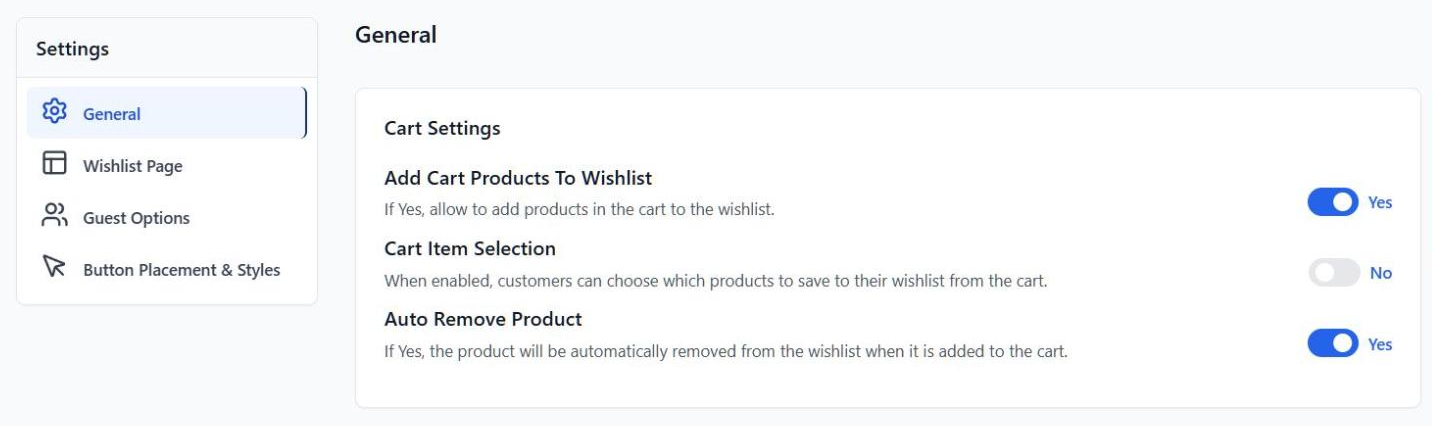
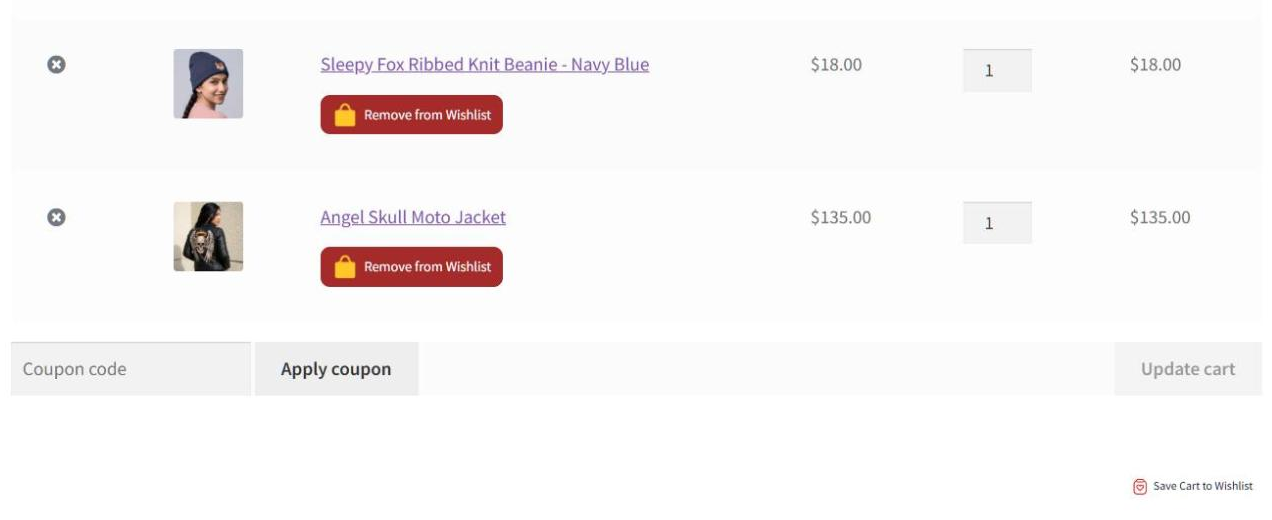
Lite adds a Save Cart to Wishlist button to the cart page. Four settings control it:
- Add cart products to wishlist: Shows the cart button. It’s on by default, under SaveTo Wishlist > Settings > General.
- Cart item selection: Off by default. Switch it on and shoppers pick which cart products to save, rather than saving the whole cart.
- Auto remove product: On by default. A saved product leaves the wishlist once a shopper adds it to the cart, so the list stays current.
- Cart Button Label: Renames the button. You’ll find it on the Button Placement & Styles tab.
Products already on the wishlist aren’t added a second time when a shopper saves the cart. That keeps repeat saves from cluttering the list.
Two Differences To Know Before Switching
Two differences are worth knowing before you promise this to customers. First, the cart button only shows to logged-in customers. Guests still save from shop and product pages. Second, Lite saves cart products into the wishlist itself, not into a separate list shown under the cart.
If your shoppers mostly use save-for-later while logged in, moving to an Acowebs wishlist alternative changes very little for them. If many check out as guests, point them to the product-page button instead.
The Multiple-Wishlists Question
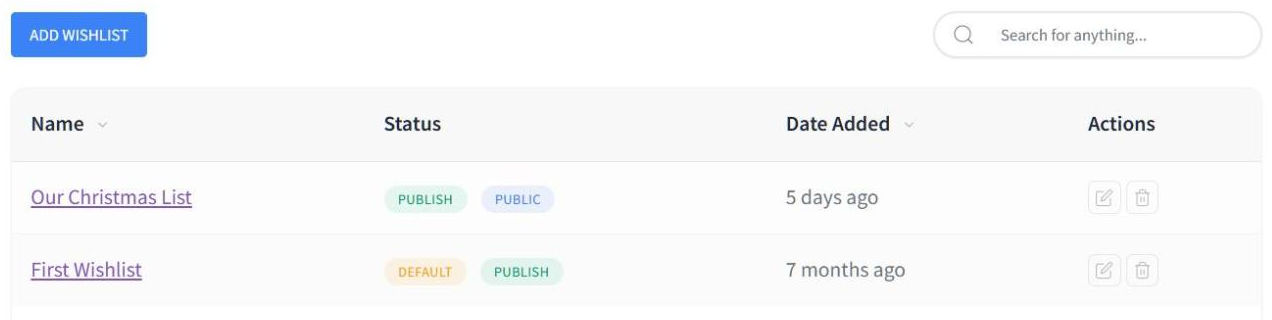
Multiple wishlists are the biggest difference between the two free versions. Acowebs lists “Multi wishlist features” among its premium features, so a free-version shopper keeps one list.

Several other features sit in Acowebs’ premium list too. They include privacy settings, wishlist widgets, popular products, wishlist search, page layouts and moving products between lists. Premium also adds an option to ask for an estimate from a wishlist.
Free And Paid Plans Side By Side
To be fair to Acowebs, “not documented” in the table below only means its pages don’t mention a feature. It isn’t a claim that the feature is missing.
The table compares each plan, using Acowebs’ product page and plugin description, SaveTo Wishlist’s pricing page and our own testing.
| Feature | SaveTo Wishlist Lite (free) | SaveTo Wishlist Pro | Acowebs WooCommerce Wishlist (free) | Acowebs WooCommerce Wishlist (premium) |
|---|---|---|---|---|
| Multiple named wishlists per shopper | Unlimited | Unlimited | No, premium feature | Included |
| Public or private control on a list | Yes, logged-in customers | Included | No, premium feature | Included |
| Guest wishlists | Yes | Included | Yes | Included |
| Guest saves merged into the account on login | Yes | Included | Not documented | Not documented |
| Button placement, styles and custom CSS | Yes | Included | Yes | Included |
| Variable product support | Yes | Included | Yes | Included |
| Saving from the cart | Save Cart to Wishlist, logged-in customers | Included | Save for later list | Included |
| Import from other wishlist plugins | Yes, four importers | Included | Not documented | Not documented |
| Price-drop and back-in-stock alerts | No | Included | Not documented | Not documented |
| Store-owner insight into saves | No | Wishlist analytics | No | Popular products view |
| Price | Free | Growth: $49.50 first year, then $99 a year | Free | $43 a year or $99 lifetime, single site |
The first two rows are where shoppers feel the difference most, and they make the case for an Acowebs wishlist alternative. Multiple wishlists and privacy control are both free in SaveTo Wishlist Lite.
When Paying Actually Makes Sense
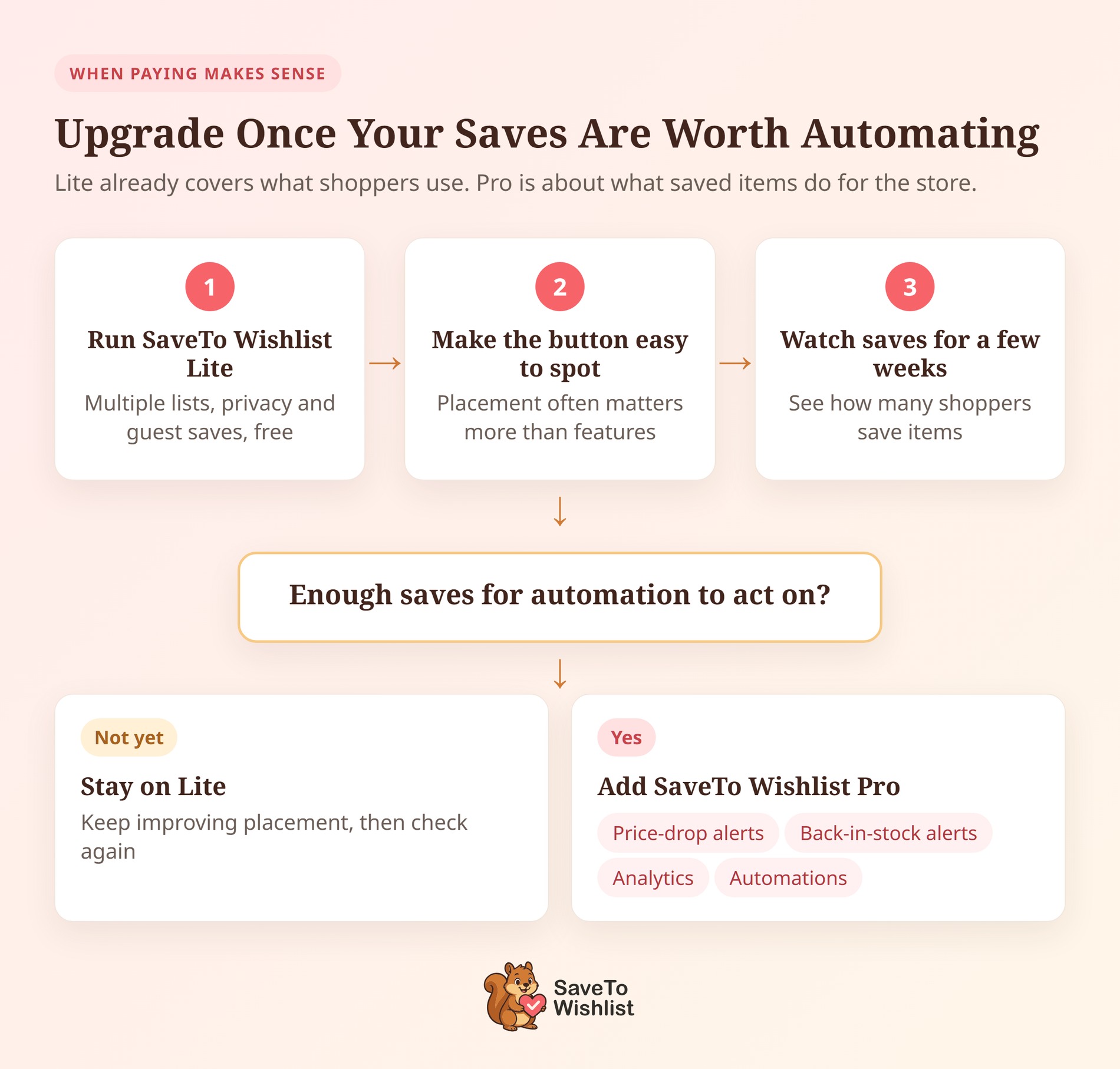
Pay when you want saved items to do something on their own. Lite already covers what customers use, so the upgrade question is mostly about the store side.
SaveTo Wishlist Pro adds wishlist analytics that track trending products, category patterns and seasonal shopping behavior. It also adds price-drop and back-in-stock alerts, plus automations that send emails, fire webhooks or update shopper info.
On top of that, Pro includes real-time webhooks, role-based access control and advanced sharing. That covers collaborative lists that friends and family build together.
Pricing is on the SaveTo Wishlist pricing page. Growth is $49.50 for the first year, then $99. Plus is $99.50, then $199, and Business is $199.50, then $399. The Gift Registry Addon comes with Plus and Business, not Growth.
Acowebs’ premium version offers useful demand data too, through its popular products view. That helps with merchandising decisions, but someone still has to check the report. By contrast, a price-drop alert reaches the shopper when a saved product gets cheaper, which helps with browse abandonment.
Run Lite as your Acowebs wishlist alternative first, fix button placement and watch saves for a few weeks. Then upgrade once there are enough saves for automation to act on.
Switching To Your Acowebs Wishlist Alternative
Most of the switch to an Acowebs wishlist alternative is page cleanup, because both plugins create a page called Wishlist. Work through it in this order:
- Back up your database. Acowebs stores each list as a post, and save-for-later items in user meta. It ships no uninstall routine, so removing it leaves that data in place. Back up your store anyway before changing plugins. Acowebs isn’t one of Lite’s four importers, so customers start new lists after the switch.
- Deactivate Acowebs before activating SaveTo Wishlist. That way shoppers never see two wishlist buttons on one product.
- Find the second Wishlist page. Acowebs created a page titled Wishlist holding
[awwlm_wishlist]. Lite creates its own Wishlist page on activation, so WordPress usually gives it the address /wishlist-2/. - Keep the old address. Replace
[awwlm_wishlist]on the original page with[saveto_wishlist]. Then select that page in the Redirect page setting under SaveTo Wishlist > Settings > General. Delete the spare page afterwards. - Clear out other Acowebs shortcodes. Once Acowebs is off,
[awwlm_add_to_wishlist]and[awwlm_saved_list]print as plain text wherever you placed them. Remove them, because Lite’s button appears on shop and product pages without one.
Keep Your Original Wishlist Address
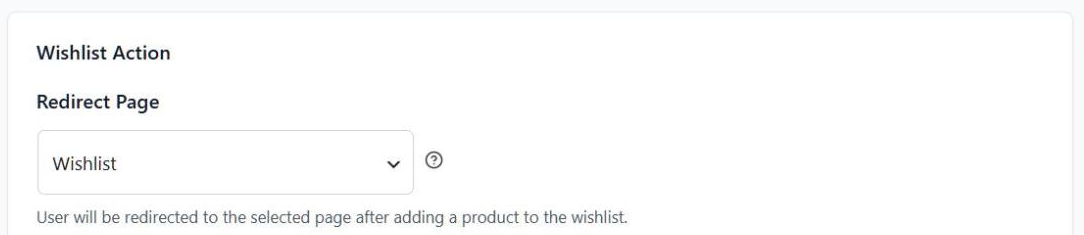
Keeping the original address matters more than it looks. The Redirect page setting also sets where the View Wishlist link goes, and customers may have bookmarked /wishlist/. Your menu links keep working too.
🔍️ What we’ve seen: The old Wishlist page is the step that gets missed. It still loads, so nothing looks broken in the admin. On the front end, it shows a line of raw shortcode text. Open it once while logged out after the switch, just to be sure.
Free Tier And Upgrade FAQ
Is SaveTo Wishlist Lite really free, or is it a trial?
It’s a free plugin, not a time-limited trial. Unlimited named wishlists, guest saves that merge on login and public or private lists are all included. So are the button presets, shortcode and block. SaveTo Wishlist Pro is a separate paid extension for analytics, alerts and automations, from $49.50 for the first year.
Does the Acowebs free version support multiple wishlists?
No. Acowebs lists multiple wishlists as a premium feature. Privacy settings, widgets, wishlist search and moving products between lists are premium too. Its free version gives each shopper one list, with plenty of button customization and a save-for-later list.
What happens to my customers’ saved lists if I switch?
SaveTo Wishlist imports lists from YITH Wishlist, TI WooCommerce Wishlist, MoreConvert Wishlist and WPC Smart Wishlist. The importer previews what it found before writing anything, and keeps each list’s privacy setting. Acowebs isn’t one of the four sources, so existing Acowebs lists won’t carry over. The switching steps above cover the rest.
Do I need SaveTo Wishlist Pro on day one?
Not usually. Start on Lite, since customers already get the features they use. Upgrade once you have enough saved items for alerts and automations to be worth it.

SaveTo Wishlist Is The Acowebs Wishlist Alternative To Pick
A wishlist catches interest from shoppers who weren’t ready to buy on that visit. That’s why it helps when the features shoppers use every day are free.
- Ask the three free-tier questions before you compare settings screens.
- Give Acowebs credit for its styling control, then check what each free tier lets shoppers do.
- Start with SaveTo Wishlist Lite and make the button easy to spot.
- Check how your shoppers use save-for-later, since Lite handles it from the cart page.
- Compare the premium-only features, because multiple lists and privacy sit in Acowebs premium.
- Upgrade once your saves are worth automating, not before.
- Switch in five steps, and keep your original Wishlist page address.
SaveTo Wishlist is the Acowebs wishlist alternative I’d move to. Customers get multiple lists, privacy and guest merging free, and you pay only for store-side tools. Our WooCommerce wishlist plugin roundup compares more options if you want a wider view.
Start free with SaveTo Wishlist Lite. When you’re ready for alerts and analytics, compare the Growth, Plus and Business plans. All three include SaveTo Wishlist Pro, and the pricing page lists what each adds.