Try SaveTo Wishlist on your own store before you install it. This free WooCommerce wishlist demo takes about a minute.
Works with any public WooCommerce store. Nothing is installed or changed on your site: we take pictures of a few of its pages and show SaveTo Wishlist on top.
How the WooCommerce Wishlist Demo Works
Three steps, about a minute, and nothing to install.
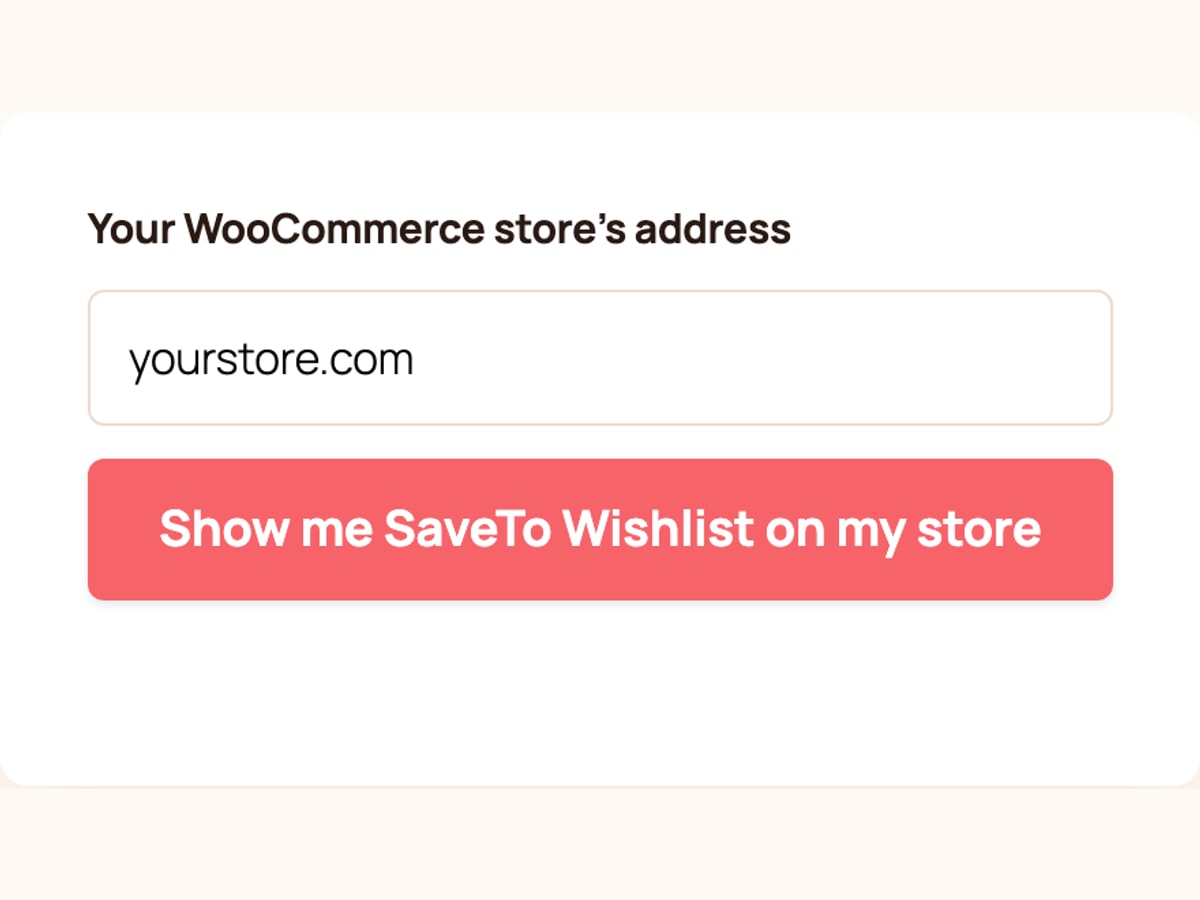
Step 1
Enter your store’s address
Your homepage is fine. We’ll find your shop page for you.
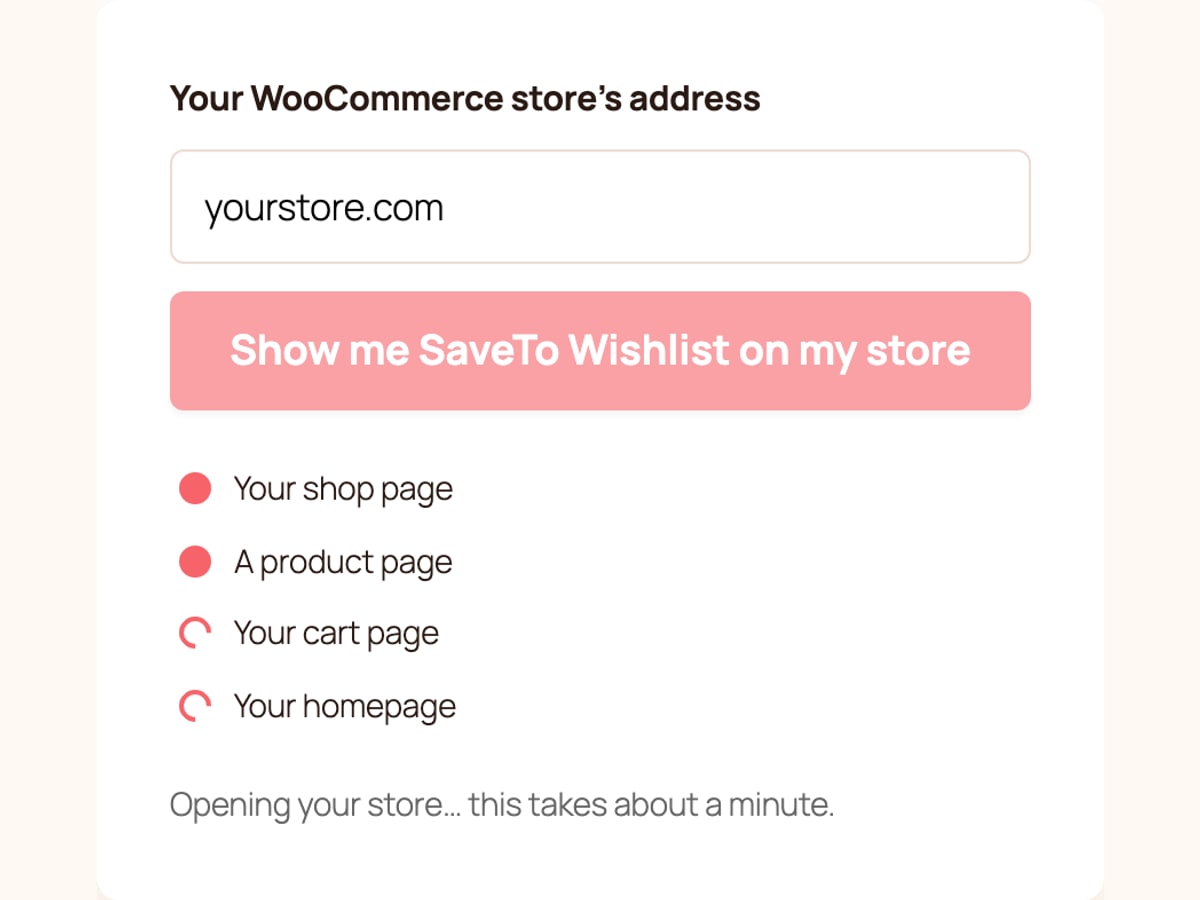
Step 2
We visit your store like a shopper
We take pictures of your shop page, a product page and your cart. You’ll see each one tick off as it’s ready.
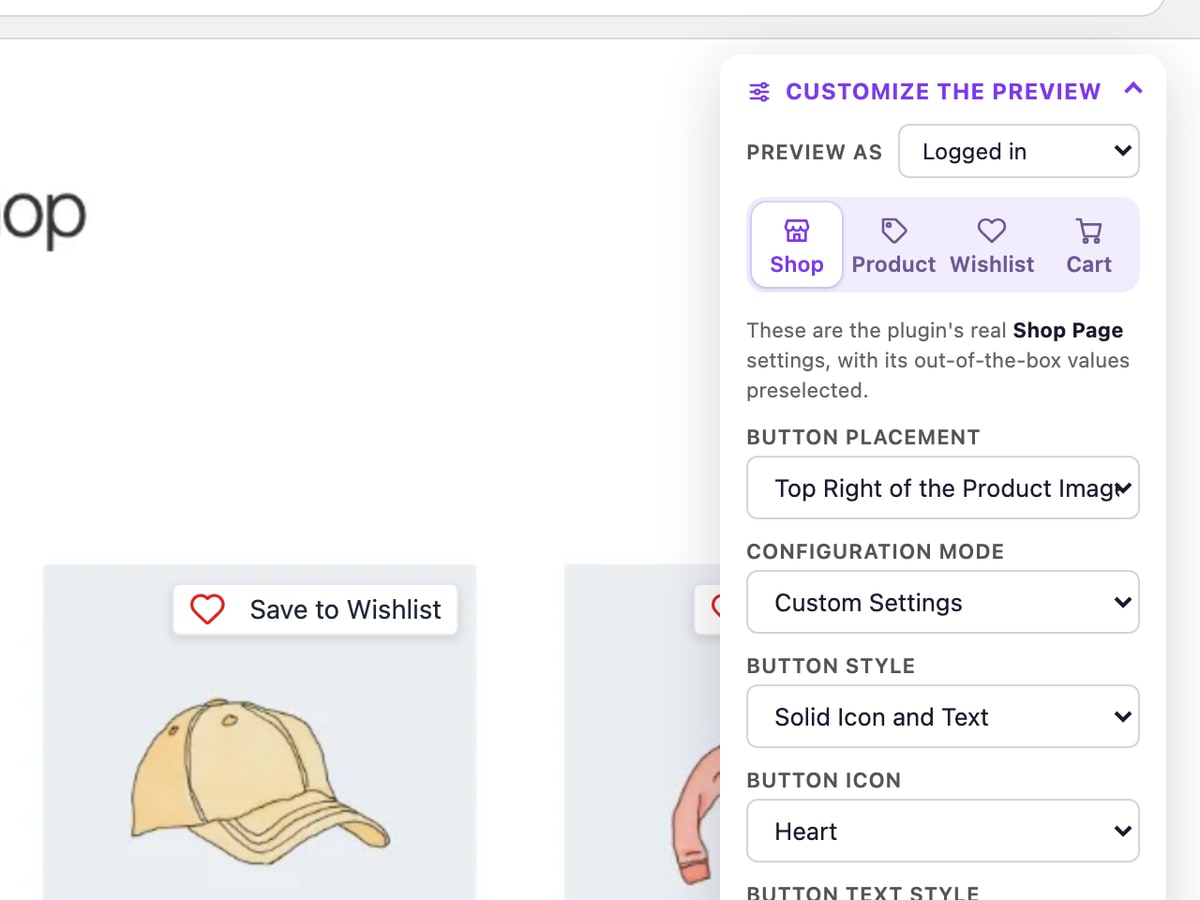
Step 3
Try SaveTo Wishlist on top
Save products, switch placements and styles, and open the wishlist page your customers would see.
Safe to try on your live store. We only look at your public pages, the same way a shopper does. We never log in, install anything or change your site. The demo is free, with no sign-up.
Ready to try the free version now?
What to Try in the WooCommerce Wishlist Demo
Because the demo opens your own pages, you see exactly how SaveTo Wishlist fits your theme.
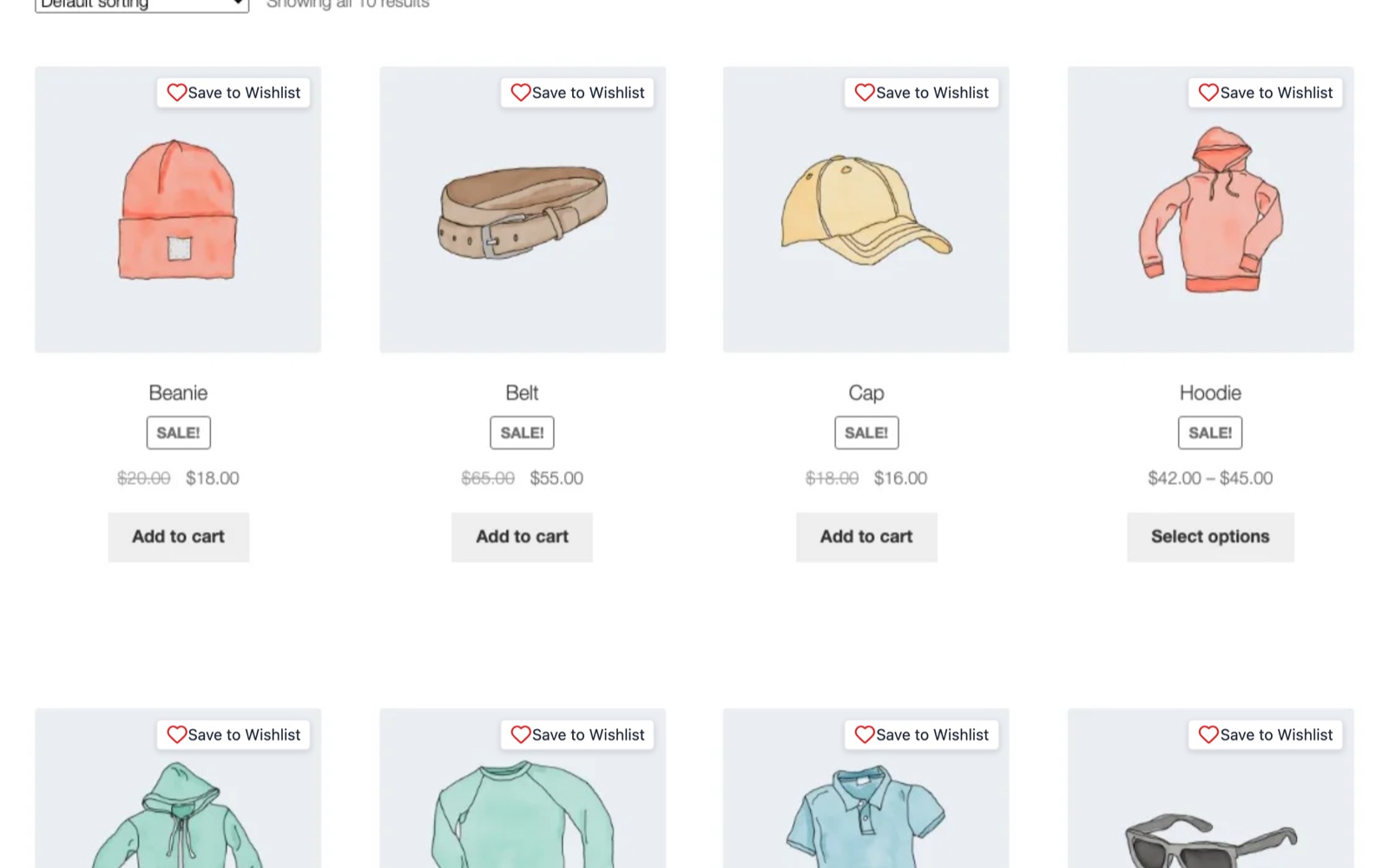
Shop page
A wishlist button on every product
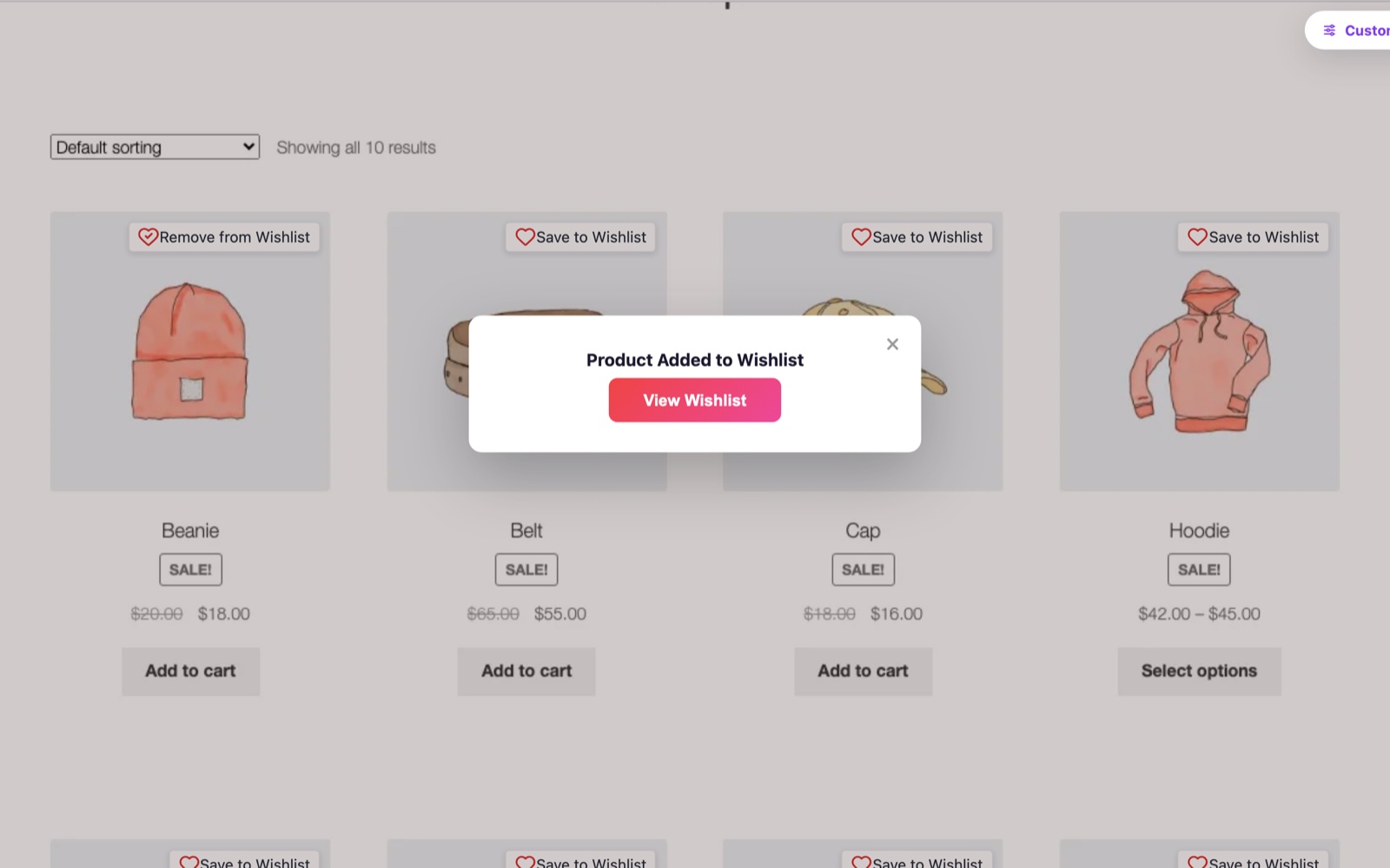
Most shoppers aren’t ready to buy on their first visit. A wishlist button lets them save what they like straight from your shop page, so they have a reason to come back.
Saving a product
One click to save, one click to come back
When a shopper saves a product, they get a quick confirmation with a link straight to their wishlist. Click a heart in the demo to see it happen on your store.
Product page
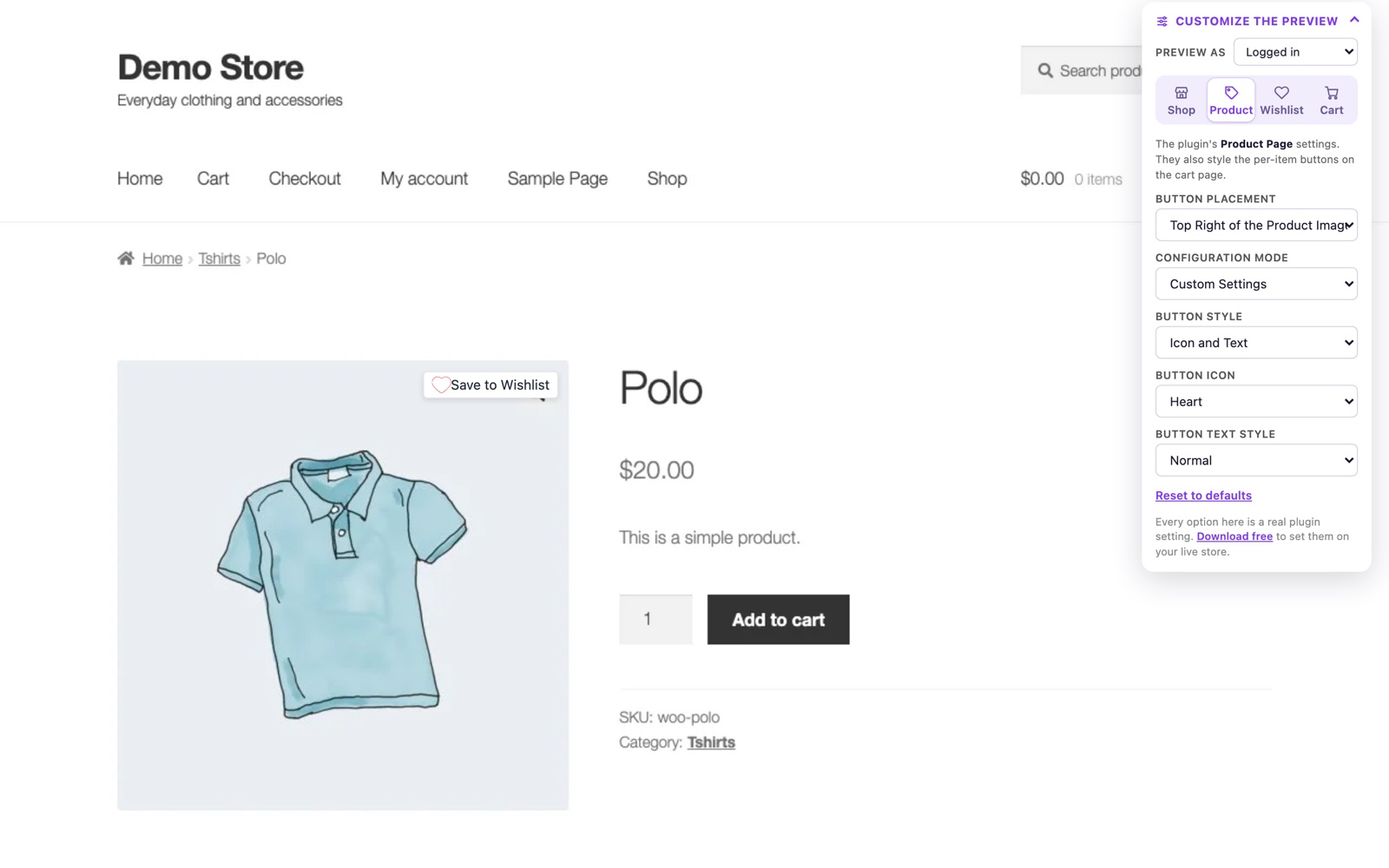
Put the button exactly where you want it
Try every product page placement: on the image, above or below the title, or next to Add to Cart. Change the style, icon and text, and watch the button update on your page. These are the plugin’s real settings, starting from its install defaults.
Wishlist page
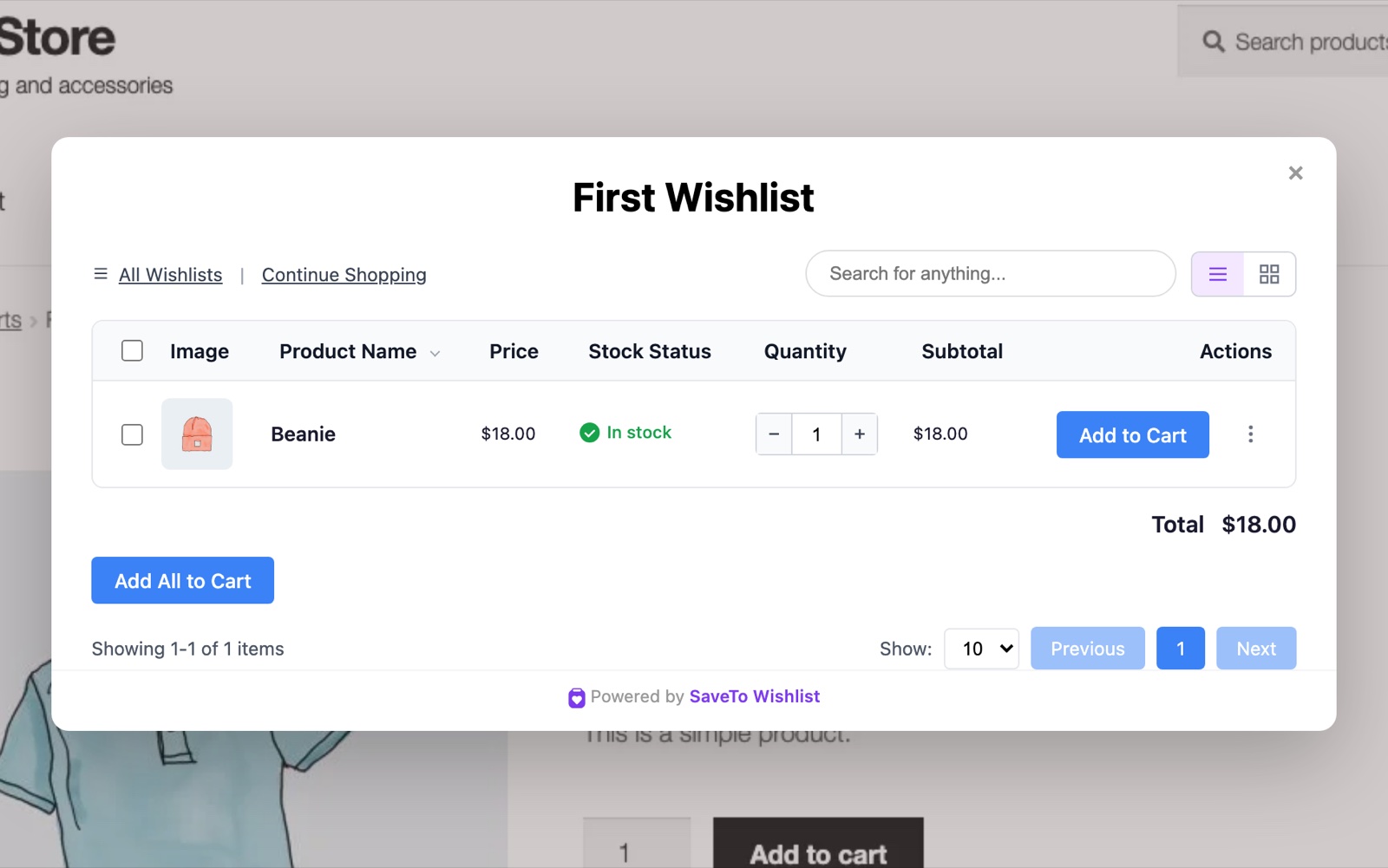
A wishlist page shoppers come back to
Saved products show their price, stock status and an Add to Cart button, so shoppers can return and buy in one step. The page can also show a wishlist total, and shoppers can keep several wishlists.
Cart page
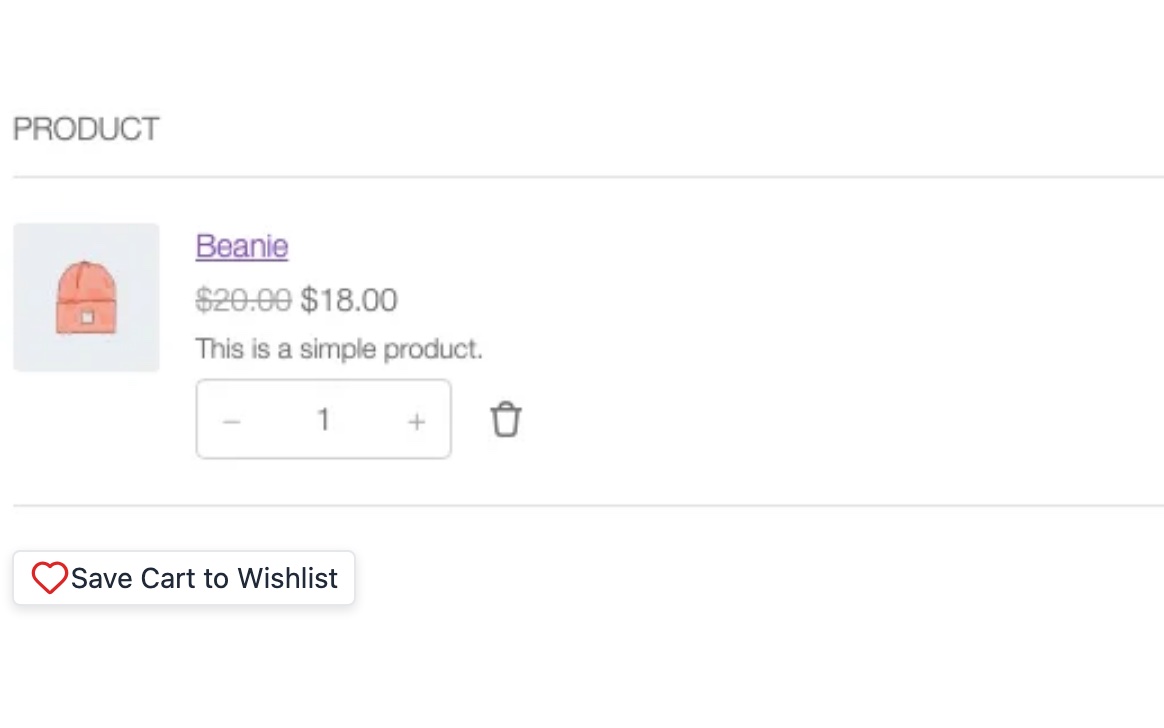
Save the whole cart for later
Shoppers who aren’t ready to check out can save their entire cart to a wishlist instead of walking away from it. The WooCommerce wishlist demo adds a product to your cart so you can see the button in place.
Ready to Add It to Your Store?
Liked the WooCommerce wishlist demo? SaveTo Wishlist Lite is free for WooCommerce, so you can install it and turn on the same buttons you just tried, in the same spots. Our setup guide walks you through it.
WooCommerce Wishlist Demo FAQs
Quick answers before you try it.
What is the WooCommerce wishlist demo?
It’s a free tool that shows SaveTo Wishlist on your own WooCommerce store before you install anything. We take pictures of your shop, product and cart pages and add the plugin’s real wishlist buttons and pages on top, so you can try its settings. New to wishlists? Read our guide to WooCommerce wishlists.
Does the demo change anything on my store?
No. We visit your public pages the way any shopper does and take pictures of them. Nothing is installed, and you don’t need to log in or share any passwords.
Will it look like my store?
Yes. The demo uses your store’s real pages, so you see SaveTo Wishlist with your own theme, fonts and colors. It works with any WooCommerce store that’s publicly visible.
Why don’t I see my product page or cart?
Some stores block automated visits, and some products need options picked before they can go in the cart. When we can’t open a page, the demo shows the pages we could reach.
How long is my preview kept?
For a day. After that the pictures are deleted, and you can make a new preview anytime.
Is the demo the same as the real plugin?
The buttons, settings and defaults match the plugin. The demo keeps wishlists only in your browser, so nothing you do in it is stored or sent anywhere.
Is SaveTo Wishlist free?
Yes. SaveTo Wishlist Lite is free for WooCommerce. SaveTo Wishlist Pro adds wishlist analytics, automations, and price-drop and back-in-stock alerts.