
If a customer wants to save just one item from a larger cart instead of the whole thing, the individual cart item button in SaveTo Wishlist gives them that option. This guide shows you how to enable it and what your customers will see.
Requirements
- Save to Wishlist Lite installed and active
- WooCommerce installed and configured
- Customers must be logged in to save individual items
How it Works
When the feature is enabled, a Save to Wishlist button appears on each row in the WooCommerce cart. Your customer clicks the button next to any product and saves just that item to their wishlist. The item stays in the cart — saving to a wishlist doesn’t remove it.
If a customer later adds the same product to the cart again or completes a purchase, the Auto remove product setting determines whether the item is automatically removed from their wishlist.
How to Enable the Individual Cart Item Button
- Go to SaveTo Wishlist → Settings → General.
- Find the Add cart products to wishlist option and set it to Yes.
- Toggle the Cart item selection option to Yes.
- Click Save Changes.
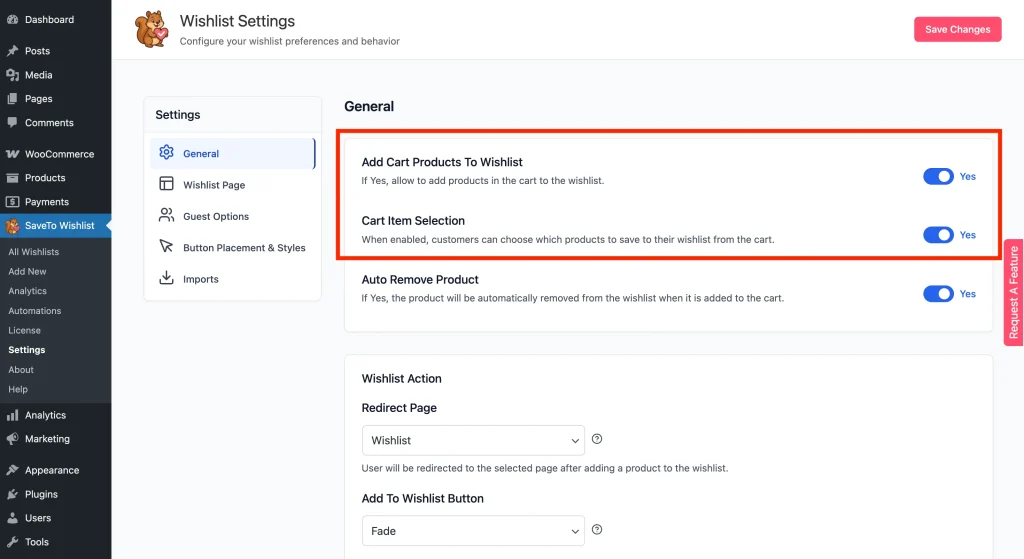
Once enabled, wishlist buttons appear on each cart item row for logged-in customers.
Styling the Cart Item Button
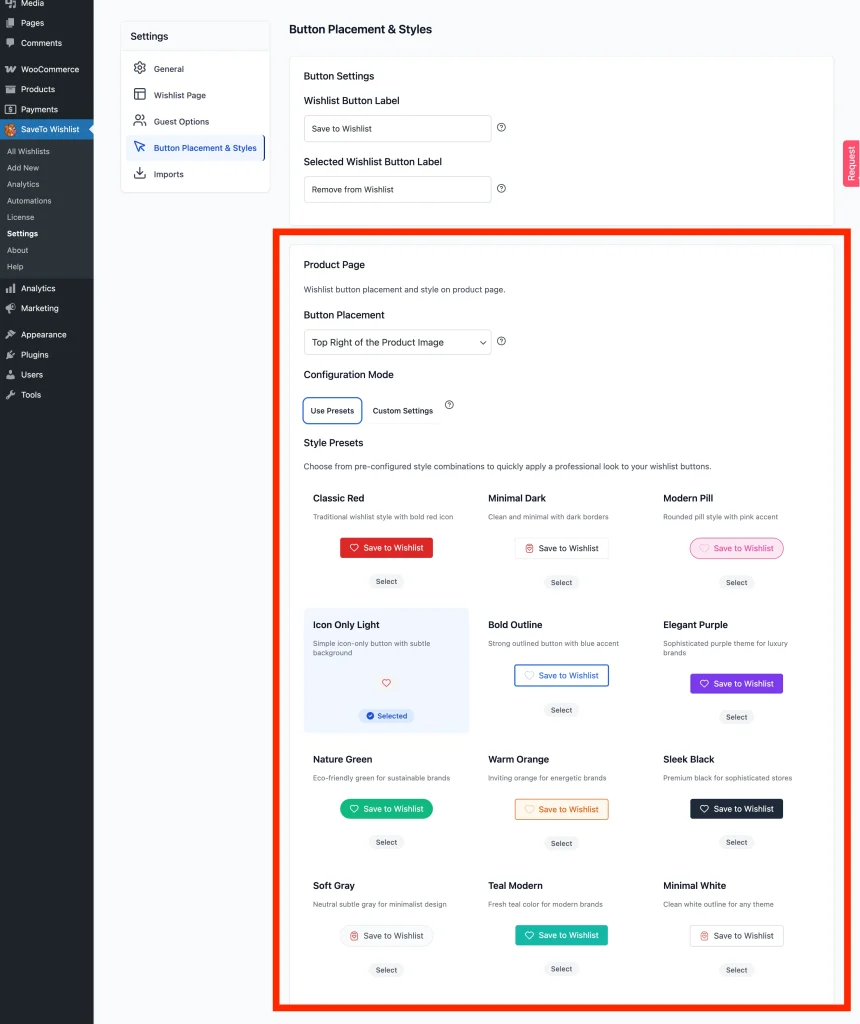
You control the look of the cart item button under Button Placement & Styles. To customise it:
- Go to SaveTo Wishlist → Settings → Button Placement & Styles.
- Locate the Product Page section (the cart item button inherits styles from here).
- Choose a preset or manually adjust the button style and colors via the Custom Settings mode.
- Click Save Changes to apply these styles across both the product and cart views.
Styling here updates the button on both the product page and inside the cart, so it stays consistent for shoppers.
What customers see
Logged-in customers see a wishlist button alongside each product in their cart. Clicking the button saves that product to their default wishlist. The same add-to-wishlist confirmation you’ve set under Settings → General → Add to wishlist button applies here—whether that’s a redirect, popup, or fade notification.
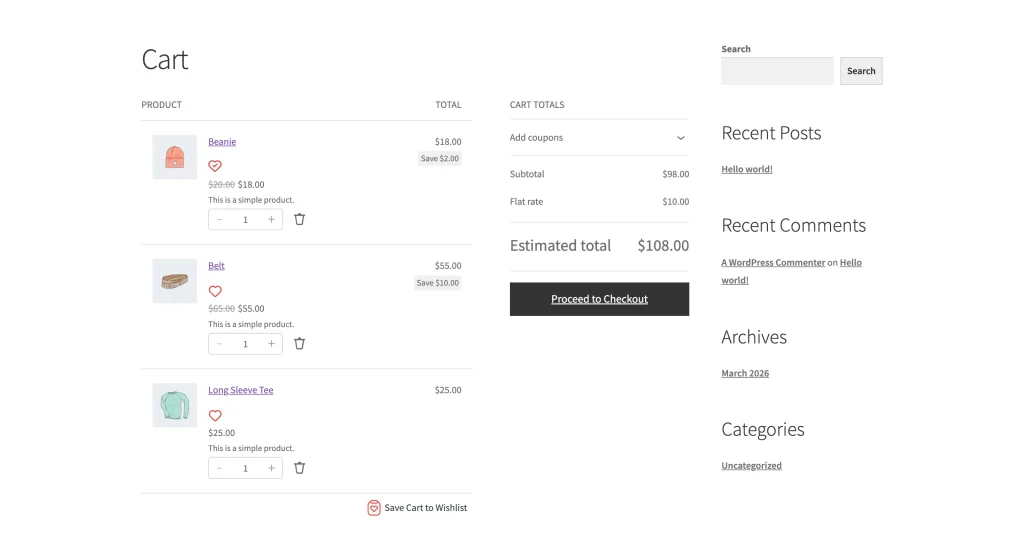
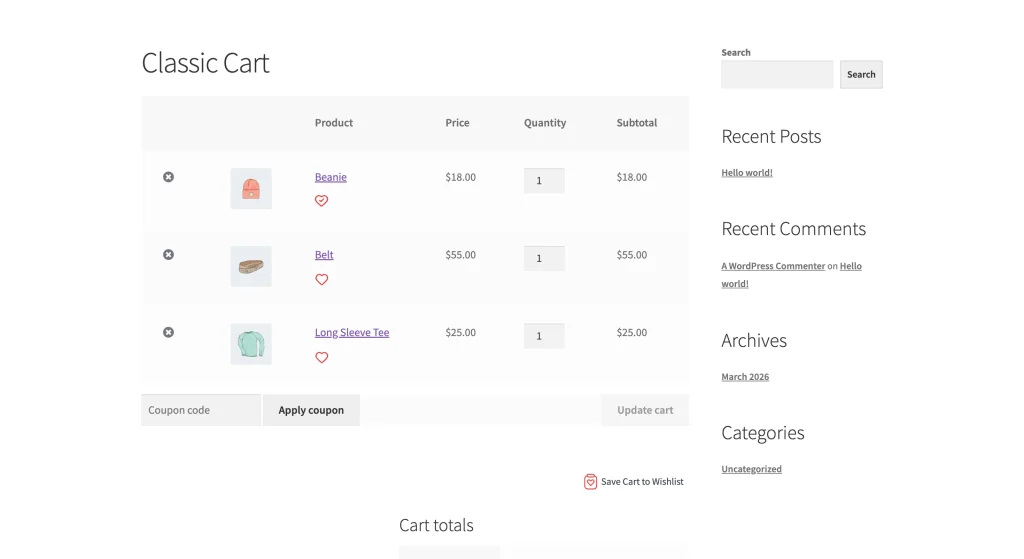
Customers who aren’t logged in won’t see the individual cart item buttons, even if guest wishlisting is enabled for shop and product pages.
Frequently Asked Questions
Can guest customers use the individual cart item button?
No. The individual cart item wishlist button requires customers to be logged in. Guests can still save products from shop and product pages if guest wishlisting is enabled under Settings → Guest Options.
Is this different from the “Save Cart to Wishlist” button?
Yes. The Save cart to wishlist button adds every item in the cart to the wishlist at once. The individual cart item button saves only the product you click, which is useful when a customer wants to wishlist one or two items from a larger cart.
Does saving a cart item to a wishlist remove it from the cart?
No. The item stays in the cart. Only the Auto remove product setting affects whether items are removed from the wishlist after they’re purchased or added to the cart again.
Need Help?
If you have a question or run into any issues, we’re here to help.
- Premium users: Open a support ticket
- Free users: Visit our community forum

