

 Reviewed by
 The SaveTo Wishlist Lite v1.0.9 update is officially live!
For this release, we focused on making the plugin easier to use in modern WordPress themes and shortening the customer’s path to purchase. With a new native block for the WordPress editor and a direct-to-checkout routing setting, this update gives you more control over how wishlists are built and how customers buy from them.
Read on to see the new features available in your free SaveTo Wishlist Lite plugin today!
Jump to:
1. Easy Page Building: Native Drag-And-Drop Wishlist Block
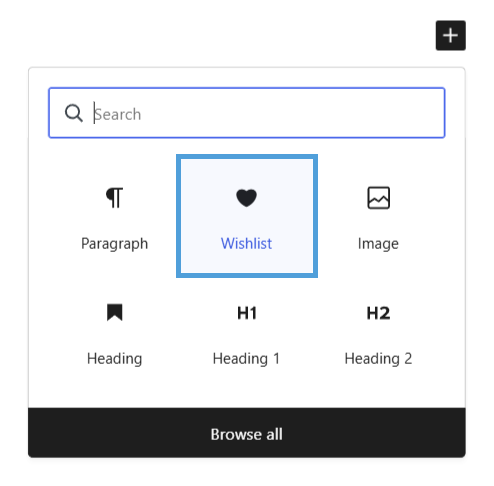
Until now, the only way to put a wishlist on a custom page was to type the [saveto_wishlist] shortcode into a Classic or Shortcode block. Now, you can open your block inserter, find the “SaveTo Wishlist” category (look for the heart icon), and drop a native Wishlist block directly onto any page or post.
What you need to know:
- Site Editor support: If your block theme restricts where you can place shortcodes, you can now drop this block straight into your Full Site Editing (FSE) templates. The plugin specifically checks for the block in resolved templates so everything loads properly on the frontend.
- Identical frontend behavior: Behind the scenes, the block runs the exact same shortcode you’re already used to. This means your guest wishlist rules, shared-by-link behaviors, and custom settings remain exactly as they are.
- Target specific wishlists: The block sidebar includes a “Wishlist Settings” panel with an optional Wishlist ID field. Leave it blank to show the current customer’s active list, or enter a specific ID to display that exact wishlist.
- Clean editor placeholder: The block displays a static placeholder card in the editor with a heart icon and your configuration details, rather than rendering a live preview of the wishlist itself.
2. Faster Purchasing: Direct-to-Checkout Routing
When a customer is ready to buy their saved items using the “Add All to Cart” or “Add Selected to Cart” buttons, you can now choose where they land next: stay on the wishlist page, go to the cart, or go straight to checkout.
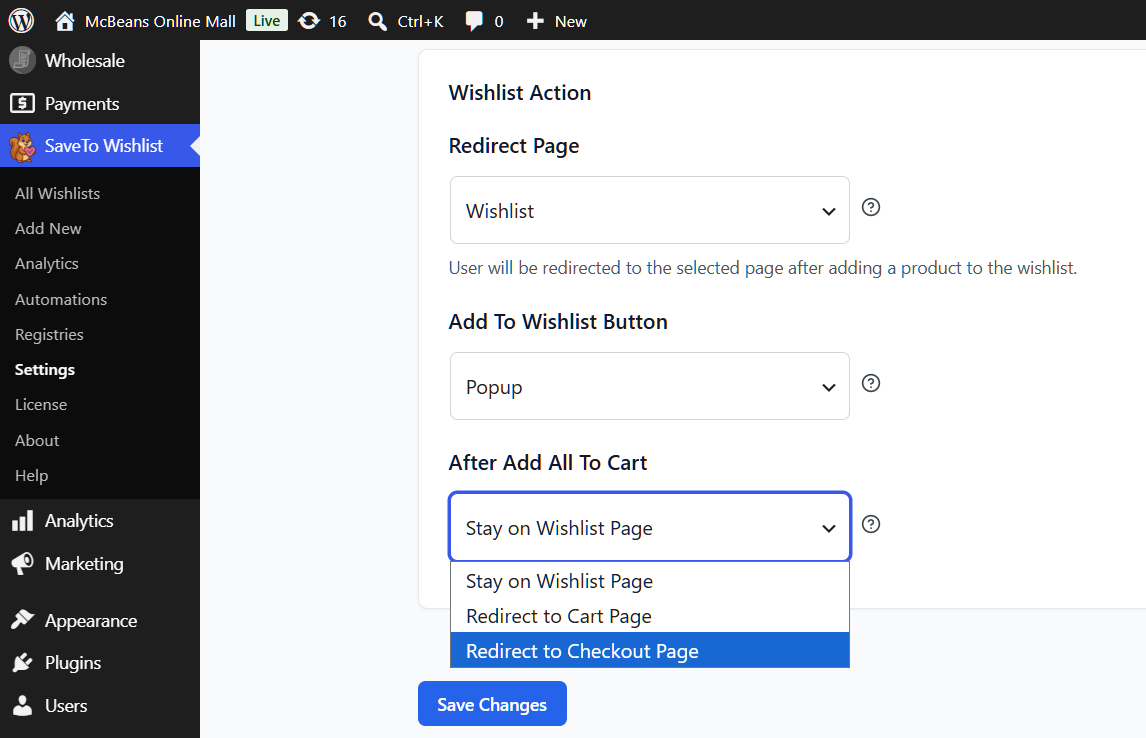
To configure this, head to your WordPress dashboard, navigate to SaveTo Wishlist > Settings > General > Wishlist Action, and look for the new “After Add All to Cart” dropdown.
What you need to know:
- Three flexible routing options: Choose between Stay on Wishlist Page (the default), Redirect to Cart Page, or Redirect to Checkout Page.
- Smart error protection: The redirect only fires if every single selected item is added to the cart successfully. If any item fails, the customer safely stays on the wishlist page and sees the standard notification. Thus, they never reach checkout with a partially filled cart.
- Auto-skips unpurchasable items: The system automatically skips items that can’t be added to a cart right away, such as out-of-stock products, variable products where a variation hasn’t been chosen, or items that need configuring on the product page.
- Applies to both bulk actions: This routing logic applies whether the customer clicks “Add All to Cart” or checks specific items to use “Add Selected to Cart.”
Also In This Release: 5 New Plugin Integrations
Alongside these core plugin upgrades, SaveTo Wishlist v1.0.9 also introduces native connections to 5 popular WordPress plugins:
- FluentCRM & Mail Mint: Trigger automated email sequences whenever customers add or save items to their wishlist.
- Barn2 Fast Cart: Let customers save items directly from inside the slide-out cart popup.
- PPOM: Route shoppers back to product pages to pick required custom fields so incomplete orders never hit your cart.
- Tiered Pricing Table: Show live bulk discount pricing tables right inside saved wishlist items.
Read our full guide on the 5 New SaveTo Wishlist Integrations here.
Frequently Asked Questions
Does the new block mean the [saveto_wishlist] shortcode is going away?
No. The shortcode isn’t deprecated, and every existing page on your site using it will keep working exactly as it does now. The block is simply an additional option.
Will “Direct to Checkout” add a new button to my wishlist page?
No, it doesn’t add a new button. Instead, it adds a redirect setting to your existing “Add All to Cart” and “Add Selected to Cart” buttons.
What happens if a customer clicks “Add All to Cart” but an item is out of stock?
The plugin will skip the out-of-stock item, add the available items to the cart, and cancel the checkout redirect. Additionally, the customer will stay on the wishlist page so they can see exactly what couldn’t be added.

Conclusion
That wraps up everything in this feature update! You can access these new tools right now by updating your free SaveTo Wishlist Lite plugin directly from your WordPress dashboard.
To recap, this announcement explored the following new features:
- A native drag-and-drop Wishlist block for the WordPress editor and block themes.
- A direct-to-checkout routing setting for bulk cart actions.
Do you need any help dropping the new block into your Site Editor, or configuring your checkout redirects? Check out our knowledge base or reach out to our support team!
If you’ve yet to try out wishlists for your store, download the free version of SaveTo Wishlist today and set it up in minutes.



