
 Reviewed by
 Most shoppers who save a product to a wishlist are telling you something useful. They want it, just not right now. The hard part has always been acting on that signal at the right time.
Until now, linking a wishlist action to a follow-up email or a CRM tag took custom code. For most WooCommerce store owners, that meant waiting on a developer. So a lot of that intent data just sat there.
That changes today. SaveTo Wishlist now has an official Uncanny Automator wishlist integration, so you can automate all of this without code. We built SaveTo Wishlist to capture buyer intent, and this connects that intent to the tools you already use.
Here’s what the integration covers, and how you can start using it right away.
Table Of Contents
- What The Uncanny Automator Wishlist Integration Adds
- The Wishlist Triggers You Can Build Around
- The Wishlist Actions Automator Can Run For You
- Conditions And Filters That Keep Recipes Precise
- Practical Ways To Put Wishlist Automation To Work
- What Works On Free Vs SaveTo Wishlist Pro
- Frequently Asked Questions
- Start Building Wishlist Automation Today
What The Uncanny Automator Wishlist Integration Adds
Uncanny Automator connects the plugins you already run. An event in one tool can start an action in another. You build a recipe: a trigger that says “when this happens” paired with an action that says “do this.” There’s no code and no API wrangling.
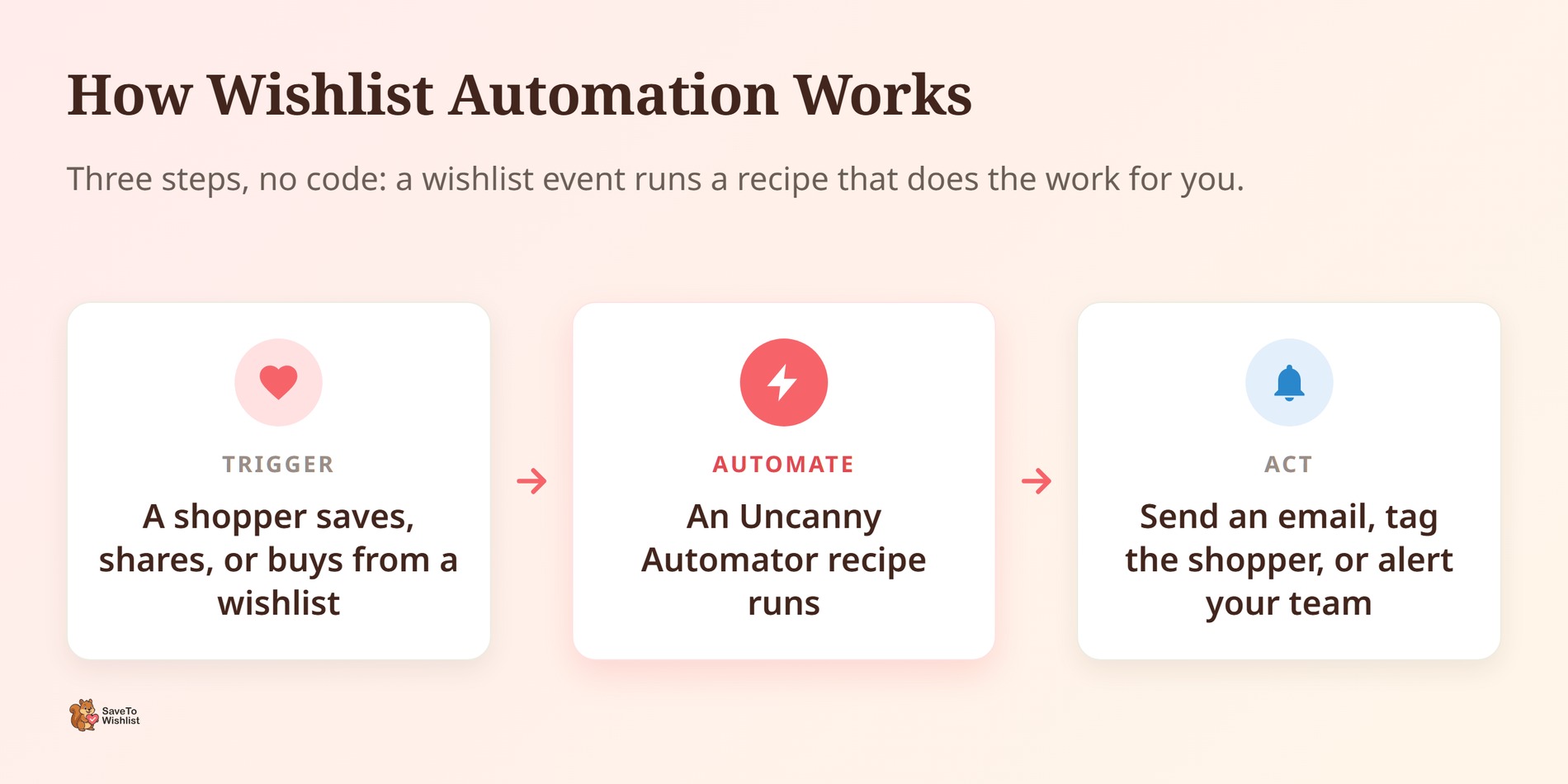
With SaveTo Wishlist in that library, wishlist behavior becomes a trigger. Say a shopper saves a product to a wishlist. Automator can then tag that contact as high-intent, add them to an email sequence, or ping your team in Slack. In practice, you stop letting that intent data sit unused.
The Uncanny Automator wishlist integration needs the SaveTo Wishlist plugin and WooCommerce. Most actions and several triggers work on the free plugin. The deeper options unlock with SaveTo Wishlist Pro, and we break that split down below.
The Wishlist Triggers You Can Build Around
A trigger is the wishlist event that kicks off a recipe. The Uncanny Automator wishlist integration covers triggers for logged-in users and triggers that fire for everyone, including guests.
For logged-in users, you can launch a recipe the moment a shopper:
- Creates a wishlist
- Adds a product to a wishlist
- Adds a product from their wishlist to their cart
- Removes a product from a wishlist
- Deletes a wishlist, makes one public, buys from it, or changes a product’s quantity (each on SaveTo Wishlist Pro)
A second set of triggers fires for everyone. That matters, because plenty of wishlist activity comes from shoppers who haven’t logged in yet.
- A guest wishlist is synced to a user account on login
- A product in a wishlist goes on sale (SaveTo Wishlist Pro)
- A product in a wishlist is back in stock (SaveTo Wishlist Pro)
Those last two pair well with features you may already run. We cover the email side in our guides to wishlist price drop alerts and back-in-stock notifications. The trigger lets you push that same logic into any connected app, not just email.
The Wishlist Actions Automator Can Run For You
Actions run the other direction. Instead of reacting to a wishlist event, Automator can change a wishlist for you. So a purchase, a form entry, or a membership signup elsewhere can update a shopper’s list automatically.
The available actions include:
- Add a product to a wishlist
- Create a wishlist
- Remove a product from a wishlist
- Delete, share, update, or grant edit permission for a wishlist (SaveTo Wishlist Pro)
- Move a product between wishlists, set its quantity, or set the user’s default wishlist (SaveTo Wishlist Pro)
This is where it stops feeling like a notification tool. It starts to feel like a way to manage purchase intent. If you run gift-with-purchase logic or curated collections, you can seed a shopper’s wishlist and point them to it. The sharing and permissions side of the plugin pairs naturally with the share and grant-edit actions.
Conditions And Filters That Keep Recipes Precise
Conditions stop a recipe from running unless your criteria are met. That keeps your automations from firing for the wrong people. The SaveTo Wishlist Pro conditions let you check things like:
- Whether a product’s total wishlist count hits a value you set
- Whether a wishlist is or isn’t public
- How many items sit in a user’s wishlist
- Whether a user has a default wishlist, any wishlist, or a specific product saved
There are also user loop filters. A recipe can run across a group of customers and only touch the ones who do or don’t have a given product or wishlist. That wishlist count condition is quietly useful for merchandising. When one product crosses a threshold of saves, that’s a data-backed signal. Demand is building before you’ve made a single sale.
🔍️ What we’ve seen: Store owners collect plenty of wishlist data but never connect it to an action. A product can be saved hundreds of times and still trigger nothing. No restock, no promo, no heads-up to the team. This Uncanny Automator wishlist integration is about closing that gap.
Practical Ways To Put Wishlist Automation To Work
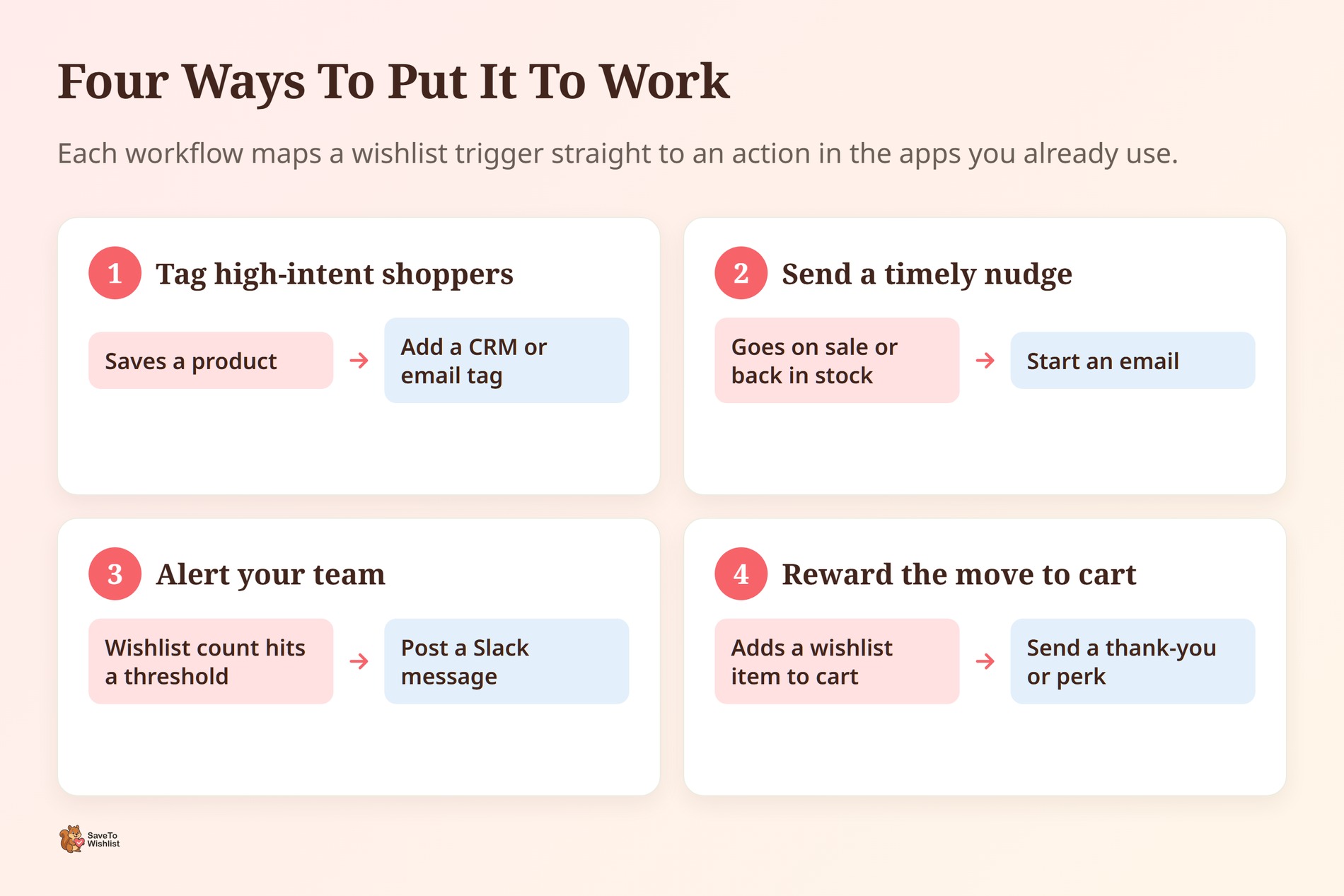
The Uncanny Automator wishlist integration is new, so the clearest way to understand it is through what it makes possible. Here are a few workflows that map straight to the triggers and actions above.
- Tag high-intent shoppers: When a user saves a product, add a tag in your CRM or email tool. Your segments then reflect real intent.
- Send a timely nudge: Use the on-sale or back-in-stock trigger to start an email the moment a saved product gets cheaper or returns.
- Alert your team: Post a Slack message when a product’s wishlist count crosses a threshold. Buying and merchandising can react early.
- Reward the move to cart: When a user adds a wishlist product to their cart, trigger a thank-you or a small incentive.
Want the thinking behind these flows? Our guide to rescuing lost sales with wishlist automation and our wishlist email marketing walkthrough both pair well with what these recipes can do.
What Works On Free Vs SaveTo Wishlist Pro
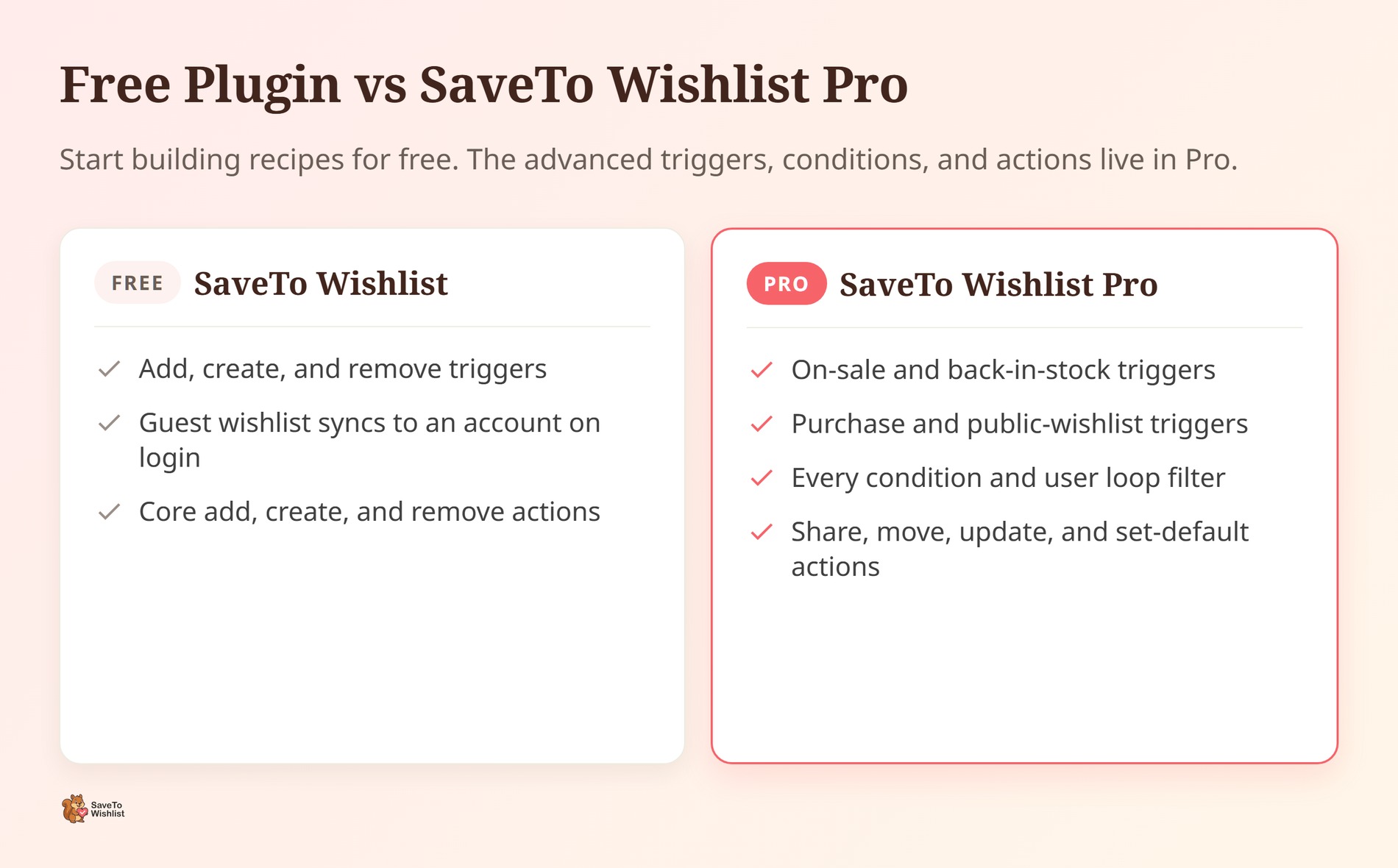
You can start building recipes on the free SaveTo Wishlist plugin. The core triggers are there: adding a product, creating a wishlist, removing a product, and the guest-to-account sync. The core add, create, and remove actions are free too.
The more advanced pieces need SaveTo Wishlist Pro. That covers the on-sale, back-in-stock, purchase, and public-wishlist triggers. It also covers every condition and the user loop filters. Pro actions include sharing, moving products, and setting a default wishlist. If your plan leans on those, check the current split on the official SaveTo Wishlist pricing page before you build.
Frequently Asked Questions
Do i need to write code to use the Uncanny Auatomator wishlist integration?
No. The whole point of Uncanny Automator is no-code automation. You pick a SaveTo Wishlist trigger and pair it with actions from your connected apps. You’ll need both the SaveTo Wishlist plugin and WooCommerce active.
Does the Uncanny Automator wishlist integration work for guest shoppers?
Partly. Some triggers fire for everyone, like the guest-to-account sync and the on-sale and back-in-stock triggers. Many per-user triggers need a logged-in user, so the action can attach to an account.
Which features need SaveTo Wishlist Pro?
The on-sale, back-in-stock, purchase, and public-wishlist triggers need Pro. So do the conditions, the user loop filters, and several actions. Those include sharing, moving products between lists, and setting a default wishlist. The core add, create, and remove options stay free.
What can i connect a wishlist trigger to?
Anything in the Uncanny Automator app library. Common pairings include email marketing tools (Mailchimp, ActiveCampaign, MailPoet), CRMs (HubSpot, FluentCRM), communication apps (Slack, WhatsApp), and other major platforms like Zapier, Google Sheets, LearnDash, and OpenAI. The wishlist event is the trigger, and the connected app carries out the action.
Will this slow my store down?
SaveTo Wishlist is built to stay light on the front end. Automator recipes run server-side, not in the shopper’s browser. As with any automation, test your recipes on a staging site first. Then keep an eye on how third-party apps handle the volume.
Start Building Wishlist Automation Today
Wishlists have always been one of the clearest intent signals a store collects. The difference now is that you can act on that signal automatically thanks to the Uncanny Automator wishlist integration. You can do it with the tools you already use, and without waiting on a developer.
Here’s how to get going:
- Confirm SaveTo Wishlist and WooCommerce are active, then add Uncanny Automator
- Pick one wishlist trigger that maps to a goal, like tagging high-intent shoppers
- Check whether your plan needs SaveTo Wishlist Pro for the triggers you want
- Build one recipe, test it, then expand from there
Ready to turn saved products into automated revenue? Get SaveTo Wishlist set up on your store and build your first recipe.