
 Reviewed by
 For developers building custom WooCommerce integrations, the WooCommerce wishlist REST API is often the missing piece. Most wishlist plugins skip the API entirely. The ones that do ship one usually leave you with a few undocumented endpoints to guess at.
That gap matters more than it looks. Syncing wishlist activity to a CRM needs programmatic access. So does building a custom analytics dashboard, powering a headless storefront, or feeding intent data into an email platform.
This guide covers how to work with the WooCommerce wishlist REST API exposed by SaveTo Wishlist. We’ll walk through authentication, core CRUD operations, practical integration patterns, and webhooks. Where the underlying endpoint paths aren’t fully documented in public, we’ll point to the plugin’s developer docs.
- Why a REST API matters for WooCommerce wishlists
- Prerequisites and authentication
- Core API operations: CRUD for wishlists
- Working with wishlist data: practical patterns
- Building custom integrations: 3 real-world examples
- Webhooks: real-time wishlist events
- Error handling and best practices
- Frequently asked questions
- Start building with the WooCommerce wishlist REST API
Why A REST API Matters For WooCommerce Wishlists
A REST API turns wishlist data from a locked-up plugin feature into an accessible data layer. Your entire tech stack can read from it and write to it. That changes what’s possible downstream.
Without an API, your options are limited. Direct database queries are fragile, tightly coupled to the plugin’s schema, and likely to break on updates. Scraping the frontend is unreliable and slow. Neither is a real solution for production integrations.
With a proper REST API, you get standard HTTP endpoints that return structured data. That opens up use cases like:
- CRM and email platform sync: Push wishlist events to Klaviyo, Drip, Mailchimp, or any platform that accepts webhooks or API calls.
- Custom admin dashboards: Build internal reports showing most-wishlisted products, wishlist conversion rates, and customer intent patterns.
- Mobile app integration: Let customers manage wishlists from native mobile apps through authenticated API calls.
- Headless storefronts: Decouple the wishlist UI from WordPress and render wishlist data in a React, Vue, or Next.js frontend.
- Analytics pipelines: Feed wishlist data into data warehouses or BI tools for cross-channel analysis.

In short, if you’re building anything beyond the default wishlist experience, an API isn’t a nice-to-have. It’s a requirement.
Prerequisites And Authentication
What you need before starting
The good news first: programmatic API access is available in both the free and Pro versions of SaveTo Wishlist. You’ll need:
- SaveTo Wishlist installed and activated (you can use either the Lite or Pro version of this wishlist plugin, since the REST API is included in both).
- WooCommerce installed and activated, since SaveTo Wishlist extends the WooCommerce REST API infrastructure.
- WordPress with pretty permalinks enabled. Default permalinks won’t work for the REST API.
- Familiarity with REST API concepts: HTTP methods, JSON, and authentication headers.
If you’re newer to the WooCommerce REST API in general, the WooCommerce REST API documentation is the right starting point. It covers the authentication model and request patterns that SaveTo Wishlist builds on.
Authentication patterns
SaveTo Wishlist’s REST API follows the standard WooCommerce authentication model. You authenticate using WooCommerce API keys, which are a consumer key and consumer secret pair. Generate them from your WordPress dashboard under WooCommerce, Settings, Advanced, REST API.
For HTTPS requests, which you should always use in production, pass your credentials either as query parameters or via HTTP Basic Auth:
# Basic Auth approach (recommended)
curl https://yourstore.com/wp-json/wc/v3/wishlist-endpoint \
  -u consumer_key:consumer_secret

# Query parameter approach
curl "https://yourstore.com/wp-json/wc/v3/wishlist-endpoint?consumer_key=ck_xxx&consumer_secret=cs_xxx"
One note on namespacing. The exact API namespace and endpoint base path may live under wc/v3, a custom namespace like saveto/v1, or another pattern. Check the SaveTo Wishlist developer notes for the canonical paths. The examples in this guide use placeholder paths to illustrate the concepts.
For local development over HTTP rather than HTTPS, WooCommerce falls back to OAuth 1.0a one-legged authentication. Most developers find it simpler to set up a local SSL certificate and use Basic Auth instead. That said, OAuth 1.0a is the documented fallback if you need it.
What we’ve seen: developers often hit 404 errors on wishlist API routes and assume the endpoints don’t work. In most cases, the issue is one of three things. Pretty permalinks may not be enabled. The WooCommerce REST API keys may lack the right read or write scope. Or the API namespace is different from what they expected. Check those three before debugging further.
Core API Operations: CRUD For Wishlists
The WooCommerce wishlist REST API follows standard REST conventions. If you’ve worked with the WooCommerce orders or products API, the patterns will feel familiar. That’s a deliberate design choice.
Retrieving wishlists (GET)
Retrieving data via the WooCommerce wishlist REST API follows the same shape as any standard WooCommerce REST resource. A typical GET request to list wishlists looks like this:
# List all wishlists (may require admin-level API keys)
GET /wp-json/{namespace}/wishlists

# List wishlists for a specific customer
GET /wp-json/{namespace}/wishlists?customer_id=123

# Retrieve a specific wishlist by ID
GET /wp-json/{namespace}/wishlists/{wishlist_id}
Confirm the exact endpoint paths, query parameter names, and response format in the SaveTo Wishlist developer notes before going live. The shape below is conceptual rather than a contract.
{
  "id": 42,
  "customer_id": 123,
  "title": "My Birthday List",
  "items": [
    {
      "product_id": 456,
      "variation_id": 0,
      "date_added": "2026-03-15T10:30:00"
    }
  ],
  "date_created": "2026-03-01T09:00:00"
}
Treat the field names as illustrative. The real schema may differ in small but important ways, especially around variation handling and guest sessions.
Creating and updating wishlists (POST/PUT)
To add items to a wishlist programmatically, you’d typically send a POST request with the product details:
# Add an item to an existing wishlist
POST /wp-json/{namespace}/wishlists/{wishlist_id}/items
Content-Type: application/json

{
  "product_id": 789,
  "variation_id": 0
}
Updating wishlist metadata, such as a title, visibility, or sharing settings, follows a standard PUT or PATCH pattern:
# Update wishlist title
PUT /wp-json/{namespace}/wishlists/{wishlist_id}
Content-Type: application/json

{
  "title": "Holiday Gift Ideas"
}
Confirm the exact accepted fields, and whether POST or PUT handles updates, in the plugin’s developer notes. The wire format follows standard JSON over HTTP either way.
Deleting wishlist items (DELETE)
Removing individual items, or deleting an entire wishlist, follows the standard REST DELETE pattern:
# Remove a specific item from a wishlist
DELETE /wp-json/{namespace}/wishlists/{wishlist_id}/items/{item_id}

# Delete an entire wishlist
DELETE /wp-json/{namespace}/wishlists/{wishlist_id}
Check whether the plugin treats deletion as immediate or as a soft-delete with a recovery window. That detail matters for any UI that lets customers undo a removal. In all cases, expect standard HTTP status codes: 200 for successful operations, 201 for resource creation, 404 for missing resources, and 401 or 403 for authentication failures.
Working With Wishlist Data: Practical Patterns
Once basic CRUD is working, there are a few patterns that come up over and over in real integrations. Knowing them in advance saves cleanup later.
Fetching wishlisted products with product details
When you make a request using the WooCommerce wishlist REST API, responses will typically return product IDs rather than full product objects. To display product names, images, and prices alongside wishlist data, you’ll usually make a follow-up request to the WooCommerce Products API:
// Conceptual example: enrich wishlist items with product data
async function getWishlistWithProducts(wishlistId) {
  const wishlist = await fetchAPI(`/wishlists/${wishlistId}`);

  const enrichedItems = await Promise.all(
    wishlist.items.map(async (item) => {
      const product = await fetchAPI(`/wc/v3/products/${item.product_id}`);
      return {
        ...item,
        product_name: product.name,
        product_price: product.price,
        product_image: product.images[0]?.src
      };
    })
  );

  return { ...wishlist, items: enrichedItems };
}
For larger wishlists or high-traffic applications, batch the product lookups or cache the product data locally. That keeps you from hammering the Products API every page load.
Filtering and pagination
The WooCommerce REST API uses standard pagination parameters (page, per_page) and returns pagination headers (X-WP-Total, X-WP-TotalPages). SaveTo Wishlist’s API should follow the same convention:
# Get page 2 of wishlists, 20 per page
GET /wp-json/{namespace}/wishlists?page=2&per_page=20
For filter parameters, expect a similar pattern to the WooCommerce Orders endpoint. Common filters typically include date ranges, customer IDs, and product IDs. Check the plugin documentation for the exact query parameters supported in your version.
Querying by customer or product
Two of the most common query patterns are “show me all wishlists for this customer” and “show me all customers who wishlisted this product.”
The customer query is straightforward if the API supports a customer_id filter. The product query, meaning which customers wishlisted product X, is more valuable for merchandising decisions. It may require a different endpoint or approach:
# All wishlists containing a specific product
GET /wp-json/{namespace}/wishlists?product_id=456
If product-based querying isn’t supported directly, you have two options. Fetch all wishlists and filter client-side, or rely on the analytics features in SaveTo Wishlist Pro. The advanced analytics dashboard already aggregates this view, which often saves the custom work.
Building Custom Integrations: 3 Real-World Examples
The patterns above are useful in isolation, but the real value shows up when you stitch them together. Here are three integrations we see often, and how the API supports each one.
Syncing wishlist data to an email marketing platform
The most common integration is feeding wishlist events into your email platform. That powers campaigns like price drop alerts and wishlist reminders without manual exports.
The real-time approach uses wishlist webhooks. When a customer adds an item, a webhook fires to your email platform’s API with the customer and product data. From there, you can build segments like “customers who wishlisted items in the last 7 days” or trigger automations immediately.
If your email platform doesn’t support inbound webhooks, polling works as a fallback. A scheduled job, whether cron or an external scheduler, queries the wishlist API at intervals. It compares against the last known state, then pushes new events to the email platform.
For a broader look at how wishlist data fits into an email strategy, see our guide on ecommerce email marketing and wishlist-powered campaigns.
Building a “most wishlisted” product dashboard
A custom dashboard showing the most-wishlisted products helps merchandising and pricing teams make sharper decisions. The conceptual flow looks like this:
- Query the wishlist API for all wishlists, or use a product-based endpoint if available.
- Aggregate wishlist counts per product ID.
- Join with WooCommerce product data for names, categories, and prices.
- Display the result in a custom WordPress admin page, an external BI tool, or a simple HTML dashboard.
// Conceptual: aggregate wishlist counts by product
async function getMostWishlisted() {
  const allWishlists = await fetchAllPages('/wishlists');
  const productCounts = {};

  allWishlists.forEach(wishlist => {
    wishlist.items.forEach(item => {
      productCounts[item.product_id] =
        (productCounts[item.product_id] || 0) + 1;
    });
  });

  return Object.entries(productCounts)
    .sort(([, a], [, b]) => b - a)
    .slice(0, 20);
}
That said, SaveTo Wishlist Pro already includes built-in analytics and reports for this exact use case. If the built-in view is enough, you skip the custom code entirely.
Mobile app wishlist sync
For stores with native mobile apps built in React Native, Flutter, or similar, the REST API lets customers manage wishlists from the app. The same authenticated calls handle the work:
- Authenticate the user via WooCommerce’s standard authentication flow.
- Fetch the user’s wishlists on app load.
- Let the user add or remove items via POST and DELETE calls.
- Sync in the background so wishlists stay consistent between web and mobile.
The key consideration is offline handling. If a customer adds an item while offline, queue the API call locally and sync when connectivity returns.
Webhooks: Real-Time Wishlist Events
While the REST API lets you pull data on demand, wishlist webhooks push data to your systems in real time. That’s the better approach when you need instant reactions to wishlist events.
Webhooks are powered by the SaveTo Wishlist Pro automation engine, so this part of the toolkit is Pro-only. Common triggers include events like an item being added to a wishlist or a new wishlist being created. Configure each one in the Wishlist Automation dashboard, choose the “Call a Webhook” action, then paste the destination URL.
For when to use webhooks versus the REST API:
- Webhooks are best for real-time reactions: email triggers, live dashboards, instant CRM updates.
- The REST API is best for data on demand: reporting, bulk exports, user-initiated actions in custom UIs.
Most production integrations use both. Webhooks handle real-time events, and the REST API covers data retrieval and batch operations.
Error Handling And Best Practices
When building production integrations against the WooCommerce wishlist REST API, a few habits separate brittle code from boring, reliable code.
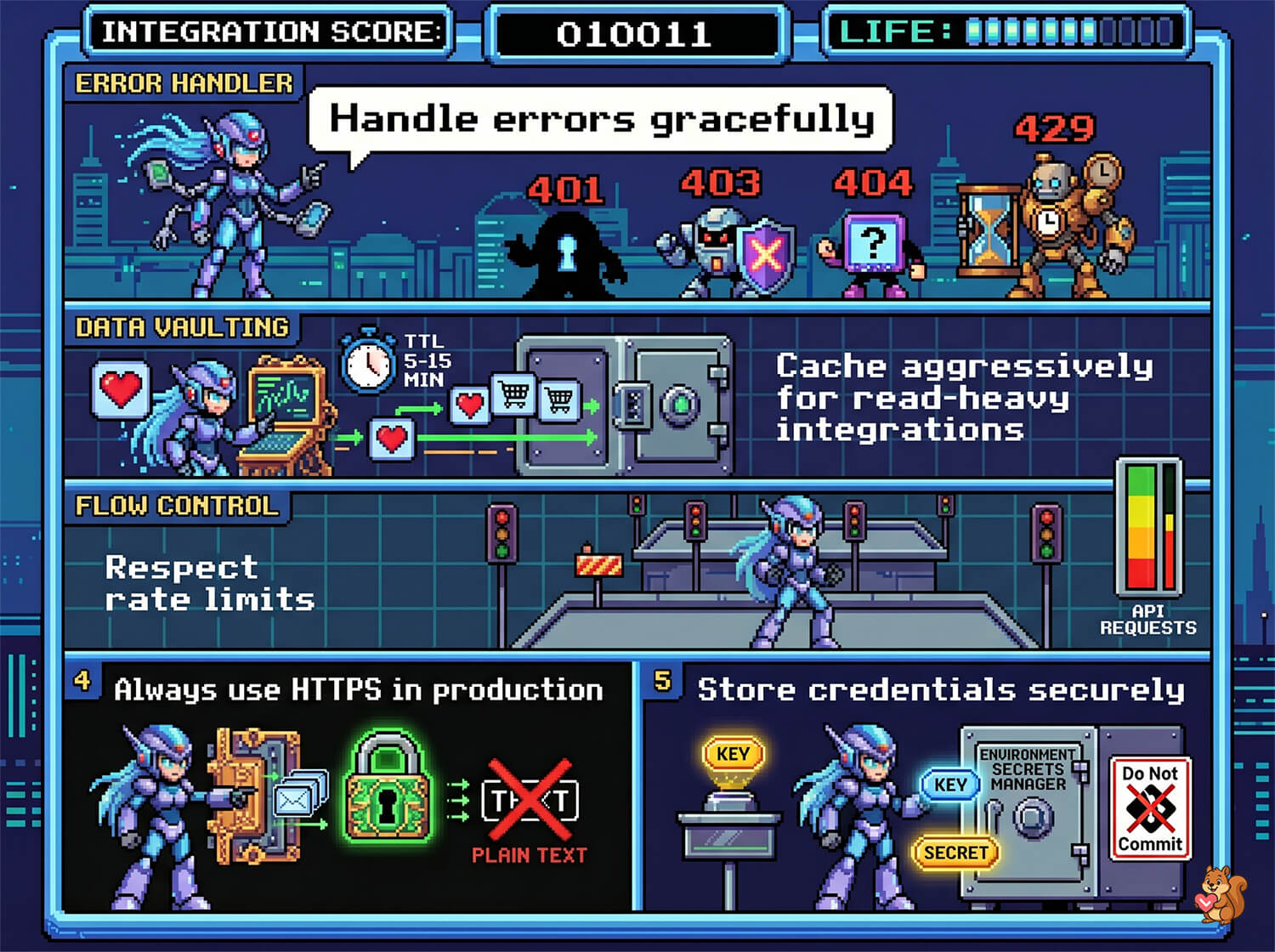
- Handle errors gracefully. Common error responses include 401 for invalid credentials, 403 for insufficient permissions, 404 for a missing wishlist or item, and 429 when rate limited. Build retry logic for transient failures, and surface clear messages for permanent ones.
- Cache aggressively for read-heavy integrations. If your dashboard hits wishlist data on every page load, cache responses for a sensible TTL of 5 to 15 minutes. Invalidate those caches when a webhook event signals that data changed.
- Respect rate limits. WooCommerce doesn’t enforce strict rate limits by default, but your hosting environment might. On shared hosting, keep API requests under a reasonable threshold to avoid 503 errors.
- Always use HTTPS in production. API credentials travel with every request. Over plain HTTP, they’re transmitted in plain text. There’s no excuse for unencrypted API traffic in production.
- Store credentials securely. Keep consumer keys and secrets in environment variables or a secrets manager. Don’t hardcode them in your application source or commit them to version control.
FAQs: WooCommerce Wishlist REST API
Is the WooCommerce wishlist REST API available in the free version?
Yes. SaveTo Wishlist Lite, the free version, ships with full REST API access out of the box. You can read and write wishlist data programmatically without a Pro upgrade. SaveTo Wishlist Pro adds layers on top, such as automated webhooks, advanced analytics, and price drop alerts. Pricing for Pro starts at $49.50 per year for a single site.
Can I access guest wishlist data through the API?
Guest wishlists are a core feature of SaveTo Wishlist. How the API exposes them depends on the session handling in your version of the plugin. In general, guest data is tied to a session token rather than a customer ID. Check the SaveTo Wishlist developer notes for the current guest-session authentication pattern.
How do I test API requests during development?
Use Postman, Insomnia, or curl to send test requests during development. Set up a local or staging WordPress environment with SaveTo Wishlist installed, so you’re not testing against production data. WooCommerce’s REST API also supports a ?context=edit parameter that returns extra fields useful for debugging.
Can I use the API to trigger price drop alerts programmatically?
The WooCommerce wishlist REST API gives you access to wishlist data. But price drop alert triggers are typically handled by SaveTo Wishlist’s built-in automation engine, not the API directly. You could build a custom solution: monitor product price changes via the WooCommerce Products API, cross-reference against wishlist data, then trigger your own notifications. That said, check whether the built-in price drop alert system already covers your use case before building from scratch.
What’s the difference between using the REST API and webhooks?
The REST API is pull-based. Your application sends a request and gets data back. Webhooks are push-based. SaveTo Wishlist sends data to your application when an event occurs. Use the API for data on demand, such as fetching a customer’s wishlists for display or running a batch report. Use webhooks for real-time reactions, like triggering an email or updating a live dashboard. Most production integrations use both.
Start building with the WooCommerce wishlist REST API
Programmatic access to wishlist data unlocks integrations that aren’t possible through a plugin’s admin UI alone. Whether you’re syncing intent data to an email platform, building custom analytics, or powering a headless storefront, a proper REST API makes wishlist data a first-class part of your store’s data layer.
Here’s what to focus on first:
- Why a REST API matters for wishlist-powered integrations.
- Authentication and prerequisites, so you can move from documentation to working calls quickly.
- Core CRUD operations for reading, writing, and deleting wishlist data.
- Practical integration patterns for email sync, dashboards, and mobile apps.
- Webhooks vs. API, and when to use each approach.
Ready to build? Check out the full feature list for SaveTo Wishlist, and the WooCommerce wishlist REST API page for the latest endpoint notes. SaveTo Wishlist Pro starts at $49.50 for the first year and renews at $99 per year with a 14-day money-back guarantee.