
Your wishlist page is often the last stop for a customer before they decide to buy. If that page looks like a generic plugin that clashes with your carefully chosen brand colors and fonts, it can create a “disconnect” that hurts trust.
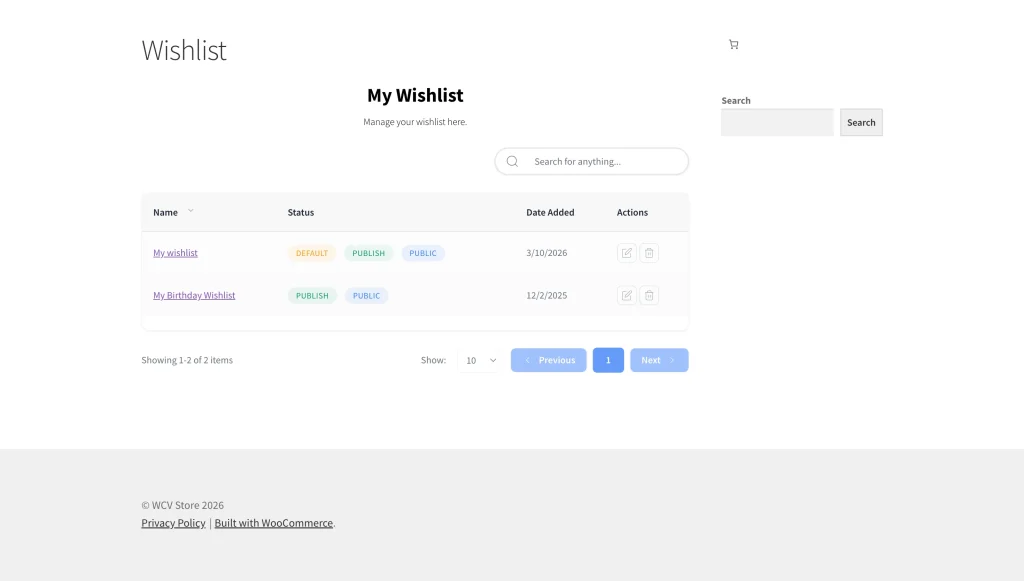
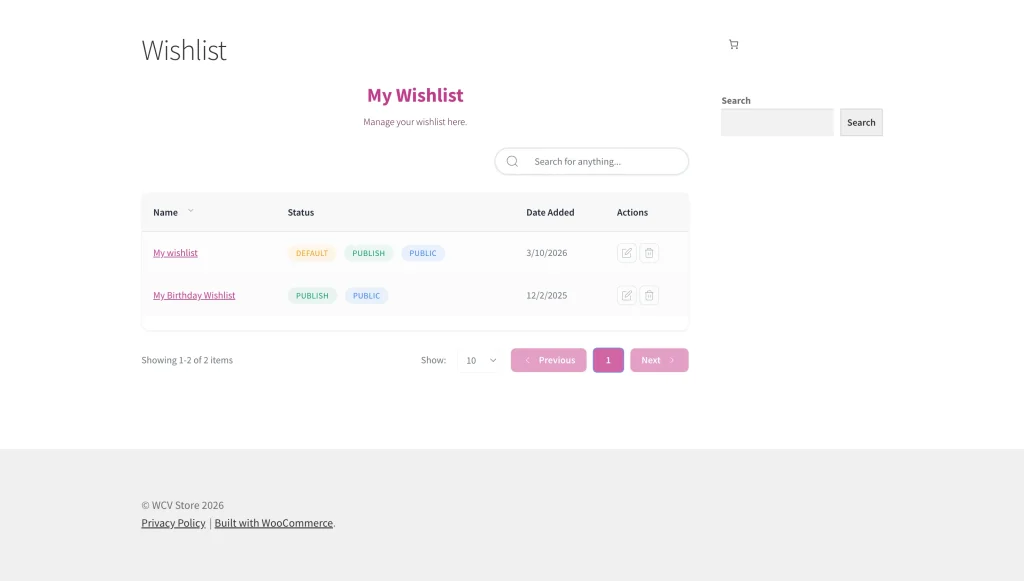
By default, the wishlist page uses a blue color scheme that doesn’t always match every WordPress theme. The Wishlist Page style customization settings from SaveTo Wishlist let you change the typography and colors of the wishlist page so it matches your store’s branding, without writing any CSS.
This guide walks through the available style settings and how to apply them.
💡 Note:
These settings specifically affect the main Wishlist Page (where customers view their saved items) rather than the “Add to Wishlist” buttons found on product pages.
🔗 External Resource:
If you’re unsure about which colors to use, we recommend checking out Adobe Color for accessible palette inspiration.
Prerequisites
Before you begin, make sure you have:
- SaveTo Wishlist Lite installed and activated on your store
- A wishlist page already set up (the plugin creates one automatically on activation)
Step-by-step: Designing Your Custom Wishlist Page
1. Locate the Style Settings
All your design tools are grouped together for easy access.
- Go to SaveTo Wishlist → Settings.
- Click the Wishlist Page tab and scroll down to the Styles section.
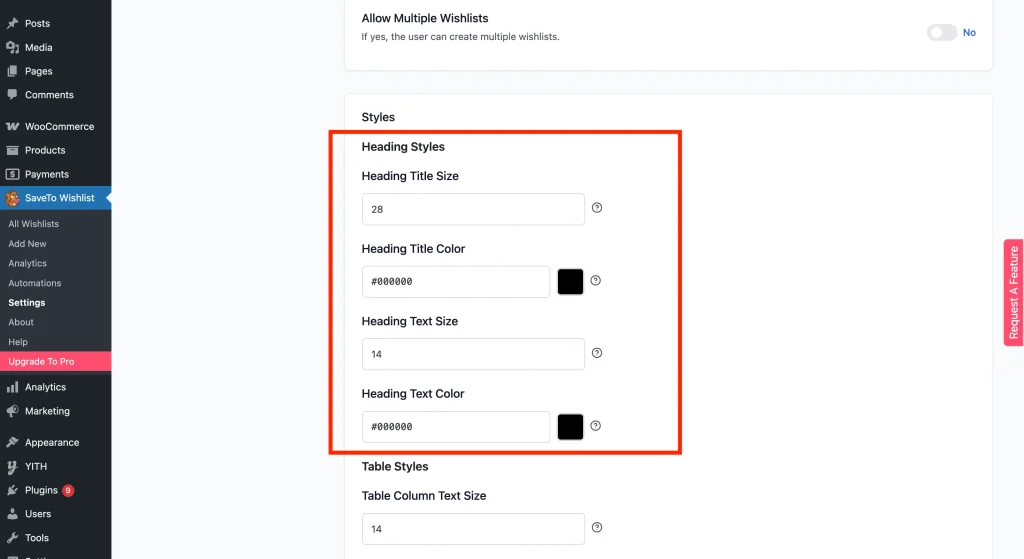
2. Customize Headings and Titles
The heading is the first thing your customers see. Make it stand out:
- Heading Title Size and Color: Adjust the Heading Title Size and Heading Title Color to match your site’s main H1 or H2 tags.
- Heading Text Size and Color: Control the sub-text or description area to ensure it’s legible and matches your brand’s body font color.
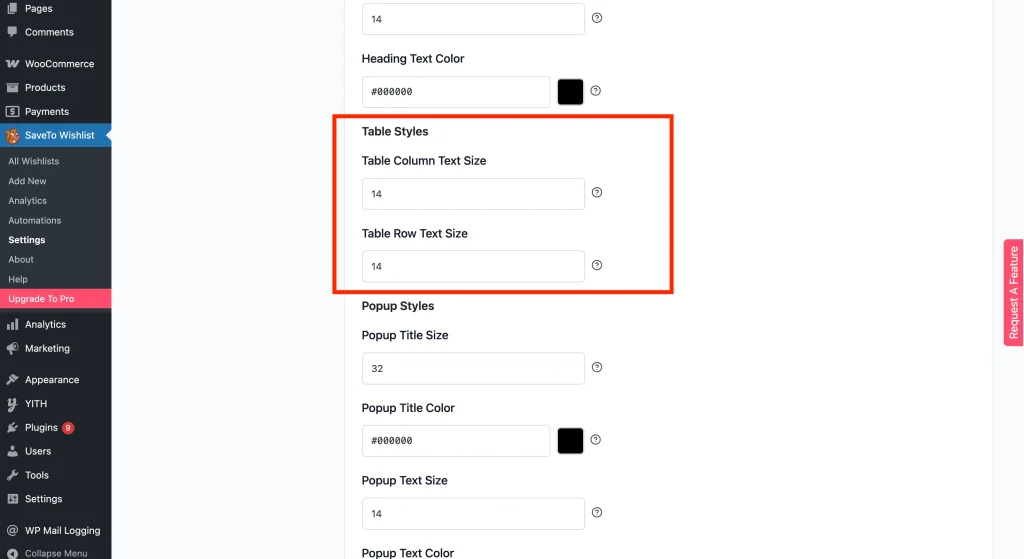
3. Style the Wishlist Table
This is where the product data lives. You can now fine-tune the “technical” look of the list:
- Table Column Text Size: Change the text size for headers like “Product Name” or “Price.”
- Table Row Text Size: Adjust the font size of the item details within the list for better readability on desktop and mobile.
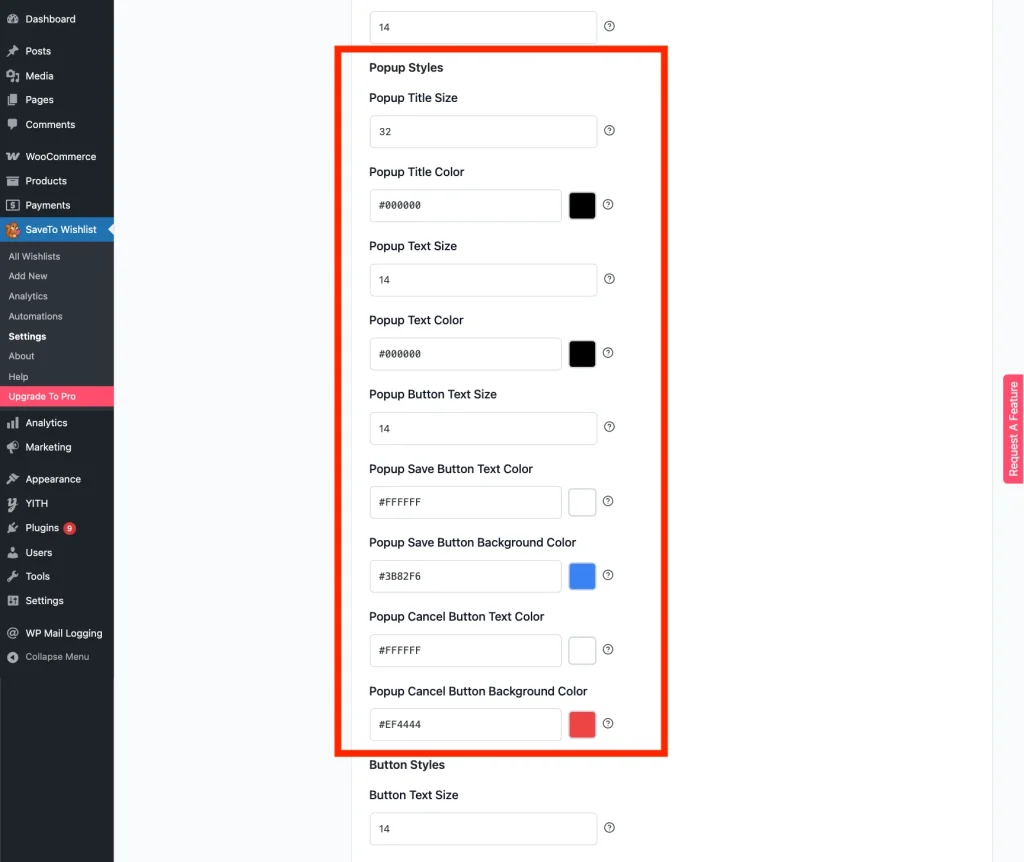
4. Design the Popup Modal
If you use the Popup action, ensure the window matches your site’s aesthetic:
- Popup Title Size and Color: Set your font size and color of your popup title.
- Popup Text Size and Color: Use these controls to ensure instructions are clear.
- Popup Save and Cancel Buttons: Use the color pickers for Save and Cancel buttons.
💡 Note:
Use your primary brand color for the Save button, since it draws attention to the action.
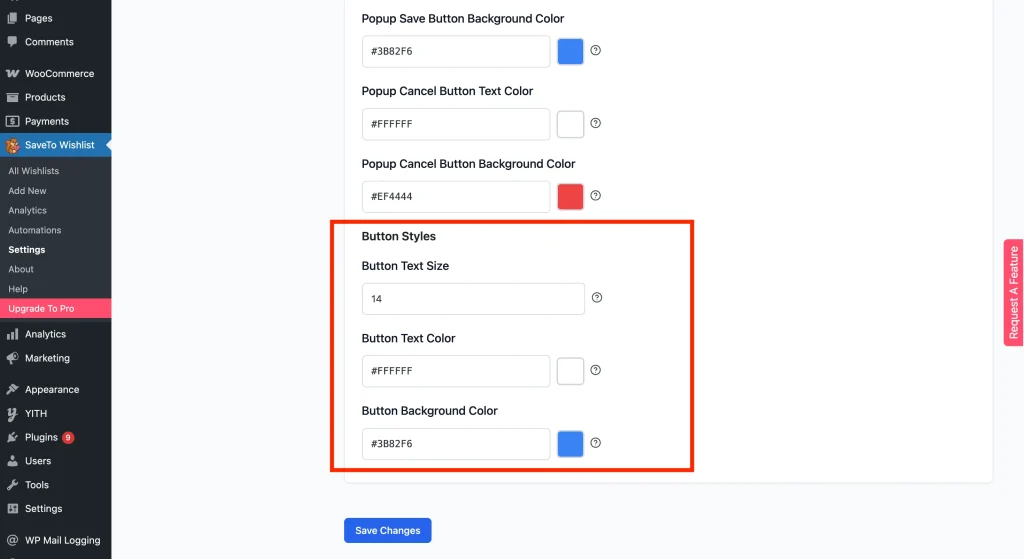
5. Style the Buttons
Adjust the size and colors of the buttons on the wishlist page:
- Button Text Size: Make your “Add to Cart” button larger or smaller to fit your design language.
- Button Text Color: Ensure there is high contrast (e.g., white text on a dark background) by selecting a custom color.
- Button Background Color: Change the default blue to your primary brand color.
6. Preview and Save
- Click Save Changes at the bottom of the page.
- Open your wishlist page in a new incognito window to see the changes exactly as your customers will.
✨ Bonus Tip: Matching your Wishlist Links
By default, the links on your Wishlist page (like product titles) usually inherit your theme’s global link settings. If you want to change these colors to better match your new button styles, you can typically find these settings in your WordPress Dashboard under Appearance → Customize → Typography → Link / Accent Color.
💡 Note:
Every theme is built differently! Depending on which theme you have installed, this setting might also be located under “Global Colors” or “Button & Link Styles.”
Letting Your Theme Control the Styling
The Style settings above give you control through the plugin’s own color and font options. But if you’d rather let your theme dictate all of that, or your theme’s CSS is already doing the heavy lifting, you can tell SaveTo Wishlist to step aside.
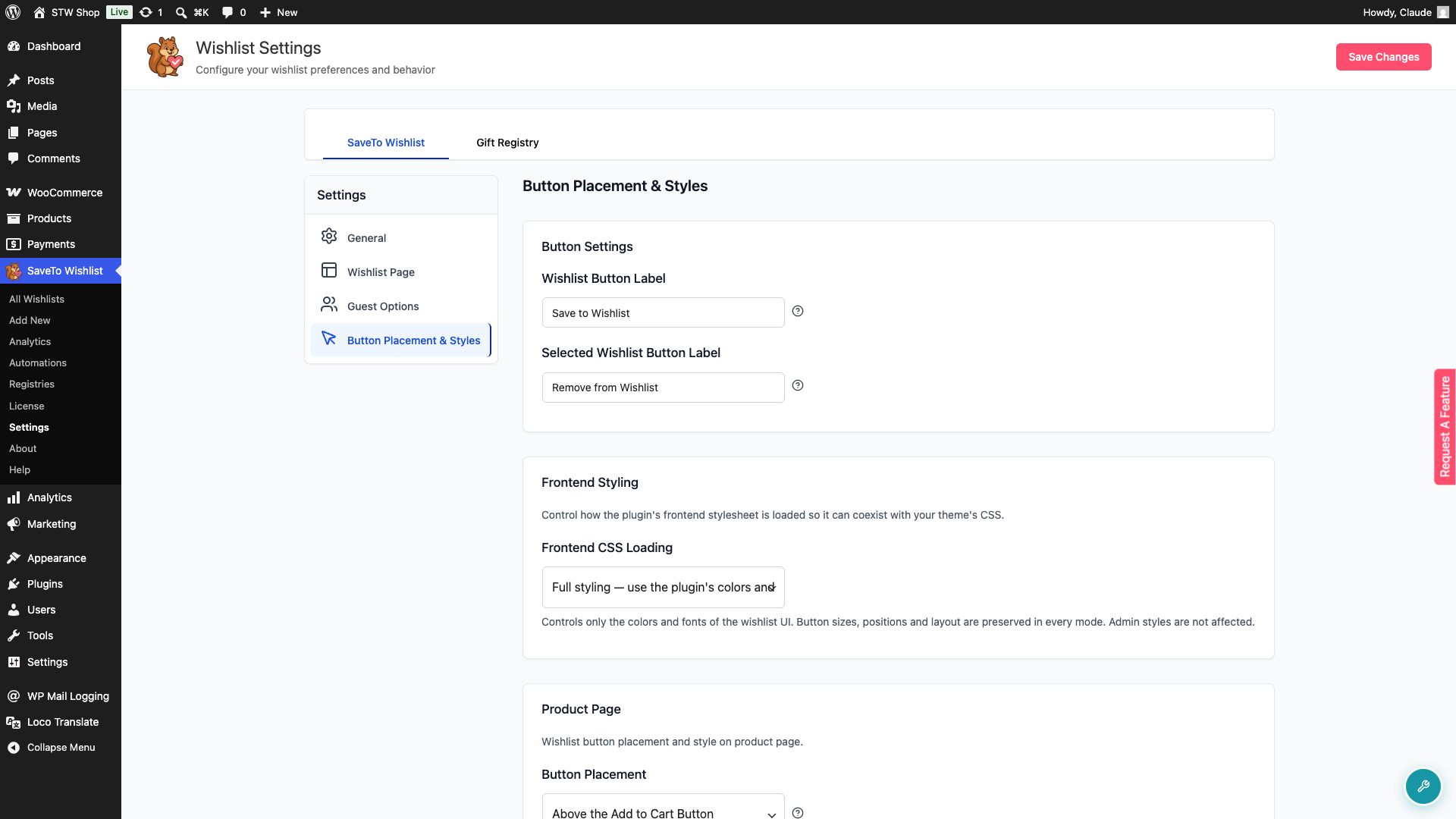
Go to SaveTo Wishlist → Settings → Button Placement & Styles → Frontend Styling. There you’ll find the Frontend CSS Loading setting with three options:
- Full styling — use the plugin’s colors and fonts (default). The plugin loads its full color and font stylesheet. This is the standard experience.
- Minimal styling — let your theme override colors and fonts. The stylesheet still loads, but
!importantisn’t used on decorative properties like color, background, and border, so your theme’s CSS can win the cascade. - No styling — inherit colors and fonts from the active theme. Button sizes, positions, and layout are preserved in every mode. Only visual styling changes.
💡 Note:
Admin styles are not affected by this setting. It only controls how the frontend stylesheet is loaded for your customers.
Before & After: Matching the Wishlist Page to Your Branding
Below is a before-and-after comparison showing how the wishlist page can be customized to better match your store’s theme.
Switching Between Table and Grid View
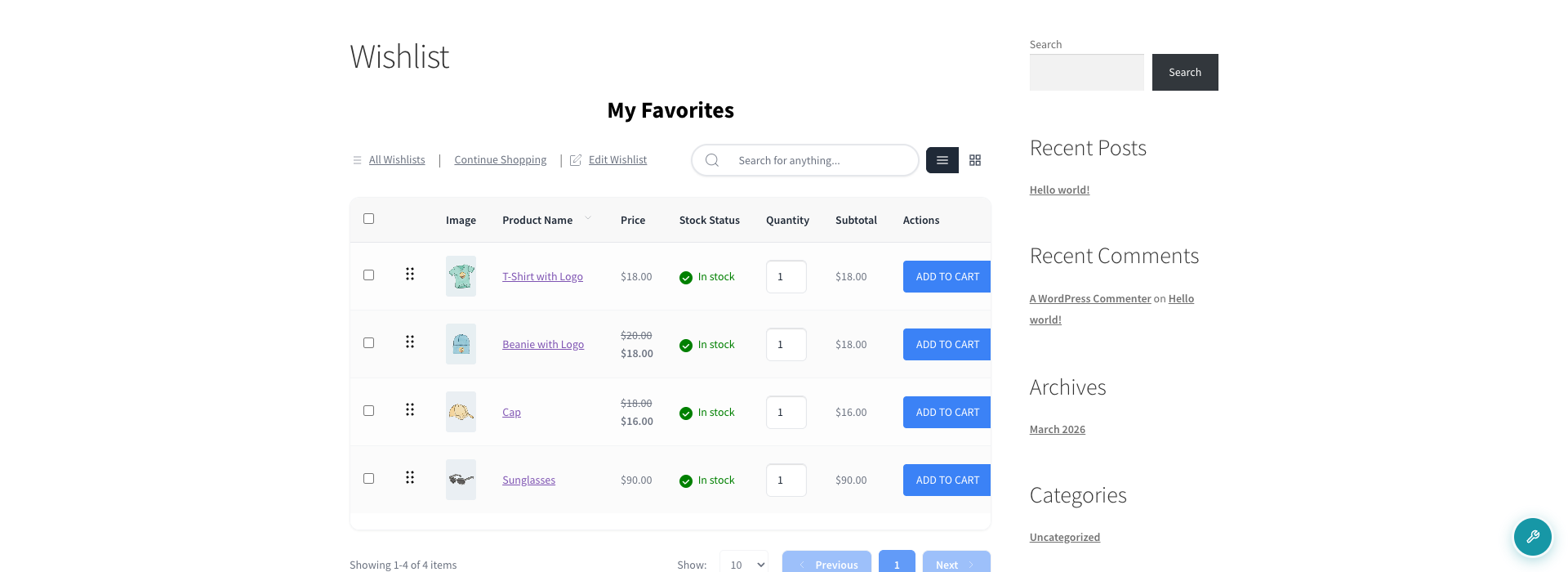
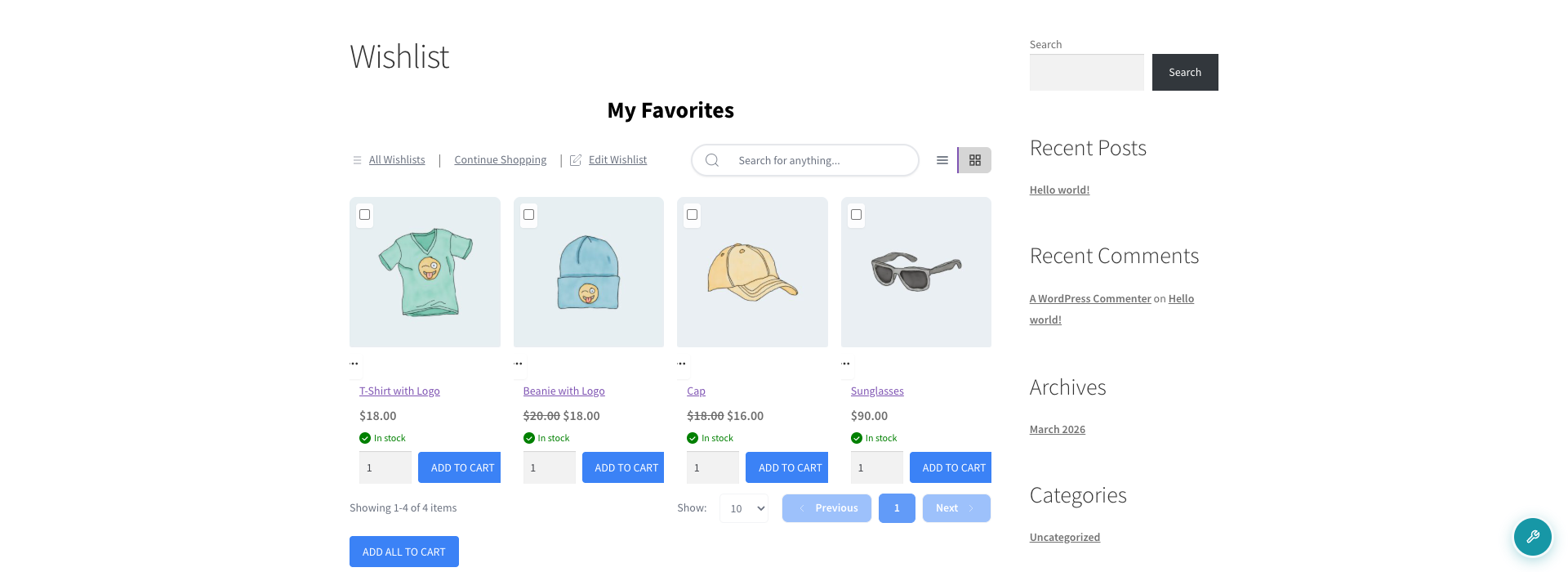
Your customers aren’t locked into a single layout. On the wishlist page, they’ll see a view toggle next to the search bar. One click switches between the standard table layout and a grid (tile) layout.
The grid view displays wishlist items as responsive product tiles. The layout adapts to the screen width, showing a single column on small mobile screens and stepping up to two, then three, and finally four columns on the widest screens. Each tile shows the product image, name, price, stock status, quantity, and an Add to Cart button. All the usual item actions (the three-dot menu) are still available.
Whichever view a customer picks is saved in their browser, so it’ll still be there next time they visit from the same device.
Troubleshooting Your Design
My changes aren’t showing up on the site
This is almost always due to caching. If you use a plugin like WP Rocket, LiteSpeed Cache, or a CDN like Cloudflare, make sure to Clear/Purge Cache after saving your styles. You can also refer to the official WooCommerce guide on caching.
The font style doesn’t match my theme exactly
The plugin uses your theme’s inherited font family by default. These settings let you change the size and color. If the font family itself looks wrong, ensure your theme’s global CSS is loading correctly.
The colors look different on mobile
Check if your phone has “Dark Mode” enabled, as some browsers try to invert colors automatically. The colors you set in the style settings are designed to override most of these automatic browser adjustments.
Frequently Asked Questions
➤ Do I need to know CSS to change these colors?
Not at all! We’ve built a user-friendly interface with color pickers and sliders, so you never have to touch a line of code.
➤ Will these settings slow down my page?
No. These styles are lightweight and won’t noticeably affect page load.
Need Help?
- Premium users: submit a support ticket and our team will help you out.
- Free users: post in the WordPress.org support forum.

