
Wondering how old a customer’s wishlist is, or want to find the ones created most recently? SaveTo Wishlist adds a date column to the wishlist table, Date Added on the frontend and Date Created in the WordPress admin. Customers and store admins can sort by that date with a single click.
Prerequisites
- SaveTo Wishlist Lite version 1.0.6 or later installed and active
- WooCommerce active on your store
There’s nothing to set up. The column and sorting controls appear automatically.
What the Date Added Column Shows
The Date Added column shows how long ago each wishlist was created, for example 3 days ago. Hover over the value to see the exact date and time.
How to Sort Wishlists by Date on the Frontend
Customers see the Date Added column in the wishlist table on the frontend wishlist page. Clicking the column header sorts the list by date.
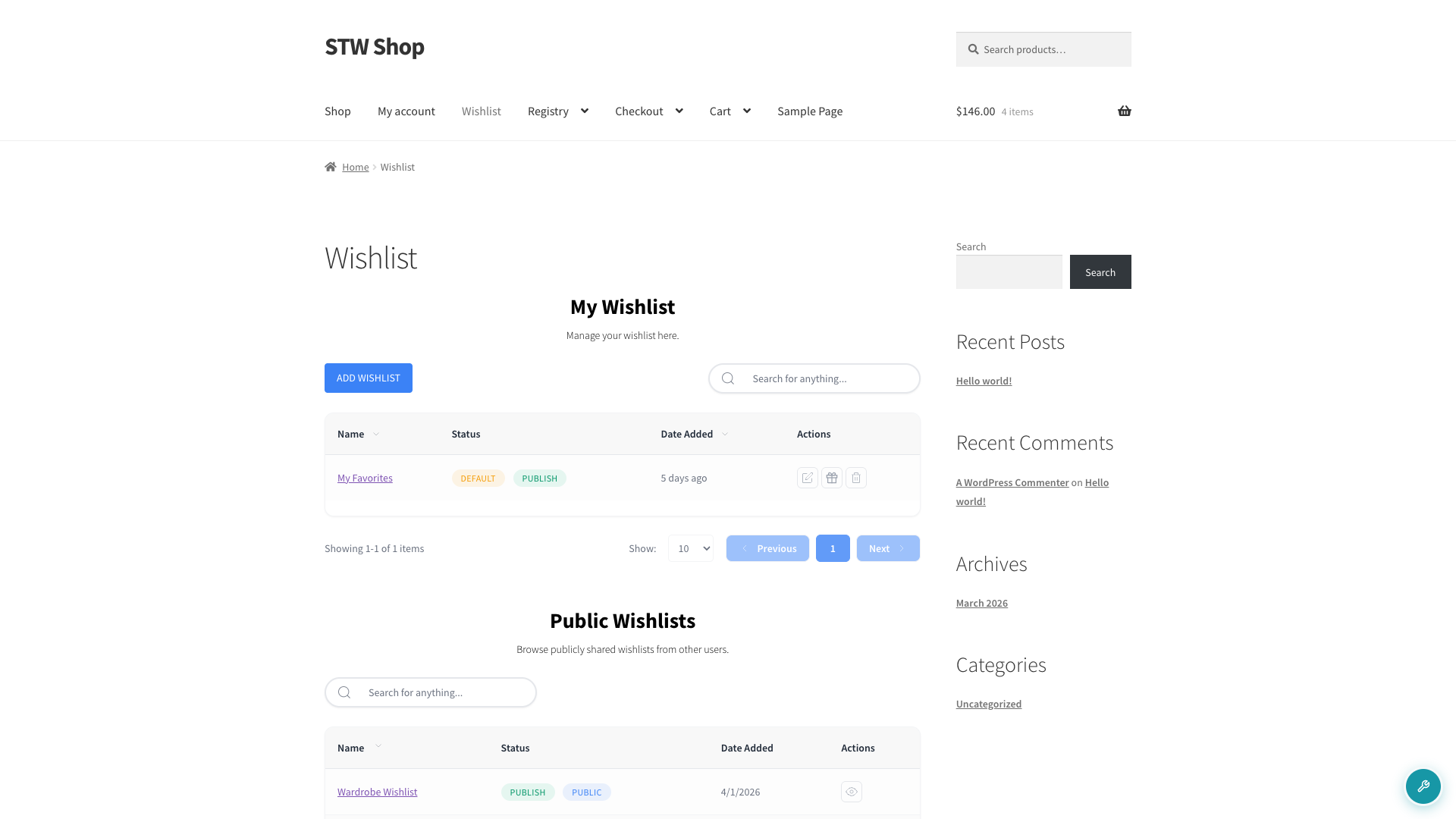
- Go to the wishlist page (the page that lists all of your wishlists).
- Find the Date Added column in the table header.
- Click Date Added. The table immediately sorts to show the newest wishlists first.
- Click Date Added again to reverse the order and show the oldest wishlists at the top.
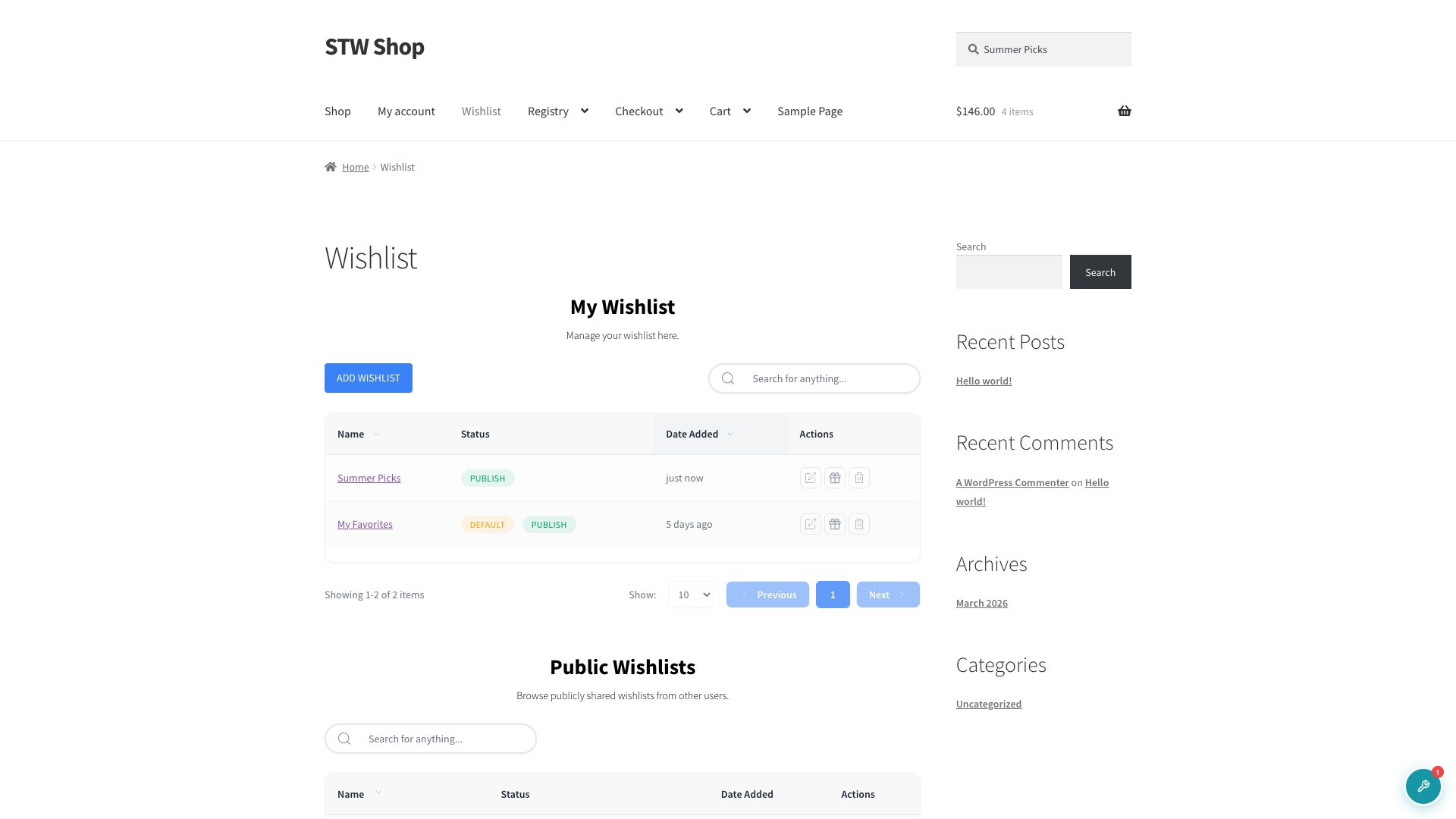
Each additional click toggles the direction between newest-first and oldest-first. No page reload is needed. The list updates in place.
How Admins can Sort Wishlists by Date
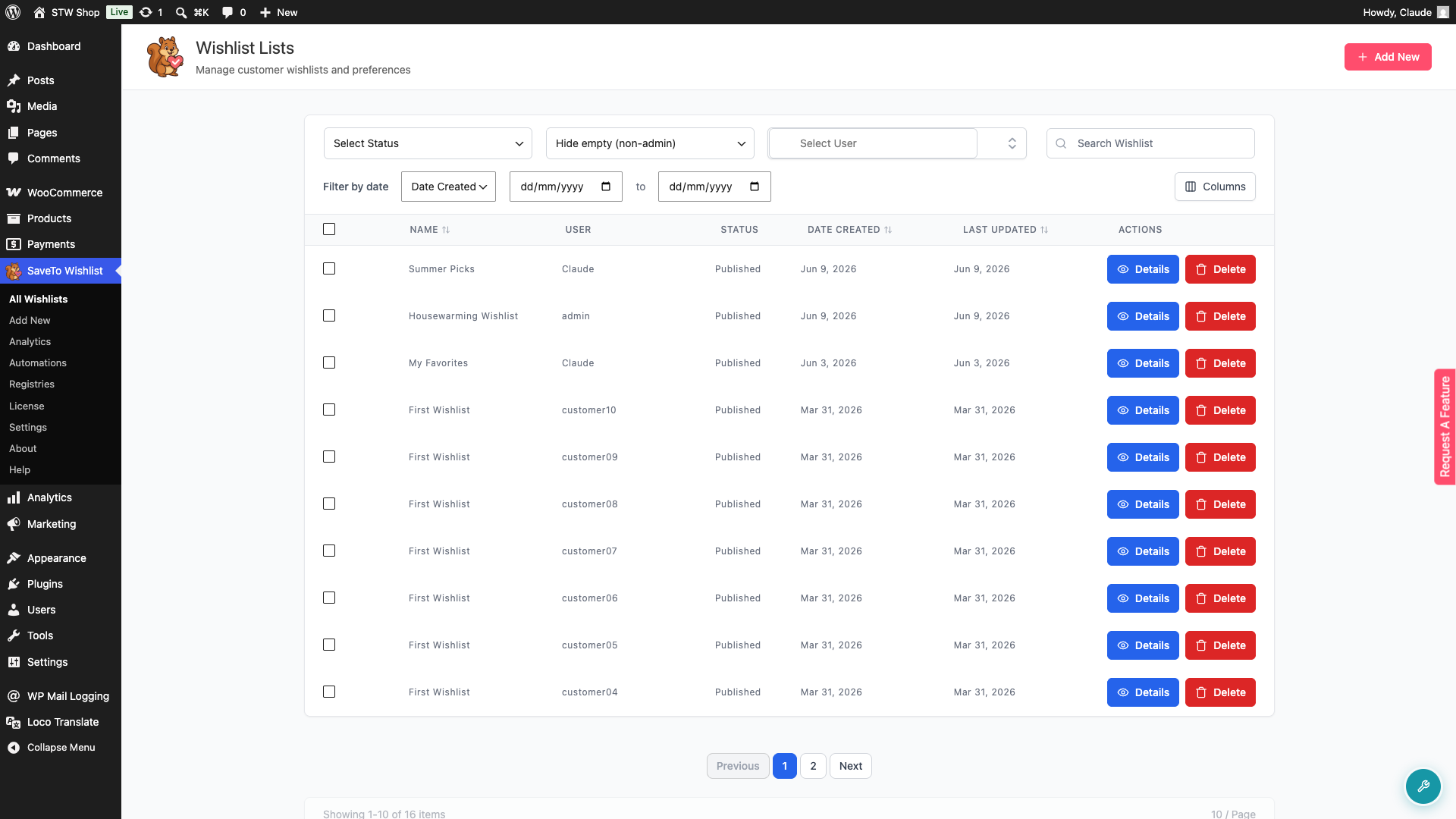
- In your WordPress admin, navigate to SaveTo Wishlist → All Wishlists.
- Click the Date Created column header to sort all customer wishlists by creation date, newest first.
- Click Date Created again to show the oldest wishlists first.
This is a server-side sort, so it applies across all pages of the table, not just what’s currently visible on screen.
Filter wishlists by date in the admin
The All Wishlists page also includes a date filter. Select either Date Created or Last Updated from the Filter by date dropdown to choose which date field to filter by, then set a From and To date range. Once you choose a date range, the table automatically shows wishlists that match your date range only.
Troubleshooting
The Date Added column isn’t showing on the frontend wishlist page.
This feature was introduced in SaveTo Wishlist Lite 1.0.6. Update the plugin to version 1.0.6 or later via Plugins → Installed Plugins.
Frequently Asked Questions
Do I need to enable the Date Added column somewhere in settings?
No. The Date Added column and the sorting controls appear automatically. There are no settings to turn on.
Does sorting by date also rearrange the products saved inside a wishlist?
No. Sorting by Date Added orders the list of wishlists. It has no effect on the individual products saved inside any specific wishlist.
Need Help?
- Premium users: Open a support ticket
- Free users: Visit our community forum

