
If you need to see what your customers are saving, whether to help one of them edit a list or to spot which products are most wanted, the All Wishlists screen shows every list created on your store in one place. It is part of SaveTo Wishlist and is available to administrators from the WordPress dashboard.
Prerequisites
- SaveTo Wishlist Lite installed and active.
- Administrator access to your WordPress dashboard.
- WooCommerce installed and configured.
Viewing and Searching Wishlists
To see what your shoppers are saving:
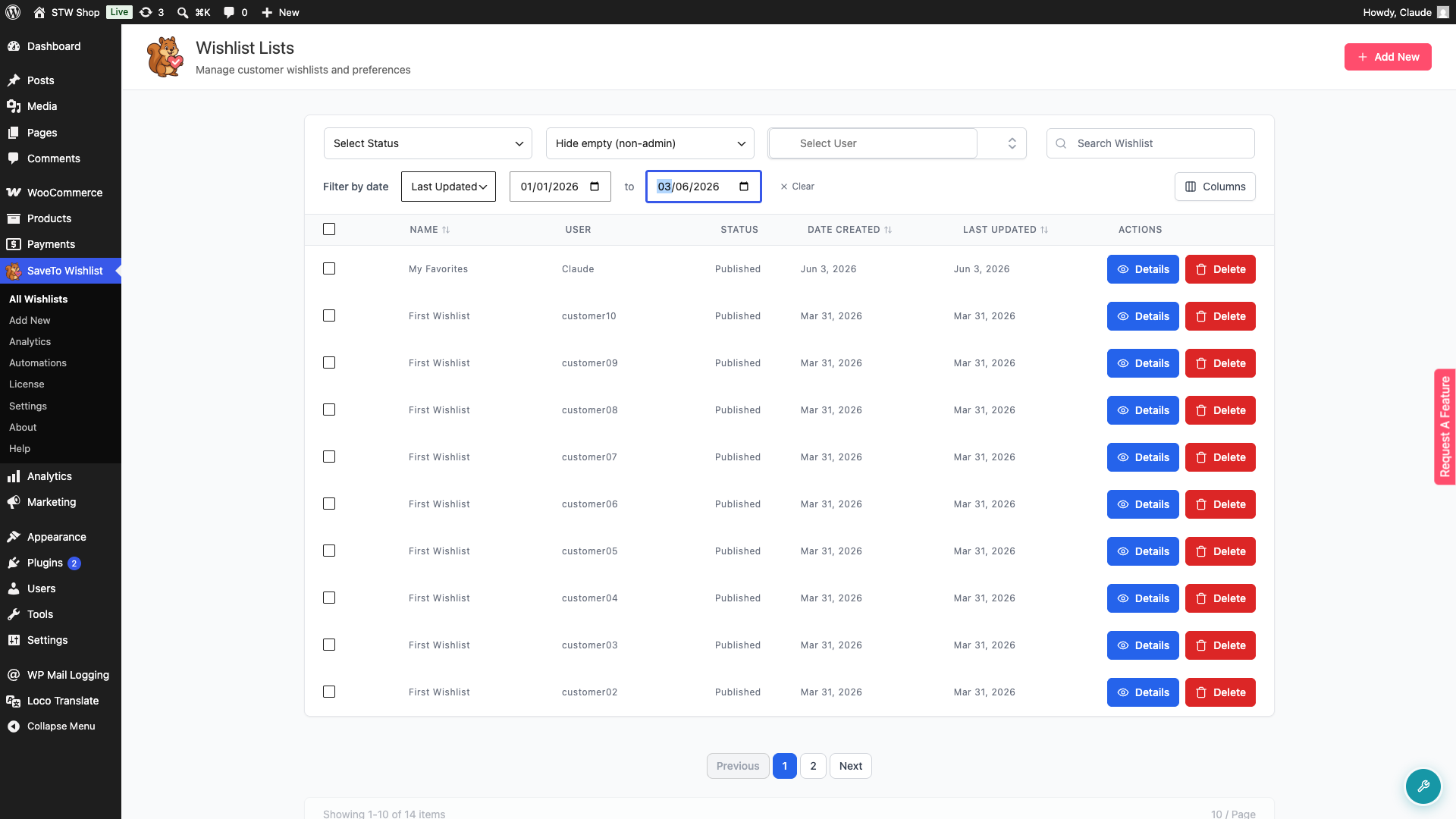
- Go to SaveTo Wishlist → All Wishlists.
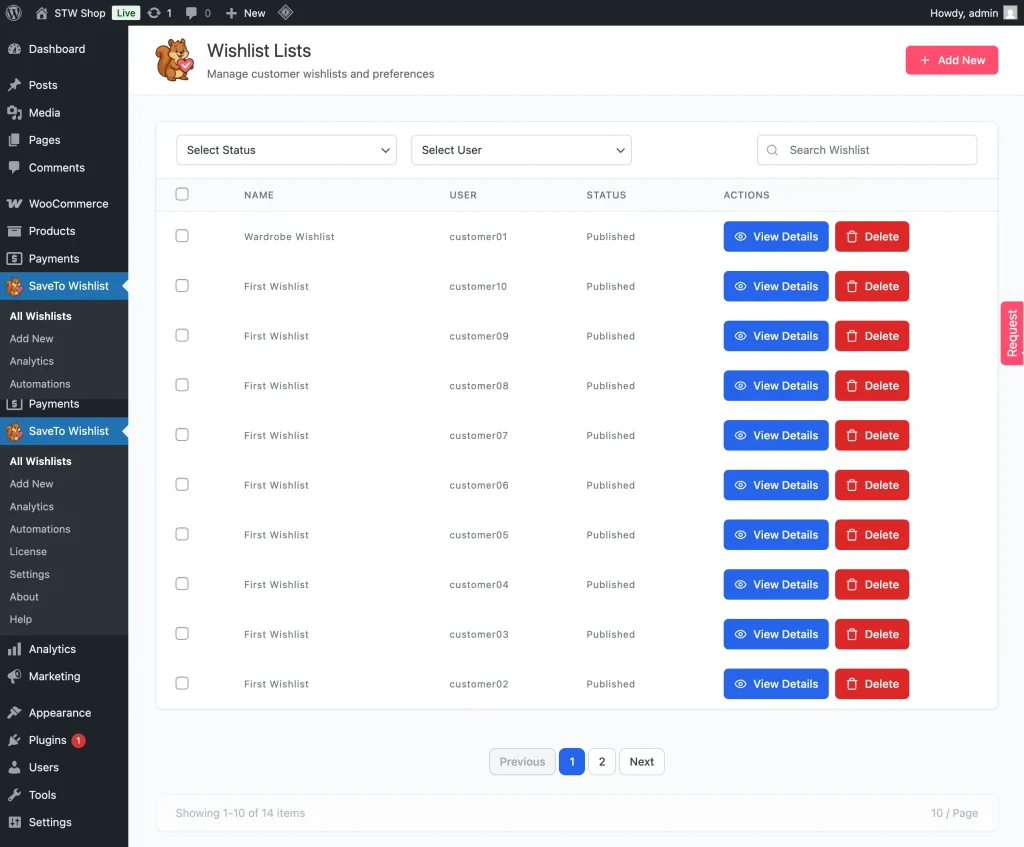
The table shows each wishlist’s Name, User, Status, Date Created, and Last Updated. Click the Name, Date Created, or Last Updated column header to sort the list ascending or descending.
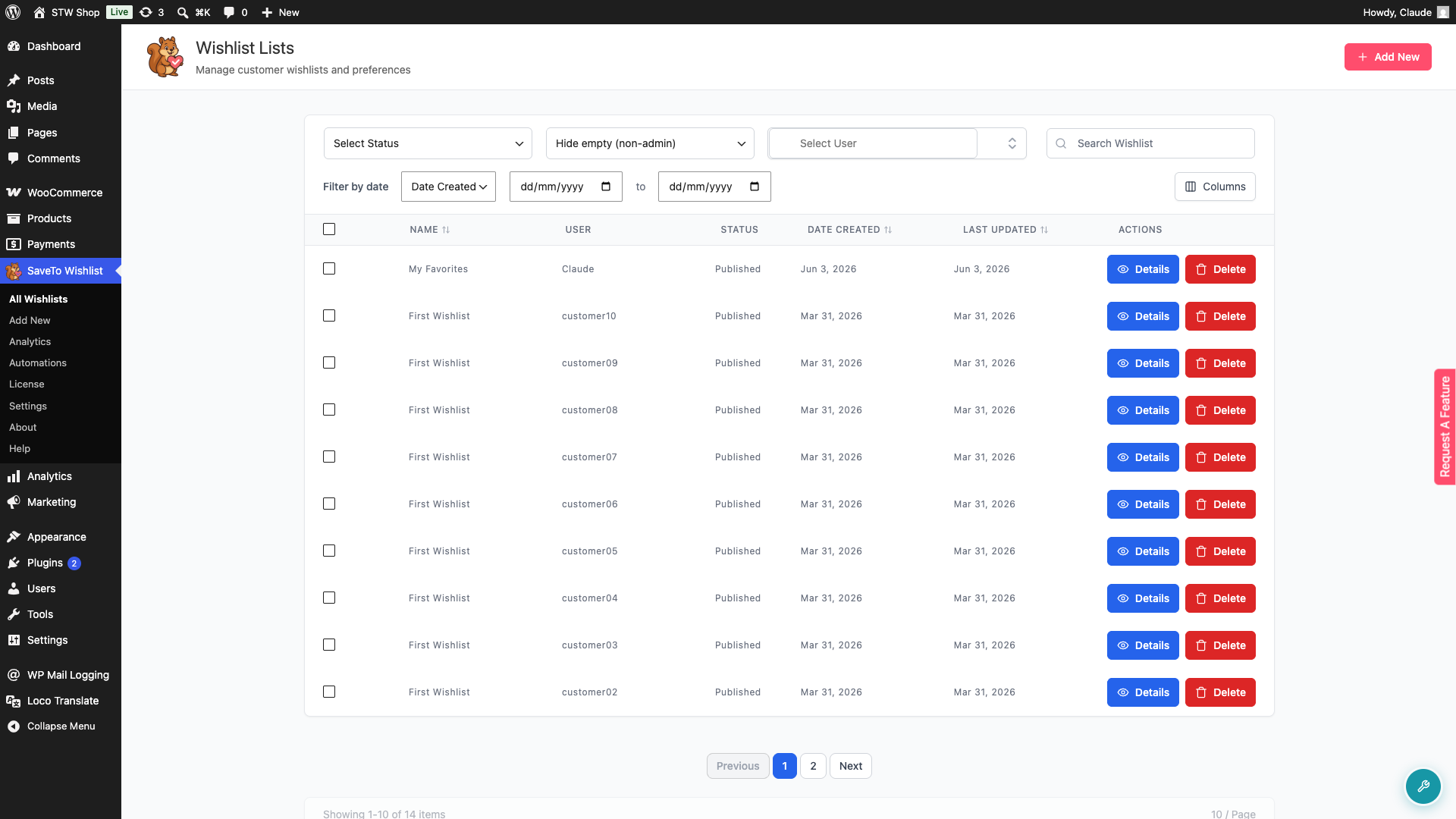
- Use the Select Status and/or Select User dropdown to filter wishlists by their status and/or owner.
- Use the Search Wishlist field to find a specific wishlist by its name.
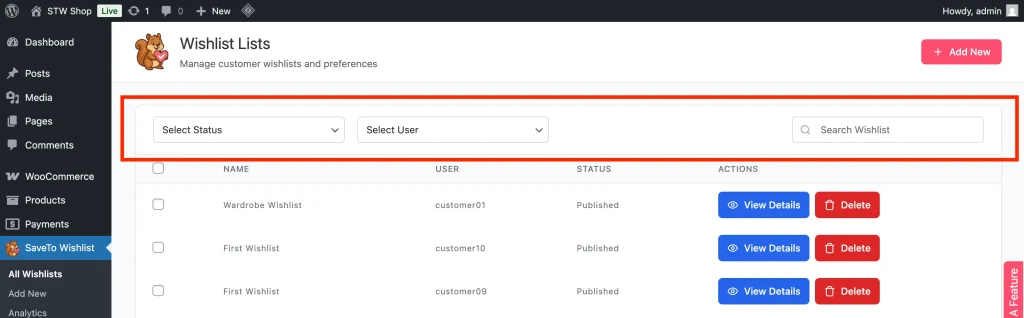
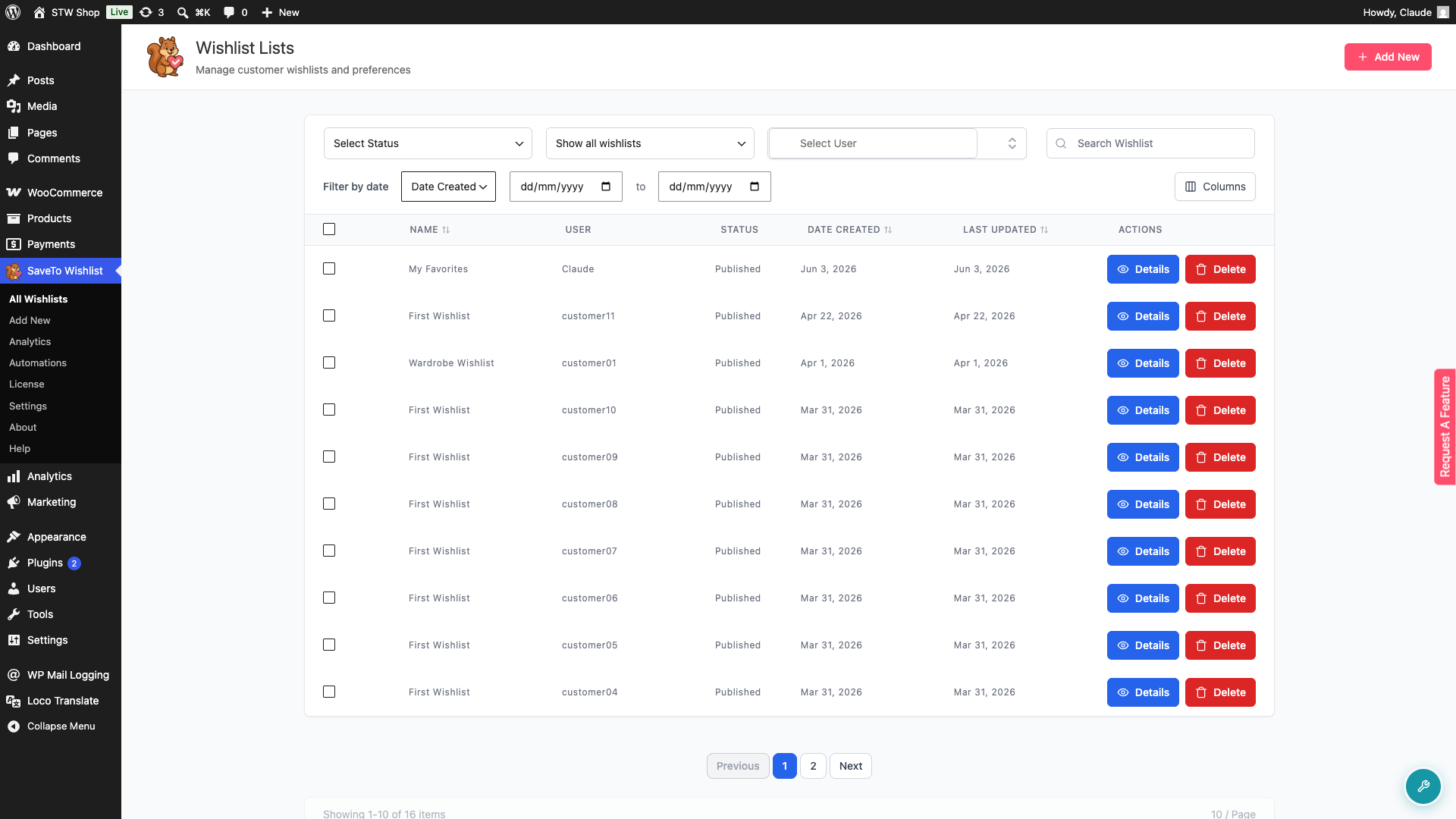
- Use the empty wishlist visibility dropdown to control which wishlists appear.
- The default option, Hide empty (non-admin), hides wishlists with no items, except those owned by an administrator.
- Select Show all wishlists to include empty ones.
- To find wishlists created or updated within a specific period, use the date range filter. Select Date Created or Last Updated from the dropdown, then pick a start and end date.
Providing Proactive Customer Support
Sometimes customers need a helping hand. From this screen, you can view, edit, and create wishlists on their behalf.
View Details
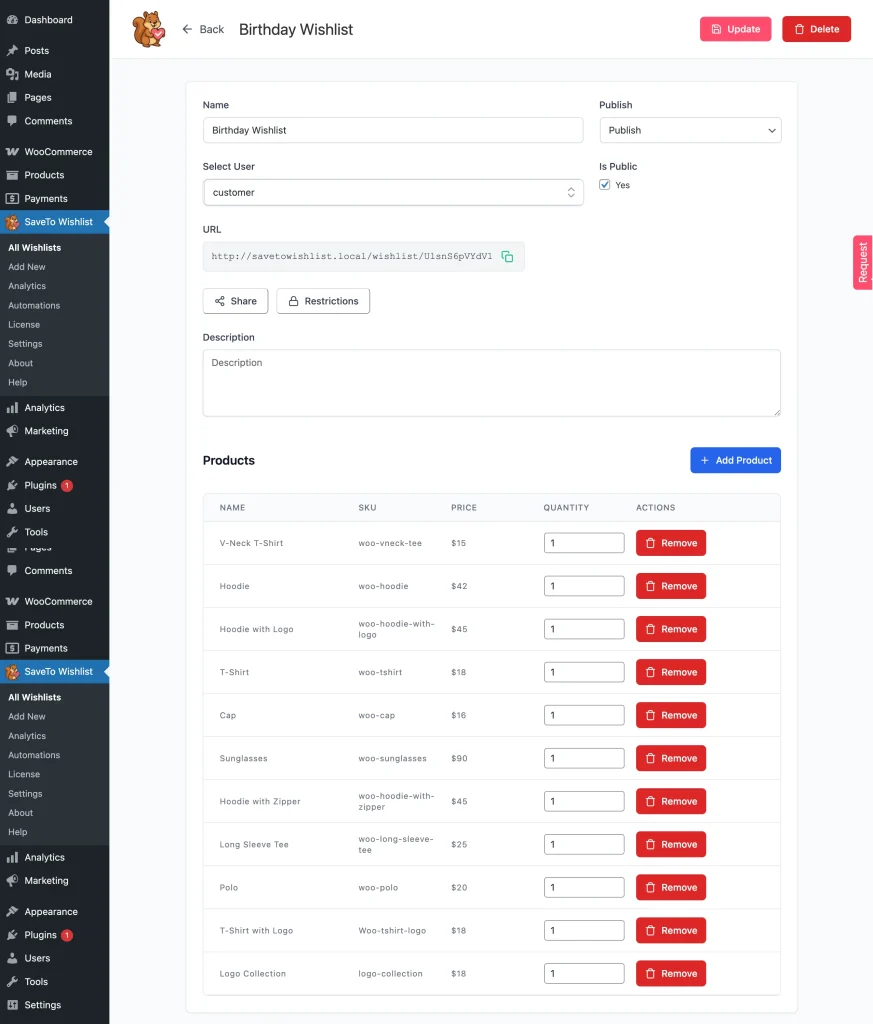
Click Details on any wishlist to see exactly which products are inside.
Edit Wishlists
Add or remove products on a customer’s behalf, for example when helping them set up or tidy a list.
Create for Customers
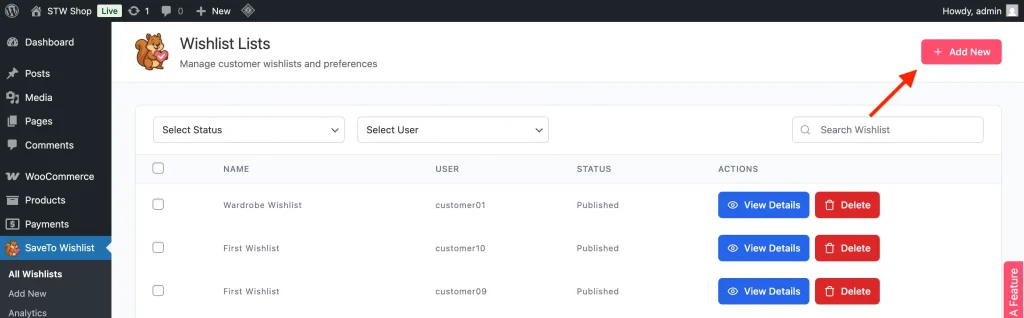
Use the Add New button to create a wishlist on behalf of a customer.
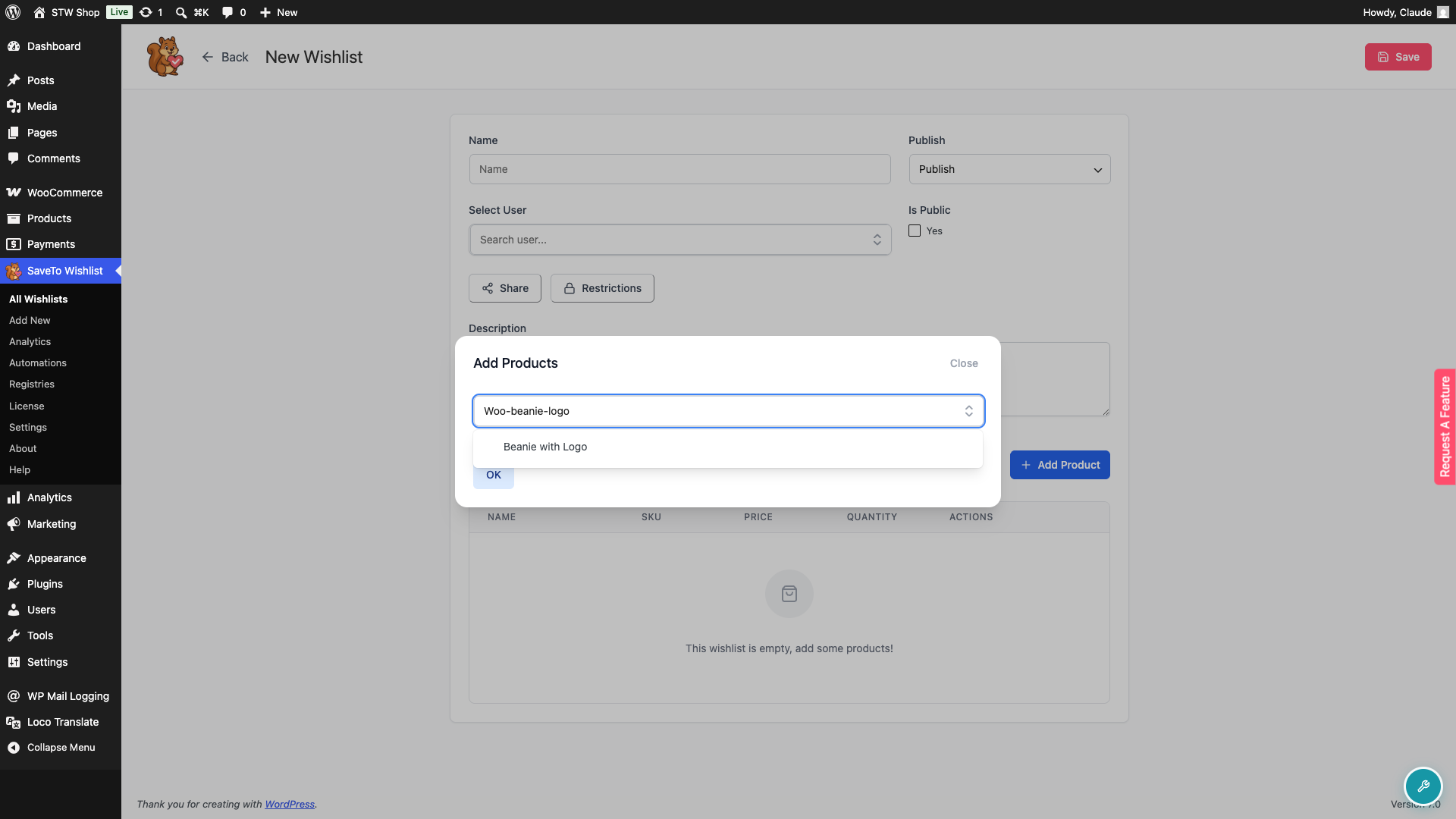
When adding products to the wishlist, type in the Search Product field. You can search a product either by its name, SKU, or GTIN/barcode.
💡 Tip:
Pay close attention to products that appear across multiple wishlists — these are strong signals of customer interest and can help you plan promotions or restocks more strategically.
Troubleshooting
The All Wishlists page looks shorter after an update
From v1.0.6, empty wishlists are hidden by default. SaveTo Wishlist automatically creates an empty “First Wishlist” for every customer once they are logged in, so stores with many users can accumulate a large number of empty lists. Use the empty wishlist visibility dropdown and select Show all wishlists to see them.
Can’t find a specific wishlist
Clear the Select Status and Select User filters, then search by name using the Search Wishlist field. If you applied a date range, expand or clear it too.
Frequently Asked Questions
Can I see guest wishlists?
No, guest wishlists are not displayed in the admin backend. Additionally, guest wishlists are not permanent — users must log in or create an account to save their wishlist for later use.
Can I delete a wishlist?
Yes. Click Delete in the Actions column to remove it, or check several rows and use the bulk Delete button to remove multiple wishlists at once.
Help & Support
We have a dedicated support team for SaveTo Wishlist Pro for WooCommerce who knows our products, WooCommerce, and the industry very well. You’re welcome to make use of their expertise at any time, worldwide.
- Premium users: Open a support ticket
- Free users: Visit our community forum

