

 Reviewed by
 A shopper types “linen shirt” into your WooCommerce live search bar. The dropdown shows five matches with photos and prices. They like two of them, but they aren’t ready to buy yet.
Until now, saving one meant opening its product page, finding the wishlist button and then searching again. Some shoppers won’t take those extra steps. They close the tab instead, and the products they liked go with them.
The free SaveTo Wishlist Lite plugin now closes that gap for stores running ThemeHunk’s Advance Product Search. Below, I’ll show you how to put wishlist buttons in your live search results. I’ll also share the settings that help those saves turn into sales.
Jump to:
- Why Live Search Is Where Shoppers Show The Most Intent
- What The Advance Product Search Integration Does
- What You Need Before You Start
- How To Add Wishlist Buttons To Your WooCommerce Live Search
- How To Check The Integration Is Working
- 5 Ways To Get More From Wishlist Saves In Search
- The Limits Worth Knowing
- Frequently Asked Questions
- Ready To Add Wishlist Buttons To Your Live Search?
Why Live Search Is Where Shoppers Show The Most Intent
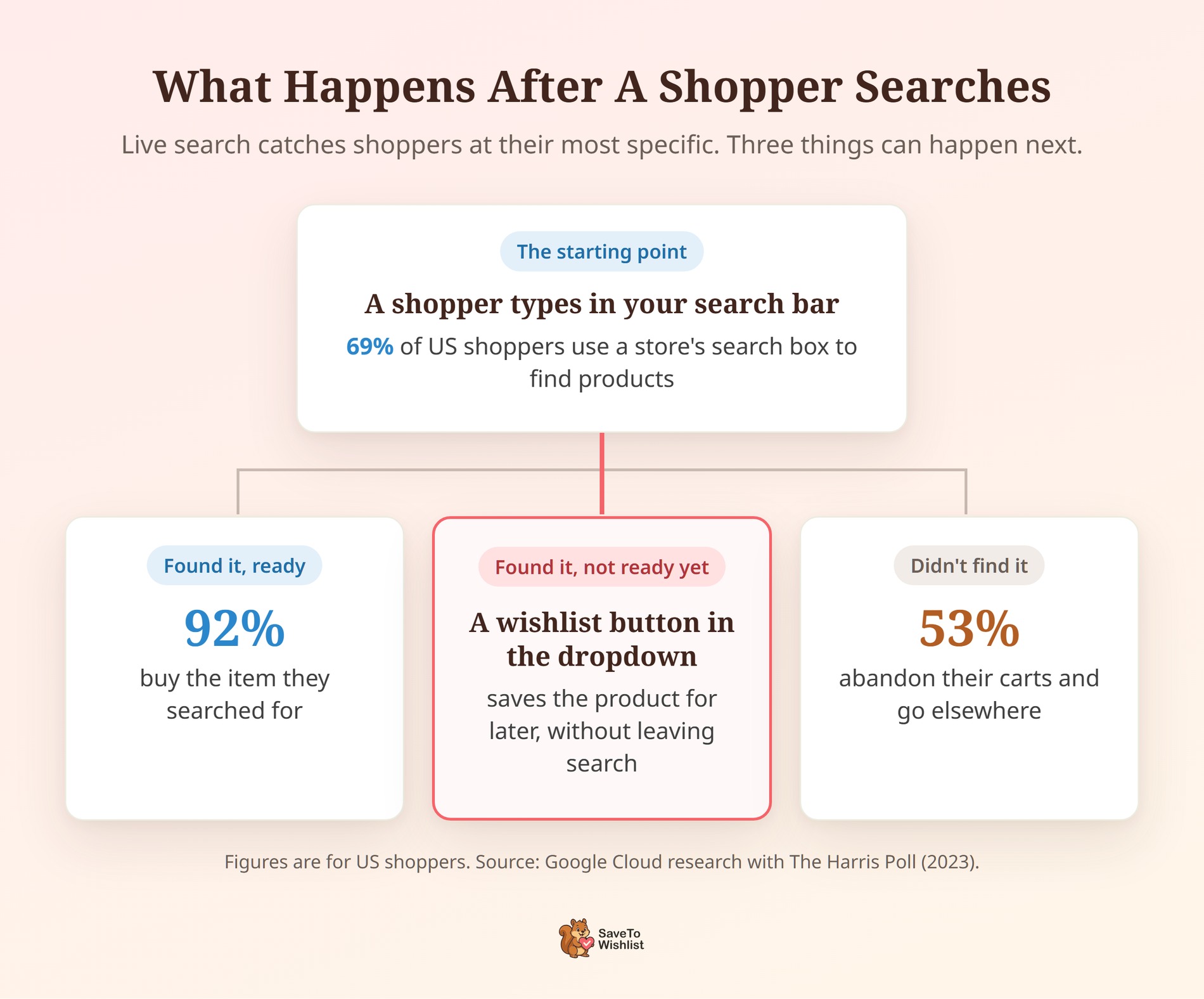
The search bar is where shoppers tell you exactly what they want. Google Cloud research with The Harris Poll found that 69% of US shoppers use a retailer’s search box. That makes search the most common way they look for products on store websites.
The same research shows what happens next. When a search works, 92% of US shoppers buy the item they searched for. By contrast, 53% of US shoppers say they typically abandon their carts and go elsewhere after an unsuccessful search.
However, search loses people even when the product is there. Nosto’s 2023 research found that 80% of shoppers admit leaving an online store because on-site search didn’t meet their expectations. Baymard Institute also reports that 56% of sites fail to adequately support users’ search needs.
A good WooCommerce live search plugin handles the finding part. A wishlist button handles the next moment: the shopper who found the product but isn’t ready to buy. Saving it keeps that interest on your store, which is the core idea behind how wishlists help conversion.
What The Advance Product Search Integration Does

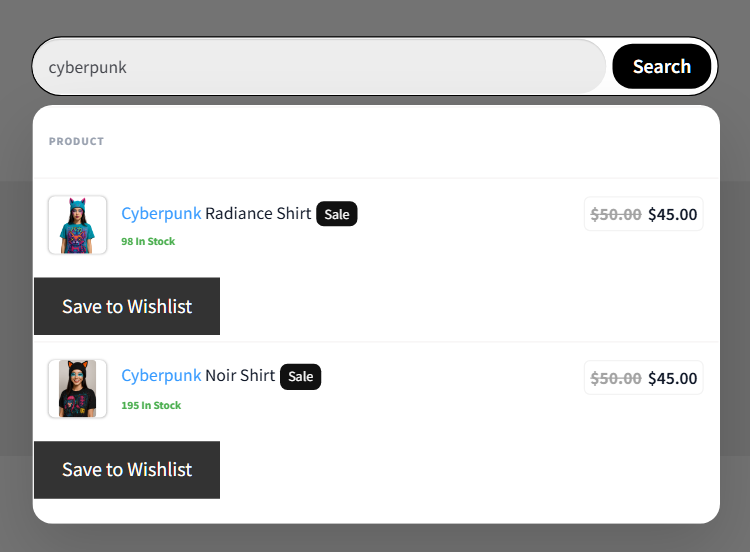
SaveTo Wishlist Lite 1.1.7 adds a wishlist button to every product row in the Advance Product Search live results dropdown. As a result, shoppers can save a product straight from the dropdown, without opening the product page.
Here’s how it behaves in your WooCommerce live search, based on the plugin code and our test runs:
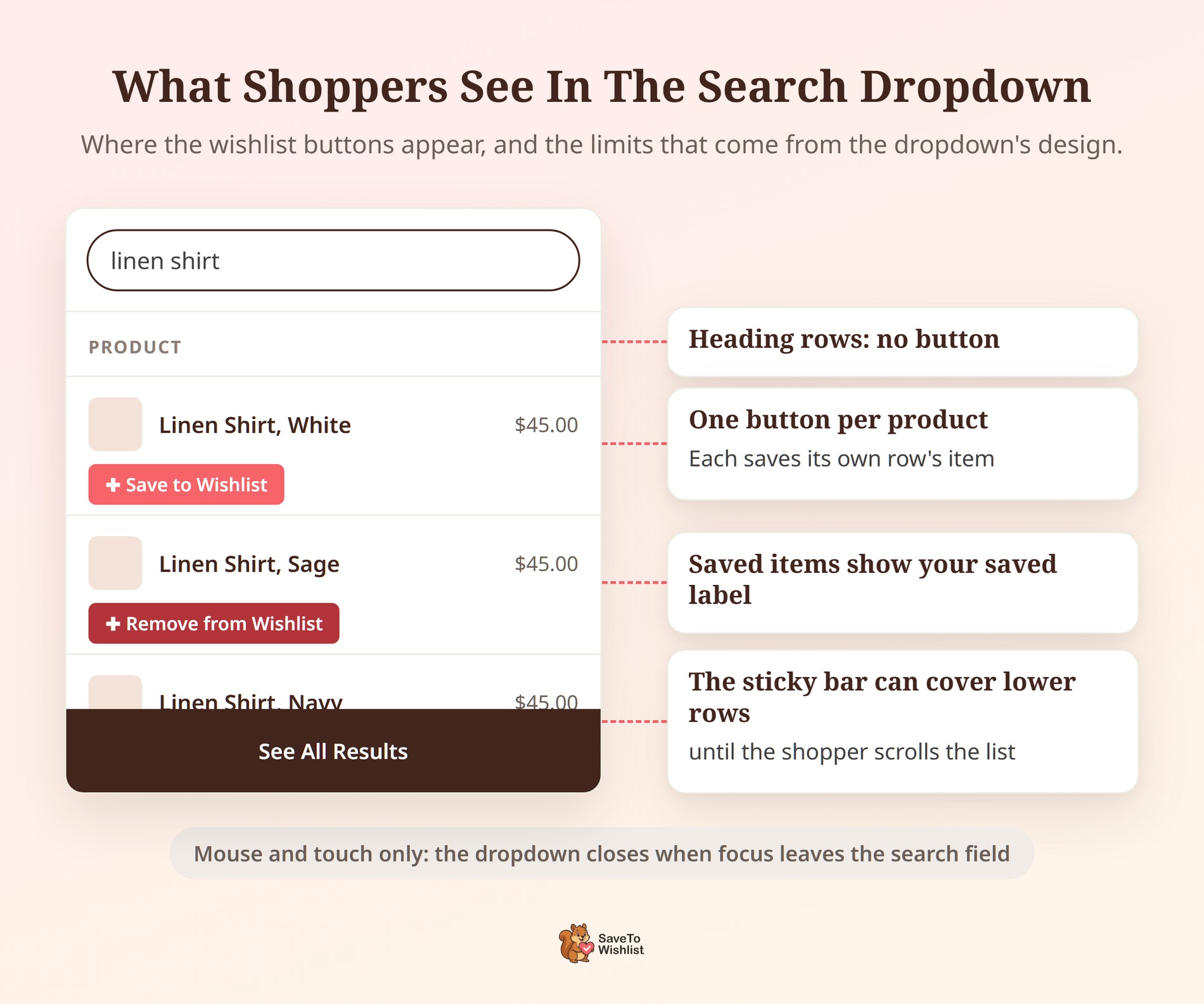
- One button per product row: Each button saves its own row’s product, so shoppers never save the wrong item.
- Your shop page look: The button follows your Shop Page style settings, so it matches your product grid.
- Correct saved state: A product that’s already saved shows your saved label, such as “Remove from Wishlist”. It stays correct when the dropdown reopens.
- Guests included: Shoppers who aren’t logged in can save from search too, unless you’ve turned guest wishlists off.
- Nothing to switch on: There’s no separate setting. The integration loads only while Advance Product Search is active.
Plus, the buttons arrive in the same search response, so the dropdown doesn’t wait on an extra request. To keep the work small, the plugin adds at most 20 buttons per response. That’s well above the five results the dropdown shows by default.
What You Need Before You Start
You need two free plugins and a page with a search bar:
- The free plugin, version 1.1.7 or later: SaveTo Wishlist Lite ships the integration. If you use SaveTo Wishlist Pro, it runs on top of Lite, so you get it too.
- Advance Product Search: ThemeHunk’s Advance Product Search plugin is free and has 9,000+ active installs on WordPress.org. Its full listing name is “Advance Product Search – Voice & Ajax Search for WooCommerce”.
- A search bar on your store: Advance Product Search gives you a shortcode, a widget and a block.
How To Add Wishlist Buttons To Your WooCommerce Live Search
The setup takes five steps, and you may already have some of these settings in place.
Step 1: Install both plugins
Go to Plugins > Installed Plugins and update SaveTo Wishlist Lite to 1.1.7 or later. Then go to Plugins > Add New Plugin, search for “Advance Product Search” and install the ThemeHunk plugin. Activate it.
Step 2: Place the search bar
Add the search bar wherever shoppers look for it, such as your header or shop sidebar. You have three options:
- Shortcode: Paste
[th-aps]into a Shortcode block on any page or template part. - Block: Add the “Advance Product Search” block in the block editor.
- Widget: Add the plugin’s search widget to a widget area if your theme uses one.
To change how many results the dropdown shows, go to ThemeHunk > Advance Search. Under Search Autocomplete Settings, the Limit field sets the number of results. It’s 5 by default.
Step 3: Make sure the shop page button is on
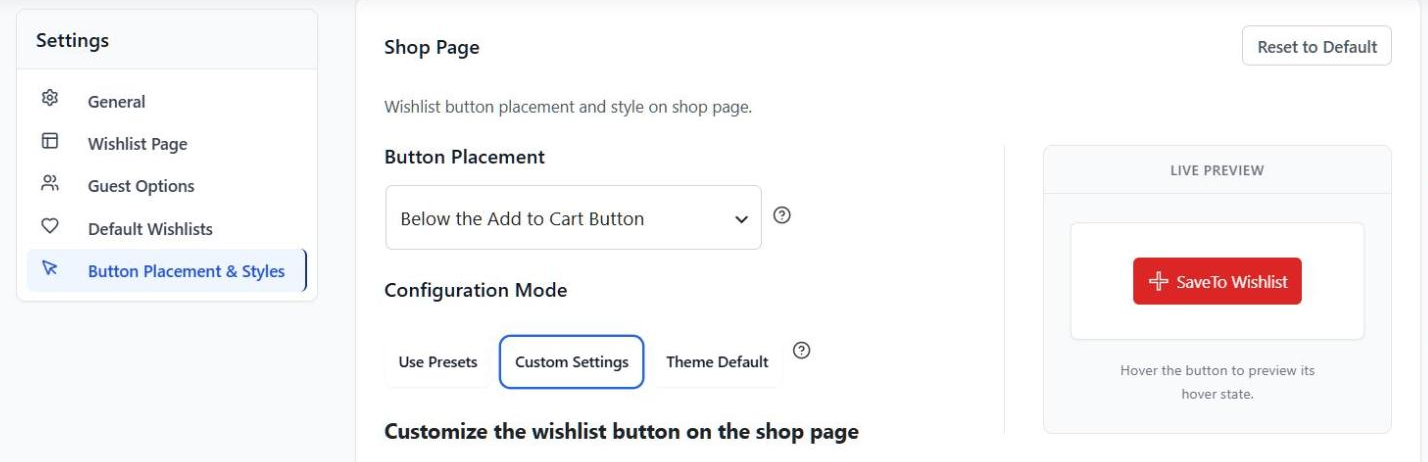
Go to SaveTo Wishlist > Settings > Button Placement & Styles and open the Shop Page section. Set Button Placement to any option except “Don’t show”.
The search buttons follow this switch. So if the shop page is set to “Don’t show”, the search dropdown won’t show buttons either. The placement you pick only moves the button on your shop grid. In search, the button always sits beside the product in its row.
Step 4: Choose what happens after a save
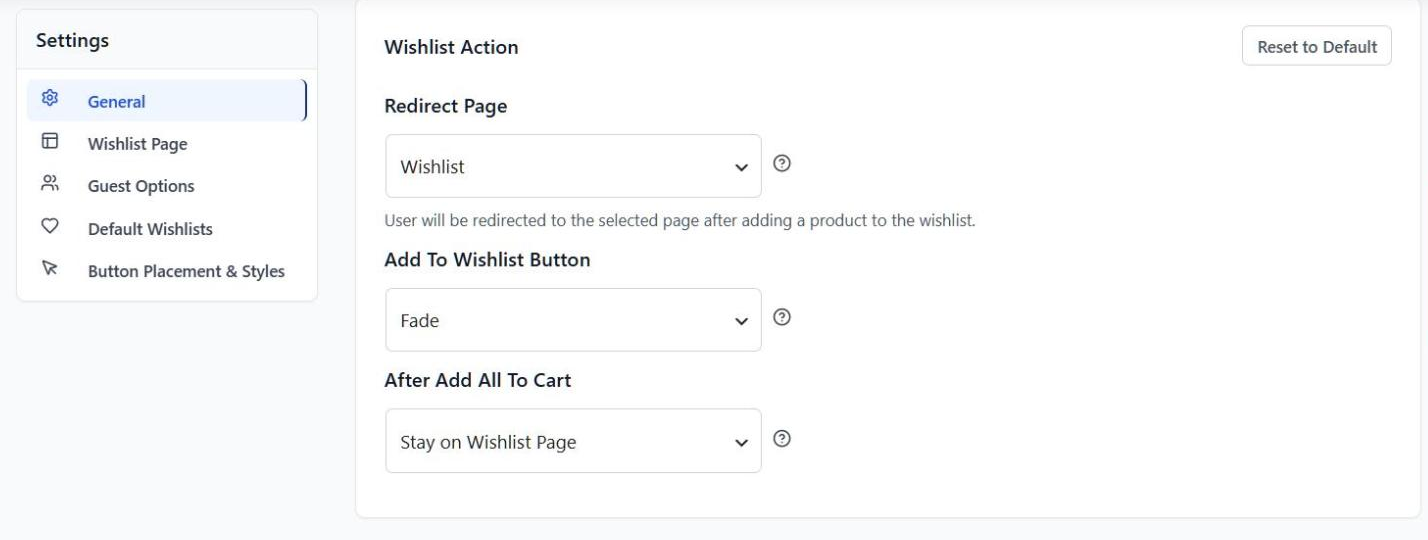
Next, go to SaveTo Wishlist > Settings > General and find Add To Wishlist Button under Wishlist Action. You have three choices:
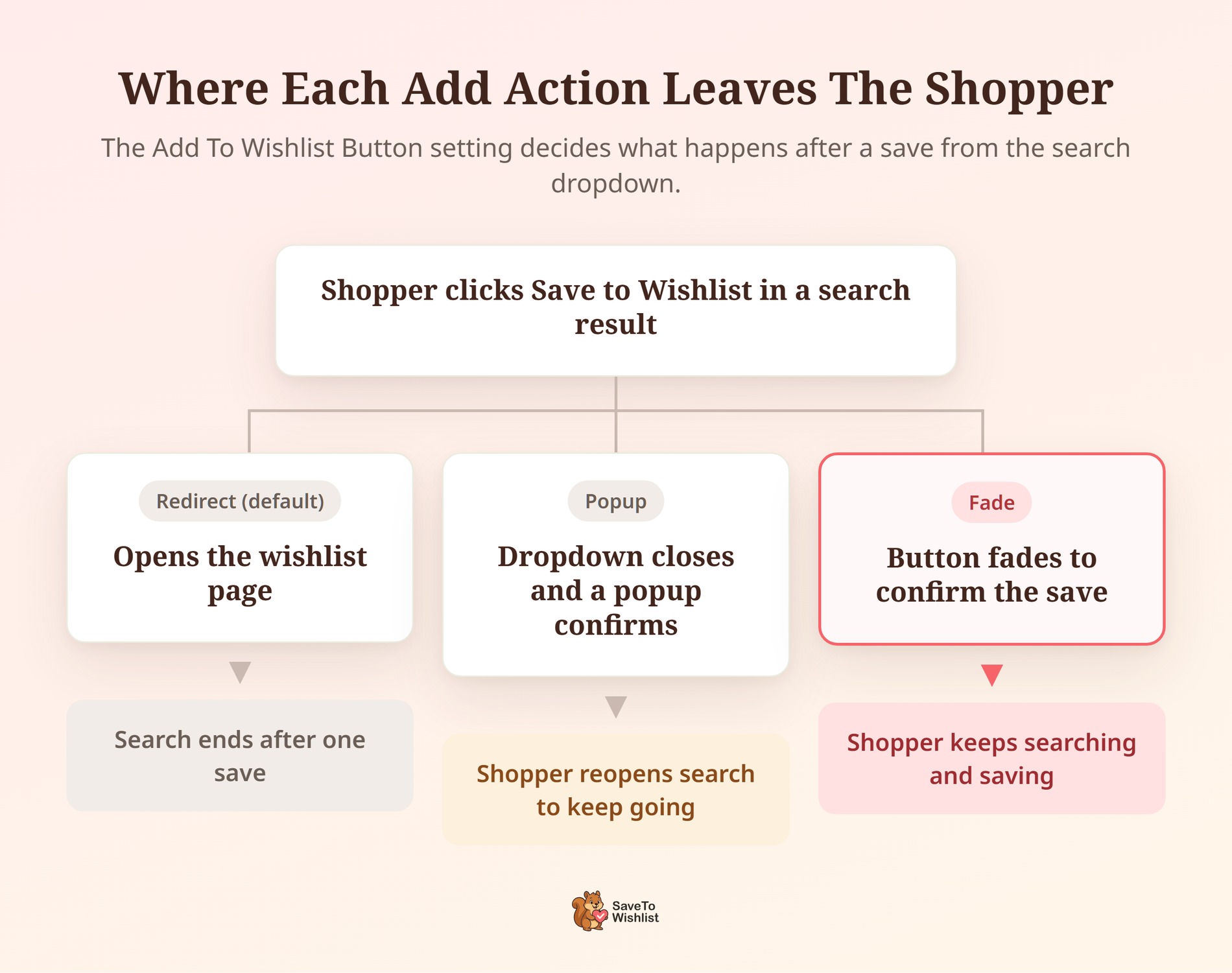
- Redirect: Sends the shopper to the wishlist page after each save. This is the default.
- Popup: Shows a confirmation popup. The search dropdown closes so the popup is easy to read.
- Fade: The button fades to confirm the save, and the shopper stays in the search.
Step 5: Decide whether guests can save
Finally, go to SaveTo Wishlist > Settings > Guest Options. If Disable Guest Wishlist is on, logged-out shoppers won’t see buttons in search. I’d leave guest saving on for most stores, and our guide to guest wishlists explains why.
Once these five settings are in place, the buttons appear in your WooCommerce live search dropdown with no extra code. The next step is checking that they work.
How To Check The Integration Is Working
Open the page with your search bar in a private window, then run these checks:
- Type a term that matches several products. Each product row should show exactly one wishlist button.
- Click a button. The product should save without opening the product page.
- Click away from the search field, then click back in. The saved product should show your saved label.
- Search for a made-up word, such as “zzqqxx”. The “No Result Found” row shouldn’t show a button.
- Log in as a test customer and save again. The product should appear on that customer’s wishlist page.
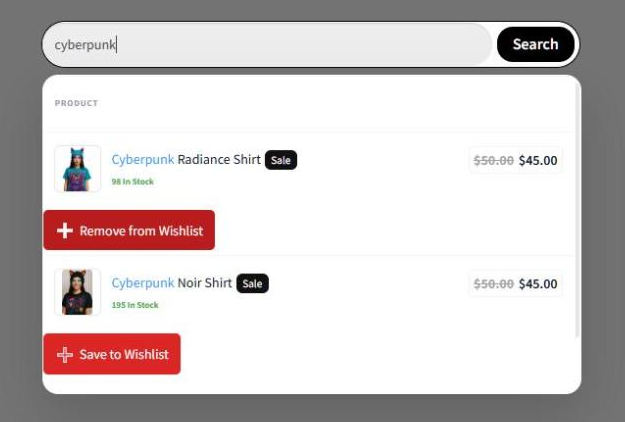
🔍️ What we’ve seen: In our testing, two settings hid the search buttons completely. One is a Shop Page Button Placement of “Don’t show”. The other is Disable Guest Wishlist, if you test while logged out. So if the buttons are missing, check those two first.
5 Ways To Get More From Wishlist Saves In Search
Adding the button is the first step. These five habits help turn search saves into sales.
Use Fade so shoppers keep searching
WooCommerce live search is often a comparison task. For example, a shopper buying a gift might search “mug”, save two, then search “candle”. Fade lets them save and keep going. Redirect takes them out of search after every save, which breaks that flow.
🔍️ What we’ve seen: Redirect is the default add action, and it applies to search too. In our test runs, each save from the dropdown sent us straight to the wishlist page. That suits product pages, but Fade fits search better if your shoppers compare products.
Pick a compact button style
Search rows are narrow, and they already hold a thumbnail, title and price. That’s why a long text button can crowd them. In the Shop Page section, choose Custom Settings as the Configuration Mode. Then try a Button Style such as “Icon Only” or “Minimal Icon”.
Keep in mind that this changes your shop grid buttons too, since search uses the same settings. Check both places after you switch.
Keep guest saving on and invite sign-ups
Some of your searchers won’t be logged in, especially on a first visit. Let them save first, then invite them to create an account. SaveTo Wishlist can show a login link on the guest wishlist. That way, guests can sign in without losing their saves.
Turn saves into follow-up emails
A product saved from search is a clear signal of interest. You can pair it with wishlist email marketing, such as reminder emails about saved items. Those emails reach people who already told you what they want.
Cover the rest of your search journey
WooCommerce live search is one way shoppers find products. If you also use filter pages, SaveTo Wishlist has a Search & Filter integration for those results. Together, they give shoppers a save button in more of the places they look for products.
Start with Fade and a compact style, since both take a minute in settings. Then add the email follow-ups once saves start coming in.
The Limits Worth Knowing
The integration works inside the dropdown that Advance Product Search builds. That design shapes a few limits:
- Mouse and touch only: The dropdown closes when the search field loses focus. As a result, the Tab key can’t reach the button. Arrow keys still move through the results as before.
- Sticky footer overlap: Advance Product Search keeps its “See All Results” bar at the bottom of the dropdown. Until the shopper scrolls, it can sit over the lower rows and their buttons.
- Products only: Rows for posts, pages or categories don’t get a button, because only products can be saved.
- Dropdown only: The integration covers the live suggestions. The full results page behind “See All Results” isn’t part of it.
If you raise the Limit above 5, keep the sticky footer in mind. More rows means more of them start below the visible part of the dropdown. Rows past the 20th also won’t get a button, since the plugin stops at 20 per search.
Frequently Asked Questions
Do I need to turn on the Advance Product Search integration?
No. SaveTo Wishlist Lite 1.1.7 and later detect Advance Product Search automatically. The buttons appear as long as your Shop Page Button Placement isn’t set to “Don’t show”.
Do I need SaveTo Wishlist Pro for this?
No. The integration is part of the free SaveTo Wishlist Lite plugin. SaveTo Wishlist Pro runs on top of Lite, so Pro users get it as well.
Can guests save products from live search?
Yes. Logged-out shoppers see the buttons and can save products to a guest wishlist. However, if you turn on Disable Guest Wishlist, the search buttons are hidden from guests.

Ready To Add Wishlist Buttons To Your Live Search?
Shoppers who search already know what they want. With a wishlist button in the dropdown, “not yet” no longer has to mean “gone”.
- Install both plugins and place the search bar, then check your Shop Page button is on.
- Switch the add action to Fade if your shoppers compare products in search.
- Run the five checks in a private window and as a test customer.
- Follow up on search saves with wishlist emails.
Your WooCommerce live search is one free update away from wishlist buttons. Install or update SaveTo Wishlist Lite to version 1.1.7 to get started.



