

 Reviewed by
 Your WooCommerce reports tell you what sold. They don’t tell you what shoppers wanted but didn’t buy yet. That second list is often where your next sales are hiding.
Wishlist saves are that list. But until now, they sat in their own corner of your store, away from your traffic stats. So you’d check page views in one place and guess at demand in another.
The free SaveTo Wishlist Lite plugin now sends wishlist activity to Independent Analytics, the privacy-friendly analytics plugin for WordPress. Below, I’ll show you how to set it up and check it works. I’ll also share how to read the data and turn it into restocks, promotions and emails.
Jump to:
- Why Wishlist Data Belongs Next To Your Traffic Stats
- What The Independent Analytics Integration Does
- What You Need Before You Start
- How To Set Up Independent Analytics For Wishlist Tracking
- How To Check The Integration Is Working
- How To Read Wishlist Events In Your Reports
- 5 Ways To Turn Wishlist Analytics Into Sales
- Things To Know Before You Switch It On
- Frequently Asked Questions: Independent Analytics For WooCommerce
- Ready To See Wishlist Demand In Independent Analytics?
Why Wishlist Data Belongs Next To Your Traffic Stats
Most shoppers don’t buy on their first visit. Baymard Institute puts the average documented cart abandonment rate at 70.22%, based on 50 different studies. Its survey also found 42% of US shoppers left a cart while “just browsing / not ready to buy”.
Those shoppers still tell you something when they save a product. A save says “I want this, just not today”. It’s a demand signal that shows up before the order does.
Seen on its own, though, a save count is hard to judge. Twenty saves from 50 visits is a much stronger signal than twenty saves from 5,000 visits. You need the saves and the traffic side by side.
That’s where Independent Analytics fits. It keeps all its data in your own WordPress database. Its site says it uses no cookies and stores no personal data, so it doesn’t need a cookie consent popup. It also has 100,000+ active installs on WordPress.org.
What The Independent Analytics Integration Does

SaveTo Wishlist Lite 1.1.7 adds two things to your store once both plugins are active.
Wishlist events in your Independent Analytics reports
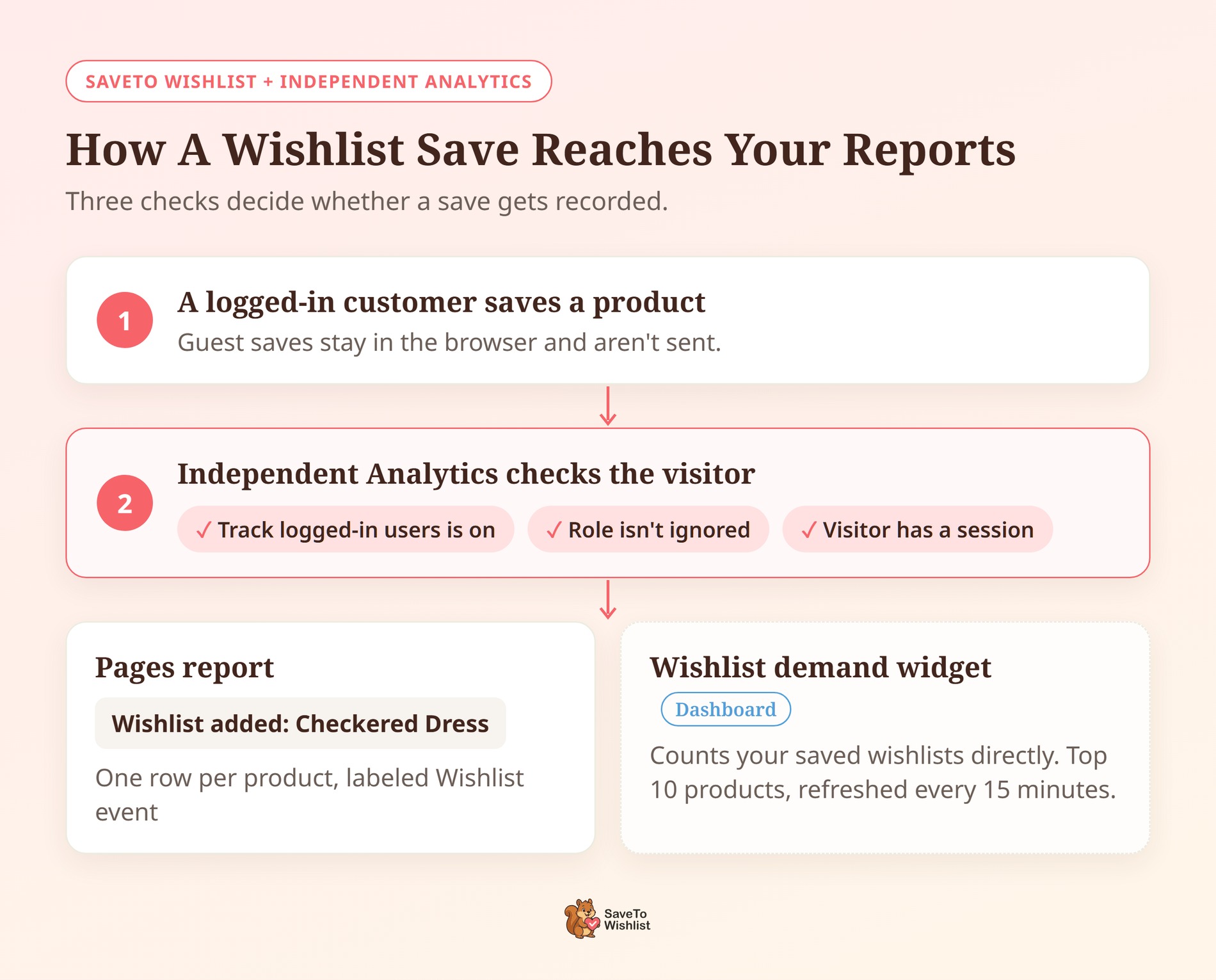
Each time a customer saves or removes a product, a row is recorded in Independent Analytics. The row is named after the product, so you’ll see titles like these:
- Wishlist added: Checkered Dress for a save.
- Wishlist removed: Cyberpunk Noir Shirt for a removal.
Each row links to the product page and carries the page type label Wishlist event. Saves of a variation count toward the parent product, so one product always has one row per event type.
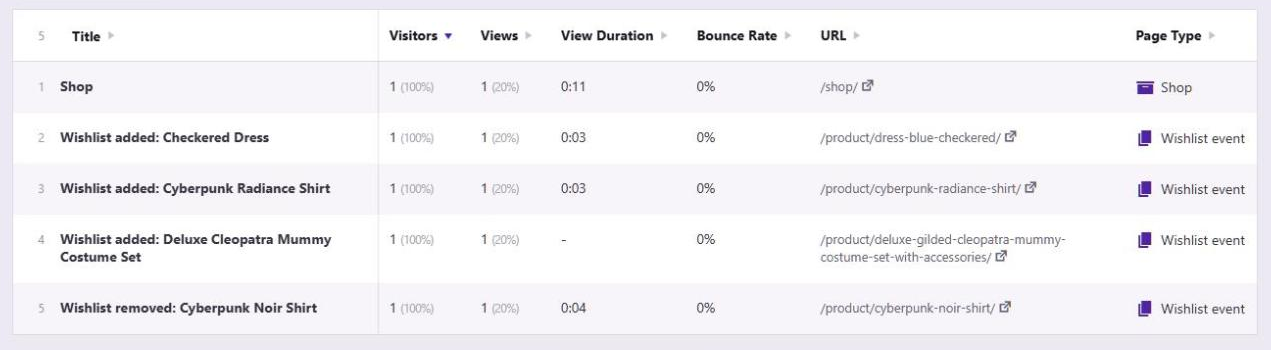
Here’s what counts as an event, based on the plugin code and its documentation:
- Recorded as a save: A customer clicks the wishlist button and the product is saved.
- Recorded as a removal: A customer removes a product from the wishlist button or the wishlist page. It also counts when the product leaves the wishlist automatically after being added to the cart.
- Not recorded: Removals on the admin Wishlists screen, saving a whole cart to a wishlist, and deleting a whole wishlist.
A wishlist demand widget on your dashboard
SaveTo Wishlist also adds a Wishlist demand widget to your WordPress Dashboard, next to Independent Analytics’ own widget. It lists the 10 products saved to the most wishlists, with the number of wishlists each one is on.
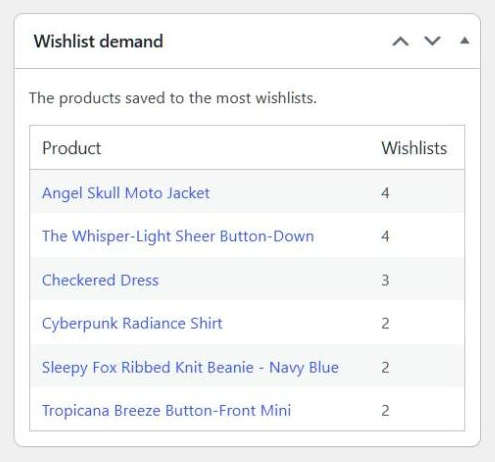
The list refreshes every 15 minutes, and only administrators and shop managers see it. If you run SaveTo Wishlist Pro, the widget reuses Pro’s most popular products data instead of counting again.
What You Need Before You Start
You need two free plugins:
- SaveTo Wishlist Lite, version 1.1.7 or later: The integration ships in the free plugin. SaveTo Wishlist Pro runs on top of Lite, so Pro users get it too.
- Independent Analytics: The free Independent Analytics plugin by Independent WP. You don’t need its Pro version for wishlist events.
Our team tested the integration with Independent Analytics 2.15.5, the current version at the time of writing. There’s no setting to switch on in SaveTo Wishlist. The integration starts as soon as both plugins are active.
How To Set Up Independent Analytics For Wishlist Tracking
The setup takes three steps. The second one matters most, because Independent Analytics ships with it turned off.
Step 1: Install both plugins
Go to Plugins > Installed Plugins and update SaveTo Wishlist Lite to 1.1.7 or later. Then go to Plugins > Add New Plugin, search for “Independent Analytics”, and install and activate it.
Independent Analytics starts tracking visitors as soon as it’s active. You’ll find its reports and settings under the Analytics menu.
Step 2: Turn on tracking for logged-in users
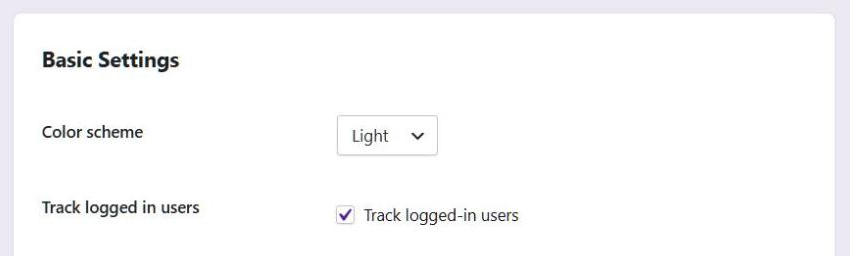
Go to Analytics > Settings and check the Track logged-in users box. Then click Save Settings.
This step is required. Independent Analytics skips logged-in visitors by default, and wishlist events come from logged-in customers. With the box unchecked, nothing is recorded.
Step 3: Check which user roles are ignored
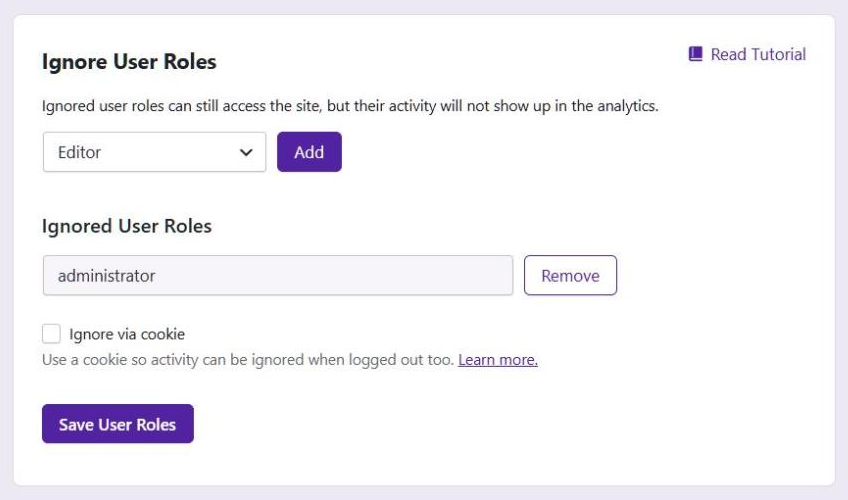
On the same Settings screen, find the Ignore User Roles section. Independent Analytics blocks the Administrator role by default, which is what you want.
Just make sure the Customer role isn’t on the ignore list. If it is, your shoppers’ wishlist activity is skipped too.
How To Check The Integration Is Working
Testing takes about two minutes. Use a test customer account, not your admin account:
- Log in to your store as a test customer and visit a couple of product pages.
- Click the wishlist button on one product.
- Then remove that product from your wishlist page.
- Go to Analytics and open the Pages report for today.
- Look for a “Wishlist added” row and a “Wishlist removed” row, each named after the product.
🔍️ What we’ve seen: An empty report is easy to get if you test as an administrator. Independent Analytics ignores admins, so their saves never show up. Log in as a customer instead, and browse a page or two before you save.
Also, a save only records once Independent Analytics has seen that visitor in the current session. So a shopper who browses a page or two and then saves is counted.
How To Read Wishlist Events In Your Reports
Wishlist events sit in the Pages report alongside your normal pages. A few habits make them easier to read.
Filter to wishlist rows only
Add a Title filter for “Wishlist added” to the Pages report. That gives you a clean list of your most saved products for any date range you pick.
Once the report looks right, save it. Then you can reopen your wishlist view in one click next time.
Read Visitors, not Views
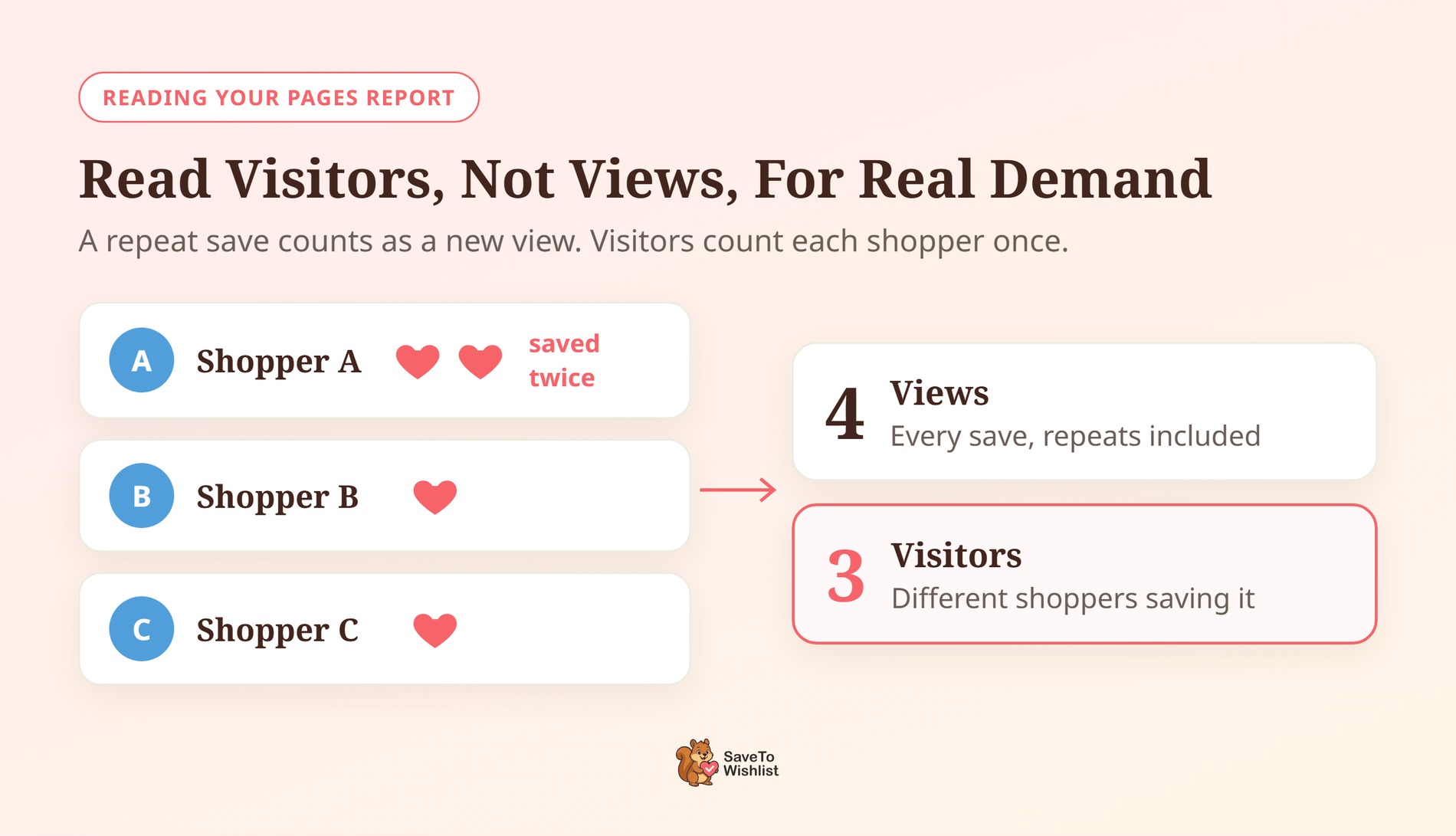
Saving a product that’s already on the wishlist counts as a new event. So Views can run higher than real demand. The Visitors column tells you how many different shoppers saved a product.
Compare saves to product page traffic
Your product pages are in the same report. Put a product’s “Wishlist added” visitors next to its product page visitors. That gives you a rough save rate, which is easier to compare across products than a raw count.
5 Ways To Turn Wishlist Analytics Into Sales
Wishlist data is only useful if you act on it. These five habits help you do that.
Restock what shoppers keep saving
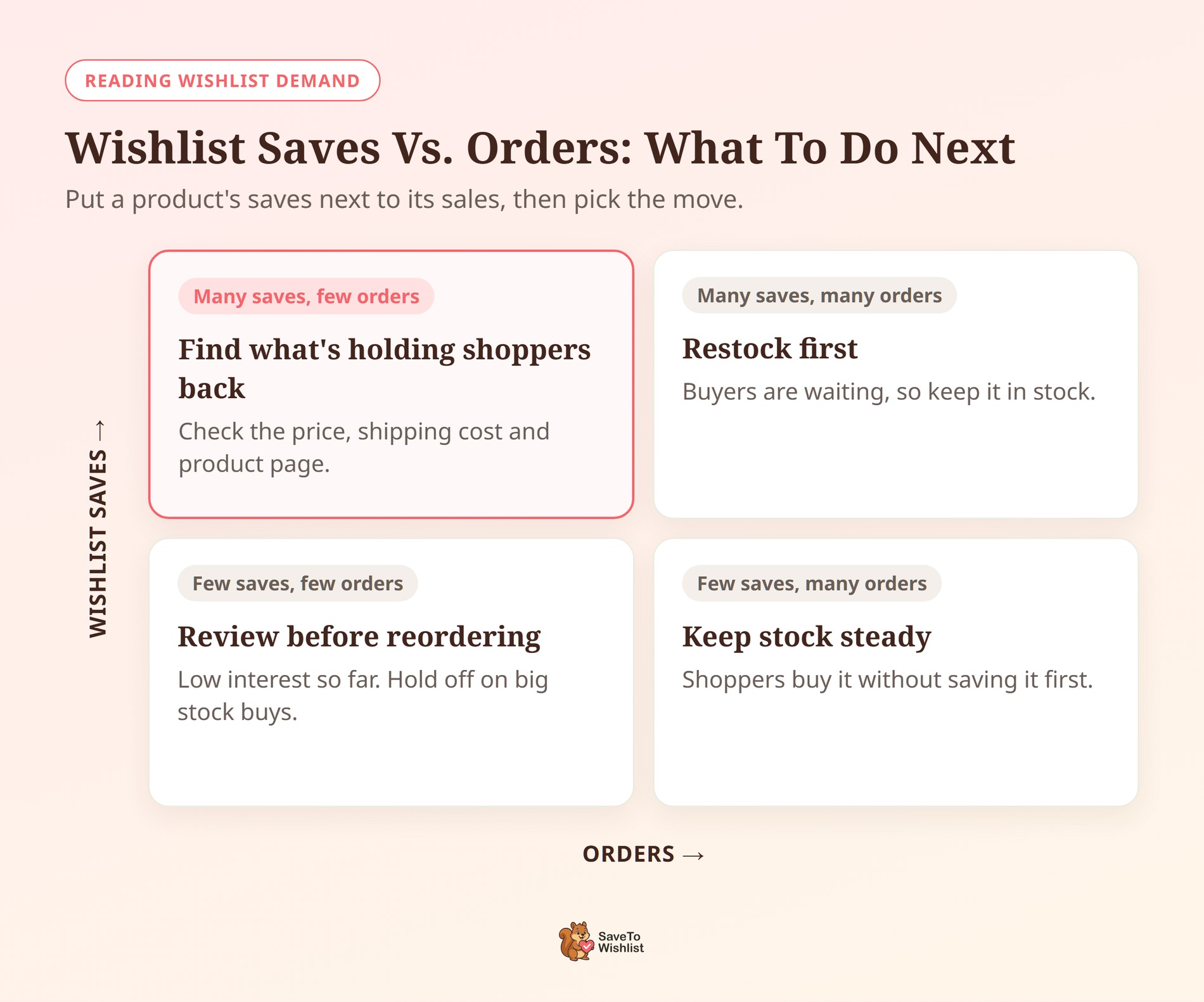
Check the Wishlist demand widget each time you plan a reorder. A product near the top of that list has buyers waiting. Keeping it in stock means those shoppers can buy when they’re ready.
Spot high-interest products with low sales
Look for products with a high save rate but few orders. Shoppers like them, but something holds them back. It could be the price, shipping cost, or a product page that leaves questions unanswered.
Independent Analytics can’t tell you which saves turned into orders. For that, SaveTo Wishlist Pro’s advanced wishlist analytics tracks how wishlist saves turn into orders.
Time your promotions with save trends
Compare this month’s “Wishlist added” rows with last month’s. A product with rising saves is a strong pick for your next sale or a featured spot. With Black Friday close, it’s a quick way to choose your headline deals.
Follow up on saved products by email
Once you know which products are saved most, build your wishlist email marketing around them. A price drop or back-in-stock note about a product someone saved is a relevant email to send.
Read removals in context
A removal isn’t always lost interest. SaveTo Wishlist’s Auto Remove Product setting is on by default. It takes a product off the wishlist once it’s added to the cart. So a removal can mean a shopper is getting ready to buy.
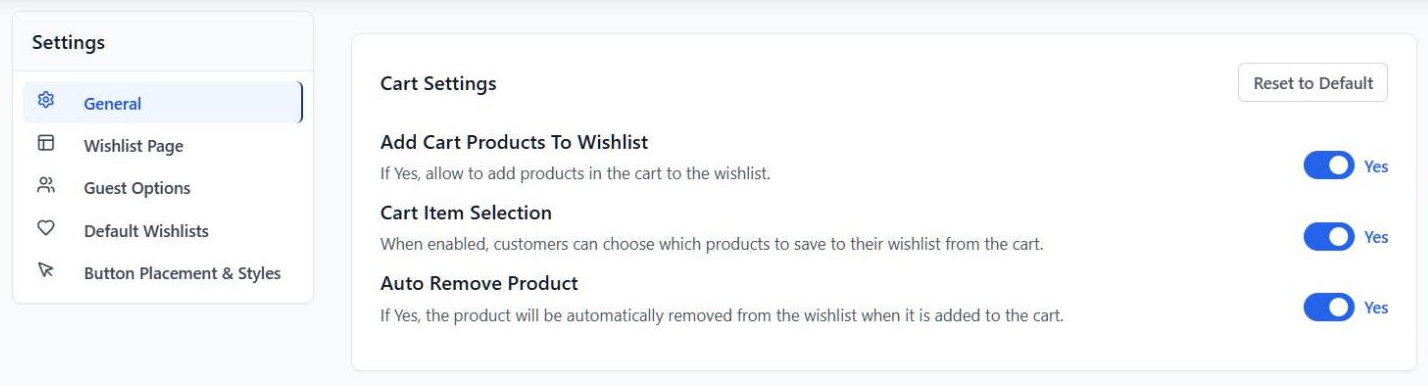
🔍️ What we’ve seen: It’s tempting to read a long “Wishlist removed” list as bad news. Check the matching product’s sales before you change anything. Many of those removals are shoppers moving the product into their cart.
Things To Know Before You Switch It On
A few details are worth knowing so your numbers don’t surprise you:
- Logged-in customers only: In the free plugin, a guest’s wishlist lives in their browser until they log in. So guest saves aren’t sent to Independent Analytics. A login link on the guest wishlist helps more shoppers sign in.
- Events count as views: Independent Analytics records each event as a page view. So it adds one view to your totals. It can also show as the session’s exit page. Independent Analytics’ own checkout event works the same way.
- Repeat saves count again: Use the Visitors column for unique demand.
- Past events stay put: If you remove SaveTo Wishlist, its past events stay in Independent Analytics. The plugin doesn’t delete another plugin’s data.
The integration also fails safely. If a future Independent Analytics update changes how it stores data, wishlist events stop recording. Your wishlist buttons keep working either way.
Frequently Asked Questions: Independent Analytics For WooCommerce
Do I need SaveTo Wishlist Pro for the Independent Analytics integration?
No. The integration is part of the free SaveTo Wishlist Lite plugin, version 1.1.7 or later. SaveTo Wishlist Pro runs on top of Lite, so Pro users get it too.
Do I need Independent Analytics Pro?
No. Wishlist events show up in the Pages report of the free Independent Analytics plugin. The Wishlist demand widget is added by SaveTo Wishlist and appears on the WordPress Dashboard.
Why don’t I see any wishlist events in Independent Analytics?
Check that Track logged-in users is on under Analytics > Settings. Then test as a customer, not an administrator, because Independent Analytics ignores admins by default.
Are guest wishlist saves tracked?
No. In the free plugin, guest wishlists are stored in the shopper’s browser until they log in. Only saves and removals by logged-in customers are recorded.
Will wishlist events change my page view totals?
Yes, slightly. Each event is recorded as one view, the same way Independent Analytics records its own checkout event. Every wishlist row is labeled “Wishlist added” or “Wishlist removed”, so they’re easy to spot.

Ready To See Wishlist Demand In Independent Analytics?
Wishlist saves show you demand before it turns into orders. With this integration, that demand sits next to the rest of your traffic.
- Install both plugins and turn on Track logged-in users.
- Test as a customer, not as an admin.
- Read Visitors, not Views, for unique demand.
- Use the Wishlist demand widget to plan restocks and promotions.
Your Independent Analytics dashboard is one free update away from wishlist tracking. Install or update SaveTo Wishlist Lite to version 1.1.7 to get started.



