
Do you use Advance Product Search by ThemeHunk to give shoppers instant search results as they type? Then you probably want them to save products to their wishlist right from those suggestions, without opening each product first. SaveTo Wishlist does this for you out of the box. This guide shows you how it works and which settings control it.
What you’ll need
- SaveTo Wishlist version 1.1.7 or newer, installed and active. Advance Product Search support is built into the free plugin, so you don’t need Premium.
- The Advance Product Search plugin by ThemeHunk, installed and active. On WordPress.org it’s listed as “Advance Product Search- Voice & Ajax Search for WooCommerce”.
- An Advance Product Search box on your store that shows product suggestions as you type.
- The wishlist button turned on for your shop pages. It’s on by default.
How it works
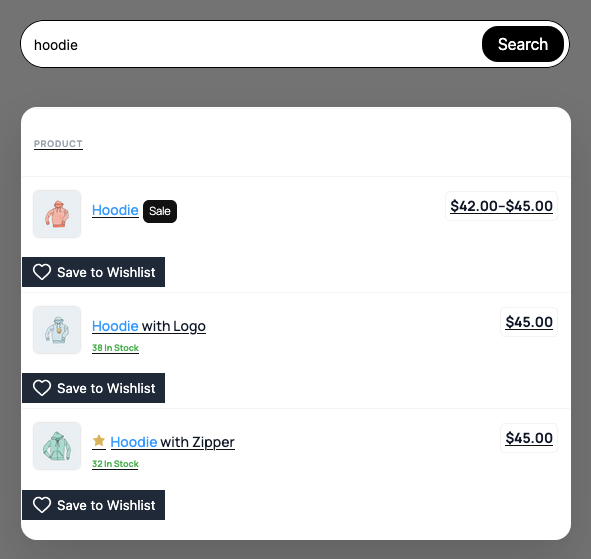
Once both plugins are active, there’s nothing to switch on. When a customer types in the Advance Product Search box, SaveTo Wishlist adds a wishlist button under each product in the live search suggestions. Shoppers can save a product straight from the dropdown, without opening the product page first.
The button only shows on product suggestions. Other kinds of suggestions in the dropdown, such as categories, don’t get a button. Category suggestions only show if you turn on Show Category in Advance Product Search. It’s off by default.
What happens after the click depends on your Add to wishlist button setting. The FAQ below explains each option.
The button in the suggestions follows your Shop Page button settings. It uses the same style and colors as the wishlist button on your shop and category pages, so it matches the rest of your store.
Set it up
Install the Advance Product Search plugin
- Go to Plugins, then Add New Plugin.
- Search for Advance Product Search.
- Install and activate the plugin by ThemeHunk.
- Add the search box to your store, following ThemeHunk’s setup guide for Advance Product Search.
Check the wishlist button is turned on
- Go to SaveTo Wishlist, then Settings.
- Open the Button Placement & Styles tab.
- Open the Shop Page section.
- Make sure Button Placement is set to a visible option, not Don’t show.
- Click Save Changes.
Any of the placement options work. In the search suggestions, the button always shows under the product, whichever placement you pick. The placement you choose only moves the button on your shop and category pages.
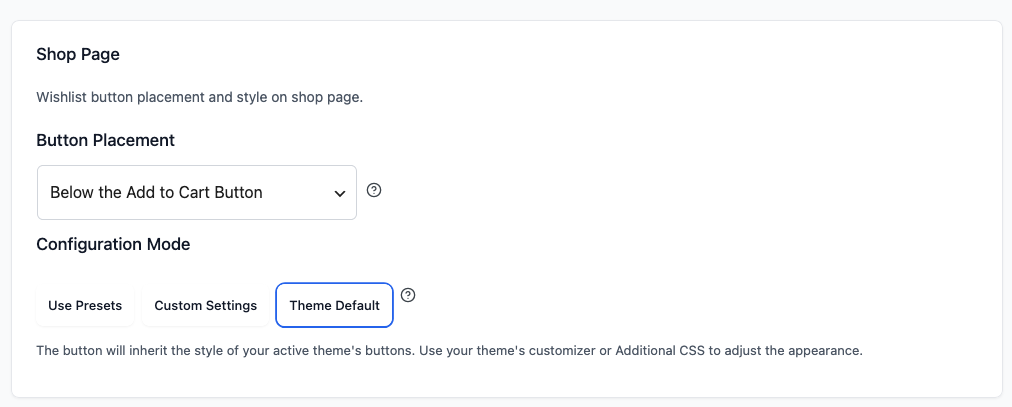
To change how the button looks in the suggestions, pick a Configuration Mode in the same Shop Page section. Use Presets shows the Style Presets to choose from, Custom Settings lets you set your own style, and Theme Default uses your theme’s button style. Click Save Changes when you’re done. Your changes apply to the shop pages and the search suggestions together.
Decide whether guests can save from search
Logged-out visitors see the wishlist button in the suggestions by default. If you only want logged-in customers to use wishlists:
- Go to SaveTo Wishlist, then Settings.
- Open the Guest Options tab.
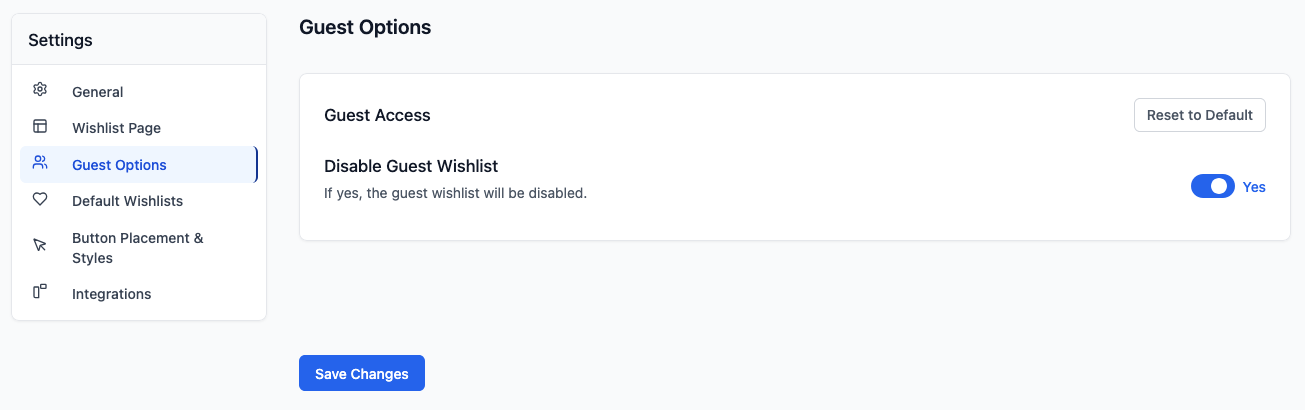
- In the Guest Access section, turn on Disable Guest Wishlist. The switch shows Yes when it’s on.
- Click Save Changes.
Logged-out visitors then don’t see the wishlist button in the search suggestions. Logged-in customers still do.
Try it on your store
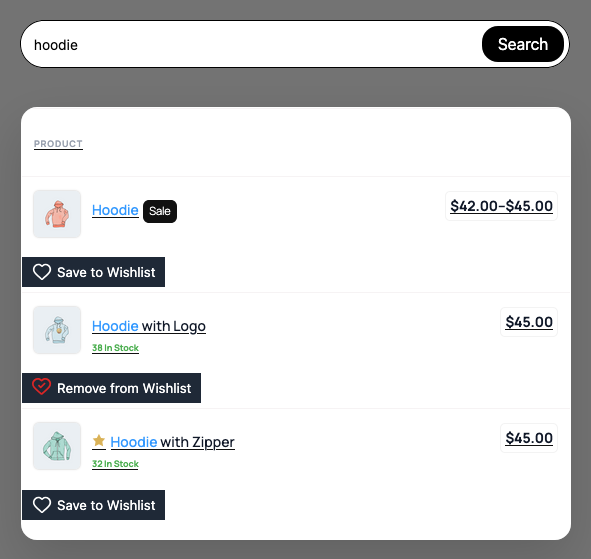
Open your store, click into the Advance Product Search box, and type a product name. The wishlist button shows under each product in the suggestions. Click it to save the product.
With Add to wishlist button set to Fade, the dropdown stays open, a short Added to [wishlist name] message shows next to the button, and the button changes to Remove from Wishlist. With the other options, the shopper sees a confirmation or goes to the wishlist page. The next time they search, products they saved show Remove from Wishlist.
Remove from Wishlist is the default text of the Selected Wishlist Button Label setting. To change it, go to SaveTo Wishlist > Settings > Button Placement & Styles > Button Settings, enter your own text, and click Save Changes.
Troubleshooting
The wishlist button isn’t showing in the search suggestions
Go to SaveTo Wishlist > Settings > Button Placement & Styles > Shop Page and check Button Placement. If it’s set to Don’t show, choose one of the placement options and click Save Changes. The search suggestions follow this setting, so Don’t show hides the button there too.
Logged-in customers see the button, but guests don’t
Go to SaveTo Wishlist > Settings > Guest Options and check Disable Guest Wishlist. When it’s set to Yes, only logged-in customers see the button. To show it to guests too, turn it off and click Save Changes.
Some products in a long suggestions list don’t have a button
SaveTo Wishlist adds the button to the first 20 products in each list of suggestions. Advance Product Search shows 5 suggestions by default, so this only happens if you raised its limit above 20. To lower it:
- Go to ThemeHunk > Advance Search.
- Open the Advance Setting tab.
- In Search Autocomplete Settings, set Limit to 20 or less.
- Click Save All Changes.
If Show Category is on, the Limit applies to category suggestions and product suggestions separately. Category suggestions don’t reduce the number of product suggestions.
Some suggestions have no button at all
That’s expected for anything that isn’t a product. Category and other non-product suggestions don’t get a wishlist button. Category suggestions come from the Show Category setting under ThemeHunk > Advance Search > Advance Setting > Search Category.
Frequently asked questions
Do I need SaveTo Wishlist Premium?
No. Advance Product Search support is part of the free SaveTo Wishlist plugin, version 1.1.7 and newer.
Do I need to turn anything on?
No. SaveTo Wishlist detects Advance Product Search on its own. As long as the wishlist button is turned on for your shop pages, it shows in the search suggestions.
Does clicking the wishlist button open the product page?
No. The button shows under the product row, outside the product link, so clicking it saves the product instead of opening the product page.
What happens after a shopper clicks the button?
It depends on Add to wishlist button, under SaveTo Wishlist > Settings > General > Wishlist Action:
- Redirect (the default): logged-in customers go to their wishlist page. Guests see the Product Added to Wishlist confirmation with a View Wishlist button.
- Popup: everyone sees the Product Added to Wishlist confirmation.
- Fade: no confirmation box opens. A short Added to [wishlist name] message shows next to the button, and the shopper stays in the search suggestions.
When the confirmation opens, SaveTo Wishlist closes the search suggestions so the confirmation isn’t hidden behind the dropdown.
Does the button show the right state after a customer saves a product?
Yes. After a customer adds or removes a product, the next search loads fresh suggestions. Products they already saved show Remove from Wishlist.
Need help?
If you have a question or run into any issues, we’re here to help.
- Premium users: Open a support ticket
- Free users: Visit our community forum

