
Using ThemeHunk’s Advance Side Cart slide-out cart on your store? SaveTo Wishlist adds two buttons to each item in the side cart drawer, so customers can save a product for later or move it out of the cart and onto their wishlist without leaving the page. This guide shows you how it works and how to turn it on or off.
Before you start
- SaveTo Wishlist Lite version 1.1.7 or higher.
- ThemeHunk’s Advance Side Cart plugin installed and active. On WordPress.org it’s listed as Advance Side Cart, Ajax Cart & Floating Cart for WooCommerce. In your Plugins list it shows as All In One Advance Cart.
There’s nothing to set up. The buttons show in the side cart drawer automatically. They’re on by default.
How it works
When both plugins are active, SaveTo Wishlist adds two buttons to each line item in the Advance Side Cart drawer:
Save to Wishlist (or your own button label) adds the product to the wishlist and leaves it in the cart. It uses your Wishlist Button Label and the styles you set for the product page button.
Move to wishlist adds the product to the wishlist, then removes that line from the cart. The drawer, item count, and totals update right away. The item only comes out of the cart after it’s safely on the wishlist. If the save fails, the item stays in the cart.
The Move to wishlist button doesn’t use your SaveTo Wishlist button styles. It shows as a plain button in your theme’s default style.
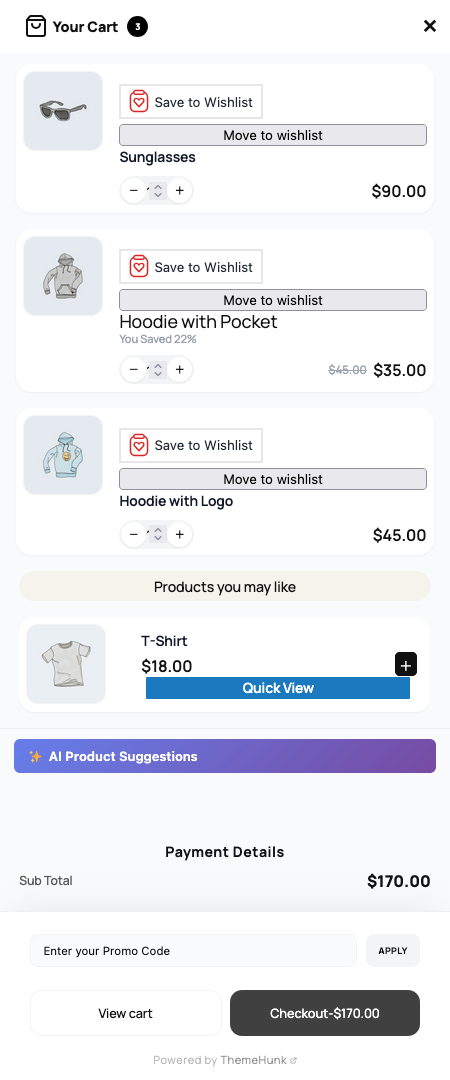
If a cart item is a variation, like a red T-shirt in size M, the exact variation is saved to the wishlist.
The buttons only appear in the Advance Side Cart drawer. They don’t show in the standard WooCommerce mini-cart widget or in your theme’s own mini-cart.
Logged-in customers and guests
For logged-in customers, Move to wishlist adds the product to their default wishlist. If the product is already on that wishlist, it isn’t added a second time, and the item is still removed from the cart.
Guests can use both buttons too, as long as guest wishlists are turned on. Their saved items are kept in their browser, the same as when they use the wishlist button anywhere else on your store.
If you’ve set Disable Guest Wishlist to Yes under SaveTo Wishlist > Settings > Guest Options, guests won’t see the buttons in the drawer. Logged-in customers still will. To learn more, see How to configure guest wishlist options in SaveTo Wishlist.
Turn the buttons on or off
The buttons are shown in the side cart drawer by default. To change that:
- Go to SaveTo Wishlist > Settings and open the Button Placement & Styles tab.
- In the Button Settings section, find Show in ThemeHunk Advance Side Cart. It’s the last setting in that section.
- Turn the switch on (Yes) to show the buttons, or off (No) to hide them.
- Click Save Changes.
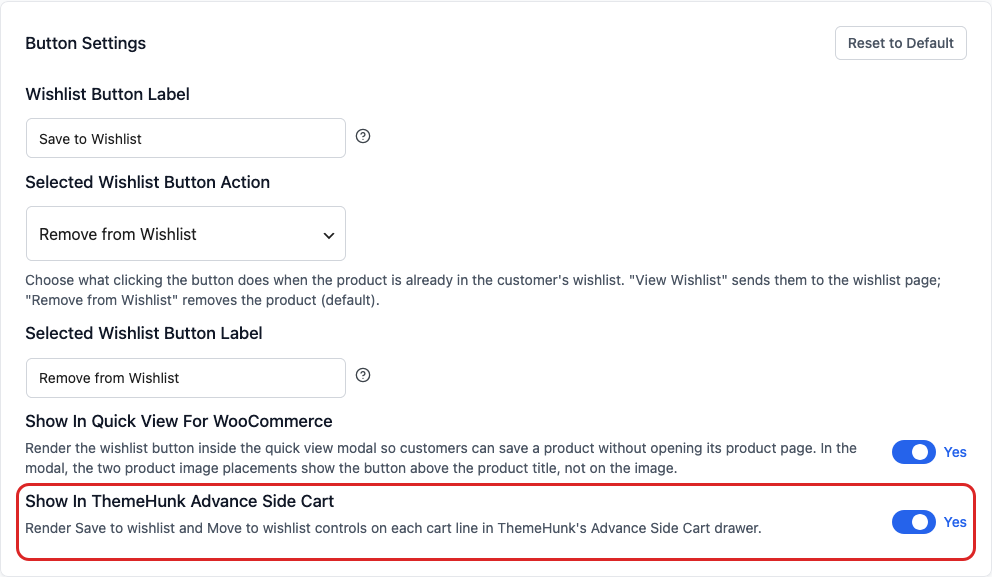
This one setting controls both buttons. You’ll only see it while the Advance Side Cart plugin is active.
Troubleshooting
The Show in ThemeHunk Advance Side Cart setting is missing
Activate the Advance Side Cart plugin, then reload the Button Placement & Styles tab. Also check that SaveTo Wishlist Lite is on version 1.1.7 or higher. The setting only appears in Button Settings while the ThemeHunk plugin is active.
The buttons don’t show in the side cart drawer
- Check that Show in ThemeHunk Advance Side Cart is set to Yes, and that you clicked Save Changes after changing it.
- If only guests can’t see the buttons, check Disable Guest Wishlist under SaveTo Wishlist > Settings > Guest Options. When it’s set to Yes, the buttons are hidden for guests.
- Open the cart from the Advance Side Cart drawer. The buttons don’t show in the standard WooCommerce mini-cart widget or in your theme’s own mini-cart.
Move to wishlist leaves the item in the cart
Click Move to wishlist again. The item only leaves the cart after it’s saved to the wishlist, so if the save doesn’t go through, the item stays in the cart on purpose. For guests, check that guest wishlists are turned on and that the browser allows sites to store data.
Frequently asked questions
What’s the difference between Save to Wishlist and Move to wishlist?
Save keeps the item in the cart. Move saves it and takes it out of the cart, which is handy when a customer wants to buy something later but not right now.
Can I change the Move to wishlist label?
Not from the settings. The Save button uses your Wishlist Button Label, but the Move to wishlist label is fixed.
Can customers save single items from the regular cart page too?
Yes, for logged-in customers. Turn on Cart item selection under SaveTo Wishlist > Settings > General. Add cart products to wishlist must also be set to Yes. To learn more, see How to save individual cart items to a wishlist.
Need help?
If you have a question or run into any issues, we’re here to help.
- Premium users: Open a support ticket
- Free users: Visit our community forum

